Category: Uncategorized

  • Environment Setup

    We already have set up TypeScript programming online, so that you can execute all the available examples online at the same time when you are doing your theory work. This gives you confidence in what you are reading and to check the result with different options. Feel free to modify any example and execute it online.

    var message:string="Hello World"console.log(message)

    On compiling, it will generate following JavaScript code.

    var message ="Hello World";console.log(message);

    In this chapter, we will discuss how to install TypeScript on Windows platform. We will also explain how to install the Brackets IDE.

    You may test your scripts online by using The TypeScript at www.typescriptlang.org/Playground. The online editor shows the corresponding JavaScript emitted by the compiler.
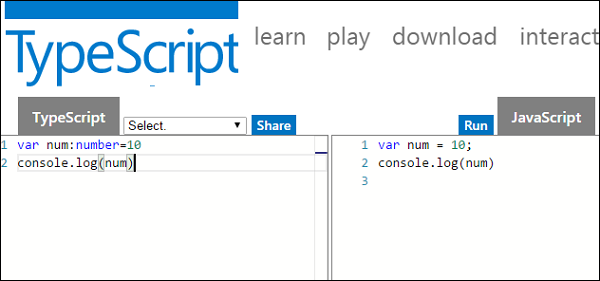
    TypeScript Online Test

    You may try the following example using Playground.

    var num:number=12console.log(num)

    On compiling , it will generate following JavaScript code.

    var num =12;console.log(num);

    The output of the above program is given below −

    12
    

    Local Environment Setup

    Typescript is an Open Source technology. It can run on any browser, any host, and any OS. You will need the following tools to write and test a Typescript program −

    A Text Editor

    The text editor helps you to write your source code. Examples of a few editors include Windows Notepad, Notepad++, Emacs, vim or vi, etc. Editors used may vary with Operating Systems.

    The source files are typically named with the extension .ts

    The TypeScript Compiler

    The TypeScript compiler is itself a .ts file compiled down to JavaScript (.js) file. The TSC (TypeScript Compiler) is a source-to-source compiler (transcompiler / transpiler).
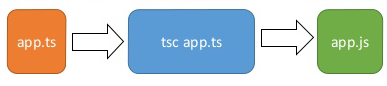
    TypeScript Compiler

    The TSC generates a JavaScript version of the .ts file passed to it. In other words, the TSC produces an equivalent JavaScript source code from the Typescript file given as an input to it. This process is termed as transpilation.

    However, the compiler rejects any raw JavaScript file passed to it. The compiler deals with only .ts or .d.ts files.

    This TypeScript tutorial is based on the latest typescript 5.5.2 version.

    Installing Node.js

    Node.js is an open source, cross-platform runtime environment for server-side JavaScript. Node.js is required to run JavaScript without a browser support. It uses Google V8 JavaScript engine to execute code. You may download Node.js source code or a pre-built installer for your platform. Node is available here − https://nodejs.org/en/download

    Installation on Windows

    Follow the steps given below to install Node.js in Windows environment.

    Step 1 − Download and run the .msi installer for Node.
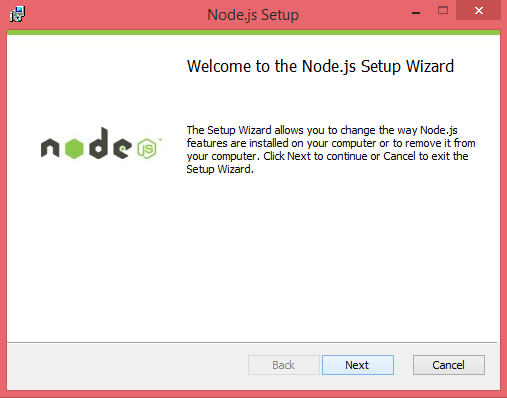
    Download and Run Installer

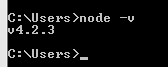
    Step 2 − To verify if the installation was successful, enter the command node v in the terminal window.
    Verify Installation

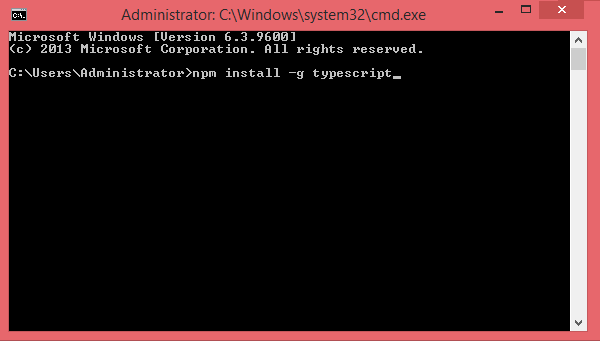
    Step 3 − Type the following command in the terminal window to install TypeScript.

    npm install -g typescript
    
    Install TypeScript

    Installation on Mac OS X

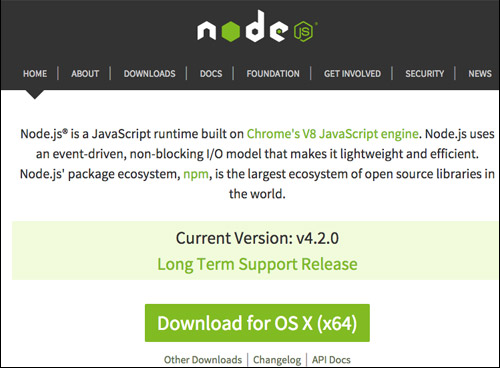
    To install node.js on Mac OS X, you can download a pre-compiled binary package which makes a nice and easy installation. Head over to http://nodejs.org/ and click the install button to download the latest package.
    Download Latest Package

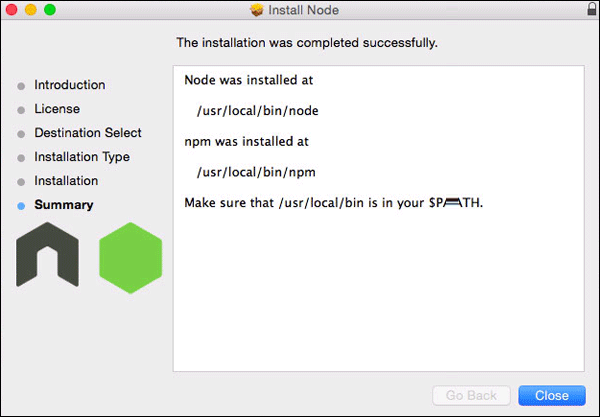
    Install the package from the .dmg by following the install wizard which will install both node and npm. npm is Node Package Manager which facilitates installation of additional packages for node.js.
    Install Node

    Installation on Linux

    You need to install a number of dependencies before you can install Node.js and NPM.

    • Ruby and GCC. Youll need Ruby 1.8.6 or newer and GCC 4.2 or newer.
    • Homebrew. Homebrew is a package manager originally designed for Mac, but its been ported to Linux as Linuxbrew. You can learn more about Homebrew at http://brew.sh/ and Linuxbrew at http://brew.sh/linuxbrew

    Once these dependencies are installed, you may install Node.js by using the following command on the terminal −

    brew install node.
    

    IDE Support

    Typescript can be built on a plethora of development environments like Visual Studio, Sublime Text 2, WebStorm/PHPStorm, Eclipse, Brackets, etc. Visual Studio Code and Brackets IDEs are discussed here. The development environment used here is Visual Studio Code (Windows platform).

    Visual Studio Code

    This is an open source IDE from Visual Studio. It is available for Mac OS X, Linux and Windows platforms. VScode is available at − https://code.visualstudio.com/

    Installation on Windows

    Step 1 − Download Visual Studio Code for Windows.
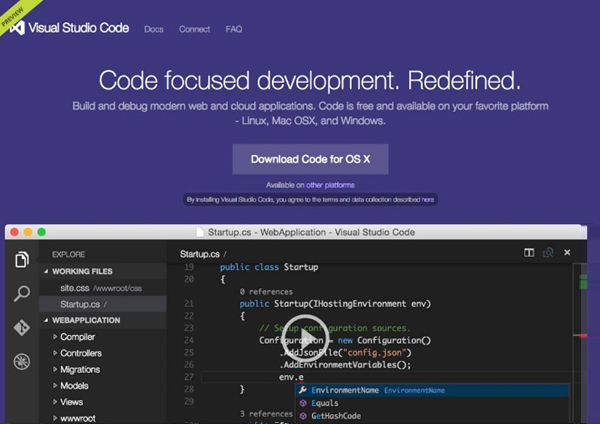
    Download Visual Studio Code

    Step 2 − Double-click on VSCodeSetup.exe Launch Setup Process to launch the setup process. This will only take a minute.
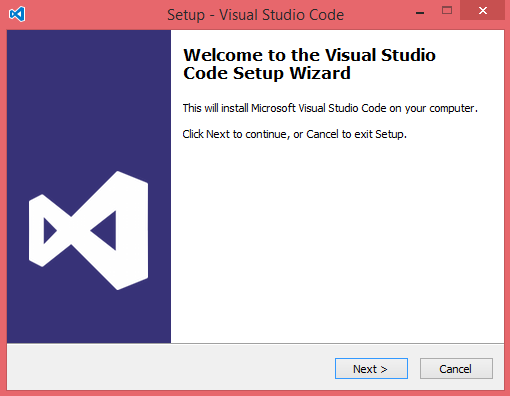
    Setup Wizard

    Step 3 − A screenshot of the IDE is given below.
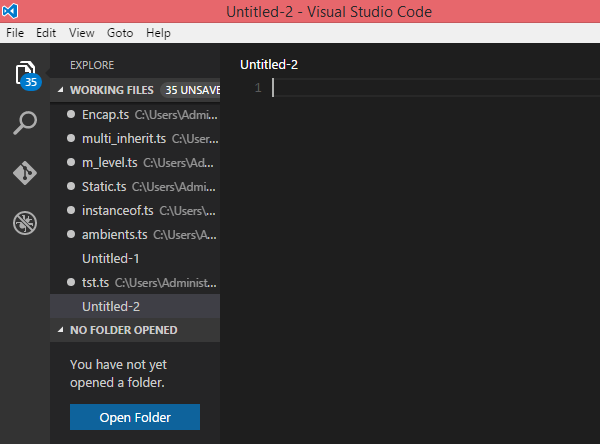
    IDE

    Step 4 − You may directly traverse to the files path by right clicking on the file → open in command prompt. Similarly, the Reveal in Explorer option shows the file in the File Explorer.
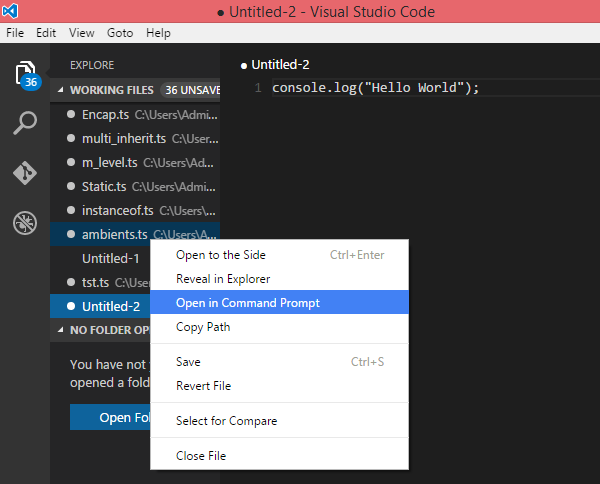
    Traverse Files Path

    Installation on Mac OS X

    Visual Studio Codes Mac OS X specific installation guide can be found at

    https://code.visualstudio.com/Docs/editor/setup

    Installation on Linux

    Linux specific installation guide for Visual Studio Code can be found at

    https://code.visualstudio.com/Docs/editor/setup

    Brackets

    Brackets is a free open-source editor for web development, created by Adobe Systems. It is available for Linux, Windows and Mac OS X. Brackets is available at http://brackets.io/
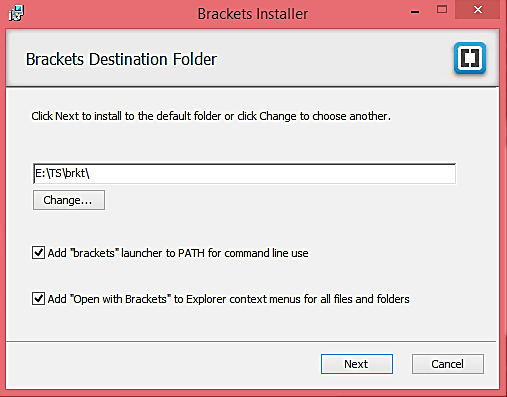
    Brackets

    TypeScript Extensions for Brackets

    Brackets supports extensions for adding extra functionality via the Extension Manager. The following steps explain installing TypeScript extensions using the same.

    • Post installation, click on the extension manager icon Extension Manager on the right-hand side of the editor. Enter typescript in the search box.
    • Install the Brackets TSLint and Brackets TypeScript plugins.
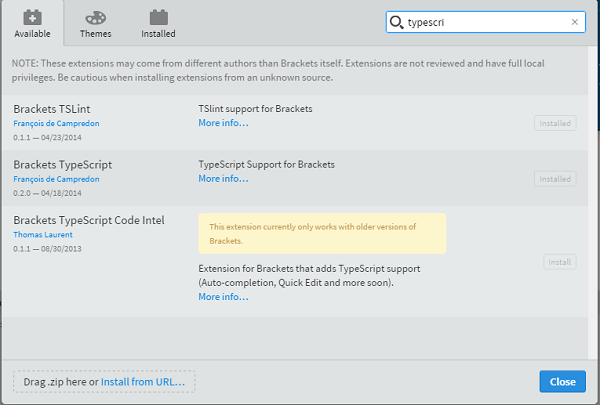
    TypeScript Extensions

    You can run DOS prompt / shell within Brackets itself by adding one more extension Brackets Shell.
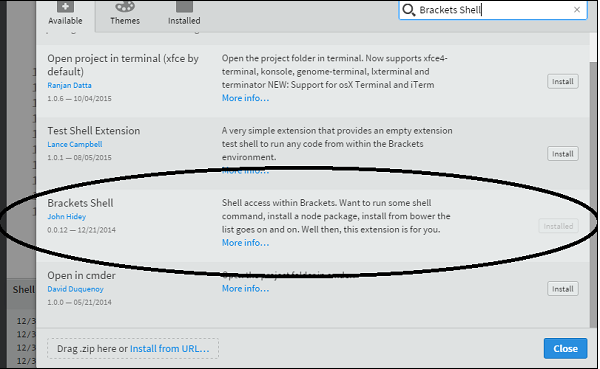
    Brackets Shell

    Upon installation, you will find an icon of shell on the right-hand side of the editor Shell. Once you click on the icon, you will see the shell window as shown below −
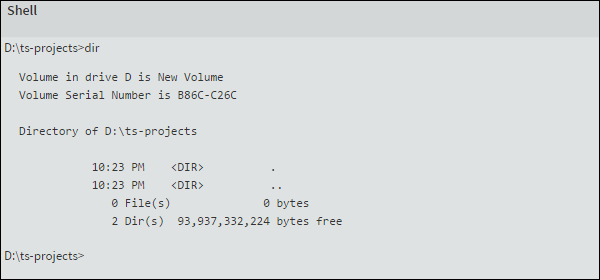
    Shell Window

    Note − Typescript is also available as a plugin for Visual Studio 2012 and 2013 environments (https://www.typescriptlang.org/#Download).VS 2015 and above includes Typescript plugin by default.
  • Overview

    JavaScript was introduced as a language for the client side. The development of Node.js has marked JavaScript as an emerging server-side technology too. However, as JavaScript code grows, it tends to get messier, making it difficult to maintain and reuse the code. Moreover, its failure to embrace the features of Object Orientation, strong type checking and compile-time error checks prevents JavaScript from succeeding at the enterprise level as a full-fledged server-side technology. TypeScript was presented to bridge this gap.

    What is TypeScript?

    By definition, TypeScript is JavaScript for application-scale development.

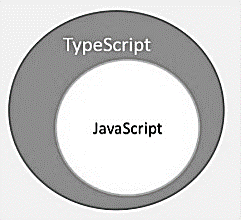
    TypeScript is a strongly typed, object oriented, compiled language. It was designed by Anders Hejlsberg (designer of C#) at Microsoft. TypeScript is both a language and a set of tools. TypeScript is a typed superset of JavaScript compiled to JavaScript. In other words, TypeScript is JavaScript plus some additional features.

    TypeScript Figure

    Features of TypeScript

    TypeScript is just JavaScript. TypeScript starts with JavaScript and ends with JavaScript. Typescript adopts the basic building blocks of your program from JavaScript. Hence, you only need to know JavaScript to use TypeScript. All TypeScript code is converted into its JavaScript equivalent for the purpose of execution.

    TypeScript supports other JS libraries. Compiled TypeScript can be consumed from any JavaScript code. TypeScript-generated JavaScript can reuse all of the existing JavaScript frameworks, tools, and libraries.

    JavaScript is TypeScript. This means that any valid .js file can be renamed to .ts and compiled with other TypeScript files.

    TypeScript is portable. TypeScript is portable across browsers, devices, and operating systems. It can run on any environment that JavaScript runs on. Unlike its counterparts, TypeScript doesnt need a dedicated VM or a specific runtime environment to execute.

    TypeScript and ECMAScript

    The ECMAScript specification is a standardized specification of a scripting language. There are six editions of ECMA-262 published. Version 6 of the standard is codenamed “Harmony”. TypeScript is aligned with the ECMAScript6 specification.

    TypeScript and ECMAScript

    TypeScript adopts its basic language features from the ECMAScript5 specification, i.e., the official specification for JavaScript. TypeScript language features like Modules and class-based orientation are in line with the EcmaScript 6 specification. Additionally, TypeScript also embraces features like generics and type annotations that arent a part of the EcmaScript6 specification.

    Why Use TypeScript?

    TypeScript is superior to its other counterparts like CoffeeScript and Dart programming languages in a way that TypeScript is extended JavaScript. In contrast, languages like Dart, CoffeeScript are new languages in themselves and require language-specific execution environment.

    The benefits of TypeScript include −

    • Compilation − JavaScript is an interpreted language. Hence, it needs to be run to test that it is valid. It means you write all the codes just to find no output, in case there is an error. Hence, you have to spend hours trying to find bugs in the code. The TypeScript transpiler provides the error-checking feature. TypeScript will compile the code and generate compilation errors, if it finds some sort of syntax errors. This helps to highlight errors before the script is run.
    • Strong Static Typing − JavaScript is not strongly typed. TypeScript comes with an optional static typing and type inference system through the TLS (TypeScript Language Service). The type of a variable, declared with no type, may be inferred by the TLS based on its value.
    • TypeScript supports type definitions for existing JavaScript libraries. TypeScript Definition file (with .d.ts extension) provides definition for external JavaScript libraries. Hence, TypeScript code can contain these libraries.
    • TypeScript supports Object Oriented Programming concepts like classes, interfaces, inheritance, etc.

    Components of TypeScript

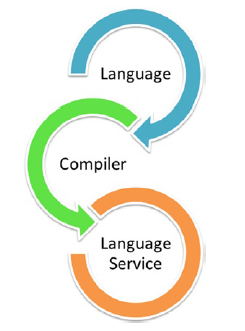
    At its heart, TypeScript has the following three components −

    • Language − It comprises of the syntax, keywords, and type annotations.
    • The TypeScript Compiler − The TypeScript compiler (tsc) converts the instructions written in TypeScript to its JavaScript equivalent.
    • The TypeScript Language Service − The “Language Service” exposes an additional layer around the core compiler pipeline that are editor-like applications. The language service supports the common set of a typical editor operations like statement completions, signature help, code formatting and outlining, colorization, etc.
    TypeScript Components

    Declaration Files

    When a TypeScript script gets compiled, there is an option to generate a declaration file (with the extension .d.ts) that functions as an interface to the components in the compiled JavaScript. The concept of declaration files is analogous to the concept of header files found in C/C++. The declaration files (files with .d.ts extension) provide intellisense for types, function calls, and variable support for JavaScript libraries like jQuery, MooTools, etc.

  • setInterval() Method

    JavaScript setInterval() Method

    In JavaScript, the setInterval() is a window method that is used to execute a function repeatedly at a specific interval. The setTimeout() Method allows you to execute the function only once after the specified time.

    The window object contains the setInterval() method. However, you can execute the setInterval() Method without taking the window object as a reference.

    Syntax

    Following is the syntax to use the setInterval() method in JavaScript

    setInterval(callback,interval, arg1, arg2,..., argN);

    The first two parameters are required others are optional.

    Parameters

    • Callback − It is a callback function that will be executed after every interval.
    • Interval − It is the number of milliseconds after the callback function should be executed.
    • Arg1, arg2, arg3, , argN − They are multiple arguments to pass to the callback function.

    Return Value

    The setInterval() method returns the numeric id.

    Example

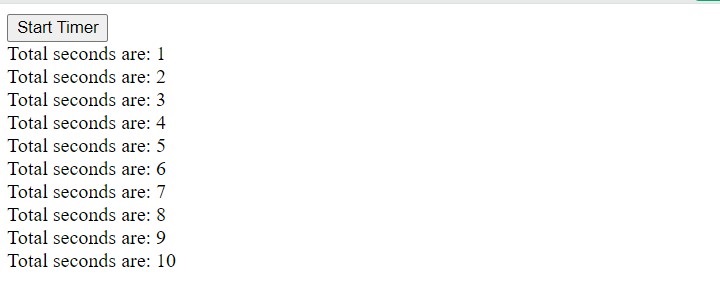
    In the code below, the startTimer() function uses the setInterval() method to call the timer() function after every 1000 milliseconds.

    The timer() function increases the value of the second global variable every time it is called by the setInterval() method and prints the counter.

    You can click the button to start a timer in the output.

    Open Compiler

    <html><body><button onclick ="startTimer()">Start Timer</button><div id ="output"></div><script>let output = document.getElementById('output');var seconds =0;functionstartTimer(){setInterval(timer,1000);// Calls timer() function after every second}functiontimer(){// Callback function
    
         seconds++;
         output.innerHTML +="Total seconds are: "+ seconds +"&lt;br&gt;";}&lt;/script&gt;&lt;/body&gt;&lt;/html&gt;</code></pre>

    Output

    JavaScript setInterval() Method

    Arrow Function with setInterval() Method

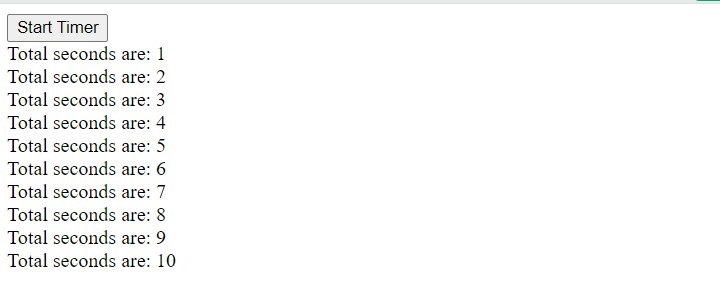
    The below example contains almost the same code as the above example. Here, we have passed the arrow function as a first argument of the setInterval() method rather than passing the function name only. You can click the button to start the timer.

    Example

    Open Compiler

    <html><body><button onclick ="startTimer()">Start Timer</button><div id ="output"></div><script>let output = document.getElementById('output');var seconds =0;functionstartTimer(){setInterval(()=>{
    
            seconds++;
            output.innerHTML +="Total seconds are: "+ seconds +"&lt;br&gt;";},1000);// Calls timer() function after every second}&lt;/script&gt;&lt;/body&gt;&lt;/html&gt;</code></pre>

    Output

    Arrow Function with setInterval() Method

    Passing More than 2 Arguments to setInterval() Method

    In the code below, we have passed 3 arguments to the setInterval() method. The first argument is a callback function to print the date, the second argument is an interval, and the third argument will be passed to the callback function.

    Example

    Open Compiler

    <html><body><button onclick ="startTimer()">Start Date Timer</button><div id ="output"></div><script>let output = document.getElementById('output');var seconds =0;functionstartTimer(){let message ="The date and time is: ";setInterval(printDate,1000, message);}functionprintDate(message){let date =newDate();
    
         output.innerHTML += message + date +"&lt;br&gt;";}&lt;/script&gt;&lt;/body&gt;&lt;/html&gt;</code></pre>

    Output

    Passing More than 2 Arguments to setInterval() Method

    The clearInterval() Method in JavaScript

    The JavaScript clearInterval() method is used to stop the code execution started using the clearItnerval() method.

    It takes the numeric id returned by the setInterval () method as an argument.

    Syntax

    Follow the syntax below to use the clearInterval() method.

    clearInterval(id);

    Here id is an id returned by the setInterval() method.

    Example

    In the code below, we have used the setInterval() method to show the number after incrementing by 10 and after each second.

    When the number becomes 50, we stop the timer using the clearInterval() method.

    Open Compiler

    <html><body><div id ="output"></div><script>let output = document.getElementById('output');let number =10;let id =setInterval(()=>{if(number ==50){clearInterval(id);
    
            output.innerHTML +="The time is stopped."}
         output.innerHTML +="The number is: "+ number +"&lt;br&gt;";
         number +=10;},1000);&lt;/script&gt;&lt;/body&gt;&lt;/html&gt;</code></pre>

    Output

    The number is: 10
    The number is: 20
    The number is: 30
    The number is: 40
    The time is stopped.The number is: 50
    

    Real-time Use Case of the setInterval() Method

    In the above examples, we have printed the messages using the setInterval() method. In this section, we will see the real-time use cases of the setInterval() method.

    Here, we have listed some of the real-time use cases.

    • To refresh the date
    • For slideshow
    • For animation
    • To show the clock on the webpage
    • To update live cricket score
    • To update weather information
    • To run cron jobs

    Here are the real-time examples of the setInterval() method.

    Flipping the color of the HTML element after each interval

    In the code below, we flip the color of the <div> element after every second.

    We have defined the div element in the HTML body.

    In the <head> section, we have added the red and green classes. Also, we added the background color in the red and green classes.

    In JavaScript, we have passed the callback function as the first argument of the setInterval() method, which will be called after every 1000 milliseconds.

    We access the <div> element in the callback function using its id. After that, we check whether the classList of the <div> element contains the red class. If yes, we remove it and add the green class. Similarly, if classList contains the green class, we remove it and add the red class.

    This is how we are flipping the color of the <div> element using the setInterval() method.

    Example

    Open Compiler

    <html><head><style>.red {background-color: red;}.green {background-color: green;}
    
      #square {height:200px; width:200px;}&lt;/style&gt;&lt;/head&gt;&lt;body&gt;&lt;div&gt;Using setInterval() method to flip the color of the HTML element after each interval&lt;/div&gt;&lt;div id ="square"class="red"&gt;&lt;/div&gt;&lt;script&gt;let output = document.getElementById('output');setInterval(function(){let square = document.getElementById('square');if(square.classList.contains('red')){
            square.classList.remove('red');
            square.classList.add('green');}else{
            square.classList.remove('green');
            square.classList.add('red');}},1000);&lt;/script&gt;&lt;/body&gt;&lt;/html&gt;</code></pre>

    Output

    Flipping color of HTML element after each interval

    Moving Animation Using the setInterval() Method

    In the code below, we create moving animation using the setInterval() method.

    We have created the two nested div elements. The outer div has the parent id, and the inner div has the child id. We have set dimensions for both div elements and position to relative.

    In JavaScript, we have initialized the left variable with 0. After that, we invoke the callback function of the setInterval() method after every 50 milliseconds.

    In each interval, we change the position of the <div> element by 5px, and when the left position becomes 450px, we stop the animation.

    Example

    Open Compiler

    <html><head><style>
    
      #parent {
         position: relative; 
         height:50px;
         width:500px;
         background-color: yellow;}
      #child {
         position: relative; 
         height:50px;
         width:50px;
         background-color: red;}&lt;/style&gt;&lt;/head&gt;&lt;body&gt;&lt;div id ="parent"&gt;&lt;div id ="child"&gt;&lt;/div&gt;&lt;/div&gt;&lt;script&gt;let child = document.getElementById('child');let left =0;// Moving animation using the setInterval() methodsetInterval(()=&gt;{if(left &lt;450){
            left +=5;
            child.style.left = left +'px';}},50);&lt;/script&gt;&lt;/body&gt;&lt;/html&gt;</code></pre>

    Output

    Moving Animation Using setInterval() Method

    You can also use the setInterval() method to run the particular code asynchronously.

  • setTimeout() Method

    JavaScript setTimeout() Method

    In JavaScript, the setTimeout() is a global method that allows you to execute the function or a particular JavaScript code only once after a specified time.

    The window object contains the setTimeout() method. You may use the window object to execute the setTimeout() method.

    The setTimeout() method can also be used to manipulate the DOM elements after the specified time of the user interaction.

    Syntax

    The syntax of the setTimeout() method in JavaScript is as follows −

    window.setTimeout(callback, delay, param1, param2,..., paramN);ORsetTimeout(callback, delay, param1, param2,..., paramN);

    The setTimeout() method takes at least 2 parameters.

    Parameters

    • Callback − It is a callback function that will be called after a specific time. You can pass the arrow function, function expression, or regular expression as a value of this parameter.
    • delay − It is the number of milliseconds after that the callback function should be called. Here, 1 second is equal to 1000 milliseconds.
    • param1, param2, …, paramN − They are optional parameters to be passed as a callback function parameter.

    Return Value

    It returns the numeric id, which you can use to clear timeout.

    Example

    In the below code, we have defined the timeout() function, printing the message in the web page.

    We passed the timeout() function as the first argument of the setTimeout() method, and 1000 milliseconds as a second argument.

    The setTimeout() method will invoke the timeout() function after 1 second or 1000 milliseconds.

    Open Compiler

    <html><body><div id ="output"></div><script>
    
      document.getElementById('output').innerHTML ="Wait for a message! &lt;br&gt;";setTimeout(timeout,1000);functiontimeout(){
         document.getElementById('output').innerHTML +="This message is printed after 1 second!";}&lt;/script&gt;&lt;/body&gt;&lt;/html&gt;</code></pre>

    Output

    Wait for a message!
    This message is printed after 1 second!
    

    Arrow Function with setTimeout() Method

    In the below code, we have passed the arrow function as the first argument of the setTimeout() method. It works the same as passing the function name as an argument and defining the function outside.

    It prints the message after 2000 milliseconds.

    Example

    Open Compiler

    <html><body><div id ="output"></div><script>
    
      document.getElementById('output').innerHTML +="You will see the message after 2000 milliseconds! &lt;br&gt;";setTimeout(()=&gt;{
         document.getElementById('output').innerHTML +='Hi! How are you?';},2000);&lt;/script&gt;&lt;/body&gt;&lt;/html&gt;</code></pre>

    Output

    You will see the message after 2000 milliseconds!
    Hi! How are you?
    

    Passing More than 2 Arguments to setTimeout() Method

    You can pass more than 2 arguments to the setTimeout() method. The first argument is a callback function, the second argument is a delay in the milliseconds, and other arguments to pass to the function parameter.

    In the code below, we have passed 5 arguments to the setTimeout() method. In the sum() function, we received the last 3 arguments of the seetTimeOut() method as a parameter and summed them.

    Example

    Open Compiler

    <html><body><div>Wait for a sum of3 number.!</div><div id ="output"></div><script>setTimeout(sum,1000,10,20,30);functionsum(num1, num2, num3){let result = num1 + num2 + num3;
    
         document.getElementById('output').innerHTML ="Sum = "+ result;}&lt;/script&gt;&lt;/body&gt;&lt;/html&gt;</code></pre>

    Output

    Wait for a sum of 3 number.!
    Sum = 60
    

    Execute Code After Every N Seconds

    We created the counter using the setTimeout() method in the code below.

    We have defined the global variable p for the counter. In the counter() function, we print the counter value and use the setTimeout() method to call the counter function again after 1000 milliseconds.

    Example

    Open Compiler

    <html><body><div id ="output"></div><script>let output = document.getElementById('output');
    
      output.innerHTML +="The output of the counter is given below. &lt;br&gt;";var p =0;functioncounter(){
         output.innerHTML +="count is - "+ p +".&lt;br&gt;";setTimeout(counter,1000);
         p++;}counter();&lt;/script&gt;&lt;/body&gt;&lt;/html&gt;</code></pre>

    Output

    The output of the counter is given below.
    count is - 0.
    count is - 1.
    count is - 2.
    count is - 3.
    count is - 4.
    count is - 5.
    count is - 6.
    

    JavaScript clearTimeout() Method

    Sometimes, developers are required to cancel the time out before it executes the function or the JavaScript code. In such cases, you can use the clearTimeout() method.

    Syntax

    You can follow the syntax below to use the clearTimeout() method.

    clearTimeout(id);

    Parameters

    id − It is an id returned by the setTimeout() method to cancel it.

    Example

    In the below code, we have defined the startTimeOut() and stopTimeOut() functions, which will be called when users press the respective buttons.

    In the startTimeOut() function, we set the timeout of the 3 seconds and store the id returned by the setTimeout() method into the timeOut variable.

    In the stopTimeOut() function, we use the clearTimeout() method and pass the timeOut as an argument to clear the timeout.

    Open Compiler

    <html><body><p>Click the Stop timeout button within 3 seconds after pressing the Start timeout button.</p><button onclick ="startTimeOut()">Start Timeout</button><button onclick ="stopTimeOut()">Stop Timeout</button><p id ="output"></p><script>let output = document.getElementById('output');let timeout;functionstartTimeOut(){
    
         timeout =setTimeout(()=&gt;{
            output.innerHTML ="Timeout is done";},3000);}functionstopTimeOut(){clearTimeout(timeout);
         output.innerHTML ="Timeout is stopped";}&lt;/script&gt;&lt;/body&gt;&lt;/html&gt;</code></pre>

    Output

    JavaScript clearTimeout() Method

    Zero Delay SetTimeout

    The zero delay timeout means you call the setTimeout() method by passing the 0 milliseconds as an argument.

    As you pass the 0 milliseconds as an argument, it may or may not call the JavaScript code written into the callback function after 0 milliseconds. It totally depends on the pending tasks in the queue. Once the queue of tasks is completed, it will execute the code of the callback function.

    Now, the question is, what is the need of the zero delay timeout?

    Sometimes, you need to execute the particular JavaScript code as soon as possible once the script gets loaded into the browser. In such cases, you can use the setTimeout() method by passing 0 milliseconds as a second argument.

    Syntax

    Follow the syntax below to use the zero-delay timeout.

    setTimeout(callback,0);

    In the above syntax, we have passed the callback function as the first parameter and 0 milliseconds as the second parameter.

    Example

    In the code below, we add a start message, zero delay timeout message, and end message to the web page.

    In the output, you can see that it prints the start message. After that, it prints the end message and the zero delay timeout message. So, it executes the zero delay timeout code when the whole script gets loaded in the browser.

    Open Compiler

    <html><body><div id ="output"></div><script>let output = document.getElementById('output');
    
      output.innerHTML +="The code execution started. &lt;br&gt;";setTimeout(function(){
         output.innerHTML +="Inside the zero delay timeout. &lt;br&gt;";},0);
      output.innerHTML +="The code execution ended. &lt;br&gt;";&lt;/script&gt;&lt;/body&gt;&lt;/html&gt;</code></pre>

    Output

    The code execution started.
    The code execution ended.
    Inside the zero delay timeout.
    

    You can also recursively use the setTimeout() method, as shown in the example of the counter. Furthermore, you can also pass the anonymous function expression as a first parameter, like the arrow function. If you want to execute the particular JavaScript code, you can use the zero delay timeout once the whole script gets executed.

  • Timing Events

    What are the Timing Events?

    JavaScript timing events are used to execute the code after a specified time only once or multiple times. In JavaScript, you can use the timing events to control when a particular task should be executed.

    The ‘window’ object contains the various methods for timing events, which you can use to schedule the tasks. You can call these methods using the window object or without using it.

    Here is the list of methods that can be used to schedule the tasks.

    MethodDescription
    setTimeout()To execute the code after N number of milliseconds only once.
    clearTimeout()To clear the timeout, which was set using the setTimeOut() method.
    setInterval()To execute the particular task after each N milliseconds.
    clearInterval()To clear the interval, which was set using the setInterval() method.

    Let’s understand the timing events via the example below.

    The setTimeout() Method

    <html>
    <body>
       <div id = "output">The message will be printed after 2000 milliseconds! <br></div>
       <script>
    
      setTimeout(() =&gt; {
         document.getElementById('output').innerHTML += 'Hello World &lt;br&gt;';
      }, 2000);
    </script> </body> </html>

    Output

    The message will be printed after 2000 milliseconds!
    Hello World
    

    The clearTimeout() Method

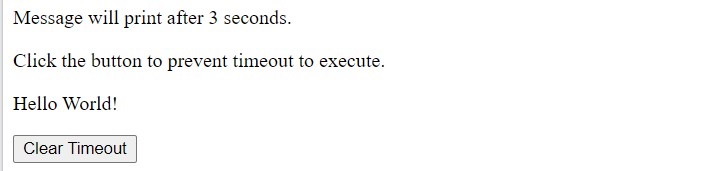
    In the below example, we used the setTimeout() method to print the ‘hello world’ after 3000 milliseconds. We used clearTimeout() method to prevent setTimeout() method to execute.

    Example

    <html>
    <body>
       <p>Message will print after 3 seconds.</p>
       <p>Click the button to prevent timeout to execute.</p>
       <p id="demo"></p>
       <button onclick="stop()">Clear Timeout</button>
       <script>
    
      const myTimeout = setTimeout(greet, 3000);
      function greet() {
         document.getElementById("demo").innerHTML = "Hello World!"
      }
      function stop() {
         clearTimeout(myTimeout);
      }
    </script> </body> </html>

    Output

    The clearTimeout() Method

    The setInterval() and clearInterval() Methods

    In the code below, we have used the setInterval() method to show the number after incrementing by 10 and after each second.

    When the number becomes 50, we stop the timer using the clearInterval() method.

    Example

    <html>
    <body>
       <div id = "output"> </div>
       <script>
    
      let output = document.getElementById('output');
      let number = 10;
      let id = setInterval(() =&gt; {
         if (number == 50) {
            clearInterval(id);
            output.innerHTML += "The time is stopped."
         }
         output.innerHTML += "The number is: " + number + "&lt;br&gt;";
         number += 10;
      }, 1000);
    </script> </body> </html>

    Output

    The number is: 10
    The number is: 20
    The number is: 30
    The number is: 40
    The time is stopped.The number is: 50
    

    Real-time Use Cases of Timing Events

    Here, you will learn the real-time use cases of the timing events.

    • For animation and transition
    • For slideshow and carousel
    • For countdown timers
    • For user authentication timeouts
    • To autosave drafts like Google docs
    • To schedule notifications, email, message, etc.
    • To terminate the session as like banking websites
    • For progress bar

    However, there are other use cases also. You can use the setTimeOut() or setInterval() methods to achieve the above functionalities.

    Whats Next?

    In the following chapters, you will learn setTimeOut() and setInterval() methods in detail.

  • Promises Chaining

    The promise chaining in JavaScript can handle multiple related asynchronous operations even with a single promise. While a single promise handles a single asynchronous operation, the promise chaining allows you to create a sequence of promises. Here success or rejection of one promise triggers the execution of the next promise. This enables you to handle multiple asynchronous operations.

    In JavaScript, we can produce the promise code using the Promise() constructor and consume using the then() method. It handles the single asynchronous operation. To handle the multiple asynchronous operations, we require to use the multiple promises, as shown in the example below.

    Example

    In the code below, we have defined promise1, which gets resolved in 1 second. Also, we have defined the global data variable.

    After that, we used the then() method to consume the promise1, and inside the callback function, we stored the return value from the promise in the data.

    Next, we have defined the promise2, which gets resolved after 2 seconds. Next, we used the then() method with promise2 and used the data variable inside the callback function.

    Open Compiler

    <html><body><div id ="output"></div><script>let output = document.getElementById("output");var data;// First promiselet promise1 =newPromise((resolve, reject)=>{setTimeout(()=>{resolve(10);},1000);});
    
      promise1.then((value)=&gt;{
         data = value;// Stroing value into the data
         output.innerHTML +="The promise1 is resolved and data is: "+ data +"&lt;br&gt;";});// Second promiselet promise2 =newPromise((resolve, reject)=&gt;{setTimeout(()=&gt;{resolve(20);},2000);});
      promise2.then((value)=&gt;{
         data = data * value;// Using the data from the first promise
         output.innerHTML +="The promise2 is resolved and data is: "+ value +"&lt;br&gt;";
         output.innerHTML +="The final value of the data is: "+ data +"&lt;br&gt;";});&lt;/script&gt;&lt;/body&gt;&lt;/html&gt;</code></pre>

    Output

    The promise1 is resolved and data is: 10
    The promise2 is resolved and data is: 20
    The final value of the data is: 200
    

    In the above example, we have created two different promises to perform multiple operations on the data returned from the promise1.

    It increases the code complexity and decreases the readability.

    Here, promise chaining comes into the picture.

    JavaScript Promise Chaining

    The concept of promise chaining in JavaScript allows you to do multiple related asynchronous operations with a single promise.

    You can use the multiple then() methods while consuming the promise to perform the multiple asynchronous operations.

    Syntax

    The syntax of the promise chaining in JavaScript is as follows −

    Promise
       .then(callback);.then(callback);....then(callback);

    In the above syntax, we have used multiple then() methods to handle the multiple asynchronous operations. Each then() method executes the single callback function.

    Example

    In the code below, we have defined the promise1. After that, we used the promise chain to perform the multiple asynchronous operations.

    From the first then() method, we return the value after multiplying with 2. In the next then() method, we print the updated value and return the new value after multiplying the old value with 2. Similarly, the operation we are doing is in the third then() method.

    Open Compiler

    <div id ="output"></div><script>let output = document.getElementById("output");const promise1 =newPromise((resolve, reject)=>{resolve(2);});// Promise chaining
    
      promise1
      .then((value)=>{
         output.innerHTML ="The square of 2 is "+ value *2+"&lt;br>";return value *2;// Returning a promise for next then() method}).then((value)=>{
         output.innerHTML +="The square of 4 is "+ value *2+"&lt;br>";return value *2;}).then((value)=>{
         output.innerHTML +="The square of 8 is "+ value *2+"&lt;br>";});&lt;/script>&lt;/body>&lt;/html></code></pre>

    Output

    The square of 2 is 4
    The square of 4 is 8
    The square of 8 is 16
    

    Multiple Promise Handlers

    You can also use the multiple promise handlers to consume the single promise. However, if you use multiple promise handlers, it is not called promise chaining.

    Example

    In the code below, we have created the promise1.

    After that, we used the multiple promise handlers to consume the promise. Each promise handler solves the promise separately.

    Open Compiler

    <html><body><div id ="output"></div><script>let output = document.getElementById("output");const promise1 =newPromise((resolve, reject)=>{resolve(2);});
    
    
      promise1
      .then((value)=&gt;{
         output.innerHTML +="Inside the first promise handler. &lt;br&gt;";return value *2;})
      promise1
      .then((value)=&gt;{
         output.innerHTML +="Inside the second promise handler. &lt;br&gt;";return value *2;})
      promise1
      .then((value)=&gt;{
         output.innerHTML +="Inside the third promise handler. &lt;br&gt;";return value *2;})&lt;/script&gt;&lt;/body&gt;&lt;/html&gt;</code></pre>

    Output

    Inside the first promise handler.
    Inside the second promise handler.
    Inside the third promise handler.
    

    Error Handling with Promise Chaining

    You can use the catch() method with promise chaining to handle the error.

    If you use the catch() method at last after all then() methods, it catches the error in any then() method and handles it. If you use the catch() method in between then() methods, it catches the error in the then() methods used before it.

    Lets understand it via the example below.

    Example

    In the code below, we have defined the promise and rejected it.

    After that, we used the promise chaining to consume the promise. We used two then() methods and 1 catch() after all then() methods.

    In the output, you can see that as we rejected the promise, control goes into the catch() method.

    Open Compiler

    <html><body><div id ="output"></div><script>let output = document.getElementById("output");const promise1 =newPromise((resolve, reject)=>{reject("There is an error.");});
    
    
      promise1
      .then((value)=&gt;{
         output.innerHTML +="The returned value is: "+ value +"&lt;br /&gt;";return value +" Everything is fine!";}).then((value)=&gt;{
         output.innerHTML += value;}).catch((error)=&gt;{
         output.innerHTML += error;});&lt;/script&gt;&lt;/body&gt;&lt;/html&gt;</code></pre>

    Output

    There is an error.
    

    Returning the Promise

    When you return the value from the then() method, it returns the promise by default and resolves it with a returned value, as it is an asynchronous method.

    However, you can manually return the promise to reject the promise or perform any other operation.

    Example

    In the code below, we have defined the primise1 and used the setTimeOut() method inside the callback function.

    After that, we consume the promise using multiple then() methods. From each then() method, we return a new promise.

    When you return only the value from the then() method, it returns the promise, which gets resolved immediately. But when you want to add some delay, you can return the promise from then() method.

    Open Compiler

    <html><body><div id ="output"></div><script>let output = document.getElementById("output");const promise1 =newPromise((resolve, reject)=>{setTimeout(()=>{resolve("Stage 1");},500);});
    
    
      promise1
      .then((value)=&gt;{
         output.innerHTML += value +"&lt;br /&gt;";returnnewPromise((resolve, reject)=&gt;{setTimeout(()=&gt;{resolve("Stage 2");},1000);});}).then((value)=&gt;{
         output.innerHTML += value +"&lt;br /&gt;";returnnewPromise((resolve, reject)=&gt;{setTimeout(()=&gt;{resolve("Stage 3");},200);});}).then((value)=&gt;{
         output.innerHTML += value +"&lt;br /&gt;";
         output.innerHTML +="Finished";})&lt;/script&gt;&lt;/body&gt;&lt;/html&gt;</code></pre>

    Output

    Stage 1
    Stage 2
    Stage 3
    Finished
    

    Converting Nested Callback Functions into the Promise Chaining

    You learned about the nested callback functions in the JavaScript-callbacks' chapter. It is also called the callback hell due to its complex syntax.

    Here, we will learn to convert the callback hell into the promise chaining to make it more readable.

    Lets look at the example of the nested callback functions.

    Nested Callback functions

    Example

    In the code below, the updateData() function takes the data as a first parameter and the callback function as a second parameter.

    The updateData() function calls the callback function by passing the data as an argument after 1000 milliseconds.

    Next, we have invoked the updateData() function and passed the 10 as a first argument and the anonymous function as a callback function.

    The callback function stores the resultant value into p after adding 1 to the num1 value.

    Next, we call the updateData() function inside the callback function. Also, we have passed the data and callback function as an argument. This way, we have defined the nested callback functions.

    Open Compiler

    <html><body><div id ="output"></div><script>let output = document.getElementById("output");
    
      output.innerHTML +="Wait for updating the data...&lt;br&gt;";//    Callback hellfunctionupdateData(data, callback){setTimeout(()=&gt;{callback(data);},1000);}updateData(10,function(num1){let p =1+ num1;updateData(30,function(num2){let q =1+ num2;updateData("The numeric value is: "+(p + q),function(answer){
               output.innerText += answer;});});});&lt;/script&gt;&lt;/body&gt;&lt;/html&gt;</code></pre>

    Output

    Wait for updating the data...
    The numeric value is: 42
    

    Now, lets learn to convert the above example into promise chaining.

    Converting nested callback functions to promise chaining

    Example

    In the code below, the updateData() function returns a single promise.

    After that, we used the promise chaining, an alternative to the callback hell defined in the above example.

    Open Compiler

    <html><body><div id ="output"></div><script>let output = document.getElementById("output");
    
      output.innerHTML +="Wait for updating the data...&lt;br&gt;";functionupdateData(data){returnnewPromise((resolve, reject)=&gt;{setTimeout(()=&gt;{resolve(data);},1000);});}updateData(10).then((num1)=&gt;{let p =1+ num1;returnupdateData(p);}).then((num2)=&gt;{let q =31;returnupdateData("The final value is: "+(num2 + q));}).then((res)=&gt;{
         output.innerText += res;});&lt;/script&gt;&lt;/body&gt;&lt;/html&gt;</code></pre>

    Output

    Wait for updating the data...
    The final value is: 42
    

    Real-time Examples of Promise Chaining

    In real-time development, you can use the promise chaining to fetch the data and perform the operations on the data.

    Example

    In the code below, when users click the fetch data button, it invokes the fetchData() function.

    In the fetchData() function, we have used the fetch() API to fetch data from the API.

    After that, we used the then() method to convert the data into JSON.

    Next, we used the then() method again to print the JSON data.

    Open Compiler

    <html><body><button onclick ="fetchData()"> Fetch Data </button><div id ="output"></div><script>let output = document.getElementById("output");functionfetchData(){fetch('https://jsonplaceholder.typicode.com/todos/1').then(response=> response.json())// Promise chaining.then((data)=>{
    
            output.innerHTML +="The data is - "+JSON.stringify(data);})}&lt;/script&gt;&lt;/body&gt;&lt;/html&gt;</code></pre>

    Output

  • Promisification

    Promisification in JavaScript

    Promisification in JavaScript is a concept to convert the callback functions into a regular function, returning the promise.

    The reason to convert the callback functions into promises is that when you need to write the nested callback functions, it increases the complexity of the code. So, you can write a function returning the promise.

    In JavaScript, you can pass the function as an argument of another function called the callback function. The callback functions are used to handle the asynchronous task.

    Let’s first write an example of the callback function.

    Callback Function

    Example

    In the below code, we have passed the callback function as a last argument of the getSum() function. The getSum() function calls the callback function after passing the error and resultant sum value as an argument.

    Open Compiler

    <html><body><div id ="output">The sum of5 and 10 is:</div><script>functiongetSum(p, q, callback){let sum = p + q;setTimeout(()=>callback(null, sum),100);}getSum(5,10,(err, sum)=>{// callback function
    
         document.getElementById("output").innerHTML += sum;});&lt;/script&gt;&lt;/body&gt;&lt;/html&gt;</code></pre>

    Output

    The sum of 5 and 10 is: 15
    

    Lets perform the promisification of the callback functions discussed in the above example.

    Promisification of Callback Fucntion

    Example

    Lets understand the below code step by step.

    Step 1 − First, we have created the findSum() function. It takes the p1, p2, and callback function as a parameter.

    Step 2 − Next, the findSum() function checks whether the p1 and p2 are valid. If not, it calls the callback function by passing the error as an argument.

    Step 3 − In other cases, it calls the callback function by passing the sum and message as arguments.

    Step 4 − Next, we have defined the promisifyFunc() function, which takes the function as an argument that is needed to promisify.

    Step 5 − The promisifyFunc() function returns the function, and that function returns the promise.

    Step 6 − In the promise, we have defined the callbackFunc() function, which resolves or rejects the promise based on the argument it receives.

    Step 7 − Next, we insert the callbackFunc() function into the args array and use the call() method to call the func function, which we received as a parameter of the promisifyFunc() function.

    Step 8 − After that, we call the promisifyFunc() function and store the returned function in the getSUmPromise() function.

    Step 9 − When you execute the getSumPromise() function, it returns the promise, which you can consume the then() and catch() method.

    Open Compiler

    <html><body><div id ="output"></div><script>let output = document.getElementById("output");constfindSum=(p1, p2, callback)=>{if(!p1 ||!p2){returncallback(newError("Missing dependencies"),null);}const sum = p1 + p2;const msg ='The sum of numbers is '+ sum;returncallback(null, sum, msg);// We call the callback function}functionpromisifyFunc(func){return(...args)=>{// Returning a functionreturnnewPromise((resolve, reject)=>{// Returning a promise// Defining a custom callback for the functionfunctioncallbackFunc(err, ...data){if(err){returnreject(err)}returnresolve(data)}
    
               args.push(callbackFunc);// Adding callback function into argumentfunc.call(this,...args);// Calling the findSum() function})}}const getSumPromise =promisifyFunc(findSum)getSumPromise(5,10).then((message)=&gt;{
         output.innerHTML = message;}).catch((err)=&gt;{
         output.innerHTML = err;})&lt;/script&gt;&lt;/body&gt;&lt;/html&gt;</code></pre>

    Output

    15,The sum of numbers is 15
    

    The above code looks complex, but if you use it to handle the nested callback functions, it becomes easy to manage them. Here, you can pass custom callback functions to the particular function inside the promise.

  • Microtasks

    Microtasks in JavaScript are small functions that are executed after the completion of the function or program code that creates them and if the JavaScript execution stack is empty. Microtasks are executed before any macrotasks, such as setImmediate() and setTimeout(). Microtasks are used to implement features such as promises.

    JavaScript is a single-threaded programming language. However, you can use the promises, callbacks, and asynchronous functions to run the JavaScript code in parallel.

    JavaScript runs the code based on the event loop. The event loop is responsible for executing the code, processing it, collecting the event data, and executing the sub-tasks.

    Let’s understand the JavaScript event loop first.

    JavaScript Event Loop

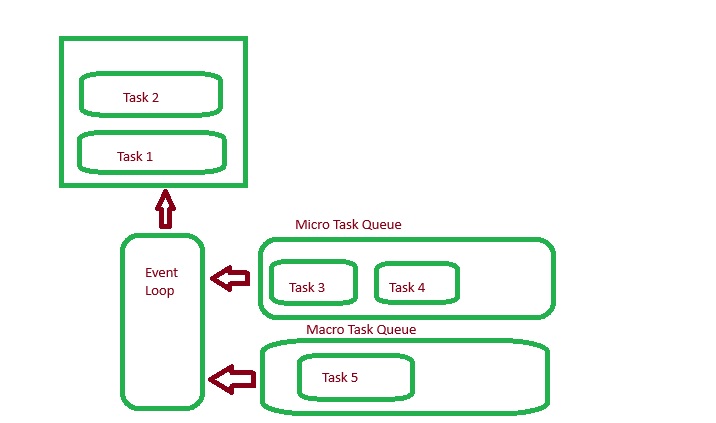
    The event loop executes the JavaScript code line-by-line. It adds the code to the call stack, a queue to execute it.

    JavaScript contains two types of queues to execute the tasks.

    • Micro tasks queues
    • Macro tasks queues

    When the call stack queue is empty, the event loop executes all tasks inside the microtask queue. After that, it executes all functions and code in the Macro task queue.

    JavaScript Event Loop

    We will understand more about the JavaScript code execution after understanding the micro and macro tasks.

    What is Microtasks in JavaScript?

    In JavaScript, a microtask is a shorter function that is produced by the promise, or asynchronous function, and consumed later.

    Here is the list of Micro tasks.

    • Promise callback
    • Queue MicroTasks

    Whatever callback function you pass as an argument of the then(), catch(), or finally() method while consuming the promise code it gets added into the microtask queue.

    First, the JavaScript run engine executes the whole script, adds code from the main thread to the call stack, and micro-tasks into the microtask queue. When the execution of all tasks of the call stack is completed, it completes the execution of all tasks in the microtask queue.

    Let’s understand it via the example below.

    Example

    In the code below, we print the start message at the start of the script and the end message at the end of the script.

    In the middle, we have defined the promise, which gets resolved immediately. After that, we consumed the promise using the then() method and printed the message returned by the promise.

    Open Compiler

    <html><body><div id ="output"></div><script>const output = document.getElementById("output");
    
      output.innerHTML +="The start of the code execution. &lt;br&gt;";// Creating the promiselet promise =newPromise(function(resolve, reject){resolve("The promise is resolved. &lt;br&gt;");});// Consuming the promise code
      promise.then(function(result){
         output.innerHTML += result;});
      output.innerHTML +="The end of the code execution. &lt;br&gt;";&lt;/script&gt;&lt;/body&gt;&lt;/html&gt;</code></pre>

    Output

    The start of the code execution.
    The end of the code execution.
    The promise is resolved.
    

    The interesting thing is happening in the output of the above code.

    In the output, you can see that it prints the start, end, and promise messages at last.

    Now, the question is why it happened. The answer is that the callback function of the then() method is added to the microtask queue, and it gets executed only if the call stack is empty.

    What is Macrotaks?

    Now, let's understand what Macrotaks is.

    The Macrotasks are also a short function that gets executed after the execution of all code, which is inside the call stack and microtask queue.

    JavaScript run-time engine adds the macro tasks into the microtask queue.

    The callback functions produced by the below methods get added to the Macrotask queue.

    • setTimeout
    • setInterval
    • setImmediate

    Let's understand the Macrotaks via the example below.

    Example

    In the code below, we have added the start message, setTimeOut() method, and end message.

    In the setTimeOut() method, we have passed the callback function as a first argument, printing the message in the output, and set 0 seconds delay.

    Open Compiler

    <html><body><div id ="demo"></div><script>let output = document.getElementById("demo");
    
      output.innerHTML +="The start of the code execution.&lt;br&gt;";setTimeout(function(){
         output.innerHTML +="The code execution is being delayed for 0 seconds. &lt;br&gt;";},0);
      output.innerHTML +="The end of the code execution.&lt;br&gt;";&lt;/script&gt;&lt;/body&gt;&lt;/html&gt;</code></pre>

    Output

    The start of the code execution.
    The end of the code execution.
    The code execution is being delayed for 0 seconds.
    

    The output of the above code is also interesting.

    It prints the start message first, the end message after that, and the message from the setTimeOut() method at the end.

    Here, we set the 0 delay for the setTimeOut() method. Still, it gets executed at the end because the JavaScript run engine adds the callback function in the macro task queue.

    Let's understand the microtask and macro tasks together via the example below.

    Example

    In the code below, we have added the setTimeOut() method with 0 delay, and the callback function prints the message.

    After that, we defined a promise using the Promise() constructor and consumed the promise code using the then() method.

    At last, we have printed the end method.

    Open Compiler

    <html><body><div id ="output"></div><script>let output = document.getElementById("output");
    
      output.innerHTML +="Start &lt;br&gt;";setTimeout(function(){// Macro task
         output.innerHTML +="In setTimeOut() method. &lt;br&gt;";},0);let promise =newPromise(function(resolve, reject){resolve("In Promise constructor. &lt;br&gt;");});
      promise.then(function(value){// Micro tasks
         output.innerHTML += value;});
      output.innerHTML +="End &lt;br&gt;";&lt;/script&gt;&lt;/body&gt;&lt;/html&gt;</code></pre>

    Output

    Start
    End
    In Promise constructor.
    In setTimeOut() method.
    

    Lets understand the output of the above example.

    First, it prints the start message due to the JavaScript call stack.

    After that, it adds the callback function of the setTimeOut() method into the Macrotask queue.

    Next, it adds the callback function of the then() method into the Microtask queue.

    Next, it executes the last line of the code and prints the End message.

    Now, the call stack is empty. So, it executes all tasks which are in the Microtask queue. So, it completes the execution of the callback function of the then() method.

    Now, the call stack and Microtask queue are both empty. So, it executes all the tasks in the Macrotask queue and completes the execution of the callback function of the setTimeOut() method.

    This chapter has demonstrated how the JavaScript run engine executes the code. If you want to change the execution order of the code, you can be careful about using the micro and macro tasks.

  • Async/Await

    The JavaScript functions defined with the async/await keyword can perform the same task as promises with fewer lines of code, and it makes the code readable. The promise’s syntax is a bit complex, so the async/await syntax is introduced.

    To use async/await, we need to define an aync function first. For this we write async before function definition. An async function returns a promise. The await keyword is used inside an async function only. The await keyword makes JavaScript to wait for the promise to resolve before continuing the function.

    Let’s understand the async/await keywords in details taking them separately −

    The JavaScript Async Keyword

    A JavaScript function defined with the async keyword is called the asynchronous function. The async function allows you to produce the asynchronous code.

    It always returns the promise. If you don’t return the promise manually and return the data, string, number, etc., it creates a new promise and resolves that promise with the returned value.

    Syntax

    You could use the syntax below to define a function using the async keyword in JavaScript −

    asyncfunctionfunc_name(parameters){// function body}

    In the above syntax, we have used the ‘async’ keyword before the function name.

    Parameters

    • Func_name − It is a valid identifier for the function name.
    • Parameters − It takes multiple parameters, the same as a regular function.

    Look at the below asynchronous function, returning the ‘hello world’ text. It returns the promise with the ‘hello world’ success message.

    asyncfunctionprintMessage(){return"Hello World";}

    The below code is similar to the above code.

    functionprintMessage(){return Promise.resolve("Hello World");}

    You can use the then() and catch() methods to solve the promise returned from the asynchronous function.

    Example

    We return the text from the getText() function in the code below.

    After that, we use the then() and catch() method with the execution of the getText() method to consume the promise returned by the getText() function.

    Here, you can observe that we have returned text from the asynchronous function, but it is returning the promise.

    Open Compiler

    <html><body><div id ="output"></div><script>asyncfunctiongetText(){return"Text from the getText() function.";}getText().then((text)=>{
    
         document.getElementById('output').innerHTML = text +"&lt;br&gt;";}).catch((err)=&gt;{
         document.getElementById('output').innerHTML +=JSON.stringify(err);});&lt;/script&gt;&lt;/body&gt;&lt;/html&gt;</code></pre>

    Output

    Text from the getText() function.
    

    JavaScript Await Keyword

    You can use the await keyword inside a JavaScript asynchronous function only. It pauses the execution of the function until the promise gets settled, which means it is either rejected or fulfilled.

    Syntax

    Following is the syntax to use the await keyword inside an asyn function in JavaScript −

    asyncfunctionfunc_name(parameters){await promise;// Function body}

    In the above syntax, we have used the await keyword inside the async function.

    Example

    We have defined the solvePromise() async function in the code below. We have created the new promise using the Promise() constructor in the function. After that, we used the await keyword with the promise to resolve it rather than using the then() or catch() method.

    In the output, you can observe that it prints the fulfillment message.

    Open Compiler

    <html><body><div id ="output">The resultant value from the promise is:</div><script>asyncfunctionsolvePromise(){const promise =newPromise((resolve, reject)=>{resolve('Promise is solved');})const result =await promise;
    
         document.getElementById('output').innerHTML += result;}solvePromise();&lt;/script&gt;&lt;/body&gt;&lt;/html&gt;</code></pre>

    Output

    The resultant value from the promise is: Promise is solved
    

    Example (Waiting for Timeout)

    In the code below, we set the timeout of 2000 milliseconds using the setTimeOut() method to resolve the promise.

    After that, we used the await keyword with a promise to pause the execution of the function until the promise is settled. In the output, you can see that it prints the message returned from the promise after 2 seconds.

    Open Compiler

    <html><body><div id ="output">The promise is being solved <br></div><script>asyncfunctionsolvePromise(){const promise =newPromise((resolve, reject)=>{setTimeout(()=>{// Setting up timeout for promisesresolve('The promise is solved after 2 seconds');},2000);})const result =await promise;
    
         document.getElementById('output').innerHTML += result;}solvePromise();&lt;/script&gt;&lt;/body&gt;&lt;/html&gt;</code></pre>

    Output

    The promise is being solved
    The promise is solved after 2 seconds
    

    Error Handling with JavaScript Async/Await

    While consuming the promise, we used the then() and catch() methods to handle the data and errors.

    With the asynchronous function, you can use the trycatch block to handle the errors.

    When the promise is fulfilled successfully, the control executes the remaining code of the try block. Otherwise, it executes the code of the catch block to fix the errors.

    Syntax

    Following is the syntax to handle errors in the asynchronous function −

    try{const result =await promise;// Manipulate data}catch(err){// Handle errors}

    We need to consume the promise in the try block and handle the errors in the catch block. The catch() method also takes the err as a parameter, which is a promise rejection message or an error object.

    Example

    In the code below, we have defined a promise and rejected it.

    After that, we consume the promise in the try block. As the promise is rejected, the execution control will go into the catch block and print the rejection message.

    Open Compiler

    <html><body><div id ="demo"></div><script>let output = document.getElementById('demo');asyncfunctionsolvePromise(){const promise =newPromise((resolve, reject)=>{reject("The promise is rejected");})try{const result =await promise;
    
            output.innerHTML +="Inside the try block. &lt;br&gt;";
            output.innerHTML += result;}catch(err){
            output.innerHTML +="Inside the catch block. &lt;br&gt;";
            output.innerHTML += err;}}solvePromise();&lt;/script&gt;&lt;/body&gt;&lt;/html&gt;</code></pre>

    Output

    Inside the catch block.
    The promise is rejected
    

    JavaScript Async Class Methods

    You can also define the asynchronous class methods using the async keyword to handle the asynchronous operations.

    It has the same syntax as the asynchronous function.

    Syntax

    Following is the syntax to use the async/await with class methods in JavaScript −

    asyncmethod_name(){returnawait promise;}

    In the above syntax, method_name is an identifier for the class method, and it uses the async/await keyword to make the method asynchronous.

    You can consume the promise returned by the method using the then() and catch() methods.

    Example

    In the below code, we have created the animal class.

    The animal class contains the getAnimalName() method and returns the Lion text. We have used the await keyword before the Lion string, which pauses the execution of the method until the string is created. However, you can also return the promise.

    After that, we use the then() method to consume the promise and print the animal name in the output.

    Open Compiler

    <html><body><div id ="output"></div><script>classanimal{asyncgetAnimalName(){returnawait"Lion";}}const lionObj =newanimal();
    
      lionObj.getAnimalName().then((data)=&gt;{
         document.getElementById('output').innerHTML ="The animal name is: "+ data;})&lt;/script&gt;&lt;/body&gt;&lt;/html&gt;</code></pre>

    Output

    The animal name is: Lion
    

    Real-time Example of JavaScript Async/Await

    The above examples are basic examples to demonstrate the use of the async/await keywords in JavaScript.

    Lets understand how to use the async/await in real-time development.

    Example

    In the code below, when the user clicks the button, it calls the getData() function.

    The getData() function is an asynchronous function. We used the trycatch block inside the function to handle errors.

    In the try block, we used the fetch() API to fetch the data from the API and used the await keyword.

    After that, we used the json() method with the response to convert into the JSON and used the await keyword with that.

    Next, we print the data.

    Also, we print the error message in the catch() method.

    Open Compiler

    <html><body><button onclick ="getData()">Get Data</button><div id ="demo"></div><script>let output = document.getElementById('demo');asyncfunctiongetData(){try{let response =awaitfetch('https://api.github.com/users');// Pauses the execution until it gets the datalet data =await response.json();// Pauses the execution until it converts the data into json
    
            output.innerHTML +="login: "+ data&#91;0].login +"&lt;br&gt;";
            output.innerHTML +="id: "+ data&#91;0].id +"&lt;br&gt;";
            output.innerHTML +="node_id: "+ data&#91;0].node_id +"&lt;br&gt;";
            output.innerHTML +="avatar_url: "+ data&#91;0].avatar_url +"&lt;br&gt;";}catch(err){
            output.innerHTML +="The error is: "+ json.stringify(err);}}&lt;/script&gt;&lt;/body&gt;&lt;/html&gt;</code></pre>

    Output

    Real-time Example of JavaScript Async/Await

    Benefits of Using JavaScript Async Function

    Here are some benefits of using the asynchronous function.

    • It increases the readability of code.
    • It reduces the complexity of the code.
    • It can handle multiple promises easily.
    • It makes debugging easier.
    • You can replace the callback function and promises with the asynchronous function.
  • Promises

    What is Promise in JavaScript?

    A JavaScript promise is an object that represents the completion or failure of an asynchronous operation. It employs callback functions to manage asynchronous operations, offering a easier syntax for handling such operations more easily.

    A promise object can created using the Promise() constructor. The promise constructor takes a callback function as an argument. The callback function accepts two functions, resolve() and reject(), as arguments. The resolve function is called if the promise returns successfully. The reject function is called when taks fails and returns the reason.

    Lets understand how to create promises in JavaScript.

    Producing the Promise Code

    Syntax

    Follow the syntax below to create a promise using the Promise() constructor.

    let promise =newPromise(Callback);// Producing the codeORlet promise =newPromise(function(resolve, reject){// Callback function body});

    The Promise() constructor takes the callback function as a parameter. Creating the promise is also called code producing. Sometimes, you get promises returned by methods like fetch().

    Parameters

    The Promise() constructor takes only a single argument.

    • Callback − It is a callback function to fulfill the promise.

    The callback function takes two parameters.

    • Resolve − You can use the resolve() function to return the successful response from the promise.
    • Reject − You can use the reject() function to reject the promise and return the error from the promise.

    States of the Promise

    There are 4 states of the Promise.

    Promise.stateDescriptionPromise.result
    FulfilledWhen a promise is completed with a successful response.Resultant data
    RejectedWhen a promise is failed.An error object
    PendingWhen a promise is pending to execute.Undefined
    SettledWhen a promise is either fulfilled or rejected successfully.Either result data or an error object

    The state and result are the properties of the Promise object.

    Promise Consumers of JavaScript

    In the above section, we discussed how to produce the promise code. If you print the promise on the web page, it will show you [Object Promise].

    Lets learn it via the example below.

    Example

    In the below code, we have used the Promise() constructor to define an instance of the Promise object.

    In the callback function, we resolve the promise if the value of the num variable is 10. Otherwise, we reject the promise.

    You can observe the promise1 in the output, it prints [Object Promise].

    Open Compiler

    <html><body><div id ="output">The promise1 object is:</div><script>var num =10;const promise1 =newPromise((resolve, reject)=>{if(num ==10){resolve('The value of the number is 10 <br>');}else{reject('The value of the number is not 10 <br>');}});
    
      document.getElementById('output').innerHTML += promise1;&lt;/script&gt;&lt;/body&gt;&lt;/html&gt;</code></pre>

    Output

    The promise1 object is: [object Promise]
    

    To overcome the problem in the above example and get the resultant data from the promise, you are required to consume the promise code.

    You can use the below methods with the promise object to consume the promise code.

    • then() method
    • catch() method

    Lets learn to use both methods to consume the promise code.

    JavaScript Promise then() Method

    You can use the then() method with an instance of promise to consume its code. With promises, you can get the resultant data or error object using the then() method.

    Syntax

    You can follow the syntax below to use then() method to consume the promise code.

    promise.then(successFunc, errorfunc);

    In the abvoe syntax, promise is an instance of the Promise object.

    Parameters

    • successFunc − It is a function that will be executed when the promise is fulfilled.
    • errorFunc − It is a function that will get executed when the promise is rejected.

    Example

    The example below contains the same code as the previous example. The main difference is that we have used the then() method to consume the code of the promise.

    The promise will be fulfilled as the value of the num variable is 10. We passed the successFunc()and errorfunc() functions as an argument of the then() method.

    In the output, you can observe that it executes the successFunc() function as the promise gets fulfilled.

    Open Compiler

    <html><body><div id ="output"></div><script>const num =10;const promise1 =newPromise((resolve, reject)=>{if(num ==10){resolve('The value of the number is 10 <br>');}else{reject('The value of the number is not 10 <br>');}});
    
      promise1.then(successFunc, errorfunc);functionsuccessFunc(message){
         document.getElementById('output').innerHTML += message;}functionerrorfunc(message){
         document.getElementById('output').innerHTML += message;}&lt;/script&gt;&lt;/body&gt;&lt;/html&gt;</code></pre>

    Output

    The value of the number is 10
    

    Example

    In the below code, we reject the promise if the value of the num variable is not equal to 20. Also, we used the setTImeOut() method to reject the promise after the delay of 2000 milliseconds.

    In the output, you can observe that then() method executes the errorfunc() function as the promise is rejected.

    Open Compiler

    <html><body><div id ="output"></div><script>var num =10;let promise1 =newPromise((resolve, reject)=>{if(num ==20){resolve('The value of the number is 20 <br>');}else{setTimeout(()=>{reject('The value of the number is not 20 <br>');},2000);}});
    
      output.innerHTML +="Wait for consuming the promise &lt;br&gt;";
      promise1.then(successFunc, errorfunc);functionsuccessFunc(message){
         document.getElementById('output').innerHTML += message;}functionerrorfunc(message){
         document.getElementById('output').innerHTML +="Error: "+ message;}&lt;/script&gt;&lt;/body&gt;&lt;/html&gt;</code></pre>

    Output

    Wait for consuming the promise
    Error: The value of the number is not 20
    

    JavaScript Promise catch() Method

    The catch() method of Promise instance allows you to catch the error. If any error occurs while settling the promise, the control flow comes into the catch() method.

    Syntax

    You can follow the syntax below to use the catch() method with promises.

    promise
       .then(successFunc).catch(errorFunc);

    We used the then() and catch() methods with promise in the above syntax.

    You can see that we have passed only the single function to the then() method. So, it will handle the success response, and the catch() method will handle the error response.

    Parameters

    errorFunc − The errorFunc() callback function will be executed when the promise is rejected.

    Example

    In the code below, we have created a promise using the Promise() object, and we have rejected the promise.

    While consuming the promise, we used the then() and catch() method. In the output, you can see that control goes into the catch() method directly, as we have rejected the promise.

    Open Compiler

    <html><body><div id ="output"></div><script>var num =10;const promise =newPromise((resolve, reject)=>{reject("Promise is rejected!");});
    
      promise
      .then((message)=&gt;{
         output.innerHTML += message;}).catch((message)=&gt;{
         document.getElementById('output').innerHTML +="Inside the catch() method.&lt;br&gt;";
         document.getElementById('output').innerHTML += message;});&lt;/script&gt;&lt;/body&gt;&lt;/html&gt;</code></pre>

    Output

    Inside the catch() method.
    Promise is rejected!
    

    JavaScript Promise finally() Method

    The finally() method of the promise object can be used with the instance of the Promise object. The code of the finally() method always gets executed when the promise is fulfilled.

    Syntax

    Users can follow the syntax below to use the finally() method with promise.

    promise
       .then(successFunc).catch(errorFunc).finally(callback);

    In the above syntax, we have used the then(), catch(), and finally() methods with promise.

    Parameters

    Callback − It is a callback function that will always be executed when a promise is settled.

    Example

    In the code below, we have defined the promise and resolved it.

    Also, we used the finally() method while consuming the code of the promise. In the output, you can observe that the JavaScript control first goes into the then() method and then goes to the finally() method.

    Open Compiler

    <html><body><div id ="demo"></div><script>let output = document.getElementById('demo');const num =10;const promise =newPromise((resolve, reject)=>{resolve("Promise is resolved successfully!");});
    
      promise
      .then((message)=&gt;{
         output.innerHTML +="Inside the then() method. &lt;br&gt;";
         output.innerHTML += message;}).catch((message)=&gt;{
         output.innerHTML +="Inside the catch() method.&lt;br&gt;";
         output.innerHTML += message;}).finally(()=&gt;{
         output.innerHTML +="&lt;br&gt;Inside the finally() method.";});&lt;/script&gt;&lt;/body&gt;&lt;/html&gt;</code></pre>

    Output

    Inside the then() method.
    Promise is resolved successfully!
    Inside the finally() method.
    

    The callback function of the finally() method is also executed even if the promise is rejected.

    JavaScript Promise Reference

    JavaScript Promise Constructor

    You can call the Promise() constructor using the new keyword.

    ConstructorDescription
    Promise()It is used to create an instance of the Promise object.

    JavaScript Promise Properties

    Here, we have listed the properties of the Promise object.

    PropertyDescription
    constructorTo get the promise constructor function for the instance of the Promise object.

    JavaScript Promise Methods

    Static Methods

    The static methods can be called by taking the Promise as a reference.

    MethodDescription
    all()To handle multiple promises. It takes the array of promises as an argument.
    allSettled()To get a promise when all promises are settled.
    any()It returns the single promise that is fulfilled earliest.
    race()To get a single promise from the iterable of promises.
    reject()To reject a promise with a reason.
    resolve()To fulfill the promise with data or reason.

    Instance Method

    The instance methods can be called by taking the instance of the Promise object as a reference.

    MethodDescription
    catch()To handle the error.
    then()To handle the resultant data and error.
    finally()It gets called when the promise is settled (fulfilled or rejected).