Category: 3. Charts & Graphs

https://cdn3d.iconscout.com/3d/premium/thumb/graph-3d-icon-download-in-png-blend-fbx-gltf-file-formats–analytics-logo-analysis-statistics-report-finance-pack-icons-5740576.png?f=webp

  • Scatterplots

    Scatterplots show many points plotted in the Cartesian plane. Each point represents the values of two variables. One variable is chosen in the horizontal axis and another in the vertical axis.

    The simple scatterplot is created using the plot() function.

    Syntax

    The basic syntax for creating scatterplot in R is −

    plot(x, y, main, xlab, ylab, xlim, ylim, axes)
    

    Following is the description of the parameters used −

    • x is the data set whose values are the horizontal coordinates.
    • y is the data set whose values are the vertical coordinates.
    • main is the tile of the graph.
    • xlab is the label in the horizontal axis.
    • ylab is the label in the vertical axis.
    • xlim is the limits of the values of x used for plotting.
    • ylim is the limits of the values of y used for plotting.
    • axes indicates whether both axes should be drawn on the plot.

    Example

    We use the data set “mtcars” available in the R environment to create a basic scatterplot. Let’s use the columns “wt” and “mpg” in mtcars.

    input <- mtcars[,c('wt','mpg')]
    print(head(input))

    When we execute the above code, it produces the following result −

                        wt      mpg
    Mazda RX4           2.620   21.0
    Mazda RX4 Wag       2.875   21.0
    Datsun 710          2.320   22.8
    Hornet 4 Drive      3.215   21.4
    Hornet Sportabout   3.440   18.7
    Valiant             3.460   18.1
    

    Creating the Scatterplot

    The below script will create a scatterplot graph for the relation between wt(weight) and mpg(miles per gallon).

    # Get the input values.
    input <- mtcars[,c('wt','mpg')]
    
    # Give the chart file a name.
    png(file = "scatterplot.png")
    
    # Plot the chart for cars with weight between 2.5 to 5 and mileage between 15 and 30.
    plot(x = input$wt,y = input$mpg,
       xlab = "Weight",
       ylab = "Milage",
       xlim = c(2.5,5),
       ylim = c(15,30),		 
       main = "Weight vs Milage"
    )
    	 
    # Save the file.
    dev.off()

    When we execute the above code, it produces the following result −
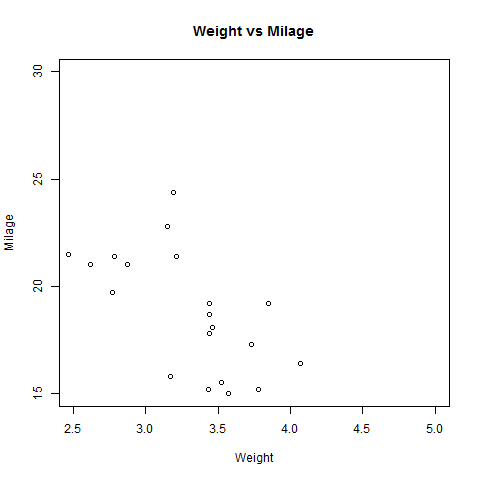
    Scatter Plot using R

    Scatterplot Matrices

    When we have more than two variables and we want to find the correlation between one variable versus the remaining ones we use scatterplot matrix. We use pairs() function to create matrices of scatterplots.

    Syntax

    The basic syntax for creating scatterplot matrices in R is −

    pairs(formula, data)
    

    Following is the description of the parameters used −

    • formula represents the series of variables used in pairs.
    • data represents the data set from which the variables will be taken.

    Example

    Each variable is paired up with each of the remaining variable. A scatterplot is plotted for each pair.

    # Give the chart file a name.
    png(file = "scatterplot_matrices.png")
    
    # Plot the matrices between 4 variables giving 12 plots.
    
    # One variable with 3 others and total 4 variables.
    
    pairs(~wt+mpg+disp+cyl,data = mtcars,
       main = "Scatterplot Matrix")
    
    # Save the file.
    dev.off()

    When the above code is executed we get the following output.
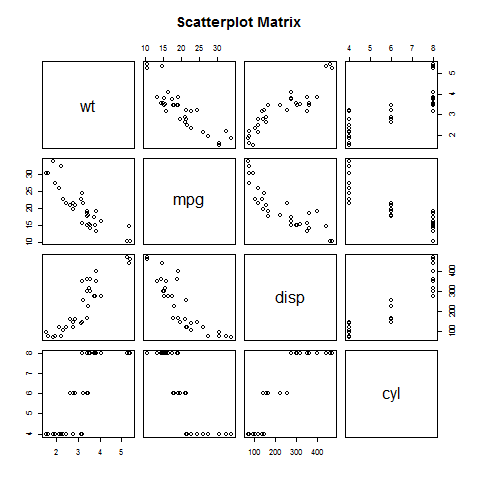
    Scatter Plot Matrices using R
  • Line Graphs

    A line chart is a graph that connects a series of points by drawing line segments between them. These points are ordered in one of their coordinate (usually the x-coordinate) value. Line charts are usually used in identifying the trends in data.

    The plot() function in R is used to create the line graph.

    Syntax

    The basic syntax to create a line chart in R is −

    plot(v,type,col,xlab,ylab)
    

    Following is the description of the parameters used −

    • v is a vector containing the numeric values.
    • type takes the value “p” to draw only the points, “l” to draw only the lines and “o” to draw both points and lines.
    • xlab is the label for x axis.
    • ylab is the label for y axis.
    • main is the Title of the chart.
    • col is used to give colors to both the points and lines.

    Example

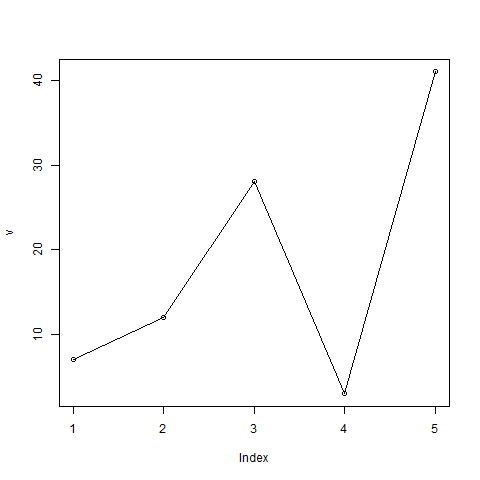
    A simple line chart is created using the input vector and the type parameter as “O”. The below script will create and save a line chart in the current R working directory.

    # Create the data for the chart.
    v <- c(7,12,28,3,41)
    
    # Give the chart file a name.
    png(file = "line_chart.jpg")
    
    # Plot the bar chart. 
    plot(v,type = "o")
    
    # Save the file.
    dev.off()

    When we execute the above code, it produces the following result −

    Line Chart using R

    Line Chart Title, Color and Labels

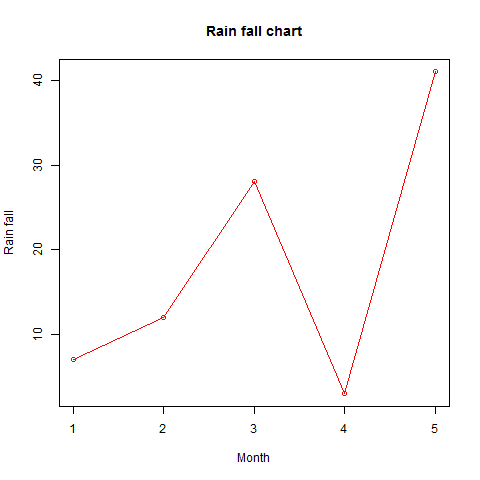
    The features of the line chart can be expanded by using additional parameters. We add color to the points and lines, give a title to the chart and add labels to the axes.

    Example

    # Create the data for the chart.
    v <- c(7,12,28,3,41)
    
    # Give the chart file a name.
    png(file = "line_chart_label_colored.jpg")
    
    # Plot the bar chart.
    plot(v,type = "o", col = "red", xlab = "Month", ylab = "Rain fall",
       main = "Rain fall chart")
    
    # Save the file.
    dev.off()

    When we execute the above code, it produces the following result −

    Line Chart Labeled with Title in R

    Multiple Lines in a Line Chart

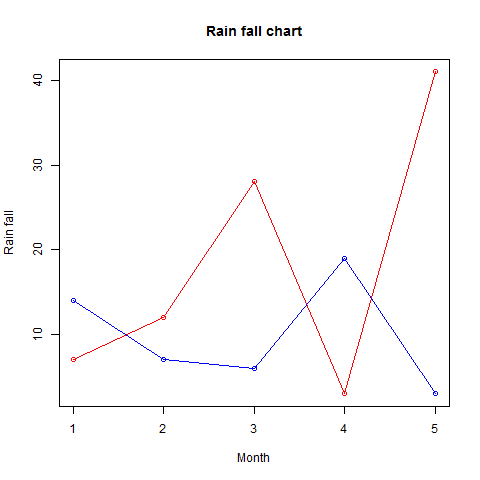
    More than one line can be drawn on the same chart by using the lines()function.

    After the first line is plotted, the lines() function can use an additional vector as input to draw the second line in the chart,

    # Create the data for the chart.
    v <- c(7,12,28,3,41)
    t <- c(14,7,6,19,3)
    
    # Give the chart file a name.
    png(file = "line_chart_2_lines.jpg")
    
    # Plot the bar chart.
    plot(v,type = "o",col = "red", xlab = "Month", ylab = "Rain fall", 
       main = "Rain fall chart")
    
    lines(t, type = "o", col = "blue")
    
    # Save the file.
    dev.off()

    When we execute the above code, it produces the following result −

    Line Chart with multiple lines in R
  • Histograms

    A histogram represents the frequencies of values of a variable bucketed into ranges. Histogram is similar to bar chat but the difference is it groups the values into continuous ranges. Each bar in histogram represents the height of the number of values present in that range.

    R creates histogram using hist() function. This function takes a vector as an input and uses some more parameters to plot histograms.

    Syntax

    The basic syntax for creating a histogram using R is −

    hist(v,main,xlab,xlim,ylim,breaks,col,border)
    

    Following is the description of the parameters used −

    • v is a vector containing numeric values used in histogram.
    • main indicates title of the chart.
    • col is used to set color of the bars.
    • border is used to set border color of each bar.
    • xlab is used to give description of x-axis.
    • xlim is used to specify the range of values on the x-axis.
    • ylim is used to specify the range of values on the y-axis.
    • breaks is used to mention the width of each bar.

    Example

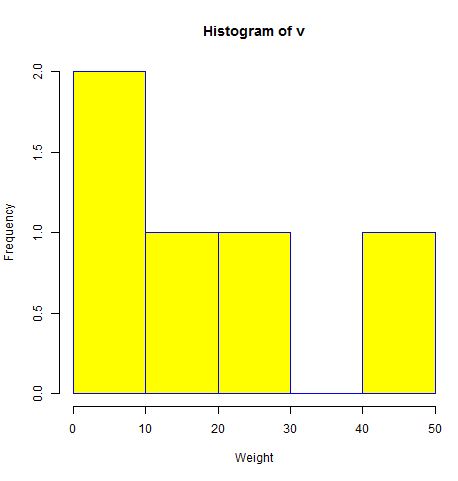
    A simple histogram is created using input vector, label, col and border parameters.

    The script given below will create and save the histogram in the current R working directory.

    # Create data for the graph.
    v <-  c(9,13,21,8,36,22,12,41,31,33,19)
    
    # Give the chart file a name.
    png(file = "histogram.png")
    
    # Create the histogram.
    hist(v,xlab = "Weight",col = "yellow",border = "blue")
    
    # Save the file.
    dev.off()

    When we execute the above code, it produces the following result −

    Histogram Of V

    Range of X and Y values

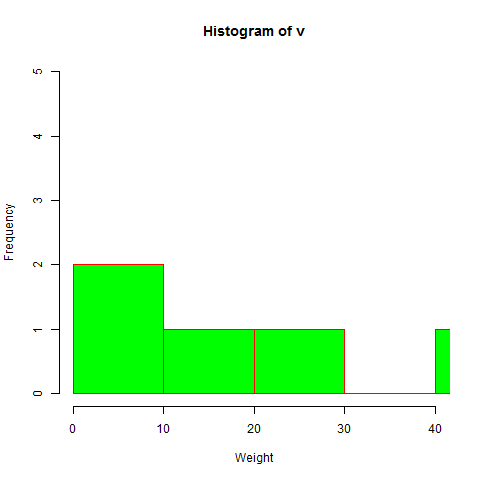
    To specify the range of values allowed in X axis and Y axis, we can use the xlim and ylim parameters.

    The width of each of the bar can be decided by using breaks.

    # Create data for the graph.
    v <- c(9,13,21,8,36,22,12,41,31,33,19)
    
    # Give the chart file a name.
    png(file = "histogram_lim_breaks.png")
    
    # Create the histogram.
    hist(v,xlab = "Weight",col = "green",border = "red", xlim = c(0,40), ylim = c(0,5),
       breaks = 5)
    
    # Save the file.
    dev.off()

    When we execute the above code, it produces the following result −

    Histogram Line Breaks
  • Boxplots

    Boxplots are a measure of how well distributed is the data in a data set. It divides the data set into three quartiles. This graph represents the minimum, maximum, median, first quartile and third quartile in the data set. It is also useful in comparing the distribution of data across data sets by drawing boxplots for each of them.

    Boxplots are created in R by using the boxplot() function.

    Syntax

    The basic syntax to create a boxplot in R is −

    boxplot(x, data, notch, varwidth, names, main)
    

    Following is the description of the parameters used −

    • x is a vector or a formula.
    • data is the data frame.
    • notch is a logical value. Set as TRUE to draw a notch.
    • varwidth is a logical value. Set as true to draw width of the box proportionate to the sample size.
    • names are the group labels which will be printed under each boxplot.
    • main is used to give a title to the graph.

    Example

    We use the data set “mtcars” available in the R environment to create a basic boxplot. Let’s look at the columns “mpg” and “cyl” in mtcars.

    input <- mtcars[,c('mpg','cyl')]
    print(head(input))

    When we execute above code, it produces following result −

                       mpg  cyl
    Mazda RX4         21.0   6
    Mazda RX4 Wag     21.0   6
    Datsun 710        22.8   4
    Hornet 4 Drive    21.4   6
    Hornet Sportabout 18.7   8
    Valiant           18.1   6
    

    Creating the Boxplot

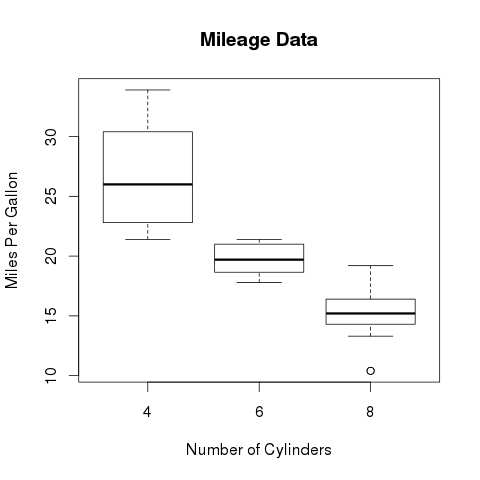
    The below script will create a boxplot graph for the relation between mpg (miles per gallon) and cyl (number of cylinders).

    # Give the chart file a name.
    png(file = "boxplot.png")
    
    # Plot the chart.
    boxplot(mpg ~ cyl, data = mtcars, xlab = "Number of Cylinders",
       ylab = "Miles Per Gallon", main = "Mileage Data")
    
    # Save the file.
    dev.off()

    When we execute the above code, it produces the following result −

    Box Plot using R

    Boxplot with Notch

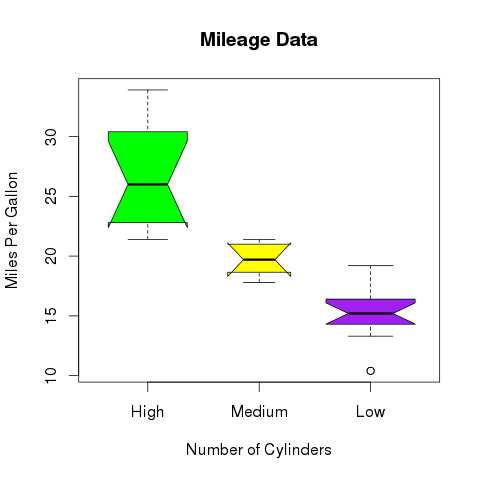
    We can draw boxplot with notch to find out how the medians of different data groups match with each other.

    The below script will create a boxplot graph with notch for each of the data group.

    # Give the chart file a name.
    png(file = "boxplot_with_notch.png")
    
    # Plot the chart.
    boxplot(mpg ~ cyl, data = mtcars, 
       xlab = "Number of Cylinders",
       ylab = "Miles Per Gallon", 
       main = "Mileage Data",
       notch = TRUE, 
       varwidth = TRUE, 
       col = c("green","yellow","purple"),
       names = c("High","Medium","Low")
    )
    # Save the file.
    dev.off()

    When we execute the above code, it produces the following result −

    Box Plot with notch using R
  • Bar Charts

    A bar chart represents data in rectangular bars with length of the bar proportional to the value of the variable. R uses the function barplot() to create bar charts. R can draw both vertical and Horizontal bars in the bar chart. In bar chart each of the bars can be given different colors.

    Syntax

    The basic syntax to create a bar-chart in R is −

    barplot(H,xlab,ylab,main, names.arg,col)
    

    Following is the description of the parameters used −

    • H is a vector or matrix containing numeric values used in bar chart.
    • xlab is the label for x axis.
    • ylab is the label for y axis.
    • main is the title of the bar chart.
    • names.arg is a vector of names appearing under each bar.
    • col is used to give colors to the bars in the graph.

    Example

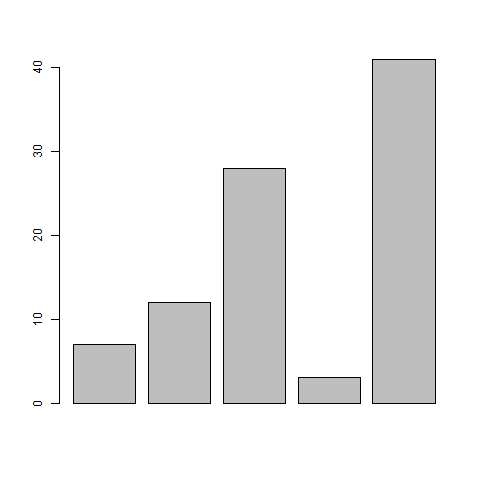
    A simple bar chart is created using just the input vector and the name of each bar.

    The below script will create and save the bar chart in the current R working directory.

    # Create the data for the chart
    H <- c(7,12,28,3,41)
    
    # Give the chart file a name
    png(file = "barchart.png")
    
    # Plot the bar chart 
    barplot(H)
    
    # Save the file
    dev.off()

    When we execute above code, it produces following result −

    Bar Chart using R

    Bar Chart Labels, Title and Colors

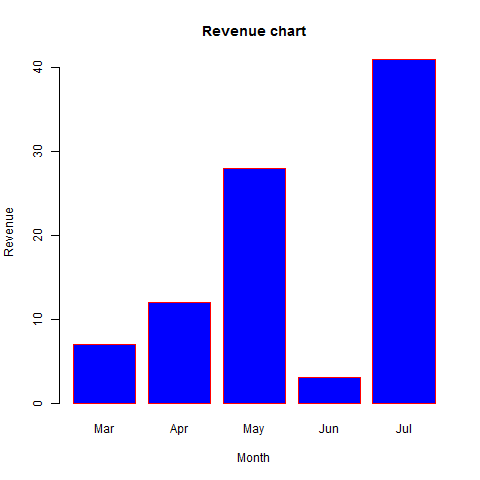
    The features of the bar chart can be expanded by adding more parameters. The main parameter is used to add title. The col parameter is used to add colors to the bars. The args.name is a vector having same number of values as the input vector to describe the meaning of each bar.

    Example

    The below script will create and save the bar chart in the current R working directory.

    # Create the data for the chart
    H <- c(7,12,28,3,41)
    M <- c("Mar","Apr","May","Jun","Jul")
    
    # Give the chart file a name
    png(file = "barchart_months_revenue.png")
    
    # Plot the bar chart 
    barplot(H,names.arg=M,xlab="Month",ylab="Revenue",col="blue",
    main="Revenue chart",border="red")
    
    # Save the file
    dev.off()

    When we execute above code, it produces following result −

    Bar Chart with title using R

    Group Bar Chart and Stacked Bar Chart

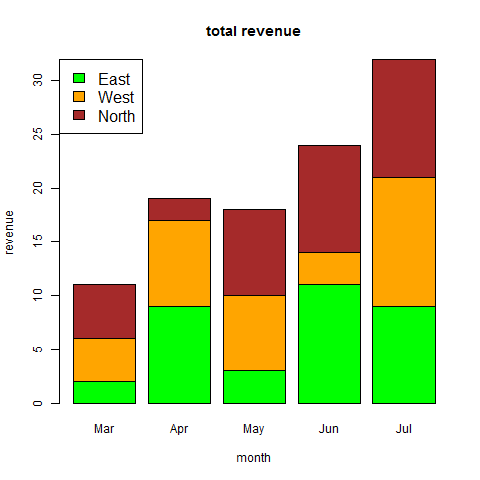
    We can create bar chart with groups of bars and stacks in each bar by using a matrix as input values.

    More than two variables are represented as a matrix which is used to create the group bar chart and stacked bar chart.

    # Create the input vectors.
    colors = c("green","orange","brown")
    months <- c("Mar","Apr","May","Jun","Jul")
    regions <- c("East","West","North")
    
    # Create the matrix of the values.
    Values <- matrix(c(2,9,3,11,9,4,8,7,3,12,5,2,8,10,11), nrow = 3, ncol = 5, byrow = TRUE)
    
    # Give the chart file a name
    png(file = "barchart_stacked.png")
    
    # Create the bar chart
    barplot(Values, main = "total revenue", names.arg = months, xlab = "month", ylab = "revenue", col = colors)
    
    # Add the legend to the chart
    legend("topleft", regions, cex = 1.3, fill = colors)
    
    # Save the file
    dev.off()
     Stacked Bar Chart using R
  • Pie Charts

    R Programming language has numerous libraries to create charts and graphs. A pie-chart is a representation of values as slices of a circle with different colors. The slices are labeled and the numbers corresponding to each slice is also represented in the chart.

    In R the pie chart is created using the pie() function which takes positive numbers as a vector input. The additional parameters are used to control labels, color, title etc.

    Syntax

    The basic syntax for creating a pie-chart using the R is −

    pie(x, labels, radius, main, col, clockwise)
    

    Following is the description of the parameters used −

    • x is a vector containing the numeric values used in the pie chart.
    • labels is used to give description to the slices.
    • radius indicates the radius of the circle of the pie chart.(value between −1 and +1).
    • main indicates the title of the chart.
    • col indicates the color palette.
    • clockwise is a logical value indicating if the slices are drawn clockwise or anti clockwise.

    Example

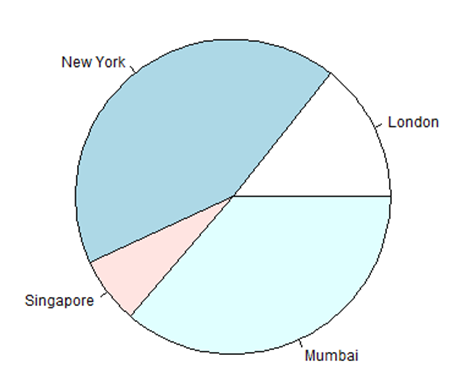
    A very simple pie-chart is created using just the input vector and labels. The below script will create and save the pie chart in the current R working directory.

    # Create data for the graph.
    x <- c(21, 62, 10, 53)
    labels <- c("London", "New York", "Singapore", "Mumbai")
    
    # Give the chart file a name.
    png(file = "city.png")
    
    # Plot the chart.
    pie(x,labels)
    
    # Save the file.
    dev.off()

    When we execute the above code, it produces the following result −

    Pie Chatr using R

    Pie Chart Title and Colors

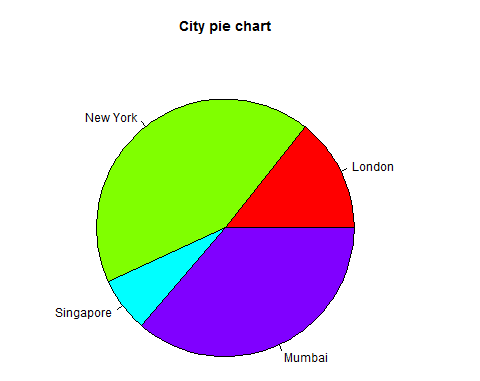
    We can expand the features of the chart by adding more parameters to the function. We will use parameter main to add a title to the chart and another parameter is col which will make use of rainbow colour pallet while drawing the chart. The length of the pallet should be same as the number of values we have for the chart. Hence we use length(x).

    Example

    The below script will create and save the pie chart in the current R working directory.

    # Create data for the graph.
    x <- c(21, 62, 10, 53)
    labels <- c("London", "New York", "Singapore", "Mumbai")
    
    # Give the chart file a name.
    png(file = "city_title_colours.jpg")
    
    # Plot the chart with title and rainbow color pallet.
    pie(x, labels, main = "City pie chart", col = rainbow(length(x)))
    
    # Save the file.
    dev.off()

    When we execute the above code, it produces the following result −

    Pie-chart with title and colours

    Slice Percentages and Chart Legend

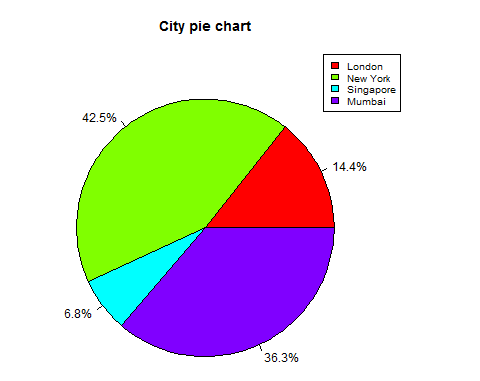
    We can add slice percentage and a chart legend by creating additional chart variables.

    # Create data for the graph.
    x <-  c(21, 62, 10,53)
    labels <-  c("London","New York","Singapore","Mumbai")
    
    piepercent<- round(100*x/sum(x), 1)
    
    # Give the chart file a name.
    png(file = "city_percentage_legends.jpg")
    
    # Plot the chart.
    pie(x, labels = piepercent, main = "City pie chart",col = rainbow(length(x)))
    legend("topright", c("London","New York","Singapore","Mumbai"), cex = 0.8,
       fill = rainbow(length(x)))
    
    # Save the file.
    dev.off()

    When we execute the above code, it produces the following result −

    pie-chart with percentage and labels

    Explore our latest online courses and learn new skills at your own pace. Enroll and become a certified expert to boost your career.

    3D Pie Chart

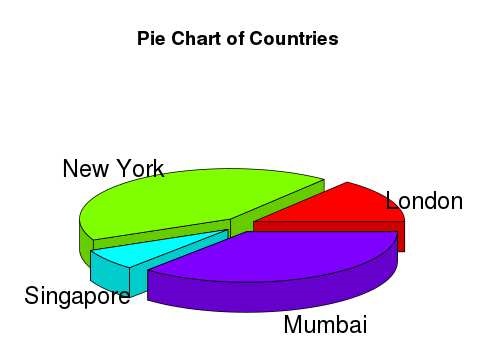
    A pie chart with 3 dimensions can be drawn using additional packages. The package plotrix has a function called pie3D() that is used for this.

    # Get the library.
    library(plotrix)
    
    # Create data for the graph.
    x <-  c(21, 62, 10,53)
    lbl <-  c("London","New York","Singapore","Mumbai")
    
    # Give the chart file a name.
    png(file = "3d_pie_chart.jpg")
    
    # Plot the chart.
    pie3D(x,labels = lbl,explode = 0.1, main = "Pie Chart of Countries ")
    
    # Save the file.
    dev.off()

    When we execute the above code, it produces the following result −

    3D pie-chart