Category: 1. Tutorial

https://encrypted-tbn0.gstatic.com/images?q=tbn:ANd9GcTN5AsIHtK-fOeTNl-0vUnrmfPA2cRABw4Y24TrnparUSODoZK3e1ouYuozuwRwQLmwJcQ

  • Data Reshaping

    Data Reshaping in R is about changing the way data is organized into rows and columns. Most of the time data processing in R is done by taking the input data as a data frame. It is easy to extract data from the rows and columns of a data frame but there are situations when we need the data frame in a format that is different from format in which we received it. R has many functions to split, merge and change the rows to columns and vice-versa in a data frame.

    Joining Columns and Rows in a Data Frame

    We can join multiple vectors to create a data frame using the cbind()function. Also we can merge two data frames using rbind() function.

    # Create vector objects.
    city <- c("Tampa","Seattle","Hartford","Denver")
    state <- c("FL","WA","CT","CO")
    zipcode <- c(33602,98104,06161,80294)
    
    # Combine above three vectors into one data frame.
    addresses <- cbind(city,state,zipcode)
    
    # Print a header.
    cat("# # # # The First data frame\n") 
    
    # Print the data frame.
    print(addresses)
    
    # Create another data frame with similar columns
    new.address <- data.frame(
       city = c("Lowry","Charlotte"),
       state = c("CO","FL"),
       zipcode = c("80230","33949"),
       stringsAsFactors = FALSE
    )
    
    # Print a header.
    cat("# # # The Second data frame\n") 
    
    # Print the data frame.
    print(new.address)
    
    # Combine rows form both the data frames.
    all.addresses <- rbind(addresses,new.address)
    
    # Print a header.
    cat("# # # The combined data frame\n") 
    
    # Print the result.
    print(all.addresses)

    When we execute the above code, it produces the following result −

    # # # # The First data frame
    
     city       state zipcode
    [1,] "Tampa" "FL" "33602" [2,] "Seattle" "WA" "98104" [3,] "Hartford" "CT" "6161" [4,] "Denver" "CO" "80294" # # # The Second data frame
       city       state   zipcode
    1 Lowry CO 80230 2 Charlotte FL 33949 # # # The combined data frame
       city      state zipcode
    1 Tampa FL 33602 2 Seattle WA 98104 3 Hartford CT 6161 4 Denver CO 80294 5 Lowry CO 80230 6 Charlotte FL 33949

    Merging Data Frames

    We can merge two data frames by using the merge() function. The data frames must have same column names on which the merging happens.

    In the example below, we consider the data sets about Diabetes in Pima Indian Women available in the library names “MASS”. we merge the two data sets based on the values of blood pressure(“bp”) and body mass index(“bmi”). On choosing these two columns for merging, the records where values of these two variables match in both data sets are combined together to form a single data frame.

    library(MASS)
    merged.Pima <- merge(x = Pima.te, y = Pima.tr,
       by.x = c("bp", "bmi"),
       by.y = c("bp", "bmi")
    )
    print(merged.Pima)
    nrow(merged.Pima)

    When we execute the above code, it produces the following result −

       bp  bmi npreg.x glu.x skin.x ped.x age.x type.x npreg.y glu.y skin.y ped.y
    1  60 33.8       1   117     23 0.466    27     No       2   125     20 0.088
    2  64 29.7       2    75     24 0.370    33     No       2   100     23 0.368
    3  64 31.2       5   189     33 0.583    29    Yes       3   158     13 0.295
    4  64 33.2       4   117     27 0.230    24     No       1    96     27 0.289
    5  66 38.1       3   115     39 0.150    28     No       1   114     36 0.289
    6  68 38.5       2   100     25 0.324    26     No       7   129     49 0.439
    7  70 27.4       1   116     28 0.204    21     No       0   124     20 0.254
    8  70 33.1       4    91     32 0.446    22     No       9   123     44 0.374
    9  70 35.4       9   124     33 0.282    34     No       6   134     23 0.542
    10 72 25.6       1   157     21 0.123    24     No       4    99     17 0.294
    11 72 37.7       5    95     33 0.370    27     No       6   103     32 0.324
    12 74 25.9       9   134     33 0.460    81     No       8   126     38 0.162
    13 74 25.9       1    95     21 0.673    36     No       8   126     38 0.162
    14 78 27.6       5    88     30 0.258    37     No       6   125     31 0.565
    15 78 27.6      10   122     31 0.512    45     No       6   125     31 0.565
    16 78 39.4       2   112     50 0.175    24     No       4   112     40 0.236
    17 88 34.5       1   117     24 0.403    40    Yes       4   127     11 0.598
       age.y type.y
    1     31     No
    2     21     No
    3     24     No
    4     21     No
    5     21     No
    6     43    Yes
    7     36    Yes
    8     40     No
    9     29    Yes
    10    28     No
    11    55     No
    12    39     No
    13    39     No
    14    49    Yes
    15    49    Yes
    16    38     No
    17    28     No
    [1] 17
    

    Explore our latest online courses and learn new skills at your own pace. Enroll and become a certified expert to boost your career.

    Melting and Casting

    One of the most interesting aspects of R programming is about changing the shape of the data in multiple steps to get a desired shape. The functions used to do this are called melt() and cast().

    We consider the dataset called ships present in the library called “MASS”.

    library(MASS)
    print(ships)

    When we execute the above code, it produces the following result −

         type year   period   service   incidents
    1     A   60     60        127         0
    2     A   60     75         63         0
    3     A   65     60       1095         3
    4     A   65     75       1095         4
    5     A   70     60       1512         6
    .............
    .............
    8     A   75     75       2244         11
    9     B   60     60      44882         39
    10    B   60     75      17176         29
    11    B   65     60      28609         58
    ............
    ............
    17    C   60     60      1179          1
    18    C   60     75       552          1
    19    C   65     60       781          0
    ............
    ............
    

    Melt the Data

    Now we melt the data to organize it, converting all columns other than type and year into multiple rows.

    molten.ships <- melt(ships, id = c("type","year"))
    print(molten.ships)

    When we execute the above code, it produces the following result −

          type year  variable  value
    1      A   60    period      60
    2      A   60    period      75
    3      A   65    period      60
    4      A   65    period      75
    ............
    ............
    9      B   60    period      60
    10     B   60    period      75
    11     B   65    period      60
    12     B   65    period      75
    13     B   70    period      60
    ...........
    ...........
    41     A   60    service    127
    42     A   60    service     63
    43     A   65    service   1095
    ...........
    ...........
    70     D   70    service   1208
    71     D   75    service      0
    72     D   75    service   2051
    73     E   60    service     45
    74     E   60    service      0
    75     E   65    service    789
    ...........
    ...........
    101    C   70    incidents    6
    102    C   70    incidents    2
    103    C   75    incidents    0
    104    C   75    incidents    1
    105    D   60    incidents    0
    106    D   60    incidents    0
    ...........
    ...........
    

    Cast the Molten Data

    We can cast the molten data into a new form where the aggregate of each type of ship for each year is created. It is done using the cast() function.

    recasted.ship <- cast(molten.ships, type+year~variable,sum)
    print(recasted.ship)

    When we execute the above code, it produces the following result −

         type year  period  service  incidents
    1     A   60    135       190      0
    2     A   65    135      2190      7
    3     A   70    135      4865     24
    4     A   75    135      2244     11
    5     B   60    135     62058     68
    6     B   65    135     48979    111
    7     B   70    135     20163     56
    8     B   75    135      7117     18
    9     C   60    135      1731      2
    10    C   65    135      1457      1
    11    C   70    135      2731      8
    12    C   75    135       274      1
    13    D   60    135       356      0
    14    D   65    135       480      0
    15    D   70    135      1557     13
    16    D   75    135      2051      4
    17    E   60    135        45      0
    18    E   65    135      1226     14
    19    E   70    135      3318     17
    20    E   75    135       542      1
    
  • Packages

    R packages are a collection of R functions, complied code and sample data. They are stored under a directory called “library” in the R environment. By default, R installs a set of packages during installation. More packages are added later, when they are needed for some specific purpose. When we start the R console, only the default packages are available by default. Other packages which are already installed have to be loaded explicitly to be used by the R program that is going to use them.

    All the packages available in R language are listed at R Packages.

    Below is a list of commands to be used to check, verify and use the R packages.

    Check Available R Packages

    Get library locations containing R packages

    .libPaths()

    When we execute the above code, it produces the following result. It may vary depending on the local settings of your pc.

    [2] "C:/Program Files/R/R-3.2.2/library"
    

    Get the list of all the packages installed

    library()

    When we execute the above code, it produces the following result. It may vary depending on the local settings of your pc.

    Packages in library ‘C:/Program Files/R/R-3.2.2/library’:
    
    base                    The R Base Package
    boot                    Bootstrap Functions (Originally by Angelo Canty
    
                        for S)
    class Functions for Classification cluster "Finding Groups in Data": Cluster Analysis
                        Extended Rousseeuw et al.
    codetools Code Analysis Tools for R compiler The R Compiler Package datasets The R Datasets Package foreign Read Data Stored by 'Minitab', 'S', 'SAS',
                        'SPSS', 'Stata', 'Systat', 'Weka', 'dBase', ...
    graphics The R Graphics Package grDevices The R Graphics Devices and Support for Colours
                        and Fonts
    grid The Grid Graphics Package KernSmooth Functions for Kernel Smoothing Supporting Wand
                        &amp; Jones (1995)
    lattice Trellis Graphics for R MASS Support Functions and Datasets for Venables and
                        Ripley's MASS
    Matrix Sparse and Dense Matrix Classes and Methods methods Formal Methods and Classes mgcv Mixed GAM Computation Vehicle with GCV/AIC/REML
                        Smoothness Estimation
    nlme Linear and Nonlinear Mixed Effects Models nnet Feed-Forward Neural Networks and Multinomial
                        Log-Linear Models
    parallel Support for Parallel computation in R rpart Recursive Partitioning and Regression Trees spatial Functions for Kriging and Point Pattern
                        Analysis
    splines Regression Spline Functions and Classes stats The R Stats Package stats4 Statistical Functions using S4 Classes survival Survival Analysis tcltk Tcl/Tk Interface tools Tools for Package Development utils The R Utils Package

    Get all packages currently loaded in the R environment

    search()

    When we execute the above code, it produces the following result. It may vary depending on the local settings of your pc.

    [1] ".GlobalEnv"        "package:stats"     "package:graphics" 
    [4] "package:grDevices" "package:utils"     "package:datasets" 
    [7] "package:methods"   "Autoloads"         "package:base" 
    

    Explore our latest online courses and learn new skills at your own pace. Enroll and become a certified expert to boost your career.

    Install a New Package

    There are two ways to add new R packages. One is installing directly from the CRAN directory and another is downloading the package to your local system and installing it manually.

    Install directly from CRAN

    The following command gets the packages directly from CRAN webpage and installs the package in the R environment. You may be prompted to choose a nearest mirror. Choose the one appropriate to your location.

     install.packages("Package Name")
     
    # Install the package named "XML".
     install.packages("XML")
    

    Install package manually

    Go to the link R Packages to download the package needed. Save the package as a .zip file in a suitable location in the local system.

    Now you can run the following command to install this package in the R environment.

    install.packages(file_name_with_path, repos = NULL, type = "source")
    
    # Install the package named "XML"
    install.packages("E:/XML_3.98-1.3.zip", repos = NULL, type = "source")

    Load Package to Library

    Before a package can be used in the code, it must be loaded to the current R environment. You also need to load a package that is already installed previously but not available in the current environment.

    A package is loaded using the following command −

    library("package Name", lib.loc = "path to library")
    
    # Load the package named "XML"
    install.packages("E:/XML_3.98-1.3.zip", repos = NULL, type = "source")
    
  • Data Frames

    A data frame is a table or a two-dimensional array-like structure in which each column contains values of one variable and each row contains one set of values from each column.

    Following are the characteristics of a data frame.

    • The column names should be non-empty.
    • The row names should be unique.
    • The data stored in a data frame can be of numeric, factor or character type.
    • Each column should contain same number of data items.

    Create Data Frame

    # Create the data frame.
    emp.data <- data.frame(
       emp_id = c (1:5), 
       emp_name = c("Rick","Dan","Michelle","Ryan","Gary"),
       salary = c(623.3,515.2,611.0,729.0,843.25), 
       
       start_date = as.Date(c("2012-01-01", "2013-09-23", "2014-11-15", "2014-05-11",
    
      "2015-03-27")),
    stringsAsFactors = FALSE ) # Print the data frame. print(emp.data)

    When we execute the above code, it produces the following result −

     emp_id    emp_name     salary     start_date
    1     1     Rick        623.30     2012-01-01
    2     2     Dan         515.20     2013-09-23
    3     3     Michelle    611.00     2014-11-15
    4     4     Ryan        729.00     2014-05-11
    5     5     Gary        843.25     2015-03-27
    

    Get the Structure of the Data Frame

    The structure of the data frame can be seen by using str() function.

    # Create the data frame.
    emp.data <- data.frame(
       emp_id = c (1:5), 
       emp_name = c("Rick","Dan","Michelle","Ryan","Gary"),
       salary = c(623.3,515.2,611.0,729.0,843.25), 
       
       start_date = as.Date(c("2012-01-01", "2013-09-23", "2014-11-15", "2014-05-11",
    
      "2015-03-27")),
    stringsAsFactors = FALSE ) # Get the structure of the data frame. str(emp.data)

    When we execute the above code, it produces the following result −

    'data.frame':   5 obs. of  4 variables:
     $ emp_id    : int  1 2 3 4 5
     $ emp_name  : chr  "Rick" "Dan" "Michelle" "Ryan" ...
     $ salary    : num  623 515 611 729 843
     $ start_date: Date, format: "2012-01-01" "2013-09-23" "2014-11-15" "2014-05-11" ...
    

    Explore our latest online courses and learn new skills at your own pace. Enroll and become a certified expert to boost your career.

    Summary of Data in Data Frame

    The statistical summary and nature of the data can be obtained by applying summary() function.

    # Create the data frame.
    emp.data <- data.frame(
       emp_id = c (1:5), 
       emp_name = c("Rick","Dan","Michelle","Ryan","Gary"),
       salary = c(623.3,515.2,611.0,729.0,843.25), 
       
       start_date = as.Date(c("2012-01-01", "2013-09-23", "2014-11-15", "2014-05-11",
    
      "2015-03-27")),
    stringsAsFactors = FALSE ) # Print the summary. print(summary(emp.data))

    When we execute the above code, it produces the following result −

         emp_id    emp_name             salary        start_date        
     Min.   :1   Length:5           Min.   :515.2   Min.   :2012-01-01  
     1st Qu.:2   Class :character   1st Qu.:611.0   1st Qu.:2013-09-23  
     Median :3   Mode  :character   Median :623.3   Median :2014-05-11  
     Mean   :3                      Mean   :664.4   Mean   :2014-01-14  
     3rd Qu.:4                      3rd Qu.:729.0   3rd Qu.:2014-11-15  
     Max.   :5                      Max.   :843.2   Max.   :2015-03-27 
    

    Extract Data from Data Frame

    Extract specific column from a data frame using column name.

    # Create the data frame.
    emp.data <- data.frame(
       emp_id = c (1:5),
       emp_name = c("Rick","Dan","Michelle","Ryan","Gary"),
       salary = c(623.3,515.2,611.0,729.0,843.25),
       
       start_date = as.Date(c("2012-01-01","2013-09-23","2014-11-15","2014-05-11",
    
      "2015-03-27")),
    stringsAsFactors = FALSE ) # Extract Specific columns. result <- data.frame(emp.data$emp_name,emp.data$salary) print(result)

    When we execute the above code, it produces the following result −

      emp.data.emp_name emp.data.salary
    1              Rick          623.30
    2               Dan          515.20
    3          Michelle          611.00
    4              Ryan          729.00
    5              Gary          843.25
    

    Extract the first two rows and then all columns

    # Create the data frame.
    emp.data <- data.frame(
       emp_id = c (1:5),
       emp_name = c("Rick","Dan","Michelle","Ryan","Gary"),
       salary = c(623.3,515.2,611.0,729.0,843.25),
       
       start_date = as.Date(c("2012-01-01", "2013-09-23", "2014-11-15", "2014-05-11",
    
      "2015-03-27")),
    stringsAsFactors = FALSE ) # Extract first two rows. result <- emp.data[1:2,] print(result)

    When we execute the above code, it produces the following result −

      emp_id    emp_name   salary    start_date
    1      1     Rick      623.3     2012-01-01
    2      2     Dan       515.2     2013-09-23
    

    Extract 3rd and 5th row with 2nd and 4th column

    # Create the data frame.
    emp.data <- data.frame(
       emp_id = c (1:5), 
       emp_name = c("Rick","Dan","Michelle","Ryan","Gary"),
       salary = c(623.3,515.2,611.0,729.0,843.25), 
       
    	start_date = as.Date(c("2012-01-01", "2013-09-23", "2014-11-15", "2014-05-11",
    
      "2015-03-27")),
    stringsAsFactors = FALSE ) # Extract 3rd and 5th row with 2nd and 4th column. result <- emp.data[c(3,5),c(2,4)] print(result)

    When we execute the above code, it produces the following result −

      emp_name start_date
    3 Michelle 2014-11-15
    5     Gary 2015-03-27
    

    Expand Data Frame

    A data frame can be expanded by adding columns and rows.

    Add Column

    Just add the column vector using a new column name.

    # Create the data frame.
    emp.data <- data.frame(
       emp_id = c (1:5), 
       emp_name = c("Rick","Dan","Michelle","Ryan","Gary"),
       salary = c(623.3,515.2,611.0,729.0,843.25), 
       
       start_date = as.Date(c("2012-01-01", "2013-09-23", "2014-11-15", "2014-05-11",
    
      "2015-03-27")),
    stringsAsFactors = FALSE ) # Add the "dept" coulmn. emp.data$dept <- c("IT","Operations","IT","HR","Finance") v <- emp.data print(v)

    When we execute the above code, it produces the following result −

      emp_id   emp_name    salary    start_date       dept
    1     1    Rick        623.30    2012-01-01       IT
    2     2    Dan         515.20    2013-09-23       Operations
    3     3    Michelle    611.00    2014-11-15       IT
    4     4    Ryan        729.00    2014-05-11       HR
    5     5    Gary        843.25    2015-03-27       Finance
    

    Add Row

    To add more rows permanently to an existing data frame, we need to bring in the new rows in the same structure as the existing data frame and use the rbind() function.

    In the example below we create a data frame with new rows and merge it with the existing data frame to create the final data frame.

    # Create the first data frame.
    emp.data <- data.frame(
       emp_id = c (1:5), 
       emp_name = c("Rick","Dan","Michelle","Ryan","Gary"),
       salary = c(623.3,515.2,611.0,729.0,843.25), 
       
       start_date = as.Date(c("2012-01-01", "2013-09-23", "2014-11-15", "2014-05-11",
    
      "2015-03-27")),
    dept = c("IT","Operations","IT","HR","Finance"), stringsAsFactors = FALSE ) # Create the second data frame emp.newdata <- data.frame( emp_id = c (6:8), emp_name = c("Rasmi","Pranab","Tusar"), salary = c(578.0,722.5,632.8), start_date = as.Date(c("2013-05-21","2013-07-30","2014-06-17")), dept = c("IT","Operations","Fianance"), stringsAsFactors = FALSE ) # Bind the two data frames. emp.finaldata <- rbind(emp.data,emp.newdata) print(emp.finaldata)

    When we execute the above code, it produces the following result −

      emp_id     emp_name    salary     start_date       dept
    1      1     Rick        623.30     2012-01-01       IT
    2      2     Dan         515.20     2013-09-23       Operations
    3      3     Michelle    611.00     2014-11-15       IT
    4      4     Ryan        729.00     2014-05-11       HR
    5      5     Gary        843.25     2015-03-27       Finance
    6      6     Rasmi       578.00     2013-05-21       IT
    7      7     Pranab      722.50     2013-07-30       Operations
    8      8     Tusar       632.80     2014-06-17       Fianance
    
  • Factors

    Factors are the data objects which are used to categorize the data and store it as levels. They can store both strings and integers. They are useful in the columns which have a limited number of unique values. Like “Male, “Female” and True, False etc. They are useful in data analysis for statistical modeling.

    Factors are created using the factor () function by taking a vector as input.

    Example

    # Create a vector as input.
    data <- c("East","West","East","North","North","East","West","West","West","East","North")
    
    print(data)
    print(is.factor(data))
    
    # Apply the factor function.
    factor_data <- factor(data)
    
    print(factor_data)
    print(is.factor(factor_data))

    When we execute the above code, it produces the following result −

    [1] "East"  "West"  "East"  "North" "North" "East"  "West"  "West"  "West"  "East" "North"
    [1] FALSE
    [1] East  West  East  North North East  West  West  West  East  North
    Levels: East North West
    [1] TRUE
    

    Factors in Data Frame

    On creating any data frame with a column of text data, R treats the text column as categorical data and creates factors on it.

    # Create the vectors for data frame.
    height <- c(132,151,162,139,166,147,122)
    weight <- c(48,49,66,53,67,52,40)
    gender <- c("male","male","female","female","male","female","male")
    
    # Create the data frame.
    input_data <- data.frame(height,weight,gender)
    print(input_data)
    
    # Test if the gender column is a factor.
    print(is.factor(input_data$gender))
    
    # Print the gender column so see the levels.
    print(input_data$gender)

    When we execute the above code, it produces the following result −

      height weight gender
    1    132     48   male
    2    151     49   male
    3    162     66 female
    4    139     53 female
    5    166     67   male
    6    147     52 female
    7    122     40   male
    [1] TRUE
    [1] male   male   female female male   female male  
    Levels: female male
    

    Explore our latest online courses and learn new skills at your own pace. Enroll and become a certified expert to boost your career.

    Changing the Order of Levels

    The order of the levels in a factor can be changed by applying the factor function again with new order of the levels.

    data <- c("East","West","East","North","North","East","West",
       "West","West","East","North")
    # Create the factors
    factor_data <- factor(data)
    print(factor_data)
    
    # Apply the factor function with required order of the level.
    new_order_data <- factor(factor_data,levels = c("East","West","North"))
    print(new_order_data)

    When we execute the above code, it produces the following result −

     [1] East  West  East  North North East  West  West  West  East  North
    Levels: East North West
     [1] East  West  East  North North East  West  West  West  East  North
    Levels: East West North
    

    Generating Factor Levels

    We can generate factor levels by using the gl() function. It takes two integers as input which indicates how many levels and how many times each level.

    Syntax

    gl(n, k, labels)
    

    Following is the description of the parameters used −

    • n is a integer giving the number of levels.
    • k is a integer giving the number of replications.
    • labels is a vector of labels for the resulting factor levels.

    Example

    v <- gl(3, 4, labels = c("Tampa", "Seattle","Boston"))
    print(v)

    When we execute the above code, it produces the following result −

    Tampa   Tampa   Tampa   Tampa   Seattle Seattle Seattle Seattle Boston 
    [10] Boston  Boston  Boston 
    Levels: Tampa Seattle Boston
    
  • Arrays

    Arrays are the R data objects which can store data in more than two dimensions. For example − If we create an array of dimension (2, 3, 4) then it creates 4 rectangular matrices each with 2 rows and 3 columns. Arrays can store only data type.

    An array is created using the array() function. It takes vectors as input and uses the values in the dim parameter to create an array.

    Example

    The following example creates an array of two 3×3 matrices each with 3 rows and 3 columns.

    # Create two vectors of different lengths.
    vector1 <- c(5,9,3)
    vector2 <- c(10,11,12,13,14,15)
    
    # Take these vectors as input to the array.
    result <- array(c(vector1,vector2),dim = c(3,3,2))
    print(result)

    When we execute the above code, it produces the following result −

    , , 1
    
    
     &#91;,1] &#91;,2] &#91;,3]
    [1,] 5 10 13 [2,] 9 11 14 [3,] 3 12 15 , , 2
     &#91;,1] &#91;,2] &#91;,3]
    [1,] 5 10 13 [2,] 9 11 14 [3,] 3 12 15

    Naming Columns and Rows

    We can give names to the rows, columns and matrices in the array by using the dimnames parameter.

    # Create two vectors of different lengths.
    vector1 <- c(5,9,3)
    vector2 <- c(10,11,12,13,14,15)
    column.names <- c("COL1","COL2","COL3")
    row.names <- c("ROW1","ROW2","ROW3")
    matrix.names <- c("Matrix1","Matrix2")
    
    # Take these vectors as input to the array.
    result <- array(c(vector1,vector2),dim = c(3,3,2),dimnames = list(row.names,column.names,
       matrix.names))
    print(result)

    When we execute the above code, it produces the following result −

    , , Matrix1
    
    
     COL1 COL2 COL3
    ROW1 5 10 13 ROW2 9 11 14 ROW3 3 12 15 , , Matrix2
     COL1 COL2 COL3
    ROW1 5 10 13 ROW2 9 11 14 ROW3 3 12 15

    Explore our latest online courses and learn new skills at your own pace. Enroll and become a certified expert to boost your career.

    Accessing Array Elements

    # Create two vectors of different lengths.
    vector1 <- c(5,9,3)
    vector2 <- c(10,11,12,13,14,15)
    column.names <- c("COL1","COL2","COL3")
    row.names <- c("ROW1","ROW2","ROW3")
    matrix.names <- c("Matrix1","Matrix2")
    
    # Take these vectors as input to the array.
    result <- array(c(vector1,vector2),dim = c(3,3,2),dimnames = list(row.names,
       column.names, matrix.names))
    
    # Print the third row of the second matrix of the array.
    print(result[3,,2])
    
    # Print the element in the 1st row and 3rd column of the 1st matrix.
    print(result[1,3,1])
    
    # Print the 2nd Matrix.
    print(result[,,2])

    When we execute the above code, it produces the following result −

    COL1 COL2 COL3 
       3   12   15 
    [1] 13
    
     COL1 COL2 COL3
    ROW1 5 10 13 ROW2 9 11 14 ROW3 3 12 15

    Manipulating Array Elements

    As array is made up matrices in multiple dimensions, the operations on elements of array are carried out by accessing elements of the matrices.

    # Create two vectors of different lengths.
    vector1 <- c(5,9,3)
    vector2 <- c(10,11,12,13,14,15)
    
    # Take these vectors as input to the array.
    array1 <- array(c(vector1,vector2),dim = c(3,3,2))
    
    # Create two vectors of different lengths.
    vector3 <- c(9,1,0)
    vector4 <- c(6,0,11,3,14,1,2,6,9)
    array2 <- array(c(vector1,vector2),dim = c(3,3,2))
    
    # create matrices from these arrays.
    matrix1 <- array1[,,2]
    matrix2 <- array2[,,2]
    
    # Add the matrices.
    result <- matrix1+matrix2
    print(result)

    When we execute the above code, it produces the following result −

         [,1] [,2] [,3]
    [1,]   10   20   26
    [2,]   18   22   28
    [3,]    6   24   30
    

    Calculations Across Array Elements

    We can do calculations across the elements in an array using the apply() function.

    Syntax

    apply(x, margin, fun)
    

    Following is the description of the parameters used −

    • x is an array.
    • margin is the name of the data set used.
    • fun is the function to be applied across the elements of the array.

    Example

    We use the apply() function below to calculate the sum of the elements in the rows of an array across all the matrices.

    # Create two vectors of different lengths.
    vector1 <- c(5,9,3)
    vector2 <- c(10,11,12,13,14,15)
    
    # Take these vectors as input to the array.
    new.array <- array(c(vector1,vector2),dim = c(3,3,2))
    print(new.array)
    
    # Use apply to calculate the sum of the rows across all the matrices.
    result <- apply(new.array, c(1), sum)
    print(result)

    When we execute the above code, it produces the following result −

    , , 1
    
    
     &#91;,1] &#91;,2] &#91;,3]
    [1,] 5 10 13 [2,] 9 11 14 [3,] 3 12 15 , , 2
     &#91;,1] &#91;,2] &#91;,3]
    [1,] 5 10 13 [2,] 9 11 14 [3,] 3 12 15 [1] 56 68 60

  • Matrices

    Matrices are the R objects in which the elements are arranged in a two-dimensional rectangular layout. They contain elements of the same atomic types. Though we can create a matrix containing only characters or only logical values, they are not of much use. We use matrices containing numeric elements to be used in mathematical calculations.

    A Matrix is created using the matrix() function.

    Syntax

    The basic syntax for creating a matrix in R is −

    matrix(data, nrow, ncol, byrow, dimnames)
    

    Following is the description of the parameters used −

    • data is the input vector which becomes the data elements of the matrix.
    • nrow is the number of rows to be created.
    • ncol is the number of columns to be created.
    • byrow is a logical clue. If TRUE then the input vector elements are arranged by row.
    • dimname is the names assigned to the rows and columns.

    Example

    Create a matrix taking a vector of numbers as input.

    # Elements are arranged sequentially by row.
    M <- matrix(c(3:14), nrow = 4, byrow = TRUE)
    print(M)
    
    # Elements are arranged sequentially by column.
    N <- matrix(c(3:14), nrow = 4, byrow = FALSE)
    print(N)
    
    # Define the column and row names.
    rownames = c("row1", "row2", "row3", "row4")
    colnames = c("col1", "col2", "col3")
    
    P <- matrix(c(3:14), nrow = 4, byrow = TRUE, dimnames = list(rownames, colnames))
    print(P)

    When we execute the above code, it produces the following result −

         [,1] [,2] [,3]
    [1,]    3    4    5
    [2,]    6    7    8
    [3,]    9   10   11
    [4,]   12   13   14
    
     &#91;,1] &#91;,2] &#91;,3]
    [1,] 3 7 11 [2,] 4 8 12 [3,] 5 9 13 [4,] 6 10 14
     col1 col2 col3
    row1 3 4 5 row2 6 7 8 row3 9 10 11 row4 12 13 14

    Accessing Elements of a Matrix

    Elements of a matrix can be accessed by using the column and row index of the element. We consider the matrix P above to find the specific elements below.

    # Define the column and row names.
    rownames = c("row1", "row2", "row3", "row4")
    colnames = c("col1", "col2", "col3")
    
    # Create the matrix.
    P <- matrix(c(3:14), nrow = 4, byrow = TRUE, dimnames = list(rownames, colnames))
    
    # Access the element at 3rd column and 1st row.
    print(P[1,3])
    
    # Access the element at 2nd column and 4th row.
    print(P[4,2])
    
    # Access only the  2nd row.
    print(P[2,])
    
    # Access only the 3rd column.
    print(P[,3])

    When we execute the above code, it produces the following result −

    [1] 5
    [1] 13
    col1 col2 col3 
       6    7    8 
    row1 row2 row3 row4 
       5    8   11   14 
    

    Matrix Computations

    Various mathematical operations are performed on the matrices using the R operators. The result of the operation is also a matrix.

    The dimensions (number of rows and columns) should be same for the matrices involved in the operation.

    Matrix Addition & Subtraction

    # Create two 2x3 matrices.
    matrix1 <- matrix(c(3, 9, -1, 4, 2, 6), nrow = 2)
    print(matrix1)
    
    matrix2 <- matrix(c(5, 2, 0, 9, 3, 4), nrow = 2)
    print(matrix2)
    
    # Add the matrices.
    result <- matrix1 + matrix2
    cat("Result of addition","\n")
    print(result)
    
    # Subtract the matrices
    result <- matrix1 - matrix2
    cat("Result of subtraction","\n")
    print(result)

    When we execute the above code, it produces the following result −

         [,1] [,2] [,3]
    [1,]    3   -1    2
    [2,]    9    4    6
    
     &#91;,1] &#91;,2] &#91;,3]
    [1,] 5 0 3 [2,] 2 9 4 Result of addition
     &#91;,1] &#91;,2] &#91;,3]
    [1,] 8 -1 5 [2,] 11 13 10 Result of subtraction
     &#91;,1] &#91;,2] &#91;,3]
    [1,] -2 -1 -1 [2,] 7 -5 2

    Matrix Multiplication & Division

    # Create two 2x3 matrices.
    matrix1 <- matrix(c(3, 9, -1, 4, 2, 6), nrow = 2)
    print(matrix1)
    
    matrix2 <- matrix(c(5, 2, 0, 9, 3, 4), nrow = 2)
    print(matrix2)
    
    # Multiply the matrices.
    result <- matrix1 * matrix2
    cat("Result of multiplication","\n")
    print(result)
    
    # Divide the matrices
    result <- matrix1 / matrix2
    cat("Result of division","\n")
    print(result)

    When we execute the above code, it produces the following result −

         [,1] [,2] [,3]
    [1,]    3   -1    2
    [2,]    9    4    6
    
     &#91;,1] &#91;,2] &#91;,3]
    [1,] 5 0 3 [2,] 2 9 4 Result of multiplication
     &#91;,1] &#91;,2] &#91;,3]
    [1,] 15 0 6 [2,] 18 36 24 Result of division
     &#91;,1]      &#91;,2]      &#91;,3]
    [1,] 0.6 -Inf 0.6666667 [2,] 4.5 0.4444444 1.5000000
  • Lists

    Lists are the R objects which contain elements of different types like − numbers, strings, vectors and another list inside it. A list can also contain a matrix or a function as its elements. List is created using list() function.

    Creating a List

    Following is an example to create a list containing strings, numbers, vectors and a logical values.

    # Create a list containing strings, numbers, vectors and a logical
    # values.
    list_data <- list("Red", "Green", c(21,32,11), TRUE, 51.23, 119.1)
    print(list_data)

    When we execute the above code, it produces the following result −

    [[1]]
    [1] "Red"
    
    [[2]]
    [1] "Green"
    
    [[3]]
    [1] 21 32 11
    
    [[4]]
    [1] TRUE
    
    [[5]]
    [1] 51.23
    
    [[6]]
    [1] 119.1
    

    Naming List Elements

    The list elements can be given names and they can be accessed using these names.

    # Create a list containing a vector, a matrix and a list.
    list_data <- list(c("Jan","Feb","Mar"), matrix(c(3,9,5,1,-2,8), nrow = 2),
       list("green",12.3))
    
    # Give names to the elements in the list.
    names(list_data) <- c("1st Quarter", "A_Matrix", "A Inner list")
    
    # Show the list.
    print(list_data)

    When we execute the above code, it produces the following result −

    $1st_Quarter
    [1] "Jan" "Feb" "Mar"
    
    $A_Matrix
    
     &#91;,1] &#91;,2] &#91;,3]
    [1,] 3 5 -2 [2,] 9 1 8 $A_Inner_list $A_Inner_list[[1]] [1] "green" $A_Inner_list[[2]] [1] 12.3

    Explore our latest online courses and learn new skills at your own pace. Enroll and become a certified expert to boost your career.

    Accessing List Elements

    Elements of the list can be accessed by the index of the element in the list. In case of named lists it can also be accessed using the names.

    We continue to use the list in the above example −

    # Create a list containing a vector, a matrix and a list.
    list_data <- list(c("Jan","Feb","Mar"), matrix(c(3,9,5,1,-2,8), nrow = 2),
       list("green",12.3))
    
    # Give names to the elements in the list.
    names(list_data) <- c("1st Quarter", "A_Matrix", "A Inner list")
    
    # Access the first element of the list.
    print(list_data[1])
    
    # Access the thrid element. As it is also a list, all its elements will be printed.
    print(list_data[3])
    
    # Access the list element using the name of the element.
    print(list_data$A_Matrix)

    When we execute the above code, it produces the following result −

    $1st_Quarter
    [1] "Jan" "Feb" "Mar"
    
    $A_Inner_list
    $A_Inner_list[[1]]
    [1] "green"
    
    $A_Inner_list[[2]]
    [1] 12.3
    
    
     &#91;,1] &#91;,2] &#91;,3]
    [1,] 3 5 -2 [2,] 9 1 8

    Manipulating List Elements

    We can add, delete and update list elements as shown below. We can add and delete elements only at the end of a list. But we can update any element.

    # Create a list containing a vector, a matrix and a list.
    list_data <- list(c("Jan","Feb","Mar"), matrix(c(3,9,5,1,-2,8), nrow = 2),
       list("green",12.3))
    
    # Give names to the elements in the list.
    names(list_data) <- c("1st Quarter", "A_Matrix", "A Inner list")
    
    # Add element at the end of the list.
    list_data[4] <- "New element"
    print(list_data[4])
    
    # Remove the last element.
    list_data[4] <- NULL
    
    # Print the 4th Element.
    print(list_data[4])
    
    # Update the 3rd Element.
    list_data[3] <- "updated element"
    print(list_data[3])

    When we execute the above code, it produces the following result −

    [[1]]
    [1] "New element"
    
    $<NA>
    NULL
    
    $A Inner list
    [1] "updated element"
    

    Merging Lists

    You can merge many lists into one list by placing all the lists inside one list() function.

    # Create two lists.
    list1 <- list(1,2,3)
    list2 <- list("Sun","Mon","Tue")
    
    # Merge the two lists.
    merged.list <- c(list1,list2)
    
    # Print the merged list.
    print(merged.list)

    When we execute the above code, it produces the following result −

    [[1]]
    [1] 1
    
    [[2]]
    [1] 2
    
    [[3]]
    [1] 3
    
    [[4]]
    [1] "Sun"
    
    [[5]]
    [1] "Mon"
    
    [[6]]
    [1] "Tue"
    

    Converting List to Vector

    A list can be converted to a vector so that the elements of the vector can be used for further manipulation. All the arithmetic operations on vectors can be applied after the list is converted into vectors. To do this conversion, we use the unlist() function. It takes the list as input and produces a vector.

    # Create lists.
    list1 <- list(1:5)
    print(list1)
    
    list2 <-list(10:14)
    print(list2)
    
    # Convert the lists to vectors.
    v1 <- unlist(list1)
    v2 <- unlist(list2)
    
    print(v1)
    print(v2)
    
    # Now add the vectors
    result <- v1+v2
    print(result)

    When we execute the above code, it produces the following result −

    [[1]]
    [1] 1 2 3 4 5
    
    [[1]]
    [1] 10 11 12 13 14
    
    [1] 1 2 3 4 5
    [1] 10 11 12 13 14
    [1] 11 13 15 17 19
    
  • Strings

    Any value written within a pair of single quote or double quotes in R is treated as a string. Internally R stores every string within double quotes, even when you create them with single quote.

    Rules Applied in String Construction

    • The quotes at the beginning and end of a string should be both double quotes or both single quote. They can not be mixed.
    • Double quotes can be inserted into a string starting and ending with single quote.
    • Single quote can be inserted into a string starting and ending with double quotes.
    • Double quotes can not be inserted into a string starting and ending with double quotes.
    • Single quote can not be inserted into a string starting and ending with single quote.

    Examples of Valid Strings

    Following examples clarify the rules about creating a string in R.

    a <- 'Start and end with single quote'
    print(a)
    
    b <- "Start and end with double quotes"
    print(b)
    
    c <- "single quote ' in between double quotes"
    print(c)
    
    d <- 'Double quotes " in between single quote'
    print(d)

    When the above code is run we get the following output −

    [1] "Start and end with single quote"
    [1] "Start and end with double quotes"
    [1] "single quote ' in between double quote"
    [1] "Double quote \" in between single quote"
    

    Examples of Invalid Strings

    e <- 'Mixed quotes" 
    print(e)
    
    f <- 'Single quote ' inside single quote'
    print(f)
    
    g <- "Double quotes " inside double quotes"
    print(g)

    When we run the script it fails giving below results.

    Error: unexpected symbol in:
    "print(e)
    f <- 'Single"
    Execution halted
    

    String Manipulation

    Concatenating Strings – paste() function

    Many strings in R are combined using the paste() function. It can take any number of arguments to be combined together.

    Syntax

    The basic syntax for paste function is −

    paste(..., sep = " ", collapse = NULL)
    

    Following is the description of the parameters used −

    •  represents any number of arguments to be combined.
    • sep represents any separator between the arguments. It is optional.
    • collapse is used to eliminate the space in between two strings. But not the space within two words of one string.

    Example

    a <- "Hello"
    b <- 'How'
    c <- "are you? "
    
    print(paste(a,b,c))
    
    print(paste(a,b,c, sep = "-"))
    
    print(paste(a,b,c, sep = "", collapse = ""))

    When we execute the above code, it produces the following result −

    [1] "Hello How are you? "
    [1] "Hello-How-are you? "
    [1] "HelloHoware you? "
    

    Formatting numbers & strings – format() function

    Numbers and strings can be formatted to a specific style using format() function.

    Syntax

    The basic syntax for format function is −

    format(x, digits, nsmall, scientific, width, justify = c("left", "right", "centre", "none")) 
    

    Following is the description of the parameters used −

    • x is the vector input.
    • digits is the total number of digits displayed.
    • nsmall is the minimum number of digits to the right of the decimal point.
    • scientific is set to TRUE to display scientific notation.
    • width indicates the minimum width to be displayed by padding blanks in the beginning.
    • justify is the display of the string to left, right or center.

    Example

    # Total number of digits displayed. Last digit rounded off.
    result <- format(23.123456789, digits = 9)
    print(result)
    
    # Display numbers in scientific notation.
    result <- format(c(6, 13.14521), scientific = TRUE)
    print(result)
    
    # The minimum number of digits to the right of the decimal point.
    result <- format(23.47, nsmall = 5)
    print(result)
    
    # Format treats everything as a string.
    result <- format(6)
    print(result)
    
    # Numbers are padded with blank in the beginning for width.
    result <- format(13.7, width = 6)
    print(result)
    
    # Left justify strings.
    result <- format("Hello", width = 8, justify = "l")
    print(result)
    
    # Justfy string with center.
    result <- format("Hello", width = 8, justify = "c")
    print(result)

    When we execute the above code, it produces the following result −

    [1] "23.1234568"
    [1] "6.000000e+00" "1.314521e+01"
    [1] "23.47000"
    [1] "6"
    [1] "  13.7"
    [1] "Hello   "
    [1] " Hello  "
    

    Counting number of characters in a string – nchar() function

    This function counts the number of characters including spaces in a string.

    Syntax

    The basic syntax for nchar() function is −

    nchar(x)
    

    Following is the description of the parameters used −

    • x is the vector input.

    Example

    result <- nchar("Count the number of characters")
    print(result)

    When we execute the above code, it produces the following result −

    [1] 30
    

    Changing the case – toupper() & tolower() functions

    These functions change the case of characters of a string.

    Syntax

    The basic syntax for toupper() & tolower() function is −

    toupper(x)
    tolower(x)
    

    Following is the description of the parameters used −

    • x is the vector input.

    Example

    # Changing to Upper case.
    result <- toupper("Changing To Upper")
    print(result)
    
    # Changing to lower case.
    result <- tolower("Changing To Lower")
    print(result)

    When we execute the above code, it produces the following result −

    [1] "CHANGING TO UPPER"
    [1] "changing to lower"
    

    Extracting parts of a string – substring() function

    This function extracts parts of a String.

    Syntax

    The basic syntax for substring() function is −

    substring(x,first,last)
    

    Following is the description of the parameters used −

    • x is the character vector input.
    • first is the position of the first character to be extracted.
    • last is the position of the last character to be extracted.

    Example

    # Extract characters from 5th to 7th position.
    result <- substring("Extract", 5, 7)
    print(result)

    When we execute the above code, it produces the following result −

    [1] "act"
    
  • Functions

    A function is a set of statements organized together to perform a specific task. R has a large number of in-built functions and the user can create their own functions.

    In R, a function is an object so the R interpreter is able to pass control to the function, along with arguments that may be necessary for the function to accomplish the actions.

    The function in turn performs its task and returns control to the interpreter as well as any result which may be stored in other objects.

    Function Definition

    An R function is created by using the keyword function. The basic syntax of an R function definition is as follows −

    function_name <- function(arg_1, arg_2, ...) {
       Function body 
    }
    

    Function Components

    The different parts of a function are −

    • Function Name − This is the actual name of the function. It is stored in R environment as an object with this name.
    • Arguments − An argument is a placeholder. When a function is invoked, you pass a value to the argument. Arguments are optional; that is, a function may contain no arguments. Also arguments can have default values.
    • Function Body − The function body contains a collection of statements that defines what the function does.
    • Return Value − The return value of a function is the last expression in the function body to be evaluated.

    R has many in-built functions which can be directly called in the program without defining them first. We can also create and use our own functions referred as user defined functions.

    Explore our latest online courses and learn new skills at your own pace. Enroll and become a certified expert to boost your career.

    Built-in Function

    Simple examples of in-built functions are seq()mean()max()sum(x) and paste(…) etc. They are directly called by user written programs. You can refer most widely used R functions.

    # Create a sequence of numbers from 32 to 44.
    print(seq(32,44))
    
    # Find mean of numbers from 25 to 82.
    print(mean(25:82))
    
    # Find sum of numbers frm 41 to 68.
    print(sum(41:68))

    When we execute the above code, it produces the following result −

    [1] 32 33 34 35 36 37 38 39 40 41 42 43 44
    [1] 53.5
    [1] 1526
    

    User-defined Function

    We can create user-defined functions in R. They are specific to what a user wants and once created they can be used like the built-in functions. Below is an example of how a function is created and used.

    # Create a function to print squares of numbers in sequence.
    new.function <- function(a) {
       for(i in 1:a) {
    
      b &lt;- i^2
      print(b)
    } }

    Calling a Function

    # Create a function to print squares of numbers in sequence.
    new.function <- function(a) {
       for(i in 1:a) {
    
      b &lt;- i^2
      print(b)
    } } # Call the function new.function supplying 6 as an argument. new.function(6)

    When we execute the above code, it produces the following result −

    [1] 1
    [1] 4
    [1] 9
    [1] 16
    [1] 25
    [1] 36
    

    Calling a Function without an Argument

    # Create a function without an argument.
    new.function <- function() {
       for(i in 1:5) {
    
      print(i^2)
    } } # Call the function without supplying an argument. new.function()

    When we execute the above code, it produces the following result −

    [1] 1
    [1] 4
    [1] 9
    [1] 16
    [1] 25
    

    Calling a Function with Argument Values (by position and by name)

    The arguments to a function call can be supplied in the same sequence as defined in the function or they can be supplied in a different sequence but assigned to the names of the arguments.

    # Create a function with arguments.
    new.function <- function(a,b,c) {
       result <- a * b + c
       print(result)
    }
    
    # Call the function by position of arguments.
    new.function(5,3,11)
    
    # Call the function by names of the arguments.
    new.function(a = 11, b = 5, c = 3)

    When we execute the above code, it produces the following result −

    [1] 26
    [1] 58
    

    Calling a Function with Default Argument

    We can define the value of the arguments in the function definition and call the function without supplying any argument to get the default result. But we can also call such functions by supplying new values of the argument and get non default result.

    # Create a function with arguments.
    new.function <- function(a = 3, b = 6) {
       result <- a * b
       print(result)
    }
    
    # Call the function without giving any argument.
    new.function()
    
    # Call the function with giving new values of the argument.
    new.function(9,5)

    When we execute the above code, it produces the following result −

    [1] 18
    [1] 45
    

    Lazy Evaluation of Function

    Arguments to functions are evaluated lazily, which means so they are evaluated only when needed by the function body.

    # Create a function with arguments.
    new.function <- function(a, b) {
       print(a^2)
       print(a)
       print(b)
    }
    
    # Evaluate the function without supplying one of the arguments.
    new.function(6)

    When we execute the above code, it produces the following result −

    [1] 36
    [1] 6
    Error in print(b) : argument "b" is missing, with no default
    
  • Decision making

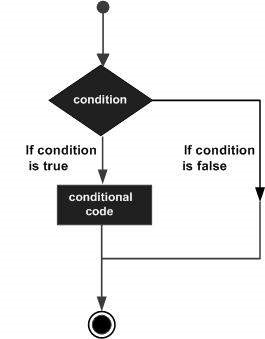
    Decision making structures require the programmer to specify one or more conditions to be evaluated or tested by the program, along with a statement or statements to be executed if the condition is determined to be true, and optionally, other statements to be executed if the condition is determined to be false.

    Following is the general form of a typical decision making structure found in most of the programming languages −

    Decision Making

    R provides the following types of decision making statements. Click the following links to check their detail.

    Sr.No.Statement & Description
    1if statementAn if statement consists of a Boolean expression followed by one or more statements.
    2if…else statementAn if statement can be followed by an optional else statement, which executes when the Boolean expression is false.
    3switch statementA switch statement allows a variable to be tested for equality against a list of values.