Category: 1. Tutorial

https://cdn3d.iconscout.com/3d/premium/thumb/tutoriel-video-en-ligne-10760580-8746901.png

  • Node.js Errors

    The Node.js applications generally face four types of errors:

    • Standard JavaScript errors i.e. <EvalError>, <SyntaxError>, <RangeError>, <ReferenceError>, <TypeError>, <URIError> etc.
    • System errors
    • User-specified errors
    • Assertion errors

    Node.js Errors Example 1

    Let’s take an example to deploy standard JavaScript error – ReferenceError.

    File: error_example1.js

    // Throws with a ReferenceError because b is undefined  
    
    try {  
    
      const a = 1;  
    
      const c = a + b;  
    
    } catch (err) {  
    
      console.log(err);  
    
    } 

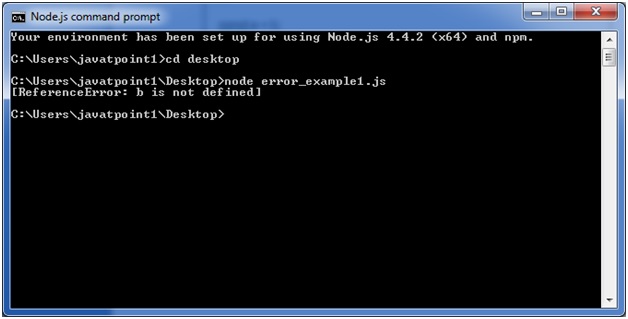
      Open Node.js command prompt and run the following code:

      node error_example1.js  
      Node.js error example 1

      Node.js Errors Example 2

      File: timer2.js

      const fs = require('fs');  
      
      function nodeStyleCallback(err, data) {  
      
       if (err) {  
      
         console.error('There was an error', err);  
      
         return;  
      
       }  
      
       console.log(data);  
      
      }  
      
      fs.readFile('/some/file/that/does-not-exist', nodeStyleCallback);  
      
      fs.readFile('/some/file/that/does-exist', nodeStyleCallback); 

        Open Node.js command prompt and run the following code:

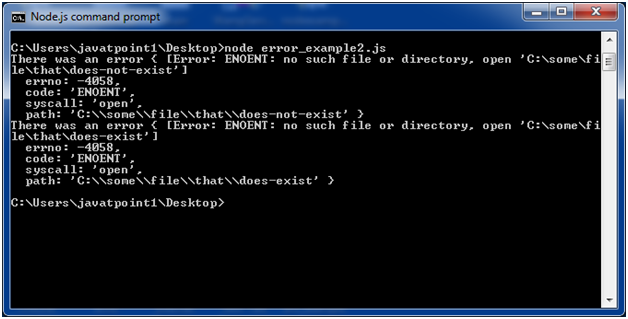
        node error_example2.js  
        Node.js error example 2
      1. Node.js Timer

        Node.js Timer functions are global functions. You don’t need to use require() function in order to use timer functions. Let’s see the list of timer functions.

        Set timer functions:

        • setImmediate(): It is used to execute setImmediate.
        • setInterval(): It is used to define a time interval.
        • setTimeout(): ()- It is used to execute a one-time callback after delay milliseconds.

        Clear timer functions:

        • clearImmediate(immediateObject): It is used to stop an immediateObject, as created by setImmediate
        • clearInterval(intervalObject): It is used to stop an intervalObject, as created by setInterval
        • clearTimeout(timeoutObject): It prevents a timeoutObject, as created by setTimeout

        Node.js Timer setInterval() Example

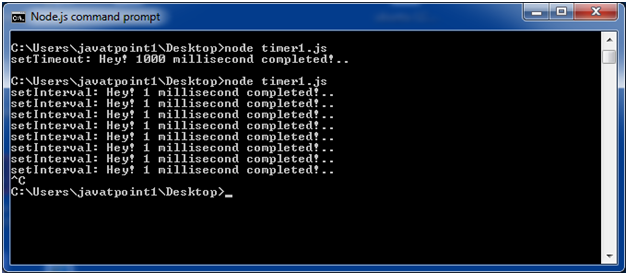
        This example will set a time interval of 1000 millisecond and the specified comment will be displayed after every 1000 millisecond until you terminate.

        File: timer1.js

        setInterval(function() {  
        
         console.log("setInterval: Hey! 1 millisecond completed!..");   
        
        }, 1000);  

          Open Node.js command prompt and run the following code:

          node timer1.js  
          Node.js timer example 1

          File: timer5.js

          var i =0;  
          
          console.log(i);  
          
          setInterval(function(){  
          
          i++;  
          
          console.log(i);  
          
          }, 1000);   

            Open Node.js command prompt and run the following code:

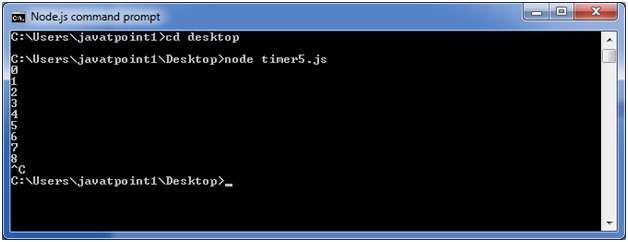
            node timer5.js  
            Node.js timer example 22

            Node.js Timer setTimeout() Example

            File: timer1.js

            setTimeout(function() {   
            
            console.log("setTimeout: Hey! 1000 millisecond completed!..");  
            
            }, 1000);  

              Open Node.js command prompt and run the following code:

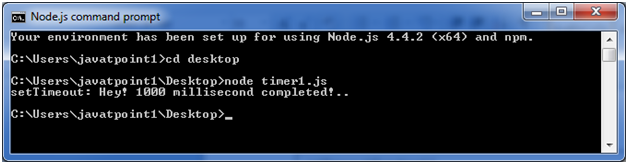
              node timer1.js  
              Node.js timer example 21

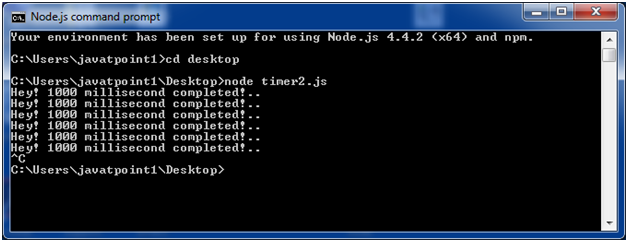
              This example shows time out after every 1000 millisecond without setting a time interval. This example uses the recursion property of a function.

              File: timer2.js

              var recursive = function () {  
              
                  console.log("Hey! 1000 millisecond completed!..");   
              
                  setTimeout(recursive,1000);  
              
              }  
              
              recursive();  

                Open Node.js command prompt and run the following code:

                node timer2.js  
                Node.js timer example 23

                Node.js setInterval(), setTimeout() and clearTimeout()

                Let’s see an example to use clearTimeout() function.

                File: timer3.js

                function welcome () {  
                
                  console.log("Welcome to JavaTpoint!");  
                
                }  
                
                var id1 = setTimeout(welcome,1000);  
                
                var id2 = setInterval(welcome,1000);  
                
                clearTimeout(id1);  
                
                //clearInterval(id2); 

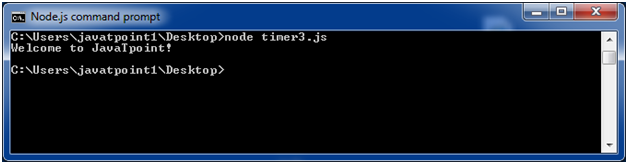
                  Open Node.js command prompt and run the following code:

                  node timer3.js  
                  Node.js timer example 3

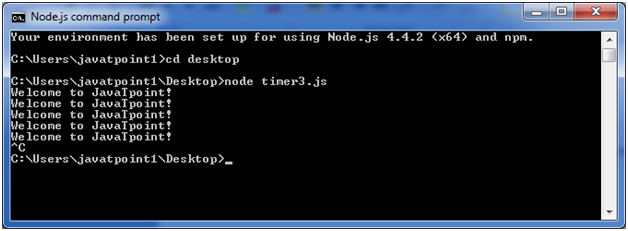
                  You can see that the above example is recursive in nature. It will terminate after one step if you use ClearInterval.

                  Node.js setInterval(), setTimeout() and clearInterval()

                  Let’s see an example to use clearInterval() function.

                  File: timer3.js

                  function welcome () {  
                  
                    console.log("Welcome to JavaTpoint!");  
                  
                  }  
                  
                  var id1 = setTimeout(welcome,1000);  
                  
                  var id2 = setInterval(welcome,1000);  
                  
                  //clearTimeout(id1);  
                  
                  clearInterval(id2);  

                    Open Node.js command prompt and run the following code:

                    node timer3.js  
                    Node.js timer example 33
                  1. Node.js OS

                    Node.js OS provides some basic operating-system related utility functions. Let’s see the list generally used functions or methods.

                    IndexMethodDescription
                    1.os.arch()This method is used to fetch the operating system CPU architecture.
                    2.os.cpus()This method is used to fetch an array of objects containing information about each cpu/core installed: model, speed (in MHz), and times (an object containing the number of milliseconds the cpu/core spent in: user, nice, sys, idle, and irq).
                    3.os.endianness()This method returns the endianness of the cpu. Its possible values are ‘BE’ for big endian or ‘LE’ for little endian.
                    4.os.freemem()This methods returns the amount of free system memory in bytes.
                    5.os.homedir()This method returns the home directory of the current user.
                    6.os.hostname()This method is used to returns the hostname of the operating system.
                    7.os.loadavg()This method returns an array containing the 1, 5, and 15 minute load averages. The load average is a time fraction taken by system activity, calculated by the operating system and expressed as a fractional number.
                    8.os.networkinterfaces()This method returns a list of network interfaces.
                    9.os.platform()This method returns the operating system platform of the running computer i.e.’darwin’, ‘win32′,’freebsd’, ‘linux’, ‘sunos’ etc.
                    10.os.release()This method returns the operating system release.
                    11.os.tmpdir()This method returns the operating system’s default directory for temporary files.
                    12.os.totalmem()This method returns the total amount of system memory in bytes.
                    13.os.type()This method returns the operating system name. For example ‘linux’ on linux, ‘darwin’ on os x and ‘windows_nt’ on windows.
                    14.os.uptime()This method returns the system uptime in seconds.
                    15.os.userinfo([options])This method returns a subset of the password file entry for the current effective user.

                    Node.js OS Example 1

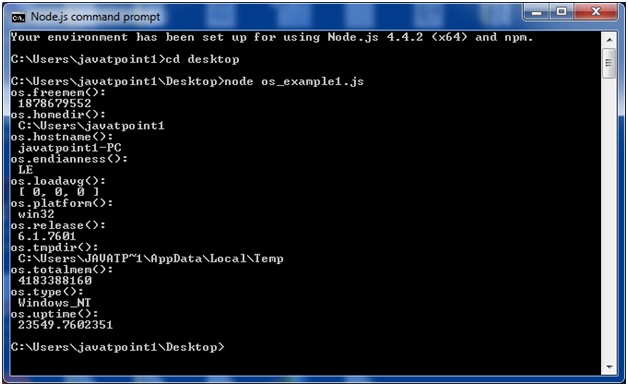
                    In this example, we are including some basic functions. Create a file named os_example1.js having the following code:

                    File: os_example1.js

                    const os=require('os');  
                    
                    console.log("os.freemem(): \n",os.freemem());  
                    
                    console.log("os.homedir(): \n",os.homedir());  
                    
                    console.log("os.hostname(): \n",os.hostname());  
                    
                    console.log("os.endianness(): \n",os.endianness());  
                    
                    console.log("os.loadavg(): \n",os.loadavg());  
                    
                    console.log("os.platform(): \n",os.platform());  
                    
                    console.log("os.release(): \n",os.release());  
                    
                    console.log("os.tmpdir(): \n",os.tmpdir());  
                    
                    console.log("os.totalmem(): \n",os.totalmem());  
                    
                    console.log("os.type(): \n",os.type());  
                    
                    console.log("os.uptime(): \n",os.uptime());  

                      Open Node.js command prompt and run the following code:

                      node os_example1.js  
                      Node.js os example 1

                      Node.js OS Example 2

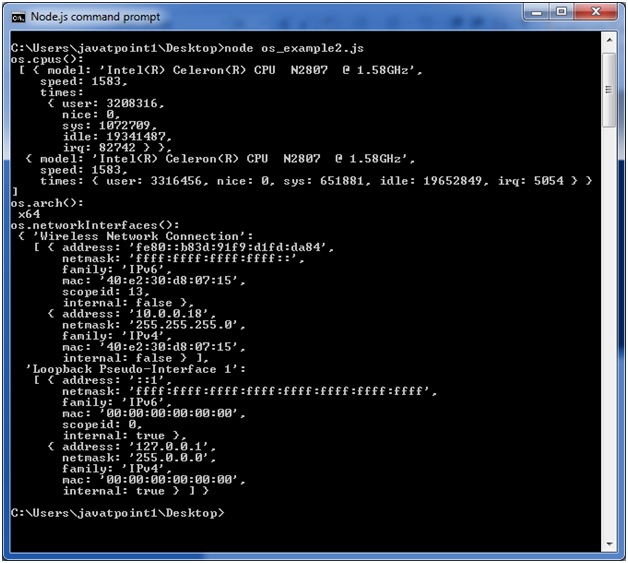
                      In this example, we are including remaining functions. Create a file named os_example2.js having the following code:

                      File: os_example2.js

                      const os=require('os');  
                      
                      console.log("os.cpus(): \n",os.cpus());  
                      
                      console.log("os.arch(): \n",os.arch());  
                      
                      console.log("os.networkInterfaces(): \n",os.networkInterfaces()); 

                        Open Node.js command prompt and run the following code:

                        node os_example2.js  
                        Node.js os example 2
                      1. Node.js Global Objects

                        Node.js global objects are global in nature and available in all modules. You don’t need to include these objects in your application; rather they can be used directly. These objects are modules, functions, strings and object etc. Some of these objects aren’t actually in the global scope but in the module scope.

                        A list of Node.js global objects are given below:

                        • __dirname
                        • __filename
                        • Console
                        • Process
                        • Buffer
                        • setImmediate(callback[, arg][, …])
                        • setInterval(callback, delay[, arg][, …])
                        • setTimeout(callback, delay[, arg][, …])
                        • clearImmediate(immediateObject)
                        • clearInterval(intervalObject)
                        • clearTimeout(timeoutObject)

                        Node.js __dirname

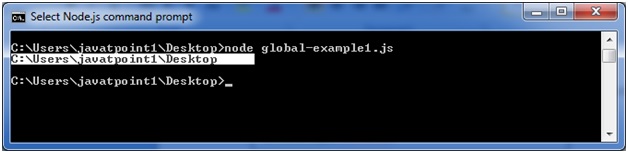
                        It is a string. It specifies the name of the directory that currently contains the code.

                        File: global-example1.js

                        console.log(__dirname);   

                        Open Node.js command prompt and run the following code:

                        node global-example1.js   
                        Node.js dirname example 1

                        Node.js __filename

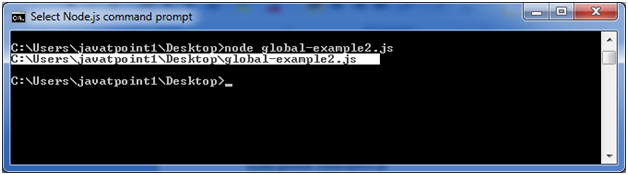
                        It specifies the filename of the code being executed. This is the resolved absolute path of this code file. The value inside a module is the path to that module file.

                        File: global-example2.js

                        console.log(__filename);   

                        Open Node.js command prompt and run the following code:

                        node global-example2.js   
                        Node.js filename example 2
                      2. Node.js Command Line Options

                        There is a wide variety of command line options in Node.js. These options provide multiple ways to execute scripts and other helpful run-time options.

                        Let’s see the list of Node.js command line options:

                        IndexOptionDescription
                        1.v, –versionIt is used to print node’s version.
                        2.-h, –helpIt is used to print node command line options.
                        3.-e, –eval “script”It evaluates the following argument as JavaScript. The modules which are predefined in the REPL can also be used in script.
                        4.-p, –print “script”It is identical to -e but prints the result.
                        5.-c, –checkSyntax check the script without executing.
                        6.-i, –interactiveIt opens the REPL even if stdin does not appear to be a terminal.
                        7.-r, –require moduleIt is used to preload the specified module at startup. It follows require()’s module resolution rules. Module may be either a path to a file, or a node module name.
                        8.–no-deprecationSilence deprecation warnings.
                        9.–trace-deprecationIt is used to print stack traces for deprecations.
                        10.–throw-deprecationIt throws errors for deprecations.
                        11.–no-warningsIt silence all process warnings (including deprecations).
                        12.–trace-warningsIt prints stack traces for process warnings (including deprecations).
                        13.–trace-sync-ioIt prints a stack trace whenever synchronous i/o is detected after the first turn of the event loop.
                        14.–zero-fill-buffersAutomatically zero-fills all newly allocated buffer and slowbuffer instances.
                        15.–track-heap-objectsIt tracks heap object allocations for heap snapshots.
                        16.–prof-processIt processes V8 profiler output generated using the v8 option –prof.
                        17.–V8-optionsIt prints V8 command line options.
                        18.–tls-cipher-list=listIt specifies an alternative default tls cipher list. (requires node.js to be built with crypto support. (default))
                        19.–enable-fipsIt enables fips-compliant crypto at startup. (requires node.js to be built with ./configure –openssl-fips)
                        20.–force-fipsIt forces fips-compliant crypto on startup. (cannot be disabled from script code.) (same requirements as –enable-fips)
                        21.–icu-data-dir=fileIt specifies ICU data load path. (Overrides node_icu_data)

                        Node.js Command Line Options Examples

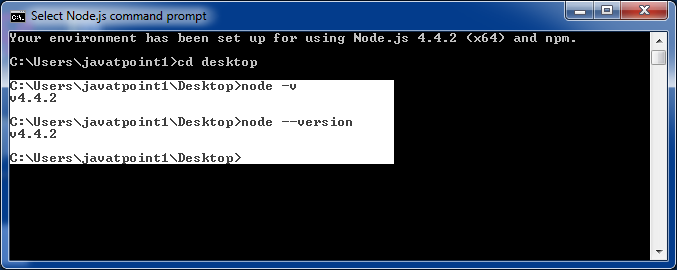
                        To see the version of the running Node:

                        Open Node.js command prompt and run command node -v or node –version

                        Node.js Command Line Options 1

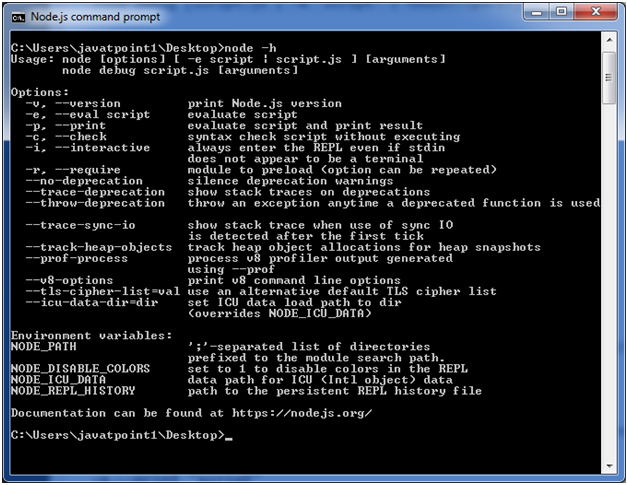
                        For Help:

                        Use command node ?h or node –help

                        Node.js Command Line Options 2

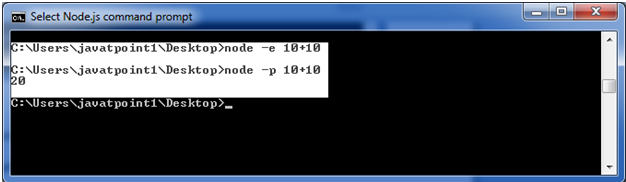
                        To evaluate an argument (but not print result):

                        Use command node -e, –eval “script”

                        To evaluate an argument and print result also:

                        Use command node -p “script”

                        Node.js Command Line Options 3

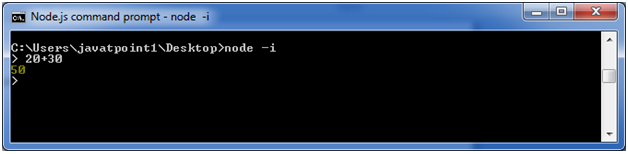
                        To open REPL even if stdin doesn’t appear:

                        Use command node -i, or node –interactive

                        Node.js Command Line Options 4
                      3. Node.js Package Manager

                        Node Package Manager provides two main functionalities:

                        • It provides online repositories for node.js packages/modules which are searchable on search.nodejs.org
                        • It also provides command line utility to install Node.js packages, do version management and dependency management of Node.js packages.

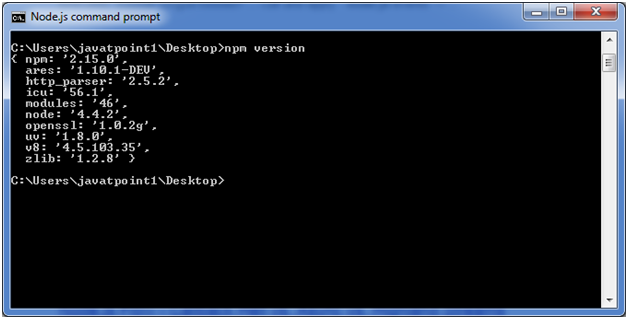
                        The npm comes bundled with Node.js installables in versions after that v0.6.3. You can check the version by opening Node.js command prompt and typing the following command:

                        npm  version  
                        Node.js Package Manager 1

                        Installing Modules using npm

                        Following is the syntax to install any Node.js module:

                        npm install <Module Name>  

                        Let’s install a famous Node.js web framework called express:

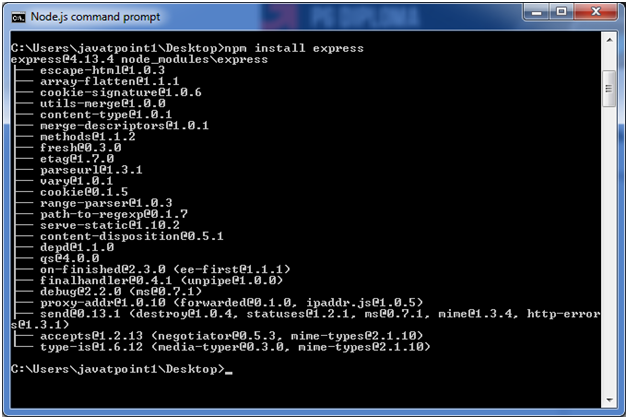
                        Open the Node.js command prompt and execute the following command:

                        npm install express  

                        You can see the result after installing the “express” framework.

                        Node.js Package Manager 2

                        Global vs Local Installation

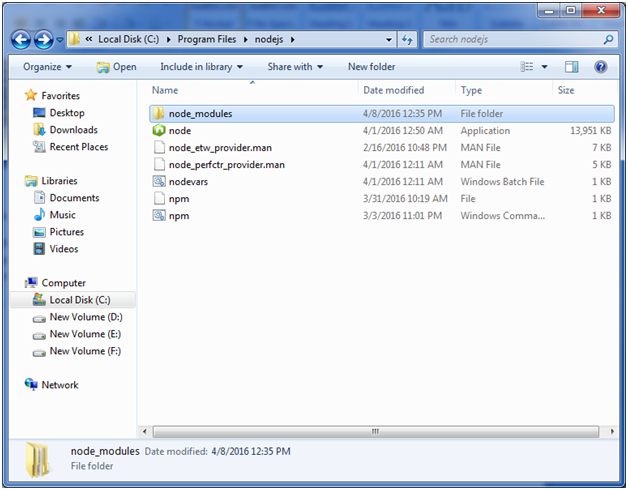
                        By default, npm installs dependency in local mode. Here local mode specifies the folder where Node application is present. For example if you installed express module, it created node_modules directory in the current directory where it installed express module.

                        Node.js Package Manager 3

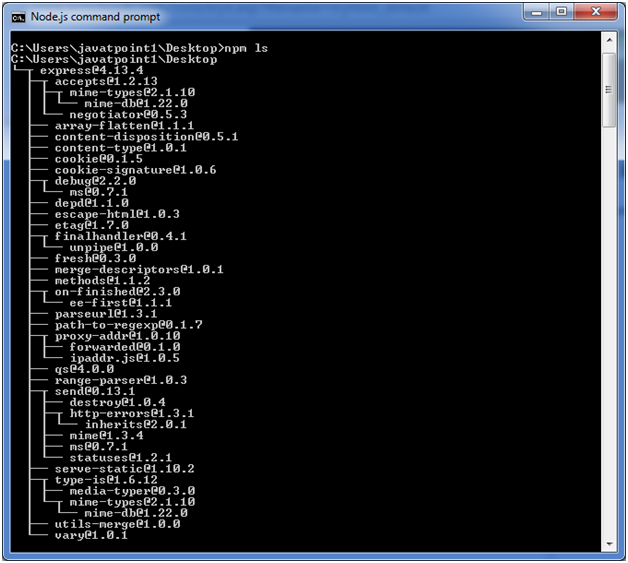
                        You can use npm ls command to list down all the locally installed modules.

                        Open the Node.js command prompt and execute “npm ls”:

                        Node.js Package Manager 4

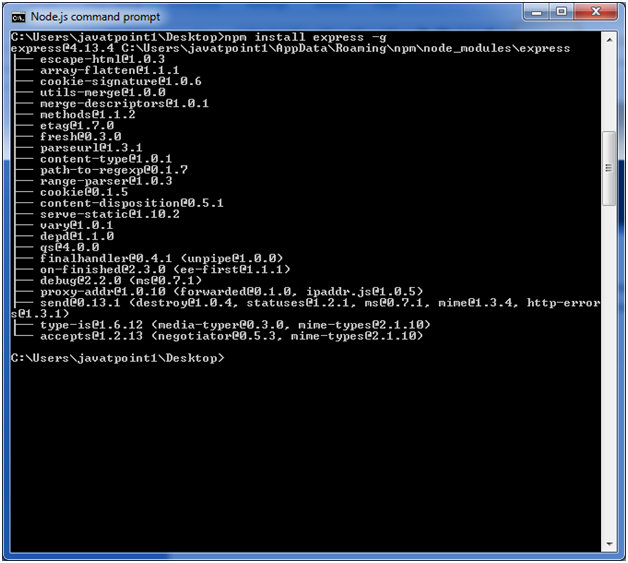
                        Globally installed packages/dependencies are stored in system directory. Let’s install express module using global installation. Although it will also produce the same result but modules will be installed globally.

                        Open Node.js command prompt and execute the following code:

                        npm install express -g  
                        Node.js Package Manager 5

                        Here first line tells about the module version and its location where it is getting installed.

                        Uninstalling a Module

                        To uninstall a Node.js module, use the following command:

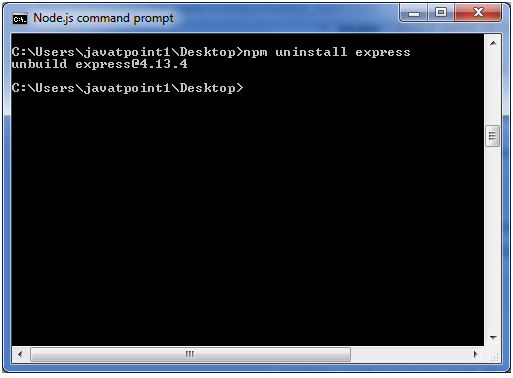
                        npm uninstall express  
                        Node.js Package Manager 6

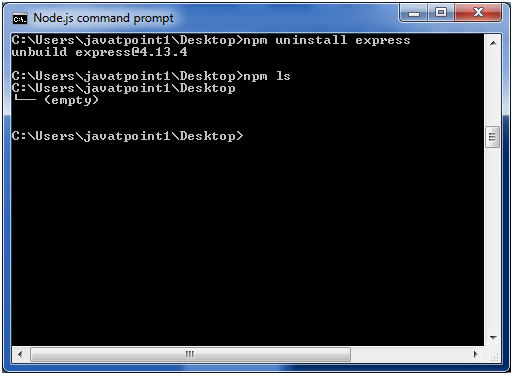
                        The Node.js module is uninstalled. You can verify by using the following command:

                        npm ls  
                        Node.js Package Manager 7

                        You can see that the module is empty now.

                        Searching a Module

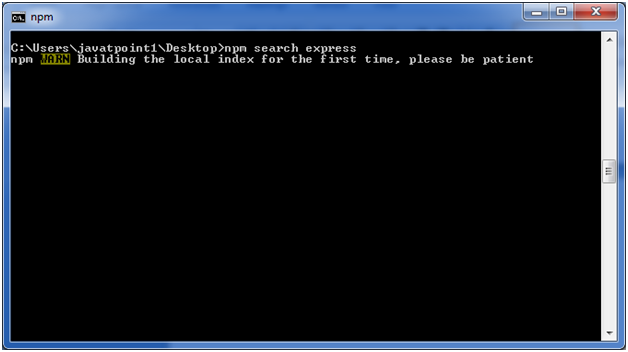
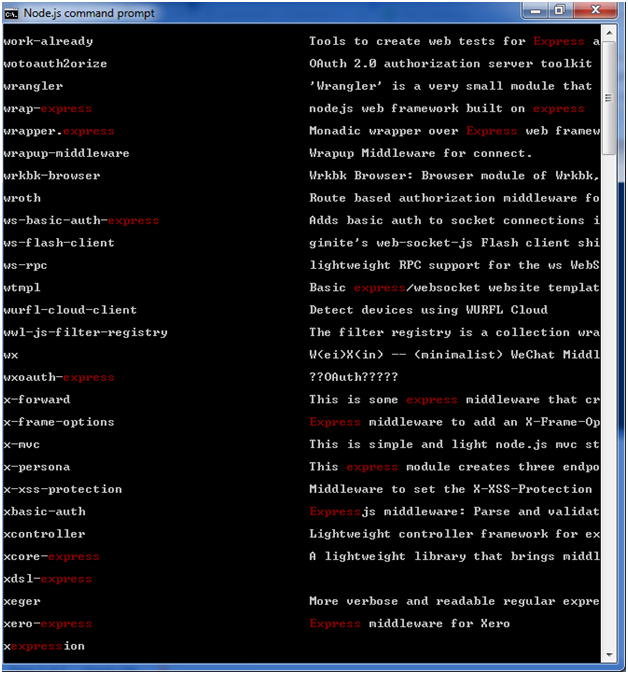
                        “npm search express” command is used to search express or module.

                        npm search express  
                        Node.js Package Manager 8
                        Node.js Package Manager 9
                      4. Node.js REPL

                        The term REPL stands for Read Eval Print and Loop. It specifies a computer environment like a window console or a Unix/Linux shell where you can enter the commands and the system responds with an output in an interactive mode.

                        REPL Environment

                        The Node.js or node come bundled with REPL environment. Each part of the REPL environment has a specific work.

                        Read: It reads user’s input; parse the input into JavaScript data-structure and stores in memory.

                        Eval: It takes and evaluates the data structure.

                        Print: It prints the result.

                        Loop: It loops the above command until user press ctrl-c twice.

                        How to start REPL

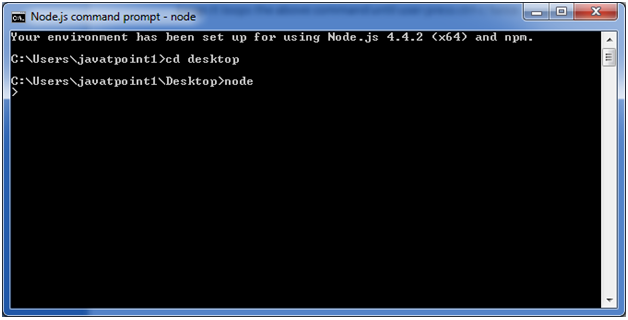
                        You can start REPL by simply running “node” on the command prompt. See this:

                        node.js repl 1

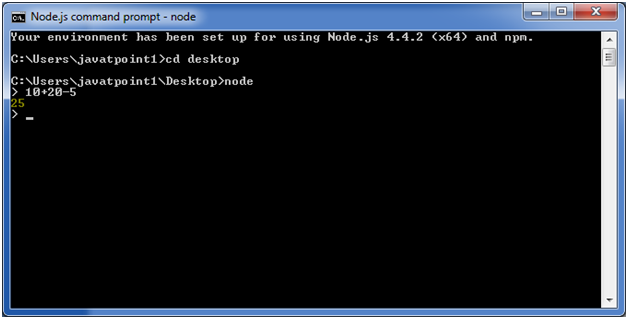
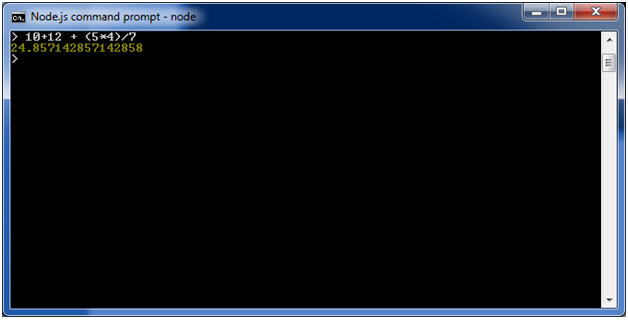
                        You can execute various mathematical operations on REPL Node.js command prompt:

                        Node.js Simple expressions

                        After starting REPL node command prompt put any mathematical expression:

                        Example: >10+20-5  
                        
                        25 
                          node.js repl 2
                          Example2: >10+12 + (5*4)/7  
                          node.js repl 3

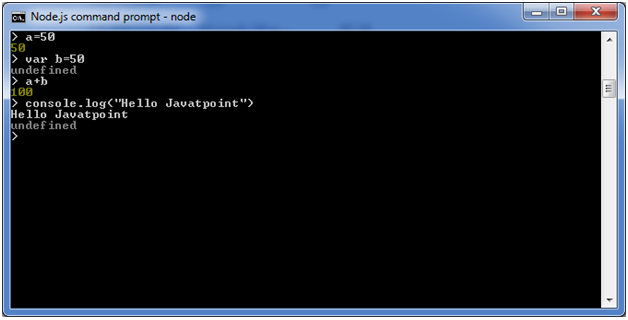
                          Using variable

                          Variables are used to store values and print later. If you don’t use var keyword then value is stored in the variable and printed whereas if var keyword is used then value is stored but not printed. You can print variables using console.log().

                          Example:

                          node.js repl 4

                          Node.js Multiline expressions

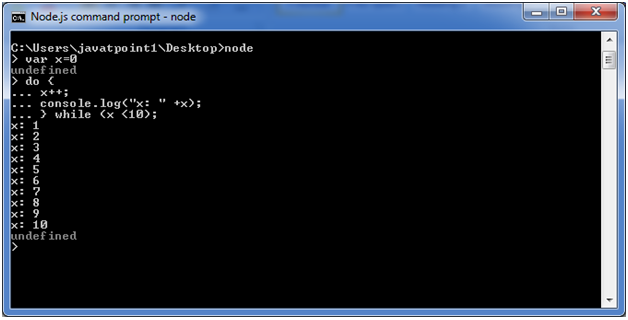
                          Node REPL supports multiline expressions like JavaScript. See the following do-while loop example:

                          var x = 0  
                          
                          undefined  
                          
                          > do {  
                          
                          ... x++;  
                          
                          ... console.log("x: " + x);  
                          
                          ... } while ( x < 10 );  
                            node.js repl 5

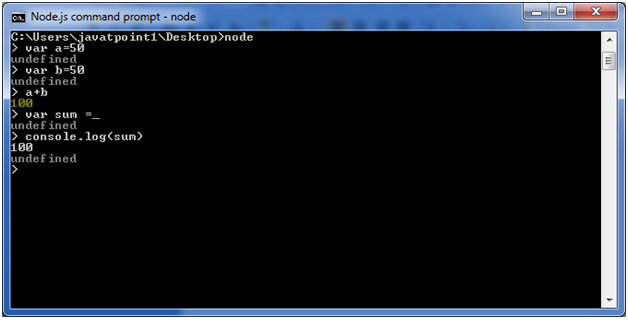
                            Node.js Underscore Variable

                            You can also use underscore _ to get the last result.

                            Example:

                            node.js repl 6

                            Node.js REPL Commands

                            CommandsDescription
                            ctrl + cIt is used to terminate the current command.
                            ctrl + c twiceIt terminates the node repl.
                            ctrl + dIt terminates the node repl.
                            up/down keysIt is used to see command history and modify previous commands.
                            tab keysIt specifies the list of current command.
                            .helpIt specifies the list of all commands.
                            .breakIt is used to exit from multi-line expressions.
                            .clearIt is used to exit from multi-line expressions.
                            .save filenameIt saves current node repl session to a file.
                            .load filenameIt is used to load file content in current node repl session.

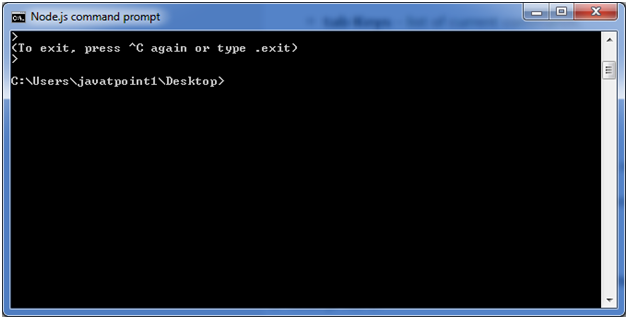
                            Node.js Exit REPL

                            Use ctrl + c command twice to come out of Node.js REPL.

                            node.js repl 7
                          1. Node.js Console

                            The Node.js console module provides a simple debugging console similar to JavaScript console mechanism provided by web browsers.

                            There are three console methods that are used to write any node.js stream:

                            1. console.log()
                            2. console.error()
                            3. console.warn()

                            Node.js console.log()

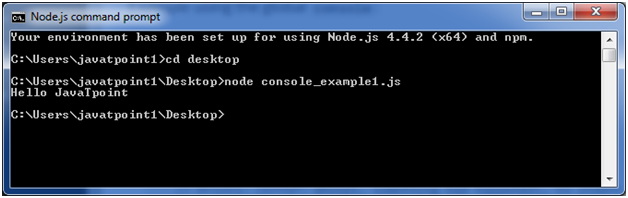
                            The console.log() function is used to display simple message on console.

                            File: console_example1.js

                            console.log('Hello JavaTpoint');   

                            Open Node.js command prompt and run the following code:

                            node console_example1.js  
                            Node.js console example 1

                            We can also use format specifier in console.log() function.

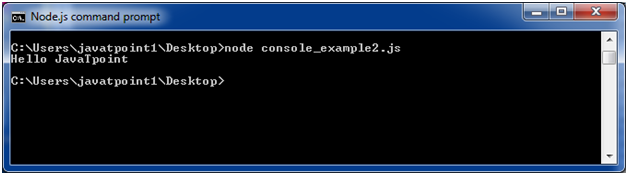
                            File: console_example2.js

                            console.log('Hello %s', 'JavaTpoint');   

                            Open Node.js command prompt and run the following code:

                            node console_example2.js  
                            Node.js console example 2

                            Node.js console.error()

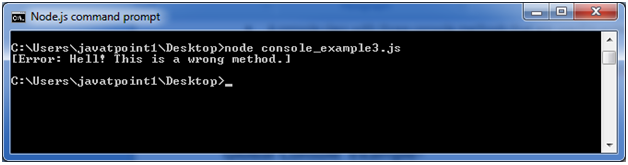
                            The console.error() function is used to render error message on console.

                            File: console_example3.js

                            console.error(new Error('Hell! This is a wrong method.'));  

                            Open Node.js command prompt and run the following code:

                            node console_example3.js  
                            Node.js console example 3

                            Node.js console.warn()

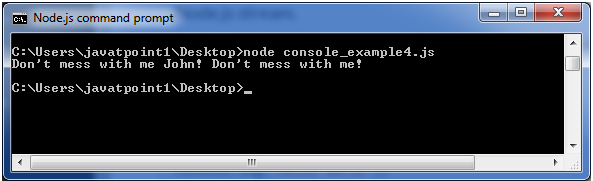
                            The console.warn() function is used to display warning message on console.

                            File: console_example4.js

                            const name = 'John';  
                            
                            console.warn(Don't mess with me ${name}! Don't mess with me!);  

                              Open Node.js command prompt and run the following code:

                              node console_example4.js  
                              Node.js console example 4
                            1. Node.js First Example

                              There can be console-based and web-based node.js applications.

                              Node.js console-based Example

                              File: console_example1.js

                              1. console.log(‘Hello JavaTpoint’);   

                              Open Node.js command prompt and run the following code:

                              1. node console_example1.js  
                              Node.js console example 1

                              Here, console.log() function displays message on console.

                              Node.js web-based Example

                              A node.js web application contains the following three parts:

                              1. Import required modules: The “require” directive is used to load a Node.js module.
                              2. Create server: You have to establish a server which will listen to client’s request similar to Apache HTTP Server.
                              3. Read request and return response: Server created in the second step will read HTTP request made by client which can be a browser or console and return the response.

                              How to create node.js web applications

                              Follow these steps:

                              1. Import required module: The first step is to use ?require? directive to load http module and store returned HTTP instance into http variable. For example:
                              var http = require("http");  
                              1. Create server: In the second step, you have to use created http instance and call http.createServer() method to create server instance and then bind it at port 8081 using listen method associated with server instance. Pass it a function with request and response parameters and write the sample implementation to return “Hello World”. For example:
                              http.createServer(function (request, response) {  
                              
                                 // Send the HTTP header   
                              
                                 // HTTP Status: 200 : OK  
                              
                                 // Content Type: text/plain  
                              
                                 response.writeHead(200, {'Content-Type': 'text/plain'});  
                              
                                 // Send the response body as "Hello World"  
                              
                                 response.end('Hello World\n');  
                              
                              }).listen(8081);  
                              
                              // Console will print the message  
                              
                              console.log('Server running at http://127.0.0.1:8081/');
                              1. Combine step1 and step2 together in a file named “main.js”.
                              var http = require("http");  
                              
                              http.createServer(function (request, response) {  
                              
                               // Send the HTTP header   
                              
                                 // HTTP Status: 200 : OK  
                              
                                 // Content Type: text/plain  
                              
                                 response.writeHead(200, {'Content-Type': 'text/plain'});  
                              
                                 // Send the response body as "Hello World"  
                              
                                 response.end('Hello World\n');  
                              
                              }).listen(8081);  
                              
                              // Console will print the message  
                              
                              console.log('Server running at http://127.0.0.1:8081/');

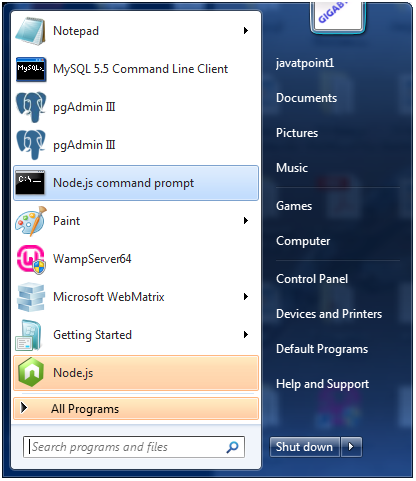
                              How to start your server:

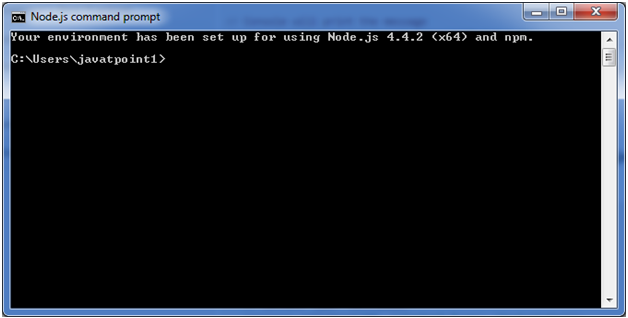
                              Go to start menu and click on the Node.js command prompt.

                              Node.js first example 1

                              Now command prompt is open:

                              Node.js first example 2

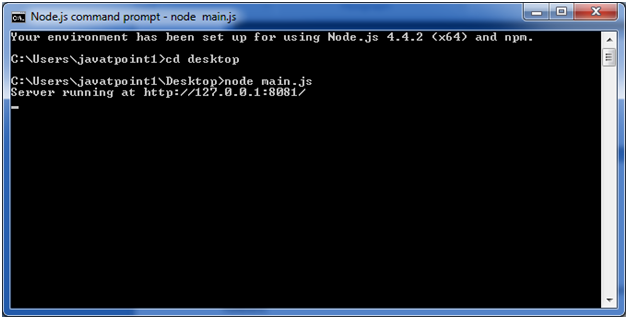
                              Set path: Here we have save “main.js” file on the desktop.

                              So type cd desktop on the command prompt. After that execute the main.js to start the server as follows:

                              node main.js  
                              Node.js first example 3

                              Now server is started.

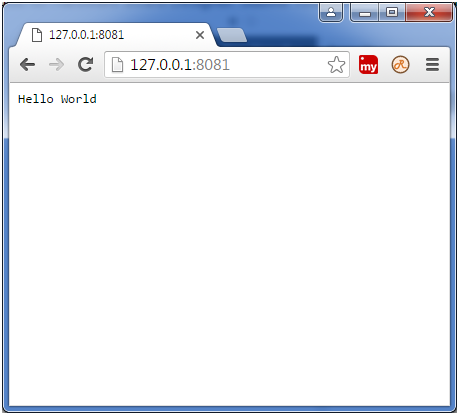
                              Make a request to Node.js server:

                              Open http://127.0.0.1:8081/ in any browser. You will see the following result.

                              Node.js first example 5
                            2. Install Node.js on Linux/Ubuntu/CentOS

                              We can easily install Node.js on linux/ubuntu/centOS/fedora/linuxmint etc. To install Node.js on Linux (Ubuntu) operating system, follow these instructions:

                              1) Open Ubuntu Terminal (You can use shortcut keys (Ctrl+Alt+T).

                              Install Node.js on linux/ubuntu/centos 1

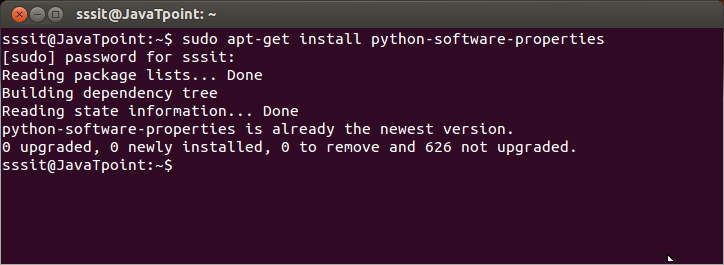
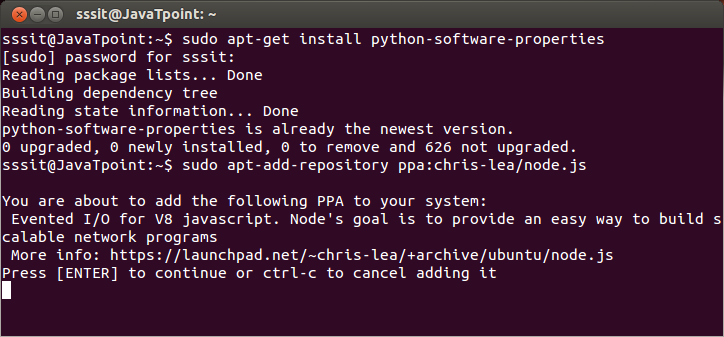
                              2) Type command sudo apt-get install python-software-properties

                              3) Press Enter (If you have set a password for your system then it will ask for the password)

                              4) Type the password and press enter

                              Install Node.js on linux/ubuntu/centos 2

                              5) Type command sudo apt-add-repository ppa:chris-lea/node.js

                              6) Press Enter

                              Install Node.js on linux/ubuntu/centos 3

                              7) Again Press Enter to continue

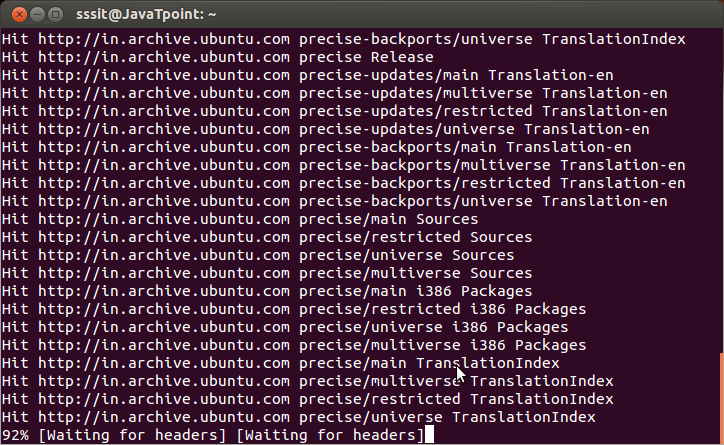
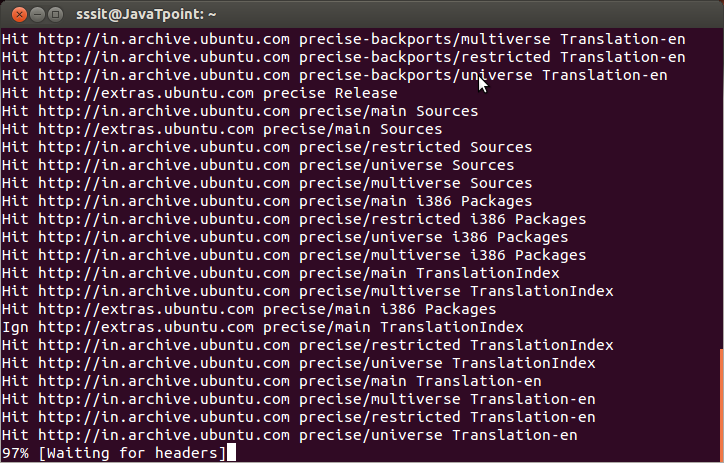
                              8) Type command sudo apt-get update ( Wait for sometime)

                              Install Node.js on linux/ubuntu/centos 4

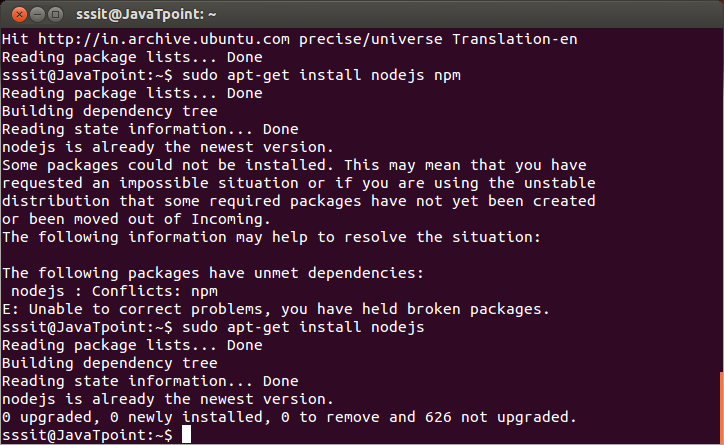
                              9) Type command sudo apt-get install nodejs npm

                              Install Node.js on linux/ubuntu/centos 5

                              10) Type command sudo apt-get install nodejs

                              Install Node.js on linux/ubuntu/centos 6

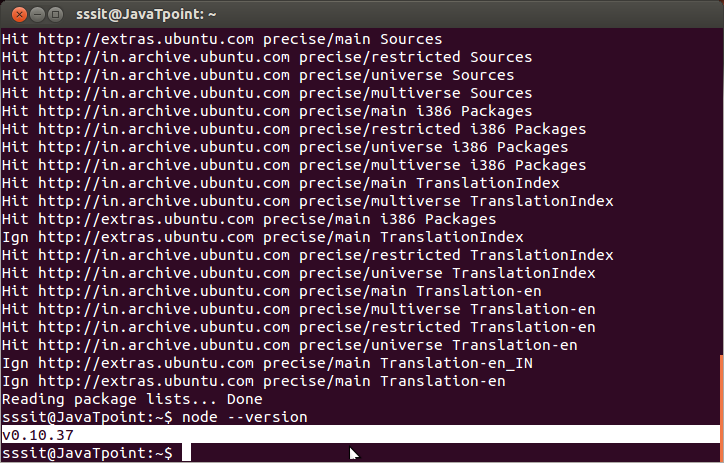
                              Installation completed. Now you can check the version of Node by node –version

                              Install Node.js on linux/ubuntu/centos 7

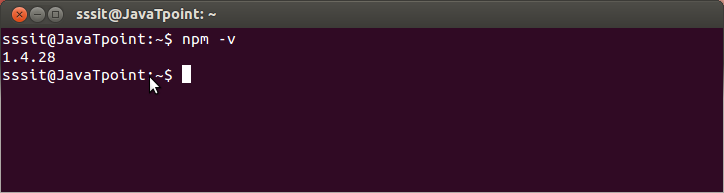
                              Check the version of npm by npm -v

                              Install Node.js on linux/ubuntu/centos 8

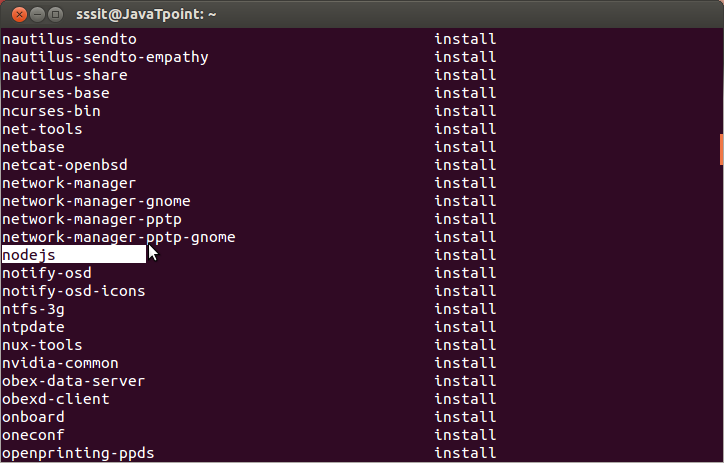
                              Now you can check the node.js in your installed program list by typing this command
                              dpkg –get-selections

                              Install Node.js on linux/ubuntu/centos 9