Category: 1. Tutorial

https://cdn3d.iconscout.com/3d/premium/thumb/tutoriel-video-en-ligne-10760580-8746901.png

  • NestJS

    NestJS

    Welcome to the tutorial of NestJS. This tutorial is solely intended to make you gain absolute knowledge of NestJS. You would be learning about it from a beginner level covering all the tiny staircases that will push you into installation, creating a new application from NestJS from scratch, and learn how to handle and implement in the day-to-day scenarios. Let’s get started.

    What is NestJS?

    NestJS is quite a popular and cumulative JavaScript framework functioning under the hood of Node.js and is used to construct scalable, reliable, and efficient server-side applications. The framework is channeled with the Node.js environment and supports TypeScript fully. It also can be scaled to make use of Express.js under the influence of Node.js. Since NestJS is a full TypeScript supported framework, it can enable developers like you to code purely in JavaScript and would let you combine the concepts of Object-Oriented Programming(OOP), Functional Reactive Programming(FRP), and purely Functional Programming(FP).

    Behind the scene

    You might not know certain aspects that work as the basic building blocks of NestJS. To be precise, NestJS makes use of heavy usage of the server-side framework like Express under the hood of robust HTTP infrastructure. It can also be optionally configured to make use of Fastify as well although Express is considered as default.

    NestJS aims to provide a certain level of abstraction mechanism to the developers so that not only the common server-side frameworks like Fastify or Express that are integrated internally, but can also be exposed to the APIs chosen by the developer. These hidden bars provide developers like you to gain the freedom to use the third-party modules vividly and they can be made to underlie in the NestJS platform without having to manipulate the entire server-side.

    Installation

    Before you start creating your back-end application using NestJS, all you need to do is to make sure you have Nest CLI is primarily installed on your local computer. If it is not installed, make use of the Node Package Manager (NPM) and follow up the approach using the commands given below.

    $ npm i -g@nestjs/cli  

    Although, you might need to make sure Node.js and NPM are preinstalled in your local system. If not, just follow the instructions to install Node.js on https://nodejs.org/.

    Once the NestJS CLI installation is marked complete, it will readily be available to use the commands. Since you are learning it practically consider making a small NestJS based project so that you can be able to apply the knowledge with hands-on experience. To proceed with creating a sample project, use the following command to initialize it.

    $ npm new my-nestjs-01  

    One execution of this command, a new folder named my-nestjs-01 is created in the location provided currently and all the default project templates are thereby downloaded into this folder.

    Project Structure

    After the folder is created for the project, node modules of NestJS along with other boilerplate dependencies are created which consists of several core program files. These core files can be visualized from the image below. It consists of various important source codes which would be discussed along.

    NestJS

    In the above image, you can visualize all the files and dependencies some of which are core files. The most important file in the shown image is the src folder. This the warehouse of TypeScript files where you would find the application code. In this project, you’d be spending often most of the time playing out the src folder. All of these core files are discussed below.

    main.ts: It is the application’s entry point. It consists of a method NestFactory.create() which creates a new instance of the Nest application.

    app.modules.ts: It contains the module of the application’s implementation.

    app.controller.ts: It consists of only one routed implementation controller of NestJS.

    app.services.ts: It is the usual service method implementation.

    app.controller.specs.ts: It testes the file for the controller.

    Now, let’s take a closer look at the main.ts file that contains the default implementation methods.

    pModule } from './app.module';  


    async function bootstrap() {  
    
      const app = await NestFactory.create(AppModule);  
    
      await app.listen(3000);  
    
    }  
    
    bootstrap(); 

      In the above code, first of all, the NestFactory method is imported as an entry point of the application. Next, the AppModule is imported from the previously discussed app. module file. Secondly, the bootstrap is marked as async and implemented. The main purpose of importing the bootstrap function is to call it for the code execution.

      Secondly, the execution takes when the NestFactory.create() method is called the AppModule is passed as an argument to the root application module. This will attach a module by creating a new NestJS instance. The next step is to start the server by using the event listener method on the webserver with port 3000. This method will return a promise indicating that the server has been successfully started embarking on the await key.

      Now, you have to move to the implementation of the root application having modules that can be found inside the file app.module.ts. The code inside it contains the following.

      import { Module } from '@nestjs/common';  
      
      import { AppController } from './app.controller';  
      
      import { AppService } from './app.service';  


      @Module({  
      
        imports: [],  
      
        controllers: [AppController],  
      
        providers: [AppService],  
      
      })  
      
      export class AppModule {}  

        In the above code snippet, the AppModule is imported as a method and @Module decorator is imported from @nestjs/ sharing common library. The @Module decorator when passed consists of three properties namely imports, controllers, and providers.

        The specified controllers in the AppModule should always be the part of the array assigned to the property in the initial stage of the application development because the count of the controller is constrained to AppController which is the root module. Moreover, the services should be made readily available in AppModule and hence be listed in the array assigned to the property of providers.

        Next, you would be looking AppController and its implementation in app.controller.ts. The code is given below.

        import { Controller, Get } from '@nestjs/common';  
        
        import { AppService } from './app.service';  


        @Controller()  
        
        export class AppController {  
        
          constructor(private readonly appService: AppService) {}  


          @Get()  
        
          getHello(): string {  
        
            return this.appService.getHello();  
        
          }  
        
        }  

          The above code snippet is a simple demonstration of a controller in NestJS consisting of only one GET route. The class can be made controller just by adding the @Controller decorator. It is also imported from the @nestjs/ which is a common library for all.

          The point here is to understand clearly that the controller usually relies on a service class. In the examples given AppController uses Appservice to implement the app.services.ts file by importing the corresponding statement that is added at the top.

          However, the process of inserting AppService into AppController is based on the method of Dependency Injection which by default adds the parameter of the same type. A default route is then implemented to handle the HTTP GET request through @Get decorator to implement getHello method. The method is therefore powered by AppService to fetch data and carry out request and response actions by returning at the same time.

          Let’s now move to the next file and observe app.services.ts file.

          import { Injectable } from '@nestjs/common';  
          
          @Injectable()  
          
          export class AppService {  
          
            getHello(): string {  
          
              return 'Hello World!';  
          
            }  
          
          } 

            The above code snippet is a simple demonstration of a controller in NestJS consisting of only one GET route. The class can be made controller just by adding the @Controller decorator. It is also imported from the @nestjs/ which is a common library for all.

            The point here is to understand clearly that the controller usually relies on a service class. In the examples given AppController uses Appservice to implement the app.services.ts file by importing the corresponding statement that is added at the top.

            However, the process of inserting AppService into AppController is based on the method of Dependency Injection which by default adds the parameter of the same type. A default route is then implemented to handle the HTTP GET request through @Get decorator to implement getHello method. The method is therefore powered by AppService to fetch data and carry out request and response actions by returning at the same time.

            Let’s now move to the next file and observe app.services.ts file.

            $ npm run start  

            The NestJS application would like something like this.

            NestJS

            The above image shows no surprises. The output “Hello World!” is the string that is retrieved from the service proposed by the getHello method and is later returned as the HTTP GET response through the controller method corresponding to it.

          1. Node.js Web Module

            What is Web Server

            Web Server is a software program that handles HTTTP requests sent by HTTP clients like web browsers, and returns web pages in response to the clients. Web servers usually respond with html documents along with images, style sheets and scripts.

            Most of the web server support server side scripts using scripting language or redirect to application server which perform the specific task of getting data from database, perform complex logic etc. and then sends a result to the HTTP client through the Web server.

            Apache web server is one of the most commonly used web server. It is an open source project.

            Web Application Architecture

            A web application can be divided in 4 layers:

            • Client Layer: The Client layer contains web browsers, mobile browsers or applications which can make HTTP request to the web server.
            • Server Layer: The Server layer contains Web server which can intercepts the request made by clients and pass them the response.
            • Business Layer: The business layer contains application server which is utilized by web server to do required processing. This layer interacts with data layer via data base or some external programs.
            • Data Layer: The Data layer contains databases or any source of data.
            Node.js web layer

            Creating Web Server using Node.js

            Node.js provides http module which can be used to create either HTTP client of server. Create a js file named server.js having the following code:

            var http = require('http');  
            
            var fs = require('fs');  
            
            var url = require('url');  


            // Create a server  
            
            http.createServer( function (request, response) {    
            
               // Parse the request containing file name  
            
               var pathname = url.parse(request.url).pathname;  


               // Print the name of the file for which request is made.  
            
               console.log("Request for " + pathname + " received.");  


               // Read the requested file content from file system  
            
               fs.readFile(pathname.substr(1), function (err, data) {  
            
                  if (err) {  
            
                     console.log(err);  
            
                     // HTTP Status: 404 : NOT FOUND  
            
                     // Content Type: text/plain  
            
                     response.writeHead(404, {'Content-Type': 'text/html'});  
            
                  }else{      
            
                     //Page found       
            
                     // HTTP Status: 200 : OK  
            
                     // Content Type: text/plain  
            
                     response.writeHead(200, {'Content-Type': 'text/html'});      


                     // Write the content of the file to response body  
            
                     response.write(data.toString());         
            
                  }  
            
                  // Send the response body   
            
                  response.end();  
            
               });     
            
            }).listen(8081);  
            
            // Console will print the message  
            
            console.log('Server running at http://127.0.0.1:8081/');

            Next, create an html file named index.html having the following code in the same directory where you created server.js

            <html>  
            
            <head>  
            
            <title>Sample Page</title>  
            
            </head>  
            
            <body>  
            
            Hello World!  
            
            </body>  
            
            </html>

            Now open the Node.js command prompt and run the following code:

            node server.js

            Node.js web module1

            Open http://127.0.0.1:8081/index.htm in any browser and see the below result.

            Node.js web module2
          2. Node.js TTY

            The Node.js TTY module contains tty.ReadStream and tty.WriteStream classes. In most cases, there is no need to use this module directly.

            You have to use require (‘tty’) to access this module.

            Syntax:

            var tty = require('tty');  

            When Node.js discovers that it is being run inside a TTY context, then:

            • process.stdin will be a tty.ReadStream instance
            • process.stdout will be a tty.WriteStream instance

            To check that if Node.js is running in a TTY context, use the following command:

            node -p -e "Boolean(process.stdout.isTTY)"  
            Node.js tty example 1

            Class: ReadStream

            It contains a net.Socket subclass that represents the readable portion of a tty. In normal circumstances,the tty.ReadStream has the only instance named process.stdin in any Node.js program (only when isatty(0) is true).

            rs.isRaw: It is a Boolean that is initialized to false. It specifies the current “raw” state of the tty.ReadStream instance.

            rs.setRawMode(mode): It should be true or false. It is used to set the properties of the tty.ReadStream to act either as a raw device or default. isRaw will be set to the resulting mode.

            Class: WriteStream

            It contains a net.Socket subclass that represents the writable portion of a tty. In normal circumstances, the tty.WriteStream has the only instance named process.stdout in any Node.js program (only when isatty(1) is true).

            Resize event: This event is used when either of the columns or rows properties has changed.

            Syntax:

            process.stdout.on('resize', () => {  
            
              console.log('screen size has changed!');  
            
              console.log(${process.stdout.columns}x${process.stdout.rows});  
            
            }); 

              ws.columns: It is used to give the number of columns the TTY currently has. This property gets updated on ‘resize’ events.

              ws.rows: It is used to give the number of rows the TTY currently has. This property gets updated on ‘resize’ events.

              Node.js TTY Example

              File: tty.js

              var tty = require('tty');  
              
              process.stdin.setRawMode(true);  
              
              process.stdin.resume();  
              
               console.log('I am leaving now');  
              
              process.stdin.on('keypress', function(char, key) {  
              
                if (key && key.ctrl && key.name == 'c') {  


                  process.exit()  
              
                }  
              
              });

              Output:

              Node.js tty example 2
            1. Node.js Punycode

              What is Punycode

              Punycode is an encoding syntax which is used to convert Unicode (UTF-8) string of characters to basic ASCII string of characters. Since host names only understand ASCII characters so Punycode is used. It is used as an internationalized domain name (IDN or IDNA). Let’s understand it with an example:

              Assume if you search for mañana.com in your browser so your browser (which is IDNA enabled) first convert this to punycode xn--maana-pta.com because the character ñ is not allowed in regular domain name. It is not supported in older versions.

              Punycode in Node.js

              Punycode.js is bundled with Node.js v0.6.2 and later versions. If you want to use it with other Node.js versions then use npm to install punycode module first. You have to use require (‘punycode’) to access it.

              Syntax:

              punycode = require('punycode');  

              punycode.decode(string)

              It is used to convert a Punycode string of ASCII symbols to a string of Unicode symbols.

              File: punycode_example1.js

              punycode = require('punycode');  
              
              console.log(punycode.decode('maana-pta'));  

                Output:

                Node.js punycode example 1

                punycode.encode(string)

                It is used to convert a string of Unicode symbols to a Punycode string of ASCII symbols.

                File: punycode_example2.js

                punycode = require('punycode');  
                
                console.log(punycode.encode('☃-⌘'));  

                  Output:

                  Node.js punycode example 2

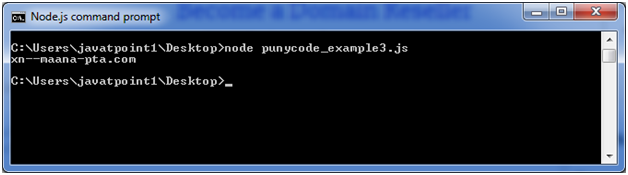
                  punycode.toASCII(domain)

                  It is used to convert a Unicode string representing a domain name to Punycode. Only the non-ASCII part of the domain name is converted.

                  File: punycode_example3.js

                  punycode = require('punycode');  
                  
                  console.log(punycode.toASCII('mañana.com'));  

                    Output:

                    Node.js punycode example 3

                    punycode.toUnicode(domain)

                    It is used to convert a Punycode string representing a domain name to Unicode. Only the Punycoded part of the domain name is converted.

                    File: punycode_example4.js

                    punycode = require('punycode');  
                    
                    console.log(punycode.toUnicode('xn--maana-pta.com'));  

                      Output:

                      Node.js punycode example 4
                    1. Node.js Events

                      In Node.js applications, Events and Callbacks concepts are used to provide concurrency. As Node.js applications are single threaded and every API of Node js are asynchronous. So it uses async function to maintain the concurrency. Node uses observer pattern. Node thread keeps an event loop and after the completion of any task, it fires the corresponding event which signals the event listener function to get executed.

                      Event Driven Programming

                      Node.js uses event driven programming. It means as soon as Node starts its server, it simply initiates its variables, declares functions and then simply waits for event to occur. It is the one of the reason why Node.js is pretty fast compared to other similar technologies.

                      There is a main loop in the event driven application that listens for events, and then triggers a callback function when one of those events is detected.

                      Node.js events 1

                      Difference between Events and Callbacks:

                      Although, Events and Callbacks look similar but the differences lies in the fact that callback functions are called when an asynchronous function returns its result where as event handling works on the observer pattern. Whenever an event gets fired, its listener function starts executing. Node.js has multiple in-built events available through events module and EventEmitter class which is used to bind events and event listeners.

                      EventEmitter class to bind event and event listener:

                      // Import events module  
                      
                      var events = require('events');  
                      
                      // Create an eventEmitter object  
                      
                      var eventEmitter = new events.EventEmitter();

                      To bind event handler with an event:

                      // Bind event and even handler as follows  
                      
                      eventEmitter.on('eventName', eventHandler); 

                        To fire an event:

                        // Fire an event   
                        
                        eventEmitter.emit('eventName');

                        Node.js Event Example

                        File: main.js

                        // Import events module  
                        
                        var events = require('events');  
                        
                        // Create an eventEmitter object  
                        
                        var eventEmitter = new events.EventEmitter();  


                        // Create an event handler as follows  
                        
                        var connectHandler = function connected() {  
                        
                           console.log('connection succesful.');  


                           // Fire the data_received event   
                        
                           eventEmitter.emit('data_received');  
                        
                        }  


                        // Bind the connection event with the handler  
                        
                        eventEmitter.on('connection', connectHandler);  
                        
                         // Bind the data_received event with the anonymous function  
                        
                        eventEmitter.on('data_received', function(){  
                        
                           console.log('data received succesfully.');  
                        
                        });  
                        
                        // Fire the connection event   
                        
                        eventEmitter.emit('connection');  
                        
                        console.log("Program Ended.");  

                          Now, open the Node.js command prompt and run the following code:

                          node main.js  
                          Node.js events 2
                        1. Node.js Callbacks

                          Callback is an asynchronous equivalent for a function. It is called at the completion of each task. In Node.js, callbacks are generally used. All APIs of Node are written in a way to supports callbacks. For example: when a function start reading file, it returns the control to execution environment immediately so that the next instruction can be executed.

                          In Node.js, once file I/O is complete, it will call the callback function. So there is no blocking or wait for File I/O. This makes Node.js highly scalable, as it can process high number of request without waiting for any function to return result.

                          Blocking Code Example

                          Follow these steps:

                          1. Create a text file named input.txt having the following content:
                          Javatpoint is an online platform providing self learning tutorials on   
                          
                          different technologies, in a very simple language.
                          1. Create a JavaScript file named main.js having the following code:
                          var fs = require("fs");  
                          
                          var data = fs.readFileSync('input.txt');  
                          
                          console.log(data.toString());  
                          
                          console.log("Program Ended");
                          1. Open the Node.js command prompt and execute the following code.
                          node main.js   
                          Node.js callbacks 1

                          Non Blocking Code Example

                          Follow these steps:

                          1. Create a text file named input.txt having the following content:
                          Javatpoint is an online platform providing self learning tutorials on   
                          
                          different technologies, in a very simple language.
                          1. Create a JavaScript file named main.js having the following code:
                          var fs = require("fs");  


                          fs.readFile('input.txt', function (err, data) {  
                          
                              if (err) return console.error(err);  
                          
                              console.log(data.toString());  
                          
                          });
                          1. console.log(“Program Ended”);  
                          2. Open the Node.js command prompt and execute the following code.
                          node main.js   
                          Node.js callbacks 2

                          You can see that above two examples explain the concept of blocking and non-blocking calls. The first example shows that program blocks until it reads the file and then only it proceeds to end the program on the other hand in second example, program does not wait for file reading but it just proceeded to print “Program Ended” and same time program without blocking continues reading the file.

                          So we can say that, a blocking program executes very much in sequence. It is also easier to implement the logic from programming point of view in block programs. But non-blocking programs does not execute in sequence, so in case a program needs to use any data to be processed, it should be kept with-in the same block to make it sequential execution.

                        2. Node.js V8

                          What is V8

                          V8 is an open source JavaScript engine developed by the Chromium project for the Google Chrome web browser. It is written in C++. Now a days, it is used in many projects such as Couchbase, MongoDB and Node.js.

                          V8 in Node.js

                          The Node.js V8 module represents interfaces and event specific to the version of V8. It provides methods to get information about heap memory through v8.getHeapStatistics() and v8.getHeapSpaceStatistics() methods.

                          To use this module, you need to use require(‘v8’).

                          const v8 = require('v8');  

                          Node.js v8.getHeapStatistics() Example

                          The v8.getHeapStatistics() method returns statistics about heap such as total heap size, used heap size, heap size limit, total available size etc.

                          File: v8-example1.js

                          const v8 = require('v8');  
                          
                          console.log(v8.getHeapStatistics());
                          Node.js v8 example 1

                          Node.js v8.getHeapSpaceStatistics() Example

                          The v8.getHeapSpaceStatistics() returns statistics about heap space. It returns an array of 5 objects: new space, old space, code space, map space and large object space. Each object contains information about space name, space size, space used size, space available size and physical space size.

                          File: v8-example2.js

                          const v8 = require('v8');  
                          
                          console.log(v8.getHeapSpaceStatistics());  
                            Node.js v8 example 2

                            Memory limit of V8 in Node.js

                            Currently, by default v8 has a memory limit of 512mb on 32-bit and 1gb on 64-bit systems. You can raise the limit by setting –max-old-space-size to a maximum of ~1gb for 32-bit and ~1.7gb for 64-bit systems. But it is recommended to split your single process into several workers if you are hitting memory limits.

                          1. Node.js Assertion Testing

                            The Node.js Assert is the most elementary way to write tests. It provides no feedback when running your test unless one fails. The assert module provides a simple set of assertion tests that can be used to test invariants. The module is intended for internal use by Node.js, but can be used in application code via require (‘assert’).

                            However assert is not a testing framework and cannot be used as general purpose assertion library.

                            Node.js Assert Example

                            Let’s see a simple example of Node.js Assert.

                            File: assert_example1.js

                            var assert = require('assert');  
                            
                            function add (a, b) {  
                            
                              return a + b;  
                            
                            }  
                            
                            var expected = add(1,2);  
                            
                            assert( expected === 3, 'one plus two is three');  

                              It will not provide any output because the case is true. If you want to see output, you need to make the test fail.

                              Node.js assert example 1

                              File: assert_example2.js

                              var assert = require('assert');  
                              
                              function add (a, b) {  
                              
                                return a + b;  
                              
                              }  
                              
                              var expected = add(1,2);  
                              
                              assert( expected === 4, 'one plus two is three');

                              Now you will see the AssertionError.

                              Node.js assert example 2
                            1. Node.js ZLIB

                              The Node.js Zlib module is used to provide compression and decompression (zip and unzip) functionalities. It is implemented using Gzip and deflate/inflate.

                              The zlib module can be accessed using:

                              const zlib = require('zlib');  

                              Compressing and decompressing a file can be done by piping the source stream data into a destination stream through zlib stream.

                              Node.js ZLIB Example: Compress File

                              Let’s see a simple example of Node.js ZLIB module to compress a file “input.txt” into “input.txt.gz”.

                              File: zlib_example1.js

                              const zlib = require('zlib');  
                              
                              const gzip = zlib.createGzip();  
                              
                              const fs = require('fs');  
                              
                              const inp = fs.createReadStream('input.txt');  
                              
                              const out = fs.createWriteStream('input.txt.gz');  
                              
                              inp.pipe(gzip).pipe(out);

                              We have a text file named “input.txt” on the desktop.

                              Node.js zlib example 1

                              Open Node.js command prompt and run the following code:

                              node zlib_example1.js  
                              Node.js zlib example 2

                              You can see that it will produce a compressed file named “input.txt.gz” on the desktop.

                              Node.js zlib example 3

                              Node.js ZLIB Example: Decompress File

                              Let’s see a simple example of Node.js ZLIB module to decompress a file “input.txt.gz” into “input2.txt”.

                              File: zlib_example2.js

                              const zlib = require('zlib');    
                              
                              const unzip = zlib.createUnzip();  
                              
                              const fs = require('fs');  
                              
                              const inp = fs.createReadStream('input.txt.gz');  
                              
                              const out = fs.createWriteStream('input2.txt');  


                              inp.pipe(unzip).pipe(out)
                              
                              node zlib_example2.js  

                              Now you will see that same code of “input.txt” is available into “input2.txt” file.

                              To understand this example well, create “input.txt” file having a large amount of data. Let’s assume it has 40 kb data. After compressing this file you will get the size of compressed file “input.txt.gz” to 1 kb only. After decompressing the “input.txt.gz” file, you will get 40 kb of same data into “input2.txt” file.

                            2. Node.js Query String

                              The Node.js Query String provides methods to deal with query string. It can be used to convert query string into JSON object and vice-versa.

                              To use query string module, you need to use require(‘querystring’).

                              Node.js Query String Methods

                              The Node.js Query String utility has four methods. The two important methods are given below.

                              MethodDescription
                              querystring.parse(str[, sep][, eq][, options])converts query string into JSON object.
                              querystring.stringify(obj[, sep][, eq][, options])converts JSON object into query string.

                              Node.js Query String Example 1: parse()

                              Let’s see a simple example of Node.js Query String parse() method.

                              File: query-string-example1.js

                              querystring = require('querystring');  
                              
                              const obj1=querystring.parse('name=sonoo&company=javatpoint');  
                              
                              console.log(obj1); 
                                Node.js query string example 1

                                Node.js Query String Example 2: stringify()

                                Let’s see a simple example of Node.js Query String stringify() method.

                                File: query-string-example2.js

                                querystring = require('querystring');  
                                
                                const qs1=querystring.stringify({name:'sonoo',company:'javatpoint'});  
                                
                                console.log(qs1);
                                Node.js query string example 2