Category: 09. Miscellaneous

https://cdn3d.iconscout.com/3d/premium/thumb/sticker-3d-icon-png-download-10872475.png

  • Migrating from JavaScript to TypeScript

    TypeScript is a superset of JavaScript and provides more features than JavaScript. The main purpose of using TypeScript in any project instead of JavaScript is to achieve type safety as TypeScript allows defining types for each variable, function parameters, function return type, etc.

    Furthermore, TypeScript also has features like static typing and supports classes, interfaces, modules, and other high-level features that are not supported by JavaScript. Here, you will learn to migrate your JavaScript code to TypeScript.

    Why Migrate from JavaScript to TypeScript?

    Here are a few reasons why anyone should use TypeScript over JavaScript:

    • Type Safety: TypeScripts core feature is its ability to perform static type checking.
    • Improved Code Quality: TypeScript can catch errors early in the development process, which can save costs and time in software development.
    • Advanced features: TypeScript supports advanced features like interfaces, etc. which are not supported by JavaScript.
    • Scalability: Easier to manage and scale large codebases with TypeScript.

    Steps to Migrate from JavaScript to TypeScript

    You can follow the below steps to migrate your JavaScript code to TypeScript:

    Pre-requisite

    • You should have a JavaScript file containing the JavaScript code.

    Step 1: Setting Up Your Environment

    If you havent installed TypeScript, you can execute the below command in the terminal to install TypeScript:

    npm install -g typescript

    Step 2: Add tsconfig.json File in the Project

    The main part of converting the JavaScript project into the TypeScript project is adding the tsconfig.json file in the root directory of the project.

    The tsconfig.json file contains a single JSON object containing various properties. It defines the configuration to compile the TypeScript code into plain JavaScript code.

    You can create a new tsconfig.json file and add the below code to that:

    {"compileOnSave":true,"compilerOptions":{"target":"es6","lib":["es6","dom"],"module":"commonjs",}"include":["src/**/*"],}

    However, you can also remove some properties or add them in the tsconfig.json file according to your requirements.

    Step 3: Convert JavaScript Files to TypeScript

    Now you are ready to use TypeScript files. TypeScript compiler compiles only TypeScript files (.ts and .tsx). Rename one of the .js files to .ts. If your file includes JSX, then rename it to .tsx. After renaming the file, you may notice that TypeScript files may contain some type errors. To handle type errors, we perform type annotations.

    Add Type Annotations

    After renaming the JavaScript files to TypeScript, we start adding type annotations to variables, function parameters, and return types. This will help the TypeScript compiler catch potential errors. Lets take an example.

    Suppose, we have the below code in the JavaScript file:

    functionadd(a, b){return a + b;}

    The above code contains the add() function which takes two variables a and b as parameters and returns the sum of them.

    To convert the above code to TypeScript, you need to add types for the function parameters and specify the return type for the function.

    functionadd(a:number, b:number):number{return a + b;}

    Here, we have used the number type for both parameters and the return type of the function.

    Step 4: Solve Errors and Install External Libraries

    After converting the JavaScript code into TypeScript, make sure to solve any errors given in the code editor. Otherwise, you will also get an error while compiling the TypeScript code into plain JavaScript code.

    If you are using external libraries in the JavaScript project, you can use the Node Package Manager (NPM) to install the libraries in the TypeScript project. If you dont install these external libraries, the compiler will throw an error.

    Step 5: Compile the TypeScript Code

    After solving the errors, execute the below command in the terminal to compile the TypeScript code:

    npx tsc filename

    In the above command, you can replace filename with the actual name of the TypeScript file.

    After executing the command, it will generate a JavaScript file with the same name as the TypeScript file. This JavaScript file can be used like a normal JavaScript file with HTML or executed using NodeJS.

    This lesson has explained the basic steps to convert your JavaScript project into TypeScript. However, with the help of these steps, you can also convert a complex JavaScript project into TypeScript.

  • tsconfig.json

    The TypeScript tsconfig.json file is a configuration file to specify the compiler options. These compiler options are used to compile the TypeScript code and convert it into JavaScript code. However, it also allows developers to specify some more configurations in the JSON format to use in the project.

    The tsconfig.json file is always present in the root directory of the project. This file contains the data in JSON format.

    Basic Structure of tsconfig.json file

    The tsconfig.json file mainly contains 5 properties given below and all are optional:

    • compileOnSave
    • compilerOptions
    • files
    • include
    • exclude

    If you dont use any of these properties in the tsconfig.json file, the compiler uses the default settings.

    Here is the basic structure of the tsconfig.json file.

    {"compileOnSave":true,"compilerOptions":{"target":"es6","lib":["es6","dom"],"module":"commonjs"},"files":["app.ts","base.ts"],"include":["src/**/*"],"exclude":["node_modules","src/**/*.calc.ts"]}

    In the above file, you can add more compiler options, or elements in the list of other properties according to the requirements.

    Lets understand each property one by one here.

    The compileOnSave Property

    The compilerOnSave property is used to specify whether you want to compile the project code immediately when you save the code. The default value of the compilerOnSave property is false.

    If you use the false value for this property, you need to compile the code manually.

    Here is how you can use the compileOnSave property in the tsconfig.json file.

    {"compileOnSave": boolean_value
    }

    The compilerOptions Property

    The compilerOptions is a widely used property in the tsconfig.json file. It is used to specify the settings for the TypeScript compiler to compile the code. For example, if you want to use a specific version of JavaScript or a module while compiling the TypeScript code, you can modify the compilerOptions property.

    Here are some common compiler options to use in the tsconfig.json file.

    OptionDescription
    targetSpecifies the target ECMAScript version for the output JavaScript files. “es6” targets ECMAScript 2015.
    experimentalDecoratorsEnables experimental support for ES decorators, which are a stage 2 proposal to the ECMAScript standard.
    libSpecifies a list of library files to be included in the compilation. For example, including “es6” and “dom” for relevant APIs.
    moduleSpecifies the module system for the project. “commonjs” is typically used for Node.js projects.
    esModuleInteropEnables compatibility with non-ES Module compliant imports, allowing default imports from modules with no default export.
    resolveJsonModuleAllows importing of .json files as modules in the project.
    strictEnables all strict type-checking options, improving the strictness and accuracy of type checks in TypeScript.
    listFilesWhen set, the compiler will print out a list of files that are part of the compilation.
    outDirRedirects output structure to the directory specified. Useful for placing compiled files in a specific directory.
    outFileConcatenates and emits output to a single file. If outFile is specified, outDir is ignored.
    rootDirSpecifies the root directory of input files. Useful for controlling the output directory structure with outDir.
    sourceRootSpecifies the location where the compiler should look for TypeScript files instead of the default location.
    allowJsAllows JavaScript files to be compiled along with TypeScript files. Useful in projects that mix JS and TS.
    strictNullChecksWhen enabled, the compiler will perform strict null checks on your code, which can help prevent null or undefined access errors.

    Here is the common way to use the compilerOptions in tsconfig.json file.

    {"compilerOptions":{"target":"es6","lib":["es6","dom"],"module":"commonjs"}}

    The files Property

    The files property takes the list of files as a value to include in the compilation process. You can add filenames directly if it is in the root directory, or the relative or absolute file path for each file, which you want to include in the compilation process.

    Here, we have shown how to use files properties in the tsconfig.json file.

    "files":["app.ts","base.ts"]

    The include Property

    The include property allows developers to add the list of TypeScript files for the compilation using the wildcard queries.

    If you want to add all files in the compilation, you can use the below wildcard query.

    "include":["src/**/*"]

    The above configuration adds all files, which are in the src directory.

    The exclude Property

    The exclude property is the opposite of the include property. It allows developers to remove particular files using the wildcard queries from the compilation process.

    "exclude":["node_modules","src/**/*.calc.ts"]

    The above configuration removes the node modules and calc.ts file from the compilation process.

    Common Scenarios and Configurations

    Here, we have explained the common scenarios for which developers are required to change the tsconfig.json file.

    Targeting Different ECMAScript Versions

    If you want to target different ECMAScript versions while compiling the TypeScript code, you can use the below configurations. Here, we have changed the value of the target and module properties of the compilerOptions object.

    {"compilerOptions":{"target":"es6","module":"es2015"}}

    Including Node.js Type Definitions

    When you work with Node.js, you might need to add a type definition, and here is how you can add it.

    {"compilerOptions":{"module":"commonjs","target":"es2018","lib":["es2018","dom"]},"include":["src/**/*"]}

    Excluding Test Files

    Sometimes, developers are required to remove the testing files from the compilation process. Here is how you can remove particular test files or directories using the exclude property.

    {"exclude":["**/*.spec.ts","**/*.test.ts"]}

    It is always important for TypeScript developers to understand managing the tsconfig.json file. You can edit this file to change the module while compiling the code, adding and removing files from the compilation process, and for automatic compilation after saving the file.

  • Boxing and Unboxing

    A value type in TypeScript is automatically converted into a reference type using a process known as boxing. In other words, boxing refers to transforming a value type into a reference type, and unboxing refers to transforming a reference type into a value type. These are two techniques used in TypeScript to convert a value type to an object type.

    Boxing is the process of wrapping a value type in an object type. In contrast, unboxing is the process of unwrapping an object type back to a value type. The two techniques improve code performance by reducing the amount of memory allocated each time a value type is cast to an object type.

    Boxing and Unboxing in TypeScript refer to the way primitive values are handled when they are passed to or returned from functions. When a primitive value is passed to a function, it is boxed, meaning it is converted to an object. When the value is returned from the function, the object is unboxed, and the primitive value is returned. This process is necessary because primitive values are not object-oriented and must be converted for a function to manipulate them. Boxing and unboxing can improve performance and memory usage in TypeScript applications.

    Let us explain both topics one by one in detail.

    Boxing in TypeScript

    Boxing in TypeScript refers to converting a value of a primitive data type (e.g., number, string, boolean) into an object of the corresponding wrapper class.

    TypeScript has built-in wrapper classes for the primitive data types, such as Number, String, and Boolean. These wrapper classes provide useful methods and properties that can be used to manipulate the corresponding primitive data types.

    For example, the Number wrapper class has methods such as toFixed(), toString(), and valueOf(). Boxing is an important concept in TypeScript, as it allows for using methods on primitive data types that would not otherwise be available.

    Syntax

    let variable_name: number =12345let boxing_variable_name: Object = variable_name // Boxing

    In the above syntax, we can see the value of variable_name variable of type number is converted to an object type variable in the process of boxing.

    Example

    In this example, we perform a boxing operation. We declare a class named BoxingClass and declare two variables. One is the number, and the other is an object-type variable. We declare a method named boxingMethod(), where we perform the boxing operations. And finally, we console log the my_object variables value.

    classBoxingClass{
       my_number: number =123
       my_object: Object
    
       boxingMethod(){this.my_object =this.my_number
    
      console.log('Boxing Occurs for my_object variable')}}let boxing_object =newBoxingClass()
    boxing_object.boxingMethod() console.log('my_object value: ', boxing_object.my_object)

    On compiling, it will generate the following JavaScript code

    var BoxingClass =/** @class */(function(){functionBoxingClass(){this.my_number =123;}
       BoxingClass.prototype.boxingMethod=function(){this.my_object =this.my_number;console.log('Boxing Occurs for my_object variable');};return BoxingClass;}());var boxing_object =newBoxingClass();
    boxing_object.boxingMethod();console.log('my_object value: ', boxing_object.my_object);

    Output

    The above code will produce the following output

    Boxing Occurs for my_object variable
    my_object value:  123
    

    Unboxing in TypeScript

    Unboxing in TypeScript converts a value with a compound data type (object, array, tuple, union, etc.) into a simpler data type (string, number, boolean, etc.). It is similar to unboxing in other programming languages, where a value of a particular type (like an object) is converted into a simpler type, such as a string or number.

    In TypeScript, unboxing is done using the type assertion syntax (angle brackets) to specify the type of the value to be unboxed. For example, if we have a value of type any, we can unbox it to a number type by using the following syntax: <number> value.

    Syntax

    let variable_name: number =12345let boxing_variable_name: Object = variable_name // Boxinglet unboxing_variable_name: number =<number>boxing_variable_name // Unboxing

    In the above syntax, we can see the value of variable_name variable of type number is converted to an object type variable in the process of boxing and then converted back to a number using unboxing.

    Example

    In this example, we perform both boxing and unboxing operations. We declare a class named BoxingUnboxingClass and declare three variables: two are the number, and another is an object type variable. Firstly, we perform the boxing process using the boxingMethod(), and then we perform the unboxing using the unboxingMethod(). And finally, we console log the variables value.

    classBoxingUnboxingClass{
       my_number: number =123
       boxing_variable: Object
       unboxing_variable: number
       boxingMethod(){this.boxing_variable =this.my_number
    
      console.log('Boxing Occurs!')}unboxingMethod(){this.unboxing_variable =&lt;number&gt;this.boxing_variable
      console.log('Unboxing Occurs!')}}let boxing_unboxing_object =newBoxingUnboxingClass()
    boxing_unboxing_object.boxingMethod() boxing_unboxing_object.unboxingMethod() console.log('boxing_variable value: ', boxing_unboxing_object.boxing_variable) console.log('unboxing_variable value: ', boxing_unboxing_object.unboxing_variable )

    On compiling, it will generate the following JavaScript code

    var BoxingUnboxingClass =/** @class */(function(){functionBoxingUnboxingClass(){this.my_number =123;}
       BoxingUnboxingClass.prototype.boxingMethod=function(){this.boxing_variable =this.my_number;console.log('Boxing Occurs!');};
       BoxingUnboxingClass.prototype.unboxingMethod=function(){this.unboxing_variable =this.boxing_variable;console.log('Unboxing Occurs!');};return BoxingUnboxingClass;}());var boxing_unboxing_object =newBoxingUnboxingClass();
    boxing_unboxing_object.boxingMethod();
    boxing_unboxing_object.unboxingMethod();console.log('boxing_variable value: ', boxing_unboxing_object.boxing_variable);console.log('unboxing_variable value: ', boxing_unboxing_object.unboxing_variable);

    Output

    The above code will produce the following output

    Boxing Occurs!
    Unboxing Occurs!
    boxing_variable value:  123
    unboxing_variable value:  123
    

    The boxing and unboxing in TypeScript refer to the way primitive values are handled when they are passed to or returned from functions. Boxing converts a primitive value type into an object type, while unboxing is the reverse process of converting an object type back into a primitive value type. These techniques improve code performance by reducing the amount of memory allocated each time a value type is cast to an object type.

    In TypeScript, boxing is done by assigning a primitive value to an object variable, and unboxing is done using type assertion syntax (angle brackets) to specify the type of the value to be unboxed. It is important to note that the primitive value’s memory is allocated on the stack, and the object value’s memory is allocated on the heap.

  • Utility Types

    TypeScript allows us to create a new type from the existing types, and we can use the utility types for such transformation.

    There are various utility types that exist in TypeScript, and we can use any utility type according to our requirements of the type transformation.

    Let’s discus the different utility types with examples in TypeScript.

    Partial Type in TypeScript

    The Partial utility type transforms all the properties of the current type to optional. The meaning of the partial is either all, some, or none. So, it makes all properties optional, and users can use it while refactoring the code with objects.

    Example

    In the example below, we have created the Type containing some optional properties. After that, we used the Partial utility type to create a partialType object. Users can see that we havent initialized all the properties of the partialType object, as all properties are optional.

    type Type ={
       prop1: string;
       prop2: string;
       prop3: number;
       prop4?: boolean;};let partialType: Partial<Type>={
       prop1:"Default",
       prop4:false,};
    
    console.log("The value of prop1 is "+ partialType.prop1);
    console.log("The value of prop2 is "+ partialType.prop2);

    On compiling, it will generate the following JavaScript code

    var partialType ={
       prop1:"Default",
       prop4:false};console.log("The value of prop1 is "+ partialType.prop1);console.log("The value of prop2 is "+ partialType.prop2);

    Output

    The above code will produce the following output

    The value of prop1 is Default
    The value of prop2 is undefined
    

    Required Type in TypeScript

    The Required utility type allows us to transform type in such a way that it makes all properties of the type required. When we use the Required utility type, it makes all optional properties to required properties.

    Example

    In this example, Type contains the prop3 optional property. After transforming the Type using the Required utility operator, prop3 also became required. If we do not assign any value to the prop3 while creating the object, it will generate a compilation error.

    type Type ={
       prop1: string;
       prop2: string;
       prop3?: number;};let requiredType: Required<Type>={
       prop1:"Default",
       prop2:"Hello",
       prop3:40,};
    console.log("The value of prop1 is "+ requiredType.prop1);
    console.log("The value of prop2 is "+ requiredType.prop2);

    On compiling, it will generate the following JavaScript code

    var requiredType ={
       prop1:"Default",
       prop2:"Hello",
       prop3:40};console.log("The value of prop1 is "+ requiredType.prop1);console.log("The value of prop2 is "+ requiredType.prop2);

    Output

    The above code will produce the following output

    The value of prop1 is Default
    The value of prop2 is Hello
    

    Pick Type in TypeScript

    The Pick utility type allows us to pick a type of properties of other types and create a new type. Users need to use the key of the types in the string format to pick the key with their type to include in the new type. Users should use the union operator if they want to pick multiple keys with their type.

    Example

    In the example below, we have picked the color and id properties from type1 and created the new type using the Pick utility operator. Users can see that when they try to access the size property of the newObj, it gives an error as a type of newObj object doesnt contain the size property.

    type type1 ={
       color: string;
       size: number;
       id: string;};let newObj: Pick<type1,"color"|"id">={
       color:"#00000",
       id:"5464fgfdr",};
    console.log(newObj.color);// This will generate a compilation error as a type of newObj doesn't contain the size property// console.log(newObj.size);

    On compiling, it will generate the following JavaScript code

    var newObj ={
       color:"#00000",
       id:"5464fgfdr"};console.log(newObj.color);// This will generate a compilation error as a type of newObj doesn't contain the size property// console.log(newObj.size);

    Output

    The above code will produce the following output

    #00000
    

    Omit Type in TypeScript

    The Omit removes the keys from the type and creates a new type. It is the opposite of the Pick. Whatever key we use with the Omit utility operator removes those keys from the type and returns a new type.

    Example

    In this example, we have omitted the color and id properties from the type1 using the Omit utility type and created the omitObj object. When a user tries to access the color and id properties of omitObj, it will generate an error.

    type type1 ={
       color: string;
       size: number;
       id: string;};let omitObj: Omit<type1,"color"|"id">={
       size:20,};
    console.log(omitObj.size);// This will generate an error// console.log(omitObj.color);// console.log(omitObj.id)

    On compiling, it will generate the following JavaScript code

    var omitObj ={
       size:20};console.log(omitObj.size);// This will generate an error// console.log(omitObj.color);// console.log(omitObj.id)

    Output

    The above code will produce the following output

    20
    

    Readonly Type in TypeScript

    We can use the Readonly utility type to make all types read-only properties, making all properties immutable. So, we cant assign any value to the readonly properties after initializing for the first time.

    Example

    In this example, keyboard_type contains three different properties. We have used the Readonly utility type to make all properties of keyboard objects read-only. The read-only property means we can access it to read values, but we cant modify or reassign them.

    type keyboard_type ={
       keys: number;
       isBackLight: boolean;
       size: number;};let keyboard: Readonly<keyboard_type>={
       keys:70,
       isBackLight:true,
       size:20,};
    console.log("Is there backlight in the keyboard? "+ keyboard.isBackLight);
    console.log("Total keys in the keyboard are "+ keyboard.keys);// keyboard.size = 30 // this is not allowed as all properties of the keyboard are read-only

    On compiling, it will generate the following JavaScript code

    var keyboard ={
       keys:70,
       isBackLight:true,
       size:20};console.log("Is there backlight in the keyboard? "+ keyboard.isBackLight);console.log("Total keys in the keyboard are "+ keyboard.keys);// keyboard.size = 30 // this is not allowed as all properties of the keyboard are read-only

    Output

    The above code will produce the following output

    Is there backlight in the keyboard? true
    Total keys in the keyboard are 70
    

    ReturnType Type in TypeScript

    The ReturnType utility type allows to set type for any variable from the functions return type. For example, if we use any library function and dont know the function’s return type, we can use the ReturnType utility operator.

    Example

    In this example, we have created the func() function, which takes a string as a parameter and returns the same string. We have used the typeof operator to identify the function’s return type in the ReturnType utility operator.

    functionfunc(param1: string): string {return param1;}// The type of the result variable is a stringlet result: ReturnType<typeof func>=func("Hello");
    console.log("The value of the result variable is "+ result);

    On compiling, it will generate the following JavaScript code

    functionfunc(param1){return param1;}// The type of the result variable is a stringvar result =func("Hello");console.log("The value of the result variable is "+ result);

    Output

    The above code will produce the following output

    The value of the result variable is Hello

    Record Type in TypeScript

    The Record utility type creates an object. We need to define the object’s keys using the Record utility type, and it also takes the type and defines the object key with that type of object.

    Example

    In the example below, we have defined the Employee type. After that, to create a new_Employee object, we used Record as a type utility. Users can see that the Record utility creates an Emp1 and Emp2 object of type Employee in the new_Employee object.

    Also, users can see how we have accessed the properties of Emp1 and Emp2 objects of the new_Employee object.

    type Employee ={
       id: string;
       experience: number;
       emp_name: string;};let new_Employee: Record<"Emp1"|"Emp2", Employee>={
       Emp1:{
    
      id:"123243yd",
      experience:4,
      emp_name:"Shubham",},
    Emp2:{
      id:"2434ggfdg",
      experience:2,
      emp_name:"John",},};
    console.log(new_Employee.Emp1.emp_name); console.log(new_Employee.Emp2.emp_name);

    On compiling, it will generate the following JavaScript code

    var new_Employee ={
       Emp1:{
    
      id:"123243yd",
      experience:4,
      emp_name:"Shubham"},
    Emp2:{
      id:"2434ggfdg",
      experience:2,
      emp_name:"John"}};console.log(new_Employee.Emp1.emp_name);console.log(new_Employee.Emp2.emp_name);</code></pre>

    Output

    The above code will produce the following output

    Shubham
    John
    

    NonNullable Type in TypeScript

    The NonNullable utility operator removes the null and undefined values from the property type. It ensures that every variable exists with the defined value in the object.

    Example

    In this example, we have created the var_type, which can also be null or undefined. After that, we used var_type with a NonNullable utility operator, and we can observe that we cant assign null or undefined values to the variable.

    type var_type = number | boolean |null|undefined;let variable2: NonNullable<var_type>=false;let variable3: NonNullable<var_type>=30;
    
    console.log("The value of variable2 is "+ variable2);
    console.log("The value of variable3 is "+ variable3);// The below code will generate an error// let variable4: NonNullable<var_type> = null;

    On compiling, it will generate the following JavaScript code

    var variable2 =false;var variable3 =30;console.log("The value of variable2 is "+ variable2);console.log("The value of variable3 is "+ variable3);// The below code will generate an error// let variable4: NonNullable = null;

    Output

    The above code will produce the following output

    The value of variable2 is false
    The value of variable3 is 30
    
  • Mixins

    TypeScript is an Object-oriented programming language and contains the classes, which is a blueprint for the object. The class can be defined as shown below in TypeScript.

    classMathOps{// defining a methodadd(a:number, b:number):void{console.log('sum is: ', a + b);}}

    Now, suppose we have multiple classes like the above which contain different operations.

    What if you want to reuse both classes and want to create a third class by extending both classes? For example, if you try to extend the ‘allOps’ class with ‘MathOps1’, and ‘BitwiseOps’ classes, TypeScript will give you an error as multiple inheritance is not allowed in TypeScript.

    classallOpsextendsMathOps, BitwiseOps {// Executable code}

    To solve the above problem, developers can use the mixins in TypeScript.

    Introduction to Mixins

    In TypeScript, mixins is a concept that allows us to extend a single class via multiple classes. This way, we can reuse the class components and combine their methods and properties in a single class.

    We can use the declaration merging technique to extend the single class via multiple classes.

    Declaration Merging

    When you have two declarations of the same name, it will be merged without throwing any error.

    For example, in the below code, we have defined the interface ‘A’ twice containing different properties. After that, we have created the ‘obj’ object of type ‘A’, which contains the properties ‘a’ and ‘b’ as both interfaces ‘A’ are merged.

    // Definition of an interface with the same name twiceinterfaceA{
    
    a:string;}interfaceA{
    b:string;}// Object that implements the interfacelet obj:A={
    a:'a',
    b:'b'};console.log(obj.a);// aconsole.log(obj.b);// b</code></pre>

    On compiling, it will generate the following TypeScript code.

    // Object that implements the interfacelet obj ={
    
    a:'a',
    b:'b'};
    console.log(obj.a);// a console.log(obj.b);// b

    Output

    The output of the above example is as follows

    a
    b
    

    Now, let's understand how we can use the declaration merging technique to extend multiple classes with a single class.

    Implementing Our Mixin Helper Function

    Let's understand the below example code line-by-line.

    • We have defined the 'swimmer' class, which contains the StartSwim() and EndSwim() methods.
    • Next, we have defined the Cyclist class, which contains startCycle() and endCycle() methods.
    • Next, the 'combineMixins()' function is a helper function that allows us to mix the properties and methods of two or more classes in one class. That's why it is called mixin function.
      • The function takes the derived or parent class as a first parameter, and the array of base or child classes as a second parameter.
      • It iterates through the array of base classes using the forEach() method.
      • In the forEach() method callback, it iterates through each property of the single base class and adds in the prototype of the derived class using the defineProperty() method.
    • After that, we have defined the 'Biathlete' class.
    • The interface 'Biathlete' extends the 'Swimmer' and 'Cyclist' classes to merge all property and method declarations of both classes into the 'Biathlete' class. However, it won't combine the implementation of methods.
    • Next, we call the 'combineMixins()' function which merges the implementations of methods of the classes in other classes.
    • Next, we created the instance of the 'Biathlete' class and used it to call the methods of the 'Swimmer' and 'Cyclist' classes.
    // Swimmer class definitionclassSwimmer{// MethodsStartSwim(){console.log('Starting the swimming session...');}EndSwim(){console.log('Completed the swimming session.');}}//   Cyclist class definitionclassCyclist{// MethodsStartCycle(){console.log('Starting the cycling session...');}EndCycle(){console.log('Completed the cycling session.');}}// export class Biathlete extends Swimmer, Cyclist{}functioncombineMixins(derived:any, bases:any[]){// Iterate over the base classes
    
    bases.forEach(base =&gt;{// Iterate over the properties of the base classObject.getOwnPropertyNames(base.prototype).forEach(name =&gt;{// Copy the properties of the base class to the derived class
            Object.defineProperty(derived.prototype, name, Object.getOwnPropertyDescriptor(base.prototype, name));});});}// Export Biathlete classexportclassBiathlete{}// Use interface to combine mixinsexportinterfaceBiathleteextendsSwimmer, Cyclist {}// Combine mixinscombineMixins(Biathlete,&#91;Swimmer, Cyclist]);// Create an instance of Biathlete classconst athlete =newBiathlete();// Call the methods
    athlete.StartSwim(); athlete.EndSwim(); athlete.StartCycle(); athlete.EndCycle();

    Output

    Starting the swimming session...
    Completed the swimming session.
    Starting the cycling session...
    Completed the cycling session.
    

    This way, we can merge the structure of two components using the interface. After that, we can use the mixins function to combine the implementations of two components into the third one and reuse them.

  • Iterators and Generators

    In TypeScript, iterators and generators allow to control the iteration over the iterables. Here, iterables are objects like arrays, tuples, etc. through which we can iterate. Using iterators and generators in the code allows us to write efficient and readable code.

    Here, we will discuss how to create custom iterators and generators in TypeScript.

    Iterators

    Iterators are used to traverse through the iterable objects. It is a unique function that returns the iterator object. The iterator object contains the next() method, which again returns the object having below 2 properties.

    • value: The value property contains the value of the next element in the sequence.
    • done: The done property contains the boolean value, representing whether the iterator reaches the end of the sequence or not.

    Let’s look at the below examples of iterators.

    Example: Using the values() Method

    In the code below, we have defined the ‘fruits’ array containing the string. The ‘fruits.values()’ returns an iterator object, which is stored in the ‘iterator’ variable.

    Whenever we call the next() method, it returns the object containing the ‘value’ and ‘done’ properties. You can see all the values of the array. Whenever we call the next() method 6th time, it returns the object having ‘value’ property with an undefined value as iterator reached to the end of the sequence.

    // Defining a fruits arrayconst fruits =['apple','banana','mango','orange','strawberry'];// Defining an iteratorconst iterator = fruits.values();// Getting the first elementconsole.log(iterator.next().value);// apple// Getting the second elementconsole.log(iterator.next().value);// banana// Getting remaining elementsconsole.log(iterator.next().value);// mangoconsole.log(iterator.next().value);// orangeconsole.log(iterator.next().value);// strawberryconsole.log(iterator.next().value);// undefined

    On compiling, it will generate the following JavaScript code.

    // Defining a fruits arrayconst fruits =['apple','banana','mango','orange','strawberry'];// Defining an iteratorconst iterator = fruits.values();// Getting the first element
    console.log(iterator.next().value);// apple// Getting the second element
    console.log(iterator.next().value);// banana// Getting remaining elements
    console.log(iterator.next().value);// mango
    console.log(iterator.next().value);// orange
    console.log(iterator.next().value);// strawberry
    console.log(iterator.next().value);// undefined

    Output

    The output of the above example code is as follow

    apple
    banana
    mango
    orange
    strawberry
    undefined
    

    Example: Creating the Custom Iterator Function

    In the code below, createArrayIterator() function is a custom iterator function.

    We have started with defining the ‘currentIndex’ variable to keep track of the index of the element in the iterable.

    After that, we return the object containing the ‘next’ property from the function. The ‘next’ property contains the method as a value, which returns the object containing the ‘value’ and ‘done’ property. The assigned value into the ‘value’ and ‘done’ properties is based on the current element in the sequence.

    After that, we used the createArrayIterator() function to traverse through the array of numbers.

    // Custom iterator functionfunctioncreateArrayIterator(array:number[]){// Start at the beginning of the arraylet currentIndex =0;// Return an object with a next methodreturn{// next method returns an object with a value and done propertynext:function(){// Return the current element and increment the indexreturn currentIndex < array.length ?{ value: array[currentIndex++], done:false}:{ value:null, done:true};}};}// Create an iterator for an array of numbersconst numbers =[10,20,30];const iterator =createArrayIterator(numbers);console.log(iterator.next().value);// 10console.log(iterator.next().value);// 20console.log(iterator.next().value);// 30console.log(iterator.next().done);// true

    On compiling, it will generate the following JavaScript code.

    // Custom iterator functionfunctioncreateArrayIterator(array){// Start at the beginning of the arraylet currentIndex =0;// Return an object with a next methodreturn{// next method returns an object with a value and done propertynext:function(){// Return the current element and increment the indexreturn currentIndex < array.length ?{ value: array[currentIndex++], done:false}:{ value:null, done:true};}};}// Create an iterator for an array of numbersconst numbers =[10,20,30];const iterator =createArrayIterator(numbers);
    console.log(iterator.next().value);// 10
    console.log(iterator.next().value);// 20
    console.log(iterator.next().value);// 30
    console.log(iterator.next().done);// true

    Output

    The output of the above example code is as follows

    10
    20
    30
    true
    

    Generators

    Generator functions are also similar to the iterators, which return the values one by one rather than returning all values once. When you call the generator function, that returns the generator object which can be used to get values one by one.

    Generator functions are mainly useful when you want to get values one by one rather than getting all values at once and storing them in the memory.

    Syntax

    Users can follow the syntax below to create generator function in TypeScript.

    function*func_name(){yield val;}const gen =numberGenerator();// "Generator { }"console.log(gen.next().value);// {value: val, done: false}
    • In the above syntax, we have used the ‘function*’ to define the generator function.
    • You can use the ‘Yield’ keyword to return values one by one from the generator function.
    • When you call the generator function, it returns the generator object.
    • When you call the next() method, it returns the object containing the ‘value’ and ‘done’ properties same as the iterator.

    Example: Basic Generator Function

    In the code below, the numberGenerator() function is a generator function. We have used the ‘yield’ keyword and returned 10, 20, and 30 values one by one.

    After that, we called the numberGenerator() function which returns the generator object. To get the values, we use the next() method of the generator object.

    // Basic generator functionfunction*numberGenerator(){yield10;yield20;yield30;}// Create a generator objectconst gen =numberGenerator();// Call the generator functionconsole.log(gen.next().value);// 10console.log(gen.next().value);// 20console.log(gen.next().value);// 30console.log(gen.next().done);// true

    On compiling, it will generate the same JavaScript code.

    Output

    The output of the above example code is as follows

    10
    20
    30
    true
    

    Example: Creating the Generator Function to Traverse a Range

    Here, we have defined the range() generator function which takes the starting and ending point of the range as a parameter. In the function, we traverse the range and return the values one by one using the ‘yield’ keyword.

    After that, we used the range() function with the ‘for loop’ to traverse the generator object returned from the range() function. The loop prints each value returned from the range() function.

    // Generators are functions that allow to traverse a rangefunction*range(start:number, end:number){// Loop through the rangefor(let i = start; i <= end; i++){// Yield the current valueyield i;}}// Loop through the rangefor(const num ofrange(1,5)){console.log(num);// 1, 2, 3, 4, 5}

    On compiling, it will generate the following JavaScript code.

    // Generators are functions that allow to traverse a rangefunction*range(start, end){// Loop through the rangefor(let i = start; i <= end; i++){// Yield the current valueyield i;}}// Loop through the rangefor(const num ofrange(1,5)){
    
    console.log(num);// 1, 2, 3, 4, 5}</code></pre>

    Output

    1
    2
    3
    4
    5
    

    Difference Between Iterators and Generators

    Iterators and generators look similar. However, they are different. Here, we have explained some differences between both.

    FeatureIteratorGenerator
    DefinitionAn object that adheres to the Iterator protocol, specifically implementing a next() method.A function that can pause execution and resume, automatically managing the state internally.
    Control MechanismManually controls iteration via the next() method, which returns { value, done }.Uses yield to pause and return values, and next() to resume.
    SyntaxTypically involves creating an object with a next() method.Defined with function* syntax and includes one or more yield statements.
    Usage ComplexityHigher, due to explicit state management and the need for a custom next() implementation.Lower, as state management and iteration control are simplified by yield.
    Ideal Use CasesSuitable for simple, custom iterations where explicit control is required.Better for complex sequences, asynchronous tasks, or when leveraging lazy execution.
  • Date Object

    In TypeScript, the ‘Date’ object is a built-in object that allows developers to create and manage dates and times. It is directly inherited from JavaScript, so it contains the same methods as the Date object in JavaScript. However, you need to ensure that typing of the Date object and return value from the Date methods in TypeScript.

    Syntax

    You can follow the syntax below to use the Date object in TypeScript.

    let date: Date =newDate();// Date Constructor// OR
    date =newDate(milliseconds);// Passes milliseconds// OR
    date =newDate(date_String);// Passes date string// OR
    date =newDate(year, month, day, hour, minute, second, milli_second);

    In the above syntax, we have explained 4 different ways to use the Date() constructor which takes different parameters.

    Parameters

    • milliseconds: It is the total number of milliseconds since 1st January, 1971.
    • date_String: It is a date string containing year, month, day, etc.
    • year, month, day, hour, minute, second, milli_second: The Date() constructor creates a new date based on these parameters.

    Return Value

    The Date constructor returns the Date string based on the parameters passed. If we don’t pass any parameters, it returns the date string with the current time.

    Examples

    Let’s understand more about the date object with the help of some example in TypeScript.

    Example: Creating New Dates

    In the code below, first, we have created using the Date() constructor and without passing any parameters. It returns the current date and time.

    Next, we have passed the milliSeconds as a parameter, and it returns the date according to the total milliseconds.

    Next, we have passed the date in the string format as a parameter of the Date() constructor, and it returns a new date according to the date string.

    Next, we have passed year, month, day, etc. as a separate parameter of the Date() constructor, which creates a new date string using the parameters.

    let date: Date =newDate();// Date Constructorconsole.log(date);// Output: Current Date and Time
    
    date =newDate(10000000000);// Passes millisecondsconsole.log(date);// Output: 1970-04-26T17:46:40.000Z
    
    date =newDate('2020-12-24T10:33:30');// Passes date stringconsole.log(date);// Output: 2020-12-24T10:33:30.000Z
    
    date =newDate(2020,11,24,10,33,30,0);// Passes year, month, day, hour, minute, second, millisecondconsole.log(date);// Output: 2020-12-24T10:33:30.000Z

    On compiling, it will generate the following JavaScript code.

    let date =newDate();// Date Constructor
    console.log(date);// Output: Current Date and Time
    
    date =newDate(10000000000);// Passes milliseconds
    console.log(date);// Output: 1970-04-26T17:46:40.000Z
    
    date =newDate('2020-12-24T10:33:30');// Passes date string
    console.log(date);// Output: 2020-12-24T10:33:30.000Z
    
    date =newDate(2020,11,24,10,33,30,0);// Passes year, month, day, hour, minute, second, millisecond
    console.log(date);// Output: 2020-12-24T10:33:30.000Z

    Output

    The output of the above example code will show the current date and provided custom dates.

    Example: Accessing Date and Time Components

    You can use the getFullYear() method to get the year from the date string. Similarly, the getMonth() and getDate() methods are used to get the month and day from the date string, respectively.

    let someDate =newDate();console.log(Year: ${someDate.getFullYear()});// Outputs current yearconsole.log(Month: ${someDate.getMonth()});// Outputs current month (0-indexed)console.log(Day: ${someDate.getDate()});// Outputs current day

    On compiling, it will generate the same JavaScript code.

    let someDate =newDate();
    console.log(Year: ${someDate.getFullYear()});// Outputs current year
    console.log(Month: ${someDate.getMonth()});// Outputs current month (0-indexed)
    console.log(Day: ${someDate.getDate()});// Outputs current day

    Output

    The output of the above example code will show the year, month and day of the current date.

    Example: Adding Days to the Current Date

    We can use different methods to manipulate the date string. Here, we have used the setDate() method to increment the days by 7 in the date string.

    The getDate() method returns the date and we add 7 to that. After that, the new day we pass it to the parameter of the setDate() method.

    The setDate() method automatically manages the changing the changing month or year. For example, if the current date is 30 and you want to add 7 days to that, it returns the new date with the next month.

    let date =newDate();
    date.setDate(date.getDate()+7);// Adds 7 days to the current dateconsole.log(date);// Outputs the date 7 days in the future

    On compiling, it will generate the same JavaScript code.

    let date =newDate();
    date.setDate(date.getDate()+7);// Adds 7 days to the current date
    console.log(date);// Outputs the date 7 days in the future

    Output

    Its output will show the date seven days ahead of the current date.

    Example: Formatting a Date

    We can use the different options to format the date string. Here, we have used the DateTimeFormatOptions() method to format the date string.

    It takes the ‘en-US’ as a first parameter, which is a country code, and the options object as a second parameter. The options object contains the format details for the weekday, year, month, and day.

    let today =newDate();let options: Intl.DateTimeFormatOptions ={ weekday:'long', year:'numeric', month:'long', day:'numeric'};let formattedDate =newIntl.DateTimeFormat('en-US', options).format(today);console.log(formattedDate);// E.g., 'Tuesday, April 27, 2024'

    On compiling, it will generate the following JavaScript code.

    let today =newDate();let options ={ weekday:'long', year:'numeric', month:'long', day:'numeric'};let formattedDate =newIntl.DateTimeFormat('en-US', options).format(today);
    console.log(formattedDate);// E.g., 'Tuesday, April 27, 2024'

    Output

    The output of the above example code will produce the today’s date formatted in US format.

    Example: Handling Time Zones

    Here, we are handling different time zones in the code below. First, we have created the date according to the UTC using the UTC() method of the Date object and passed it as a parameter of the Date() constructor.

    Next, we used the toLocaleString() method to change the date string according to the timezone. The toLocaleString() method takes the country code as a first parameter, and the object with the timeZone property as a second parameter.

    let utcDate =newDate(Date.UTC(2024,0,1,0,0,0));console.log(utcDate.toISOString());// Outputs '2024-01-01T00:00:00.000Z'console.log(utcDate.toLocaleString('en-US',{ timeZone:'America/New_York'}));// Adjusts to Eastern Time

    On compiling, it will generate the same JavaScript code.

    let utcDate =newDate(Date.UTC(2024,0,1,0,0,0));
    console.log(utcDate.toISOString());// Outputs '2024-01-01T00:00:00.000Z'
    console.log(utcDate.toLocaleString('en-US',{ timeZone:'America/New_York'}));// Adjusts to Eastern Time

    Output

    Its output is as follows

    2024-01-01T00:00:00.000Z
    12/31/2023, 7:00:00 PM
    

    The Date object in TypeScript, inherited from JavaScript, provides a comprehensive set of functionalities for managing dates and times. By utilizing the Date object effectively, developers can perform a wide range of date and time manipulations, essential for applications that depend on temporal data.

  • Type Compatibility

    In TypeScript, type compatibility refers to the ability to assign one type of variable, object, etc. to another type. In other words, it refers to the ability to check whether two types are compatible with each other based on the structure of them.

    For example, string and boolean types are not compatible with each other as shown in the code.

    let s:string="Hello";let b:boolean=true;
    s = b;// Error: Type 'boolean' is not assignable to type 'string'
    b = s;// Error: Type 'string' is not assignable to type 'boolean'

    TypeScript’s type system allows to perform certain operations that are not safe at compile time. For example, any types of variable are compatible with ‘any’, which is unsound behavior.

    For example,

    let s:any=123;
    s ="Hello";// Valid

    How TypeScript Performs Type Compatibility Checks?

    Typescript uses the structural subtyping and structural assignment for performing the type compatibility checks. Let’s learn each with examples.

    Structural Subtyping

    TypeScript uses the structural subtyping method to check whether the particular type is the subtype of another type. Even if the name of the members of a particular type doesn’t match but the structure matches, the TypeScript compiler considers both types the same.

    For example,

    interfacePerson{
    
    name:string;}let person: Person;let obj ={ name:"John", age:30};// Ok
    person = obj;

    To check whether the type of the ‘obj’ object is compatible with the type of the Person interface, typescript checks if ‘obj’ contains at least all properties and methods included in the Person interface.

    TypeScript doesn’t care about the extra members added to the subtype. Here, the obj object contains an extra ‘age’ property but still, it is compatible with the Person type as the obj object contains the ‘name’ property of the string type.

    If the ‘obj’ object doesn’t contain all members of the Person interface, it is not assignable to the object with Person type. For example,

    interfacePerson{
    
    name:string;}let person: Person;let obj ={ n:"John", age:30};// Not Ok
    person = obj;

    The above code throws an error when we compile it as a type of ‘obj’ object that is not the same as the Person interface.

    How to Use Type Compatibility Effectively?

    Developers can use the interface and generics to use the types effectively in TypeScript. Here are the best tips for using the interface and generics for type compatibility.

    Using Interfaces

    Using an interface developer can define contracts or types to ensure that implementation adheres to these types. It is useful in ensuring the type compatibility across different parts of your code.

    Let’s understand it via the example below.

    Example

    In the example below, the ‘user2’ variable has the type ‘User’. So, developers can assign objects having the same properties as the ‘User’ interface to the ‘user2’ object.

    interfaceUser{
    
    name:string;
    age:number;}const user ={ name:"Alice", age:30};let user2: User = user;console.log(user2)</code></pre>

    On compiling, it will generate the following JavaScript code.

    const user ={ name:"Alice", age:30};let user2 = user;
    console.log(user2);

    Output

    Its output is as follows

    { name: 'Alice', age: 30 }

    Using Generics

    We can use generics to create reusable components that can work with multiple data types instead of single data types. It allows developers to pass the type as a parameter and use that type for variables, objects, classes, function parameters, etc.

    Let's understand it via the example below.

    Example

    In the code below, we have a 'Wrapper' interface that takes the data type as a parameter. We have created stringWrapper and numberWrapper variables and passed string and number data types as an argument.

    // Define a generic interface with a single propertyinterfaceWrapper<T>{
    
    value:T;}// Use the interface with a string typelet stringWrapper: Wrapper&lt;string&gt;={
    value:"Hello, TypeScript!",};// Use the interface with a number typelet numberWrapper: Wrapper&lt;number&gt;={
    value:123,};console.log(stringWrapper.value);// Output: Hello, TypeScript!console.log(numberWrapper.value);// Output: 123</code></pre>

    On compiling, it will generate the following JavaScript code.

    // Use the interface with a string typelet stringWrapper ={
    
    value:"Hello, TypeScript!",};// Use the interface with a number typelet numberWrapper ={
    value:123,};console.log(stringWrapper.value);// Output: Hello, TypeScript!console.log(numberWrapper.value);// Output: 123</code></pre>

    Output

    The above example code will produce the following output

    Hello, TypeScript!
    123
    

    Functions and Type Compatibility

    When we compare or assign one function to another function, the TypeScript compiler checks whether the target function has at least the same arguments and returns the type as the source function. If you are assigning function 'x' to function 'y', function 'x' is a target function, and function 'y' is a source function. Additional parameters in function 'y' won't cause any errors.

    Example

    In the code below, function 'x' contains only 1 parameter and function 'y' contains 2 parameters. When we assign function 'x' to function 'y', additional parameter 's' won't cause any error.

    // Defining functions letx=(a:number)=>{console.log(a);};lety=(b:number, s:string)=>{console.log(b + s);};
    
    y = x;// OK// x = y; // Error: x does not accept two arguments.

    Classes and Type Compatibility

    When we compare two classes, it compares members of instances only. The class constructor and static members belong to the class itself, so those are not included in the comparison.

    Example

    In this code, we have the same instance members in variable 'a' and variable 'b'. So, when we assign variable 'a' to 'b', it won't raise any error.

    classAnimal{
      feet:number;constructor(name:string, numFeet:number){}}classSize{
      feet:number;constructor(meters:number){}}let a: Animal;let s: Size;// Works because both classes have the same shape (they have the same instance properties).
    a = s;

    You can use the interface and generics for type compatibility. When it comes to the function, the target function should have at least the same parameters as the source function. For the type compatibility of classes, they should have the same instance members.

  • Decorators

    Decorators in TypeScript are special kinds of declarations that can be attached to the class declaration, property, accessor, method, and parameters. It is used for the separate modification of the class without modifying the original source code. This makes them a powerful tool in the domain of object-oriented programming, allowing you to write cleaner, more organized code that adheres to the DRY (Don’t Repeat Yourself) principle.

    Using Decorators in TypeScript

    You are required to enable the ‘experimentalDecorators’ compiler option to enable the experimental support for decorators in your TypeScript project.

    There are 2 ways to enable ‘experimentalDecorators’ compiler option in TypeScript. You can use any option.

    • Execute the below command in the terminal in the project directory. tsc –target ES5 –experimentalDecorators
    • Or, you can update the tsconfig.js file and add “experimentalDecorators”: true attribute in compilerOptions object.{“compilerOptions”:{“target”:”ES5″,”experimentalDecorators”:true}}

    Decorator Syntax

    You can follow the syntax below to use decorators in TypeScript.

    @DecoratorName

    In the above syntax, ‘DecoratorName’ is a function name that is prefixed with the ‘@’ symbol. The expression must evaluate the ‘DecorateName’ function at the run time.

    Decorator Factories

    Whenever you need to customize how the decorator function is applied to declarations, they can use the decorator factories. A decorator factory function returns the expression which will be evaluated at the run time.

    Follow the syntax below to use the decorator factory function.

    functiondecoratorName(args:string){// Decorator factory returns the function expressionreturnfunction(target){// This is the decorator which will be evaluated at the run time.};}

    In the above syntax, ‘args’ is an argument passed to the decorator function, and ‘target’ is a prototype of the class.

    Decorator Composition

    You can use multiple decorators with particular declarations. Multiple decorators either can be used in a single line or multiline as shown below.

    In a single line:

    @f@g x
    

    OR, In multi lines:

    @f@g
    x
    

    In the above syntax, ‘f’ and ‘g’ decorators are used with a single declaration ‘x’.

    Why Use Decorators?

    Let’s take a simple example to understand the use cases of decorators.

    // Defining a classclassStudent{// Declaring the properties of the classconstructor(private name:string,private rollNo:number){}// Defining the methods of the classsayHello(){console.log(Hello, my name is ${this.name}.);}printrollNo(){console.log(My RollNo is ${this.rollNo}.);}}// Creating an object of the classconst user =newStudent("John",20);// Accessing the properties of the classuser.sayHello();
    user.printrollNo();

    On compiling, it will generate the following JavaScript code:

    // Defining a classclassStudent{// Declaring the properties of the classconstructor(name, rollNo){this.name = name;this.rollNo = rollNo;}// Defining the methods of the classsayHello(){console.log(Hello, my name is ${this.name}.);}printrollNo(){console.log(My RollNo is ${this.rollNo}.);}}// Creating an object of the classconst user =newStudent("John",20);// Accessing the properties of the classuser.sayHello();
    user.printrollNo();

    It produces the following output:

    Hello, my name is John.
    My RollNo is 20.
    

    Now, what if we want to log the function when the execution of the function starts and ends? We need to add logs at the start and end of each function as shown in the below code.

    // Defining a classclassStudent{// Declaring the properties of the classconstructor(private name:string,private rollNo:number){}// Defining the methods of the classsayHello(){console.log("Start: sayHello");console.log(Hello, my name is ${this.name}.);console.log("End: sayHello");}printrollNo(){console.log("Start: printrollNo");console.log(My RollNo is ${this.rollNo}.);console.log("End: printrollNo");}}// Creating an object of the classconst user =newStudent("John",20);// Accessing the properties of the classuser.sayHello();
    user.printrollNo();

    On compiling, it will generate the following JavaScript code:

    // Defining a classclassStudent{// Declaring the properties of the classconstructor(name, rollNo){this.name = name;this.rollNo = rollNo;}// Defining the methods of the classsayHello(){console.log("Start: sayHello");console.log(Hello, my name is ${this.name}.);console.log("End: sayHello");}printrollNo(){console.log("Start: printrollNo");console.log(My RollNo is ${this.rollNo}.);console.log("End: printrollNo");}}// Creating an object of the classconst user =newStudent("John",20);// Accessing the properties of the classuser.sayHello();
    user.printrollNo();

    It will produce the following output:

    Start: sayHello
    Hello, my name is John.
    End: sayHello
    Start: printrollNo
    My RollNo is 20.
    End: printrollNo
    

    What if we want to reuse the logic of logging the function execution without writing the repeated code? Here, decorators come into the picture.

    Let’s learn it via the example below.

    // Decorator factoryfunctionprintExecution(method:any, _context:any){// Returning a new functionreturnfunction(value:any,...args:any[]){// Logging the method name at the startconsole.log("start:", method.name);// Calling the original methodconst result =method.call(value,...args);// Logging the method name at the endconsole.log("end:", method.name);return result;}}// Defining a classclass Student {// Declaring the properties of the classconstructor(private name:string,private rollNo:number){}// Defining the methods of the class@printExecutionsayHello(){console.log(Hello, my name is ${this.name}.);}@printExecutionprintrollNo(){console.log(My RollNo is ${this.rollNo}.);}}// Creating an object of the classconst user =newStudent("John",20);// Accessing the properties of the classuser.sayHello();
    user.printrollNo();

    The above code prints the same output as the previous code.

    Start: sayHello
    Hello, my name is John.
    End: sayHello
    Start: printrollNo
    My RollNo is 20.
    End: printrollNo
    

    Class Decorators

    Class decorators are used with the class declaration to observe or modify the class definition.

    Example

    // Decorator factoryfunctionLogClass(target:Function){console.log(${target.name} is instantiated);}// Decorator@LogClassclassMyClass{constructor(){console.log("MyClass instance created");}}// Create an instance of the classconst myClassInstance =newMyClass();

    On compilation, it will generate the following JavaScript code:

    // Class definitionclassMyClass{constructor(){console.log("MyClass instance created");}}// DecoratorLogClass(MyClass);// Create an instance of the classconst myClassInstance =newMyClass();

    Output

    MyClass instance created
    MyClass is instantiated
    

    Method Decorators

    The method decorators are used to replace, modify, or observe the method definition. It is used with the method definition.

    Example

    // Decorator factoryfunctionprintExecution(method:any, _context:any){// Returning a new functionreturnfunction(value:any,...args:any[]){// Logging the method name at the startconsole.log("start:", method.name);// Calling the original methodconst result =method.call(value,...args);return result;}}// Defining a classclass Person {constructor(private name:string){}// Decorator@printExecutionprintName(){console.log(Hello, my name is ${this.name}.);}}// Create an object of the classconst user =newPerson("John");// Accessing the properties of the classuser.printName();

    Output

    start: printName
    Hello, my name is John.
    

    Accessor Decorators

    Accessor decorators are used with the get() and set() accessors to observe, replace, and modify the definition of the accessor.

    Example

    // Decorator factoryfunctionLogAccessor(method:any){console.log("Getter called");}// Define a classclass MyClass {private _name:string="MyClass";// Decorator@LogAccessorgetname(){returnthis._name;}}const instance =newMyClass();console.log(instance.name);

    Output

    Getter called
    MyClass
    

    Property Decorators

    Property decorators are used with the property to modify, replace, and observe it.

    Example

    // Decorator function to log the property namefunctionLogProperty(target:any, propertyKey:string){console.log(Property declared: ${propertyKey});}classPerson{// Decorator is applied to the property@LogProperty
    
    name:string;@LogProperty
    age:number;constructor(name:string, age:number){this.name = name;this.age = age;}}let person =newPerson('Jay',23);</code></pre>

    Output

    Property declared: name
    Property declared: age
    

    Parameter Decorators

    Parameter decorators are used with the method parameters to observe, modify, and replace them.

    Example

    // Decorator with parameterfunctionLogParameter(target:any, methodName:string, parameterIndex:number){console.log(Parameter in ${methodName} at index ${parameterIndex} has been decorated);}// Class decoratorclassMyClass{myMethod(@LogParameter param:string){console.log(Executing myMethod with param: ${param});}}// Create an instance of the classconst instance =newMyClass();
    instance.myMethod("test");

    Output

    Parameter in myMethod at index 0 has been decorated
    Executing myMethod with param: test
    

    We have learned to create custom decorators in TypeScript. However, users can use the pre-defined decorators for various purposes like debugging the code, etc.

  • Ambients

    Ambient declarations are a way of telling the TypeScript compiler that the actual source code exists elsewhere. When you are consuming a bunch of third party js libraries like jquery/angularjs/nodejs you cant rewrite it in TypeScript. Ensuring typesafety and intellisense while using these libraries will be challenging for a TypeScript programmer. Ambient declarations help to seamlessly integrate other js libraries into TypeScript.

    Defining Ambients

    Ambient declarations are by convention kept in a type declaration file with following extension (d.ts)

    Sample.d.ts
    

    The above file will not be transcompiled to JavaScript. It will be used for type safety and intellisense.

    The syntax for declaring ambient variables or modules will be as following −

    Syntax

    declare module Module_Name {
    }
    

    The ambient files should be referenced in the client TypeScript file as shown −

    /// <reference path = " Sample.d.ts" />
    

    Example

    Lets understand this with help of an example. Assume you been given a third party javascript library which contains code similar to this.

    FileName: CalcThirdPartyJsLib.js 
    var TutorialPoint;(function(TutorialPoint){var Calc =(function(){functionCalc(){} 
    
      Calc.prototype.doSum=function(limit){var sum =0;for(var i =0; i &lt;= limit; i++){ 
            Calc.prototype.doSum=function(limit){var sum =0;for(var i =0; i &lt;= limit; i++){ 
                  sum = sum + i;return sum;return Calc; 
                  TutorialPoint.Calc = Calc;})(TutorialPoint ||(TutorialPoint ={}));var test =newTutorialPoint.Calc();}}}}}</code></pre>

    As a typescript programmer you will not have time to rewrite this library to typescript. But still you need to use the doSum() method with type safety. What you could do is ambient declaration file. Let us create an ambient declaration file Calc.d.ts

    FileName: Calc.d.ts 
    declaremodule TutorialPoint {exportclassCalc{doSum(limit:number):number;}}

    Ambient files will not contain the implementations, it is just type declarations. Declarations now need to be included in the typescript file as follows.

    FileName : CalcTest.ts  
    /// <reference path = "Calc.d.ts" /> var obj =newTutorialPoint.Calc(); 
    obj.doSum("Hello");// compiler error console.log(obj.doSum(10));

    The following line of code will show a compiler error. This is because in the declaration file we specified the input parameter will be number.

    obj.doSum("Hello");

    Comment the above line and compile the program using the following syntax −

    tsc CalcTest.ts
    

    On compiling, it will generate following JavaScript code(CalcTest.js).

    //Generated by typescript 1.8.10/// <reference path = "Calc.d.ts" />var obj =newTutorialPoint.Calc();// obj.doSum("Hello");console.log(obj.doSum(10));

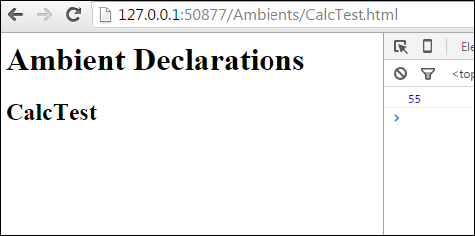
    In order to execute the code, let us add an html page with script tags as given below. Add the compiled CalcTest.js file and the third party library file CalcThirdPartyJsLib.js.

    <html><body style ="font-size:30px;"><h1>Ambient Test</h1><h2>Calc Test</h2></body><script src ="CalcThirdPartyJsLib.js"></script><script src ="CalcTest.js"></script></html>

    It will display the following page −

    Ambient Declarations

    On the console, you can see the following output −

    55
    

    Similarly, you can integrate jquery.d.ts or angular.d.ts into a project, based on your requirement.