Category: 07. File Handling

https://cdn3d.iconscout.com/3d/premium/thumb/folder-security-3d-icon-download-in-png-blend-fbx-gltf-file-formats–shield-management-data-pack-network-communication-icons-5581069.png

  • Listing Files

    Windows command DIR and Linux command ls both display the list of files in the current directory. These commands can be operated with different switches to apply conditions on the list of files displayed. PHP provides a couple of options for programmatically listing files in a given directory.

    The readdir() Function

    The opendir() function in PHP is similar to fopen() function. It returns handles to the directory so that the contents of the directory can be read from in a serialized manner.

    opendir(string$directory,?resource$context=null):resource|false

    This function opens up a directory handle to be used in the subsequent closedir(), readdir(), and rewinddir() calls.

    The readdir() function reads the next available entry from the stream handle returned by opendir() function.

    readdir(?resource$dir_handle=null):string|false

    Here, dir_handle is the directory handle previously opened with opendir().not specified, the last link opened by opendir() is assumed.

    The closedir() function is similar to fclose() function. It closes the directory handle.

    closedir(?resource$dir_handle=null):void

    The function closes the directory stream indicated by dir_handle. The stream must have previously been opened by opendir().

    Example

    The following PHP code reads one file at a time from the currently logged directory.

    <?php
       $dir = getcwd();
       
       // Open a known directory, and proceed to read its contents
       if (is_dir($dir)) {
    
      if ($dh = opendir($dir)) {
         while (($file = readdir($dh)) !== false) {
            echo "filename:" . $file . "\n";
         }
         closedir($dh);
      }
    } ?>

    The scandir() Function

    The scandir() function retrieves the files ans subdirectories inside a given directory.

    scandir(string$directory,int$sorting_order=SCANDIR_SORT_ASCENDING,?resource$context=null):array|false

    The “sorting_order” by default is alphabetical in ascending order. If this optional parameter is set to SCANDIR_SORT_DESCENDING, then the sort order becomes alphabetical in descending order. If it is set to SCANDIR_SORT_NONE, then the result becomes unsorted.

    Example

    With the following PHP code, the scandir() function returns an array of files in the given directory.

    <?php
       $dir = "c:/xampp/php/mydir/";
    
       $files = scandir($dir);
       var_dump($files);
    ?>

    It will produce the following output −

    array(4) {
       [0]=>
       string(1) "."
       [1]=>
       string(2) ".."
       [2]=>
       string(5) "a.txt"
       [3]=>
       string(5) "b.txt"
    }
    

    You can use a foreach loop to traverse the array returned by the scandir() function.

    <?php
       $dir = "c:/xampp/php/mydir/";
    
       $files = scandir($dir);
       foreach ($files as $file)
       echo $file . PHP_EOL;
    ?>

    It will produce the following output −

    .
    ..
    a.txt
    b.txt

    
  • Create Directory

    Computer files are stored in the local storage device (called drive) in a hierarchical order, where a directory contains one or more files as well as subdirectories. Respective DOS commands defined in operating systems Windows, Linux etc. are used to create and manage directories.

    PHP provides directory management functions to create a directory, change the current directory and remove a certain directory.

    This chapter discusses the usage of the following directory functions in PHP −

    The mkdir() Function

    The mkdir() function creates a new directory whose path is given as one of the parameters to the function

    mkdir(string$directory,int$permissions=0777,bool$recursive=false,?resource$context=null):bool

    Parameters

    • $directory − The first parameter $directory is mandatory. It is a string with either absolute or relative path of the new directory to be created.
    • $permissions − The second parameter $permissions is an octal number with four octal digits. The first digit is always zero, second specifies permissions for the owner, third for the owner’s user group and fourth for everybody else.

    Each digit is the sum of values for each type of permission −

    • 1 = execute permission
    • 2 = write permission
    • 4 = read permission

    The default value of $permissions parameters is 0777, which means the directory is created with execute, write and read permissions enabled.

    Note that the $permissions parameter is ignored when working on Windows OS.

    • $recursive − If true, then any parent directories to the directory specified will also be created, with the same permissions.
    • $context − This optional parameter is the stream resource.

    The mkdir() function returns either true or false, indicating if the function has been successfully executed or not.

    Examples

    Here are some examples of mkdir() function.

    The following call to mkdir() creates a subdirectory inside the current working directory. The dot indicates that the path is relative.

    $dir="./mydir/";mkdir($dir);

    We can give the string parameter that contains the absolute path of the directory to be created.

    $dir="c:/newdir/";mkdir($dir);

    The following call to mkdir() contains nested directory structure inside the current directory, as the $recursive parameter is set to true.

    $dirs="./dir1/dir2/dir3/";mkdir($dirs,0777,true);

    The Windows explorer will show the nested directory structure as follows −

    Create Directory

    The chdir() Function

    The chdir() function in PHP corresponds to the chdir or cd command in Linux/Windows. It causes the current directory to be changed as required.

    chdir(string$directory):bool

    The string parameter to this function is either an absolute or relative path of a directory to which the current directory needs to be changed to. It returns true or false.

    Explore our latest online courses and learn new skills at your own pace. Enroll and become a certified expert to boost your career.

    The getcwd() Function

    The getcwd() function works similar to pwd command in Ubuntu Linux, and returns the path to the current working directory.

    Example

    With the following code snippet, PHP displays the current working directory before and after changing the current working directory. A couple of files are created inside the new current directory. With the scandir() function, the files are listed.

    <?php
       echo "current directory: ". getcwd() . PHP_EOL;
       $dir = "./mydir";
       chdir($dir);
       echo "current directory changed to: ". getcwd() .PHP_EOL;
    
       $fp = fopen("a.txt", "w");
       fwrite($fp, "Hello World");
       fclose($fp);
    
       copy("a.txt", "b.txt");
       $dir = getcwd();
       foreach(scandir($dir) as $file)
       echo $file . PHP_EOL;
    ?>

    It will produce the following output −

    current directory: C:\xampp\php
    current directory changed to: C:\xampp\php\mydir
    .
    ..
    a.txt
    b.txt
    

    The rmdir() Function

    The rmdir() function removes a certain directory whose path is given as parameter. The directory to be removed must be empty.

    $dir="c:/newdir/";rmdir($dir)ordie("The directory is not present or not empty");
  • File Permissions

    The concept of permissions is at the core of Unix/Linux file system. The permissions determine who can access a file and how one can access a file. File permissions in Linux are manipulated by the chmod command, which can be run inside the Linux terminal. PHP provides the chmod() function with which you can handle file permissions programmatically.

    PHP’s chmod() function is effective only when you are working on a Linux OS. It doesn’t work on Windows, as Windows OS has a different mechanism of controlling file permissions.

    To view the permissions enabled on a file, obtain the list of files using the “ls -l” command (long listing)

    mvl@GNVBGL3:~$ ls -l
    
    -rwxr-xr-x 1 mvl mvl 16376 May  521:52 a.out
    -rw-r--r--1 mvl mvl    83 May  521:52 hello.cpp
    -rwxr-xr-x 1 mvl mvl    43 Oct 1114:50 hello.php
    -rwxr-xr-x 1 mvl mvl    43 May  810:01 hello.py
    drwxr-xr-x 5 mvl mvl  4096 Apr 2021:52 myenv
    

    The first column contains permission flags of each file. Third and fourth columns indicate the owner and group of each file, followed by size, date and time, and the file name.

    The permissions string has ten characters, their meaning is described as follows −

    PositionMeaning
    1“d” if a directory, “-” if a normal file
    2, 3, 4read, write, execute permission for user (owner) of file
    5, 6, 7read, write, execute permission for group
    8, 9, 10read, write, execute permission for other (world)

    The characters in the permission string have following meaning −

    ValueMeaning
    Flag is not set.
    rFile is readable.
    wFile is writable. For directories, files may be created or removed.
    xFile is executable. For directories, files may be listed.

    If you consider the first entry in the above list −

    -rwxr-xr-x 1 mvl mvl 16376 May  521:52 a.out
    

    The “a.out” file is owned by the user “mvl” and group “mvl”. It is a normal file with “read/write/execute” permissions for the owner, and “read/ execute” permissions for the group as well as others.

    The binary and octal representation of permission flags can be understood with the following table −

    Octal DigitBinary Representation (rwx)Permission
    0000none
    1001execute only
    2010write only
    3011write and execute
    4100read only
    5101read and execute
    6110read and write
    7111read, write, and execute (full permissions)

    The chmod() Function

    The chmod() function can change permissions of a specified file. It returns true on success, otherwise false on failure.

    chmod(string$filename,int$permissions):bool

    The chmod() function attempts to change the mode of the specified file ($filename) to that given in permissions.

    The second parameter $permissions is an octal number with four octal digits. The first digit is always zero, second specifies permissions for the owner, third for the owner’s user group and fourth for everybody else. Each digit is the sum of values for each type of permission.

    1Execute Permission
    2Write Permission
    4Read Permission

    The default value of $permissions parameters is 0777, which means the directory is created with execute, write and read permissions enabled.

    Example

    Take a look at the following example −

    <?php
    
       // Read and write for owner, nothing for everybody else
       chmod("/PhpProject/sample.txt", 0600);
    
       // Read and write for owner, read for everybody else
       chmod("/PhpProject/sample.txt", 0644);
    
       // Everything for owner, read and execute for everybody else
       chmod("/PhpProject/sample.txt", 0755);
    
       // Everything for owner, read for owner's group
       chmod("/PhpProject/sample.txt", 0740);
    ?>

    The chown() Function

    The chown() function attempts to change the owner of the file filename to a new user. Note that only the superuser may change the owner of a file.

    chown(string$filename,string|int$user):bool

    Example

    Take a look at the following example −

    <?php
    
       // File name and username to use
       $file_name= "index.php";
       $path = "/PhpProject/backup: " . $file_name ;
       $user_name = "root";
    
       // Set the user
       chown($path, $user_name);
    
       // Check the result
       $stat = stat($path);
       print_r(posix_getpwuid(fileowner($path)));
    ?>

    Explore our latest online courses and learn new skills at your own pace. Enroll and become a certified expert to boost your career.

    The chgrp() Function

    The chgrp() function attempts to change the group of the file filename to group.

    chgrp(string$filename,string|int$group):bool

    Only a superuser may change the group of a file arbitrarily; other users may change the group of a file to any group of which that user is a member.

    Example

    Take a look at the following example −

    <?php
       $filename = "/PhpProject/sample.txt";
       $format = "%s's Group ID @ %s: %d\n";
       printf($format, $filename, date('r'), filegroup($filename));
       chgrp($filename, "admin");
       clearstatcache();  	// do not cache filegroup() results
       printf($format, $filename, date('r'), filegroup($filename));
    ?>

    It will produce the following output −

    /PhpProject/sample.txt's Group ID @ Fri, 13 Oct 2023 07:42:21 +0200: 0
    /PhpProject/sample.txt's Group ID @ Fri, 13 Oct 2023 07:42:21 +0200: 0
    
  • Handle CSV File

    Popular spreadsheet programs use the CSV file format (which stands for Comma Separated Values) to export worksheet data in plain text. Each line in the file represents one row of the worksheet, with values in each column separated by commas.

    PHP’s filesystem function library provides two functions – fgetcsv() and fputcsv() – respectively to read data from a CSV file into an array and put the array elements in a CSV file.

    The fgetcsv() Function

    The getcsv() function reads the line from the file pointer, and parses it into CSV fields.

    fgetcsv(resource$stream,?int$length=null,string$separator=",",string$enclosure="\"",string$escape="\\"):array|false

    The $stream parameter is a handle to the file resource, opened in read mode. The default separator symbol to parse the fields is comma, you can specify any other symbol if required.

    The fgetcsv() function returns an indexed array containing the fields. If the function encounters any error, it returns false.

    To demonstrate the use of fgetcsv() function, store the following text as “hello.txt” in the current working directory.

    Name, Email, Post, Salary
    Ravishankar, [email protected], Manager,40000
    Kavita, [email protected], Assistant,25000
    Nandkumar, [email protected], Programmer,30000

    Example

    The following PHP code reads the CSV data from this file, and returns an array. The fields in the array are then rendered in a HTML table −

    <?php
       $filename = 'hello.csv';
       $data = [];
    
       // open the file
       $f = fopen($filename, 'r');
    
       if ($f === false) {
    
      die('Cannot open the file ' . $filename);
    } // read each line in CSV file at a time while (($row = fgetcsv($f)) !== false) {
      $data&#91;] = $row;
    } // close the file fclose($f); echo "<table border=1>"; foreach ($data as $row) {
      echo "&lt;tr&gt;";
      foreach($row as $val) {
         echo "&lt;td&gt;$val&lt;/td&gt;"; 
      }
      echo "&lt;/tr&gt;";
    } echo "</table>"; ?>

    It will produce the following output −

    NameEmailPostSalary
    Ravishankar[email protected]Manager40000
    Kavita[email protected]Assistant25000
    Nandkumar[email protected]Programmer30000

    The fputcsv() Function

    Te fputcsv() function puts an indexed array with its elements separated by commas, at the current file pointer position of a CSV file.

    fputcsv(resource$stream,array$fields,string$separator=",",string$enclosure="\"",string$escape="\\",string$eol="\n"):int|false

    The target file must be opened in write mode. The second mandatory parameter is an array consisting of comma separated fields. As in case of fgetcsv() function, the default separator is comma.

    Example

    In the following code, a two dimensional array of comma separated values is written into a CSV file.

    <?php
       $data = [
    
      &#91;"Name", "Email", "Post", "Salary"],
      &#91;"Ravishankar", "[email protected]", "Manager", "40000"],
      &#91;"Kavita", "[email protected]", "Assistant", "25000"],
      &#91;"Nandkumar", "[email protected]", "Programmer", "30000"],
    ]; $filename = 'employee.csv'; // open csv file for writing $f = fopen($filename, 'w'); if ($f === false) {
      die('Error opening the file ' . $filename);
    } // write each row at a time to a file foreach ($data as $row) {
      fputcsv($f, $row);
    } // close the file fclose($f); ?>

    The “employee.csv” file should be created in the current working directory, after the above program is executed.

  • Delete File

    PHP doesn’t have either a delete keyword or a delete() function. Instead, it provides the unlink() function, which when called, deletes a file from the filesystem. It is similar to Unix/C unlink function.

    If the delete operation could not be completed, PHP returns false and shows an E_WARNING message.

    unlink(string$filename,?resource$context=null):bool

    The mandatory string parameter to unlink() function is a string that refers to the file to be deleted.

    Example

    The following code demonstrates a simple use of the unlink() function −

    <?php
       $file = "my_file.txt";
    
       if (unlink($file)) {
    
      echo "The file was deleted successfully.";
    } else {
      echo "The file could not be deleted.";
    } ?>

    Deleting the Symlink to a File

    The unlink() function can also delete a symlink to a file. However, deleting a symlink doesn’t delete the original file. A symlink is a shortcut to an existing file.

    In Windows, open a command prompt with administrator privilege and use the mlink command with /h switch to create a symlink to a file. (/j switch is used for symlink to a folder)

    mklink /h hellolink.lnk hello.txt
    Hardlink created for hellolink.lnk <<===>> hello.txt
    

    In Ubuntu Linux, to create a symbolic link to a file, you would use the following command −

    ln -s /path/to/original_file /path/to/symlink
    

    To create a symbolic link to a directory, you would use the following command −

    ln -s /path/to/original_directory /path/to/symlink
    

    In PHP, there is also a symlink() function for the purpose.

    symlink(string$target,string$link):bool

    Example

    Create a symlink with the following code −

    <?php
       $target = 'hello.txt';
       $link = 'hellolink.lnk';
       symlink($target, $link);
    
       echo readlink($link);
    ?>

    Now delete the symlink created above −

    unlink("hellolink.lnk");
    

    If you check the current working directory, the symlink will be deleted, leaving the original file intact.

    Explore our latest online courses and learn new skills at your own pace. Enroll and become a certified expert to boost your career.

    How to Rename a File in PHP

    You can change the name of an existing file with the help of respective command from the console of an operating system. For example, the “mv command in Linux terminal or the “rename command” in Windows command prompt helps you to change the name of a file.

    However, to rename a file programmatically, PHP’s built-in library includes a rename() function.

    Here is the syntax of the rename() function −

    rename(string$from,string$to,?resource$context=null):bool

    Both $from and $to strings are the names of files, existing and new respectively. The rename() function attempts to rename $from to $to, moving it between directories if necessary.

    If you are renaming a file and $to already exists, then it will be overwritten. If you are renaming a directory and $to exists, then this function will emit a warning.

    To change the name of “hello.txt” to “test.txt” −

    <?php
       rename("hello.txt", "test.txt");
    ?>

    You can also employ a little indirect approach for renaming a file. Make a copy of an existing file and delete the original one. This also renames “hello.txt” to “test.txt” −

    copy("hello.txt", "test.txt");
    unlink("hello.txt");
    
  • Append File

    In PHP, the fopen() function returns the file pointer of a file used in different opening modes such as “w” for write mode, “r” read mode and “r+” or “r+” mode for simultaneous read/write operation, and “a” mode that stands for append mode.

    When a file is opened with “w” mode parameter, it always opens a new file. It means that if the file already exists, its content will be lost. The subsequent fwrite() function will put the data at the starting position of the file.

    Assuming that a file “new.txt” is present with the following contents −

    Hello World
    TutorialsPoint
    PHP Tutorial
    

    The following statement −

    $fp=fopen("new.txt","w");

    Erases all the existing data before new contents are written.

    Read/Write Mode

    Obviously, it is not possible to add new data if the file is opened with “r” mode. However, “r+” or “w+” mod opens the file in “r/w” mode, but still a fwrite() statement immediately after opening a file will overwrite the contents.

    Example

    Take a look at the following code −

    <?php
       $fp = fopen("new.txt", "r+");
       fwrite($fp, "PHP-MySQL Tutorial\n");
       fclose($fp);
    ?>

    With this code, the contents of the “new.txt” file will now become −

    PHP-MySQL Tutorial
    lsPoint
    PHP Tutorial
    

    To ensure that the new content is added at the end of the existing file, we need to manually put the file pointer to the end, before write operation. (The initial file pointer position is at the 0th byte)

    The fseek() Function

    PHP’s fseek() function makes it possible to place the file pointer anywhere you want −

    fseek(resource$stream,int$offset,int$whence=SEEK_SET):int

    The $whence parameter is from where the offset is counted. Its values are −

    • SEEK_SET − Set position equal to offset bytes.
    • SEEK_CUR − Set position to current location plus offset.
    • SEEK_END − Set position to end-of-file plus offset.

    Example

    So, we need to move the pointer to the end with the fseek() function as in the following code which adds the new content to the end.

    <?php
       $fp = fopen("new.txt", "r+");
       fseek($fp, 0, SEEK_END);
       fwrite($fp, "\nPHP-MySQL Tutorial\n");
       fclose($fp);
    ?>

    Now check the contents of “new.txt”. It will have the following text −

    Hello World
    TutorialsPoint
    PHP Tutorial
    PHP-MySQL Tutorial
    

    Explore our latest online courses and learn new skills at your own pace. Enroll and become a certified expert to boost your career.

    Append Mode

    Instead of manually moving the pointer to the end, the “a” parameter in fopen() function opens the file in append mode. Each fwrite() statement adds the content at the end of the existing contents, by automatically moving the pointer to SEEK_END position.

    <?php
       $fp = fopen("new.txt", "a");
       fwrite($fp, "\nPHP-MySQL Tutorial\n");
       fclose($fp);
    ?>

    One of the allowed modes for fopen() function is “r+” mode, with which the file performs read/append operation. To read data from any position, you can place the pointer to the desired byte by fseek(). But, every fwrite() operation writes new content at the end only.

    Example

    In the program below, the file is opened in “a+” mode. To read the first line, we shift the file position to 0the position from beginning. However, the fwrite() statement still adds new content to the end and doesn’t overwrite the following line as it would have if the opening mode “r+” mode.

    <?php
       $fp = fopen("new.txt", "a+");
       fseek($fp, 0, SEEK_SET);
       $data = fread($fp, 12);
       echo $data;
       fwrite($fp, "PHP-File Handling");
       fclose ($fp);
    ?>

    Thus, we can append data to an existing file if it is opened in “r+/w+” mode or “a/a+” mode

  • Copy File

    You can copy an existing file to a new file in three different ways −

    • Reading a line from one and writing to another in a loop
    • Reading entire contents to a string and writing the string to another file
    • Using PHP’s built-in function library includes copy() function.

    Method 1

    In the first approach, you can read each line from an existing file and write into a new file till the existing file reaches the end of file.

    In the following PHP script, an already existing file (hello.txt) is read line by line in a loop, and each line is written to another file (new.txt)

    It is assumed that “hello.txt” contains the following text −

    Hello World
    TutorialsPoint
    PHP Tutorials
    

    Example

    Here is the PHP code to create a copy of an existing file −

    <?php
       $file = fopen("hello.txt", "r");
       $newfile = fopen("new.txt", "w");
       while(! feof($file)) {
    
      $str = fgets($file);
      fputs($newfile, $str);
    } fclose($file); fclose($newfile); ?>

    The newly created “new.txt” file should have exactly the same contents.

    Method 2

    Here we use two built-in functions from the PHP library −

    file_get_contents(string$filename,bool$use_include_path=false,?resource$context=null,int$offset=0,?int$length=null):string|false

    This function reads the entire file into a string. The $filename parameter is a string containing the name of the file to be read

    The other function is −

    file_put_contents(string$filename,mixed$data,int$flags=0,?resource$context=null):int|false

    The function puts the contents of $data in $filename. It returns the number of bytes written.

    Example

    In the following example, we read contents of “hello.txt” in a string $data, and use it as a parameter to write into “test.txt” file.

    <?php
       $source = "hello.txt";
       $target = "test.txt";
       $data = file_get_contents($source);
       file_put_contents($target, $data);
    ?>

    Explore our latest online courses and learn new skills at your own pace. Enroll and become a certified expert to boost your career.

    Method 3

    PHP provides the copy() function, exclusively to perform copy operation.

    copy(string$from,string$to,?resource$context=null):bool

    The $from parameter is a string containing the existing file. The $to paramenter is also a string containing the name of the new file to be created. If the target file already exists, it will be overwritten.

    The copy operation will return true or false based on the file being successfully copied or not.

    Example

    Let’s use the copy() function to make “text.txt” as a copy of “hello.txt” file.

    <?php
       $source = "a.php";
       $target = "a1.php";
       if (!copy($source, $target)) {
    
      echo "failed to copy $source...\n";
    } ?>
  • Download File

    Most modern browsers allow files of certain types to be downloaded automatically, without any server-side code such as a PHP script. For example, a zip file, or an EXE file.

    If an HTML hyperlink points to a ZIP or EXE file, the browser downloads it and pops up a save dialog. However, text files, image files, etc., are not downloaded but opened in the browser, which you can save to your local filesystem.

    The readfile() Function

    To download such files (instead of the browser automatically opening them), we can use the readfile() function in PHP’s built-in function library.

    readfile(string$filename,bool$use_include_path=false,?resource$context=null):int|false

    This function reads a file and writes it to the output buffer.

    The second parameter $use_include_path is false by default, hence the file in the current directory will be downloaded. If set to true, the directories added to the include_path setting of php.ini configuration will be searched to locate the file to be downloaded.

    The readfile() function returns the number of bytes read or false even it is successfully completed or not.

    Example

    The following PHP script shows the usage of readfile() function.

    To download a file, the Content-Type response header should be set to application/octect-stream. This MIME type is the default for binary files. Browsers usually don’t execute it, or even ask if it should be executed.

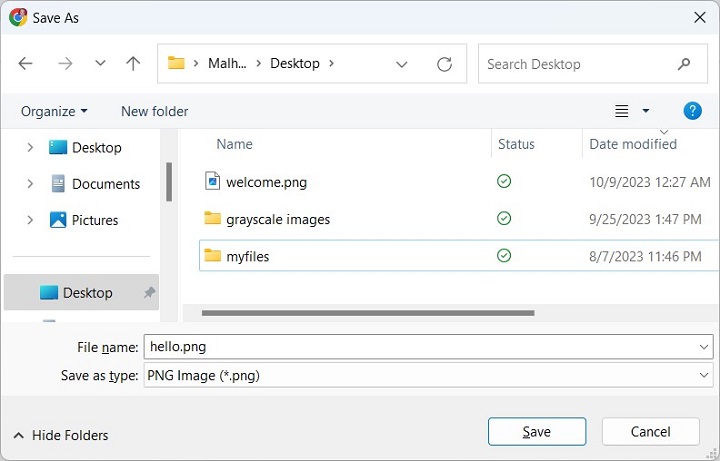
    Additionally, setting the Content-Disposition header to attachment prompts the “Save As” dialog to pop up.

    <?php
       $filePath = 'welcome.png';
    
       // Set the Content-Type header to application/octet-stream
       header('Content-Type: application/octet-stream');
    
       // Set the Content-Disposition header to the filename of the downloaded file
       header('Content-Disposition: attachment; filename="'. basename($filePath).'"');
    
       // Read the contents of the file and output it to the browser.
       readfile($filePath);
    ?>

    Save the above script as “download.php” in the document root folder. Make sure that the file to be downloaded is present in the same folder.

    Start the server and visit http://localhost/download.php in the browser. You will get a “Save As” dialog as below −

    PHP Download File

    You can select a name and download the file.

    For a large file, you can read it from the file stream in the chunk of a certain predefined size. The browser offers to save it in the local filesystem, if the Content-Disposition head is set to “attachment”, as in the previous example.

    <?php
       $filename = 'welcome.png';
    
       header('Content-Type: application/octet-stream');
       header('Content-Disposition: attachment; filename="' . basename($filename) . '"');
    
       $handle = fopen($filename, 'rb');
       $buffer = '';
       $chunkSize = 1024 * 1024;
    
       ob_start();
       while (!feof($handle)) {
    
      $buffer = fread($handle, $chunkSize);		
      echo $buffer;
      ob_flush();
      flush();
    } fclose($handle); ?>

  • File Existence

    It is often handy to check if the file you are trying to open really exists in the first place before performing any processing on it. Otherwise, the program is likely to raise a runtime exception.

    PHP’s built-in library provides some utility functions in this regard. Some of the functions we shall discuss in this chapter are −

    • file_exists() − tests if the file exists
    • is_file() − if the handle returned by the fopen() refers to a file or directory.
    • is_readable() − test if the file you have opened allows reading data
    • is_writable() − test if writing data in the file is allowed

    The file_exists() Function

    This function works with a file as well as a directory. It checks whether the given file or directory exists or not.

    file_exists(string$filename):bool

    The only parameter to this function is a string representing the file/directory with full path. The function returns true or false depending upon the file exists or not.

    Example

    The following program checks if the file “hello.txt” exists or not.

    <?php
       $filename = 'hello.txt';
       if (file_exists($filename)) {
    
      $message = "The file $filename exists";
    } else {
      $message = "The file $filename does not exist";
    } echo $message; ?>

    If the file does exist in the current directory, the message is −

    The file hello.txt exists
    

    If not, the message is −

    The file hello.txt does not exist
    

    Example

    The string pointing to the file may have a relative or absolute path. Assuming that “hello.txt” file is available in a “hello” subdirectory which is inside the current directory.

    <?php
       $filename = 'hello/hello.txt';
    
      if (file_exists($filename)) {
    $message = "The file $filename exists"; } else {
      $message = "The file $filename does not exist";
    } echo $message; ?>

    It will produce the following output −

    The file hello/hello.txt exists
    

    Example

    Try giving the absolute path as below −

    <?php
       $filename = 'c:/xampp/htdocs/hello.txt';
       if (file_exists($filename)) {
    
      $message = "The file $filename exists";
    } else {
      $message = "The file $filename does not exist";
    } echo $message; ?>

    It will produce the following output −

    The file c:/xampp/htdocs/hello.txt exists
    

    The is_file() Function

    The file_exists() function returns true for existing file as well as directory. The is_file() function helps you to determine if it’s a file.

    is_file(string$filename):bool

    The following example shows how the is_file() function works −

    <?php
       $filename = 'hello.txt';
    
       if (is_file($filename)) {
    
      $message = "$filename is a file";
    } else {
      $message = "$filename is a not a file";
    } echo $message; ?>

    The output tells that it is a file −

    hello.txt is a file
    

    Now, change the “$filename” to a directory, and see the result −

    <?php
       $filename = hello;
    
       if (is_file($filename)) {
    
      $message = "$filename is a file";
    } else {
      $message = "$filename is a not a file";
    } echo $message; ?>

    Now you will be told that “hello” is not a file.

    Note that The is_file() function accepts a $filename and returns true only if the $filename is a file and exists.

    Explore our latest online courses and learn new skills at your own pace. Enroll and become a certified expert to boost your career.

    The is_readable() Function

    Sometimes, you may want to check before hand if the file can be read from or not. The is_readable() function can ascertain this fact.

    is_readable(string$filename):bool

    Example

    Given below is an example of how the is_readable() function works −

    <?php
       $filename = 'hello.txt';
       if (is_readable($filename)) {
    
      $message = "$filename is readable";
    } else {
      $message = "$filename is not readable";
    } echo $message; ?>

    It will produce the following output −

    hello.txt is readable
    

    The is_writable() Function

    You can use the is_writable() function to can check if a file exists and if it is possible to perform write operation on the given file.

    is_writable(string$filename):bool

    Example

    The following example shows how the is_writable() function works −

    <?php
       $filename = 'hello.txt';
    
       if (is_writable($filename)) {
    
      $message = "$filename is writable";
    } else {
      $message = "$filename is not writable";
    } echo $message; ?>

    For a normal archived file, the program tells that it is writable. However, change its property to “read_only” and run the program. You now get −

    hello.txt is writable
    

  • Write File

    PHP’s built-in function library provides two functions to perform write operations on a file stream. These functions are fwrite() and fputs().

    To be able to write data in a file, it must be opened in write mode (w), append mode (a), read/write mode (r+ or w+) or binary write/append mode (rb+, wb+ or wa).

    The fputs() Function

    The fputs() function writes a string into the file opened in a writable mode.

    fputs(resource$stream,string$string,int$length)

    Here, the $stream parameter is a handle to a file opened in a writable mode. The $string parameter is the data to be written, and $length is an optional parameter that specifies the maximum number of bytes to be written.

    The fputs() function returns the number of bytes written, or false if the function is unsuccessful.

    Example

    The following code opens a new file, writes a string in it, and returns the number of bytes written.

    Open Compiler

    <?php
       $fp = fopen("hello.txt", "w");
       $bytes = fputs($fp, "Hello World\n");
       echo "bytes written: $bytes";
       fclose($fp);
    ?>

    It will produce the following output −

    bytes written: 12
    

    Example

    If you need to add text in an earlier existing file, it must be opened in append mode (a). Let us add one more string in the same file in previous example.

    <?php
       $fp = fopen("hello.txt", "a");
       $bytes = fputs($fp, "Hello PHP");
       echo "bytes written: $bytes";
       fclose($fp);
    ?>

    If you open the “hello.txt” file in a text editor, you should see both the lines in it.

    Example

    In the following PHP script, an already existing file (hello.txt) is read line by line in a loop, and each line is written to another file (new.txt)

    It is assumed thar “hello.txt” consists of following text −

    Hello World
    TutorialsPoint
    PHP Tutorials
    

    Here is the PHP code to create a copy of an existing file −

    <?php
       $file = fopen("hello.txt", "r");
       $newfile = fopen("new.txt", "w");
       while(! feof($file)) {
    
      $str = fgets($file);
      fputs($newfile, $str);
    } fclose($file); fclose($newfile); ?>

    The newly created “new.txt” file should have exactly the same contents.

    The fwrite() Function

    The frwrite() function is a counterpart of fread() function. It performs binary-safe write operations.

    fwrite(resource$stream,string$data,?int$length=null):int|false

    Here, the $stream parameter is a resource pointing to the file opened in a writable mode. Data to be written to the file is provided in the $data parameter. The optional $length parameter may be provided to specify the number of bytes to be written. It should be int, writing will stop after length bytes have been written or the end of data is reached, whichever comes first.

    The fwrite() function returns the number of bytes written, or false on failure along with E_WARNING.

    Example

    The following program opens a new file, performs write operation and displays the number of bytes written.

    <?php
       $file = fopen("/PhpProject/sample.txt", "w");
       echo fwrite($file, "Hello Tutorialspoint!!!!!");
       fclose($file);
    ?>

    Example

    In the example code given below, an existing file “welcome.png” in opened in binary read mode. The fread() function is used to read its bytes in “$data” variable, and in turn written to another file “new.png” −

    <?php
       $name = "welcome.png";
       $file = fopen($name, "rb");
       $newfile = fopen("new.png", "wb");
       $size = filesize($name);
       $data = fread($file, $size);
       fwrite($newfile, $data, $size);
       fclose($file);
       fclose($newfile);
    ?>

    Run the above code. The current directory should now have a copy of the existing “welcome.png” file.