Category: 01. Tutorial

https://cdn3d.iconscout.com/3d/premium/thumb/online-video-tutorial-3d-icon-png-download-8746901.png

  • Format Specifiers in C

    Format specifiers in C are certain special symbols used in the formatted console IO functions such as printf() and scanf(), as well as formatted file IO functions such as fprintf() and fscanf().

    Format specifiers are formed of a predefined sequence of one or more alphanumeric characters followed by the % symbol. For example, %d, %s, %f, %lf, etc. are some of the format specifiers used in C.

    Why Do We Use Format Specifiers in C?

    The CPU performs IO operations with input and output devices in a streaming manner. The data read from a standard input device (for example, a keyboard) through the standard input stream is called stdin. Similarly the data sent to the standard output, which is the computer display screen, through the standard output device is called stdout.

    The computer receives data from the stream in a text form, however you may want to parse it in variables of different data types such as int, float or a string. Similarly, the data stored in int, float or char variables has to be sent to the output stream in a text format. Format specifier symbols are used exactly for this purpose.

    Format Specifiers in printf() Function

    The printf() function is the most commonly used standard output function, defined in the stdio.h header file. The prototype of printf() function is as follows −

    intprintf(format_string, expr1, expr2,..);

    The first argument of this function is a string that is interspersed with one or more format specifiers. There may be one or more expressions as argument after the first. The compiler substitutes each format specifier with the value of its successive expression. The resultant formatted string is then passed to the output stream.

    Example

    In the following code, we have an int variable age and a float variable percent. The printf() function prints the values of both as below −

    #include <stdio.h>intmain(){int age =18;float percent =67.75;printf("Age: %d \nPercent: %f", age, percent);return0;}

    Output

    When you run the code, it will produce the following output −

    Age: 18 
    Percent: 67.750000
    

    The value of the first variable replaces the first format specifier %d. Similarly, %f is substituted by the value of the percent variable.

    Format Specifiers in scanf() Function

    Format specifiers are also used to parse the input stream into the variables of required type. The following example highlights how it’s done.

    Example

    In this example, the program asks the user to input age and percent values. They are stored in the int and float variables, respectively.

    #include <stdio.h>intmain(){int age;float percent;printf("Enter Age and Percent: \n");scanf("%d %f",&age,&percent);printf("Age: %d Percent: %f", age, percent);return0;}

    Output

    Run the code and check its output −

    Enter Age and Percent: 
    Age: 4096 Percent: 0.000000
    

    Types of Format Specifiers

    ANSI C defines a number of format specifiers. The following table lists the different specifiers and their purpose −

    Format SpecifierType
    %cCharacter
    %dSigned integer
    %e or %EScientific notation of floats
    %fFloat values
    %g or %GSimilar as %e or %E
    %hiSigned integer (short)
    %huUnsigned Integer (short)
    %iUnsigned integer
    %l or %ld or %liLong
    %lfDouble
    %LfLong double
    %luUnsigned int or unsigned long
    %lli or %lldLong long
    %lluUnsigned long long
    %oOctal representation
    %pPointer
    %sString
    %uUnsigned int
    %x or %XHexadecimal representation
    • A minus symbol () tells left alignment.
    • A number after % specifies the minimum field width. If a string is less than the width, it will be filled with spaces.
    • A period (.) is used to separate field width and precision.

    Integer Format Specifiers

    C uses %d for signed integer, %i for unsigned integer, %ld or %li for long integer, %o or %O for octal representation, and %x or %X for hexadecimal representation of an integer.

    Example

    The following example highlights how integer format specifiers are used in C −

    #include <stdio.h>intmain(){int num =20;printf("Signed integer: %d\n", num);printf("Unsigned integer: %i\n", num);printf("Long integer: %ld\n", num);printf("Octal integer: %o\n", num);printf("Hexadecimal integer: %x\n", num);return0;}

    Output

    When you run this code, it will produce the following output −

    Signed integer: 20
    Unsigned integer: 20
    Long integer: 20
    Octal integer: 24
    Hexadecimal integer: 14
    

    Floating-point Formats

    C uses the %f format specifier for single precision float number, %lf for double precision, %Lf for long double number. To represent a floating point number in scientific notation, C uses the %e or %E specifier symbol.

    You can specify the width and the precision in the form of number of places after the decimal point. For example, to state the width of number to 4 digits with 2 digits after the decimal point, use the form %4.2f.

    Example

    Take a look at the following example −

    #include <stdio.h>intmain(){float num =5.347;printf("float: %f\n", num);printf("double: %lf\n", num);printf("Scientific notation: %e\n", num);printf("width and precision: %4.2f\n", num);return0;}

    Output

    On running this code, you will get the following output −

    float: 5.347000
    double: 5.347000
    Scientific notation: 5.347000e+000
    width and precision: 5.35
    

    String Formats

    The char data type in C is actually a subset of int data type. Hence, a char variable with %c format specifier corresponds to the character in single quotes. On the other hand, if you use the %d specifier, then the char variable will be formatted to its ASCII value.

    In C, a string is an array of char data. To display an array of chars, C uses the %s specifier.

    Example

    Take a look at the following example −

    #include <stdio.h>intmain(){char ch ='D';char word[]="Hello World";printf("As character: %c\n", ch);printf("As its ASCII value: %d\n", ch);printf("String format: %s", word);return0;}

    Output

    When you run this code, it will produce the following output −

    As character: D
    As its ASCII value: 68
    String format: Hello World
    

    Format Specifiers in File IO Functions

    The stdio.h library defines the functions fscanf() and fprintf() for formatted IO with disk files, instead of standard input/output streams.

    Example 1

    The following code opens a file in write mode and saves the values of three variables in it.

    #include <stdio.h>intmain(){int x,y,z;
    
       FILE *fp =fopen("test.txt","w");
       
       x =10; y =20; z =30;fprintf(fp,"%d, %d, %d", x,y,z);fclose(fp);return0;}

    Output

    The fprintf() function uses the file represented by the file pointer fp to write the data.
    

    The next example shows how you can open the same file in read mode to read the formatted data.

    Example 2

    The following program reads back the data from the file by opening it in read mode.

    #include <stdio.h>intmain(){int x,y,z;
    
       FILE *fp =fopen("test.txt","r");fscanf(fp,"%d, %d, %d",&x,&y,&z);printf("%d, %d, %d", x,y,z);fclose(fp);return0;}

    Output

    The fscanf() function reads the formatted input from fp which is the pointer to the file opened. Here, you will get the following output −

    10, 20, 30
    
  • printf() Function

    In C, the printf() function is used to display the output on the screen and it is defined in the standard I/O library (<stdio.h>), so we need to include this header file at the start of every program to use printf() properly. For example,

    #include <stdio.h>intmain(){// code goes herereturn0;}

    In this chapter, we’ll cover the printf() function in C and how it works. Below are the topics which we are going to cover −

    • printf() in C
    • Format specifiers in printf()
    • Format String Structure in printf()
    • Format Flags in printf()
    • Width in printf()
    • Precision in printf()
    • Length Modifiers in printf() Function
    • Escape sequences in printf()

    printf() in C

    The printf() function in C is a built-in function used for displaying the output on the screen. It can print text, numbers, characters, variables and even formattted data. For example, writing “Hello, World!” inside the printf() function will display exactly that on the screen.

    Syntax of printf()

    Following is the syntax of printf() function in C −

    printf("format_string", args...);
    

    Parameters of printf()

    The printf() function takes the following two parameters −

    • format_string: It is the message or text we want to display on the screen, and it can include format specifiers (like %d%f%c%s) as placeholders for variables.
    • args…: It is the actual values that will replace these placeholders when the program runs.

    Return Type of printf()

    The return type of printf() function is int. It returns the number of characters printed on the screen or returns a negative value if an error occurred.

    Example of printf() in C

    Here’s an example of printf() function in C. We define an age variable and assign a value to it. Then we use the printf() function to display a message, where the format string contains %d, which will be replaced by the value of the age variable.

    #include <stdio.h>intmain(){int age =20;printf("Hello! I am %d years old.\n", age);return0;}

    Here is the output of the above program, which prints the message and the age.

    Hello! I am 20 years old.
    

    Format specifiers in printf()

    Format specifiers in printf() are the placeholders that start with % and we use them inside the printf() function to specify what type of data we want to print. Listed below is a list of common format specifiers –

    • %d or %i: Prints an integer (decimal).
    • %f: Prints a floating-point number.
    • %.2f: Prints a floating-point number with 2 digits after the decimal point.
    • %c: Prints a single character.
    • %s: Prints a string.
    • %u: Prints an unsigned integer.
    • %x: Prints a hexadecimal number (lowercase).
    • %X: Prints a hexadecimal number (uppercase).
    • %p: Prints a pointer (memory address).
    • %%: Prints the symbol itself.

    Now let’s look at each of these format specifiers in detail.

    Example: Printing an Integer

    We use %d or %i to print integers in C, and both specifiers give the same result for decimal values. In the program below, we define a variable num with the value 42 and use both specifiers to print it.

    #include <stdio.h>intmain(){int num =42;printf("Using %%d: The number is %d\n", num);printf("Using %%i: The number is %i\n", num);return0;}

    When we run this program, the output will be −

    Using %d: The number is 42
    Using %i: The number is 42
    

    Example: Printing a Floating-point Number

    The %f specifier is used to print floating-point numbers, and it displays values with six digits after the decimal point by default. In the program below, we define a variable pi with the value 3.14159 and use printf() to display it.

    #include <stdio.h>intmain(){float pi =3.14159;printf("The value of pi is %f", pi);return0;}

    The output of this program will be-

    The value of pi is 3.141590
    

    Example: Printing a Character

    The %c specifier is used to display the single character. In the below program, we define a variable grade and assign it the character ‘A’ and display it using printf().

    #include <stdio.h>intmain(){char grade ='A';printf("Your grade is %c", grade);return0;}

    Below is the output of the above program using %c specifier −

    Your grade is A
    

    Example: Printing a String

    We use %s to print a string, which is a collection of characters. In the program below, we define a string variable message and display it in the printf() function.

    #include <stdio.h>intmain(){char message[]="Welcome to Tutorialspoint";printf("Using %%s specifier: %s\n", message);return0;}

    Below is the output of the above program, which displays a message.

    Using %s specifier: Welcome to Tutorialspoint
    

    Example: Printing an Unsigned Integer

    We use %u to print an unsigned integer, which is a number that cannot be negative. In this program, we create an unsigned integer variable age and display it in the printf() function.

    #include <stdio.h>intmain(){unsignedint age =25;printf("Using %%u specifier: Age is %u\n", age);return0;}

    Following is the output of the above program, which displays the unsigned integer.

    Using %u specifier: Age is 25
    

    Example: Printing a Pointer Address

    The %p specifier prints the memory address of a variable. In this program, we create an integer variable num and in the printf() funtion we display its address. The output shows the memory location, which can change each time the program runs.

    #include <stdio.h>intmain(){int num =10;printf("Using %%p specifier, Address of num: %p\n",&num);return0;}

    Here’s the output of the above program, which displays the memory address where the num variable is stored.

    Using %p specifier, Address of num: 0x7ffd54cce62c
    

    Example: Printing a Percent Sign

    To print the % symbol itself, we use %% inside printf(). In this program, we define an integer variable marks and display it along with the percent sign.

    #include <stdio.h>intmain(){int marks =90;printf("You scored %d%% in the exam.\n", marks);return0;}

    Here is the output of the program, showing the use of %% in printf() to display % −

    You scored 90% in the exam.
    

    Format String Structure in printf()

    format string in the printf() function tells the program how to format data in input/output operations. It can include text and placeholders, and it follows a specific structure starting with %.

    Below is the general structure of a format specifier −

    %[flags][width][.precision][length]specifier
    

    Each part of the specifier controls how the value is displayed. We will see flagswidthprecision, and length in detail with examples below.

    Format Flags in printf()

    In the printf() function, flags are optional characters that we place right after % in a format specifier. They help control how our output looks by adjusting alignment, padding, signs, and prefixes. Here are the main flags −

    • – (Minus): Left-aligns the output within the specified width.
    • + (Plus): Always prints the sign of a number (+ or ).
    • 0 (Zero): Pads the number with leading zeros.
    • (Space): Adds a space before positive numbers.
    • # (Hash): Adds a prefix (like 0x for hexadecimal or 0 for octal).

    We will look at examples of each flag below to see how they actually change the output.

    Example: Left Align Using (-) Flag

    We will use the – flag to left-align a number within a field of width 5. In the example below, we first print the number without the flag, and then with – flag to see how the alignment changes.

    #include <stdio.h>intmain(){int num =2314;printf("Without flag: |%5d|\n", num);printf("With left-justify: |%-5d|\n", num);return0;}

    Here is the output of the above program −

    Without flag: | 2314|
    With left-justify: |2314 |
    

    Example: Show Sign Using (+) Flag

    Below is a compelte C program where we use the + flag to display the sign for both positive and negative numbers.

    #include <stdio.h>intmain(){int pos =1423;int neg =-1423;printf("Without flag: %d, %d\n", pos, neg);printf("With plus flag: %+d, %+d\n", pos, neg);return0;}

    Below is the output of the above program.

    Without flag: 1423, -1423
    With plus flag: +1423, -1423
    

    Example: Pad Numbers With Zeros Using (0) Flag

    We will use the 0 flag to pad numbers with leading zeros instead of spaces. We define a number in a field of width 7, then print it first without the flag and then with the 0 flag to see the difference.

    #include <stdio.h>intmain(){int num =14;printf("Without flag: |%7d|\n", num);printf("With zero padding: |%07d|\n", num);return0;}

    Following is the output of the above program.

    Without flag: |     14|
    With zero padding: |0000014|
    

    Example: Add Space Before Positive Numbers ( ) Flag

    We use the ( )space flag to add a space before positive numbers and keep negative numbers as they are. In the example below, we’ll see how it changes the alignment of numbers.

    #include <stdio.h>intmain(){int pos =23;int neg =-23;printf("Without space: |%d| |%d|\n", pos, neg);printf("With space flag: |% d| |% d|\n", pos, neg);return0;}

    Below is the output of the above program.

    Without space: |23| |-23|
    With space flag: | 23| |-23|
    

    Example: Alternate Form (#) Flag for Octal and Hex

    We will use the # flag to add prefixes to numbers. In the example below, we will use the # flag to display each number in octal and hexadecimal form. The # flag adds before octal numbers, 0x before lowercase hexadecimal, and 0X before uppercase hexadecimal.

    #include <stdio.h>intmain(){int num =2314;printf("Octal without #: %o\n", num);printf("Octal with #: %#o\n", num);printf("Hex lowercase without #: %x\n", num);printf("Hex lowercase with #: %#x\n", num);printf("Hex uppercase without #: %X\n", num);printf("Hex uppercase with #: %#X\n", num);return0;}

    Following is the output of the above program −

    Octal without #: 4412
    Octal with #: 04412
    Hex lowercase without #: 90a
    Hex lowercase with #: 0x90a
    Hex uppercase without #: 90A
    Hex uppercase with #: 0X90A
    

    Width in printf()

    Width in printf() function sets the minimum space for a value. It adds extra spaces if the value is shorter, and by default, the value is right-aligned. If the value is longer than the width, it prints the full value without adding any space.

    Example: Using Width with Integers

    Here, we print two integers in a field of width using printf(). The first number has fewer digits, so extra spaces are added, and the second number fits the width, so it prints as it is.

    #include <stdio.h>intmain(){int num1 =23;int num2 =231423;printf("Number 1 with width 5: |%5d|\n", num1);printf("Number 2 with width 5: |%5d|\n", num2);return0;}

    Here is the output of the above program −

    Number 1 with width 5: |   23|
    Number 2 with width 5: |231423|
    

    Precision in printf()

    Precision in printf() controls how much of a value is displayed.

    • For floating-point numbers, it sets the number of digits after the decimal point.
    • For strings, it limits the maximum number of characters to print.

    Example: Precision with Float and String

    We use %.2f to print a floating-point number with 2 decimal places, and %.5s to print only the first 5 characters of a string. In the following program, we store both a number and a string, then print them using the printf() function.

    #include <stdio.h>intmain(){float pi =3.14159;char str[]="Tutorialspoint";printf("Pi with 2 decimals: %.2f\n", pi);printf("String with 5 characters: %.5s\n", str);return0;}

    When you run this code, it will produce the following output –

    Pi with 2 decimals: 3.14
    String with 5 characters: Tutor
    

    Length Modifiers in printf() Function

    Length modifiers in printf() function are used to specify the size or type of the data we want to print. They are used with format specifiers like %d or %f, and their main purpose is to ensure that numbers of different sizes are handled correctly.

    Here are the common length modifiers −

    • h: for short numbers.
    • l: for long numbers.
    • ll: for long long numbers.
    • L: for long double numbers

    Example: Printing Short and Long Integers

    We will use h and to print short and long integers. In the below example, we define a short integer and a long integer, then print them using %hd and %ld in printf() function.

    #include <stdio.h>intmain(){short s =32000;long l =1234567890;printf("Short number: %hd\n", s);printf("Long number: %ld\n", l);return0;}

    Following is the output of the above program −

    Short number: 32000
    Long number: 1234567890
    

    Example: Printing Long Long and Long Double

    We will use ll and L to print long long integers and long doubles. In the below example, we define a long long integer and a long double, then print them using %lld and %Lf in printf() function.

    #include <stdio.h>intmain(){longlong ll =123456789012345;longdouble ld =3.141592653589793238;printf("Long long number: %lld\n", ll);printf("Long double: %.15Lf\n", ld);return0;}

    Here you can see the output of the above program −

    Long long number: 123456789012345
    Long double: 3.141592653589793
    

    Escape sequences in printf()

    Escape sequences are special characters that start with a backslash (\). We use them to control the output format, like moving to a new line or adding tabs. Escape sequences in C are case-sensitive, so \n is different from \N.

    Some commonly used escape sequences are:

    • \n :moves the cursor to the next line.
    • \t :adds a horizontal tab.
    • \\ :prints a backslash.
    • \” :prints a double quote.

    Let’s look at examples to understand how we can use these escape sequences with printf() function.

    Printing a New Line

    We use \n to move text to the next line. In the example below, we print “Welcome to Tutorialspoint” on two lines using \n in printf().

    #include <stdio.h>intmain(){printf("Welcome to\Our App 
    ");return0;}

    In the output below, we can see that the message is printed in two lines −

    Welcome to
    Our App 
    

    Example: Using Tab and Quotes

    We use \t to add a tab space and \” to print quotes in the output. In the example below, we format a list of items with their prices using tabs and quotes.

    #include <stdio.h>intmain(){printf("Item\tPrice\n");printf("\"Book\"\t$12\n");printf("\"Pen\"\t$2\n");return0;}

    Here’s the output of the above program −

    Item	Price
    "Book"	$12
    "Pen"	$2
    

    Example: Using Multiple Specifiers with Escape Sequences

    We will use multiple format specifiers along with escape sequences to print numbers, floats and characters. In the example below, we print age, GPA, and grade in a single line using %d%.2f, and %c. We also use \n to move to the next line and \t to add a tab for better formatting.

    #include <stdio.h>intmain(){int age =20;float gpa =8.75;char grade ='A';printf("Age:\t%d\nGPA:\t%.2f\nGrade:\t%c\n", age, gpa, grade);return0;}

    Below you can see the output displayed with proper formatting −

    Age:	20
    GPA:	8.75
    Grade:	A
    

    Conclusion

    In this chapter, we explained in detail the printf() function in C, which is used to display the output on the screen. We highlighted how to use format specifiers to print different types of data. Additionally, we covered features like flagswidthprecisionlength modifiers, and escape sequences to format the output using the printf() function.
  • User Input

    Need for User Input in C

    Every computer application accepts certain data from the user, performs a predefined process on the same to produce the output. There are no keywords in C that can read user inputs.

    The standard library that is bundled with the C compiler includes stdio.h header file, whose library function scanf() is most commonly used to accept user input from the standard input stream. In addition, the stdio.h library also provides other functions for accepting input.

    Example

    To understand the need for user input, consider the following C program −

    #include <stdio.h>intmain(){int price, qty, ttl;
    
       price =100;
       qty =5;
       ttl = price*qty;printf("Total: %d", ttl);return0;}

    Output

    The above program calculates the total purchase amount by multiplying the price and quantity of an item purchased by a customer. Run the code and check its output −

    Total: 500
    

    For another transaction with different values of price and quantity, you need to edit the program, put the values, then compile and run again. To do this every time is a tedious activity. Instead, there must be a provision to assign values to a variable after the program is run. The scanf() function reads the user input during the runtime, and assigns the value to a variable.

    C User Input Function: The scanf()

    The C language recognizes the standard input stream as stdin and is represented by the standard input device such as a keyboard. C always reads the data from the input stream in the form of characters.

    The scanf() function converts the input to a desired data type with appropriate format specifiers.

    Syntax of Scanf()

    This is how you would use the scanf() function in C −

    intscanf(constchar*format,&var1,&var2,...);

    The first argument to the scanf() function is a format string. It indicates the data type of the variable in which the user input is to be parsed. It is followed by one or more pointers to the variables. The variable names prefixed by & gives the address of the variable.

    User Input Format Specifiers

    Following format specifiers are used in the format string −

    Format SpecifierType
    %cCharacter
    %dSigned integer
    %fFloat values
    %iUnsigned integer
    %l or %ld or %liLong
    %lfDouble
    %LfLong double
    %luUnsigned int or unsigned long
    %lli or %lldLong long
    %lluUnsigned long long

    Example: User Inputs in C

    Going back to the previous example, we shall use the scanf() function to accept the value for “price” and “qty”, instead of assigning them any fixed value.

    #include <stdio.h>intmain(){int price, qty, ttl;printf("Enter price and quantity: ");scanf("%d %d",&price,&qty);
    
       ttl = price * qty;printf("Total : %d", ttl);return0;}

    Output

    When the above program is run, C waits for the user to enter the values −

    Enter price and quantity:
    

    When the values are entered and you press Enter, the program proceeds to the subsequent steps.

    Enter price and quantity: 100 5
    Total : 500
    

    What is more important is that, for another set of values, you don’t need to edit and compile again. Just run the code and the program again waits for the user input. In this way, the program can be run any number of times with different inputs.

    Enter price and quantity: 150 10
    Total : 1500
    

    Integer Input

    The %d format specifier has been defined for signed integer. The following program reads the user input and stores it in the integer variable num.

    Example: Integer Input in C

    Take a look at the following program code −

    #include <stdio.h>intmain(){int num;printf("Enter an integer: ");scanf("%d",&num);printf("You entered an integer: %d", num);return0;}

    Output

    Run the code and check its output −

    Enter an integer: 234
    You entered an integer: 234
    

    If you enter a non-numeric value, the output will be “0”.

    The scanf() function can read values to one or more variables. While providing the input values, you must separate the consecutive values by a whitespace, a tab or an Enter.

    Example: Multiple Integer Inputs in C

    #include <stdio.h>intmain(){int num1, num2;printf("Enter two integers: ");scanf("%d %d",&num1,&num2);printf("You entered two integers : %d and %d", num1, num2);return0;}

    Output

    Run the code and check its output −

    Enter two integers: 45 57
    You entered two integers : 45 and 57
    

    or

    Enter two integers: 45
    57
    

    Float Input

    For floating point input, you need to use the %f format specifier.

    Example: Float Input in C

    #include <stdio.h>intmain(){float num1;printf("Enter a number: ");scanf("%f",&num1);printf("You entered a floating-point number: %f", num1);return0;}

    Output

    Run the code and check its output −

    Enter a number: 34.56
    You entered a floating-point number: 34.560001
    

    Example: Integer and Float Inputs in C

    The scanf() function may read inputs for different types of variables. In the following program, user input is stored in an integer and a float variable −

    #include <stdio.h>intmain(){int num1;float num2;printf("Enter two numbers: ");scanf("%d %f",&num1,&num2);printf("You entered an integer: %d a floating-point number: %6.2f", num1, num2);return0;}

    Output

    Run the code and check its output −

    Enter two numbers: 65 34.5678
    You entered an integer: 65 a floating-point number:  34.57
    

    Character Input

    The %c format specifier reads a single character from the keyboard. However, we must give a blank space before %c in the format string. This is because the %c conversion specifier won’t automatically skip any leading whitespaces.

    If there is a stray newline in the input stream (from a previous entry, for example) the scanf() call will consume it immediately.

    scanf(" %c",&c);

    The blank space in the format string tells scanf to skip the leading whitespace, and the first non-whitespace character will be read with the %c conversion specifier.

    Example: Character Input in C

    Take a look at the following example −

    #include <stdio.h>intmain(){char ch;printf("Enter a single character: ");scanf(" %c",&ch);printf("You entered character : %c", ch);return0;}

    Output

    Run the code and check its output −

    Enter a single character: x
    You entered character : x
    

    Example: Multiple Character Inputs in C

    The following program reads two characters separated by a whitespace in two char variables.

    #include <stdio.h>intmain(){char ch1, ch2;printf("Enter two characters: ");scanf("%c %c",&ch1,&ch2);printf("You entered characters: %c and %c", ch1, ch2);return0;}

    Output

    Run the code and check its output −

    Enter two characters: x y
    You entered characters: x and y
    

    The stdio.h header file also provides the getchar() function. Unlike scanf(), getchar() doesn’t have a format string. Also, it reads a single key stroke without the Enter key.

    Example: Character Input Using gets()

    The following program reads a single key into a char variable −

    #include <stdio.h>intmain(){char ch;printf("Enter a character: ");
       ch =getchar();puts("You entered: ");putchar(ch);printf("\nYou entered character: %c", ch);return0;}

    Output

    Run the code and check its output −

    Enter a character: W
    You entered:
    W
    You entered character: W
    

    You can also use the unformatted putchar() function to print a single character.

    Example: Reading a Character Sequence

    The following program shows how you can read a series of characters till the user presses the Enter key −

    #include <stdio.h>intmain(){char ch;char word[10];int i =0;printf("Enter characters. End by pressing the Enter key: ");while(1){
    
      ch =getchar();
      word&#91;i]= ch;if(ch =='\n')break;
      i++;}printf("\nYou entered the word: %s", word);return0;}</code></pre>

    Output

    Run the code and check its output −

    Enter characters. End by pressing the Enter key: Hello
    
    You entered the word: Hello
    

    String Input

    There is also a %s format specifier that reads a series of characters into a char array.

    Example: String Input Using scanf()

    The following program accepts a string input from the keyboard −

    #include <stdio.h>intmain(){char name[20];printf("Enter your name: ");scanf("%s", name);printf("You entered the name: %s", name);return0;}

    Output

    Run the code and check its output −

    Enter your name: Ahmad
    You entered the name: Ahmad

    C uses the whitespace as the delimiter character. Hence, if you try to input a string that contains a blank space, only the characters before the space are stored as the value.

    Enter your name: Ahmad Masood
    You entered the name: Ahmad

    The gets() function overcomes this limitation. It is an unformatted string input function. All the characters till you press Enter are stored in the variable.

    Example: String Input Using gets()

    Take a look at the following example −

    #include <stdio.h>#include <stdlib.h>intmain(){char name[20];printf("Enter your name: ");gets(name);printf("You entered the name: %s", name);return0;}

    Output

    Run the code and check its output −

    Enter your name: Ahmad Masood
    You entered the name: Ahmad Masood
    

    User input is an important aspect of an application in C programming. In this chapter, we explained the usage of formatted and unformatted console input functions, scanf()getchar(), and gets() with different examples.

  • Basic Syntax

    In C programming, the term “syntax” refers to the set of rules laid down for the programmer to write the source code of a certain application. While there is a specific syntax recommended for each of the keywords in C, certain general rules need to be followed while developing a program in C.

    A typical source code of a C program has the following elements −

    /*Hello World program*/// Comments#include <stdio.h>   // Header Fileint a=10;// Global declarations// The main functionintmain(){char message[]="Hello World";// Local variableprintf("%s", message);return0;}

    Tokens in C

    A C program consists of various tokens and a token is either a keyword, an identifier, a constant, a string literal, or a symbol. For example, the following C statement consists of five tokens −

    printf("Hello, World! \n");

    The individual tokens are −

    printf("Hello, World! \n");

    The C compiler identifies whether the token is a keyword, identifier, comment, a literal, an operator, any of the other recognized special symbols or not. This exercise is done by the tokenizer in the first stage of the compilation process.

    Identifiers in C

    C identifier is a name used to identify a variable, function, or any other user-defined item. An identifier starts with a letter A to Z, a to z, or an underscore ‘_’ followed by zero or more letters, underscores, and digits (0 to 9).

    C prescribes certain rules to form the names of variables, functions or other programming elements. They are not keywords. An identifier must start with an alphabet or underscore character, and must not have any other character apart from alphabets, digits and underscore.

    C does not allow punctuation characters such as @, $, and % within identifiers. C is a case−sensitive programming language. Thus, Manpower and manpower are two different identifiers in C. Here are some examples of acceptable identifiers −

    mohd       zara    abc   move_name  a_123
    myname50   _temp   j     a23b9      retVal
    

    Keywords in C

    The most important part of C language is its keywords. Keywords are the reserved words having a predefined meaning with prescribed syntax for usage. In ANSI C, all keywords have lowercase alphabets. The programmer needs to choose the correct keywords to construct the solution of the problem at hand. To learn programming is basically to learn to correctly use the keywords.

    The following list shows the reserved words in C. These reserved words may not be used as constants or variables or any other identifier names.

    autoelselongswitch
    breakenumregistertypedef
    caseexternreturnunion
    charfloatshortunsigned
    constforsignedvoid
    continuegotosizeofvolatile
    defaultifstaticwhile
    dointstruct_Packed
    double

    Each keyword in C has a well−defined syntax in addition to the basic syntax explained in this chapter. The usage of each keyword will be explained in the subsequent chapters.

    Semicolons in C

    In a C program, the semicolon is a statement terminator. That is, each individual statement must be ended with a semicolon. It indicates the end of one logical entity.

    Given below are two different statements −

    printf("Hello, World! \n");return0;

    Since the semicolon “;” is only the delimiter symbol for a C statement, there may be more than one statements in a one physical line in a C program. Similarly, a single statement may span over more than one lines in the source code.

    The following line is perfectly valid in C. In one line, there are multiple statements −

    int a=10;if(a>=50)printf("pass");elseprintf("fail");

    The following code is also valid even if a statement spills over multiple lines −

    if(a>=50)printf("pass");elseprintf("fail");

    Comments in C

    Comments are like helping text in your C program and they are ignored by the compiler. They start with /* and terminate with the characters */ as shown below −

    /* my first program in C */

    You cannot have comments within comments and they do not occur within a string or character literals.

    Source Code

    The C program is a text file, containing a series of statements. The file must have a .c as its extension. The C compiler identifies only the .c file for compilation process. Only the English alphabets are used in the keywords and other identifiers of C language, although the string literals may contain any Unicode characters.

    The main() Function

    Every C program must have one (and only one) main() function, from where the compiler starts executing the code. However, it is not necessary that the main() function should be in the beginning of the code in the .c file. There can be any number of functions in a C program. If a function calls any other function before its definition, there should be its forward declaration.

    Header Files

    In addition to the keywords, a C program often needs to call predefined functions from the library of header files. The required header files are imported with the #include preprocessor directive. All the #include statements must be in the beginning of the source code.

    Variable Declaration

    C is a statically typed language. It requires, all the variables appearing in a program to be declared before using. Variables can be declared globally i.e. outside any function, or locally within the scope of a function. The variable can store a value only of its declared type. This is one of the important rules of C.

    Statements in a C Program

    Statements are the basic building blocks of the program. Statements in the main() function are executed in a top to bottom order by default. The sequence is controlled by conditionals or looping constructs. As a basic syntax rule, each statement must have semicolon (;) at the end.

    Whitespaces in a C Program

    While compiling the source code, the compiler ignores the whitespaces. Whitespace is the term used in C to describe blanks, tabs, newline characters and comments. While one can use them for better readability of the code, they have little significance for the compiler (unless they are a part of a string literal, appearing inside the double quote symbols). A line containing only whitespace, possibly with a comment, is known as a blank line, and a C compiler totally ignores it.

    Whitespace separates one part of a statement from another and enables the compiler to identify where one element in a statement, such as int, ends and the next element begins. Therefore, in the following statement −

    int age;

    There must be at least one whitespace character (usually a space) between int and age for the compiler to be able to distinguish them. On the other hand, in the following statement −

    fruit = apples + oranges;// get the total fruit

    No whitespace characters are necessary between “fruit” and “=”, or between “=” and “apples”, although you are free to include some if you wish to increase readability.

    Compound Statements in C

    Often, you need to define a cohesive block of statements as a single unit of programming logic. For example, you may want more than one statements to be executed if a certain logical expression is true, or multiple statements in a looping block. Similarly, a user-defined function may have more than one statements. In such cases, statements are grouped together to form a compound statement. C uses curly brackets for such grouping.

    {
       Statement1;
       Statement2;......}

    In the following code, the if and else parts have a block each of statements.

    int marks =40;if(marks<50){printf("Result: Fail\n");printf("Better Luck next time");}else{printf("Result: Pass\n");printf("Congratulations");}

    Curly brackets are also used in the function definition:

    floatarea_of_square(float side){float area =pow(side,2);return area;}

    Defining a custom type with struct, union or enum also requires clubbing more than one statements together with curly brackets.

    structstudent{char name[20];int marks, age;};

    The curly brackets also declare an array as follows −

    int marks[]={50,56,76,67,43};

  • Comments in C

    Using comments in a C program increases the readability of the code. You must intersperse the code with comments at appropriate places. As far as the compiler is concerned, the comments are ignored. In C, the comments are one or more lines of text, that the compiler skips while building the machine code.

    The comments in C play an important part when the program needs to be modified, especially by somebody else other than those who have written it originally. Putting comments is often not given importance by the programmer, but using them effectively is important to improve the quality of the code.

    Why to Use Comments in C Programming?

    Any programming language, including C, is less verbose as compared to any human language like English. It has far less number of keywords, C being one of the smallest languages with only 32 keywords. Hence, the instructions in a C program can be difficult to understand, especially for someone with non-programming background.

    The C language syntax also varies and is also complicated. Usually, the programmer tries to add complexity to optimize the code. However, it makes the code hard to understand. Comments provide a useful explanation and convey the intention behind the use of a particular approach.

    For example, take the case of the ?: operator in C, which is a shortcut for the if-else statement.

    So, instead of the following code −

    if(a %2==0){printf("%d is Even\n", a);}else{printf("%d is Odd\n", a);}

    One can use the following statement −

    (a %2==0)?printf("%d is Even\n", a):printf("%d is Odd\n", a);

    Obviously, the second method is more complicated than the first. If useful comments are added, it makes easier to understand the intention and logic of the statement used.

    Types of Comments in C

    In C, there are two types of comments −

    • Single-line comments
    • Multi-line comments

    Single-line Comment in C

    The C++-style single-line comments were incorporated in C compilers with C99 standards. If any text begins with the // symbol, the rest of the line is treated as a comment.

    The text followed by a double oblique or forward slash [//] in a code is treated as a single-line comment. All that text after // is ignored by the C compiler during compilation. Unlike the multi-line or block comment, it need not be closed.

    Syntax of Single-line C Comment

    //comment text

    The // symbol can appear anywhere. It indicates that all the text following it till the end of the line is a comment. The subsequent line in the editor is again a place to write a valid C statement.

    Example: Single-line Comment in C

    Take a look at the following program and observe how we have used single-line comments inside its main function −

    /* Online C Compiler and Editor */#include <stdio.h>#include <math.h>/*forward declaration of function*/floatarea_of_square(float);floatarea_of_square(float side){float area =pow(side,2);return area;}// main function - entire line is a commentintmain(){// variable declaration (this comment is after the C statement)float side =5.50;float area =area_of_square(side);// calling a functionprintf("Side = %5.2f Area = %5.2f", side, area);return0;}
    Output

    When you run this code, it will produce the following output −

    Side = 5.50 Area = 30.25
    

    Multi-line Comment in C

    In early versions of C (ANSI C), any length of text put in between the symbols /* and */ is treated as a comment. The text may be spread across multiple lines in the code file. You may call it a multi-line comment. A block of consecutive lines is treated as a comment.

    Syntax of Multi-line C Comment

    The general structure of a multi-line comment is as follows −

    /* The comment starts here
    Line 1
    Line 2
    ..
    ..
    Comment ends here*/

    For example −

    /*
    Example of a multi-line comment
    program to print Hello World
    using printf() function
    */

    Obviously, since the comments are ignored by the compiler, the syntax rules of C language don’t apply to the comment text.

    Comments can appear anywhere in a program, at the top, in between the code, or at the beginning of a function or a struct declaration, etc.

    Example: Multi-line Comment in C

    In this example, we have a multi-line comment that explains the role of a particular user-defined function used in the given code −

    /* program to calculate area of square *//* headers */#include <stdio.h>#include <math.h>/* forward declaration of function */floatarea_of_square(float);/* main function */intmain(){/* variable declaration */float side =5.50;/* calling function */float area =area_of_square(side);printf("Side = %5.2f Area = %5.2f", side, area);return0;}/* User-defined function to calculate
    the area of square. It takes side as the argument 
    and returns the area */floatarea_of_square(float side){float area =pow(side,2);return area;}
    Output

    When you execute the code, it will produce the following output −

    Side = 5.50 Area = 30.25
    

    While inserting a comment, you must make sure that for every comment starting with /*, there must be a corresponding */ symbol. If you start a comment with /* and fail to close it, then the compiler will throw an error.

    Note: A blocked comment or multi-line comment must be put inside /* and */ symbols, whereas a single-line comment starts with the // symbol and is effective till the end of the line.

    Placing comments in a program is always encouraged. Programmers usually avoid the practice of adding comments. However, they can sometimes find it difficult to debug and modify their code if it is not properly commented. Comments are especially vital when the development is done in collaboration. Using comments effectively can be of help to all the members of a team.

    Even though comments are ignored by the compiler, they should be clear in meaning and concise. Whenever the code needs modification, the reason, the timestamp, and the author should be mentioned in comments.

  • Compilation Process in C

    C is a compiled language. Compiled languages provide faster execution performance as compared to interpreted languages. Different compiler products may be used to compile a C program. They are GCC, Clang, MSVC, etc. In this chapter, we will explain what goes in the background when you compile a C program using GCC compiler.

    Compiling a C Program

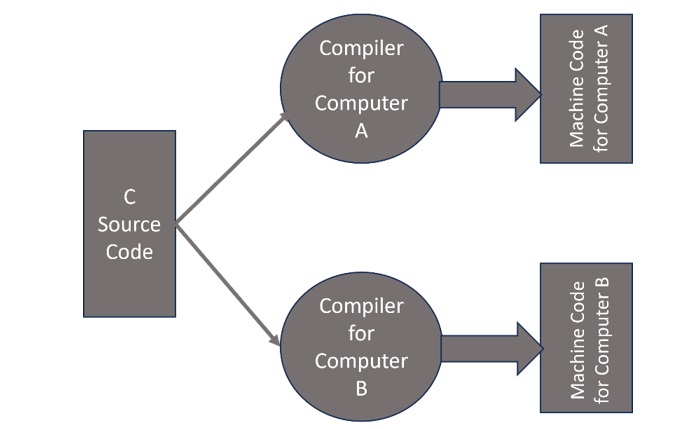
    A sequence of binary instructions consisting of 1 and 0 bits is called as machine code. High-level programming languages such as C, C++, Java, etc. consist of keywords that are closer to human languages such as English. Hence, a program written in C (or any other high-level language) needs to be converted to its equivalent machine code. This process is called compilation.

    Note that the machine code is specific to the hardware architecture and the operating system. In other words, the machine code of a certain C program compiled on a computer with Windows OS will not be compatible with another computer using Linux OS. Hence, we must use the compiler suitable for the target OS.

    Compilation

    C Compilation Process Steps

    In this tutorial, we will be using the gcc (which stands for GNU Compiler Collection). The GNU project is a free-software project by Richard Stallman that allows developers to have access to powerful tools for free.

    The gcc compiler supports various programming languages, including C. In order to use it, we should install its version compatible with the target computer.

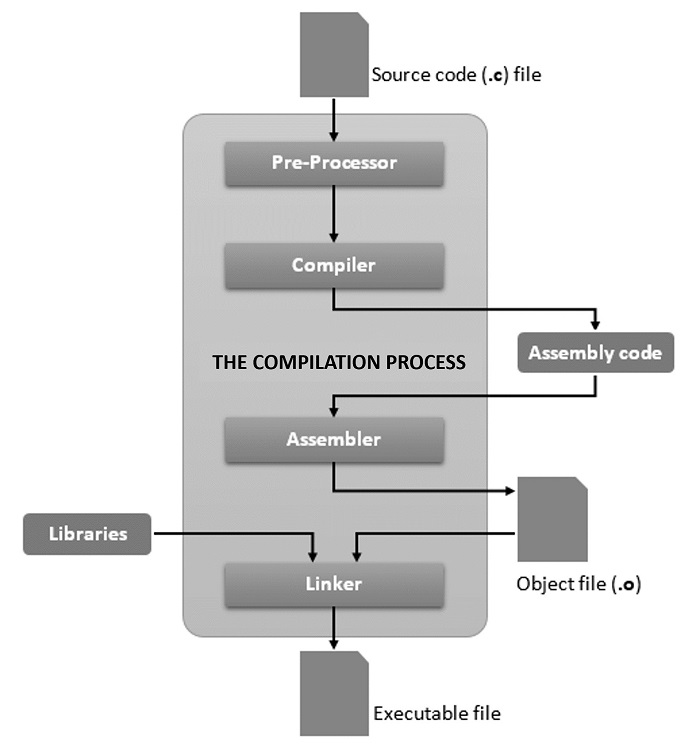
    The compilation process has four different steps −

    • Preprocessing
    • Compiling
    • Assembling
    • Linking

    The following diagram illustrates the compilation process.

    Compilation Process

    Example

    To understand this process, let us consider the following source code in C languge (main.c) −

    #include <stdio.h>intmain(){/* my first program in C */printf("Hello World! \n");return0;}

    Output

    Run the code and check its output −

    Hello World!
    

    The “.c” is a file extension that usually means the file is written in C. The first line is the preprocessor directive #include that tells the compiler to include the stdio.h header file. The text inside /* and */ are comments and these are useful for documentation purpose.

    The entry point of the program is the main() function. It means the program will start by executing the statements that are inside this functions block. Here, in the given program code, there are only two statements: one that will print the sentence “Hello World” on the terminal, and another statement that tells the program to “return 0” if it exited or ended correctly. So, once we compiled it, if we run this program we will only see the phrase “Hello World” appearing.

    What Goes Inside the C Compilation Process?

    In order for our “main.c” code to be executable, we need to enter the command “gcc main.c”, and the compiling process will go through all of the four steps it contains.

    Step 1: Preprocessing

    The preprocessor performs the following actions −

    • It removes all the comments in the source file(s).
    • It includes the code of the header file(s), which is a file with extension .h which contains C function declarations and macro definitions.
    • It replaces all of the macros (fragments of code which have been given a name) by their values.

    The output of this step will be stored in a file with a “.i” extension, so here it will be in “main.i“.

    In order to stop the compilation right after this step, we can use the option “-E” with the gcc command on the source file, and press Enter.

    gcc -E main.c
    

    Step 2: Compiling

    The compiler generates the IR code (Intermediate Representation) from the preprocessed file, so this will produce a “.s” file. That being said, other compilers might produce assembly code at this step of compilation.

    We can stop after this step with the “-S” option on the gcc command, and press Enter.

    gcc -S main.c
    

    This is what the main.s file should look like −

    .file	"helloworld.c".text
       .def	__main;.scl	2;.type	32;.endef
       .section .rdata,"dr".LC0:.ascii "Hello, World! \0".text
       .globl	main
       .def	main;.scl	2;.type	32;.endef
       .seh_proc	main
    main:
       pushq	%rbp
       .seh_pushreg	%rbp
       movq	%rsp,%rbp
       .seh_setframe	%rbp,0
       subq	$32,%rsp
       .seh_stackalloc	32.seh_endprologue
       call	__main
       leaq	.LC0(%rip),%rcx
       call	puts
       movl	$0,%eax
       addq	$32,%rsp
       popq	%rbp
       ret
       .seh_endproc
       .ident	"GCC: (x86_64-posix-seh-rev0, Built by MinGW-W64 project) 8.1.0".def	puts;.scl	2;.type	32;.endef
    

    Step 3: Assembling

    The assembler takes the IR code and transforms it into object code, that is code in machine language (i.e. binary). This will produce a file ending in “.o”.

    We can stop the compilation process after this step by using the option “-c” with the gcc command, and pressing Enter.

    Note that the “main.o” file is not a text file, hence its contents won’t be readable when you open this file with a text editor.

    Step 4: Linking

    The linker creates the final executable, in binary. It links object codes of all the source files together. The linker knows where to look for the function definitions in the static libraries or the dynamic libraries.

    Static libraries are the result of the linker making a copy of all the used library functions to the executable file. The code in dynamic libraries is not copied entirely, only the name of the library is placed in the binary file.

    By default, after this fourth and last step, that is when you type the whole “gcc main.c” command without any options, the compiler will create an executable program called main.out (or main.exe in case of Windows) that we can run from the command line.

    We can also choose to create an executable program with the name we want, by adding the “-o” option to the gcc command, placed after the name of the file or files we are compiling.

    gcc main.c -o hello.out
    

    So now we could either type “./hello.out” if you didnt use the “-o” option or “./hello” to execute the compiled code. The output will be “Hello World” and following it, the shell prompt will appear again.

  • Hello World

    Every learner aspiring to become a professional software developer starts with writing a Hello World program in the programming language he/she is learning. In this chapter, we shall learn how to write a Hello World program in C language.

    Hello World in C Language

    Before writing the Hello World program, make sure that you have the C programming environment set up in your computer. This includes the GCC compiler, a text editor, and preferably an IDE for C programming such as CodeBlocks.

    Example

    The first step is to write the source code for the Hello World program. Open a text editor on your computer. On Windows, open Notepad or Notepad++, enter the following code and save it as “hello.c”.

    #include <stdio.h>intmain(){/* my first program in C */printf("Hello World! \n");return0;}

    Output

    Run the code and check its output −

    Hello World!
    

    The Step-by-Step Execution of a C Program

    Let us understand how the above program works in a step-by-step manner.

    Step 1

    The first statement in the above code is the #include statement that imports the stdio.h file in the current C program. This is called a preprocessor directive. This header file contains the definitions of several library functions used for stand IO operations. Since we shall be calling the printf() function which is defined in the stdio.h library, we need to include it in the first step.

    Step 2

    Every C program must contain a main() function. The main() function in this program prints the “Hello World” message on the console terminal.

    Inside the main() function, we have inserted a comment statement that is ultimately ignored by the compiler; it is for the documentation purpose.

    The next statement calls the printf() function. In C, every statement must terminate with a semicolon symbol (;), failing which the compiler reports an error.

    The printf() function, imported from the stdio.h library file, echoes the Hello World string to the standard output stream. In case of Windows, the standard output stream is the Command prompt terminal and in case of Linux it is the Linux terminal.

    In C, every function needs to have a return value. If the function doesnt return anything, its value is void. In the example above, the main() function has int as its return value. Since the main() function doesnt need to return anything, it is defined to return an integer “0”. The “return 0” statement also indicates that the program has been successfully compiled and run.

    Step 3

    Next, we need to compile and build the executable from the source code (“hello.c”).

    If you are using Windows, open the command prompt in the folder in which “hello.c” has been saved. The following command compiles the source code −

    gcc -c hello.c -o hello.o
    

    The -c option specifies the source code file to be compiled. This will result in an object file with the name hello.o if the C program doesnt have any errors. If it contains errors, they will be displayed. For example, if we forget to put the semicolon at the end of the printf() statement, the compilation result will show the following error −

    helloworld.c: In function 'main':
    helloworld.c:6:30: error: expected ';' before 'return'printf("Hello, World! \n")^;
    helloworld.c:8:4:return0;

    To build an executable from the compiled object file, use the following command −

    gcc  -o hello.exe hello.o
    

    The hello.exe is now ready to be run from the command prompt that displays the Hello World message in the terminal.

    C:\Users\user>hello
    Hello World!

    On Ubuntu Linux, the object file is first given executable permission before running it by prefixing “./” to it.

    $ chmod a+x a.o
    $ ./a.o
    

    You can also use an IDE such as CodeBlocks to enter the code, edit, debug and run the Hello World program more conveniently.

    Using CodeBlocks IDE for C Programming

    CodeBlocks is one the most popular IDEs for C/C++ development. Install it if you have not already done and open it. Create a new file from the File menu, enter the following code and save it as “hello.c”.

    Example

    #include <stdio.h>intmain(){/* my first program in C */printf("Hello World! \n");return0;}

    Output

    Run the code and check its output −

    Hello World!
    

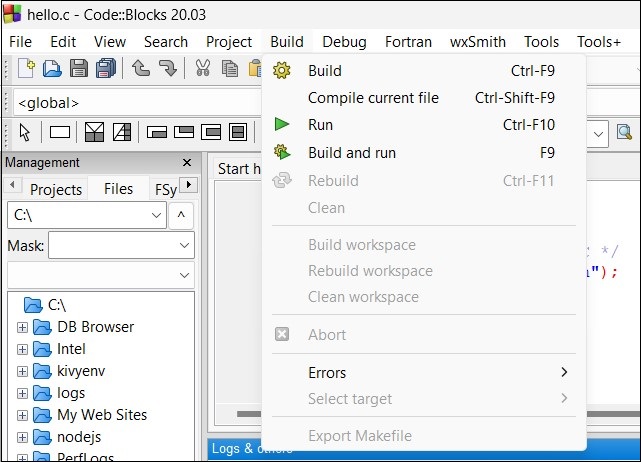
    Choose Build and Run option from the Build menu as shown below −

    Build Menu

    You can also use the F9 shortcut for the same. If the program is error-free, the Build Log tab shows the following messages −

    gcc.exe   -c C:\Users\mlath\hello.c -o C:\Users\mlath\hello.o
    gcc.exe  -o C:\Users\mlath\hello.exe C:\Users\mlath\hello.o   
    Process terminated with status 0(0minute(s),0second(s))0error(s),0warning(s)(0minute(s),0second(s))
     
    Checking for existence: C:\Users\mlath \hello.exe
    Executing:'"C:\Program Files\CodeBlocks/cb_console_runner.exe" "C:\Users\mlath\hello.exe"'(in 'C:\Users\mlath\Documents')

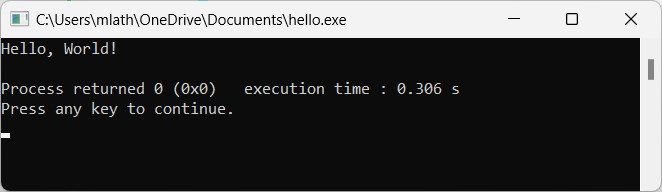
    In a separate command prompt window, the output will be displayed −

    Hello World!
    
    Process returned 0(0x0)   execution time :0.236 s
    Press any key to continue.

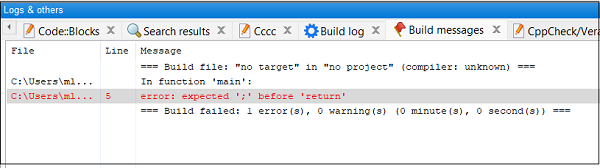
    If the code contains errors, the build log tab echoes them. For instance, if we miss the trailing semicolon in the printf() statement, the log will be as below −

    Build Messages

    You can use any other IDE to run the C program. You will need to follow the documentation of the respective IDE for the purpose.

    Running the Hello World successfully also confirms that the C programming environment is working properly on your computer.

  • Program Structure

    A typical program in C language has certain mandatory sections and a few optional sections, depending on the program’s logic, complexity, and readability. Normally a C program starts with one or more preprocessor directives (#include statements) and must have a main() function that serves as the entry point of the program. In addition, there may be global declarations of variables and functions, macros, other user-defined functions, etc.

    The Preprocessor Section

    The C compiler comes with several library files, having “.h” as an extension. A “.h” file (called a “header file”) consists of one or more predefined functions (also called “library functions”) to be used in the C program.

    The library functions must be loaded in any C program. The “#include” statement is used to include a header file. It is a “preprocessor directive”.

    For example, printf() and scanf() functions are needed to perform console I/O operations. They are defined in the stdio.h file. Hence, you invariably find #include <stdio.h> statement at the top of any C program. Other important and frequently used header files include string.h, math.h, stdlib.h, etc.

    There are other preprocessor directives such as #define which is used to define constants and macros and #ifdef for conditional definitions.

    The following statement defines a constant PI −

    #define PI 3.14159

    Example

    Once a constant is defined, it can be used in the rest of the C program.

    #include <stdio.h>#define PI 3.14159intmain(){int radius =5;float area = PI*radius*radius;printf("Area: %f", area);return0;}

    Output

    On executing this code, you will get the following output −

    Area: 78.539749
    

    You can also define a macro with the “#define” directive. It is similar to a function in C. We can pass one or more arguments to the macro name and perform the actions in the code segment.

    The following code defines AREA macro using the #define statement −

    Example

    #include <stdio.h>#define PI 3.14159#define AREA(r) (PI*r*r)intmain(){int radius =5;float area =AREA(radius);printf("Area: %f", area);return0;}

    Output

    Area: 78.539749
    

    Macros are generally faster in execution than the functions.

    The main() Function

    A C program is a collection of one or more functions. There are two types of functions in a C program: library functions and user-defined functions.

    There must be at least one user-defined function in a C program, whose name must be main(). The main() function serves as the entry point of the program. When the program is run, the compiler looks for the main() function.

    The main() function contains one or more statements. By default, each statement must end with a semicolon. The statement may include variable declarations, decision control or loop constructs or call to a library or another user-defined function.

    In C, a function must have a data type. The data type of return value must match with the data type of the function. By default, a function in C is of int type. Hence, if a function doesnt have a return statement, its type is int, and you may omit it in the function definition, but the compiler issues a warning −

    warning:return type defaults to 'int'

    Example

    A typical example of main() function is as follows −

    #include <stdio.h>intmain(){/* my first program in C */printf("Hello, World! \n");return0;}

    Output

    On executing this code, you will get the following output −

    Hello, World! 
    

    The Global Declaration Section

    This section consists of declaration of variables to be used across all the functions in a program. Forward declarations of user-defined functions defined later in the program as well as user-defined data types are also present in the global section.

    Example of global variable declaration −

    int total =0;float average =0.0;

    Example of forward declaration of a function −

    floatarea(float height,float width);

    Subroutines in a C Program

    There may be more than one user-defined functions in a C program. Programming best practices require that the programming logic be broken down to independent and reusable functions in a structured manner.

    Depending on the requirements, a C program may have one or more user-defined functions, which may be called from the main() function or any other user-defined function as well.

    Comments in a C Program

    Apart from the programming elements of a C program such as variables, structures, loops, functions, etc., the code may have a certain text inside “/* .. */” recognized as comments. Such comments are ignored by the compiler.

    Inserting comments in the code often proves to be helpful in documenting the program, and in understanding as well as debugging the programming logic and errors.

    If the /* symbol doesnt have a matching */ symbol, the compiler reports an error: “Unterminated comment”.

    A text between /* and */ is called as C-style comment, and is used to insert multi-line comments.

    /*
    Program to display Hello World
    Author: Tutorialspoint
    Built with codeBlocks
    */

    A single line comment starts with a double forward-slash (//) and ends with a new line. It may appear after a valid C statement also.

    int age =20;// variable to store age

    However, a valid statement cant be given in a line that starts with “//”. Hence, the following statement is erroneous:

    // Variable to store age. int age=20;

    Structure of the C Program

    The following code shows the different sections in a C program −

    /*Headers*/#include <stdio.h>#include <math.h>/*forward declaration*/floatarea_of_square(float);/*main function*/intmain(){/* my first program in C */float side =5.50;float area =area_of_square(side);printf("Side=%5.2f Area=%5.2f", side, area);return0;}/*subroutine*/floatarea_of_square(float side){float area =pow(side,2);return area;}

    Output

    On executing this code, you will get the following output −

    Side= 5.50 Area=30.25
    
  • Environment Setup

    To start learning programming in C, the first step is to setup an environment that allows you to enter and edit the program in C, and a compiler that builds an executable that can run on your operating system. You need two software tools available on your computer, (a) The C Compiler and (b) Text Editor.

    The C Compiler

    The source code written in the source file is the human readable source for your program. It needs to be “compiled”, into machine language so that your CPU can actually execute the program as per the instructions given.

    There are many C compilers available. Following is a select list of C compilers that are widely used −

    GNU Compiler Collection (GCC) − GCC is a popular open-source C compiler. It is available for a wide range of platforms including Windows, macOS, and Linux. GCC is known for its wide range of features and support for a variety of C standards.

    Clang: Clang is an open-source C compiler that is part of the LLVM project. It is available for a variety of platforms including Windows, macOS, and Linux. Clang is known for its speed and optimization capabilities.

    Microsoft Visual C++ − Microsoft Visual C++ is a proprietary C compiler that is developed by Microsoft. It is available for Windows only. Visual C++ is known for its integration with the Microsoft Visual Studio development environment.

    Turbo C − Turbo C is a discontinued C compiler that was developed by Borland. It was popular in the early 1990s, but it is no longer widely used.

    The examples in this tutorial are compiled on the GCC compiler. The most frequently used and free available compiler is the GNU C/C++ compiler. The following section explains how to install GNU C/C++ compiler on various operating systems. We keep mentioning C/C++ together because GNU gcc compiler works for both C and C++ programming languages.

    Installation on UNIX/Linux

    If you are using Linux or UNIX, then check whether GCC is installed on your system by entering the following command from the command line −

    $ gcc -v
    

    If you have GNU compiler installed on your Ubuntu Linux machine, then it should print a message as follows −

    $ gcc -v
    Using built-in specs.
    COLLECT_GCC=gcc
    COLLECT_LTO_WRAPPER=/usr/lib/gcc/x86_64-linux-gnu/11/lto-wrapper
    OFFLOAD_TARGET_NAMES=nvptx-none:amdgcn-amdhsa
    OFFLOAD_TARGET_DEFAULT=1
    Target: x86_64-linux-gnu
    Configured with:../src/configure -v ...
    Thread model: posix
    Supported LTO compression algorithms: zlib zstd
    gcc version 11.3.0(Ubuntu 11.3.0-1ubuntu1~22.04)

    If GCC is not installed, then you will have to install it yourself using the detailed instructions available at https://gcc.gnu.org/install/

    Installation on Mac OS

    If you use Mac OS X, the easiest way to obtain GCC is to download the Xcode development environment from Apple’s web site and follow the simple installation instructions. Once you have Xcode setup, you will be able to use GNU compiler for C/C++.

    Xcode is currently available at developer.apple.com/technologies/tools/

    Installation on Windows

    To install GCC on Windows, you need to install MinGW. To install MinGW, go to the MinGW downloads page, https://www.mingw-w64.org/downloads/, and follow the link to the MinGW download page. Download the latest version of the MinGW installation program, mingw-w64-install.exe from here.

    While installing Min GW, at a minimum, you must install gcc-core, gcc-g++, binutils, and the MinGW runtime, but you may wish to install more.

    Add the bin subdirectory of your MinGW installation to your PATH environment variable, so that you can specify these tools on the command line by their simple names.

    After the installation is complete, you will be able to run gcc, g++, ar, ranlib, dlltool, and several other GNU tools from the Windows command line.

    Text Editor

    You will need a Text Editor to type your program. Examples include Windows Notepad, OS Edit command, Brief, Epsilon, EMACS, and vim or vi.

    The name and version of the text editors can vary on different operating systems. For example, Notepad will be used on Windows, and vim or vi can be used on windows as well as on Linux or UNIX.

    The files you create with your editor are called the source files and they contain the program source codes. The source files for C programs are typically named with the extension “.c”.

    Before starting your programming, make sure you have one text editor in place and you have enough experience to write a computer program, save it in a file, compile it and finally execute it.

    Using an IDE

    Using a general-purpose text editor such as Notepad or vi for program development can be very tedious. You need to enter and save the program with “.c” extension (say “hello.c”), and then compile it with the following command −

    gcc -c hello.c -o hello.o
    gcc -o hello.exe hello.o
    

    The executable file is then run from the command prompt to obtain the output. However, if the source code contains errors, the compilation will not be successful. Hence we need to repeatedly switch between the editor program and command terminal. To avoid this tedious process, we should an IDE (Integrated Development Environment).

    There are many IDEs available for writing, editing, debugging and executing C programs. Examples are CodeBlocks, NetBeans, VSCode, etc.

    CodeBlocks is a popular open-source IDE for C and C++. It is available for installation on various operating system platforms like Windows, Linux, MacOS.

    For Windows, download codeblocks-20.03mingw-setup.exe from https://www.codeblocks.org/downloads/binaries/ URL. This will install CodeBlocks as well as MinGW compiler on your computer. During the installation process, choose MinGW as the compiler to use.

    Example

    After the installation is complete, launch it and enter the following code −

    #include <stdio.h>intmain(){/* my first program in C */printf("Hello, World! \n");return0;}

    Output

    On executing this code, you will get the following output −

    Hello, World! 
    

    From the Build menu, build and run the program (use F9 shortcut). The Build Log window shows successful compilation messages. The output (Hello World) is displayed in a separate command prompt terminal.

    Hello World
  • Standards (ANSI, ISO, C99, C11, C17)

    A programming language standard is typically a set of specifications that precisely define the programming language syntax and semantics (i.e., the rule of writing the code, what the code means and how it behaves when executed).

    The C programming language standard defines the behavior of the program, i.e., How the program will ideally runWhat are the correct ways and definitions of some in-built functions? The standard works as a definitive “contract” between the programmers and the language implementers to ensure a certain level of consistency on how a language should work across different software.

    Standardized Versions of C Programming Language

    Some of the most commonly used C Standards are listed below −

    • C89 / ANSI C (1989) – C90 (ISO 1990) − It was the first standardized versions of the C languageIn this, version new features were added such as function prototypes, standard library, const, volatile, enum.
    • C95 Amendment − Introduced wide character library (h) for better support of international character sets, and provided iso646.h to provide alternative spellings for C operators (like and, or, not) to improve code readability and portability.
    • C99 (1999) − Introduced several new features lncluded long long int, stdbool.h, variable length arrays, flexible array members, inline functions, complex numbers, and // comments.
    • C11 (2011) − It introduced several new features including _Generic, static_assert, and the atomic type qualifier <stdatomic.h>, also addition of multithreading <threads.h>, Unicode (char16_t, char32_t) and memory manipulation.
    • C17 (2017/2018) − In this version, only bug fixes to C11, no new features were added.
    • C18 (2018) − Maintenance release, identical to C17 in practice.
    • C23 (latest) − It is the latest version of C that better supports the const qualifier and addition of the new keywords, attributes, typeof, improved Unicode, and contracts.

    The following table compares and contrasts the important features of different C standards −

    FeaturesK&R CC89/C90C99C11C17/C18C23
    Function PrototypeNoYesYesYesYesYes
    // CommentsNoNoYesYesYesYes
    Long long intNoNoYesYesYesYes
    MultithreadingNoNoNoYesYesYes
    AtomicsNoNoNoYesYesYes
    Unicode SupportNoNoLimitedYesYesYes

    Advantages of Having Standards in Programming Languages

    It is important to have Standards because they ensure uniformity in Syntax and Semantics, and reduce ambiguity by promoting consistency in any programming language −

    • Syntax − The grammatical rules that make a meaning and create valid programs by combining the statement keywords and symbols.
    • Semantics − Semantics are the set of rules that determines the meaning and execution behavior of the code written in the language. This includes the control flow of the programs how data is processed, and how memory is managed.
    • Consistency − The standard makes sure that different compilers and interpreters for the same language give consistent results, making code more portable and predictable.
    • Ambiguity Reduction − Ambiguity is something that can be understood in more than one way. In the C programming language, where the compiler cannot uniquely identify which specific identity (like a function, variable, or member) is being referred to due to multiple possible interpretations, it is ambiguity.

    By providing precise definition and standards, which minimize ambiguities and undefined behavior, one can avoid different interpretations or errors when running the code.

    Role of ANSI and ISO in C standardization

    In the early days (k&R C), different compilers (AT&TDECHP, etc.) implemented their own versions of C. It caused incompatibility: a program written for one compiler often would not compile and behave the same way on another. Therefore, C needed a formal standard to ensure that a program would have portability, reliability, and consistency.

    ANSI’s Role (American National Standards Institute)

    ANSI formed the X3J11 committee in 1983 to develop the standard specification for the C language. After the Several years of work they published C89 (ANSI C in 1989). After the development of C89 the ANSI C become the foundation on which all future was built.

    Following is the key contribution of the ANCI C (C89):

    • Defined function prototypes and type checking.
    • Introduced const, volatile, signed, and void
    • Standardized the C Standard Library (h, stdlib.h, string.h, etc.).
    • Removed ambiguities from K&R C, making C more portable.

    ISO’s Role (International Organization for Standardization)

    The standard was submitted to the ISO/IEC JTC1/SC22/WG14 committee after the ANSI published C89. So, ISO adopted ANSI C in 1990, with the minor changes known as C90.

    ISO became the prime authority responsible for maintaining and revising the C language standard (C95C99C11C17C18C23). ISO ensures that the standard is globally recognized, so C remain platform-independent and works with a wide range of compilers and operating systems.

    Relationship between ANSI and ISO

    ANSI is a national standard; it is US based. In contrast, ISO is international standard; it is a global standard. The version C89 (ANSI) and C90 (ISO) are essentially the same standard, with only minor editorial differences.

    Nowadays, most people refer to the ISO versions (C99, C11, C17, C23), but the foundation was laid by ANSI’s work.

    Importance of Standards in Real-World Applications

    Standards offer the following advantages in real-world application scenarios −

    • Ensure portability of code across platforms − Standardized C make sure that the same code runs on the different compilers, and hardware without modifications.
    • Help large teams and open-source projects avoid inconsistencies − A common standard prevents teams from writing compiler-specific code, making collaboration and code sharing easier.
    • Provide backward compatibility − New standards retain of the older features, so legacy programs can still compile and run on modern compilers.

    Conclusion

    The C standards introduced by the ANSI and ISO make the C language portable, reliable, and consistent across platforms. Each version, from C89 to C17, improved its features while keeping backward compatibility. Standardization ensures that C remains widely used in educational institutions, industry, and system programming, making it a powerful and stable language.