Category: 16. Angular Miscellaneous

https://cdn-icons-png.flaticon.com/512/9832/9832412.png

  • What’s New?

    Install Angular 9

    If you want to work with Angular 9, first you need to setup Angular 9 CLI using the below command:

    npm install -g @angular/cli@^9.0.0 
    

    After executing this command, you can check the version using the below command:

    ng version 
    

    Angular 9 Updates

    Lets understand Angular 9 updates in brief.

    Ivy compiler

    Ivy compiler becomes the default compiler in Angular 9. This makes apps will be faster and very efficient. Whereas, Angular 8 Ivy is optional. We have to enable it inside tsconfig.json file.

    Ivy compiler supports the following features:

    • Performs faster testing: TestBed implementation helps to test more efficient.
    • Improved CSS class and styles: Ivy styles are easily merged and designed as predictable.
    • Improved type checking: This feature helps to find the errors earlier in development process.
    • Enhanced debugging: Ivy comes with more tools to enable better debugging features. This will be helpful to show useful stack trace so that we can easily jump to the instruction.
    • Ahead-of-Time compiler: This is one of the important improvements in compilers performance. AOT builds are very faster.
    • Improved internationalization: i18n substitutions helps to build more than ten times faster than previous versions.

    Reliable ng update

    ng updates are very reliable. It contains clear progress updates and runs all of the migrations. This can be done using the below command:

    ng update --create-commits
    

    Here,

    create-commits flag is used to commit your code after each migration.

    Improved Dependency Injection

    @Injectable service helps to add injector in your application. providedIn meta data provides new option, platform to ensure the object can be used and shared by all application. It is defined below:

    @Injectable({
       providedIn:'platform'})classMyService{...}

    TypeScript 3.8

    Angular 9 is designed to support 3.8 version. TypeScript 3.8 brings support for the below features:

    • Type-Only Imports and Exports.
    • ECMAScript Private Fields.
    • Top-Level await.
    • JSDoc Property Modifiers.
    • export * as ns Syntax.

    Angular 9.0.0-next.5

    Angular 9.0.0-next.5 build has small size of main.js file, which makes better performance compare to previous version of Angular 8.

    IDE enhancement

    Angular 9 provides improves IDE supports. TextMate grammar enables for syntax highlighting in inline and external templates.

  • User Input

    The term user input in Angular refers to the data or information that users provide to an Angular application through various means such as typing, clicking, or speaking. It helps users to interact with and control the application. Furthermore, it is necessary for a user-friendly and dynamic experience.

    In Angular, you can make use of the DOM element structure of HTML to change the values of the elements at run time. This change occurs based on user input. You can use it to gather feedback, make decisions, and perform tasks based on user preferences and needs.

    Taking User Input in Angular

    In Angular, we can get input from user through the following ways −

    Using Template-Driven Forms

    Template-driven forms are used for simple use cases where form validation and control are not too complex. These forms use the ngModel directive for two-way data binding between the form fields and the component class. Creating this type of form is very easy as it requires minimal setup.

    Example

    Let’s see an example of template driven form where we take input from user.

    app.component.html

    <form #userForm="ngForm"><label for="name">Name:</label><input type="text" id="name"[(ngModel)]="user.name" name="name" required><label for="email">Email:</label><input type="email" id="email"[(ngModel)]="user.email" name="email" required><button(click)="submitForm()">Submit</button></form>

    app.component.ts

    import{ Component }from'@angular/core';import{ CommonModule }from'@angular/common';import{ FormsModule }from'@angular/forms';
    
    @Component({
      selector:'app-root',
      standalone:true,
      imports:[CommonModule, FormsModule],
      templateUrl:'./app.component.html',
      styleUrls:['./app.component.css']})exportclassAppComponent{
      user ={ name:'', email:''};submitForm(){
    
    console.log(this.user);}}</pre>

    Using Reactive Forms

    Reactive forms are used when you need more control over form validation, form elements, and form states. They are built using FormControlFormGroup, and FormArray classes. These forms are used for larger, more complex forms.

    Example

    In this example, we will see a reactive form where we take input from user.

    app.component.html

    <form [formGroup]="userForm"(ngSubmit)="submitForm()"><label for="name">Name:</label><input id="name" formControlName="name" required><label for="email">Email:</label><input id="email" formControlName="email" required><button type="submit"[disabled]="!userForm.valid">Submit</button></form>

    app.component.ts

    import{ Component }from'@angular/core';import{ FormBuilder, FormGroup, Validators, ReactiveFormsModule }from'@angular/forms';import{ CommonModule }from'@angular/common';
    
    @Component({
      selector:'app-root',
      standalone:true,
      imports:[CommonModule, ReactiveFormsModule],
      templateUrl:'./app.component.html',
      styleUrls:['./app.component.css']})exportclassAppComponent{
      userForm: FormGroup;constructor(private fb: FormBuilder){this.userForm =this.fb.group({
    
      name:['', Validators.required],
      email:['',[Validators.required, Validators.email]],});}submitForm(){
    console.log(this.userForm.value);}}</pre>

    Using Event Binding

    Angular provides option to listen and fire action for each user initiated event in a typical web application. Event binding is the process of targeting an event in a HTML element/component and set a responder for the target event. An event can be set for an HTML element/component by including the event name inside the bracket (( )) and assigning a template statement. The template statement will execute once the event is fired by the user.

    Example

    Let us create a button and set an action to the button's click event.

    Step 1: Create a submit button.

    <button type="submit>Submit</button>

    Step 2: Create an action method in the component.

    myAction(){alert('I am the action function for click event');}

    Step 3: Bind our myAction() method to click event of the button as shown below −

    <button type="submit"(click)="myAction()">Submit</button>

    Now, myAction() will execute whenever the submit button is clicked by the user.

    Using Template Reference Variables

    The syntax to declare a template reference variables is #var (# along with variable name). Angular allows the variable to be declared as attributes of an element available in the template. The type and value of the template reference variable depend on where it is declared.

    1. If a variable is declared inside an element, then it refers to the HTML element.

    <button #btn>Click Here</button>

    Here, btn refers to the button object of type HtmlButtonElement

    2. If a variable is declared inside a component, then it refers to the component instance.

    <app-comp #mycomp></app-comp>

    Here, mycomp refers to the component instance and can access the internal of the referenced component.

    3. If a variable is declared inside a template (ng-template, a tag used to create template within a template), then it refers to the instance of the template.

    <ng-template #mytemplate><div>Hi, I am template within the template</div></ng-template>

    Here, mytemplate refers to the instance of the template.

    4. If a variable is declared inside a custom web component, then it refers to the custom HTML element.

    <my-card #mycard>Click Here</my-card>

    Here, mycard refers to the custom web component, my-card

    Let us see how to create a template reference variable, firstname to refer to an input element as shown below −

    <input #firstname id="firstname" type="text" name="firstname" value="John" />

    Here,

    • firstname is the template reference variable
    • firstname represents the instance of HtmlInputElement element. HtmlInputElement is a type in DOM to represent the input element.
    • firstname can access all properties and methods of HtmlInputElement element

    The template reference variable can be used in template statement and text interpolation.

  • Lifecycle Hooks

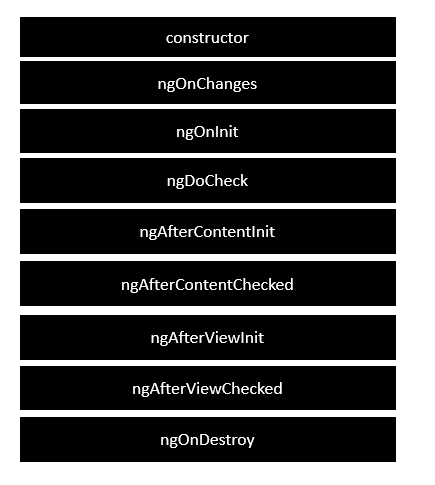
    Angular application goes through an entire set of processes or has a lifecycle right from its initiation to the end of the application.

    The following diagram shows the entire processes in the lifecycle of the Angular 2 application.

    Lifecycle

    Following is a description of each lifecycle hook.

    • ngOnChanges − When the value of a data bound property changes, then this method is called.
    • ngOnInit − This is called whenever the initialization of the directive/component after Angular first displays the data-bound properties happens.
    • ngDoCheck − This is for the detection and to act on changes that Angular can’t or won’t detect on its own.
    • ngAfterContentInit − This is called in response after Angular projects external content into the component’s view.
    • ngAfterContentChecked − This is called in response after Angular checks the content projected into the component.
    • ngAfterViewInit − This is called in response after Angular initializes the component’s views and child views.
    • ngAfterViewChecked − This is called in response after Angular checks the component’s views and child views.
    • ngOnDestroy − This is the cleanup phase just before Angular destroys the directive/component.

    Following is an example of implementing one lifecycle hook. In the app.component.ts file, place the following code.

    import{ 
       Component 
    }from'@angular/core';@Component({ 
       selector:'my-app', 
       template:'<div> {{values}} </div> '})exportclassAppComponent{ 
       values ='';ngOnInit(){this.values ="Hello";}}

    In the above program, we are calling the ngOnInit lifecycle hook to specifically mention that the value of the this.values parameter should be set to Hello.

    Once you save all the code changes and refresh the browser, you will get the following output.

    Hello
  • Testing & Building a Project

    In this chapter will discuss the following topics −

    • To test Angular Project
    • To build Angular Project

    Testing Angular Project

    During the project setup, the required packages for testing are already installed. There is a .spec.ts file created for every new component, service, directive, etc. We are going to use jasmine to write our test cases.

    For any changes added to your component, services, directives or any other files created, you can include your test cases in the respective .spec.ts files. So most of the unit testing can be covered at the beginning itself.

    To run the test cases, the command used is as follows−

    ng test
    

    Below is the app.component.spec.ts file for app.component.ts −

    import{ TestBed, async }from'@angular/core/testing';import{ RouterTestingModule }from'@angular/router/testing';import{ AppComponent }from'./app.component';describe('AppComponent',()=>{beforeEach(async(()=>{
    
      TestBed.configureTestingModule({
         imports:[
            RouterTestingModule
         ],
         declarations:[
            AppComponent
         ],}).compileComponents();}));it('should create the app',()=&gt;{const fixture = TestBed.createComponent(AppComponent);const app = fixture.debugElement.componentInstance;expect(app).toBeTruthy();});it(should have as title 'angular7-app',()=&gt;{const fixture = TestBed.createComponent(AppComponent);const app = fixture.debugElement.componentInstance;expect(app.title).toEqual('angular7-app');});it('should render title in a h1 tag',()=&gt;{const fixture = TestBed.createComponent(AppComponent);
      fixture.detectChanges();const compiled = fixture.debugElement.nativeElement;expect(compiled.querySelector('h1').textContent).toContain('Welcome to angular7-app!');})});</pre>

    app.component.ts

    import{ Component }from'@angular/core';@Component({
       selector:'app-root',
       templateUrl:'./app.component.html',
       styleUrls:['./app.component.css']})exportclassAppComponent{
       title ='angular7-app';}

    Now let us run the command to see the test cases running.

    Ng Test
    Run The Command

    The test cases status is shown in the command line as shown above and will also open up in the browser as shown below −

    Karma

    Incase of any failure, it will show the details as follows −

    To do that, let us change the app.component.spec.ts as follows −

    import{ TestBed, async }from'@angular/core/testing';import{ RouterTestingModule }from'@angular/router/testing';import{ AppComponent }from'./app.component';describe('AppComponent',()=>{beforeEach(async(()=>{
    
      TestBed.configureTestingModule({
         imports:[
            RouterTestingModule
         ],
         declarations:[
            AppComponent
         ],}).compileComponents();}));it('should create the app',()=&gt;{const fixture = TestBed.createComponent(AppComponent);const app = fixture.debugElement.componentInstance;expect(app).toBeTruthy();});it(should have as title 'angular7-app',()=&gt;{const fixture = TestBed.createComponent(AppComponent);const app = fixture.debugElement.componentInstance;expect(app.title).toEqual('Angular 7');// change the 
      title from angular7-app to Angular 7});it('should render title in a h1 tag',()=&gt;{const fixture = TestBed.createComponent(AppComponent);
      fixture.detectChanges();const compiled = fixture.debugElement.nativeElement;expect(compiled.querySelector('h1').textContent).toContain('Welcome to angular7-app!');});});</pre>

    In the above file, the test cases check for the title, Angular 7. But in app.component.ts, we have the title, angular7-app as shown below −

    import{ Component }from'@angular/core';@Component({
       selector:'app-root',
       templateUrl:'./app.component.html',
       styleUrls:['./app.component.css']})exportclassAppComponent{
       title ='angular7-app';}

    Here the test case will fail and below are the details shown in command line and browser.

    In command line

    Following screen is displayed in command line −

    Command Line

    In browser

    Following screen is displayed in the browser −

    Karma Connected

    All the failed test-cases for your project will be displayed as shown above in command line and browser.

    Similarly, you can write test cases for your services, directives and the new components which will be added to your project.

    Building Angular 7 Project

    Once you are done with the project in Angular, we need to build it so that it can be used in production or stating.

    The configuration for build, i.e., production, staging, development, testing needs to be defined in your src/environments.

    At present, we have the following environments defined in src/environment −

    Environments

    You can add files based on your build to src/environment, i.e., environment.staging.ts, enviornment.testing.ts, etc.

    At present, we will try to build for production environment. The file environment.ts contains default environment settings and details of the file as follows −

    export const environment = {
       production: false
    };
    

    To build the file for production, we need to make the production: true in environment.ts as follows −

    export const environment = {
       production: true
    };
    

    The default environment file has to be imported inside components as follows −

    app.component.ts

    import{ Component }from'@angular/core';import{ environment }from'./../environments/environment';@Component({
       selector:'app-root',
       templateUrl:'./app.component.html',
       styleUrls:['./app.component.css']})exportclassAppComponent{
       title ='angular7-app';}

    The environment replacement from default to production which we are trying to do are defined inside angular.json fileReplacements section as follows −

    "production":{"fileReplacements":[{"replace":"src/environments/environment.ts","with":"src/environments/environment.prod.ts"}],}

    When the command for build runs, the file gets replaced to src/environments/environment.prod.ts. The additional configuration like staging or testing can be added here as shown in the below example −

    "configurations":{"production":{...},"staging":{"fileReplacements":[{"replace":"src/environments/environment.ts","with":"src/environments/environment.staging.ts"}]}}

    So the command to run the build is as follows −

    ng build --configuration = production // for production environment
    ng build --configuration = staging // for stating environment
    

    Now let us run the build command for production, the command will create a dist folder inside our project which will have the final files after build.

    Ng Build
    Dist Folder

    The final files are build inside dist/ folder which can be hosted on the production server at your end.

    Dist
  • Error Handling

    Errors are the unexpected issue or problem that occurs during the execution of a program. Incorrect syntax, invalid input, system failures or bug in API logic could be the possible reasons for these errors. These errors may affect the user experience in negative way, hence, it is necessary to handle them at compile time.

    Error handling is the process of detecting and resolving these errors or exceptions before execution. Angular provides a number of ways to handle the errors that we are going to learn in this tutorial.

    Handling Errors in Angular

    There are multiple ways to handle errors in Angular, which are given below −

    Using ErrorHandler Class

    The ErrorHandler is a built-in class of the Angular @angular/core package. It provides a hook to catch errors globally. When something goes wrong, like any unhandled exception occurs anywhere in the application, this class catches that exception and prints the error messages on console.

    Remember! the ErrorHandler class simply prints the error message so that developers can see what went wrong and fix it. However, you can replace this default behavior by creating a custom ErrorHandler.

    Extend the ErrorHandler class and override its handleError() method as shown below to create a custom behavior of this class −

    import{ Injectable, ErrorHandler }from'@angular/core';
    
    @Injectable({
       providedIn:'root'})exportclassGlobalErrorHandlerimplementsErrorHandler{handleError(error: any):void{// Log the error to an external service or display a message
    
      console.error("An error occurred:", error);// Create any custom behavior}}</pre>

    Using HttpInterceptor Interface

    The HttpInterceptor is an interface that is used for handling HTTP-specific errors, such as network issues, server errors, etc. It can intercept and modify HTTP requests or responses. Think of it as a service that can check and change the data going to and coming from a server.

    To use an HttpInterceptor, create a class that implements the HttpInterceptor interface and define the intercept() method. This method takes an HTTP request and a handler, and it returns an observable of the HTTP event. Inside this method, you can modify the request or response as needed.

    import{ Injectable }from'@angular/core';import{ HttpEvent, HttpInterceptor, HttpHandler, HttpRequest }from'@angular/common/http';import{ Observable }from'rxjs';import{ catchError }from'rxjs/operators';import{ throwError }from'rxjs';
    
    @Injectable({
       providedIn:'root'})exportclassErrorInterceptorimplementsHttpInterceptor{intercept(req: HttpRequest<any>, next: HttpHandler): Observable<HttpEvent<any>>{return next.handle(req).pipe(catchError((error)=>{// Handle error 
    
            console.error('HTTP Error:', error);returnthrowError(error);}));}}</pre>

    Using Try-Catch Blocks

    In Angular, errors can occur during component lifecycle. To handle these errors, you can use the a try-catch block within the ngOnInit(), which is a component lifecycle hook defined by OnInit interface. It is important to implement this interface as it helps to check if component is properly initialized.

    The try block is used to wrap the code that might throw an error during its execution. And, the catch block is used to handle any errors or exceptions that occur within the try block.

    Here, you can see a component with try-catch block:

    import{ Component, OnInit }from'@angular/core';import{ CommonModule }from'@angular/common';
    
    @Component({
      selector:'app-example',
      standalone:true,
      imports:[CommonModule],
      templateUrl:'./example.component.html',
      styleUrls:['./example.component.css']})exportclassExampleComponentimplementsOnInit{ngOnInit(){try{// code that might throw an errorthrownewError("Error message");}catch(error){
    
      console.error("error caught", error);}}}</pre>

    Using Validation

    Validation is used in Angular Forms to validate whether the user input is in the correct format or not before submission. The reactive forms and template-driven forms has built-in validators to handle validation errors.

    With reactive forms, you can easily validate user input and display custom error messages as shown in the following code block −

    import{ Component }from'@angular/core';import{ FormBuilder, FormGroup, Validators }from'@angular/forms';import{ CommonModule }from'@angular/common';
    
    @Component({
       selector:'app-registration',
       standalone:true,
       imports:[CommonModule],
       templateUrl:'./registration.component.html',
       styleUrls:['./registration.component.css']})exportclassRegistrationComponent{
       registrationForm: FormGroup;constructor(private fb: FormBuilder){this.registrationForm =this.fb.group({
    
         username:['',[Validators.required, Validators.minLength(4)]],
         email:['',[Validators.required, Validators.email]],});}onSubmit(){if(this.registrationForm.invalid){this.showValidationErrors();return;}}privateshowValidationErrors(){
      Object.keys(this.registrationForm.controls).forEach(control=&gt;{const formControl =this.registrationForm.get(control);if(formControl?.invalid){
            console.error(${control} is invalid);}});}}</pre>

    Print Page

  • Basic Example

    In this tutorial, we will learn complete step-by-step working of an angular application. This chapter is part of the Angular Tutorial. We recommend you go through all the previous chapters before moving ahead in this chapter. We have covered all angular concepts from beginner to advanced.

    Let us create an Angular application to check our day-to-day expenses. Let us give ExpenseManager as our choice for our new application.

    We are going to implement the following concepts of Angular in our application −

    Setting up the Angular Application

    Use the below command to create the new application −

    cd /path/to/workspace
    ng newexpense-manager
    

    Here,

    new is one of the commands of the ng CLI. It is used to create new applications. It will ask some basic questions in order to create a new application. It is enough to let the application choose the default choices.

    Once the basic questions are answered, a new Angular application will be created with the name expense-manager.

    Let us move into the our newly created application folder using the following command −

    cd expense-manager
    

    Let us start the application using the below command −

    ng serve
    

    The application will start on the http://localhost:4200 port. Change the title of the application to better reflect our application. Open src/app/app.component.ts and rename the title as specified below −

    exportclassAppComponent{ 
       title ='Expense Manager';}

    Our final application will be rendered in the browser as shown below −

    angular application

    Add a Component

    To create a new component, we use ng generate component command. Write this command in Angular CLI as shown below −

    ng generate component expense-entry
    

    On running the above command, following output will be displayed in CLI −

    CREATE src/app/expense-entry/expense-entry.component.html (29 bytes)
    CREATE src/app/expense-entry/expense-entry.component.spec.ts (658 bytes)
    CREATE src/app/expense-entry/expense-entry.component.ts (273 bytes)
    CREATE src/app/expense-entry/expense-entry.component.css (0 bytes)
    

    Here,

    • ExpenseEntryComponent is created under src/app/expense-entry folder.
    • Component class, Template and style sheet are created.

    Add title property to ExpenseEntryComponent. Its path is as follows: src/app/expense-entry/expense-entry.component.ts.

    import{ Component, OnInit }from'@angular/core';
    
    @Component({
       selector:'app-expense-entry',
       standalone:true,
       imports:[],
       templateUrl:'./expense-entry.component.html',
       styleUrl:'./expense-entry.component.css'})exportclassExpenseEntryComponentimplementsOnInit{
       title: string ="";constructor(){}ngOnInit(){this.title ="Expense Entry"}}

    Update template, src/app/expense-entry/expense-entry.component.html with below code −

    <p>{{ title }}</p>

    Open src/app/app.component.html and include newly created component in it.

    <h1>{{ title }}</h1><app-expense-entry></app-expense-entry>

    Here,

    app-expense-entry is the selector value and it can be used as regular HTML Tag.

    We also need to import this component inside imports[] array of @component decorator.

    import{ Component }from'@angular/core';import{ RouterOutlet }from'@angular/router';import{ ExpenseEntryComponent }from'./expense-entry/expense-entry.component';
    
    @Component({
      selector:'app-root',
      standalone:true,
      imports:[RouterOutlet, ExpenseEntryComponent],
      templateUrl:'./app.component.html',
      styleUrl:'./app.component.css'})exportclassAppComponent{
      title ='Expense Manager';}

    The output of the application is as shown below −

    HTML Tag example app

    Adding Bootstrap

    Let’s include Bootstrap into our ExpenseManager application using styles option and change the default template to use bootstrap components. Open CLI and go to ExpenseManager application using the below command −

    cd expense-manager
    

    Install bootstrap and JQuery library using below commands −

    npm install --save bootstrap jquery
    

    To read more about using bootstrap in angular application, we recommend checking this chapter: Adding Bootstrap in Angular.

    Now, open angular.json file and set bootstrap and jquery library path −

    {"projects":{"expense-manager":{"architect":{"build":{"builder":"@angular-devkit/build-angular:browser","options":{"outputPath":"dist/expense-manager","index":"src/index.html","main":"src/main.ts","polyfills":"src/polyfills.ts","tsConfig":"tsconfig.app.json","aot":false,"assets":["src/favicon.ico","src/assets"],"styles":["./node_modules/bootstrap/dist/css/bootstrap.css","src/styles.css"],"scripts":["./node_modules/jquery/dist/jquery.js","./node_modules/bootstrap/dist/js/bootstrap.js"]},},}}},"defaultProject":"expense-manager"}

    Here,

    scripts option is used to include JavaScript library. JavaScript registered through scripts will be available to all Angular components in the application.

    Open app.component.html and change the content as specified below −

    <!-- Navigation --><nav class="navbar navbar-expand-lg navbar-dark bg-dark static-top"><div class="container"><a class="navbar-brand" href="#">{{ title }}</a><button class="navbar-toggler" type="button" data-toggle="collapse" data-target="#navbarResponsive" aria-controls="navbarResponsive" aria-expanded="false" aria-label="Toggle navigation"><span class="navbar-toggler-icon"></span></button><div class="collapse navbar-collapse" id="navbarResponsive"><ul class="navbar-nav ml-auto"><li class="nav-item active"><a class="nav-link" href="#">Home
    
               &lt;span class="sr-only"&gt;(current)&lt;/span&gt;&lt;/a&gt;&lt;/li&gt;&lt;li class="nav-item"&gt;&lt;a class="nav-link" href="#"&gt;Report&lt;/a&gt;&lt;/li&gt;&lt;li class="nav-item"&gt;&lt;a class="nav-link" href="#"&gt;Add Expense&lt;/a&gt;&lt;/li&gt;&lt;li class="nav-item"&gt;&lt;a class="nav-link" href="#"&gt;About&lt;/a&gt;&lt;/li&gt;&lt;/ul&gt;&lt;/div&gt;&lt;/div&gt;&lt;/nav&gt;&lt;app-expense-entry&gt;&lt;/app-expense-entry&gt;</pre>

    Here, we have used bootstrap navigation and containers.

    Open src/app/expense-entry/expense-entry.component.html and place below content.

    <!-- Page Content --><div class="container"><div class="row"><div class="col-lg-12 text-center" style="padding-top: 20px;"><div class="container" style="padding-left: 0px; padding-right: 0px;"><div class="row"><div class="col-sm" style="text-align: left;">{{ title }}</div><div class="col-sm" style="text-align: right;"><button type="button"class="btn btn-primary">Edit</button></div></div></div><div class="container box" style="margin-top: 10px;"><div class="row"><div class="col-2" style="text-align: right;"><strong><em>Item:</em></strong></div><div class="col" style="text-align: left;"> 
    
            Pizza 
         &lt;/div&gt;&lt;/div&gt;&lt;div class="row"&gt;&lt;div class="col-2" style="text-align: right;"&gt;&lt;strong&gt;&lt;em&gt;Amount:&lt;/em&gt;&lt;/strong&gt;&lt;/div&gt;&lt;div class="col" style="text-align: left;"&gt;20&lt;/div&gt;&lt;/div&gt;&lt;div class="row"&gt;&lt;div class="col-2" style="text-align: right;"&gt;&lt;strong&gt;&lt;em&gt;Category:&lt;/em&gt;&lt;/strong&gt;&lt;/div&gt;&lt;div class="col" style="text-align: left;"&gt; 
            Food 
         &lt;/div&gt;&lt;/div&gt;&lt;div class="row"&gt;&lt;div class="col-2" style="text-align: right;"&gt;&lt;strong&gt;&lt;em&gt;Location:&lt;/em&gt;&lt;/strong&gt;&lt;/div&gt;&lt;div class="col" style="text-align: left;"&gt; 
            Zomato 
         &lt;/div&gt;&lt;/div&gt;&lt;div class="row"&gt;&lt;div class="col-2" style="text-align: right;"&gt;&lt;strong&gt;&lt;em&gt;Spend On:&lt;/em&gt;&lt;/strong&gt;&lt;/div&gt;&lt;div class="col" style="text-align: left;"&gt; 
            June 20,2020&lt;/div&gt;&lt;/div&gt;&lt;/div&gt;&lt;/div&gt;&lt;/div&gt;&lt;/div&gt;</pre>

    Now, you can see the updated output which is as follows −

    Angular Bootstrap app

    Add an Interface

    Create ExpenseEntry interface within src/app/expense-entry.component.ts file and add id, amount, category, Location, spendOn and createdOn. Also, create an object of ExpenseEntry object. The updated code will look like −

    import{ Component, OnInit }from'@angular/core';exportinterfaceExpenseEntry{
      id: number;
      item: string;
      amount: number;
      category: string;
      location: string;
      spendOn: Date;
      createdOn: Date;}
    
    @Component({
      selector:'app-expense-entry',
      standalone:true,
      imports:[],
      templateUrl:'./expense-entry.component.html',
      styleUrl:'./expense-entry.component.css'})exportclassExpenseEntryComponentimplementsOnInit{
      title: string ="";
      expenseEntry!: ExpenseEntry;constructor(){}ngOnInit(){this.title ="Expense Entry";this.expenseEntry ={
    
    
      id:1,
      item:"Pizza",
      amount:21,
      category:"Food",
      location:"Zomato",
      spendOn:newDate(2025,6,1,10,10,10),
      createdOn:newDate(2025,6,1,10,10,10),};}}</pre>

    Update the component template also, src/app/expense-entry/expense-entry.component.html with the code specified below −

    <!-- Page Content --><div class="container"><div class="row"><div class="col-lg-12 text-center" style="padding-top: 20px;"><div class="container" style="padding-left: 0px; padding-right: 0px;"><div class="row"><div class="col-sm" style="text-align: left;">{{ title }}</div><div class="col-sm" style="text-align: right;"><button type="button"class="btn btn-primary">Edit</button></div></div></div><div class="container box" style="margin-top: 10px;"><div class="row"><div class="col-2" style="text-align: right;"><strong><em>Item:</em></strong></div><div class="col" style="text-align: left;">{{ expenseEntry.item }}</div></div><div class="row"><div class="col-2" style="text-align: right;"><strong><em>Amount:</em></strong></div><div class="col" style="text-align: left;">{{ expenseEntry.amount }}</div></div><div class="row"><div class="col-2" style="text-align: right;"><strong><em>Category:</em></strong></div><div class="col" style="text-align: left;">{{ expenseEntry.category }}</div></div><div class="row"><div class="col-2" style="text-align: right;"><strong><em>Location:</em></strong></div><div class="col" style="text-align: left;">{{ expenseEntry.location }}</div></div><div class="row"><div class="col-2" style="text-align: right;"><strong><em>Spend On:</em></strong></div><div class="col" style="text-align: left;">{{ expenseEntry.spendOn }}</div></div></div></div></div></div>

    The output of the application is as follows −

    Angular Interface

    Using ngFor Directive

    Let's add a new component in our ExpenseManager application to list the expense entries.

    Create a new component, ExpenseEntryList using below command −

    ng generate component ExpenseEntryList
    

    The output is as follows −

    CREATE src/app/expense-entry-list/expense-entry-list.component.html (34 bytes)
    CREATE src/app/expense-entry-list/expense-entry-list.component.spec.ts (687 bytes)
    CREATE src/app/expense-entry-list/expense-entry-list.component.ts (292 bytes)
    CREATE src/app/expense-entry-list/expense-entry-list.component.css (0 bytes)
    

    Here, the command creates the ExpenseEntryList Component and add the necessary code by default.

    Create the same ExpenseEntry interface within src/app/expense-entry-list.component.ts file. Then, add a method named getExpenseEntries() to return list of expense entry (mock items) in ExpenseEntryListComponent. Also, declare a local variable, expenseEntries and load the mock list of expense entries.

    import{ CommonModule }from'@angular/common';import{ Component }from'@angular/core';exportinterfaceExpenseEntry{
       id: number;
       item: string;
       amount: number;
       category: string;
       location: string;
       spendOn: Date;
       createdOn: Date;}
    
    @Component({
       selector:'app-expense-entry-list',
       standalone:true,
       imports:[CommonModule],
       templateUrl:'./expense-entry-list.component.html',
       styleUrl:'./expense-entry-list.component.css'})exportclassExpenseEntryListComponent{getExpenseEntries(): ExpenseEntry[]{let mockExpenseEntries : ExpenseEntry[]=[{ id:1, 
    
           item:"Pizza", 
           amount: Math.floor((Math.random()*10)+1), 
           category:"Food", 
           location:"Mcdonald", 
           spendOn:newDate(2020,4, Math.floor((Math.random()*30)+1),10,10,10), 
           createdOn:newDate(2020,4, Math.floor((Math.random()*30)+1),10,10,10)},{ id:1, 
           item:"Pizza", 
           amount: Math.floor((Math.random()*10)+1), 
           category:"Food", 
           location:"KFC", 
           spendOn:newDate(2020,4, Math.floor((Math.random()*30)+1),10,10,10), 
           createdOn:newDate(2020,4, Math.floor((Math.random()*30)+1),10,10,10)},{ id:1,
           item:"Pizza",
           amount: Math.floor((Math.random()*10)+1), 
           category:"Food", 
           location:"Mcdonald", 
           spendOn:newDate(2020,4, Math.floor((Math.random()*30)+1),10,10,10), 
           createdOn:newDate(2020,4, Math.floor((Math.random()*30)+1),10,10,10)},{ id:1, 
           item:"Pizza", 
           amount: Math.floor((Math.random()*10)+1), 
           category:"Food", 
           location:"KFC", 
           spendOn:newDate(2020,4, Math.floor((Math.random()*30)+1),10,10,10), 
           createdOn:newDate(2020,4, Math.floor((Math.random()*30)+1),10,10,10)},{ id:1, 
           item:"Pizza", 
           amount: Math.floor((Math.random()*10)+1), 
           category:"Food", 
           location:"KFC", 
           spendOn:newDate(2020,4, Math.floor((Math.random()*30)+1),10,10,10), 
           createdOn:newDate(2020,4, Math.floor((Math.random()*30)+1),10,10,10)},];return mockExpenseEntries;}
    title: string =""; expenseEntries!: ExpenseEntry[];constructor(){}ngOnInit(){this.title ="Expense Entry List";this.expenseEntries =this.getExpenseEntries();}}

    Open the template file, src/app/expense-entry-list/expense-entry-list.component.html and show the mock entries in a table.

    <!-- Page Content --><div class="container"><div class="row"><div class="col-lg-12 text-center" style="padding-top: 20px;"><div class="container" style="padding-left: 0px; padding-right: 0px;"><div class="row"><div class="col-sm" style="text-align: left;">{{ title }}</div><div class="col-sm" style="text-align: right;"><button type="button"class="btn btn-primary">Edit</button></div></div></div><div class="container box" style="margin-top: 10px;"><table class="table table-striped"><thead><tr><th>Item</th><th>Amount</th><th>Category</th><th>Location</th><th>Spent On</th></tr></thead><tbody><tr *ngFor="let entry of expenseEntries"><th scope="row">{{ entry.item }}</th><th>{{ entry.amount }}</th><td>{{ entry.category }}</td><td>{{ entry.location }}</td><td>{{ entry.spendOn | date:'short'}}</td></tr></tbody></table></div></div></div></div>

    Here,

    • Used bootstrap table. table and table-striped will style the table according to Boostrap style standard.
    • Used ngFor to loop over the expenseEntries and generate table rows.

    Open AppComponent template, src/app/app.component.html and include ExpenseEntryListComponent and comment the ExpenseEntryComponent as shown below −

    ... 
    <!-- <app-expense-entry></app-expense-entry> -->
    <app-expense-entry-list></app-expense-entry-list>
    

    Import the component inside AppComponent −

    import{ Component }from'@angular/core';import{ RouterOutlet }from'@angular/router';import{ ExpenseEntryListComponent }from'./expense-entry-list/expense-entry-list.component';
    
    @Component({
      selector:'app-root',
      standalone:true,
      imports:[RouterOutlet, ExpenseEntryListComponent],
      templateUrl:'./app.component.html',
      styleUrl:'./app.component.css'})exportclassAppComponent{
      title ='Expense Manager';}

    Finally, run the application. The output of the application is as shown below −

    expense entry list Component

    Use of Pipes

    Let us use the pipe in the our ExpenseManager application

    Open ExpenseEntryListComponent's template, i.e., src/app/expense-entry-list/expense-entry-list.component.html and include pipe in entry.spendOn as mentioned below −

    <td>{{ entry.spendOn | date: 'short' }}</td>
    

    Here, we have used the date pipe to show the spend on date in the short format.

    Finally, the output of the application is as shown below −

    Pipes
  • Decorators & Metadata

    Decorators are special functions used to add metadata, modify behavior, or add some additional functionalities to classes, methods, properties, or parameters in programming languages like TypeScript or JavaScript.

    In Angular, each decorator has a base configuration with some default values and you can change or update it according to the project’s need. It is defined using the @ symbol followed by a function name. This symbol helps Angular to recognize decorators.

    Decorators in Angular

    Angular provides the following decorators −

    The @Component Decorator

    The @Component decorator is used to define a component in Angular. A component generates a section of web page called View and this decorator helps Angular understand the metadata related to the component.

    Example

    The following example shows @component decorator in an angular component.

    import{ Component }from'@angular/core';import{ CommonModule }from'@angular/common';
    
    @Component({
      selector:'app-my-component',
      standalone:true,
      imports:[CommonModule],
      templateUrl:'./my-component.component.html',
      styleUrl:'./my-component.component.css'})exportclassMyComponent{// your code}

    The metadata included in the above example is selector, imports, templateUrl, and styleUrl. They define how the component should be displayed in the DOM.

    The @Injectable Decorator

    If a TypeScript class in Angular is decorated by @Injectable decorator, Angular will consider it as a service that can be injected into other classes.

    Example

    Let’s see an example of @Injectable decorator.

    import{ Injectable }from'@angular/core';
    
    @Injectable({
      providedIn:'root'})exportclassMyService{// your service code}

    By marking a service with @Injectable, Angular knows to create and inject the service wherever it’s needed in the application.

    The @NgModule Decorator

    The @NgModule decorator is used to define an Angular module. A module is a collection of related components, services, pipes, and directives that are bundled together.

    Example

    Here is an example of @NgModule decorator −

    @NgModule({
       declarations:[MyComponent],
       imports:[CommonModule],
       providers:[MyService]})exportclassMyModule{}

    The @NgModule decorator tells Angular about which components, directives, and pipes are part of the module and which other modules are imported.

    The @Directive Decorator

    The @Directive decorator is used to define a custom directive, which can modify the behavior or appearance of elements in the DOM.

    Example

    The example given below shows a custom directive that modifies the background color of any element it’s applied to.

    import{ Directive, ElementRef }from'@angular/core';import{ CommonModule }from'@angular/common';
    
    @Directive({
      selector:'[appHighlight]',
      standalone:true,
      imports:[CommonModule]})exportclassHighlightDirective{constructor(private el: ElementRef){this.el.nativeElement.style.backgroundColor ='yellow';}}

    The @Input Decorator

    The @Input decorator decorator is used in components to define inputs for property binding. It helps data to be passed into the component.

    Example

    In the following, we will see how to use @Input decorator within a component.

    @Component({
       selector:'app-child',
       template:&lt;div&gt;{{childData}}&lt;/div&gt;})exportclassChildComponent{
       @Input() childData: string;}

    The @Output Decorator

    Child component can send the data to parent component through the @Output decorator. This decorator is actually an event emitter that passes the data (output) along with event.

    Example

    The following example shows the use of @Output decorator.

    import{ Component, Input, Output, EventEmitter }from'@angular/core';
    
    @Component({
      selector:'app-child',
      template:`
    
    &lt;div&gt;{{childData}}&lt;/div&gt;
    &lt;button (click)="sendData()"&gt;Send Data&lt;/button&gt;
    `})exportclassChildComponent{ @Input() childData: string; @Output() dataEmitter =newEventEmitter<string>();sendData(){this.dataEmitter.emit(this.childData);}}

    The @Pipe Decorator

    The @Pipe decorator in Angular is used to define custom pipes, which transform data in templates.

    Example

    Here is an example of @Pipe decorator.

    import{ Pipe, PipeTransform }from'@angular/core';
    
    @Pipe({ name:'capitalize'})exportclassCapitalizePipeimplementsPipeTransform{transform(value: string): string {return value.charAt(0).toUpperCase()+ value.slice(1).toLowerCase();}}

    This CapitalizePipe transforms the first letter of a string to uppercase and the rest to lowercase.

    What Is Metadata in Angular?

    In Angular, Metadata is the information that is attached to classes and other elements to define their behavior. It is defined via decorators, as we saw earlier. When Angular processes a component or service, it reads the metadata to configure the element’s behavior.

    Example

    Let’s see the metadata mentioned inside an Angular @Component decorator −

    @Component({
       selector:'app-my-component',   
       standalone:true,
       imports:[CommonModule],
       templateUrl:'./my-component.component.html',  
       styleUrls:['./my-component.component.css'],})

    Here,

    • selector specifies the HTML tag to use for this component.
    • templateUrl points to the location of the HTML template file.
    • styleUrls specifies the location of the CSS files that define the component’s styling.
  • Displaying Data

    Displaying Data in Angular

    Displaying data in Angular involves accessing the properties of a component class and rendering their values in the template. Angular provides various ways to display these data values (including variables, objects, arrays, etc.) in the template (HTML) using features such as interpolation, property binding, and structural directives.

    Let’s discuss a few different ways to display data in Angular, with appropriate examples to help you understand each of them clearly.

    Displaying Data using Interpolation

    In Angular, interpolation is one of the most common or basic ways to bind (display) data from your component to the HTML template. It allows you to embed expressions into marked-up text and uses the double curly {{}} as a delimiter.

    Syntax

    Following is the syntax of interpolation in Angular −

    {{<template expression>}}

    Here, the template_expression can be any property (variable) of your component.

    Example

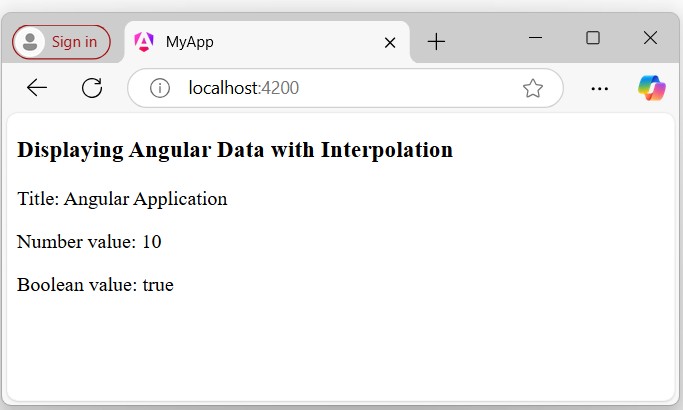
    In this example, we will create properties (variables) named title (string type), num (number type), and isTrue (boolean type). We will bind (display) them in the template using interpolation −

    In the app.component.ts, declare the properties with some initial values:

    import{ Component }from'@angular/core';@Component({
      selector:'app-root',
      standalone:true,
      imports:[],
      templateUrl:'./app.component.html',
      styleUrl:'./app.component.css'})exportclassAppComponent{
      title:string="Angular Application";
      num:number=10;
      isTrue:boolean=true;}

    In the app.component.html, bind the declared properties using interpolation {{}} −

    <h3>Displaying Angular Data with Interpolation</h3><p>{{title}}</p><p>Number value: {{num}}</p><p>Boolean value: {{isTrue}}</p>

    Output

    The displayed data will look like this −

    display data

    Using Property Binding

    This is another way to display data using Angular property bindings. In Angular, binding is a “technique” to “bind data between the component and the view”.

    Example

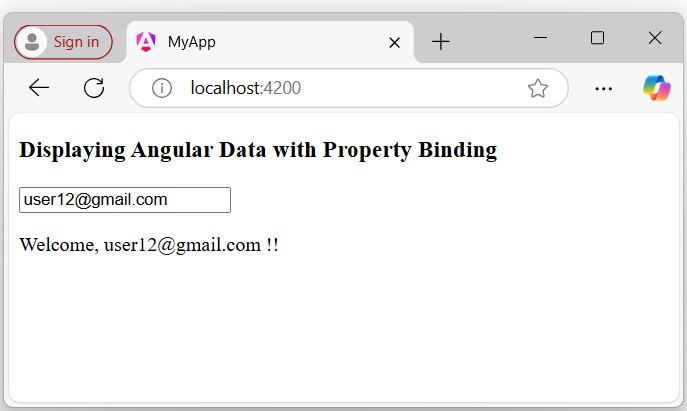
    We create an input field and bind the [value] property to display the component data (i.e., variable “username”) within the input field default when the page is loaded −

    In the app.component.ts, create a variable named username with the value [email protected] −

    import{ Component }from'@angular/core';@Component({
      selector:'app-root',
      standalone:true,
      imports:[],
      templateUrl:'./app.component.html',
      styleUrl:'./app.component.css'})exportclassAppComponent{
      username:string="[email protected]";}

    In the app.component.html, update the existing code with the code given below −

    <h3>Displaying Angular Data with Property Binding</h3><input type="text" [value]="username"><p>Welcome, {{username}}!!</p>

    Output

    The output of the above code will look like:

    display data

    Using Structural Directives

    In Angular, structural directives are built-in directives used to control the appearance and behavior of elements in the DOM. They can dynamically add, remove, or manipulate elements based on certain conditions. Common structural directives are:

    • *ngIf
    • *ngFor
    • *ngSwitch

    Example

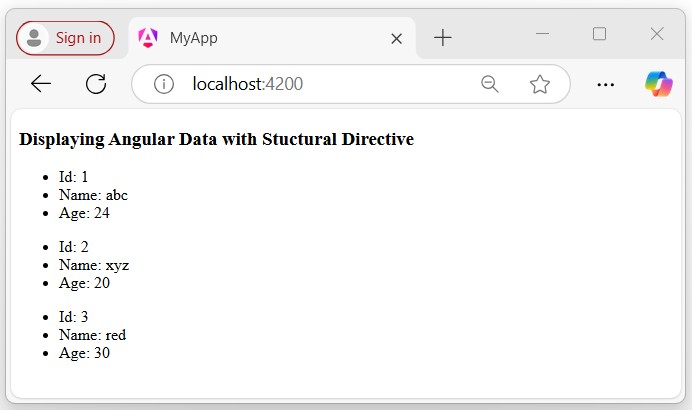
    In the example below, we will use the structural *ngFor directive to iterate through the object defined in the component and display all data in the template −

    In the app.component.ts, create an array of objects with the keys idname, and age as follows:

    import{ CommonModule }from'@angular/common';import{ Component }from'@angular/core';@Component({
      selector:'app-root',
      standalone:true,
      imports:[CommonModule],
      templateUrl:'./app.component.html',
      styleUrl:'./app.component.css'})exportclassAppComponent{
      myData =[{"id":1,"name":'abc',"age":24},{"id":2,"name":"xyz","age":20,},{"id":3,"name":"red","age":30}]}

    In the app.component.html, use the *ngFor directive to iterate through the object data and display them in the template:

    <h3>Displaying Angular Data with Stuctural Directive</h3><ul *ngFor="let data of myData;"><li>Id: {{data.id}}</li&t;
       <li>Name: {{data.name}}</li><li>Age: {{data.age}}</li></ul>

    Output

    Following is the output of the above code −

    display data

    Note! In this tutorial, we have learned the various ways to display data in Angular. There are still more methods that you can explore in individual chapters. This tutorial provided a brief introduction to the concept of displaying data in Angular.

  • Configuration

    Angular Configuration

    The Angular configuration is a set of instructions that defines how the Angular application is built and developed. It includes various information about the Angular application such as project files, toolsenvironments, and some other dependencies.

    Important Configuration files in Angular

    Here is a list of important configuration files that are automatically created when an Angular application is built using the Angular CLI. These files are important for running, deploying, and testing the application.

    The angular.json Configuration File

    In an Angular application, the angular.json file is a key configuration file that defines and manages all the settings for the Angular CLI (Command Line Interface). This file is necessary for customizing various aspects of your Angular project.

    The angular.json file will look like:

    "projects":{"my-app":{"architect":{"build":{"options":{"outputPath":"dist/my-app","index":"src/index.html","main":"src/main.ts","polyfills":"src/polyfills.ts","tsConfig":"tsconfig.app.json","assets":["src/favicon.ico","src/assets"],"styles":["src/styles.css"],"scripts":[]}}}}}

    This file contains key aspects of your Angular project, such as the “application name”, “index.html”, “main.ts”, “assets”, “styles”, “scripts”, “environment configurations”, “build” and “test” options, and other settings important for your Angular application’s build and deployment process.

    Important Points of the angular.json File

    Here are a few important aspects of the angular.json file that you should know:

    • my-app: This is the name of your Angular project or application.
    • index.html: The main HTML file that serves as the entry point for your application. It usually contains the “root” HTML element where the Angular app will be bootstrapped.
    • main.ts: The main TypeScript file that acts as the entry point for the Angular application. It is responsible for bootstrapping the root module or component of the application.
    • assets: A directory that contains static assets such as images, fonts, and other files that are needed by the application.
    • styles: An array of global stylesheets that are included in the application. These stylesheets can be CSS or SCSS files and are applied to the entire application.
    • scripts: An array of global scripts that are included in the application. These can be JavaScript files that need to be loaded before the Angular app starts.

    The package.json Configuration File

    In an Angular application, the package.json file serves as a fundamental part of managing the project’s dependencies and scripts. It contains “metadata” about the project, including the project “name”, “version”, “scripts for starting’, “building”, “serving”, and “watching the application”, as well as the “dependencies” and “devDependencies”.

    The package.json file data will look like this:

    {"name":"my-crud-app","version":"0.0.0","scripts":{"ng":"ng","start":"ng serve","build":"ng build","watch":"ng build --watch --configuration development","test":"ng test","serve:ssr:my-crud-app":"node dist/my-crud-app/server/server.mjs"},"private":true,"dependencies":{"@angular/animations":"^17.0.0","@angular/common":"^17.0.0","@angular/compiler":"^17.0.0","@angular/core":"^17.0.0","@angular/forms":"^17.0.0","@angular/platform-browser":"^17.0.0","@angular/platform-browser-dynamic":"^17.0.0","@angular/platform-server":"^17.0.0","@angular/router":"^17.0.0","@angular/ssr":"^17.0.8","express":"^4.18.2","json-server":"^1.0.0-beta.3","rxjs":"~7.8.0","tslib":"^2.3.0","zone.js":"~0.14.2"},"devDependencies":{"@angular-devkit/build-angular":"^17.0.8","@angular/cli":"^17.0.8","@angular/compiler-cli":"^17.0.0","@types/express":"^4.17.17","@types/jasmine":"~5.1.0","@types/node":"^18.18.0","jasmine-core":"~5.1.0","karma":"~6.4.0","karma-chrome-launcher":"~3.2.0","karma-coverage":"~2.2.0","karma-jasmine":"~5.1.0","karma-jasmine-html-reporter":"~2.1.0","typescript":"~5.2.2"}}

    Important Points of the package.json File

    Here are a few important aspects of the package.json file that you should know:

    • name & version: The name and the version of your application, which is useful for identifying, and tracking updates and dependencies.
    • scripts: It contains commands for common tasks such as “building”, “serving”, and “testing” the Angular project. These commands are executed using npm run <command>
    • dependencies: It is a list of Angular packages and other libraries your project depends on. These are important for the application to run and are installed when you run the npm install command.
    • devDependencies: Â It is a list of packages that are needed only for “development purposes”, such as “testing tools” and “build tools”.

    The main.ts Configuration File

    In an Angular application, the main.ts file serves as the entry point. It is responsible for “bootstrapping” the root module or component. When you run the ng serve command, it compiles the application and looks for the “main.ts” file first to initiate the “bootstrapping process”.

    If the main.ts file is missing or has issues, your application will fail to start, and you will face errors.

    The main.ts file data will look like this:

    import{ bootstrapApplication }from'@angular/platform-browser';import{ appConfig }from'./app/app.config';import{ AppComponent }from'./app/app.component';bootstrapApplication(AppComponent, appConfig).catch((err)=>console.error(err));

    Here,

    • AppComponent: It is the main component that acts as the root component of your application.

    The tsconfig.json Configuration File

    A given Angular workspace contains several TypeScript configuration files. At the root tsconfig.json file specifies the base TypeScript and Angular compiler options that all projects in the workspace inherit.

    Initially, the tsconfig.json file data will look like this:

    {"extends":"./tsconfig.json","compilerOptions":{"outDir":"./out-tsc/app","types":["node"]},"files":["src/main.ts","src/main.server.ts","server.ts"],"include":["src/**/*.d.ts"]}

    Conclusion

    In conclusion, Angular configuration plays an important role in ensuring that your Angular application runs smoothly without any lag or errors. It involves setting up various aspects of the application, such as “environment settings”, “build configurations”, “module imports”, etc.

  • Third Party Controls

    Angular allows you to work with any third party controls. Once you decide on the control to implement, you need to perform the following steps −

    Step 1 − Install the component using the npm command.

    For example, we will install the ng2-pagination third party control via the following command.

    npm install ng2-pagination --save
    
    pagination

    Once done, you will see that the component is successfully installed.

    Component Installed

    Step 2 − Include the component in the app.module.ts file.

    import{ NgModule }from'@angular/core';import{ BrowserModule }from'@angular/platform-browser';import{ AppComponent }from'./app.component';import{Ng2PaginationModule}from'ng2-pagination';@NgModule({
       imports:[ BrowserModule,Ng2PaginationModule],
       declarations:[ AppComponent],
       bootstrap:[ AppComponent ]})exportclassAppModule{}

    Step 3 − Finally, implement the component in your app.component.ts file.

    import{ Component }from'@angular/core';import{PaginatePipe, PaginationService}from'ng2-pagination';@Component({
       selector:'my-app',
       template: '
    
      &lt;ul&gt;&lt;li *ngFor = "let item of collection | paginate:{
            itemsPerPage:5, currentPage: p }"&gt;...&lt;/li&gt;&lt;/ul&gt;&lt;pagination-controls(pageChange)="p = $event"&gt;&lt;/pagination-controls&gt;
    ' })exportclassAppComponent{}

    Step 4 − Save all the code changes and refresh the browser, you will get the following output.

    Code Changes
    APP Code

    In the above picture, you can see that the images have been stored as One.jpg and two.jpg in the Images folder.

    Step 5 − Change the code of the app.component.ts file to the following.

    import{
       Component
    }from'@angular/core';@Component({
       selector:'my-app',
       templateUrl:'app/app.component.html'})exportclassAppComponent{
       appTitle:string='Welcome';
       
       appList:any[]=[{"ID":"1","Name":"One","url":'app/Images/One.jpg'},{"ID":"2","Name":"Two","url":'app/Images/two.jpg'}];}

    Following points need to be noted about the above code.

    • We are defining an array called appList which is of the type any. This is so that it can store any type of element.
    • We are defining 2 elements. Each element has 3 properties, ID, Name and url.
    • The URL for each element is the relative path to the 2 images.

    Step 6 − Make the following changes to the app/app.component.html file which is your template file.

    <div *ngFor ='let lst of appList'><ul><li>{{lst.ID}}</li><li>{{lst.Name}}</li><img [src]='lst.url'></ul></div>

    Following points need to be noted about the above program −

    • The ngFor directive is used to iterate through all the elements of the appList property.
    • For each property, it is using the list element to display an image.
    • The src property of the img tag is then bounded to the url property of appList in our class.

    Step 7 − Save all the code changes and refresh the browser, you will get the following output. From the output, you can clearly see that the images have been picked up and shown in the output.
    Picked up