Category: 14. Angular Libraries

https://cdn3d.iconscout.com/3d/premium/thumb/e-library-5831856-4884519.png

  • RxJS

    What is Reactive Programming?

    In computing, Reactive programming is a way of writing code, where you deal with “data streams” and “changes automatically”. It is telling the computer what you want to do, rather than how to do it step by step. This approach helps you to keep your program structured and easier to understand for others.

    Example

    In the following example we use the reactive programming, so the value of variable a is automatically updated whenever the values of b or c change, without the program having to explicitly re-state the statement a := b + c to re-assign the value of a:

    //normal programvar b =5;var c =7;var a = b + c;
    b =5;console.log(a);// 12//reactive programvar b =5;var c =7;var a $= b + c;
    b =5;console.log(a);// 17

    The other one is a reactive program, which emits real-time updates when the related or its own value propagates (changed).

    How does Reactive Programming work?

    Reactive programming is a programming paradigm that deals with asynchronous data streams and the propagation of changes. It allows developers to model and manage data flows in a better way. It is simplifying the handling of asynchronous tasks such as UI updates, event handling, and managing data that changes over time.

    What is RxJS?

    The RxJS stands for “Reactive Extensions for JavaScript”, which is a library for “reactive programming” using observable’s that make easier to compose “asynchronous” or “callback-based” code.

    In addition, the RxJS library is used to compose the “asynchronous” and “event-based” programs by using observable sequences. It provides one core type, the “Observable”, “satellite” types (Observer, Schedulers, Subjects), and “operators” inspired by Array methods (map, filter, reduce, every, etc) to allow handling asynchronous events as collections.

    Note! Asynchronous data refers to data that is processed or retrieved at different times, rather than in a sequential or synchronous manner.

    Key Concepts

    Here are some key concepts of the RxJS library that solve Async event management:

    • Observable: An Observable in Angular is a key part of reactive programming, providing support for passing messages (data) between publishers and subscribers asynchronously.
    • Observer: It is a collection of callbacks that knows how to “listen” to values delivered by the Observable.
    • Subscription: It represents the “execution of an Observable” and is primarily used to cancel the execution.
    • Operators: These are the pure functions that enable a functional programming style of dealing with collections with operations like map, filter, concat, reduce, etc.
    • Subject It’s “equivalent to an EventEmitter“, and it is the only way of multicasting a value or event to multiple Observers.
    • Schedulers: These are “centralized dispatchers” that control concurrency, allowing us to coordinate when computation happens.

    This library also provides utility functions for creating and working with “observables”. These utility functions can be used for:

    • Converting existing code for async operations into observables.
    • Iterating through the values in a stream.
    • Mapping values to different types.
    • Filtering streams.
    • Composing multiple streams.

    Examples of RxJS

    Here are a few examples that help you understand the “RxJS library”, “observable concept”, and “reactive programming” better:

    Example 1: Register Event Listener

    In HTML, you normally register an event listener using the addEventListener() method as:

    document.addEventListener('click',()=>console.log('You Clicked!'));

    But in the RxJS, you can create an observable instead of registering an “eventListener”:

    import{ fromEvent }from'rxjs';fromEvent(document,'click').subscribe(()=>console.log('You Clicked!'));

    Here, the subscribe() method is used to access the observable data. No changes will be reflected until you subscribe to it.

    Example 2: Purity (using the pure functions)

    What makes RxJS powerful is its ability to generate values ​​using pure functions. This means your code will have fewer errors.

    In RxJS, a pure function is one that, given the “same inputs”, always produces the “same outputs” and has no side effects.

    Usually, you would create an impure function, where other pieces of your code can mess up your state (fields).

    Here, is how you implement in JavaScript −

    let count =0;// initial value 0//adding event listener
    document.addEventListener('click',()=>console.log(Clicked ${++count} times));

    The above snippet of code will “count” the “number of clicks” on the “document” and log the count each time the document is clicked.

    Using RxJS you isolate the state (field):

    import{ fromEvent, scan }from'rxjs';fromEvent(document,'click').pipe(scan((count)=> count +1,0)).subscribe((count)=>console.log(Clicked ${count} times));

    Here,

    • The scan operator in RxJS works similarly to the reduce() function for arrays. It takes an initial value and a callback. Each time the callback runs, it returns a value that will be used as the input for the next iteration.

    Using RxJS with Angular

    The RxJS library provides several functions that can be used to “create new Observable” in Angular Project.

    These functions can simplify the process of creating observables from various sources such as events, timers, and promises. For example:

    Create an observable from a promise

    In the following snippet of code, we create an observable using the from operator with a promise returned by the “fetch API” in Angular −

    import{ from, Observable }from'rxjs';// Create an Observable from out of promiseconst data =from(fetch('/api/endpoint'));// Subscribe to start listening for async output
    data.subscribe({next(res){console.log(res);},error(err){console.error('Error: '+ err);},complete(){console.log('Completed');}});

    Create an observable from a counter

    In this example, we will create an observable that emits incrementing numbers every 1000 milliseconds (1 second) in Angular −

    import{ interval }from'rxjs';// Create an Observable const secondsCounter =interval(1000);// Subscribe to start interval valuesconst subscription = secondsCounter.subscribe(n =>console.log(It's been ${n + 1} seconds since the subscription started!));

    Why to use RxJS in Angular?

    Below is the list of several benefits that define why to use RxJS Library in Angular:

    • Reactive Programming: It allows for Reactive programming, which makes it easier to simplify the asynchronous code.
    • Error Handling: RxJS provides robust error-handling mechanisms, allowing you to smoothly handle and recover from errors in your asynchronous operations.
    • Data Transfer: Using the RxJS operators, you can easily transform data streams, such as mapping, filtering, and reducing data.
    • Angular Integration: Angular has built-in support for RxJS, and many Angular modules, such as HttpClient, are designed to work easily with observables.
  • PrimeNG

    What is PrimeNG?

    PrimeNG is a cohesiveUI component library specifically designed for Angular applications. It provides a collection of ready-to-use UI components (e.g., themes, icons, and components) such as “input fields,” “buttons,” “tables,” “lists,” “cards,” etc, for building user interfaces. It allows developers to integrate these into their applications rather than building them from scratch.

    However, PrimeNG is not directly compatible with “React”, “Vue”, or other front-end frameworks, as it is designed for Angular.

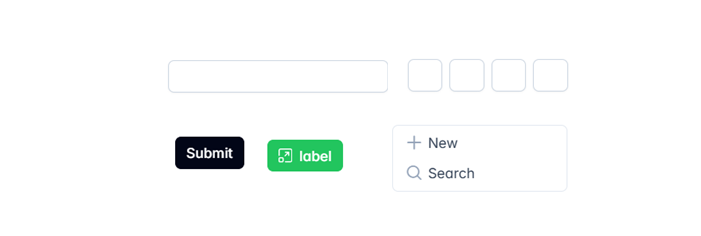
    Here are a few UI components of the PrimeNG library which code you can directly use in your angular application:

    PrimeNG UI Components

    Why to use a PrimeNG in Angular?

    Here are several reasons to use the PrimeNG library in your Angular project:

    • Easy Integration: PrimeNG is very easy to integrate with your Angular application.
    • Responsive and Mobile-friendly: Angular applications developed using PrimeNG UI components are very compatible and responsive across various screen sizes.
    • OpenSource & paid version: PrimeNG offers a free version with many useful and powerful components and a premium version (i.e., paid) as well for the advanced features.
    • Frequent Updates: The library is actively maintained and regularly updated, which enables the latest features with best practices.

    Installations and Setups

    The PrimeNG UI Component library is a third-party library. To use its components in your application or project, you need to install it and add all the required dependencies first; only then can you use it.

    Here is a step-by-step process for installing the PrimeNG library in your project:

    Step 1: Use the following command to install the PrimeNG library in your Angular project:

    npm install primeng@<version>
    

    Here, @<version> refers to the version you want to install, which should be compatible with your project. For example: npm install [email protected].

    Important! If you do not specify a specific version, it might throw an error because the project version could be different from the version of the library you are installing when using the simple npm install primeNG command without specifying a version.

    Step 2: Open the angular.json file and add the code below within the styles section, in both the build and test sections:

    "node_modules/primeng/resources/themes/lara-light-indigo/theme.css",
    "node_modules/primeng/resources/primeng.min.css",
    

    After completing the above steps, the installation is done, and now we are ready to use the PrimeNG library components in our project.

    Use the following command to install PrimeNG icons, which provide different icons such as “social media icons”, “trash”, “view”, “edit” icons, etc., and add the same inside the styles section:

    npm install primeng@version primeicons
    

    How to use PrimeNG in our Project?

    Follow these steps to use the PrimeNG components in your application as needed:

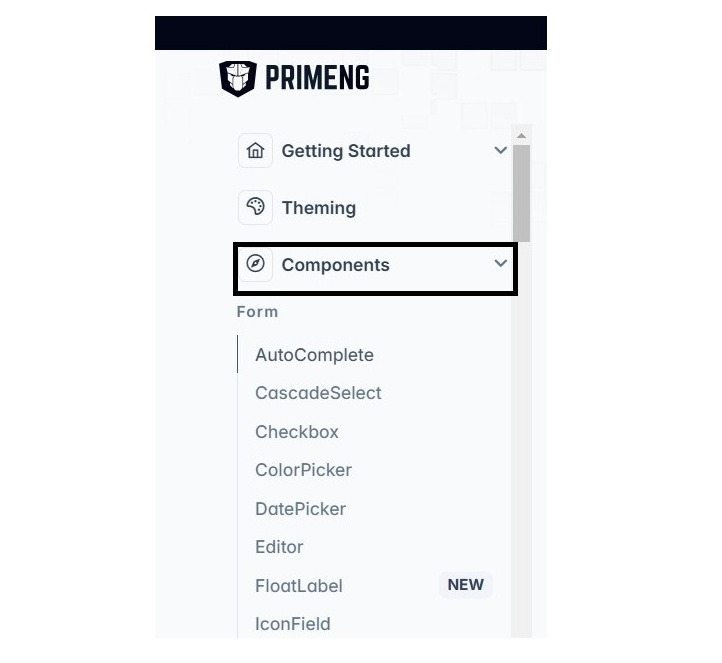
    Step 1: Open the primeNG website and explore all the components:

    PrimeNG1

    Adding InputText Component

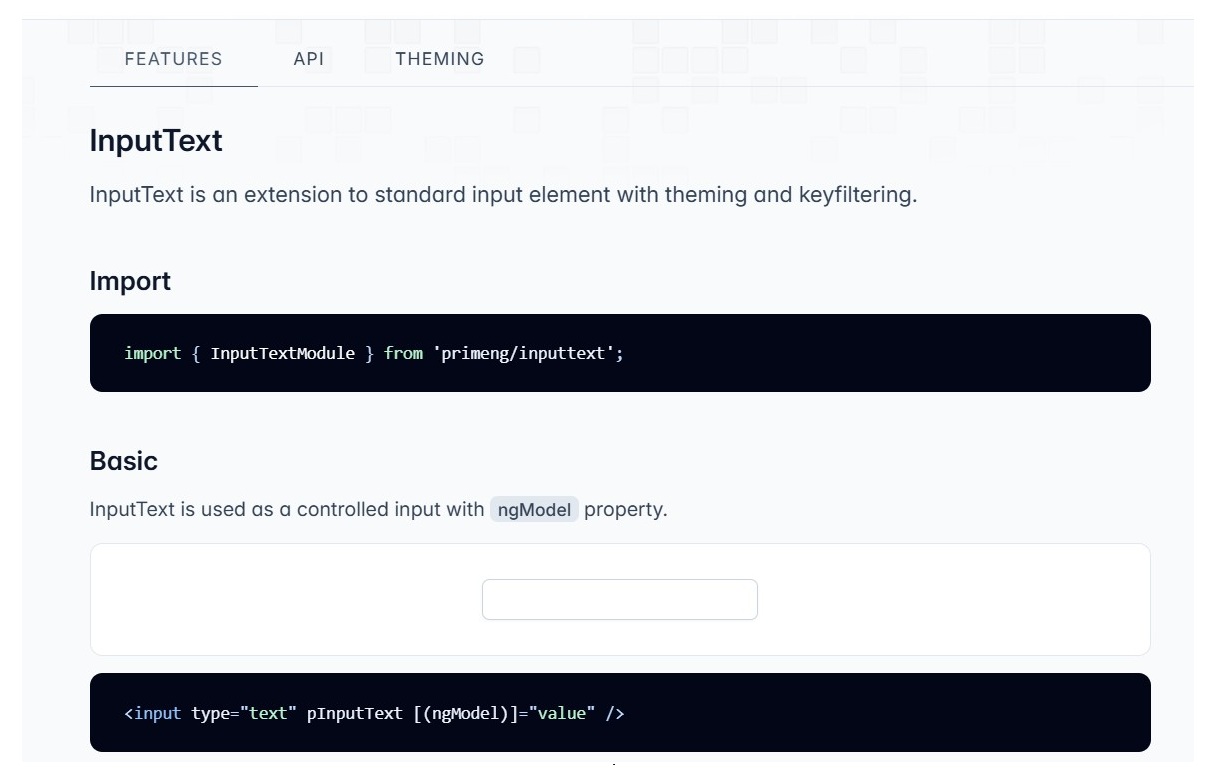
    InputText is an extension to a standard input element with “theming” and “keyfiltering”. To add the InputText component to your project template, you need to follow these steps:

    Step 2: Open the InputText component documentation on the PrimeNG website that you want to use it in your template:

    PrimeNG Input Text

    Step 3: Import and add the InputText component API in your component or module to access and use it in your template:

    import{ Component }from'@angular/core';import{ CommonModule }from'@angular/common';import{ RouterOutlet }from'@angular/router';import{ InputTextModule }from'primeng/inputtext';@Component({
      selector:'app-root',
      standalone:true,
      imports:[CommonModule, RouterOutlet, InputTextModule],
      templateUrl:'./app.component.html',
      styleUrl:'./app.component.css'})exportclassAppComponent{
      title ='myApp';}

    Step 4: Add the below InputText inbuilt code in your template (e.g., app.component.html):

    <h3>Angular with PrimeNG</h3><input type="text" pInputText placeholder="Input text....."/>

    Step 5: After adding the above code, run the application using the following command:

    ng serve
    

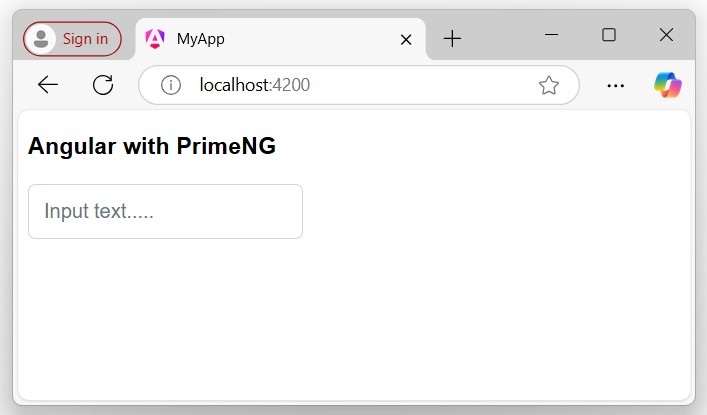
    Output

    Navigate the URL localhost:4200 to see the output of the above code:

    PrimeNG Input Text1

    Adding Button Component

    Let’s see how to add a Button component to your project template:

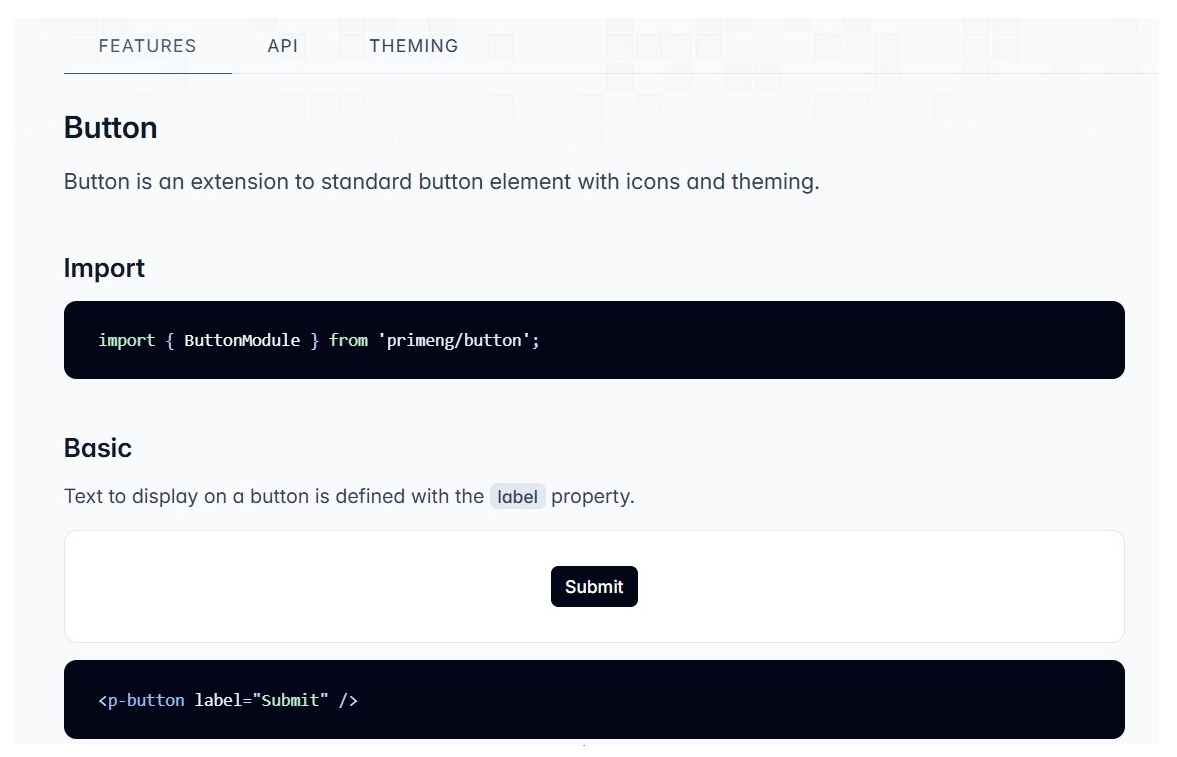
    Step 1: Just like the InputText component, open the Button component on the PrimeNG website and go to the features section:

    PrimeNG Button

    Step 2: Import and add the API in your component or module that you want to use (e.g., app.component.ts):

    import{ Component }from'@angular/core';import{ CommonModule }from'@angular/common';import{ RouterOutlet }from'@angular/router';import{ InputTextModule }from'primeng/inputtext';import{ ButtonModule }from'primeng/button';@Component({
      selector:'app-root',
      standalone:true,
      imports:[CommonModule, RouterOutlet, InputTextModule, ButtonModule],
      templateUrl:'./app.component.html',
      styleUrl:'./app.component.css'})exportclassAppComponent{
      title ='myApp';}

    Step 3: Add the Button Component in your template (e.g., app.component.html):

    <h3>Angular with PrimeNG</h3><input type="text" pInputText placeholder="Input text....."/><p-button label="Submit"/>

    Output

    The output of the above code will be displayed as follows:

    PrimeNG Button1
  • Angular Material

    What is Angular Material?

    Angular Material is a UI component library developed by the Angular team to integrate easily with your Angular applications. This library is “specific” to the Angular framework and provides a set of reusable, accessible, well-tested components that help create a responsive modern user interface (UI).

    It also provides tools that help developers to create custom UI components with common interaction patterns. Angular applications developed using Angular Material components ensure “responsiveness” on different screen sizes, such as “phones”, “tablets”, and “laptops”.

    Notes! Angular Material provides a huge collection of high-quality and ready-made Angular components based on Material Design, such as input fields, forms, buttons, cards, tables, lists, etc.

    Let us learn how to install Angular Material Library in your Angular project and how to use its components.

    Important! This guide assumes that an Angular application has already been created and the Angular CLI has already been installed.

    How to Install Angular Material in an Angular Project?

    To install Angular Material Library in your Angular project or application, ensure that the Angular CLI is already installed and that the application has been created successfully.

    Follow the steps given below and implement each step in your existing project one by one to install Angular Material Library:

    Step 1: Open any “existing Angular project” in your preferred code editor (e.g., vs code) −

    cd /go/to/materialApp
    

    Here, materialApp is your project folder name.

    Step 2: Open the terminal in your editor and go to the application directory −

    cd material-app
    

    Step 3: Add Angular Material to your application by running the following command −

    ng add @angular/material
    

    The ng add command will “install Angular Material” in your application.

    Once you run the above command, Angular CLI will ask certain questions regarding “theme”, “gesture recognition”, and “browser animations”.

    Select any theme of your choice and then answer positively for gesture recognition and browser animation.

    ✔ Packages successfully installed.
    ? Choose a prebuilt theme name, or "custom" for a custom theme: (Use arrow keys)
    > Indigo/Pink        [Preview: https://material.angular.io?theme=indigo-pink]
      Deep Purple/Amber  [Preview: https://material.angular.io?theme=deeppurple-amber]
      Pink/Blue Grey     [Preview: https://material.angular.io?theme=pink-bluegrey]
      Purple/Green       [Preview: https://material.angular.io?theme=purple-green]
      Custom
    
    ? Choose a prebuilt theme name, or "custom" for a custom theme: Indigo/Pink 
    

    Set up “global Angular Material typography” styles:

    ? Set up global Angular Material typography styles? Yes
    

    Include browser animations for Angular Material:

    ? Include the Angular animations module? (Use arrow keys)
    > Include and enable animations 
      Include, but disable animations 
      Do not include 
    

    Hint! To choose different options use the down arrow key in your keyboard.

    Set up “browser animations” for Angular Material:

    Importing the BrowserAnimationsModule into your application enables Angular’s animation system.

    Once the Material gets installed successfully you will be able to see the message below:

    UPDATE package.json (1111 bytes)
    ✔ Packages installed successfully.
    UPDATE src/app/app.config.ts (338 bytes)
    UPDATE angular.json (2795 bytes)
    UPDATE src/index.html (520 bytes)
    UPDATE src/styles.css (181 bytes)
    

    The ng add command will additionally perform the following actions:

    • Add project dependencies to package.json.
    "@angular/material":"^17.3.10"

    Add the Roboto font to your index.html

    <link href="https://fonts.googleapis.com/css2?family=Roboto:wght@300;400;500&display=swap" rel="stylesheet">
    

    Add the “Material Design icon font” to your index.html.

    <link href="https://fonts.googleapis.com/icon?family=Material+Icons" rel="stylesheet">
    

    Add a few global CSS styles to:

    • Remove margins from “body”.
    • Set height 100% on HTML and body.
    • Set Roboto as the default application font.
    html, body { height: 100%; }
    body { margin: 0; font-family: Roboto, "Helvetica Neue", sans-serif; }
    

    Completed! Angular Material is now configured to be used in your Angular application.

    How to use Angular Material in Angular Project?

    To use the Angular Material Components in your Angular project implement the following steps:

    Step 1: Open the “Angular Material” website on your browser:

    Angular Material Components

    Step 2: Open the component (e.g., button) which you want to use:

    Material Components

    Step 3: Go to the API section and copy the import:

    Material Components1

    Step 4: Import the “relevant API” in your component or module where you want to use:

    import{ Component }from'@angular/core';import{ CommonModule }from'@angular/common';import{ RouterOutlet }from'@angular/router';import{MatButtonModule}from'@angular/material/button';@Component({
      selector:'app-root',
      standalone:true,
      imports:[CommonModule, RouterOutlet, MatButtonModule],
      templateUrl:'./app.component.html',
      styleUrl:'./app.component.css'})exportclassAppComponent{
      title ='material-app';}

    Step 5: Go to the examples section and you will see various examples of button components:

    Material Components2

    Step 6: Open the AppComponent (i.e., app.component.htm) and place the code below to see the different types of buttons:

    <h2>Welcome to Angular Material Example</h2><button mat-button>Basic</button><button mat-raised-button>Basic</button><button mat-button disabled>Disabled</button><button mat-flat-button>Basic</button>

    Here,

    • mat-button is the class name for the “basic button”.
    • mat-button disabled is the class name for the ‘disabled button.

    Step 6: Run your application to see the changes:

    ng serve
    

    Then navigate your browser to http://localhost:4200 URL.

    Material Components3

    Here, the application clearly shows the Angular different Material buttons.

    List of Common used Components

    Below is the some of the important UI elements provided by Angular Material package:

    UI ElementDescription
    Form fieldThe <mat-form-field> is a component used to wrap several Angular Material components.
    InputThe matInput is a directive that allows native <input> and <textarea> elements to work with <mat-form-field>.
    CheckboxThe <mat-checkbox> provides the same functionality as a native <input type=”checkbox”> enhanced with Material Design styling and animations.
    Radio buttonThe <mat-radio-button> provides the same functionality as a native <input type=”radio”> enhanced with Material Design styling and animations.
    SelectThe <mat-select> is a form control for selecting a value from a set of options, similar to the native <select> element.
    ButtonThe Angular Material buttons are native <button> or <a> elements enhanced with Material Design styling and ink ripples.
    DatePickerThe datepicker allows users to enter a date either through text input, or by choosing a date from the calendar.
    ListThe <mat-list> is a container component that wraps and formats a series of <mat-list-item>.
    CardThe <mat-card> is a content container for text, photos, and actions in the context of a single subject.
    Grid listThe mat-grid-list is a “two-dimensional” list view that arranges cells into “grid-based” layout.
    TableThe mat-table provides a Material Design styled data-table that can be used to display rows of data.
    PaginatorThe <mat-paginator> provides navigation for paged information, typically used with a table.
    TabsAngular Material tabs organize content into separate views where only one view can be visible at a time.
    ToolbarThe <mat-toolbar> is a container for “headers”, “titles”, or “actions”.
    MenuThe <mat-menu> is a floating panel containing list of options.
    DialogThe MatDialog service can be used to “open modal dialogs” with Material Design styling and animations.
    SnackbarThe MatSnackBar is a service for displaying snack-bar notifications.
    Progress barThe <mat-progress-bar> is a horizontal progress-bar for indicating progress and activity.
    IconThe mat-icon makes it easier to use vector-based icons in your app.
    DividerThe <mat-divider> is a component that allows for Material styling of a line separator with various orientation options.

    Why to use Angular Material?

    Use Angular Material because it provides built-in UI components that are easy to integrate with Angular applications, saving developers time by offering ready-to-use elements like “buttons”, “cards”, and “input” fields. It also ensures the application is “responsive” and fully functional across various screen sizes.

  • Libraries

    Overview of Angular Libraries

    Many applications face similar challenges, like providing a consistent user interface, displaying data, and enabling data input. To resolve this issue, developers create universal solutions for specific domains that can be customized and reused across different applications.

    Such a solution can be built as Angular libraries and these libraries can be published and shared as npm packages.

    An Angular library is a collection of reusable code, components, services, and modules that are packaged together for easy integration into Angular applications. A library is designed to provide functionality that must be imported and used in an application to work.

    Unlike the Angular application, a library can not run individual, we need to import and use in our Angular application.

    Note! Libraries extend Angular base features. For example, to add reactive forms to our angular application, add the library package using the ng add @angular/forms command, then import the ReactiveFormsModule from the @angular/forms library in your application code.

    Why use a Library in Angular?

    Using libraries in Angular provides several advantages which are:

    • Code Reusability: Libraries allow developers to write reusable code, making it easier to maintain and update across multiple applications.
    • Modularity: Libraries help keep applications modular by encapsulating specific functionality, which can be imported only when needed.
    • Ready-to-use Code: Libraries provide ready-to-use code, which saves developers time, especially when building large-scale and complex applications.

    List of Libraries used with Angular Project

    Here, we have listed a few of Angular and other libraries which were commonly used with Angular projects:

    Using Angular Material in Angular

    Angular Material is a UI library developed by the Angular team to integrate easily with Angular applications. This library is specific to the Angular framework, providing global and accessible components for everyone. It is well-tested to ensure performance and reliability.

    It is also provides tools that help developers to build their own custom components with common interaction patterns. The Angular applications developed using Angular Material components ensure “responsiveness” across various screen sizes, such as “phones”, “tablets”, and “laptops”.

    Before proceeding with the example, the Angular Material library should be installed in your Angular project. See how to install?

    Example

    Here is a basic example of using the Angular Material input component.

    Step 1: Import the material component API in your component or module where you want to use it (e.g., import in the app module or component):

    import{ Component}from'@angular/core';import{MatInputModule}from'@angular/material/input';@Component({
      selector:'app-root',
      standalone:true,
      imports:[MatInputModule],
      templateUrl:'./app.component.html',
      styleUrl:'./app.component.css'})exportclassAppComponent{
      title ='my-crud-app';}

    Step 2: Use the Material input component in your template (e.g. app.component.html):

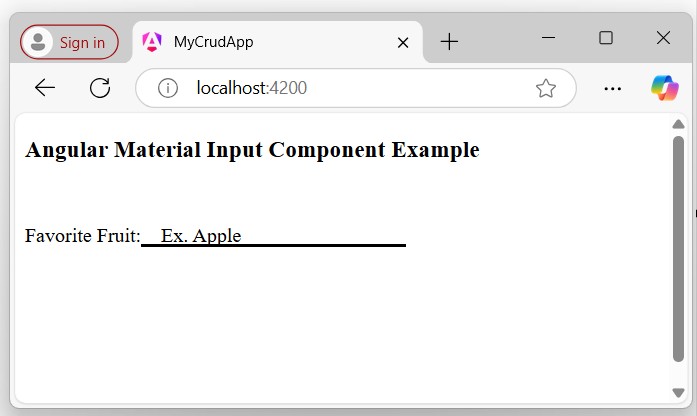
    <h3>Angular Material Input Component Example</h3><label for="">Favorite Fruit:</label><mat-form-field class="example-full-width"><input matInput placeholder="Ex. Apple"></mat-form-field>

    Output

    The output will appear as follows:

    material input component

    Using PrimeNG in Angular

    PrimeNG is a popular UI component library for Angular. Similar to Angular Material, it provides a wide range of ready-to-use, customizable UI components designed to help developers build modern, responsive, and featured web applications quickly.

    PrimeNG includes components like “buttons”, “data tables”, “form controls”, “charts”, and more, making it a universal choice for Angular development.

    Before proceeding with the example, the PrimeNG library should be installed in your Angular project. See how to install?

    To properly add the necessary PrimeNG styles in your angular.json file, you should add the following in the styles sections under the build options

    "styles":["@angular/material/prebuilt-themes/indigo-pink.css","src/styles.css","node_modules/primeng/resources/themes/lara-light-indigo/theme.css","node_modules/primeng/resources/primeng.min.css","node_modules/primeicons/primeicons.css"],

    Example

    The following example will add an input PrimeNG component to your Angular project. For that, we need to import the necessary dependencies as follows:

    import{ Component }from'@angular/core';import{ CommonModule }from'@angular/common';import{ RouterOutlet }from'@angular/router';import{ InputTextModule }from'primeng/inputtext';@Component({
      selector:'app-root',
      standalone:true,
      imports:[CommonModule, RouterOutlet, InputTextModule],
      templateUrl:'./app.component.html',
      styleUrl:'./app.component.css'})exportclassAppComponent{
      title ='myApp';}

    Add the input component to your template (e.g., app.component.html):

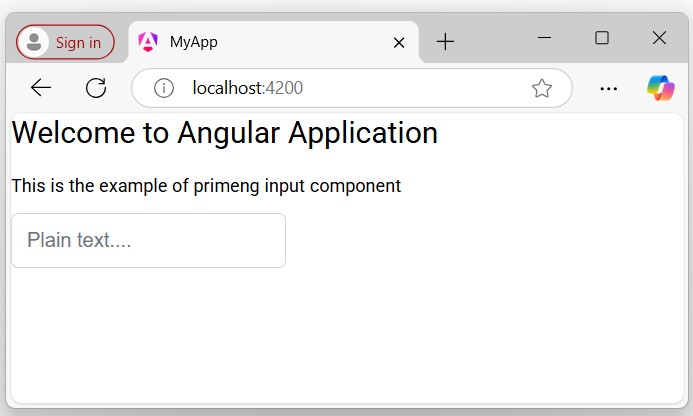
    <h1>Welcome to Angular Application</h1><p>This is the example of primeng input component</p><input type="text" pInputText />

    Output

    The output of the added component will appear as follows:

    primeng input component

    Using RxJS in Angular

    The RxJS stands for “Reactive Extensions for JavaScript”, which is a library for “reactive programming” using observable’s that make easier to compose “asynchronous” or “callback-based” code.

    In addition, the RxJS library is used to compose the “asynchronous” and “event-based” programs by using observable sequences. It provides one core type, the “Observable”, “satellite” types (Observer, Schedulers, Subjects), and “operators” inspired by Array methods (map, filter, reduce, every, etc) to allow handling asynchronous events as collections.

    Note!

    1. Asynchronous data refers to data that is processed or retrieved at different times, rather than in a sequential or synchronous manner.

    2. The RxJS (Reactive Extensions for JavaScript) is not an Angular library, but it is heavily used within Angular.

    Example

    Here is a simple example that will help you understand reactive programming:

    Let’s add an event listener the way you normally register in JavaScript:

    document.addEventListener('click',()=>console.log('You Clicked!'));

    Here, let’s see how we can add the same event listener using the “RxJS library”:

    import{ fromEvent }from'rxjs';fromEvent(document,'click').subscribe(()=>console.log('You Clicked!'));

    As you can see in JavaScript, you directly tell the browser what to do when an event happens (like clicking), while in RxJS, you create an “event stream” that you can “subscribe” to, allowing more flexibility and easier management of events.

    The RxJS library also makes it easier to handle complex event scenarios, such as filtering or modifying events and automatically cleans up after itself when no longer needed, unlike regular event listeners where you manually need to handle memory and cleanup.