Category: 12. Angular Modules

https://cdn2.iconfinder.com/data/icons/coding-7/100/module-hand-1-coding-software-development-programming-3d-cube-hand-module-512.png

  • NgModules

    Angular NgModule

    In Angular, the NgModule is a class marked (or defined) with the @NgModule decorator, which specifies it as an Angular module. This decorator provides metadata that tells Angular how to compile and run the module code and configure the DI (dependency injection).

    Here is the snippet of the @NgModule in Angular:

    import{ NgModule }from'@angular/core';import{ BrowserModule }from'@angular/platform-browser';import{ AppComponent }from'./app.component';import{ MyFeatureModule }from'./my-feature/my-feature.module';import{ MyService }from'./my-service.service';@NgModule({
      declarations:[
    
    AppComponent,],
    imports:[
    BrowserModule,       
    MyFeatureModule
    ], providers:[
    MyService            
    ], bootstrap:[
    AppComponent    
    ]})exportclassAppModule{}

    Note: The NgModule has two main responsibilities:

    • Declaring components, directives, and pipes that belong to the NgModule
    • Add providers to the injector for components, directives, and pipes that import the NgModule

    Important Properties of @NgModule

    The @NgModule class has several important properties which are:

    • Declarations
    • Imports
    • Exports
    • Providers
    • Bootstrap

    Declarations

    The declarations are an array, that contains the list of componentsdirectives, and pipes that belong to this module.

    @NgModule({// Signup and Login are components.
      declarations:[Signup, Login],})exportclassAuthModule{}

    In the example above, the components SignupComponent and LoginComponent belong to AuthModule.

    Note: If Angular finds any components, directives, or pipes declared in more than one NgModule, it reports an error.

    Any components, directives, or pipes must be explicitly marked as standalone: false, to be declared in an NgModule.

    @Component({// mark is false so that it can be declared in @NgModule
      standalone:false,})exportclassCustomMenu{}

    Imports

    The imports are an array, which lists out the other modules whose exported classes are needed by the components in this module.

    The components may depend on other components, directives, and pipes. Add these dependencies in the imports property of @NgModule.

    @NgModule({
      imports:[CommomModule, AppRoutingModule],// Signup and Login are components.
      declarations:[Signup, Login],})exportclassAuthModule{}

    The imports array accepts other NgModules, as well as standalone components, directives, and pipes.

    Exports

    The exports are an array, which defines the componentsdirectives, and pipes that can be used in the templates of other modules.

    @NgModule({
      imports:[CommomModule, AppRoutingModule],// Signup and Login are components.
      declarations:[Signup, Login],
      exports:[Login, Signup]})exportclassAuthModule{}

    The exports property is not limited to declarations. However, a NgModule can also export any other components, directives, pipes, and NgModules that it imports.

    NgModule Providers

    The providers are also an array, which lists out the services that are available to the injector and can be used throughout the module.

    @NgModule({// Signup and Login are components.
      declarations:[Signup, Login],
      providers:[MyService],})exportclassAuthModule{}@NgModule({
      imports [AuthModule],
      declarations:[UserProfile],
      providers:[UserData],})exportclassUserProfileModule{}

    Here, in the example above:

    • The AuthModule provides the MyService.
    • The Login and SignUp components can inject MyService because they’re declared in AuthModule.
    • UserProfile can inject MyService because its NgModule imports AuthModule.
    • UserData can inject MyService because its NgModule imports AuthModule.

    The forRoot and forChild Pattern

    In Angular, a few NgModule define a static forRoot() method that accepts some configuration and returns an array of providers.

    If any providers are included this way will be eagerly loaded, and increases the JavaScript bundle size of your first loaded page.

    boorstrapApplication(AppComponent,{
      providers:[
    
    AuthModule.forRoot(/* configuration */),],});</pre>

    Similarly, some NgModules may define a staticforChild() methodthat indicates the providers are considered to be added to components within your application hierarchy.

    @Component({
      providers:[
    
    CustomMenuModule.forChild(/*configuration */),],})exportclassUserProfile{}</pre>

    Bootstrapping Application

    In Angular, the@NgModuledecorator accepts an optionalbootstraparray that may contain one or more components.

    You can use thebootstrapModule()method from eitherplatformBrowser (i.e., a client)orplatformServer (i.e., a server)to start an Angular application.

    import{ BrowserModule }from'@angular/platform-browser';@NgModule({
      bootstrap:[AppComponent],})exportclassAppModule{}BrowserModule().bootstrapModule(AppModule);
  • Routing Module

    Routing Module in Angular

    In Angular, a Routing Module is a special module that handles the configuration and management of routes within an application. It defines the routes (paths) for the various components to navigate between views or components.

    You can define application routing logic separately from the rest of the application, which will react to the user interaction.

    Important Points of Routing Module

    Following are a few important points about the Routing Module you must know:

    • In older angular version, the CLI automatically created a routing module named as app-routing.module.ts while creating a new application, where you can define routes to navigate between various components.
    • In latest angular version, the CLI does not automatically create a routing module but instead creates a file named app.routes.ts to define the routes but it is not a routing module.
    • This file contains the route configuration array, which is then imported into a separate routing module, such as AppRoutingModule, to configure the RouterModule.

    Important! The following creation steps of the routing module will be followed as per the “latest Angular version“.

    Creating Routing Module in Angular

    To create a routing module in your existing or new Angular application, follow and implement the steps given below:

    Step 1: Open or Create a new Angular project

    Open any existing angular project in your preferred code editor (e.g., vs code) or create a new application by running the following command:

    ng new myapp
    

    Step 2: Create app.routes.ts

    Create a new file named app.routes.ts within the src/app folder (if it is not already created by Angular CLI):

    src/app -> app.routes.ts
    

    Step 3: Update the app.routes.ts

    Open the app.routes.ts file in your code editor. If it is empty, add the given code below:

    import{ Routes }from'@angular/router';exportconst routes: Routes =[];

    Step 4: Create Standalone Components

    Create two standalone components named Home and About using the following commands:

    ng generate component Home
    ng generate component About
    

    Step 5: Define routes

    Update the app.routes.ts to define the routing paths for the new components:

    import{ Routes }from'@angular/router';import{ HomeComponent }from'./home/home.component';import{ AboutComponent }from'./about/about.component';exportconst routes: Routes =[{path:'home', component: HomeComponent},{path:'about', component: AboutComponent}];

    How to use Routing Module in Angular?

    We have created a routing module and defined the routes for the Home and About components to navigate when the URL changes. As the routing module is ready to use, we need to import some necessary modulesdirectives, and components to use it in our application.

    Follow the steps given below to make it ready for use in your application:

    Step 1: Configure routing in AppConfiguration

    Open the app.config.ts file in your code editor import routes and add the same in the providers array:

    import{ ApplicationConfig }from'@angular/core';import{ provideRouter }from'@angular/router';import{ routes }from'./app.routes';exportconst appConfig: ApplicationConfig ={
      providers:[provideRouter(routes)]};

    Step 2: Update the app.component.ts

    Open the app.component.ts file in your code editor import the necessary modules (e.g., RouterModuleRouterOutlet directive, and components), and add the same within the imports array:

    import{ Component }from'@angular/core';import{ CommonModule }from'@angular/common';import{RouterModule, RouterOutlet }from'@angular/router';import{ HomeComponent }from'./home/home.component';import{ AboutComponent }from'./about/about.component';@Component({
      selector:'app-root',
      standalone:true,
      imports:[
    
     CommonModule, 
     RouterOutlet, 
     RouterModule, 
     HomeComponent, 
     AboutComponent
    ], templateUrl:'./app.component.html', styleUrl:'./app.component.css'})exportclassAppComponent{ title ='myApp';}

    Step 3: Update the app.component.html

    Open the app.component.html file and update it with the following code:

    <h3>Routing Module Example</h3><a routerLink="home">Home</a><a routerLink="about">About</a><hr><router-outlet></router-outlet>

    Step 4: Update the app.component.css

    Open the app.component.css file and place the code below:

    a{text-decoration: none;margin: 10px 10px;background-color: green;padding: 10px ;color: white;}hr{margin: 20px 0px;padding: 2px;}

    Step 5: Run the Application:

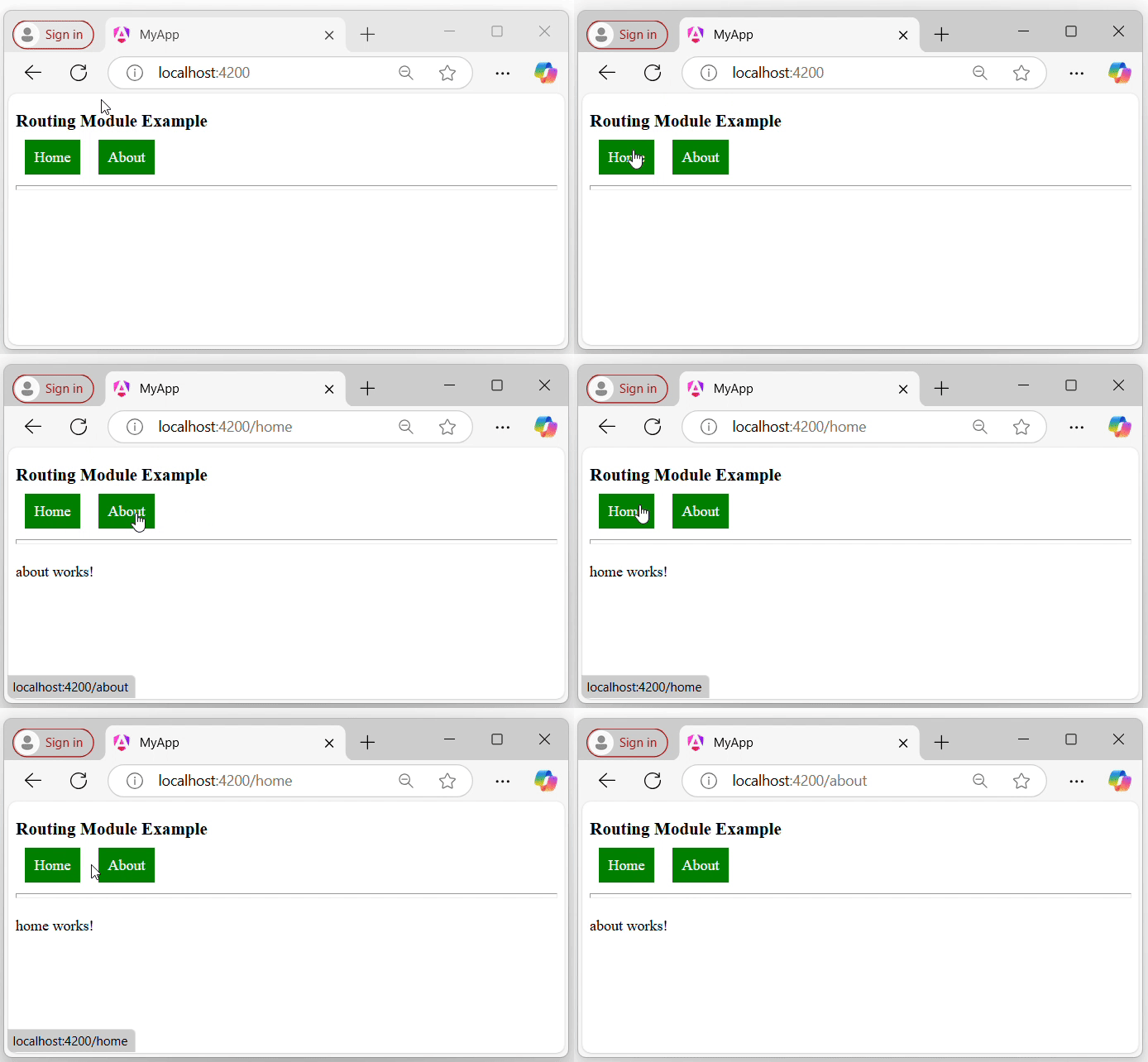
    Now open your preferred browser (e.g., chrome) and navigate to the localhost:4200 URL to see the output:

    Routing Module
  • Shared Module

    Shared Module in Angular

    In Angular, the Shared Module is a custom module designed or created by the developer based on the requirements of the application. The Shared module allows developers to access its componentsdirectivespipes, etc., throughout the application.

    Module itself is not a shared module until it is properly exported and imported into other modules where its components are needed.

    Creating a Shared Module

    Creating a shared module allows you to organize and simplify your code, reducing the redundancy of repeating the same things within the same application.

    Use the following command to create a module in your Angular application, and this module will be used as a shared module in the application. We import export this module within the other module where it’s component are needed.

    Step 1: Open the project

    Open your application in any code editor (such as VS code).

    Step 2: Navigate to the Application Directory

    Open the code editor terminal and navigate to your application directory as follows:

    cd your_application_directory
    
    e.g.
    cd myapp
    

    Step 3: Create a new module (i.e., consider it a shared module) named Shared as follows:

    ng generate module shared
    

    Once the above command is executed successfully, you should be able to see the shared folder. Within this folder, there will be a file named shared.module.ts with a default code:

    import{ NgModule }from'@angular/core';import{ RouterModule, Routes }from'@angular/router';const routes: Routes =[];@NgModule({
      imports:[RouterModule.forRoot(routes)],
      exports:[RouterModule]})exportclassAppRoutingModule{}

    How to Use Shared Module?

    To use the Shared Module in our Angular application, the first step is to import it into our root module, which is named AppModule in our application.

    Step 1: Open the app.module.ts file and import the shared module as follows:

    import{ NgModule }from'@angular/core';import{ BrowserModule, provideClientHydration }from'@angular/platform-browser';import{ AppRoutingModule }from'./app-routing.module';import{ AppComponent }from'./app.component';import{ SharedModule }from'./shared/shared.module';@NgModule({
      declarations:[
    
    AppComponent
    ], imports:[
    BrowserModule,
    AppRoutingModule, 
    SharedModule
    ], providers:[provideClientHydration()], bootstrap:[AppComponent]})exportclassAppModule{}

    We have already created a shared module in our Angular application and imported it into the AppModule (i.e., root module). Now, let’s create two components within the Shared Module to use throughout the entire application.

    Step 2: Create a Header Component

    Create a new component, Header within the shared module as follows:

    ng generate component shared/header
    

    Step 3: Open the header.component.ts file and place the below code:

    <h2>This his Header</h2><p>A component from Shared Module</p>

    Step 4: Create another component, Footer.

    Create one more component, Footer within the shared module as follows:

    ng generate component shared/footer
    

    Step 5: Open the footer.component.ts file and place the below code:

    <h2>This his Footer</h2><p>A component from Shared Module</p>

    Step 6: Update the Shared Module

    To use the “components” of the Shared Module outside of this module, you need to export the Header and Footer components in the shared.module.ts file as follows:

    import{ NgModule }from'@angular/core';import{ CommonModule }from'@angular/common';import{ HeaderComponent }from'./header/header.component';import{ FooterComponent }from'./footer/footer.component';@NgModule({
      declarations:[
    
    HeaderComponent,
    FooterComponent
    ], imports:[
    CommonModule
    ], exports:[HeaderComponent, FooterComponent]})exportclassSharedModule{}

    Step 7: Update AppComponent

    Open the app.component.html and place the code below:

    <app-header></app-header><hr><p>This is the loaded area</p><hr><app-footer></app-footer>

    Step 8: Run the application using the following command:

    ng serve
    

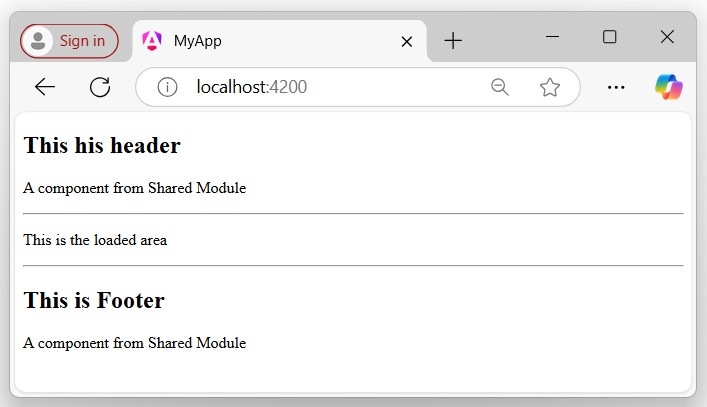
    Step 9: Open your friendly browser (chrome) and navigate to localhost:4200:

    Shared Module

    Advantages of Shared Module

    The following is a list of the advantages of the Shared Modules:

    • It increases application performance by using “reusable” components, directives, etc.
    • Organizes the application, streamlining the code.
    • Increases application modularity.
    • Decreases redundancy.
  • Feature Module

    Feature Module in Angular

    In Angular, a feature module is a “custom module” created by “developers” once the application is built or initiated. This module helps partition the application into focused areas for better organization. It shares a common features or functionalities across the application.

    You can create different feature modules for various functionalities. For example, an authentication module to handle user “login” and “signup”, while an admin module provides a separate dashboard for “user management”. Additionally, a shared module can include common elements like the “header” and “footer”.

    Important! To use the feature module in your application, make sure that the feature module is imported into the root module (older version) and AppComponent (latest version).

    Feature Module vs Root Module

    Here are the few differences between the feature and root modules −

    Feature ModuleRoot Module
    It is mostly created by Users to organize the application structure.Generally automatically created by Angular CLI while creating the application (in older version).
    It provides a way to organize code into a structured way of the related functionality.Serves as the application entry point and sets a basic structure and configuration.
    Can be a lazy-loaded module that enhances the application performance.Eagerly loaded as it is required to bootstrapping the application.
    It contains various declarations such as directivescomponents, and pipes.It contains the declarations, imports, and root-level providers which are necessary for running the application.

    Important! As per the latest angular version, the application are created as standalone, so the applications are no more depend on the root module (i.e., AppModule).

    How to Create a Feature Module in Angular?

    To create a feature module in your Angular application, you need to create a “custom module” and generate some components, directives, services, and routing that belong to this module. So this module can share its features throughout the entire application.

    Follow and implement the steps given below in any existing application, if not create a new application and implement the same.

    Step 1: Open any existing project in your preferred code editor (e.g., vs code) or create a new project using the following command:

    ng new myApp
    

    Redirect to the application directory by using the cd myApp command.

    Step 2: Create a Module

    Create a new module (that will be considered as a feature module), Admin using the following command:

    ng generate module admin --routing
    

    Here,

    The –routing flag will create its own routing file, where you can define routes for all its related components.

    Let’s create the components and services within the admin module, which will include the related functionality for the admin.

    Step 3: Create Components

    Create two components, About and Contact using the following command:

    ng generate component admin/About 
    ng generate component admin/Contact 
    

    Here,

    The admin/ path specifies that the component will be created within the Admin module.

    Step 3: Create a Service

    Create a service class, adminService, using the following command:

    ng generate service adminService
    

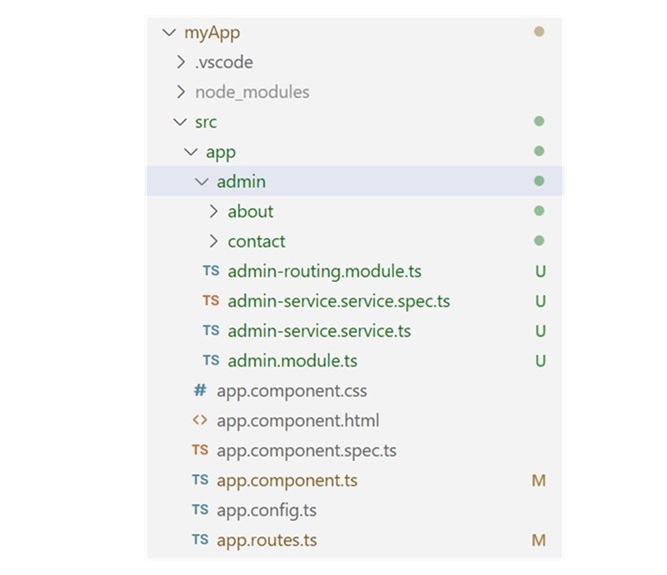
    Note: After executing all the above “components” and ‘services” within the admin module, you will be able to see all the admin-related components, services, and routing functionalities organized within the admin module. This will give you a clear understanding of the application structure.

    Feature Module1

    Step 4: Define routes

    Open the admin-routing.module.ts file and define the routes to navigate the admin components:

    import{ NgModule }from'@angular/core';import{ RouterModule, Routes }from'@angular/router';import{ AboutComponent }from'./about/about.component';import{ ContactComponent }from'./contact/contact.component';const routes: Routes =[{path:'about', component: AboutComponent},{path:'contact', component: ContactComponent}];@NgModule({
      imports:[RouterModule.forChild(routes)],
      exports:[RouterModule]})exportclassAdminRoutingModule{}

    Let’s see how to use the created feature module in our angular application, myApp.

    How to use a Feature Module in Angular?

    In this section, we will discuss how to use the Admin feature module we created in our Angular application.

    Step 1: Importing Feature Module

    Open the app.component.ts file in your code editor, import the AdminModule, and add it to the imports array:

    import{ Component }from'@angular/core';import{ CommonModule }from'@angular/common';import{ RouterModule, RouterOutlet }from'@angular/router';import{ AdminModule }from'./admin/admin.module';@Component({
      selector:'app-root',
      standalone:true,
      imports:[CommonModule, RouterOutlet, AdminModule, RouterModule],
      templateUrl:'./app.component.html',
      styleUrl:'./app.component.css'})exportclassAppComponent{
      title ='myApp';}

    Step 2: Define Routes for Admin Module

    Open the app-routing.module.ts file and define routes for the Admin module to navigate through its components when the admin route is active:

    import{ Routes }from'@angular/router';exportconst routes: Routes =[{ 
    	path:'admin',loadChildren:()=>import('./admin/admin.module').then(m => m.AdminModule)}];

    Important! The above routing strategy performs lazy loading, which means it will load the individual admin components only when required.

    Step 3: Rendering Feature module Component Template

    Open the app.component.html file and create links to click to navigate to the respective component template:

    <h3>Welcome to Angular Feature Module</h3><hr><p>MyLinks</p><a routerLink="admin/about">About</a><a routerLink="admin/contact">Contact</a><br><br><hr><router-outlet></router-outlet>

    Step 4: Run the application using the following command:

    ng serve
    

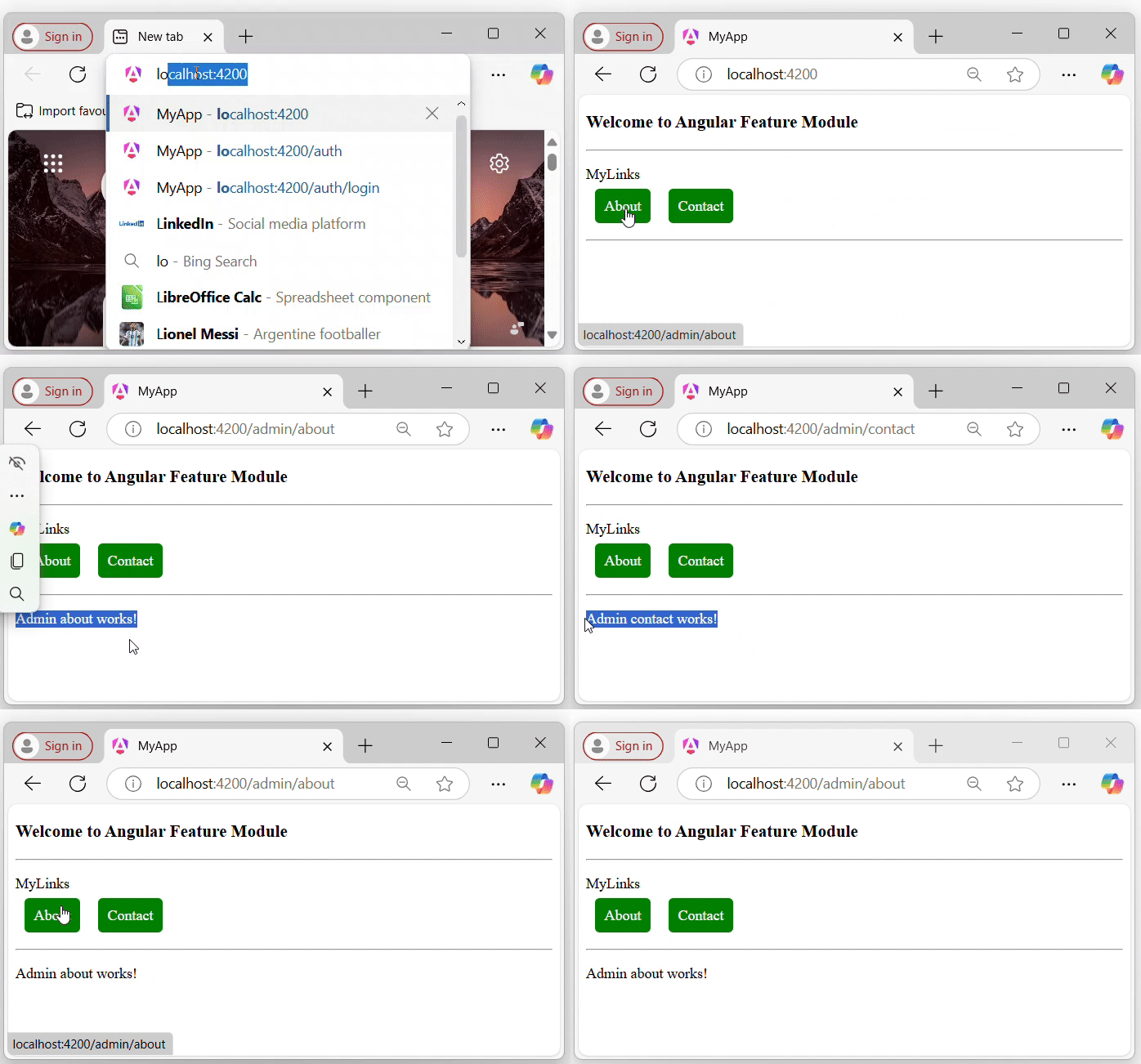
    Step 5: Open your preferred browser and navigate to the localhost:4200 URL.

    The application will look like:

    Feature Module

    Advantages of Feature Module

    Here are some of the advantages of the feature module:

    • Reusability: Feature modules can be reused across different applications or in different parts of the same application.
    • Organized structure: By partitioning the application into different parts based on roles and functionalities, you can create a well-organized application structure.
    • Improved testing: Testing becomes more straightforward by using feature modules.
    • Consistent Dependencies: Each module can manage its own dependencies.
  • Root Module

    Angular Root Module

    In Angular, the root module is named AppModule, which is the entry point of the angular application. It is a class defined with decorator @NgModule, which provides metadata (data about data) to configure the module.

    In addition, the AppModule is a place or container where we group all the other modulescomponentsdirectivespipesservices, etc.

    Note: In the latest Angular version, applications are standalone by default and no longer depend on @NgModule. However, if you choose to use “@NgModule” in your application, ensure that neither the “application nor the components” are “standalone”.

    What is Standalone Application?

    In Angular, a standalone application is an application that does not contain the @NgModule, in which all the “components”, “directives”, and “services” are independent. If the project is standalone, the app.module.ts file will not be available in your Angular application.

    If your Angular application is no-standalone, you will be able to see the AppModule within your Angular application, but if not, you may not be able to see it. However, you can create your custom module using the command “ng generate module module_name”. But that will not be considered a root module.

    Creating No Standalone Application

    In case to work with the root module or AppModule, we need to create a no standalone application. Use the following command to create a “no-standalone” angular application:

    ng new myApp --no-standalone
    

    Once you hit the above command in your code editor terminal, it will ask you a few questions and reply with a default answer.

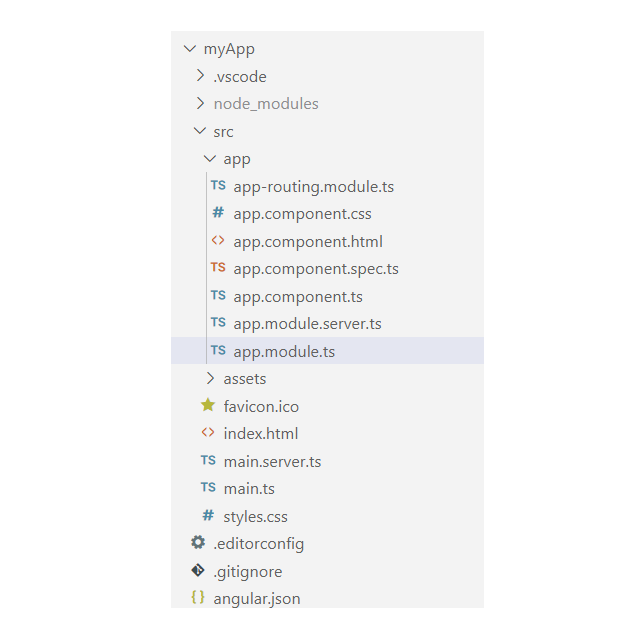
    Go to your src->app folder, you will able to see the app.module.ts file as follows:

    app module

    Open the app.module.ts file in your code editor; you may able to see the code below:

    import{ NgModule }from'@angular/core';import{ BrowserModule, provideClientHydration }from'@angular/platform-browser';import{ AppRoutingModule }from'./app-routing.module';import{ AppComponent }from'./app.component';@NgModule({
      declarations:[
    
    AppComponent
    ], imports:[
    BrowserModule,
    AppRoutingModule
    ], providers:[provideClientHydration()], bootstrap:[AppComponent]})exportclassAppModule{}

    The above code is the default code, automatically added when a new application (no standalone) is created. Let’s discuss a few of the key parts of the root module, which are:

    • Declarations
    • Imports
    • Providers
    • Bootstrap

    Declarations

    The declarations are an array that contains a list of componentsdirectives, and pipes that belong to this module. For example, the AppComponent is a part of this module, so it is included in the declarations.

    Imports

    The imports are an array, which lists out all the other modules whose exported classes are needed by the components in this module. As you can see, the imports contain the AppRoutingModule and BrowserModule.

    Providers

    Theprovidersare anarray, which lists the services available to the injector and can be used throughout the module.

    Bootstrap

    The bootstrap is also an array in @NgModule, it specifies the root component that Angular should create and insert into the index.html host web page.As you can see, the AppComponent is listed within the bootstrap array, which specifies that it is the application’s root component.

    bootstrap:[AppComponent]
  • Modules

    Angular modules are core concepts in Angular application, which help to organize the application structure by grouping the related components, services, etc.

    In this chapter, we will learn about the angular module, its importance in the application, how to create a module, and how to use it in our application in detail.

    What are Angular Modules?

    In Angular, a module refers to a place or container where you can group the componentsdirectivespipes, and services, which are related to the application. This helps organize the application, making it easier to understand and manage dependencies efficiently.

    For example, if you are developing a website or an application, the headerfooterleftcenter, and right sections become part of a module. However, they are not modules themselves, they are individual components that belong to that module.

    Types of Angular Modules

    Following is a list of commonly used Angular modules −

    Importance of Angular Modules

    In Angular, a module plays an important role in “structuring an Angular application”, making it easier for others to understand by simply viewing the application’s hierarchy. An application is considered well-structured if each concern (say component or section) is separated into its own module.

    For example, login and signup components can belong to an Authentication module.

    How to Create an Angular Module?

    To create an Angular module, you must have a basic understanding of thefirst Angular applicationcreation and about CLI, etc. Here are the step-by-step guides to creating an Angular module in an application:

    Step 1: In your code editor (such as VS Code) open any existing angular application or create new one. (See how to…)

    Step 2: Open the “terminal” in your code editor and go to your application directory as follows:

    cd application_directory
    e.g....
    cd myapp
    

    Step 3: Now create a new module using the following command:

    ng generate module auth
    

    Here, auth is your “module name”.

    Once the above command is executed successfully, you may see:

    CREATE src/app/auth/auth.module.ts (202 bytes)
    

    Step 4: Toggle the Auth folder you may able to see the auth.module.ts file with some default code as follows:

    import{ NgModule }from'@angular/core';import{ CommonModule }from'@angular/common';@NgModule({
      declarations:[],
      imports:[
    
    CommonModule
    ]})exportclassAuthModule{}

    How to use Angular Module?

    As we have already created a new module named “auth” in our application. To use it properly in our angular application follow the steps below:

    Step 1: Import Module

    Import the newly created module within your root module (older version) or in the component (recent version) of your application as follows:

    import{ Component }from'@angular/core';import{ CommonModule }from'@angular/common';import{ AuthModule }from'./auth/auth.module';@Component({
      selector:'app-root',
      standalone:true,
      imports:[CommonModule, AuthModule],
      templateUrl:'./app.component.html',
      styleUrl:'./app.component.css'})exportclassAppComponent{}

    Step 2: Create Components

    Now create “two” different components named login and signup as follows:

    ng g c auth/login --no-standalone
    ng g c auth/signup --no-standalone
    

    Note: Make sure that the component within the @NgModule should be “no standalone”, otherwise, you may get an “error”.

    Step 3: Import and Export the components

    Open the auth.module.ts file and import both the components within the @NgModule as follows:

    import{ NgModule }from'@angular/core';import{ CommonModule }from'@angular/common';import{ SignupComponent }from'./signup/signup.component';import{ LoginComponent }from'./login/login.component';@NgModule({
      declarations:[SignupComponent, LoginComponent],
      imports:[
    
    CommonModule
    ], exports:[LoginComponent, SignupComponent]})exportclassAuthModule{}

    Step 4: Use Components in your Templates

    You can now use the LoginComponent and SignupComponent in your templates. For example, in the app.component.html file, you can include the following:

    <app-login></app-login><app-signup></app-signup>

    Step 5: Run Application

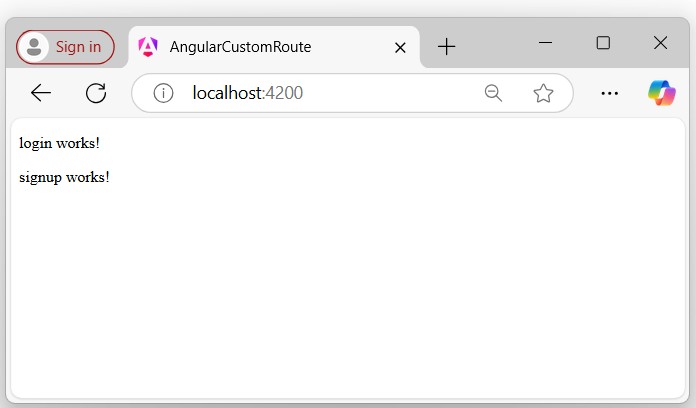
    Finally, run the application to see the output:

    ng serve
    

    Step 6: Navigate to localhost:4200

    Open your friendly browser (e.g chrome) and navigate through the localhost:4200.

    Angular Module

    As you can see in the above picture the the login and signup components belongs to AuthModule.