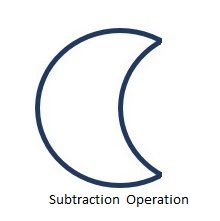
As the name suggests, the subtraction operation will subtract the elements of a set from another set. Most people are generally confused between the intersection operation, the two operations completely differ with respect to their operations. While intersection operation retrieves the common elements between two sets, the subtraction operation finds the common elements between two sets and removes them from the first set. If there are elements in second set that are not present in the first set, they are ignored.
Like other operations, the subtraction operation is also adopted in computer programming. It is available as difference operator in few programming languages; but in JavaFX, this operation can be used on 2D shapes.
Subtraction Operation in JavaFX
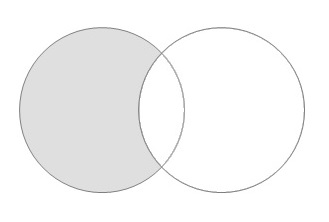
In JavaFX, the subtraction operation works with the area covered by two or more 2D shapes. It eliminates the area of the second shape from the area of the first shape. If the areas of these two shapes are fully exclusive, the area of first shape is retained as the result. Technically, this operation takes two or more shapes as an input. Then, it returns the area of the first shape excluding the area overlapped by the second one as shown below.
You can perform the Subtraction Operation on the shapes using the method named subtract(). Since this is a static method, you should call it using the class name (Shape or its subclasses) as shown below.
Shape shape =Shape.subtract(circle1, circle2);
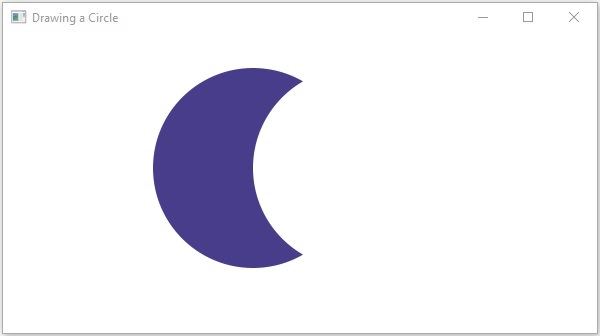
Following is an example of the Subtraction Operation. In here, we are drawing two circles and performing a subtraction operation on them.
Save this code in a file with name SubtractionExample.java.
Example
importjavafx.application.Application;importjavafx.scene.Group;importjavafx.scene.Scene;importjavafx.scene.paint.Color;importjavafx.stage.Stage;importjavafx.scene.shape.Circle;importjavafx.scene.shape.Shape;publicclassSubtractionExampleextendsApplication{@Overridepublicvoidstart(Stage stage){//Drawing Circle1 Circle circle1 =newCircle();//Setting the position of the circle
circle1.setCenterX(250.0f);
circle1.setCenterY(135.0f);//Setting the radius of the circle
circle1.setRadius(100.0f);//Setting the color of the circle
circle1.setFill(Color.DARKSLATEBLUE);//Drawing Circle2 Circle circle2 =newCircle();//Setting the position of the circle
circle2.setCenterX(350.0f);
circle2.setCenterY(135.0f);//Setting the radius of the circle
circle2.setRadius(100.0f);//Setting the color of the circle
circle2.setFill(Color.BLUE);//Performing subtraction operation on the circle Shape shape =Shape.subtract(circle1, circle2);//Setting the fill color to the result
shape.setFill(Color.DARKSLATEBLUE);//Creating a Group object Group root =newGroup(shape);//Creating a scene object Scene scene =newScene(root,600,300);//Setting title to the Stage
stage.setTitle("Subtraction Example");//Adding scene to the stage
stage.setScene(scene);//Displaying the contents of the stage
stage.show();}publicstaticvoidmain(String args[]){launch(args);}}</code></pre>
Compile and execute the saved java file from the command prompt using the following commands.
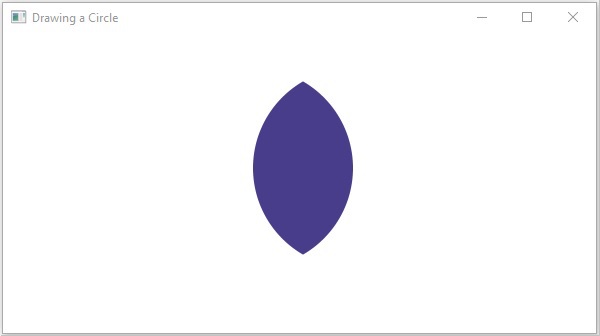
On executing, the above program generates a JavaFX window displaying the following output −
Example
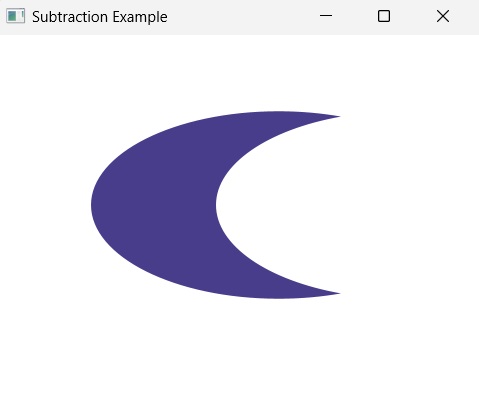
Now, let us try to perform subtraction operation on two ellipses where we will subtract the area of second ellipse from the first ellipse. Save this file under the name EllipseSubtractionOperation.java.
ellipse1.setCenterX(250.0f);
ellipse1.setCenterY(100.0f);
ellipse1.setRadiusX(150.0f);
ellipse1.setRadiusY(75.0f);
ellipse1.setFill(Color.BLUE);Ellipse ellipse2 =newEllipse();
ellipse2.setCenterX(350.0f);
ellipse2.setCenterY(100.0f);
ellipse2.setRadiusX(150.0f);
ellipse2.setRadiusY(75.0f);
ellipse2.setFill(Color.RED);Shape shape =Shape.subtract(ellipse1, ellipse2);//Setting the fill color to the result
shape.setFill(Color.DARKSLATEBLUE);//Creating a Group object Group root =newGroup(shape);//Creating a scene object Scene scene =newScene(root,600,300);//Setting title to the Stage
stage.setTitle("Subtraction Example");//Adding scene to the stage
stage.setScene(scene);//Displaying the contents of the stage
stage.show();}publicstaticvoidmain(String args[]){launch(args);}}</code></pre>
Compile and execute the saved java file from the command prompt using the following commands.
Similar to the Union operation, the intersection operation was fundamentally used in set theory. As the name suggests, this operation is defined as the intersection of two different sets into one. Hence, the common elements from two or more sets are retrieved; ignoring duplicate elements. This concept is then adopted by various techniques in computer programming.
For instance, it is also used in programming languages like C, C++, Java, Python etc. as an operator or a method. Similarly, JavaFX also provides intersection operation on 2D shapes.
Intersection Operation in JavaFX
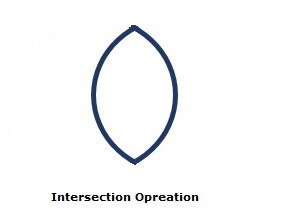
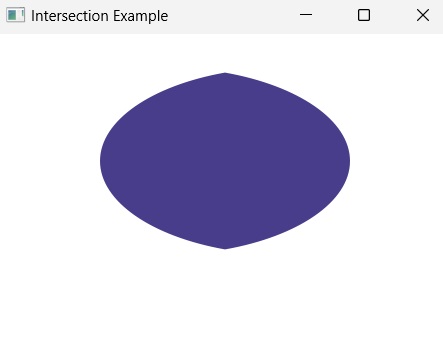
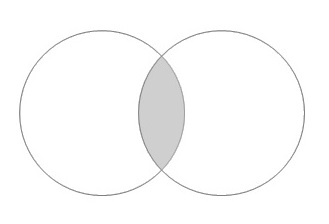
JavaFX allows you to perform intersection operation on 2D shapes, where, the areas of two or more shapes are intersected together and the common area of these shapes is obtained as a result. Thus, this operation takes two or more shapes as inputs and returns the intersection area between them as shown below.
You can perform an intersection operation on the shapes using the method named intersect(). Since this is a static method, you should call it using the class name (Shape or its subclasses) as shown below.
Shape shape =Shape.intersect(circle1, circle2);
Following is an example of the intersection operation. In here, we are drawing two circles and performing a intersection operation on them. Save this code in a file with the name IntersectionExample.java
Example
importjavafx.application.Application;importjavafx.scene.Group;importjavafx.scene.Scene;importjavafx.scene.paint.Color;importjavafx.stage.Stage;importjavafx.scene.shape.Circle;importjavafx.scene.shape.Shape;publicclassIntersectionExampleextendsApplication{@Overridepublicvoidstart(Stage stage){//Drawing Circle1 Circle circle1 =newCircle();//Setting the position of the circle
circle1.setCenterX(250.0f);
circle1.setCenterY(135.0f);//Setting the radius of the circle
circle1.setRadius(100.0f);//Setting the color of the circle
circle1.setFill(Color.DARKSLATEBLUE);//Drawing Circle2 Circle circle2 =newCircle();//Setting the position of the circle
circle2.setCenterX(350.0f);
circle2.setCenterY(135.0f);//Setting the radius of the circle
circle2.setRadius(100.0f);//Setting the color of the circle
circle2.setFill(Color.BLUE);//Performing intersection operation on the circle Shape shape =Shape.intersect(circle1, circle2);//Setting the fill color to the result
shape.setFill(Color.DARKSLATEBLUE);//Creating a Group object Group root =newGroup(shape);//Creating a scene object Scene scene =newScene(root,600,300);//Setting title to the Stage
stage.setTitle("Intersection Example");//Adding scene to the stage
stage.setScene(scene);//Displaying the contents of the stage
stage.show();}publicstaticvoidmain(String args[]){launch(args);}}</code></pre>
Compile and execute the saved java file from the command prompt using the following commands.
On executing, the above program generates a JavaFX window displaying the following output −
Example
Now, let us try to perform intersection operation on two elliptical shapes (to retrieve the common area between them). Save this file under the name EllipseIntersectionOperation.java.
ellipse1.setCenterX(250.0f);
ellipse1.setCenterY(100.0f);
ellipse1.setRadiusX(150.0f);
ellipse1.setRadiusY(75.0f);
ellipse1.setFill(Color.BLUE);Ellipse ellipse2 =newEllipse();
ellipse2.setCenterX(350.0f);
ellipse2.setCenterY(100.0f);
ellipse2.setRadiusX(150.0f);
ellipse2.setRadiusY(75.0f);
ellipse2.setFill(Color.RED);Shape shape =Shape.intersect(ellipse1, ellipse2);//Setting the fill color to the result
shape.setFill(Color.DARKSLATEBLUE);//Creating a Group object Group root =newGroup(shape);//Creating a scene object Scene scene =newScene(root,600,300);//Setting title to the Stage
stage.setTitle("Intersection Example");//Adding scene to the stage
stage.setScene(scene);//Displaying the contents of the stage
stage.show();}publicstaticvoidmain(String args[]){launch(args);}}</code></pre>
Compile and execute the saved java file from the command prompt using the following commands.
f you look at it mathematically, the Union operation was fundamentally used in the concept of set theory. This operation is defined as the combination of two different sets into one. In here, all the elements of one set and merged within another set, regardless of any duplicities. This concept is then adopted by various techniques in computer programming.
For instance, union operation when performed in SQL combines two or more result-sets into one common result set. It is also used in programming languages like C, C++, Java, Python etc. as an operator or a method.
Similarly, JavaFX also provides union operation on 2D shapes.
Union Operation in JavaFX
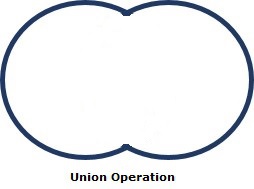
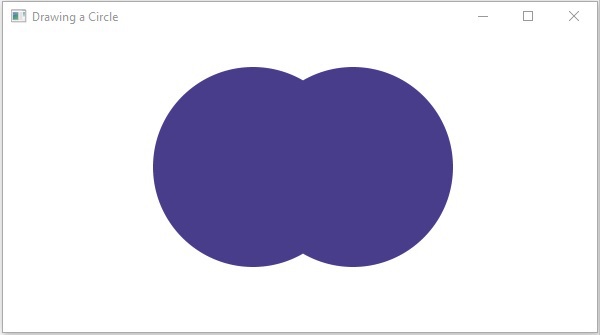
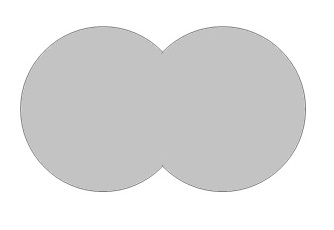
JavaFX provides union operation which can be performed on 2D shapes. In here, the areas of two or more shapes are combined together to form a bigger and a more complex shape. Thus, the union operation takes two or more shapes as inputs and returns the combined area occupied by them as shown below.
You can perform union operation on the shapes using the method called union(). Since this is a static method, you should call it using the class name (Shape or its subclasses) as shown below.
Shape shape =Shape.subtract(circle1, circle2);
Example
Following is an example of the union operation. In here, we are drawing two circles and performing a union operation on them. Save this code in a file with the name unionExample.java.
importjavafx.application.Application;importjavafx.scene.Group;importjavafx.scene.Scene;importjavafx.scene.paint.Color;importjavafx.stage.Stage;importjavafx.scene.shape.Circle;importjavafx.scene.shape.Shape;publicclassUnionExampleextendsApplication{@Overridepublicvoidstart(Stage stage){//Drawing Circle1 Circle circle1 =newCircle();//Setting the position of the circle
circle1.setCenterX(250.0f);
circle1.setCenterY(135.0f);//Setting the radius of the circle
circle1.setRadius(100.0f);//Setting the color of the circle
circle1.setFill(Color.DARKSLATEBLUE);//Drawing Circle2 Circle circle2 =newCircle();//Setting the position of the circle
circle2.setCenterX(350.0f);
circle2.setCenterY(135.0f);//Setting the radius of the circle
circle2.setRadius(100.0f);//Setting the color of the circle
circle2.setFill(Color.BLUE);//Performing union operation on the circle Shape shape =Shape.union(circle1, circle2);//Setting the fill color to the result
shape.setFill(Color.DARKSLATEBLUE);//Creating a Group object Group root =newGroup(shape);//Creating a scene object Scene scene =newScene(root,600,300);//Setting title to the Stage
stage.setTitle("Union Example");//Adding scene to the stage
stage.setScene(scene);//Displaying the contents of the stage
stage.show();}publicstaticvoidmain(String args[]){launch(args);}}</code></pre>
Compile and execute the saved java file from the command prompt using the following commands.
ellipse1.setCenterX(250.0f);
ellipse1.setCenterY(100.0f);
ellipse1.setRadiusX(150.0f);
ellipse1.setRadiusY(75.0f);
ellipse1.setFill(Color.BLUE);Ellipse ellipse2 =newEllipse();
ellipse2.setCenterX(350.0f);
ellipse2.setCenterY(100.0f);
ellipse2.setRadiusX(150.0f);
ellipse2.setRadiusY(75.0f);
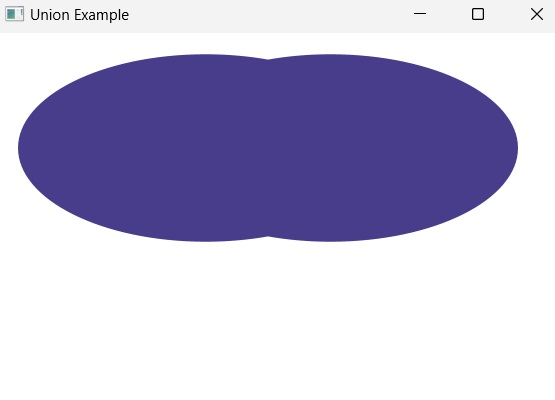
ellipse2.setFill(Color.RED);Shape shape =Shape.union(ellipse1, ellipse2);//Setting the fill color to the result
shape.setFill(Color.DARKSLATEBLUE);//Creating a Group object Group root =newGroup(shape);//Creating a scene object Scene scene =newScene(root,600,300);//Setting title to the Stage
stage.setTitle("Union Example");//Adding scene to the stage
stage.setScene(scene);//Displaying the contents of the stage
stage.show();}publicstaticvoidmain(String args[]){launch(args);}}</code></pre>
Compile and execute the saved java file from the command prompt using the following commands.
Geometrically, a 2D shape is defined as any figure that can be displayed on a two-dimensional plane. Various applications these days make use of such shapes to develop an element or improve the look of their interface.
For example, consider any mobile game application. These games contain various 2D shapes on their interface in order to enhance the user experience of the game. Or, a template editor where several 2D shapes are used to give options to the application user.
JavaFX provides various nodes to create these 2D shapes like Line, Circle, Rectangle, other Polygons etc. However, to offer permutations and combinations of these shapes, JavaFX also allows you to perform some operations on them. In this chapter, let us briefly learn more about the operations provided.
JavaFX Operations on 2D Shapes
JavaFX provides various operations mainly to create complex shapes from the simpler shapes. For instance, we learned how to draw a house in the previous chapters of 2D shapes. We had to use several shapes like rectangles, lines etc. to create the final complex house shape; by making use of these operations, we can either merge two shapes easily or remove some area from it.
There are three operations available in JavaFX that can be performed on 2D shapes. They are listed below −
Union Operation
Intersection Operation
Subtraction Operation
Usually, 2D shapes have a certain area they cover in an application. These three operations are performed on the area covered by these shapes by adding the area together, or subtracting a shape area from another shape, etc.
Union Operation
Union Operation is generally defined as the combination of two or more elements in an application. In JavaFX, a union operation can be performed on 2D shapes where two or more shapes are taken as inputs and combines the area of them together. This operation is fundamentally represented in the form of a following venn diagram −
Intersection Operation
Intersection operation retains the common elements from two or more sets. When used with 2D shapes in JavaFX, the common area of two or more shapes will be retained. This is also known as the intersected area of the objects. Look at the image shown below for better understanding.
Subtraction Operation
Subtraction Operation, also known as the Difference Operation, subtracts the elements of one set from another set. If some elements are not present in the first set (the set from which another set is being subtracted), they are ignored. In JavaFX, an area of a 2D shape is subtracted from the area of another 2D shape as long as they intersect.
Smoothing is a more common process seen in Statistics or Image processing. It is defined as a process in which coordinates or data points are averaged with their neighbouring points of a series, such as a time series, or image. This results in the effect of blurring the sharp edges in the smoothed data. Smoothing is sometimes referred to as filtering, because smoothing has the effect of suppressing high frequency signal and enhancing low frequency signal.
The process of smoothing is done usually to fine scale an image or a data set. In JavaFX, using this property on 2D shapes will fine tune the edges.
Smooth Property
The smooth property in JavaFX is used to smoothen the edges of a certain 2D shape. This property is of the type Boolean. If this value is true, then the edges of the shape will be smooth.
You can set value to this property using the method setSmooth() as follows −
path.setSmooth(false);
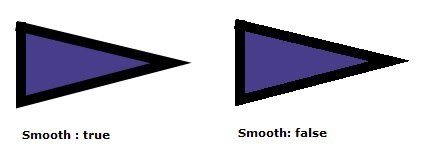
By default, the smooth value is true. Following is a diagram of a triangle with both smooth values.
Example
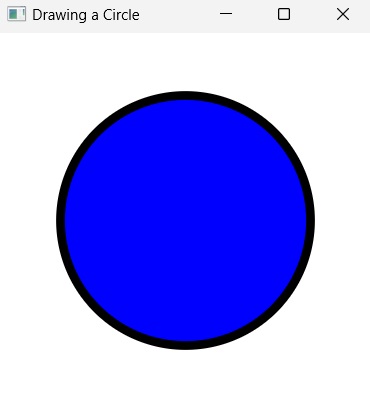
In the following example, we will try to smoothen the edges of a 2D shape, say a circle. Save this file with the name SmoothExample.java.
importjavafx.application.Application;importjavafx.scene.Group;importjavafx.scene.Scene;importjavafx.scene.shape.Circle;importjavafx.scene.shape.StrokeLineCap;importjavafx.scene.paint.Color;importjavafx.stage.Stage;publicclassSmoothExampleextendsApplication{@Overridepublicvoidstart(Stage stage){//Creating a Circle Circle circle =newCircle(150.0,150.0,100.0);
circle.setFill(Color.BLUE);
circle.setStroke(Color.BLACK);
circle.setStrokeWidth(5.0);
circle.setSmooth(true);//Creating a Group object Group root =newGroup(circle);//Creating a scene object Scene scene =newScene(root,300,300);//Setting title to the Stage
stage.setTitle("Drawing a Circle");//Adding scene to the stage
stage.setScene(scene);//Displaying the contents of the stage
stage.show();}publicstaticvoidmain(String args[]){launch(args);}}</code></pre>
Compile and execute the saved java file from the command prompt using the following commands.
A line in geometry is usually one dimensional figure with negligible width that exists in a two dimensional plane. However, like other 2D figures, JavaFX also provides ways to enhance the quality of a line. This includes setting the structure of its edges in a different ways.
The ends of a line are also known as end caps. These end caps are sharp, by default. However, using various properties provided by JavaFX, a user can change the structure of these end caps. This property is known as Stroke Line Cap Property.
Stroke Line Cap Property
The Stroke Line Cap specifies/defines the end cap style of the line. This property is of the type StrokeLineCap and can be set using the method setStrokeLineCap() of javafx.scene.shape.Shape class as shown in the following code block −
line.setStrokeLineCap(StrokeLineCap.SQUARE);
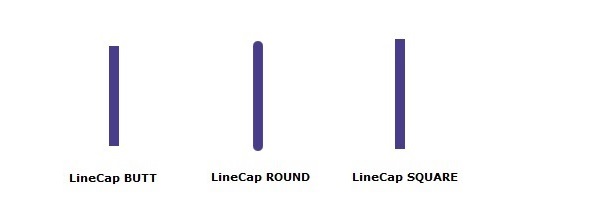
The stroke line cap can be −
Butt − The butt line cap is applied at the end of the lines (StrokeLineCap.BUTT).
Square − The square line cap is applied at the end of the lines (StrokeLineCap.SQUARE).
Round − The round line cap is applied at the end of the lines (StrokeLineCap.ROUND).
By default, the Stroke Line cap a shape is square. Following is the diagram of a triangle with different line cap types.
Example
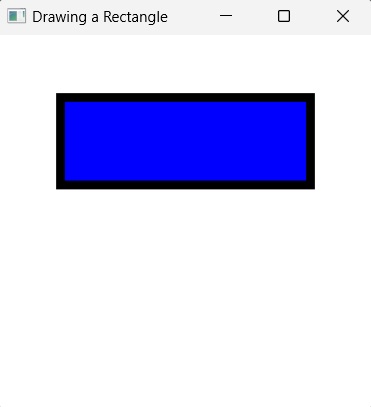
Let us see an example demonstrating the usage of Stroke Line Cap property on a rectangle. We do not use this property on shapes with no edges. Save this file with the name StrokeLineCapExample.java.
importjavafx.application.Application;importjavafx.scene.Group;importjavafx.scene.Scene;importjavafx.scene.shape.Rectangle;importjavafx.scene.shape.StrokeLineCap;importjavafx.scene.paint.Color;importjavafx.stage.Stage;publicclassStrokeLineCapExampleextendsApplication{@Overridepublicvoidstart(Stage stage){//Creating a Triangle Rectangle rect =newRectangle(50.0,50.0,200.0,70.0);
rect.setFill(Color.BLUE);
rect.setStroke(Color.BLACK);
rect.setStrokeWidth(7.0);
rect.setStrokeLineCap(StrokeLineCap.BUTT);//Creating a Group object Group root =newGroup(rect);//Creating a scene object Scene scene =newScene(root,300,300);//Setting title to the Stage
stage.setTitle("Drawing a Rectangle");//Adding scene to the stage
stage.setScene(scene);//Displaying the contents of the stage
stage.show();}publicstaticvoidmain(String args[]){launch(args);}}</code></pre>
Compile and execute the saved java file from the command prompt using the following commands.
JavaFX allows a user to create a 2D object using multiple lines, instead of having classes for each 2D shape that exists. There are several shapes that do not fall under the category of conventional 2D shapes. In such cases you can join multiple lines to form an unconventional 2D shape, by applying several properties supported by JavaFX on these line while combining them together. One such property is Stroke Line Join Property.
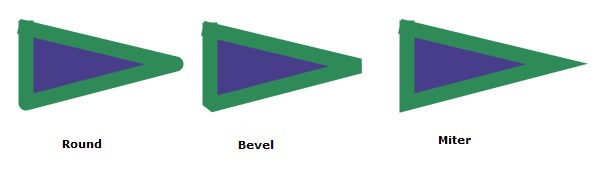
The Stroke Line Join Property is used to set the type of the joint while combining multiple line objects to form another 2D shape. This property is of three types as follows −
Bevel − In bevel join, the outside edges of the intersection are connected with a line segment.
Miter − In miter join, the outside edges of the intersection are joined together forming a sharp edge.
Round − In round join, the outside edges of the intersection are joined by rounding off the corner, the radius of this will be exactly half the width of the join.
By default, the Stroke Line Joining a shape is miter. However, this miter join also has additional properties to make the join better. This property is known as Stroke Miter Limit Property.
Stroke Miter Limit Property
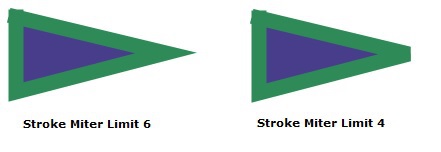
This property is of the type double. It represents the limit for the distance between the inside point of the joint and the outside point of the joint. If the distance between these two points exceeds the given limit, the miter is cut at the edge.
You can set value to this property using the method setStroke() as follows −
path.setStrokeMiterLimit(4);
By default, the stroke miter limit value id 10 of the stroke is black. Following is a diagram of a triangle with different stroke limits.
Example
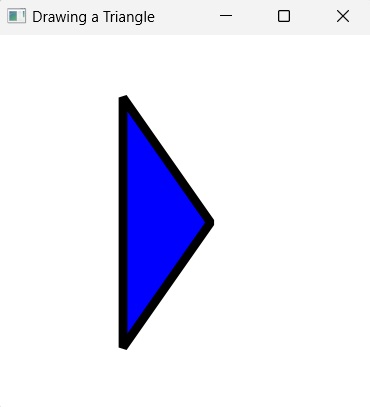
Let us see an example demonstrating the usage of Stroke Line Join property on a triangle. Save this file with the name StrokeMiterLimitExample.java.
importjavafx.application.Application;importjavafx.scene.Group;importjavafx.scene.Scene;importjavafx.scene.shape.Polygon;importjavafx.scene.shape.StrokeLineJoin;importjavafx.scene.paint.Color;importjavafx.stage.Stage;publicclassStrokeMiterLimitExampleextendsApplication{@Overridepublicvoidstart(Stage stage){//Creating a Triangle Polygon triangle =newPolygon();//Adding coordinates to the polygon
triangle.getPoints().addAll(newDouble[]{100.0,50.0,170.0,150.0,100.0,250.0,});
triangle.setFill(Color.BLUE);
triangle.setStroke(Color.BLACK);
triangle.setStrokeWidth(7.0);
triangle.setStrokeMiterLimit(4.0);//Creating a Group object Group root =newGroup(triangle);//Creating a scene object Scene scene =newScene(root,300,300);//Setting title to the Stage
stage.setTitle("Drawing a Triangle");//Adding scene to the stage
stage.setScene(scene);//Displaying the contents of the stage
stage.show();}publicstaticvoidmain(String args[]){launch(args);}}</code></pre>
Compile and execute the saved java file from the command prompt using the following commands.
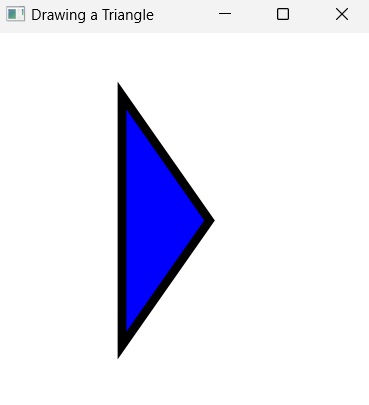
On executing, the above program generates a JavaFX window displaying a triangle with stroke line join of miter limit 4 as shown below.
Learn Java in-depth with real-world projects through our Java certification course. Enroll and become a certified expert to boost your career.
Example
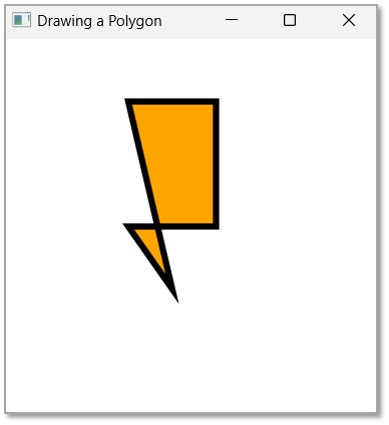
Let us see an example demonstrating the usage of Stroke Miter Limit property on a polygon. In here, we will try to pass a value that is relatively higher than the default miter limit. Save this file with the name StrokeMiterLimitPolygon.java.
importjavafx.application.Application;importjavafx.scene.Group;importjavafx.scene.Scene;importjavafx.scene.shape.Polygon;importjavafx.scene.shape.StrokeLineJoin;importjavafx.scene.paint.Color;importjavafx.stage.Stage;publicclassStrokeMiterLimitPolygonextendsApplication{@Overridepublicvoidstart(Stage stage){//Creating a Polygon Polygon polygon =newPolygon();//Adding coordinates to the polygon
polygon.getPoints().addAll(newDouble[]{100.0,50.0,170.0,50.0,170.0,150.0,100.0,150.0,135.0,200.0,});
polygon.setFill(Color.ORANGE);
polygon.setStroke(Color.BLACK);
polygon.setStrokeWidth(5.0);
polygon.setStrokeLineJoin(StrokeLineJoin.MITER);
polygon.setStrokeMiterLimit(1000.0);//Creating a Group object Group root =newGroup(polygon);//Creating a scene object Scene scene =newScene(root,300,300);//Setting title to the Stage
stage.setTitle("Drawing a Polygon");//Adding scene to the stage
stage.setScene(scene);//Displaying the contents of the stage
stage.show();}publicstaticvoidmain(String args[]){launch(args);}}</code></pre>
Compile and execute the saved java file from the command prompt using the following commands.
JavaFX does not just support drawing a single 2D shape at a time, but also allows you to join multiple 2D shape objects to form another bigger object. For instance, you can use the Rectangle class to draw a rectangle object and also join four line objects together to form a rectangle.
In such cases where multiple lines are used to form a 2D shape, JavaFX supports various properties to be applied on these line while combining them together. One such property is Stroke Line Join Property.
Stroke Line Join Property
The Stroke Line Join Property is used to designate the shape of the joint used to combine two line objects while forming another shape.
This property is of the type StrokeLineJoin, it represents the type of joining that is used at the edges of the shape.
The stroke line join is of three types. It is represented by the three constants of StrokeLineJoin as follows −
Bevel − In bevel join, the outside edges of the intersection are connected with a line segment.
Miter − In miter join, the outside edges of the intersection are joined together forming a sharp edge.
Round − In round join, the outside edges of the intersection are joined by rounding off the corner, the radius of this will be exactly half the width of the join.
You can set the line join of the stroke using the method setStrokeLineJoin() as follows −
The Type_of_Join can be set using any of the following keywords:
StrokeLineJoin.BEVEL − To set the stroke line join to bevel join.
StrokeLineJoin.MITER − To set the stroke line join to miter join.
StrokeLineJoin.ROUND − To set the stroke line join to round join.
By default, the Stroke Line Joining a shape is miter. Following is a diagram of a triangle with different line join types −
Example
Let us see an example demonstrating the usage of Stroke Line Join property on a triangle. Save this file with the name StrokeLineJoinExample.java.
importjavafx.application.Application;importjavafx.scene.Group;importjavafx.scene.Scene;importjavafx.scene.shape.Polygon;importjavafx.scene.shape.StrokeLineJoin;importjavafx.scene.paint.Color;importjavafx.stage.Stage;publicclassStrokeLineJoinExampleextendsApplication{@Overridepublicvoidstart(Stage stage){//Creating a Triangle Polygon triangle =newPolygon();//Adding coordinates to the polygon
triangle.getPoints().addAll(newDouble[]{100.0,50.0,170.0,150.0,100.0,250.0,});
triangle.setFill(Color.BLUE);
triangle.setStroke(Color.BLACK);
triangle.setStrokeWidth(7.0);
triangle.setStrokeLineJoin(StrokeLineJoin.BEVEL);//Creating a Group object Group root =newGroup(triangle);//Creating a scene object Scene scene =newScene(root,300,300);//Setting title to the Stage
stage.setTitle("Drawing a Triangle");//Adding scene to the stage
stage.setScene(scene);//Displaying the contents of the stage
stage.show();}publicstaticvoidmain(String args[]){launch(args);}}</code></pre>
Compile and execute the saved java file from the command prompt using the following commands.
On executing, the above program generates a JavaFX window displaying a triangle with bevel stroke line join as shown below.
Learn Java in-depth with real-world projects through our Java certification course. Enroll and become a certified expert to boost your career.
Example
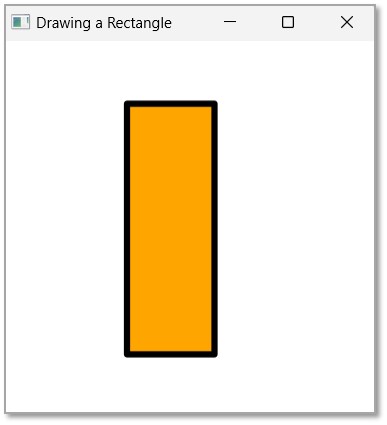
Let us see an example demonstrating the usage of ROUND Stroke Line Join property on a Rectangle. Save this file with the name StrokeLineJoinRectangle.java.
importjavafx.application.Application;importjavafx.scene.Group;importjavafx.scene.Scene;importjavafx.scene.shape.Polygon;importjavafx.scene.shape.StrokeLineJoin;importjavafx.scene.paint.Color;importjavafx.stage.Stage;publicclassStrokeLineJoinRectangleextendsApplication{@Overridepublicvoidstart(Stage stage){//Creating a Rectangle Polygon rectangle =newPolygon();//Adding coordinates to the polygon
rectangle.getPoints().addAll(newDouble[]{100.0,50.0,170.0,50.0,170.0,250.0,100.0,250.0,});
rectangle.setFill(Color.ORANGE);
rectangle.setStroke(Color.BLACK);
rectangle.setStrokeWidth(5.0);
rectangle.setStrokeLineJoin(StrokeLineJoin.ROUND);//Creating a Group object Group root =newGroup(rectangle);//Creating a scene object Scene scene =newScene(root,300,300);//Setting title to the Stage
stage.setTitle("Drawing a Rectangle");//Adding scene to the stage
stage.setScene(scene);//Displaying the contents of the stage
stage.show();}publicstaticvoidmain(String args[]){launch(args);}}</code></pre>
Compile and execute the saved java file from the command prompt using the following commands.
The Stroke Fill property is used to change the colours of 2D object itself. However, we can also change the colour of a 2D object’s boundary.
In JavaFX, while creating a 2D object, there are only two parts you can work with, if you want to improve the quality of the shape; i.e., the enclosed area of the shape and the boundary of the shape. Hence, the properties provided by JavaFX include designing both these parts.
In this chapter, we will learn about the Stroke property in detail.
Stroke Property
The Stroke property in JavaFX is used to change colours of the shape boundary. This property is of the type Paint and it represents the color of the boundary line of the shape. You can set a value to this property using the method setStroke(). This method is a part of javafx.scene.paint package and takes the Color object as a parameter value as shown below −
path.setStroke(Color.RED)
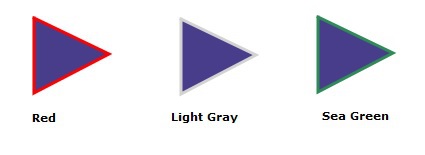
By default, the color of the stroke is black. Following is a diagram of a triangle with different stroke colors.
Example
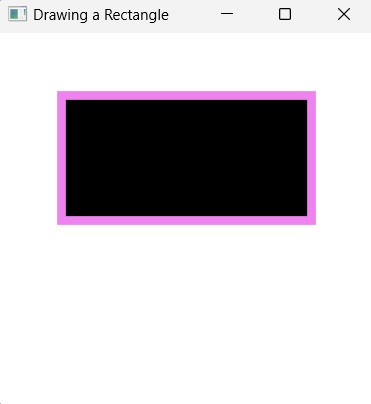
We will see an example demonstrating how to colour the boundary of a 2D shape in JavaFX. In here, we are drawing a 2D shape, say a rectangle. By default, the rectangle will be coloured black; we will try to change its boundary colour to Violet. Save the file with the name StrokeExample.java.
importjavafx.application.Application;importjavafx.scene.Group;importjavafx.scene.Scene;importjavafx.scene.shape.Rectangle;importjavafx.scene.shape.Shape;importjavafx.scene.paint.Color;importjavafx.stage.Stage;publicclassStrokeExampleextendsApplication{@Overridepublicvoidstart(Stage stage){//Creating a Rectangle Rectangle rectangle =newRectangle(50.0f,50.0f,200.0f,100.0f);
rectangle.setStroke(Color.VIOLET);
rectangle.setStrokeWidth(7.0);//Creating a Group object Group root =newGroup(rectangle);//Creating a scene object Scene scene =newScene(root,300,300);//Setting title to the Stage
stage.setTitle("Drawing a Rectangle");//Adding scene to the stage
stage.setScene(scene);//Displaying the contents of the stage
stage.show();}publicstaticvoidmain(String args[]){launch(args);}}</code></pre>
Compile and execute the saved java file from the command prompt using the following commands.
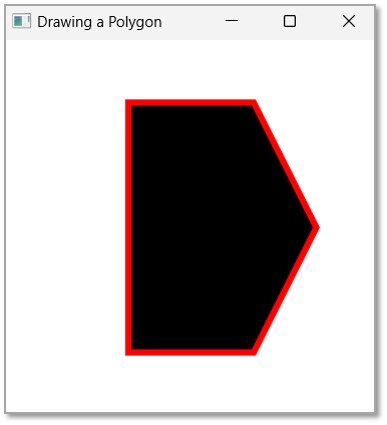
On executing, the above program generates a JavaFX window displaying a rectangle with a stroke coloured violet as shown below.
Learn Java in-depth with real-world projects through our Java certification course. Enroll and become a certified expert to boost your career.
Example
In this example, we are drawing a polygon and change its boundary colour to RED. Save the file with the name StrokePolygonExample.java.
importjavafx.application.Application;importjavafx.scene.Group;importjavafx.scene.Scene;importjavafx.scene.shape.Polygon;importjavafx.scene.shape.Shape;importjavafx.scene.paint.Color;importjavafx.stage.Stage;publicclassStrokePolygonExampleextendsApplication{@Overridepublicvoidstart(Stage stage){//Creating a Polygon Polygon polygon =newPolygon();//Adding coordinates to the polygon
polygon.setStroke(Color.RED);
polygon.setStrokeWidth(5.0);//Creating a Group object Group root =newGroup(polygon);//Creating a scene object Scene scene =newScene(root,300,300);//Setting title to the Stage
stage.setTitle("Drawing a Polygon");//Adding scene to the stage
stage.setScene(scene);//Displaying the contents of the stage
stage.show();}publicstaticvoidmain(String args[]){launch(args);}}</code></pre>
Compile and execute the saved java file from the command prompt using the following commands.
JavaFX application supports displaying diverse content like text, 2D shapes, 3D shapes, etc.; and every object has a default setting in order to create a basic application. Hence, while drawing 2D shapes on a JavaFX application, each shape also has some default settings that can be modified when they are set separately. For instance, the default fill colour in a 2D shape is always black.
Various properties are introduced to improve the quality of these shapes; and we have already learned how to change the dimensions and placement of the shape boundaries, in previous chapters. In this chapter, we will learn how to change the default colour black of a specific 2D shape to other colours.
Stroke Fill Property
Stroke Fill property in JavaFX 2D shapes is used to specify the colour which a shape is to be filled with. This property belongs to the javafx.scene.paint package. You can set the fill color of a shape using the method setFill() as follows −
path.setFill(COLOR.BLUE);
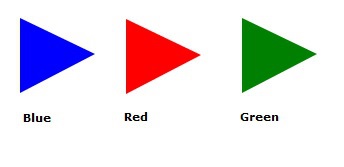
By default, the value of the stroke color is BLACK. Following is a diagram of a triangle with different colors.
Example
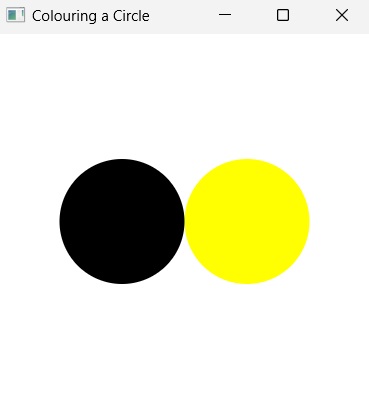
In this example, we will try to create two 2D circles, and fill one of the circle with Yellow colour and another will maintain its default colour. The aim is to observe the difference between both shapes. Save this file with the name StrokeFillExample.java.
importjavafx.application.Application;importjavafx.scene.Group;importjavafx.scene.Scene;importjavafx.scene.shape.Circle;importjavafx.scene.shape.Shape;importjavafx.scene.paint.Color;importjavafx.stage.Stage;publicclassStrokeFillExampleextendsApplication{@Overridepublicvoidstart(Stage stage){//Creating a Circle Circle circle1 =newCircle(200.0f,150.0f,50.0f);Circle circle2 =newCircle(100.0f,150.0f,50.0f);
circle1.setFill(Color.YELLOW);//Creating a Group object Group root =newGroup();
root.getChildren().addAll(circle1, circle2);//Creating a scene object Scene scene =newScene(root,300,300);//Setting title to the Stage
stage.setTitle("Colouring a Circle");//Adding scene to the stage
stage.setScene(scene);//Displaying the contents of the stage
stage.show();}publicstaticvoidmain(String args[]){launch(args);}}</code></pre>
Compile and execute the saved java file from the command prompt using the following commands.
On executing, the above program generates a JavaFX window displaying two circles, the left one having its default fill while the other one is yellow coloured, as shown below.
Learn Java in-depth with real-world projects through our Java certification course. Enroll and become a certified expert to boost your career.
Example
We created two simple 2D shapes in the previous example, but you can also set a fill color to complex shapes created using path element.
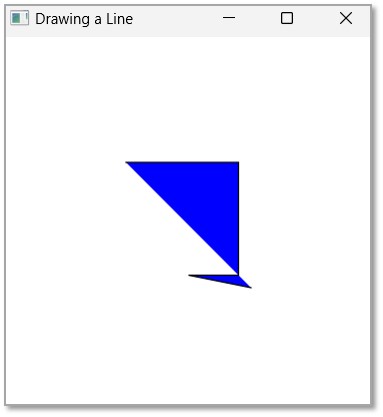
In this example, we are trying to fill a complex shape created using line commands of SVG Path. Save this file with the name StrokeFillSVGPath.java.
importjavafx.application.Application;importjavafx.scene.Group;importjavafx.scene.Scene;importjavafx.scene.paint.Color;importjavafx.scene.shape.SVGPath;importjavafx.stage.Stage;publicclassStrokeFillSVGPathextendsApplication{@Overridepublicvoidstart(Stage stage){//Creating a SVGPath object SVGPath svgPath =newSVGPath();String path ="M 100 100 H 190 V 190 H 150 L 200 200";//Setting the SVGPath in the form of string
svgPath.setContent(path);// Setting the stroke and fill of the path
svgPath.setStroke(Color.BLACK);
svgPath.setFill(Color.BLUE);//Creating a Group object Group root =newGroup(svgPath);//Creating a scene object Scene scene =newScene(root,300,300);//Setting title to the Stage
stage.setTitle("Drawing a Line");//Adding scene to the stage
stage.setScene(scene);//Displaying the contents of the stage
stage.show();}publicstaticvoidmain(String args[]){launch(args);}}</code></pre>
Compile and execute the saved java file from the command prompt using the following commands.
On executing, the above program generates a JavaFX window displaying two circles, the left one having its default fill while the other one is yellow coloured, as shown below.