Category: 4. Static Files

https://static.vecteezy.com/system/resources/thumbnails/022/353/814/small_2x/3d-file-icon-illustration-png.png

  • Add CSS Files

    CSS (Cascading Style Sheets) is an important component of the World Wide Web alongside HTML and JavaScript. It is a style sheet language used for specifying the presentation and styling of a document written in HTML.

    CSS Files are Static Assets

    In Django, CSS files are termed as static assets. They are placed in the static folder which is created inside the app’s “package” folder.

    The static assets are made available with the following template tag −

    {% load static %}

    Normally, the CSS file is included in the HTML code with the following statement, usually placed in the <head> section.

    <link rel="stylesheet" type="text/css" href="styles.css" />

    However, to include CSS as a static resource, its path is mentioned with {% static %} tag as follows −

    <link rel="stylesheet" type="text/css" href="{% static 'style.css' %}">

    Applying CSS to the Name of Cities

    Here we will show how you can apply CSS to the name of cities displayed as an unordered list in the web page.

    Let us define the following index() view that passes a list of cities as a context to a “cities.html” template

    from django.shortcuts import render
    
    defindex(request):
       cities =['Mumbai','New Delhi','Kolkata','Bengaluru','Chennai','Hyderabad']return render(request,"cities.html",{"cities":cities})

    cities.html

    In the “cities.html” template, we first load the CSS file in the HEAD section. Each name is rendered in the <li> . . </li> tag with the help of a for loop template tag.

    <html><head>
       {% load static %}
       <link rel="stylesheet" type="text/css" href="{% static 'style.css' %}"></head><body><h2>List of Cities</h2><ul>
    
      {% for city in cities %}
         &lt;li&gt;{{ city }} &lt;/li&gt;
      {% endfor %}
    </ul></body></html>

    style.css

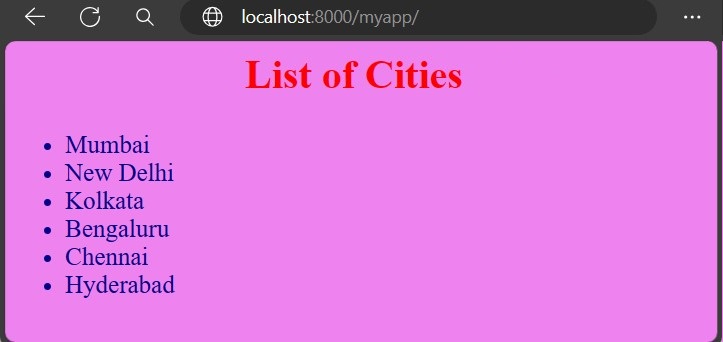
    We shall apply background color to the webpage and set its font size and color.

    Save the following code as “style.css” and put it in the static folder.

    h2{text-align: center;font-size:xx-large;color:red;}ul li{color: darkblue;font-size:20;}body{background-color: violet;}

    Register the index() View

    The index() view is registered in the urlpatterns of the Django app as follows −

    from django.urls import path
    from.import views
    
    urlpatterns =[
       path("", views.index, name="index"),]

    The http://localhost:8000/myapp/ URL displays the list of cities according to the above styles −
    Django Add CSS Files
  • Add Static Files

    What are Static Files in Django?

    The django template language allows data to be inserted in a web page dynamically. However, a web application also needs certain resources such as images, JavaScript code and style sheets to render the complete web page. These types of files are called static files. In a Django application, these files are stored in a static folder inside the application folder.

    The Staticfiles App

    The staticfiles app (django.contrib.staticfiles), which manages the static files, is installed automatically in a Django project.

    INSTALLED_APPS =[...,'django.contrib.staticfiles','firstapp',]

    Django looks for all the static assets in the “app/static” folder (a folder named as static in the app’s package folder).

    First, we need to create a folder named “static” inside the myapp package folder to store these files. Let us store the “django.png” file in this folder.

    Make sure that in the “settings.py” module, the STATIC_URL parameter is set to point to this folder.

    STATIC_URL ='static/'

    Add a View

    Let us add the following view −

    from django.shortcuts import render
    from django.http import HttpResponse
    
    # Create your views here.defindex(request):return render(request,"index.html",{})

    Register the View

    You should also register this view in the app’s URLCONF −

    from django.urls import path
    from.import views
    
    urlpatterns =[
       path("", views.index, name="index"),]

    In the template, to make the static folder available, use the load template tag as in the following statement −

    {% load static %}

    index.html

    Now, we can use the static path to refer to the image in the <img src> tag. Let us modify the “index.html” file as −

    <html><body>
       {% load static %}
       <img src="{% static 'django.png' %}" alt="My image"></body></html>

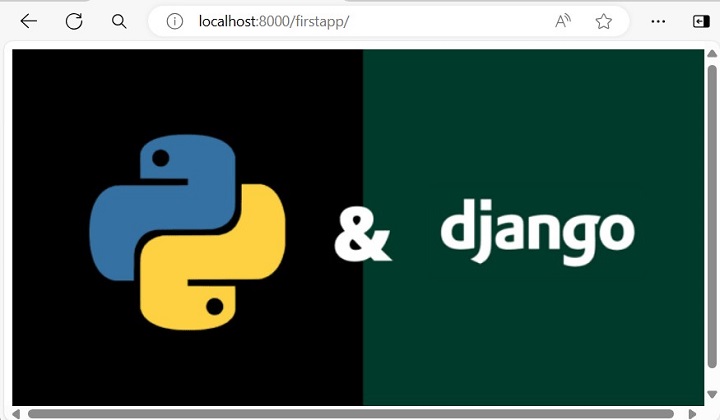
    Start the server and visit the URL “http://localhost:8000/myapp/“. The “django.png” file will be displayed in the browser.

    Django Add Static Files

    The staticfiles app also helps in serving the CSS and JS files. To include it as a CSS file, provide its relative path to the {% static %} tag in the href attribute.

    <link rel="stylesheet" type="text/css" href="{% static 'style.css' %}">

    To load the JavaScript code, use the following syntax −

    <head>
       {% load static %}
       <script src = "{% static 'script.js' %}"></script></head>