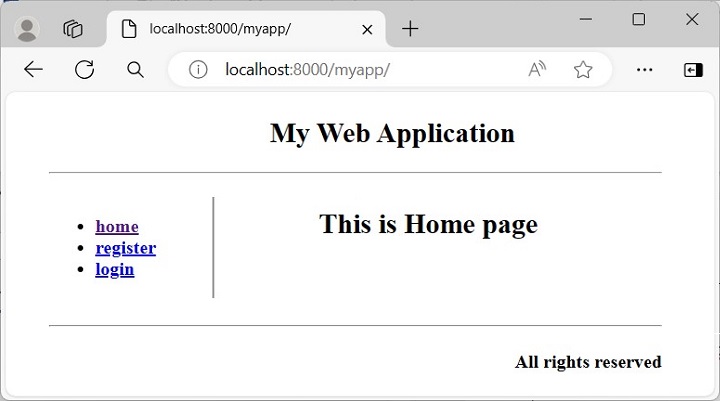
Django supports template inheritance. The concept of inheritance in Django is very similar to inheritance in object-oriented programming. The idea is that the output rendered by each view in a web application must follow a uniform pattern or look, even though each view may render a different template.
Suppose a Django app has three URL routes registered with three views. We want to design the template in such a way that each view should have a page header, a footer and a sidebar with links and the variable content displayed to its right.
The Master Template
A base class in any object-oriented language (such as Python) defines attributes and methods and makes them available to the inherited class. In the same way, we need to design a master template that provides an overall skeleton for other templates.
The master template (sometimes called “base template”), along with the common structure, also marks the dummy blocks. The child template inherits the common structure and overrides the blocks to provide respective contents. Such blocks are marked with “block – endblock” construct.
{% block block_name %}......{% endblock %}
The master template may have more than one such blocks in different places. Each one should be provided a unique identifier.
The HTML code for our master template (base.html) is as follows −
<h2 align="center">This is Home page</h2>
{% endblock %}
</body></html>
Define a View
Let us define a view that renders this template −
from django.http import HttpResponse
from django.shortcuts import render
# Create your views here.defindex(request):return render(request,"index.html",{})
Most of the web frameworks implement the MVC (Model-View-Controller) architecture. Django uses a variation of MVC and calls it the MVT (stands for Model-View-Template) architecture.
The Advantage of Using a Web Framework
A software framework, in general, is a standard, reusable software platform that facilitates rapid development of software applications. In contrast, a web framework (also called web application framework) such as Django provides a generic functionality needed for building web applications, APIs and web services.
The main advantage of employing a web framework is that it provides out-of-the-box support to perform common operations in the process of web development. For example, you can easily connect your application to the databases.
Usually, the framework handles tasks such as session management much more efficiently. Likewise, it integrates with templating tools to render dynamic content on web page.
The MVC Architecture
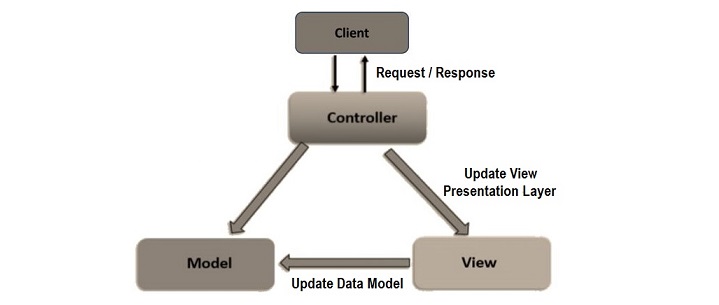
This design pattern separates the entire process of web application development in three layers. The following diagram explains the interplay of these three layers.
In the MVC approach, the user requests are intercepted by the controller. It coordinates with the view layer and the model layer to send the appropriate response back to the client.
The Model Layer
The Model is known as the lowest level which means it is responsible for maintaining the data. It handles data.
The model layer is connected to the database. It responds to the controller requests because the controller never talks to the database by itself. The model talks to the database back and forth and then it gives the needed data to the controller.
The model is responsible for data definitions, its processing logic and interaction with the backend database.
The View Layer
The View is the presentation layer of the application. It takes care of the placement and formatting of the result and sends it to the controller, which in turn, redirects it to the client as the application’s response.
Data representation is done by the view component. It actually generates the UI or user interface for the user. So, at web applications, when you think of the View component, just think the HTML/CSS part.
Views are created by the data which is collected by the model component but these data aren’t taken directly but through the controller, so the view only speaks to the controller.
The Controller Layer
It coordinates with the View layer and the model layer to send the appropriate response back to the client.
The Controller layer receives the request from the client, and forwards it to the model layer. The Model layer updates the data and sends back to the controller. The Controller updates the view and sends back the response to the user.
The MVT Architecture
The Django framework adapts a MVT approach. It is a slight variation of the MVC approach. The acronym MVT stands for Model, View and Template.
Here too, the Model is the data layer of the application. The View is in fact the layer that undertakes the processing logic. The Template is the presentation layer.
Components of a Django Application
A Django application consists of the following components −
URL dispatcher
View
Model
Template
The URL Dispatcher
Django’s URL dispatcher mechanism is equivalent to Controller in the MVC architecture. The urls.py module in the Django project’s package folder acts as the dispatcher. It defines the URL patterns. Each URL pattern is mapped with a view function to be invoked when the client’s request URL is found to be matching with it.
The URL patterns defined in each app under the project are also included in it.
When the server receives a request in the form of client URL, the dispatcher matches its pattern with the patterns available in the urls.py and routes the flow of the application towards its associated view.
The View Function
The View function reads the path parameters, query parameters and the body parameters included in the client’s request. It uses this data to interact with the models to perform CRUD operations, if required.
The Model Class
A Model is a Python class. Django uses the attributes of the Model class to construct a database table of a matching structure. Django’s Object Relational Mapper helps in performing CRUD operations in an object oriented way instead of invoking SQL queries.
The View uses the data from the client as well as the model and renders its response in the form of a template.
Template
A Template is a web page in which HTML script is interspersed with the code blocks of Django Template Language.
Django’s template processor uses any context data received from the View is inserted in these blocks so that a dynamic response is formulated. The View in turn returns the response to the user.
This is how Django’s MVT architecture handles the request-response cycle in a web application.
Django makes it possible to separate python and HTML, the python goes in views and HTML goes in templates. To link the two, Django relies on the render function and the Django Template language.
The Render Function
This function takes three parameters −
Request − The initial request.
The path to the template − This is the path relative to the TEMPLATE_DIRS option in the project settings.py variables.
Dictionary of parameters − A dictionary that contains all variables needed in the template. This variable can be created or you can use locals() to pass all local variable declared in the view.
Django Template Language (DTL)
Django’s template engine offers a mini-language to define the user-facing layer of the application.
Displaying Variables
A variable looks like this: {{variable}}. The template replaces the variable by the variable sent by the view in the third parameter of the render function. Let’s change our hello.html to display today’s date −
hello.html
<html>
<body>
Hello World!!!<p>Today is {{today}}</p>
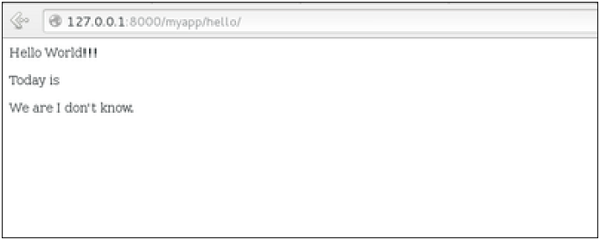
We will now get the following output after accessing the URL/myapp/hello −
Hello World!!!
Today is Sept. 11, 2015
As you have probably noticed, if the variable is not a string, Django will use the __str__ method to display it; and with the same principle you can access an object attribute just like you do it in Python. For example: if we wanted to display the date year, my variable would be: {{today.year}}.
Filters
They help you modify variables at display time. Filters structure looks like the following: {{var|filters}}.
Some examples −
{{string|truncatewords:80}} − This filter will truncate the string, so you will see only the first 80 words.
{{string|lower}} − Converts the string to lowercase.
{{string|escape|linebreaks}} − Escapes string contents, then converts line breaks to tags.
You can also set the default for a variable.
Tags
Tags lets you perform the following operations: if condition, for loop, template inheritance and more.
Tag if
Just like in Python you can use if, else and elif in your template −
<html>
<body>
Hello World!!!<p>Today is {{today}}</p>
We are
{% if today.day == 1 %}
the first day of month.
{% elif today.day == 30 %}
the last day of month.
{% else %}
I don't know.
{%endif%}
</body>
</html>
In this new template, depending on the date of the day, the template will render a certain value.
Tag for
Just like ‘if’, we have the ‘for’ tag, that works exactly like in Python. Let’s change our hello view to transmit a list to our template −
The template to display that list using {{ for }} −
<html>
<body>
Hello World!!!<p>Today is {{today}}</p>
We are
{% if today.day == 1 %}
the first day of month.
{% elif today.day == 30 %}
the last day of month.
{% else %}
I don't know.
{%endif%}
<p>
{% for day in days_of_week %}
{{day}}
</p>
{% endfor %}
</body>
</html>
And we should get something like −
Hello World!!!
Today is Sept. 11, 2015
We are I don't know.
Mon
Tue
Wed
Thu
Fri
Sat
Sun
Block and Extend Tags
A template system cannot be complete without template inheritance. Meaning when you are designing your templates, you should have a main template with holes that the child’s template will fill according to his own need, like a page might need a special css for the selected tab.
Let’s change the hello.html template to inherit from a main_template.html.
main_template.html
<html>
<head>
<title>
{% block title %}Page Title{% endblock %}
</title>
</head>
<body>
{% block content %}
Body content
{% endblock %}
</body>
</html>
hello.html
{% extends "main_template.html" %}
{% block title %}My Hello Page{% endblock %}
{% block content %}

Hello World!!!<p>Today is {{today}}</p>
We are
{% if today.day == 1 %}

the first day of month.
{% elif today.day == 30 %}

the last day of month.
{% else %}

I don't know.
{%endif%}

<p>
   {% for day in days_of_week %}
   {{day}}
</p>

{% endfor %}
{% endblock %}
In the above example, on calling /myapp/hello we will still get the same result as before but now we rely on extends and block to refactor our code −
In the main_template.html we define blocks using the tag block. The title block will contain the page title and the content block will have the page main content. In home.html we use extends to inherit from the main_template.html then we fill the block define above (content and title).
Comment Tag
The comment tag helps to define comments into templates, not HTML comments, they won’t appear in HTML page. It can be useful for documentation or just commenting a line of code.
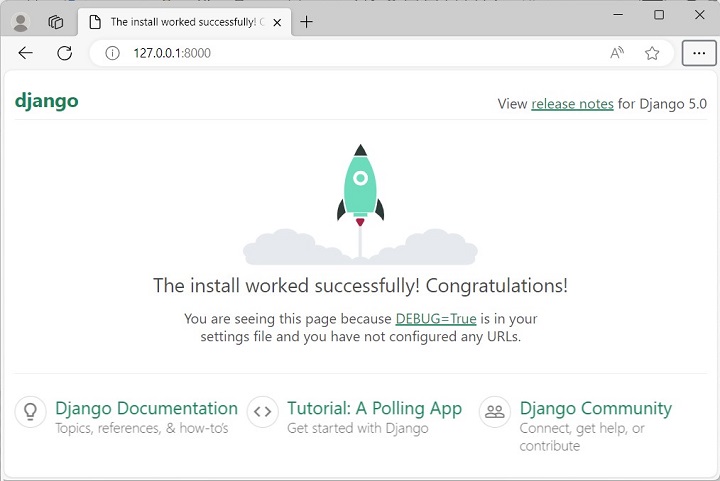
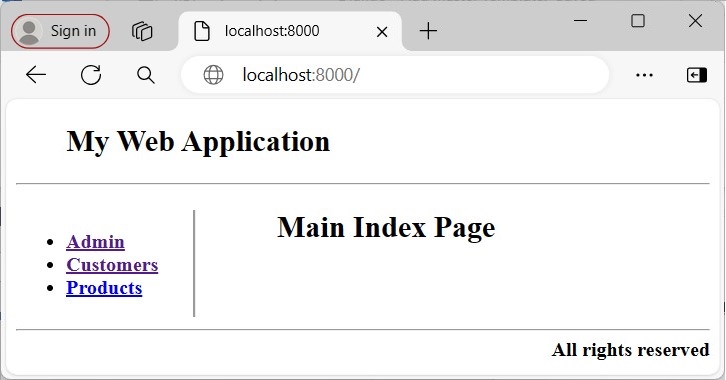
When a new Django project is created with the startproject command, the URL http://localhost:8000/ shows a default index page. It shows that the Django installation is done successfully.
Create a project with the following command −
django-admin startproject myproject
Now that your project is created and configured, make sure it’s working −
python manage.py runserver
On running the above command, you will get to see something like the following on your screen −
Validating models...0 errors found
March 09,2022-12:24:26
Django version 4.0, using settings 'myproject.settings'
Starting development server at http://127.0.0.1:8000/
Quit the server with CTRL-BREAK.Quit the server with CONTROL-C.
The development server is running at http://127.0.0.1:8000/. Open the link in the browser.
In the main “myproject” folder, use the manage.py command −
python manage.py startapp myapp
You just created the myapp application. Django also creates a “myapp” folder with the application structure −
The next step is to point the root URLconf at the myapp.urls module.
In myproject/urls.py, add an import for django.urls.include and insert an include() in the urlpatterns list, so you have −
from django.contrib import admin
from django.urls import include, path

urlpatterns =[
   path('', include('myapp.urls')),
   path('admin/', admin.site.urls),]
Now run the Django development server −
python manage.py runserver
Visit the following URL to verify that the hello() view is rendered −
http://localhost:8000/
You should be able to see the output of the index page.
A Django Home Page with Multiple Apps
However, a Django project may have more than one apps in it. Hence, the project home page should contain the links to the home pages of individual apps.
Let us create two apps in the current Django project −
python manage.py startapp customers
And,
python manage.py startapp products
Rewrite the main index page of the project as −
<!Doctype html><html><body><!--header--><div style="height:10%;"><h2 align="center">My Web Application</h2><hr></div><div style="width:100%;"><!—side bar--><div style="width:20%; float:left; border-right-style:groove"><ul><b><li><a href="admin/">Admin</a></li><li><a href="customers/">Customers</a></li><li><a href="Products/">Products</a></li></b></ul></div><!--contents--><div style="margin-left:21%;"><p><h2 align="center">Main Index Page</h2></p></div></div><br><br><br><!--footer--><hr><div><h4 align="right">All rights reserved</h4></div></body></html>
The index page for the customer app should be saved in the templates directory. It is rendered by the view in customers/views.py file −
from django.shortcuts import render

# Create your views here.defindex(request):return render(request,"customerindex.html",{})
Similarly, the index page for products app is created and its mapped view is defined in the “products/views.py” file −
from django.shortcuts import render

# Create your views here.defindex(request):return render(request,"productindex.html",{})
You also need to define the urlpattern list for each app as −
Now that we have a working view as explained in the previous chapters. We want to access that view via a URL. Django has his own way for URL mapping and it’s done by editing your project url.py file (myproject/url.py). The url.py file looks like −
from django.conf.urls import patterns, include, url
from django.contrib import admin
admin.autodiscover()

urlpatterns = patterns('',
   #Examples
   #url(r'^$', 'myproject.view.home', name = 'home'),
   #url(r'^blog/', include('blog.urls')),

   url(r'^admin', include(admin.site.urls)),
)
When a user makes a request for a page on your web app, Django controller takes over to look for the corresponding view via the url.py file, and then return the HTML response or a 404 not found error, if not found. In url.py, the most important thing is the “urlpatterns” tuple. It’s where you define the mapping between URLs and views. A mapping is a tuple in URL patterns like −
from django.conf.urls import patterns, include, url
from django.contrib import admin
admin.autodiscover()

urlpatterns = patterns('',
   #Examples
   #url(r'^$', 'myproject.view.home', name = 'home'),
   #url(r'^blog/', include('blog.urls')),

   url(r'^admin', include(admin.site.urls)),
   url(r'^hello/', 'myapp.views.hello', name = 'hello'),
)
The marked line maps the URL “/home” to the hello view created in myapp/view.py file. As you can see above a mapping is composed of three elements −
The pattern − A regexp matching the URL you want to be resolved and map. Everything that can work with the python ‘re’ module is eligible for the pattern (useful when you want to pass parameters via url).
The python path to the view − Same as when you are importing a module.
The name − In order to perform URL reversing, you’ll need to use named URL patterns as done in the examples above. Once done, just start the server to access your view via :http://127.0.0.1/hello
Organizing Your URLs
So far, we have created the URLs in “myprojects/url.py” file, however as stated earlier about Django and creating an app, the best point was to be able to reuse applications in different projects. You can easily see what the problem is, if you are saving all your URLs in the “projecturl.py” file. So best practice is to create an “url.py” per application and to include it in our main projects url.py file (we included admin URLs for admin interface before).
How is it Done?
We need to create an url.py file in myapp using the following code −
from django.conf.urls import patterns, include, url

urlpatterns = patterns('', url(r'^hello/', 'myapp.views.hello', name = 'hello'),)
Then myproject/url.py will change to the following −
from django.conf.urls import patterns, include, url
from django.contrib import admin
admin.autodiscover()

urlpatterns = patterns('',
   #Examples
   #url(r'^$', 'myproject.view.home', name = 'home'),
   #url(r'^blog/', include('blog.urls')),

   url(r'^admin', include(admin.site.urls)),
   url(r'^myapp/', include('myapp.urls')),
)
We have included all URLs from myapp application. The home.html that was accessed through “/hello” is now “/myapp/hello” which is a better and more understandable structure for the web app.
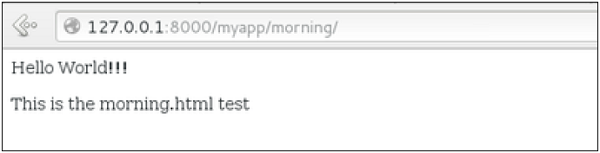
Now let’s imagine we have another view in myapp “morning” and we want to map it in myapp/url.py, we will then change our myapp/url.py to −
from django.conf.urls import patterns, include, url

urlpatterns = patterns('',
   url(r'^hello/', 'myapp.views.hello', name = 'hello'),
   url(r'^morning/', 'myapp.views.morning', name = 'morning'),
)
This can be re-factored to −
from django.conf.urls import patterns, include, url

urlpatterns = patterns('myapp.views',
   url(r'^hello/', 'hello', name = 'hello'),
   url(r'^morning/', 'morning', name = 'morning'),)
As you can see, we now use the first element of our urlpatterns tuple. This can be useful when you want to change your app name.
Sending Parameters to Views
We now know how to map URL, how to organize them, now let us see how to send parameters to views. A classic sample is the article example (you want to access an article via “/articles/article_id”).
Passing parameters is done by capturing them with the regexp in the URL pattern. If we have a view like the following one in “myapp/view.py”
from django.shortcuts import render
from django.http import HttpResponse

def hello(request):
   return render(request, "hello.html", {})

def viewArticle(request, articleId):
   text = "Displaying article Number : %s"%articleId
   return HttpResponse(text)
We want to map it in myapp/url.py so we can access it via “/myapp/article/articleId”, we need the following in “myapp/url.py” −
from django.conf.urls import patterns, include, url

urlpatterns = patterns('myapp.views',
   url(r'^hello/', 'hello', name = 'hello'),
   url(r'^morning/', 'morning', name = 'morning'),
   url(r'^article/(\d+)/', 'viewArticle', name = 'article'),)
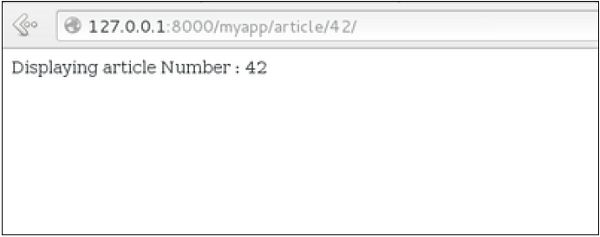
When Django will see the url: “/myapp/article/42” it will pass the parameters ’42’ to the viewArticle view, and in your browser you should get the following result −
Note that the order of parameters is important here. Suppose we want the list of articles of a month of a year, let’s add a viewArticles view. Our view.py becomes −
from django.shortcuts import render
from django.http import HttpResponse

def hello(request):
   return render(request, "hello.html", {})

def viewArticle(request, articleId):
   text = "Displaying article Number : %s"%articleId
   return HttpResponse(text)

def viewArticle(request, month, year):
   text = "Displaying articles of : %s/%s"%(year, month)
   return HttpResponse(text)
The corresponding url.py file will look like −
from django.conf.urls import patterns, include, url

urlpatterns = patterns('myapp.views',
   url(r'^hello/', 'hello', name = 'hello'),
   url(r'^morning/', 'morning', name = 'morning'),
   url(r'^article/(\d+)/', 'viewArticle', name = 'article'),
   url(r'^articles/(\d{2})/(\d{4})', 'viewArticles', name = 'articles'),)
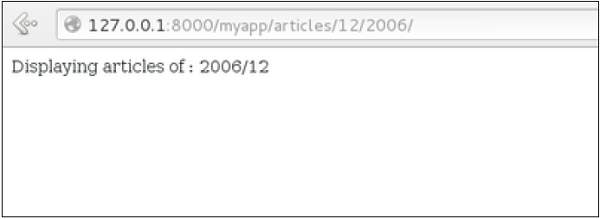
Now when you go to “/myapp/articles/12/2006/” you will get ‘Displaying articles of: 2006/12’ but if you reverse the parameters you won’t get the same result.
To avoid that, it is possible to link a URL parameter to the view parameter. For that, our url.py will become −
from django.conf.urls import patterns, include, url

urlpatterns = patterns('myapp.views',
   url(r'^hello/', 'hello', name = 'hello'),
   url(r'^morning/', 'morning', name = 'morning'),
   url(r'^article/(\d+)/', 'viewArticle', name = 'article'),
   url(r'^articles/(?P\d{2})/(?P\d{4})', 'viewArticles', name = 'articles'),)
A view function, or “view” for short, is simply a Python function that takes a web request and returns a web response. This response can be the HTML contents of a Web page, or a redirect, or a 404 error, or an XML document, or an image, etc. Example: You use view to create web pages, note that you need to associate a view to a URL to see it as a web page.
In Django, views have to be created in the app views.py file.
Simple View
We will create a simple view in myapp to say “welcome to my app!”
See the following view −
from django.http import HttpResponse

def hello(request):
   text = """<h1>welcome to my app !</h1>"""
   return HttpResponse(text)
In this view, we use HttpResponse to render the HTML (as you have probably noticed we have the HTML hard coded in the view). To see this view as a page we just need to map it to a URL (this will be discussed in an upcoming chapter).
We used HttpResponse to render the HTML in the view before. This is not the best way to render pages. Django supports the MVT pattern so to make the precedent view, Django – MVT like, we will need −
A template: myapp/templates/hello.html
And now our view will look like −
from django.shortcuts import render

def hello(request):
   return render(request, "myapp/template/hello.html", {})
Views can also accept parameters −
from django.http import HttpResponse

def hello(request, number):
   text = "<h1>welcome to my app number %s!</h1>"% number
   return HttpResponse(text)
When linked to a URL, the page will display the number passed as a parameter. Note that the parameters will be passed via the URL (discussed in the next chapter).
A project is a sum of many applications. Every application has an objective and can be reused into another project, like the contact form on a website can be an application, and can be reused for others. See it as a module of your project.
Create an Application
We assume you are in your project folder. In our main “myproject” folder, the same folder then manage.py −
$ python manage.py startapp myapp
You just created myapp application and like project, Django create a “myapp” folder with the application structure −
__init__.py − Just to make sure python handles this folder as a package.
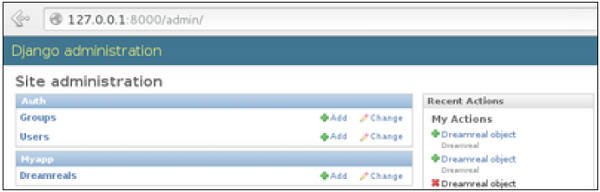
admin.py − This file helps you make the app modifiable in the admin interface.
models.py − This is where all the application models are stored.
tests.py − This is where your unit tests are.
views.py − This is where your application views are.
Get the Project to Know About Your Application
At this stage we have our “myapp” application, now we need to register it with our Django project “myproject”. To do so, update INSTALLED_APPS tuple in the settings.py file of your project (add your app name) −
Now that we have installed Django, let’s start using it. In Django, every web app you want to create is called a project; and a project is a sum of applications. An application is a set of code files relying on the MVT pattern. As example let’s say we want to build a website, the website is our project and, the forum, news, contact engine are applications. This structure makes it easier to move an application between projects since every application is independent.
Create a Project
Whether you are on Windows or Linux, just get a terminal or a cmd prompt and navigate to the place you want your project to be created, then use this code −
$ django-admin startproject myproject
This will create a “myproject” folder with the following structure −
myproject/
   manage.py
   myproject/
  __init__.py
  settings.py
  urls.py
  wsgi.py
The Project Structure
The “myproject” folder is just your project container, it actually contains two elements −
manage.py − This file is kind of your project local django-admin for interacting with your project via command line (start the development server, sync db…). To get a full list of command accessible via manage.py you can use the code −
$ python manage.py help
The “myproject” subfolder − This folder is the actual python package of your project. It contains four files −
__init__.py − Just for python, treat this folder as package.
settings.py − As the name indicates, your project settings.
urls.py − All links of your project and the function to call. A kind of ToC of your project.
wsgi.py − If you need to deploy your project over WSGI.
Setting Up Your Project
Your project is set up in the subfolder myproject/settings.py. Following are some important options you might need to set −
DEBUG = True
This option lets you set if your project is in debug mode or not. Debug mode lets you get more information about your project’s error. Never set it to ‘True’ for a live project. However, this has to be set to ‘True’ if you want the Django light server to serve static files. Do it only in the development mode.
Before setting any new engine, make sure you have the correct db driver installed.
You can also set others options like: TIME_ZONE, LANGUAGE_CODE, TEMPLATE…
Now that your project is created and configured make sure it’s working −
$ python manage.py runserver
You will get something like the following on running the above code −
Validating models...

0 errors found
September 03, 2015 - 11:41:50
Django version 1.6.11, using settings 'myproject.settings'
Starting development server at http://127.0.0.1:8000/
Quit the server with CONTROL-C.
Django development environment consists of installing and setting up Python, Django, and a Database System. Since Django deals with web application, it’s worth mentioning that you would need a web server setup as well.
Step 1 – Installing Python
Django is written in 100% pure Python code, so you’ll need to install Python on your system. Latest Django version requires Python 2.6.5 or higher
If you’re on one of the latest Linux or Mac OS X distribution, you probably already have Python installed. You can verify it by typing python command at a command prompt. If you see something like this, then Python is installed.
$ python
Python 2.7.5 (default, Jun 17 2014, 18:11:42)
[GCC 4.8.2 20140120 (Red Hat 4.8.2-16)] on linux2
Otherwise, you can download and install the latest version of Python from the link http://www.python.org/download.
Step 2 – Installing Django
Installing Django is very easy, but the steps required for its installation depends on your operating system. Since Python is a platform-independent language, Django has one package that works everywhere regardless of your operating system.
You can download the latest version of Django from the link http://www.djangoproject.com/download.
UNIX/Linux and Mac OS X Installation
You have two ways of installing Django if you are running Linux or Mac OS system −
You can use the package manager of your OS, or use easy_install or pip if installed.
Install it manually using the official archive you downloaded before.
We will cover the second option as the first one depends on your OS distribution. If you have decided to follow the first option, just be careful about the version of Django you are installing.
Let’s say you got your archive from the link above, it should be something like Django-x.xx.tar.gz:
Extract and install.
$ tar xzvf Django-x.xx.tar.gz
$ cd Django-x.xx
$ sudo python setup.py install
You can test your installation by running this command −
$ django-admin.py --version
If you see the current version of Django printed on the screen, then everything is set.
Note − For some version of Django it will be django-admin the “.py” is removed.
Windows Installation
We assume you have your Django archive and python installed on your computer.
First, PATH verification.
On some version of windows (windows 7) you might need to make sure the Path system variable has the path the following C:\Python34\;C:\Python34\Lib\site-packages\django\bin\ in it, of course depending on your Python version.
Then, extract and install Django.
c:\>cd c:\Django-x.xx
Next, install Django by running the following command for which you will need administrative privileges in windows shell “cmd” −
c:\Django-x.xx>python setup.py install
To test your installation, open a command prompt and type the following command −
You can refer to respective documentation to installing and configuring a database of your choice.
Note − Number 5 and 6 are NoSQL databases.
Step 4 – Web Server
Django comes with a lightweight web server for developing and testing applications. This server is pre-configured to work with Django, and more importantly, it restarts whenever you modify the code.
However, Django does support Apache and other popular web servers such as Lighttpd. We will discuss both the approaches in coming chapters while working with different examples.
As you already know, Django is a Python web framework. And like most modern framework, Django supports the MVC pattern. First let’s see what is the Model-View-Controller (MVC) pattern, and then we will look at Django’s specificity for the Model-View-Template (MVT) pattern.
MVC Pattern
When talking about applications that provides UI (web or desktop), we usually talk about MVC architecture. And as the name suggests, MVC pattern is based on three components: Model, View, and Controller. Check our MVC tutorial here to know more.
DJANGO MVC – MVT Pattern
The Model-View-Template (MVT) is slightly different from MVC. In fact the main difference between the two patterns is that Django itself takes care of the Controller part (Software Code that controls the interactions between the Model and View), leaving us with the template. The template is a HTML file mixed with Django Template Language (DTL).
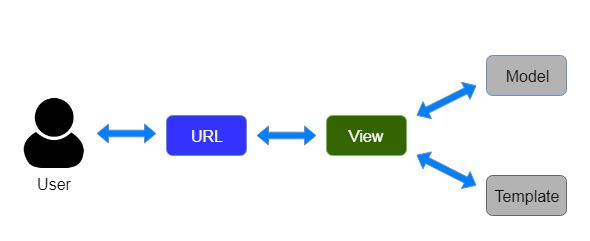
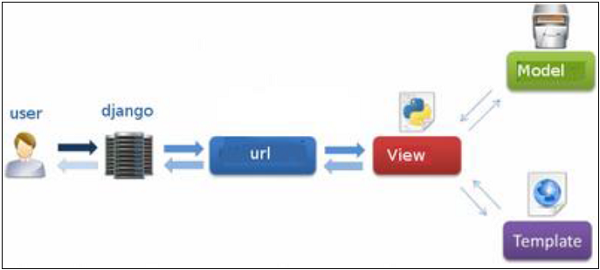
The following diagram illustrates how each of the components of the MVT pattern interacts with each other to serve a user request −
The developer provides the Model, the view and the template then just maps it to a URL and Django does the magic to serve it to the user.