Author: saqibkhan

  • Applying Box Filter

    We apply Box filter that blurs an image. A Box filter could be of dimensions 3×3, 5×5, 9×9 etc.

    We use OpenCV function filter2D to apply Box filter to images. It can be found under Imgproc package. Its syntax is given below −

    filter2D(src, dst, depth , kernel, anchor, delta, BORDER_DEFAULT );
    

    The function arguments are described below −

    Sr.No.Argument & Description
    1srcIt is source image.
    2dstIt is destination image.
    3depthIt is the depth of dst. A negative value (such as -1) indicates that the depth is the same as the source.
    4kernelIt is the kernel to be scanned through the image.
    5anchorIt is the position of the anchor relative to its kernel. The location Point (-1, -1) indicates the center by default.
    6deltaIt is a value to be added to each pixel during the convolution. By default it is 0.
    7BORDER_DEFAULTWe let this value by default.

    Apart from the filter2D() method, there are other methods provided by the Imgproc class. They are described briefly −

    Sr.No.Method & Description
    1cvtColor(Mat src, Mat dst, int code, int dstCn)It converts an image from one color space to another.
    2dilate(Mat src, Mat dst, Mat kernel)It dilates an image by using a specific structuring element.
    3equalizeHist(Mat src, Mat dst)It equalizes the histogram of a grayscale image.
    4filter2D(Mat src, Mat dst, int depth, Mat kernel, Point anchor, double delta)It convolves an image with the kernel.
    5GaussianBlur(Mat src, Mat dst, Size ksize, double sigmaX)It blurs an image using a Gaussian filter.
    6integral(Mat src, Mat sum)It calculates the integral of an image.

    Example

    The following example demonstrates the use of Imgproc class to apply Box filter to an image of Grayscale.

    import org.opencv.core.Core;
    import org.opencv.core.CvType;
    import org.opencv.core.Mat;
    
    import org.opencv.highgui.Highgui;
    import org.opencv.imgproc.Imgproc;
    
    public class convolution {
       public static void main( String[] args ) {
       
    
      try {
         int kernelSize = 9;
         System.loadLibrary( Core.NATIVE_LIBRARY_NAME );
         
         Mat source = Highgui.imread("grayscale.jpg",  Highgui.CV_LOAD_IMAGE_GRAYSCALE);
         Mat destination = new Mat(source.rows(),source.cols(),source.type());
         Mat kernel = Mat.ones(kernelSize,kernelSize, CvType.CV_32F);	      
         
         for(int i=0; i<kernel.rows(); i++) {
            for(int j=0; j<kernel.cols(); j++) {
            
               double[] m = kernel.get(i, j);
               
               for(int k =0; k<m.length; k++) {
                  m[k] = m[k]/(kernelSize * kernelSize);
               }
               kernel.put(i,j, m);
            }
         }	   
         
         Imgproc.filter2D(source, destination, -1, kernel);
         Highgui.imwrite("output.jpg", destination);
         
      } catch (Exception e) {
         System.out.println("Error: " + e.getMessage());
      }
    } }

    Output

    When you execute the given code, the following output is seen −

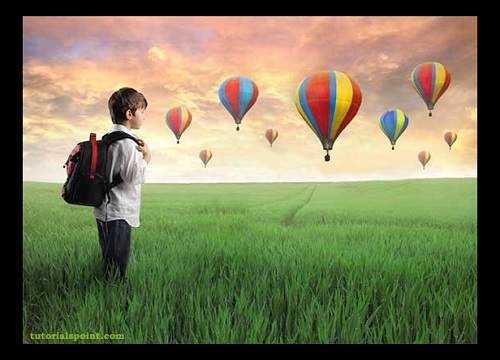
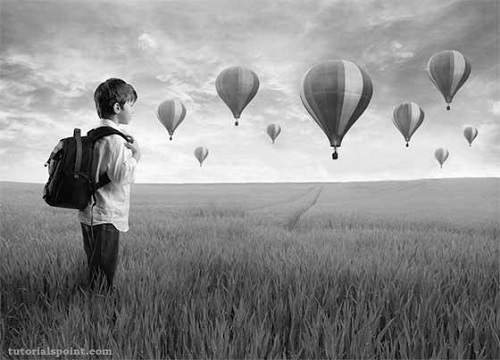
    Original Image
    Applying Box Filter Tutorial

    In this example we convolve our image with the following filter (kernel). This filter results in blurring an image as its size increases.

    This original image has been convolved with the box filter of size 5, which is given below −

    Box filter of size 5

    1/251/251/251/251/25
    1/251/251/251/251/25
    1/251/251/251/251/25
    1/251/251/251/251/25
    1/251/251/251/251/25

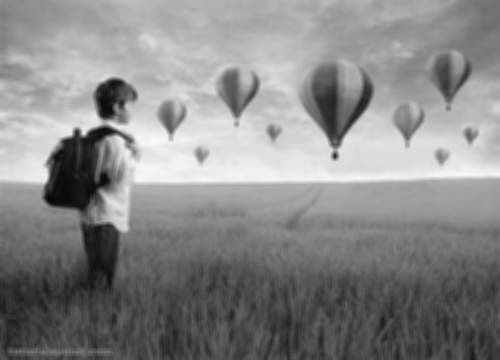
    Convolved Image (with Box Filter of Size 5)
    Applying Box Filter Tutorial

    Convolved Image (with Box Filter of Size 9)
    Applying Box Filter Tutorial
  • Applying Gaussian Filter

    In this chapter, we apply Gaussian filter to an image that blurs an image. We are going to use OpenCV function GaussianBlur to apply Gaussian filter to images. It can be found under Imgproc package. Its syntax is given below −

    Imgproc.GaussianBlur(source, destination,Size,SigmaX);
    

    The function arguments are described below −

    Sr.No.Argument & Description
    1sourceIt is source image.
    2destinationIt is destination image.
    3SizeIt is Gaussian kernel size.
    4SigmaXIt is Gaussian kernel standard deviation in X direction.

    Apart from the GaussianBlur method, there are other methods provided by the Imgproc class. They are described briefly −

    Sr.No.Method & Description
    1cvtColor(Mat src, Mat dst, int code, int dstCn)It converts an image from one color space to another.
    2dilate(Mat src, Mat dst, Mat kernel)It dilates an image by using a specific structuring element.
    3equalizeHist(Mat src, Mat dst)It equalizes the histogram of a grayscale image.
    4filter2D(Mat src, Mat dst, int depth, Mat kernel, Point anchor, double delta)It convolves an image with the kernel.
    5GaussianBlur(Mat src, Mat dst, Size ksize, double sigmaX)It blurs an image using a Gaussian filter.
    6integral(Mat src, Mat sum)It calculates the integral of an image.

    Example

    The following example demonstrates the use of Imgproc class to apply Gaussian filter to an image.

    import org.opencv.core.Core;
    import org.opencv.core.CvType;
    import org.opencv.core.Mat;
    import org.opencv.core.Size;
    
    import org.opencv.highgui.Highgui;
    import org.opencv.imgproc.Imgproc;
    
    
    public class Main {
       public static void main( String[] args ) {
       
    
      try {
         System.loadLibrary( Core.NATIVE_LIBRARY_NAME );
         
         Mat source = Highgui.imread("digital_image_processing.jpg",
         Highgui.CV_LOAD_IMAGE_COLOR);
         
         Mat destination = new Mat(source.rows(),source.cols(),source.type());
         Imgproc.GaussianBlur(source, destination,new Size(45,45), 0);
         Highgui.imwrite("Gaussian45.jpg", destination);
      
      } catch (Exception e) {
         System.out.println("Error:" + e.getMessage());
      }
    } }

    Output

    When you execute the given code, the following output is seen −

    Original Image

    Applying Gaussian Filter Tutorial

    When this original image is convolved with the Gaussian filter of size 11 and 45, the following output is seen.

    Gaussian filter of size 11

    Applying Gaussian Filter Tutorial

    Gaussian filter of size 45

    Applying Gaussian Filter Tutorial
  • Image Shape Conversion

    The shape of the image can easily be changed by using OpenCV. Image can either be flipped, scaled, or rotated in any of the four directions.

    In order to change the shape of the image, we read the image and convert into Mat object. Its syntax is given below −

    File input = new File("digital_image_processing.jpg");
    BufferedImage image = ImageIO.read(input);
    //convert Buffered Image to Mat.
    

    Flipping an Image

    OpenCV allows three types of flip codes which are described below −

    Sr.No.Flip Code & Description
    100 means, flipping around x axis.
    211 means, flipping around y axis.
    3-1-1 means, flipping around both axis.

    We pass the appropriate flip code into method flip() in the Core class. Its syntax is given below −

    Core.flip(source mat, destination mat1, flip_code);
    

    The method flip() takes three parameters − the source image matrix, the destination image matrix, and the flip code.

    Apart from the flip method, there are other methods provided by the Core class. They are described briefly −

    Sr.No.Method & Description
    1add(Mat src1, Mat src2, Mat dst)It calculates the per-element sum of two arrays or an array and a scalar.
    2bitwise_and(Mat src1, Mat src2, Mat dst)It calculates the per-element bit-wise conjunction of two arrays or an array and a scalar.
    3bitwise_not(Mat src, Mat dst)It inverts every bit of an array.
    4circle(Mat img, Point center, int radius, Scalar color)It draws a circle.
    5sumElems(Mat src)It blurs an image using a Gaussian filter.
    6subtract(Mat src1, Scalar src2, Mat dst, Mat mask)It calculates the per-element difference between two arrays or array and a scalar.

    Example

    The following example demonstrates the use of Core class to flip an image −

    import java.awt.image.BufferedImage;
    import java.awt.image.DataBufferByte;
    
    import java.io.File;
    import javax.imageio.ImageIO;
    
    import org.opencv.core.Core;
    import org.opencv.core.CvType;
    import org.opencv.core.Mat;
    
    import org.opencv.imgproc.Imgproc;
    
    public class Main {
       public static void main( String[] args ) {
       
    
      try {
         System.loadLibrary( Core.NATIVE_LIBRARY_NAME );
         File input = new File("digital_image_processing.jpg");
         BufferedImage image = ImageIO.read(input);	
         byte[] data = ((DataBufferByte) image.getRaster().  getDataBuffer()).getData();
         Mat mat = new Mat(image.getHeight(),image.getWidth(),CvType.CV_8UC3);
         mat.put(0, 0, data);
         Mat mat1 = new Mat(image.getHeight(),image.getWidth(),CvType.CV_8UC3);
         Core.flip(mat, mat1, -1);
         byte[] data1 = new byte[mat1.rows()*mat1.cols()*(int)(mat1.elemSize())];
         mat1.get(0, 0, data1);
         BufferedImage image1 = new BufferedImage(mat1.cols(), mat1.rows(), 5);
         image1.getRaster().setDataElements(0,0,mat1.cols(),mat1.rows(),data1);
         File ouptut = new File("hsv.jpg");
         ImageIO.write(image1, "jpg", ouptut);
         
      } catch (Exception e) {
         System.out.println("Error: " + e.getMessage());
      }
    } }

    Output

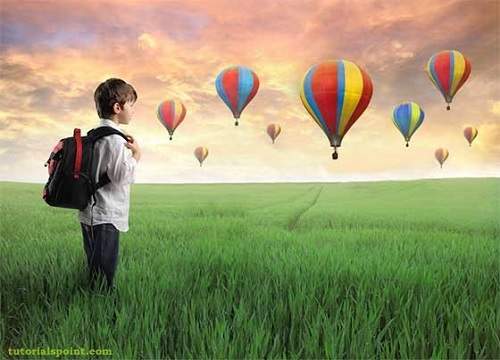
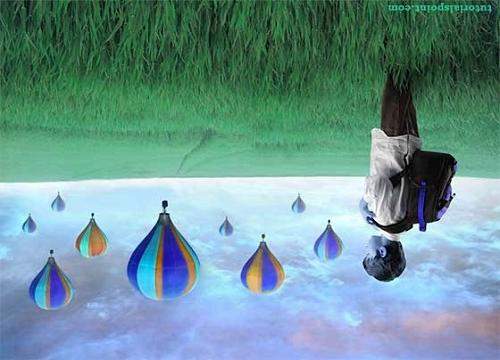
    When you run the above example, it would flip an image name digital_image_processing.jpg to its equivalent HSV color space image and write it on hard disk with name flip.jpg.

    Original Image

    Image Shape Conversion Tutorial

    Flipped Image

    Image Shape Conversion Tutorial
  • Basic Thresholding

    Thresholding enables to achieve image segmentation in the easiest way. Image segmentation means dividing the complete image into a set of pixels in such a way that the pixels in each set have some common characteristics. Image segmentation is highly useful in defining objects and their boundaries.

    In this chapter we perform some basic thresholding operations on images.

    We use OpenCV function threshold. It can be found under Imgproc package. Its syntax is given below −

    Imgproc.threshold(source, destination, thresh , maxval , type);
    

    The parameters are described below −

    Sr.No.Parameter & Description
    1sourceIt is source image.
    2destinationIt is destination image.
    3threshIt is threshold value.
    4maxvalIt is the maximum value to be used with the THRESH_BINARY and THRESH_BINARY_INV threshold types.
    5typeThe possible types are THRESH_BINARY, THRESH_BINARY_INV, THRESH_TRUNC, and THRESH_TOZERO.

    Apart from these thresholding methods, there are other methods provided by the Imgproc class. They are described briefly −

    Sr.No.Method & Description
    1cvtColor(Mat src, Mat dst, int code, int dstCn)It converts an image from one color space to another.
    2dilate(Mat src, Mat dst, Mat kernel)It dilates an image by using a specific structuring element.
    3equalizeHist(Mat src, Mat dst)It equalizes the histogram of a grayscale image.
    4filter2D(Mat src, Mat dst, int ddepth, Mat kernel, Point anchor, double delta)It convolves an image with the kernel.
    5GaussianBlur(Mat src, Mat dst, Size ksize, double sigmaX)It blurs an image using a Gaussian filter.
    6integral(Mat src, Mat sum)It calculates the integral of an image.

    Example

    The following example demonstrates the use of Imgproc class to perform thresholding operations to an image −

    import org.opencv.core.Core;
    import org.opencv.core.CvType;
    import org.opencv.core.Mat;
    
    import org.opencv.highgui.Highgui;
    import org.opencv.imgproc.Imgproc;
    
    public class main {
       public static void main( String[] args ) {
       
    
      try{
         System.loadLibrary( Core.NATIVE_LIBRARY_NAME );
         Mat source = Highgui.imread("digital_image_processing.jpg",  Highgui.CV_LOAD_IMAGE_COLOR);
         Mat destination = new Mat(source.rows(),source.cols(),source.type());
         destination = source;
         Imgproc.threshold(source,destination,127,255,Imgproc.THRESH_TOZERO);
         Highgui.imwrite("ThreshZero.jpg", destination);
         
      } catch (Exception e) {
         System.out.println("error: " + e.getMessage());
      }
    } }

    Output

    When you execute the given code, the following output is seen −

    Original Image

    Basic Thresholding Tutorial

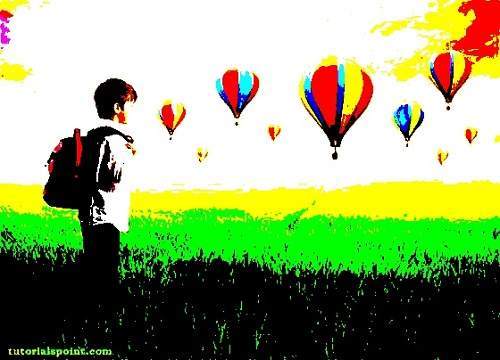
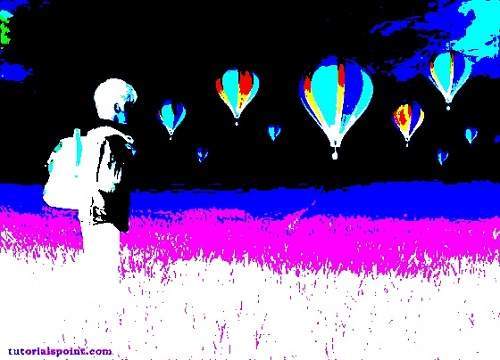
    On the above original image, some thresholding operations is performed which is shown in the output below −

    Thresh Binary

    Basic Thresholding Tutorial

    Thresh Binary Invert

    Basic Thresholding Tutorial

    Thresh Zero

    Basic Thresholding Tutorial
  • Image Pyramids

    Image pyramid is nothing but a method to display a multi-resolution image. The lowermost layer is a highest-resolution version of image and the topmost layer is a lowest-resolution version of the image. Image pyramids are used to handle image at different scales.

    In this chapter we perform some down sampling and up sampling on images.

    We use OpenCV functions pyrUp and pyrDown. They can be found under Imgproc package. Its syntax is given below −

    Imgproc.pyrUp(source, destination, destinationSize);
    Imgproc.pyrDown(source, destination,destinationSize);
    

    The parameters are described below −

    Sr.No.Parameter & Description
    1sourceIt is the source image.
    2destinationIt is the destination image.
    3destinationSizeIt is the size of the output image. By default, it is computed as Size((src.cols*2), (src.rows*2)).

    Apart from the pyrUp and pyrDown methods, there are other methods provided by the Imgproc class. They are described briefly −

    Sr.No.Method & Description
    1cvtColor(Mat src, Mat dst, int code, int dstCn)It converts an image from one color space to another.
    2dilate(Mat src, Mat dst, Mat kernel)It dilates an image by using a specific structuring element.
    3equalizeHist(Mat src, Mat dst)It equalizes the histogram of a grayscale image.
    4filter2D(Mat src, Mat dst, int depth, Mat kernel, Point anchor, double delta)It convolves an image with the kernel.
    5GaussianBlur(Mat src, Mat dst, Size ksize, double sigmaX)It blurs an image using a Gaussian filter.
    6integral(Mat src, Mat sum)It calculates the integral of an image.

    Example

    The following example demonstrates the use of Imgproc class to perform up sampling and down sampling on an image.

    import org.opencv.core.Core;
    import org.opencv.core.CvType;
    import org.opencv.core.Mat;
    import org.opencv.core.Size;
    
    import org.opencv.highgui.Highgui;
    import org.opencv.imgproc.Imgproc;
    
    public class main {
       public static void main( String[] args ) {
       
    
      try{
      
         System.loadLibrary( Core.NATIVE_LIBRARY_NAME );
         Mat source = Highgui.imread("digital_image_processing.jpg",
         Highgui.CV_LOAD_IMAGE_COLOR);
         
         Mat destination1 = new Mat(source.rows()*2, source.cols()*2,source.type());
         destination1 = source;
         
         Imgproc.pyrUp(source, destination1, new  Size(source.cols()*2   source.rows()*2));
         Highgui.imwrite("pyrUp.jpg", destination1);
         
         source = Highgui.imread("digital_image_processing.jpg", 
         Highgui.CV_LOAD_IMAGE_COLOR);
         
         Mat destination = new Mat(source.rows()/2,source.cols()/2, source.type());
         destination = source;
         Imgproc.pyrDown(source, destination, new Size(source.cols()/2,  source.rows()/2));
         Highgui.imwrite("pyrDown.jpg", destination);
         
      } catch (Exception e) { 
         System.out.println("error: " + e.getMessage());
      }
    } }

    Output

    When you execute the given code, the following output is seen −

    Original Image

    Image Pyramids Tutorial

    On the original image, pyrUp(UP Sampling) and pyrDown(Down Sampling) are performed. The output after sampling is as shown below −

    PyrUP Image

    Image Pyramids Tutorial

    pyrDown Image

    Image Pyramids Tutorial
  • Adding Border

    In this chapter we learn to add different types of borders to an image.

    We use OpenCV function copyMakeBorder. It can be found under Imgproc package. Its syntax is given below −

    Imgproc.copyMakeBorder(source,destination,top,bottom,left,right,borderType);
    

    The parameters are described below −

    Sr.No.Parameter & Description
    1sourceIt is source image.
    2destinationIt is destination image.
    3topIt is the length in pixels of the border at the top of the image.
    4bottomLength in pixels of the border at the bottom of the image.
    5leftIt is the length in pixels of the border at the left of the image.
    6rightIt is the length in pixels of the border at the right of the image.
    7borderTypeIt defines the type of border. The possible borders are BORDER_REPLICATE, BORDER_REFLECT, BORDER_WRAP, BORDER_CONSTANT etc.

    Apart from the copyMakeBorder() method, there are other methods provide by the Imgproc class. They are described briefly −

    Sr.No.Method & Description
    1cvtColor(Mat src, Mat dst, int code, int dstCn)It converts an image from one color space to another.
    2dilate(Mat src, Mat dst, Mat kernel)It dilates an image by using a specific structuring element.
    3equalizeHist(Mat src, Mat dst)It equalizes the histogram of a grayscale image.
    4filter2D(Mat src, Mat dst, int depth, Mat kernel, Point anchor, double delta)It convolves an image with the kernel.
    5GaussianBlur(Mat src, Mat dst, Size ksize, double sigmaX)It blurs an image using a Gaussian filter.
    6integral(Mat src, Mat sum)It calculates the integral of an image.

    Example

    The following example demonstrates the use of Imgproc class to add border to an image −

    import org.opencv.core.Core;
    import org.opencv.core.CvType;
    import org.opencv.core.Mat;
    
    import org.opencv.highgui.Highgui;
    import org.opencv.imgproc.Imgproc;
    
    public class main {
       public static void main( String[] args ) {
       
    
      try {
         System.loadLibrary( Core.NATIVE_LIBRARY_NAME );
         Mat source = Highgui.imread("digital_image_processing.jpg",
         
         Highgui.CV_LOAD_IMAGE_COLOR);
         Mat destination = new Mat(source.rows(),source.cols(),source.type());
         
         int top, bottom, left, right;
         int borderType;
         /// Initialize arguments for the filter
         top = (int) (0.05*source.rows()); 
         bottom = (int) (0.05*source.rows());
         left = (int) (0.05*source.cols()); 
         right = (int) (0.05*source.cols());
         destination = source;
         Imgproc.copyMakeBorder(source, destination, top, bottom, left, right, Imgproc.BORDER_WRAP);
         Highgui.imwrite("borderWrap.jpg", destination);
         
      } catch (Exception e) {
         System.out.println("error: " + e.getMessage());
      }
    } }

    Output

    When you execute the given code, the following output is seen −

    Original Image

    Adding Border Tutorial

    Isolated Border Image

    Adding Border Tutorial

    Wrapped Border Image

    Adding Border Tutorial

    Reflect Border Image

    Adding Border Tutorial
  • Image Compression Technique

    An image can easily be compressed and stored through Java. Compression of image involves converting an image into jpg and storing it.

    In order to compress an image, we read the image and convert into BufferedImage object.

    Further, we get an ImageWriter from getImageWritersByFormatName() method found in the ImageIO class. From this ImageWriter, create an ImageWriteParam object. Its syntax is given below −

    Iterator<ImageWriter> list = ImageIO.getImageWritersByFormatName("jpg");
    ImageWriteParam obj = writer_From_List.getDefaultWriteParam();
    

    From this ImageWriteParam object, you can set the compression by calling these two methods which are setCompressionMode() and setCompressionQuality(). Their syntaxes are as given below −

    obj.setCompressionMode(ImageWriteParam.MODE_EXPLICIT);
    obj.setCompressionQuality(0.05f);
    

    The setCompressionMode() method takes Mode_EXPLICIT as the parameter. Some of the other MODES are described briefly −

    Sr.No.Modes
    1MODE_DEFAULTIt is a constant value that may be passed into methods to enable that feature for future writes.
    2MODE_DISABLEDIt is a constant value that may be passed into methods to disable that feature for future writes.
    3MODE_EXPLICITIt is a constant value that may be passed into methods to enable that feature for future writes.

    Apart from the compressions methods, there are other methods provided by the ImageWriteParam class. They are described briefly −

    Sr.No.Method & Description
    1canOffsetTiles()It returns true if the writer can perform tiling with non-zero grid offsets while writing.
    2getBitRate(float quality)It returns a float indicating an estimate of the number of bits of output data for each bit of input image data at the given quality level.
    3getLocale()It returns the currently set Locale, or null if only a default Locale is supported.
    4isCompressionLossless()It returns true if the current compression type provides lossless compression.
    5unsetCompression()It removes any previous compression type and quality settings.
    6unsetTiling()It removes any previous tile grid parameters specified by calls to setTiling.

    Example

    The following example demonstrates the use of ImageWriteParam class to compress an image −

    import java.io.*;
    import java.util.*;
    import java.awt.image.*;
    
    import javax.imageio.*;
    import javax.imageio.stream.ImageOutputStream;
    
    class Compression {
    
       public static void main(String[] args) throws IOException {
       
    
      File input = new File("digital_image_processing.jpg");
      BufferedImage image = ImageIO.read(input);
      File compressedImageFile = new File("compress.jpg");
      OutputStream os =new FileOutputStream(compressedImageFile);
      Iterator&lt;ImageWriter&gt;writers =  ImageIO.getImageWritersByFormatName("jpg");
      ImageWriter writer = (ImageWriter) writers.next();
      ImageOutputStream ios = ImageIO.createImageOutputStream(os);
      writer.setOutput(ios);
      ImageWriteParam param = writer.getDefaultWriteParam();
      
      param.setCompressionMode(ImageWriteParam.MODE_EXPLICIT);
      param.setCompressionQuality(0.05f);
      writer.write(null, new IIOImage(image, null, null), param);
      
      os.close();
      ios.close();
      writer.dispose();
    } }

    Output

    When you execute the given code, it compresses the image digital_image_processing.jpg to its equivalent compressed image and writes it on the hard disk with the name compress.jpg.

    Original Image

    Image Compression Technique Tutorials

    Compressed Image – Quality Factor − 0.05

    Image Compression Technique Tutorials

    Compressed Image – Quality Factor − 0.5

    Image Compression Technique Tutorials
  • How to Manage and Leverage User Reviews and Ratings for ASO

    • Overview: Strategies for managing user reviews and ratings, including responding to feedback, encouraging positive reviews, and addressing negative comments to improve app performance.
    • Key Sections: Importance of User Reviews and Ratings, Strategies for Encouraging Positive Reviews, Responding to Negative Feedback, Analyzing Review Trends, Leveraging Reviews for App Improvement, Tools for Review Management.
  • Localizing Your App Store Listing: Strategies for Global Success

    • Overview: Strategies for localizing app store listings to reach international markets effectively. Discuss translation, cultural adaptation, and local keyword integration.
    • Key Sections: Importance of App Localization, Translating App Titles, Descriptions, and Keywords, Adapting Content for Different Cultures, Local Keyword Research and Integration, Managing Local Reviews and Feedback, Tools for Localization.
  • Creating an App Preview Video: Best Practices and Tips

    • Overview: Guide on how to produce an engaging app preview video that highlights your app’s features and encourages users to download. Includes tips on scripting, filming, and editing.
    • Key Sections: Benefits of an App Preview Video, Script Writing and Storyboarding, Filming and Editing Tips, Incorporating Key Features and Benefits, Keeping It Short and Engaging, Examples of Successful App Preview Videos.