Author: saqibkhan

  • Linked List

    Linked List Basics

    Linked List is a sequence of links which contains items. Each link contains a connection to another link. Linked list the second most used data structure after array. Following are important terms to understand the concepts of Linked List.

    • Link − Each Link of a linked list can store a data called an element.
    • Next − Each Link of a linked list contain a link to next link called Next.
    • LinkedList − A LinkedList contains the connection link to the first Link called First.

    Linked List Representation
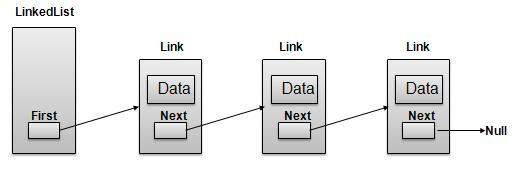
    Linked List

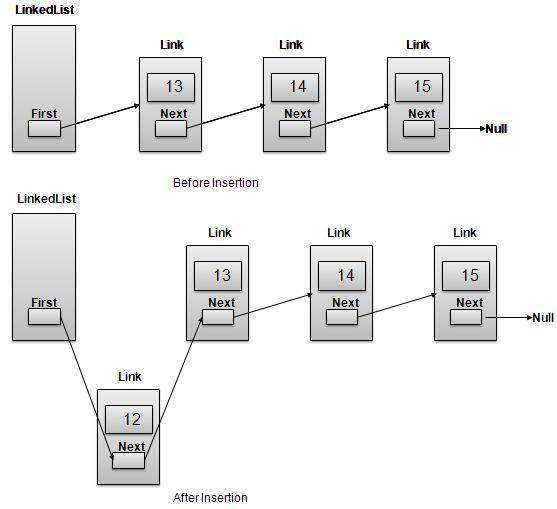
    As per above shown illustration, following are the important points to be considered.

    • LinkedList contains an link element called first.
    • Each Link carries a data field(s) and a Link Field called next.
    • Each Link is linked with its next link using its next link.
    • Last Link carries a Link as null to mark the end of the list.

    Learn Java in-depth with real-world projects through our Java certification course. Enroll and become a certified expert to boost your career.

    Types of Linked List

    Following are the various flavours of linked list.

    • Simple Linked List − Item Navigation is forward only.
    • Doubly Linked List − Items can be navigated forward and backward way.
    • Circular Linked List − Last item contains link of the first element as next and and first element has link to last element as prev.

    Basic Operations

    Following are the basic operations supported by a list.

    • Insertion − add an element at the beginning of the list.
    • Deletion − delete an element at the beginning of the list.
    • Display − displaying complete list.
    • Search − search an element using given key.
    • Delete − delete an element using given key.

    Insertion Operation

    Insertion is a three step process:

    1. Create a new Link with provided data.
    2. Point New Link to old First Link.
    3. Point First Link to this New Link.
    Linked List Insert First
    //insert link at the first location
    public void insertFirst(int key, int data){
       //create a link
       Link link = new Link(key,data);
       //point it to old first node
       link.next = first;
       //point first to new first node
       first = link;
    }

    Deletion Operation

    Deletion is a two step process:

    1. Get the Link pointed by First Link as Temp Link.
    2. Point First Link to Temp Link’s Next Link.
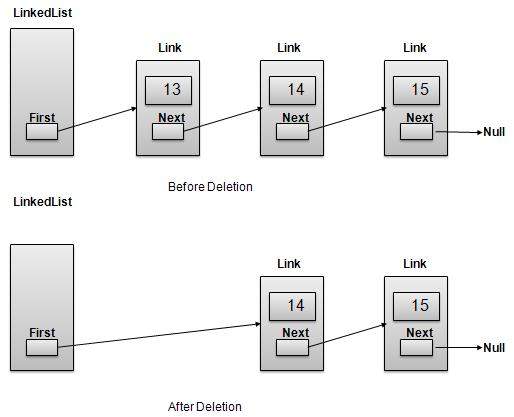
    Linked List Delete First
    //delete first item
    public Link deleteFirst(){
       //save reference to first link
       Link tempLink = first;
       //mark next to first link as first 
       first = first.next;
       //return the deleted link
       return tempLink;
    }

    Navigation Operation

    Navigation is a recursive step process and is basis of many operations like search, delete etc.:

    1. Get the Link pointed by First Link as Current Link.
    2. Check if Current Link is not null and display it.
    3. Point Current Link to Next Link of Current Link and move to above step.
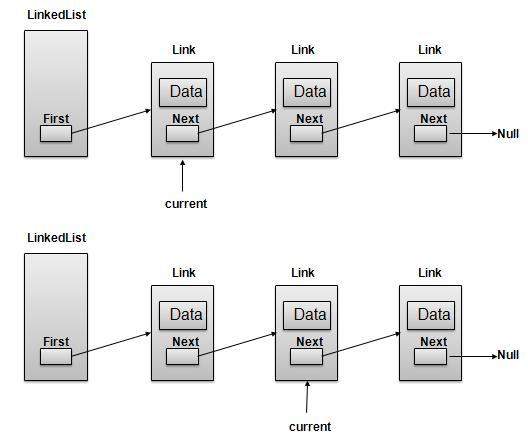
    Linked List Navigation

    Note

    //display the list
    public void display(){
       //start from the beginning
       Link current = first;
       //navigate till the end of the list
       System.out.print("[ ");
       while(current != null){
    
      //print data
      current.display();
      //move to next item
      current = current.next;
      System.out.print(" ");
    } System.out.print(" ]"); }

    Advanced Operations

    Following are the advanced operations specified for a list.

    • Sort − sorting a list based on a particular order.
    • Reverse − reversing a linked list.
    • Concatenate − concatenate two lists.

    Sort Operation

    We’ve used bubble sort to sort a list.

    public void sort(){
    
       int i, j, k, tempKey, tempData ;
       Link current,next;
       int size = length();
       k = size ;
       for ( i = 0 ; i < size - 1 ; i++, k-- ) {
    
      current = first ;
      next = first.next ;
      for ( j = 1 ; j &lt; k ; j++ ) {            
         if ( current.data &gt; next.data ) {
            tempData = current.data ;
            current.data = next.data;
            next.data = tempData ;
            tempKey = current.key;
            current.key = next.key;
            next.key = tempKey;
         }
         current = current.next;
         next = next.next;                        
      }
    } }

    Reverse Operation

    Following code demonstrate reversing a single linked list.

    public LinkedList reverse() { 
       LinkedList reversedlist = new LinkedList();
       Link nextLink = null;     
       reversedlist.insertFirst(first.key, first.data);
    
       Link currentLink = first;       
       // Until no more data in list, 
       // insert current link before first and move ahead.
       while(currentLink.next != null){
    
      nextLink = currentLink.next;           
      // Insert at start of new list.
      reversedlist.insertFirst(nextLink.key, nextLink.data); 
      //advance to next node
      currentLink = currentLink.next;            
    } return reversedlist; }

    Concatenate Operation

    Following code demonstrate reversing a single linked list.

    public void concatenate(LinkedList list){
       if(first == null){
    
      first = list.first;
    } if(list.first == null){
      return;
    } Link temp = first; while(temp.next !=null) {
      temp = temp.next;
    } temp.next = list.first; }

    Demo

    Link.java

    package com.tutorialspoint.list;
    
    public class Link {
       public int key;
       public int data;
       public Link next;
    
       public Link(int key, int data){
    
      this.key = key;
      this.data = data;
    } public void display(){
      System.out.print("{"+key+","+data+"}");
    } }

    LinkedList.java

    package com.tutorialspoint.list;
    
    public class LinkedList {
       //this link always point to first Link 
       //in the Linked List 
       private Link first;
    
       // create an empty linked list 
       public LinkedList(){
    
      first = null;
    } //insert link at the first location public void insertFirst(int key, int data){
      //create a link
      Link link = new Link(key,data);
      //point it to old first node
      link.next = first;
      //point first to new first node
      first = link;
    } //delete first item public Link deleteFirst(){
      //save reference to first link
      Link tempLink = first;
      //mark next to first link as first 
      first = first.next;
      //return the deleted link
      return tempLink;
    } //display the list public void display(){
      //start from the beginning
      Link current = first;
      //navigate till the end of the list
      System.out.print("&#91; ");
      while(current != null){
         //print data
         current.display();
         //move to next item
         current = current.next;
         System.out.print(" ");
      }
      System.out.print(" ]");
    } //find a link with given key public Link find(int key){
      //start from the first link
      Link current = first;
      //if list is empty
      if(first == null){
         return null;
      }
      //navigate through list
      while(current.key != key){
         //if it is last node
         if(current.next == null){
            return null;
         }else{
            //go to next link
            current = current.next;
         }
      }      
      //if data found, return the current Link
      return current;
    } //delete a link with given key public Link delete(int key){
      //start from the first link
      Link current = first;
      Link previous = null;
      //if list is empty
      if(first == null){
         return null;
      }
      //navigate through list
      while(current.key != key){
         //if it is last node
         if(current.next == null){
            return null;
         }else{
            //store reference to current link
            previous = current;
            //move to next link
            current = current.next;             
         }
      }
      //found a match, update the link
      if(current == first) {
         //change first to point to next link
         first = first.next;
      }else {
         //bypass the current link
         previous.next = current.next;
      }    
      return current;
    } //is list empty public boolean isEmpty(){
      return first == null;
    } public int length(){
      int length = 0;
      for(Link current = first; current!=null;
         current = current.next){
         length++;
      }
      return length;
    } public void sort(){
      int i, j, k, tempKey, tempData ;
      Link current,next;
      int size = length();
      k = size ;
      for ( i = 0 ; i &lt; size - 1 ; i++, k-- ) {
         current = first ;
         next = first.next ;
         for ( j = 1 ; j &lt; k ; j++ ) {            
            if ( current.data &gt; next.data ) {
               tempData = current.data ;
               current.data = next.data;
               next.data = tempData ;
               tempKey = current.key;
               current.key = next.key;
               next.key = tempKey;
            }
            current = current.next;
           next = next.next;                        
         }
      }
    } public LinkedList reverse() {
      LinkedList reversedlist = new LinkedList();
      Link nextLink = null;     
      reversedlist.insertFirst(first.key, first.data);
      Link currentLink = first;       
      // Until no more data in list, 
      // insert current link before first and move ahead.
      while(currentLink.next != null){
         nextLink = currentLink.next;           
         // Insert at start of new list.
         reversedlist.insertFirst(nextLink.key, nextLink.data); 
         //advance to next node
         currentLink = currentLink.next;            
      }      
      return reversedlist;
    } public void concatenate(LinkedList list){
      if(first == null){
         first = list.first;
      }
      if(list.first == null){
         return;
      }
      Link temp = first;
      while(temp.next !=null) {
         temp = temp.next;
      }
      temp.next = list.first;       
    } }

    LinkedListDemo.java

    package com.tutorialspoint.list;
    
    public class LinkedListDemo {
       public static void main(String args[]){
    
      LinkedList list = new LinkedList();
        
      list.insertFirst(1, 10);
      list.insertFirst(2, 20);
      list.insertFirst(3, 30);
      list.insertFirst(4, 1);
      list.insertFirst(5, 40);
      list.insertFirst(6, 56);
      System.out.print("\nOriginal List: ");  
      list.display();
      System.out.println("");
      while(!list.isEmpty()){            
         Link temp = list.deleteFirst();
         System.out.print("Deleted value:");  
         temp.display();
         System.out.println("");
      }         
      System.out.print("List after deleting all items: ");          
      list.display();
      System.out.println("");
      list.insertFirst(1, 10);
      list.insertFirst(2, 20);
      list.insertFirst(3, 30);
      list.insertFirst(4, 1);
      list.insertFirst(5, 40);
      list.insertFirst(6, 56);
      System.out.print("Restored List: ");  
      list.display();
      System.out.println("");  
      Link foundLink = list.find(4);
      if(foundLink != null){
        System.out.print("Element found: ");  
         foundLink.display();
         System.out.println("");  
      }else{
         System.out.println("Element not found.");  
      }
      list.delete(4);
      System.out.print("List after deleting an item: ");  
      list.display();
      System.out.println(""); 
      foundLink = list.find(4);
      if(foundLink != null){
         System.out.print("Element found: ");  
         foundLink.display();
         System.out.println("");  
      }else{
         System.out.print("Element not found. {4,1}");  
      }
      System.out.println(""); 
      list.sort();
      System.out.print("List after sorting the data: ");  
      list.display();
      System.out.println(""); 
      System.out.print("Reverse of the list: ");  
      LinkedList list1 = list.reverse();
      list1.display();
      System.out.println(""); 
      
      LinkedList list2 = new LinkedList();
      list2.insertFirst(9, 50);
      list2.insertFirst(8, 40);
      list2.insertFirst(7, 20);
      list.concatenate(list2);
      System.out.print("List after concatenation: ");  
      list.display();
      System.out.println(""); 
    } }

    If we compile and run the above program then it would produce following result:

    Original List: [ {6,56} {5,40} {4,1} {3,30} {2,20} {1,10}  ]
    Deleted value:{6,56}
    Deleted value:{5,40}
    Deleted value:{4,1}
    Deleted value:{3,30}
    Deleted value:{2,20}
    Deleted value:{1,10}
    List after deleting all items: [  ]
    Restored List: [ {6,56} {5,40} {4,1} {3,30} {2,20} {1,10}  ]
    Element found: {4,1}
    List after deleting an item: [ {6,56} {5,40} {3,30} {2,20} {1,10}  ]
    Element not found. {4,1}
    List after sorting the data: [ {1,10} {2,20} {3,30} {5,40} {6,56}  ]
    Reverse of the list: [ {6,56} {5,40} {3,30} {2,20} {1,10}  ]
    List after concatenation: [ {1,10} {2,20} {3,30} {5,40} {6,56} {7,20} {8,40} {9,50}  ]

  • Arrays

    Array Basics

    Array is a container which can hold fix number of items and these items should be of same type. Most of the datastructure make use of array to implement their algorithms. Following are important terms to understand the concepts of Array

    • Element − Each item stored in an array is called an element.
    • Index − Each location of an element in an array has a numerical index which is used to identify the element.

    Array Representation

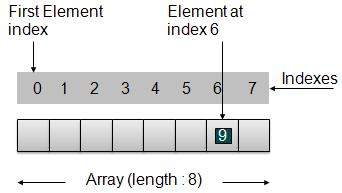
    Array

    As per above shown illustration, following are the important points to be considered.

    • Index starts with 0.
    • Array length is 8 which means it can store 8 elements.
    • Each element can be accessed via its index. For example, we can fetch element at index 6 as 9.

    Learn Java in-depth with real-world projects through our Java certification course. Enroll and become a certified expert to boost your career.

    Basic Operations

    Following are the basic operations supported by an array.

    • Insertion − add an element at given index.
    • Deletion − delete an element at given index.
    • Search − search an element using given index or by value.
    • Update − update an element at given index.

    In java, when an array is initialized with size, then it assigns defaults values to its elements in following order.

    Data TypeDefault Value
    byte0
    short0
    int0
    long0L
    float0.0f
    double0.0d
    char‘\u0000’
    booleanfalse
    Objectnull

    Demo

    package com.tutorialspoint.array;
    
    public class ArrayDemo {
       public static void main(String[] args){
    
      
      // Declare an array 
      int intArray&#91;];
      // Initialize an array of 8 int
      // set aside memory of 8 int 
      intArray = new int&#91;8];
      System.out.println("Array before adding data.");
      // Display elements of an array.
      display(intArray);     
         
      // Operation : Insertion 
      // Add elements in the array 
      for(int i = 0; i&lt; intArray.length; i++)
      {
         // place value of i at index i. 
         System.out.println("Adding "+i+" at index "+i);
         intArray&#91;i] = i;
      }         
      System.out.println();
      System.out.println("Array after adding data.");
      display(intArray);
      // Operation : Insertion 
      // Element at any location can be updated directly 
      int index = 5;
      intArray&#91;index] = 10;
      
      System.out.println("Array after updating element at index " + index);
      display(intArray);
      // Operation : Search using index
      // Search an element using index.
      System.out.println("Data at index " + index + ": "+ intArray&#91;index]);
      // Operation : Search using value
      // Search an element using value.
      int value = 4;
      for(int i = 0; i&lt; intArray.length; i++)
      {
         if(intArray&#91;i] == value ){
            System.out.println(value + " Found at index "+i);
            break;
         }
      }         
      System.out.println("Data at index " + index + ": "+ intArray&#91;index]);
    } private static void display(int[] intArray){
      System.out.print("Array : &#91;");
      for(int i = 0; i&lt; intArray.length; i++)
      {
         // display value of element at index i. 
         System.out.print(" "+intArray&#91;i]);
      }
      System.out.println(" ]");
      System.out.println();
    } }

    If we compile and run the above program then it would produce following result −

    Array before adding data.
    Array : [ 0 0 0 0 0 0 0 0 ]
    
    Adding 0 at index 0
    Adding 1 at index 1
    Adding 2 at index 2
    Adding 3 at index 3
    Adding 4 at index 4
    Adding 5 at index 5
    Adding 6 at index 6
    Adding 7 at index 7
    
    Array after adding data.
    Array : [ 0 1 2 3 4 5 6 7 ]
    
    Array after updating element at index 5
    Array : [ 0 1 2 3 4 10 6 7 ]
    
    Data at index 5: 10
    4 Found at index: 4
    
  • Data Structures

    Data Structure is a way to organized data in such a way that it can be used efficiently. Following terms are basic terms of a data structure.

    Data Definition

    Data Definition defines a particular data with following characteristics.

    • Atomic − Defition should define a single concept
    • Traceable − Definition should be be able to be mapped to some data element.
    • Accurate − Definition should be unambiguous.
    • Clear and Concise − Definition should be understandable.

    Data Object

    Data Object represents an object having a data.

    Learn Java in-depth with real-world projects through our Java certification course. Enroll and become a certified expert to boost your career.

    Data Type

    Data type is way to classify various types of data such as integer, string etc. which determines the values that can be used with the corresponding type of data, the type of operations that can be performed on the corresponding type of data. Data type of two types −

    • Built-in Data Type
    • Derived Data Type

    Built-in Data Type

    Those data types for which a language has built-in support are known as Built-in Data types. For example, most of the languages provides following built-in data types.

    • Integers
    • Boolean (true, false)
    • Floating (Decimal numbers)
    • Character and Strings

    Derived Data Type

    Those data types which are implementation independent as they can be implemented in one or other way are known as derived data types. These data types are normally built by combination of primary or built-in data types and associated operations on them. For example −

    • List
    • Array
    • Stack
    • Queue
  • Algorithms

    Algorithm concept

    Algorithm is a step by step procedure, which defines a set of instructions to be executed in certain order to get the desired output. In term of data structures, following are the categories of algorithms.

    • Search − Algorithms to search an item in a datastrucure.
    • Sort − Algorithms to sort items in certain order
    • Insert − Algorithm to insert item in a datastructure
    • Update − Algorithm to update an existing item in a data structure
    • Delete − Algorithm to delete an existing item from a data structure

    Algorithm analysis

    Algorithm analysis deals with the execution time or running time of various operations of a data structure. Running time of an operation can be defined as no. of computer instructions executed per operation. As exact running time of any operation varies from one computer to another computer, we usually analyze the running time of any operation as some function of n, where n is the no. of items processed in that operation in a datastructure.

    Learn Java in-depth with real-world projects through our Java certification course. Enroll and become a certified expert to boost your career.

    Asymptotic analysis

    Asymptotic analysis refers to computing the running time of any operation in mathematical units of computation. For example, running time of one operation is computed as f(n) and of another operation as g(n2). Which means first operation running time will increase linearly with the increase in n and running time of second operation will increase exponentially when n increases. Similarly the running time of both operations will be nearly same if n is significantly small.

    Asymptotic Notations

    Following are commonly used asymptotic notations used in calculating running time complexity of an algorithm.

    • Ο Notation
    • Ω Notation
    • θ Notation

    Big Oh Notation, Ο

    The Ο(n) is the formal way to express the upper bound of an algorithm’s running time. It measures the worst case time complexity or longest amount of time an algorithm can possibly take to complete. For example, for a function f(n)Ο(f(n)) = { g(n) : there exists c > 0 and n0 such that g(n) ≤ c.f(n) for all n > n0. }

    Big Oh notation is used to simplify functions. For example, we can replace a specific functional equation 7nlogn + n – 1 with Ο(f(nlogn)). Consider the scenario as follows:7nlogn +n – 1 ≤ 7nlogn + n7nlogn +n – 1 ≤ 7nlogn + nlognfor n ≥ 2 so that logn ≥ 17nlogn +n – 1 ≤ 8nlogn

    It demonstrates that f(n) = 7nlogn + n – 1 is within the range of outout of O(nlogn) using constants c = 8 and n0 = 2.

    Omega Notation, Ω

    The Ω(n) is the formal way to express the lower bound of an algorithm’s running time. It measures the best case time complexity or best amount of time an algorithm can possibly take to complete.

    For example, for a function f(n)Ω(f(n)) ≥ { g(n) : there exists c > 0 and n0 such that g(n) ≤ c.f(n) for all n > n0. }

    Theta Notation, θ

    The θ(n) is the formal way to express both the lower bound and upper bound of an algorithm’s running time. It is represented as following.θ(f(n)) = { g(n) if and only if g(n) = Ο(f(n)) and g(n) = Ω(f(n)) for all n > n0. }

  • Environment Setup

    Local Environment Setup

    If you are still willing to setup your environment for Java programming language, then this section guides you on how to download and set up Java on your machine. Please follow the following steps to set up the environment.

    Java SE is freely available from the link Download Java. So you download a version based on your operating system.

    Follow the instructions to download java and run the .exe to install Java on your machine. Once you installed Java on your machine, you would need to set environment variables to point to correct installation directories:

    Setting up the path for windows 2000/XP

    Assuming you have installed Java in c:\Program Files\java\jdk directory:

    • Right-click on ‘My Computer’ and select ‘Properties’.
    • Click on the ‘Environment variables’ button under the ‘Advanced’ tab.
    • Now alter the ‘Path’ variable so that it also contains the path to the Java executable. Example, if the path is currently set to ‘C:\WINDOWS\SYSTEM32’, then change your path to read ‘C:\WINDOWS\SYSTEM32;c:\Program Files\java\jdk\bin’.

    Learn Java in-depth with real-world projects through our Java certification course. Enroll and become a certified expert to boost your career.

    Setting up the path for windows 95/98/ME

    Assuming you have installed Java in c:\Program Files\java\jdk directory −

    • Edit the ‘C:\autoexec.bat’ file and add the following line at the end:’SET PATH=%PATH%;C:\Program Files\java\jdk\bin’

    Setting up the path for Linux, UNIX, Solaris, FreeBSD:

    Environment variable PATH should be set to point to where the java binaries have been installed. Refer to your shell documentation if you have trouble doing this.

    Example, if you use bash as your shell, then you would add the following line to the end of your ‘.bashrc: export PATH=/path/to/java:$PATH’

    Popular Java Editors

    To write your java programs you will need a text editor. There are even more sophisticated IDE available in the market. But for now, you can consider one of the following:

    • Notepad − On Windows machine you can use any simple text editor like Notepad (Recommended for this tutorial), TextPad.
    • Netbeans −is a Java IDE that is open source and free which can be downloaded from https://www.netbeans.org/index.html.
    • Eclipse − is also a java IDE developed by the eclipse open source community and can be downloaded from https://www.eclipse.org/.

    What is Next ?

    Next chapter will teach you how to write and run your first java program and some of the important basic syntaxes in java needed for developing applications.

  • Overview

    What is a Data Structure?

    Data Structure is a way to organized data in such a way that it can be used efficiently. Following terms are foundation terms of a data structure.

    • Interface − Each data strucure has an interface. Interface represents the set of operations that a datastructure supports.An interface only provides the list of supported operations, type of parameters they can accept and return type of these operations.
    • Implementation − Implementation provides the internal representation of a data structure. Implementation also provides the defination of the alogrithms used in the opreations of the data structure.

    Characteristics of a Data Structure

    • Correctness − Data Structure implementation should implement its interface correctly.
    • Time Complexity − Running time or execution time of operations of data structure must be as small as possible.
    • Space Complexity − Memory usage of a data structure operation should be as little as possible.

    Learn Java in-depth with real-world projects through our Java certification course. Enroll and become a certified expert to boost your career.

    Need for Data Structure

    As applications are getting complex and data rich, there are three common problems applications face now-a-days.

    • Data Search − Consider an inventory of 1 million(106) items of a store. If application is to search an item. It has to search item in 1 million(106) items every time slowing down the search. As data grows, search will become slower.
    • Processor speed − Processor speed although being very high, falls limited if data grows to billon records.
    • Multiple requests − As thousands of users can search data simultaneously on a web server,even very fast server fails while searching the data.

    To solve above problems, data structures come to rescue. Data can be organized in a data structure in such a way that all items may not be required to be search and required data can be searched almost instantly.

    Execution Time Cases

    There are three cases which are usual used to compare various data structure’s execution time in relative manner.

    • Worst Case − This is the scenario where a particular data structure operation takes maximum time it can take. If a operation’s worst case time is ƒ(n) then this operation will not take time more than ƒ(n) time where ƒ(n) represents function of n.
    • Average Case − This is the scenario depicting the average execution time of an operation of a data structure. If a operation takes ƒ(n) time in execution then m operations will take mƒ(n) time.
    • Best Case − This is the scenario depicting the least possible execution time of an operation of a data structure. If a operation takes ƒ(n) time in execution then actual operation may take time as random number which would be maximum as ƒ(n).
  • OpenCV Color Space Conversion

    In order to change color space of one image to another using OpenCV, we read image into BufferedImage and convert it into Mat Object. Its syntax is given below −

    File input = new File("digital_image_processing.jpg");
    BufferedImage image = ImageIO.read(input);
    //convert Buffered Image to Mat.
    

    OpenCv allows many color conversion types, all of which can be found in the Imgproc class. Some of the types are described briefly −

    Sr.No.Color Conversion Type
    1COLOR_RGB2BGR
    2COLOR_RGB2BGRA
    3COLOR_RGB2GRAY
    4COLOR_RGB2HLS
    5COLOR_RGB2HSV
    6COLOR_RGB2Luv
    7COLOR_RGB2YUV
    8COLOR_RGB2Lab

    From any of the color conversion type, just pass the appropriate one into method cvtColor() in the Imgproc class. Its syntax is given below −

    Imgproc.cvtColor(source mat, destination mat1, Color_Conversion_Code);
    

    The method cvtColor() takes three parameters which are the source image matrix, the destination image matrix and the color conversion type.

    Apart from the cvtColor() method, there are other methods provide by the Imgproc class. They are described briefly −

    Sr.No.Method & Description
    1cvtColor(Mat src, Mat dst, int code, int dstCn)It converts an image from one color space to another.
    2dilate(Mat src, Mat dst, Mat kernel)It dilates an image by using a specific structuring element.
    3equalizeHist(Mat src, Mat dst)It equalizes the histogram of a grayscale image.
    4filter2D(Mat src, Mat dst, int ddepth, Mat kernel, Point anchor, double delta)It convolves an image with the kernel.
    5GaussianBlur(Mat src, Mat dst, Size ksize, double sigmaX)It blurs an image using a Gaussian filter.
    6integral(Mat src, Mat sum)It calculates the integral of an image.

    Example

    The following example demonstrates the use of Imgproc class to convert an image from one color space to another.

    import java.awt.image.BufferedImage;
    import java.awt.image.DataBufferByte;
    
    import java.io.File;
    import javax.imageio.ImageIO;
    
    import org.opencv.core.Core;
    import org.opencv.core.CvType;
    import org.opencv.core.Mat;
    import org.opencv.imgproc.Imgproc;
    
    public class Main {
       public static void main( String[] args ) {
       
    
      try {
         System.loadLibrary( Core.NATIVE_LIBRARY_NAME );
         File input = new File("digital_image_processing.jpg");
         BufferedImage image = ImageIO.read(input);	
         byte&#91;] data = ((DataBufferByte) image.getRaster().getDataBuffer()).getData();
         Mat mat = new Mat(image.getHeight(),image.getWidth(), CvType.CV_8UC3);
         mat.put(0, 0, data);
         Mat mat1 = new Mat(image.getHeight(), image.getWidth(), CvType.CV_8UC3);
         Imgproc.cvtColor(mat, mat1, Imgproc.COLOR_RGB2HSV);
         byte&#91;] data1 = new byte&#91;mat1.rows()*mat1.cols()*(int)(mat1.elemSize())];
         mat1.get(0, 0, data1);
         BufferedImage image1 = new BufferedImage(mat1.cols(), mat1.rows(), 5);
         image1.getRaster().setDataElements(0, 0, mat1.cols(), mat1.rows(), data1);
         File ouptut = new File("hsv.jpg");
         ImageIO.write(image1, "jpg", ouptut);
         
      } catch (Exception e) {
         System.out.println("Error: " + e.getMessage());
      }
    } }

    Output

    When you execute the given example, it converts an image name digital_image_processing.jpg to its equivalent HSV color space image and writes it on hard disk with name hsv.jpg.

    Original Image (RGB)

    OpenCV Colour Space Conversion Tutorial

    Converted Image (HSV)

    OpenCV Colour Space Conversion Tutorial
  • OpenCV GrayScale Conversion

    In order to convert a color image to Grayscale image using OpenCV, we read the image into BufferedImage and convert it into Mat Object. Its syntax is given below −

    File input = new File("digital_image_processing.jpg");
    BufferedImage image = ImageIO.read(input);
    //convert Buffered Image to Mat.
    

    Then you can transform the image from RGB to Grayscale format by using method cvtColor() in the Imgproc class. Its syntax is given below −

    Imgproc.cvtColor(source mat, destination mat1, Imgproc.COLOR_RGB2GRAY);
    

    The method cvtColor() takes three parameters which are the source image matrix, the destination image matrix, and the color conversion type.

    Apart from the cvtColor method, there are other methods provided by the Imgproc class. They are listed below −

    Sr.No.Method & Description
    1cvtColor(Mat src, Mat dst, int code, int dstCn)It converts an image from one color space to another.
    2dilate(Mat src, Mat dst, Mat kernel)It dilates an image by using a specific structuring element.
    3equalizeHist(Mat src, Mat dst)It equalizes the histogram of a grayscale image.
    4filter2D(Mat src, Mat dst, int depth, Mat kernel, Point anchor, double delta)It convolves an image with the kernel.
    5GaussianBlur(Mat src, Mat dst, Size ksize, double sigmaX)It blurs an image using a Gaussian filter.
    6integral(Mat src, Mat sum)It calculates the integral of an image.

    Example

    The following example demonstrates the use of Imgproc class to convert an image to Grayscale −

    import java.awt.image.BufferedImage;
    import java.awt.image.DataBufferByte;
    
    import java.io.File;
    import javax.imageio.ImageIO;
    
    import org.opencv.core.Core;
    import org.opencv.core.CvType;
    import org.opencv.core.Mat;
    import org.opencv.imgproc.Imgproc;
    
    public class Main {
       public static void main( String[] args ) { 
       
    
      try {
         System.loadLibrary( Core.NATIVE_LIBRARY_NAME );
         File input = new File("digital_image_processing.jpg");
         BufferedImage image = ImageIO.read(input);	
         byte&#91;] data = ((DataBufferByte) image.getRaster().getDataBuffer()).getData();
         Mat mat = new Mat(image.getHeight(), image.getWidth(), CvType.CV_8UC3);
         mat.put(0, 0, data);
         Mat mat1 = new Mat(image.getHeight(),image.getWidth(),CvType.CV_8UC1);
         Imgproc.cvtColor(mat, mat1, Imgproc.COLOR_RGB2GRAY);
         byte&#91;] data1 = new byte&#91;mat1.rows() * mat1.cols() * (int)(mat1.elemSize())];
         mat1.get(0, 0, data1);
         BufferedImage image1 = new BufferedImage(mat1.cols(),mat1.rows(), BufferedImage.TYPE_BYTE_GRAY);
         image1.getRaster().setDataElements(0, 0, mat1.cols(), mat1.rows(), data1);
         File ouptut = new File("grayscale.jpg");
         ImageIO.write(image1, "jpg", ouptut);
         
      } catch (Exception e) {
         System.out.println("Error: " + e.getMessage());
      }
    } }

    Output

    When you execute the given example, it converts an image name digital_image_processing.jpg to its equivalent Grayscale image and writes it on hard disk with name grayscale.jpg.

    Original Image

    OpenCV GrayScale Conversion Tutorials

    Grayscale Image

    OpenCV GrayScale Conversion Tutorials
  • Introduction to OpenCV

    OpenCV is released under a BSD license and hence it is free for both academic and commercial use. It has C++, C, Python, and Java interfaces, and it supports Windows, Linux, Mac OS, iOS, and Android.

    OpenCV was designed for computational efficiency and with a strong focus on real-time applications. Written in optimized C/C++, the library can take advantage of multi-core processing.

    Some of the basic features of OpenCV are described below −

    Sr.No.Feature & Description
    1Smoothing ImagesThis involves applying Blur, GaussianBlur, medianBlur, and bilateral Filter.
    2Eroding and DilatingIt can apply two very common morphology operators − Dilation and Erosion.
    3Morphology TransformationsOpenCV function morphologyEx to apply Morphological Transformation such as opening, closing, TopHat, and BlackHat etc.
    4Image PyramidsOpenCV functions pyrUp and pyrDown to down sample or up sample a given image.
    4Basic Thresholding OperationsIt can perform basic thresholding operations using OpenCV function threshold.
    5Adding borders to your imagesOpenCV function copyMakeBorder is used to set the borders(extra padding to your image).
    7RemappingIn OpenCV, the function remap offers a simple remapping implementation.
    8Histogram CalculationFor simple purposes, OpenCV implements the function calcHist, which calculates the histogram of a set of arrays (usually images or image planes). It can operate with up to 32 dimensions.

    Integrating OpenCV

    These following steps explain how to integrate OpenCV into your applications.

    Download OpenCV

    You can download OpenCV from their official Website here.

    Create User Library

    Further, we create a user library of OpenCV, so that we can use it as a future project.

    Launch Eclipse

    Select Window -> Preferences from the menu.

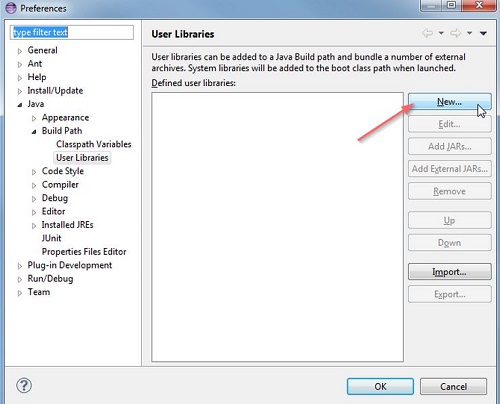
    Navigate under Java -> Build Path -> User Libraries and click New.

    Introduction to OpenCV Tutorial

    Now enter the name for your library. For example, OpenCV-2.4.6.

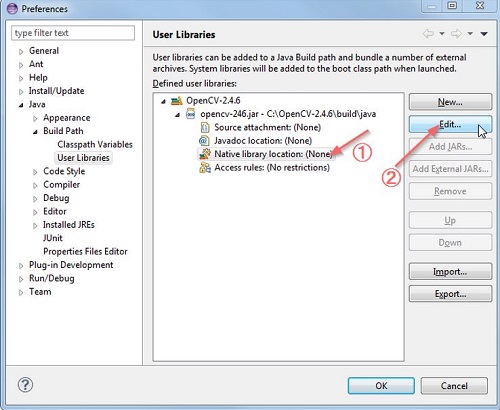
    After that, select your new user library(i.e. OpenCV-2.4.6) and click on Add External JARs.

    Browse through C:\OpenCV-2.4.6\build\java\ and select opencv-246.jar. After adding the jar, extend the opencv-246.jar and select Native library location and press Edit.

    Introduction to OpenCV Tutorial

    Select External Folder… and browse to select the folder C:\OpenCV-2.4.6\build\java\x64. If you have a 32-bit system, you need to select the x86 folder instead of x64.

    Press Ok and you are done.

    Now your user library is created. Now you can reuse this configuration in any of the project.

    Create OpenCV Project

    Create a new java project in eclipse.

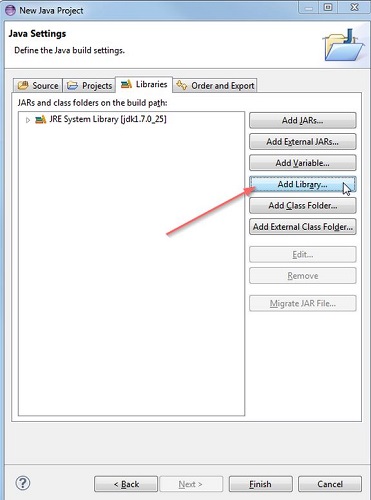
    On the Java Settings step, under Libraries tab, select Add Library… and select OpenCV-2.4.6, then click Finish.

    Introduction to OpenCV Tutorial

    Click finish and you are done.

  • Open Source Libraries

    In this chapter, we explore some of the free image processing libraries that are widely used and can be easily integrated in the project. These libraries include −

    • ImageJ
    • Fiji
    • Commons Imaging
    • ImageMagick
    • Endrov
    • LeadTools
    • OpenCv

    ImageJ

    ImageJ is a public domain Java image processing program inspired by NIH Image for the Macintosh. It can display, edit, analyze, process, save, and print 8-bit, 16-bit, and 32-bit images.

    Some of the basic features of ImageJ are described below −

    Sr.No.Feature & Description
    1Runs EverywhereImageJ is written in Java, which allows it to run on Linux, Mac OS X and Windows, in both 32-bit and 64-bit modes.
    2Open SourceImageJ and its Java source code are freely available and in the public domain.
    3ToolkitUse ImageJ as an image processing toolkit (class library) to develop applets, servlets, or applications.
    4Data Types8-bit grayscale or indexed color, 16-bit unsigned integer, 32-bit floating-point, and RGB color.
    5File FormatsOpen and save GIF, JPEG, BMP, PNG, PGM, FITS, and ASCII. Open DICOM. Open TIFFs, GIFs, JPEGs, DICOMs, and raw data using a URL.
    6SelectionsCreate rectangular, elliptical, or irregular area selections. Create line and point selections.
    7Image EnhancementSupports smoothing, sharpening, edge detection, median filtering, and thresholding on both 8-bit grayscale and RGB color images.
    8Color ProcessingSplit a 32-bit color image into RGB or HSV components. Merge 8-bit components into a color image.

    Fiji

    Fiji is an image processing package. It can be described as a distribution of ImageJ (and ImageJ2) together with Java, Java3D, and a lot of plug-ins organized into a coherent menu structure. Fiji compares to ImageJ as Ubuntu compares to Linux.

    Apart from the ImageJ basic features, some of the advanced features of Fiji are described below −

    Sr.No.Feature & Description
    1Registering 3D imagesThis involves Elastic Alignment and Montage, Feature Extraction, Image Stabilizer etc.
    2Segmenting imagesIt offers more than 35 types of segmentation.
    3Useful keyboard short cutsFuji has a lot of keyboard short-cuts.
    4ScriptingAllow scripting with Macros, in JavaScript, JRuby, Jython, Clojure, and Beanshell.
    5Developing Plug-insUse the Script Editor to start developing plug-ins and then run the plug-ins.
    6ImageJ TricksImageJ is easy to use, but sometimes you wish for some function that is actually implemented, yet you do not know how to trigger.

    Learn Java in-depth with real-world projects through our Java certification course. Enroll and become a certified expert to boost your career.

    Commons Imaging

    Apache Commons Imaging, previously known as Apache Commons Sanselan, is a library that reads and writes a variety of image formats, including fast parsing of image information such as(size, color, space, ICC profile, etc.) and the meta data.

    Some of the basic features of ImageJ are described below −

    Sr.No.Feature & Description
    1JavaApache Commons Imaging is written in 100% pure Java. It executes on any JVM, and any platform, without modification.
    2Image FormatsIt reads and writes a wide variety of image formats, and supports some variations and encodings missed by all or most other libraries.
    3Metadata supportIt supports reading and writing a variety of meta data in a structured way, including EXIF meta data.
    4Network FriendlyIt is network-friendly. Commons Imaging only reads the data it needs, and caches what is read so that it is not too heavy on the network.
    5Easy to useIt is designed to be very easy to use. It has a simple, clean interface. Most operations are a single Imaging method calls.
    6TransparentCommons Imaging aims to be transparent. There are no hidden buffers to dispose, no native memory to free, no background threads.
    7Open SourceIt is Free Software/Open Source. It is available under the Apache Software License.
    8Color ConversionsThe ColorConversions class offers methods to convert between the following color spaces − CIE-L*CH, CIE-L*ab, CIE-L*uv, CMY, CMYK, HSL, HSV, Hunter-Lab, RGB, XYZ, and YXY.

    ImageMagick

    ImageMagick is a software suite to create, edit, compose, or convert bitmap images. It can read and write images in more than 100 formats including DPX, EXR, GIF, JPEG, JPEG-2000, PDF, PNG, Postscript, SVG, and TIFF. Use ImageMagick to resize, flip, mirror, rotate, distort, shear, and transform images, adjust image colors, apply various special effects, or draw text, lines, polygons, ellipses, and Bezier curve.

    Some of the basic features of ImageMagick are described below −

    Sr.No.Feature & Description
    1Format conversionIt converts an image from one format to another (e.g. PNG to JPEG).
    2TransformIt can resize, rotate, crop, flip or trim an image.
    3TransparencyIt renders portions of an image invisible.
    4DrawIt adds shapes or text to an image.
    5DecorateIt adds a border or frame to an image.
    6Special effectsIt can Blur, sharpen, threshold, or tint an image.
    7AnimationIt can create a GIF animation sequence from a group of images.
    8CompositeIt can overlap one image over another.
    9Morphology of shapesIt extracts features, describe shapes and recognize patterns in images.
    10Encipher or decipher an imageIt converts ordinary images into unintelligible gibberish and back again.

    Endrov

    Endrov is a multi-purpose image analysis program. It is written independently and designed to address many of the shortcomings of other free software and many commercial packages.

    Some of the basic features of Endrov are described below −

    Sr.No.Feature & Description
    1View dataIt views data, in 2D and 3D. Designed to handle complex 4D data schemes and unlimited number of channels, where each channel can have its own X, Y, and Z resolution.
    2Annotate your imagesIt annotates your images, automatically or by hand, to understand them and get statistics.
    3Undo and RedoIt can undo and redo for all operations.
    4Lazy EvaluationIt is designed from the ground to handle large image sets. Endrov uses lazy evaluation, a concept mostly available in research programming languages.
    5Scripting languageIt supports graphical scripting language, as well as traditional scripting.
    6JavaWritten in Java. Plug-in architecture allows easy extension with new Java plug-ins. It can interact with Matlab.
    7FormatsIt accesses almost all commercial and open file formats using Bio-formats.
    8Microscopic ProcessingIt can control all your microscopes with one program and do on-the-fly image analysis.

    LEADTOOLS

    LEADTOOLS provides over 200 image processing functions in several categories including document cleanup, medical image enhancement, color conversion and correction, noise reduction, edge detection, and more.

    Some of the basic features of LEADTOOLS are described below −

    Sr.No.Feature & Description
    1Scanned Document Image ProcessingThis powerful collection of functions can read scanned documents of artefacts and imperfections such as punched holes, skewed angles, borders, dust speckles, and more.
    2Medical Image ProcessingEnhance the image or highlight the details by shifting, selecting, subtracting, and removing the background for better visuals.
    3Geometric TransformationThese functions can be used to clean, align, correct images, or apply artistic 3D effects.
    4Brightness and ContrastThese functions can be used to enhance images, apply artistic effects, or aid in diagnostic evaluation of medical images.
    5Color Space ConversionThey can add image color space functionality to single and multi-threaded applications including IIS and Windows WF hosted applications.
    6Color CorrectionThese functions are used to correct images with swapped color channels, balance color intensities or perform various image analysis tasks.
    7Image EnhancementThese functions are used to correct common errors in photography such as red-eye and imbalanced colors as well as aid in diagnostic evaluation of medical images.
    8Region of InterestThese functions are used to create and modify regions of interest in images to perform image processing functions on specific portions of an image, save time in bar-code, and OCR recognition or perform various image analysis tasks.

    OpenCV

    OpenCV is released under a BSD license and hence it is free for both academic and commercial use. It has C++, C, Python, and Java interfaces and it supports Windows, Linux, Mac OS, iOS, and Android. OpenCV was designed for computational efficiency and with a strong focus on real-time applications. Written in optimized C/C++, the library can take advantage of multi-core processing.

    Some basic features of OpenCV are described briefly −

    Sr.No.Feature & Description
    1Smoothing ImagesThis involves applying Blur, GaussianBlur, medianBlur and bilateral Filter.
    2Eroding and DilatingIt can apply two very common morphology operators − Dilation and Erosion.
    3Morphology TransformationsOpenCV function morphologyEx to apply Morphological Transformation such as opening, closing, TopHat, and BlackHat etc.
    4Image PyramidsOpenCV functions pyrUp and pyrDown to down sample or up sample a given image.
    4Basic Thresholding OperationsPerform basic thresholding operations using OpenCV function threshold.
    5Adding borders to your imagesOpenCV function copyMakeBorder is used to set the borders (extra padding to your image).
    7RemappingIn OpenCV, the function remap offers a simple remapping implementation.
    8Histogram CalculationFor simple purposes, OpenCV implements the function calcHist, which calculates the histogram of a set of arrays (usually images or image planes). It can operate with up to 32 dimensions.