Author: saqibkhan

  • Publisher Application

    Now let’s create a publisher application which will send message to the RabbitMQ Exchange. This exchange will deliver the message to the queue which is bound with the exchange.

    Create Project

    Using eclipse, select File → New → Maven Project. Tick the Create a simple project(skip archetype selection) and click Next.

    Enter the details, as shown below −

    • groupId − com.tutorialspoint
    • artifactId − publisher
    • version − 0.0.1-SNAPSHOT
    • name − RabbitMQ Publisher

    Click on Finish button and a new project will be created.

    pom.xml

    Now update the content of pom.xml to include dependencies for RabbitMQ.

    <project xmlns="http://maven.apache.org/POM/4.0.0" xmlns:xsi="http://www.w3.org/2001/XMLSchema-instance"    
       xsi:schemaLocation="http://maven.apache.org/POM/4.0.0 https://maven.apache.org/xsd/maven-4.0.0.xsd">
       <modelVersion>4.0.0</modelVersion>
       <groupId>com.tutorialspoint.activemq</groupId>
       <artifactId>publisher</artifactId>
       <version>0.0.1-SNAPSHOT</version>
       <name>RabbitMQ Publisher</name>
       <properties>
    
      &lt;java.version&gt;11&lt;/java.version&gt;
    </properties> <dependencies>
      &lt;dependency&gt;
         &lt;groupId&gt;com.rabbitmq&lt;/groupId&gt;
         &lt;artifactId&gt;amqp-client&lt;/artifactId&gt;
         &lt;version&gt;5.14.2&lt;/version&gt;
      &lt;/dependency&gt;
      &lt;dependency&gt;
         &lt;groupId&gt;org.slf4j&lt;/groupId&gt;
         &lt;artifactId&gt;slf4j-api&lt;/artifactId&gt;
         &lt;version&gt;1.7.26&lt;/version&gt;
      &lt;/dependency&gt;
      &lt;dependency&gt;
         &lt;groupId&gt;org.slf4j&lt;/groupId&gt;
         &lt;artifactId&gt;slf4j-simple&lt;/artifactId&gt;
         &lt;version&gt;1.7.26&lt;/version&gt;
      &lt;/dependency&gt;
    </dependencies> </project>

    Now create a Publisher class which will send message to the RabbitMQ topic to broadcast it to all the subscribers.

    package com.tutorialspoint.rabbitmq;
    
    import java.io.IOException;
    import java.util.Scanner;
    import java.util.concurrent.TimeoutException;
    
    import com.rabbitmq.client.Channel;
    import com.rabbitmq.client.Connection;
    import com.rabbitmq.client.ConnectionFactory;
    
    public class Publisher {
       private static final String EXCHANGE = "MyExchange";
       public static void main(String[] args) throws IOException, TimeoutException {
    
      ConnectionFactory factory = new ConnectionFactory();
      factory.setHost("localhost");
      try (Connection connection = factory.newConnection();
      Channel channel = connection.createChannel()) {
         channel.exchangeDeclare(EXCHANGE, "fanout");
         Scanner input = new Scanner(System.in);
         String message;
         do {
            System.out.println("Enter message: ");
            message = input.nextLine();
            channel.basicPublish(EXCHANGE, "", null, message.getBytes());
         } while (!message.equalsIgnoreCase("Quit"));
      }
    } }

    Producer class creates a connection, creates a channel, declare an exchange and then asks user to enter message. The message is sent to exchange and as queue name, we are not passing queue name thus all queues which are bound to this exchange will get the message. If user enters quit then application terminates else it will send the message to the topic.
  • Test Application

    Start the Producer Application

    In eclipse, right click on the Producer.java source, and select Run As → Java Application. Producer application will start running and you’ll see the output as follows −

    Enter message:
    

    Start the Consumer Application

    In eclipse, right click on the Consumer.java source, and select Run As → Java Application. Consumer application will start running and you’ll see the output as follows −

    Waiting for messages. To exit press CTRL+C
    

    Explore our latest online courses and learn new skills at your own pace. Enroll and become a certified expert to boost your career.

    Send Message

    In Producer console window, type Hi and press enter button to send the message.

    Enter message:
    Hi
    

    Receive Message

    Verify in Consumer console window, the message is received.

    Waiting for messages. To exit press CTRL+C
    Received = Hi
    

    Send Quit as message to terminate the producer window session and terminate client window session.

    Verification

    Now open http://rabbitmq:15672/ in your browser. It will ask for credentials. Use guest/guest as username/password and it will load the RabbitMQ admin console where you can check Queues to check the status. It will show messages enqueued and delivered.

  • Consumer Application

    Now let’s create a consumer application which will receive message from the RabbitMQ Queue.

    Create Project

    Using eclipse, select File → New → Maven Project. Tick the Create a simple project(skip archetype selection) and click Next.

    Enter the details, as shown below:

    • groupId − com.tutorialspoint
    • artifactId − consumer
    • version − 0.0.1-SNAPSHOT
    • name − RabbitMQ Consumer

    Click on Finish button and a new project will be created.

    pom.xml

    Now update the content of pom.xml to include dependencies for ActiveMQ.

    <project xmlns="http://maven.apache.org/POM/4.0.0" xmlns:xsi="http://www.w3.org/2001/XMLSchema-instance"    
       xsi:schemaLocation="http://maven.apache.org/POM/4.0.0 https://maven.apache.org/xsd/maven-4.0.0.xsd">
       <modelVersion>4.0.0</modelVersion>
       <groupId>com.tutorialspoint.activemq</groupId>
       <artifactId>consumer</artifactId>
       <version>0.0.1-SNAPSHOT</version>
       <name>RabbitMQ Consumer</name>
    
      &lt;properties&gt;
      &lt;java.version&gt;11&lt;/java.version&gt;
    </properties> <dependencies>
      &lt;dependency&gt;
         &lt;groupId&gt;com.rabbitmq&lt;/groupId&gt;
         &lt;artifactId&gt;amqp-client&lt;/artifactId&gt;
         &lt;version&gt;5.14.2&lt;/version&gt;
      &lt;/dependency&gt;
      &lt;dependency&gt;
         &lt;groupId&gt;org.slf4j&lt;/groupId&gt;
         &lt;artifactId&gt;slf4j-api&lt;/artifactId&gt;
         &lt;version&gt;1.7.26&lt;/version&gt;
      &lt;/dependency&gt;
      &lt;dependency&gt;
         &lt;groupId&gt;org.slf4j&lt;/groupId&gt;
         &lt;artifactId&gt;slf4j-simple&lt;/artifactId&gt;
         &lt;version&gt;1.7.26&lt;/version&gt;
      &lt;/dependency&gt;
    </dependencies> </project>

    Now create a Consumer class which will receive message from the RabbitMQ Queue.

    package com.tutorialspoint.rabbitmq;
    
    import java.io.IOException;
    import java.nio.charset.StandardCharsets;
    import java.util.concurrent.TimeoutException;
    
    import com.rabbitmq.client.Channel;
    import com.rabbitmq.client.Connection;
    import com.rabbitmq.client.ConnectionFactory;
    import com.rabbitmq.client.DeliverCallback;
    
    public class Consumer {
       private static String QUEUE = "MyFirstQueue";
    
       public static void main(String[] args) throws IOException, TimeoutException {
    
      ConnectionFactory factory = new ConnectionFactory();
      factory.setHost("localhost");
      Connection connection = factory.newConnection();
      Channel channel = connection.createChannel();
      channel.queueDeclare(QUEUE, false, false, false, null);
      System.out.println("Waiting for messages. To exit press CTRL+C");
      DeliverCallback deliverCallback = (consumerTag, delivery) -&gt; {
         String message = new String(delivery.getBody(), StandardCharsets.UTF_8);
         System.out.println("Received '" + message + "'");
      };
      channel.basicConsume(QUEUE, true, deliverCallback, consumerTag -&gt; { });
    } }

    Consumer class creates a connection, creates a channel, creates a queue if not existent then receives message from queue if there is any and it will keep polling queue for messages. Once a message is delivered, it is handled by basicConsume() method using deliverCallback.

  • Producer Application

    Now let’s create a producer application which will send message to the RabbitMQ Queue.

    Create Project

    Using eclipse, select File → New → Maven Project. Tick the Create a simple project(skip archetype selection) and click Next.

    Enter the details, as shown below −

    • groupId − com.tutorialspoint
    • artifactId − producer
    • version − 0.0.1-SNAPSHOT
    • name − RabbitMQ Producer

    Click on Finish button and a new project will be created.

    pom.xml

    Now update the content of pom.xml to include dependencies for RabbitMQ.

    <project xmlns="http://maven.apache.org/POM/4.0.0" xmlns:xsi="http://www.w3.org/2001/XMLSchema-instance"    xsi:schemaLocation="http://maven.apache.org/POM/4.0.0 https://maven.apache.org/xsd/maven-4.0.0.xsd">
       <modelVersion>4.0.0</modelVersion>
       <groupId>com.tutorialspoint.activemq</groupId>
       <artifactId>producer</artifactId>
       <version>0.0.1-SNAPSHOT</version>
       <name>RabbitMQ Producer</name>
       <properties>
    
      &lt;java.version&gt;11&lt;/java.version&gt;
    </properties> <dependencies>
      &lt;dependency&gt;
         &lt;groupId&gt;com.rabbitmq&lt;/groupId&gt;
         &lt;artifactId&gt;amqp-client&lt;/artifactId&gt;
         &lt;version&gt;5.14.2&lt;/version&gt;
      &lt;/dependency&gt;
      &lt;dependency&gt;
         &lt;groupId&gt;org.slf4j&lt;/groupId&gt;
         &lt;artifactId&gt;slf4j-api&lt;/artifactId&gt;
         &lt;version&gt;1.7.26&lt;/version&gt;
      &lt;/dependency&gt;
      &lt;dependency&gt;
         &lt;groupId&gt;org.slf4j&lt;/groupId&gt;
         &lt;artifactId&gt;slf4j-simple&lt;/artifactId&gt;
         &lt;version&gt;1.7.26&lt;/version&gt;
      &lt;/dependency&gt;
    </dependencies> </project>

    Now create a Producer class which will send message to the RabbitMQ Queue.

    package com.tutorialspoint.rabbitmq;
    
    import java.io.IOException;
    import java.util.Scanner;
    import java.util.concurrent.TimeoutException;
    
    import com.rabbitmq.client.Channel;
    import com.rabbitmq.client.Connection;
    import com.rabbitmq.client.ConnectionFactory;
    
    public class Producer {
       private static String QUEUE = "MyFirstQueue";
    
       public static void main(String[] args) throws IOException, TimeoutException {
    
      ConnectionFactory factory = new ConnectionFactory();
      factory.setHost("localhost");
      try (Connection connection = factory.newConnection();
         Channel channel = connection.createChannel()) {
         channel.queueDeclare(QUEUE, false, false, false, null);
         Scanner input = new Scanner(System.in);
         String message;
         do {
            System.out.println("Enter message: ");
            message = input.nextLine();
            channel.basicPublish("", QUEUE, null, message.getBytes());
         } while (!message.equalsIgnoreCase("Quit"));
      }
    } }

    Producer class creates a connection, creates a channel, connects to a queue. If user enters quit then application terminates else it will send the message to the queue using basicPublish method.

  • Installation

    RabbitMQ is built on Erlang runtime so before installing RabbitMQ, we need to download Erlang and install it. Make sure, you are using administrative priviledge to install Erlang and RabbitMQ.

    Erlang

    Erlang is a general-purpose programming language and runtime environment. You can download the latest version of Erlang from its home page − Download Erlang/OTP.. We are installing Erlang on Windows and downloaded Erlang/OTP 24.2.2 Installer – otp_win64_24.2.2.exe for windows.

    Download Erlang

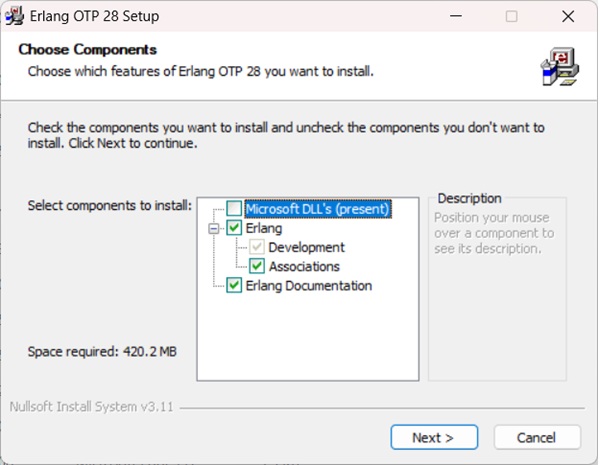
    Now install the Erlang using the installer by double clicking on it and follow the default selections and finish the setup.

    Erlang Installation

    RabbitMQ Installation

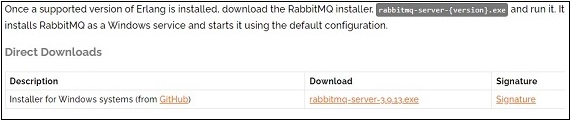
    Download the RabbitMQ Latest binary from its official downloads page We’ve downloaded 3.9.13 as rabbitmq-server-3.9.13.exe for windows.

    RabbitMQ Downloads

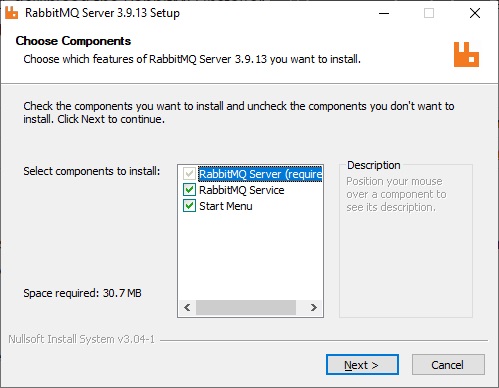
    Now install the RabbitMQ using the installer by double clicking on it and follow the default selections and finish the setup.

    RabbitMQ Installation

    By default, RabbitMQ works as windows service. To enable Web based Administration UI, following step are needed.

    Go to RabbitMQ Installation directory and type the commands as shown below −

    C:\Program Files\RabbitMQ Server\rabbitmq_server-3.9.13\sbin>rabbitmq-plugins.bat enable rabbitmq_management
    Enabling plugins on node rabbit@DESKTOP-86KD9FC:
    rabbitmq_management
    The following plugins have been configured:
       rabbitmq_management
       rabbitmq_management_agent
       rabbitmq_web_dispatch
    Applying plugin configuration to rabbit@DESKTOP-86KD9FC...
    The following plugins have been enabled:
       rabbitmq_management
       rabbitmq_management_agent
       rabbitmq_web_dispatch
    
    started 3 plugins.
    
    C:\Program Files\RabbitMQ Server\rabbitmq_server-3.9.13\sbin>rabbitmq-plugins enable rabbitmq_shovel rabbitmq_shovel_management
    Enabling plugins on node rabbit@DESKTOP-86KD9FC:
    rabbitmq_shovel
    rabbitmq_shovel_management
    The following plugins have been configured:
       rabbitmq_management
       rabbitmq_management_agent
       rabbitmq_shovel
       rabbitmq_shovel_management
       rabbitmq_web_dispatch
    Applying plugin configuration to rabbit@DESKTOP-86KD9FC...
    The following plugins have been enabled:
       rabbitmq_shovel
       rabbitmq_shovel_management
    
    started 2 plugins.
    
    C:\Program Files\RabbitMQ Server\rabbitmq_server-3.9.13\sbin>

    Edit C:\Windows\System32\drivers\etc\hosts file using administrative priviledge and add following line to it −

    127.0.0.1 rabbitmq
    

    Explore our latest online courses and learn new skills at your own pace. Enroll and become a certified expert to boost your career.

    Verify the Installation

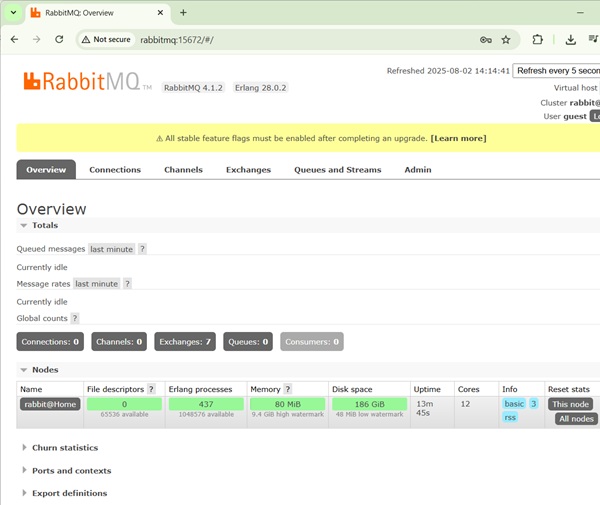
    Now open http://rabbitmq:15672/ to open Management console. Login using guest/guest.

    RabbitMQ Management Console
  • Features

    RabbitMQ is one of the most popular open source message broker. It is designed to provide high availability, scalability, reliability, performance and security for enterprise level messaging applications. Following are some of the salient features of RabbitMQ.

    • LightWeight − RabbitMQ is lightweight and and is quity easy to install on premise as well as on cloud.
    • Connectivity Options − RabbitMQ supports multiple messaging protocols and can be deployed in distributed/federated configurations to meet high availability, scalability requirements.
    • Pluggable Architecture − RabbitMQ allows to choose a persistence mechanism and also provides options to customize security for authentication and authorization as per the application needs.
    • Multi-Platform − RabbitMQ provides client APIs for many popular languages like Java, Python, JavaScript, Ruby etc.
    • Broker Cluster − RabbitMQ can be deployed as clusters for high availability and throughput. It can be federated across multiple availability zones and regions.
    • Features Rich − RabbitMQ provides many advanced features for both broker and clients.
    • Simple Administration Interface − RabbitMQ administration console is easy to use but still provides many powerful administration features.
    • Enterprise and Cloud Ready − RabbitMQ supports pluggable authentication and authorization. It supports LDAP and TLS. It can be easily deployed in public as well as private clouds.
    • Features Rich − RabbitMQ provides many advanced features for both broker and clients. It provides plugins to support continuous integration, operational metrics, and integration to other enterprise systems etc.
    • Management − RabbitMQ provides HTTP API, command line tool and UI to manage and monitor RabbitMQ.
  • Environment Setup

    This chapter will guide you on how to prepare a development environment to start your work with RabbitMQ. It will also teach you how to set up JDK, Maven and Eclipse on your machine before you set up RabbitMQ −

    Setup Java Development Kit (JDK)

    You can download the latest version of SDK from Oracle’s Java site − Java SE Downloads. You will find instructions for installing JDK in downloaded files, follow the given instructions to install and configure the setup. Finally set PATH and JAVA_HOME environment variables to refer to the directory that contains java and javac, typically java_install_dir/bin and java_install_dir respectively.

    If you are running Windows and have installed the JDK in C:\jdk-11.0.11, you would have to put the following line in your C:\autoexec.bat file.

    set PATH=C:\jdk-11.0.11;%PATH% 
    set JAVA_HOME=C:\jdk-11.0.11 
    

    Alternatively, on Windows NT/2000/XP, you will have to right-click on My Computer, select Properties → Advanced → Environment Variables. Then, you will have to update the PATH value and click the OK button.

    On Unix (Solaris, Linux, etc.), if the SDK is installed in /usr/local/jdk-11.0.11 and you use the C shell, you will have to put the following into your .cshrc file.

    setenv PATH /usr/local/jdk-11.0.11/bin:$PATH 
    setenv JAVA_HOME /usr/local/jdk-11.0.11
    

    Alternatively, if you use an Integrated Development Environment (IDE) like Borland JBuilder, Eclipse, IntelliJ IDEA, or Sun ONE Studio, you will have to compile and run a simple program to confirm that the IDE knows where you have installed Java. Otherwise, you will have to carry out a proper setup as given in the document of the IDE.

    Setup Eclipse IDE

    All the examples in this tutorial have been written using Eclipse IDE. So we would suggest you should have the latest version of Eclipse installed on your machine.

    To install Eclipse IDE, download the latest Eclipse binaries from www.eclipse.org/downloads. Once you download the installation, unpack the binary distribution into a convenient location. For example, in C:\eclipse on Windows, or /usr/local/eclipse on Linux/Unix and finally set PATH variable appropriately.

    Eclipse can be started by executing the following commands on Windows machine, or you can simply double-click on eclipse.exe.

    %C:\eclipse\eclipse.exe 
    

    Eclipse can be started by executing the following commands on Unix (Solaris, Linux, etc.) machine −

    $/usr/local/eclipse/eclipse
    

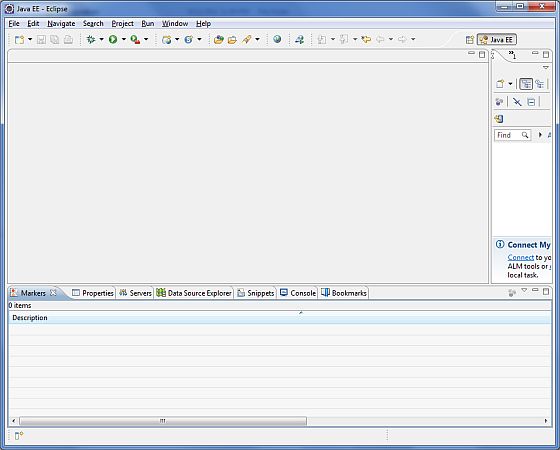
    After a successful startup, if everything is fine then it should display the following result −

    Eclipse Home page

    Explore our latest online courses and learn new skills at your own pace. Enroll and become a certified expert to boost your career.

    Set Maven

    In this tutorial, we are using maven to run and build the spring based examples to run RabbitMQ based applications. Follow the Maven – Environment Setup to install maven.

  • Overview

    What is RabbitMQ?

    RabbitMQ is an open source message broker written in Java. It’s fully compliant with JMS 1.1 standards. It is developed and maintained by Apache Software Foundation and is licensed under Apache license. It provides high availability, scalability, reliability, performance and security for enterprise level messaging applications.

    JMS is a specification that allows development of message based system. RabbitMQ acts as a broker of messages which sits in between applications and allows them to communicate in asynchronous and reliable way.

    AMQ

    Types of Messaging

    There are two types of messaging options explained below for better understanding.

    Point to Point

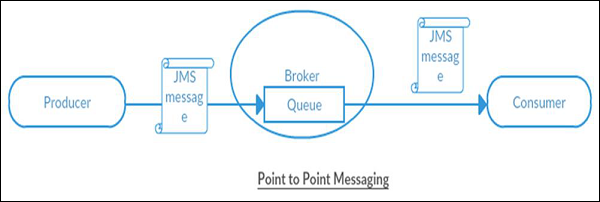
    In this type of communication, the broker sends messages to only one consumer, while the other consumers will wait till they get the messages from the broker. No consumer will get the same message.

    If there are no consumers, the Broker will hold the messages till it gets a consumer. This type of communication is also called as Queue based communication where the Producer sends messages to a queue and only one consumer gets one message from the queue. If there is more than one consumer, they may get the next message but they won’t get the same message as the other consumer.

    Point to Point Messaging

    Publish/Subscribe

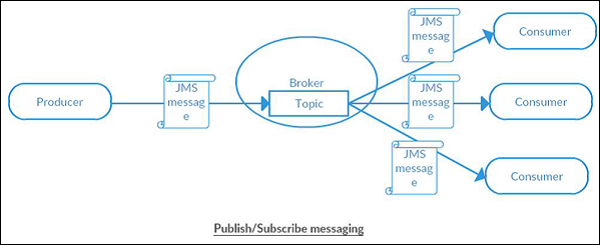
    In this type of communication, the Broker sends same copy of messages to all the active consumers. This type of communication is also known as Topic based communication where broker sends same message to all active consumer who has subscribed for particular Topic. This model supports one-way communication where no verification of transmitted messages is expected.

    Publish/Subscribe Messaging
  • SMTP Servers

    SMTP is an acronym for Simple Mail Transfer Protocol. It is an Internet standard for electronic mail (e-mail) transmission across Internet Protocol (IP) networks. SMTP uses TCP port 25. SMTP connections secured by SSL are known by the shorthand SMTPS, though SMTPS is not a protocol in its own right.

    JavaMail API has package com.sun.mail.smtp which act as SMTP protocol provider to access an SMTP server. Following table lists the classes included in this package:

    ClassDescription
    SMTPMessageThis class is a specialization of the MimeMessage class that allows you to specify various SMTP options and parameters that will be used when this message is sent over SMTP.
    SMTPSSLTransportThis class implements the Transport abstract class using SMTP over SSL for message submission and transport.
    SMTPTransportThis class implements the Transport abstract class using SMTP for message submission and transport.

    The following table lists the exceptions thrown:

    ExceptionDescription
    SMTPAddressFailedExceptionThis exception is thrown when the message cannot be sent.
    SMTPAddressSucceededExceptionThis exception is chained off a SendFailedException when the mail.smtp.reportsuccess property is true.
    SMTPSenderFailedExceptionThis exception is thrown when the message cannot be sent.
    SMTPSendFailedExceptionThis exception is thrown when the message cannot be sent.The exception includes the sender’s address, which the mail server rejected.

    The com.sun.mail.smtp provider use SMTP Authentication optionally. To use SMTP authentication you’ll need to set the mail.smtp.auth property or provide the SMTP Transport with a username and password when connecting to the SMTP server. You can do this using one of the following approaches:

    • Provide an Authenticator object when creating your mail Session and provide the username and password information during the Authenticator callback. mail.smtp.user property can be set to provide a default username for the callback, but the password will still need to be supplied explicitly. This approach allows you to use the static Transport send method to send messages. For example:
    • Call the Transport connect method explicitly with username and password arguments. For example:Transport tr = session.getTransport(“smtp”); tr.connect(smtphost, username, password); msg.saveChanges(); tr.sendMessage(msg, msg.getAllRecipients()); tr.close();

    The SMTP protocol provider supports the following properties, which may be set in the JavaMail Session object. The properties are always set as strings. For example:

     props.put("mail.smtp.port", "587");

    Here the Type column describes how the string is interpreted.

    NameTypeDescription
    mail.smtp.userStringDefault user name for SMTP.
    mail.smtp.hostStringThe SMTP server to connect to.
    mail.smtp.portintThe SMTP server port to connect to, if the connect() method doesn’t explicitly specify one. Defaults to 25.
    mail.smtp.connectiontimeoutintSocket connection timeout value in milliseconds. Default is infinite timeout.
    mail.smtp.timeoutintSocket I/O timeout value in milliseconds. Default is infinite timeout.
    mail.smtp.fromStringEmail address to use for SMTP MAIL command. This sets the envelope return address. Defaults to msg.getFrom() or InternetAddress.getLocalAddress().
    mail.smtp.localhostStringLocal host name used in the SMTP HELO or EHLO command. Defaults to InetAddress.getLocalHost().getHostName(). Should not normally need to be set if your JDK and your name service are configured properly.
    mail.smtp.localaddressStringLocal address (host name) to bind to when creating the SMTP socket. Defaults to the address picked by the Socket class. Should not normally need to be set.
    mail.smtp.localportintLocal port number to bind to when creating the SMTP socket. Defaults to the port number picked by the Socket class.
    mail.smtp.ehlobooleanIf false, do not attempt to sign on with the EHLO command. Defaults to true.
    mail.smtp.authbooleanIf true, attempt to authenticate the user using the AUTH command. Defaults to false.
    mail.smtp.auth.mechanismsStringIf set, lists the authentication mechanisms to consider. Only mechanisms supported by the server and supported by the current implementation will be used. The default is “LOGIN PLAIN DIGEST-MD5 NTLM”, which includes all the authentication mechanisms supported by the current implementation.
    mail.smtp.auth.login.disablebooleanIf true, prevents use of the AUTH LOGIN command. Default is false.
    mail.smtp.auth.plain.disablebooleanIf true, prevents use of the AUTH PLAIN command. Default is false.
    mail.smtp.auth.digest-md5.disablebooleanIf true, prevents use of the AUTH DIGEST-MD5 command. Default is false.
    mail.smtp.auth.ntlm.disablebooleanIf true, prevents use of the AUTH NTLM command. Default is false.
    mail.smtp.auth.ntlm.domainStringThe NTLM authentication domain.
    mail.smtp.auth.ntlm.flagsintNTLM protocol-specific flags.
    mail.smtp.submitterStringThe submitter to use in the AUTH tag in the MAIL FROM command. Typically used by a mail relay to pass along information about the original submitter of the message.
    mail.smtp.dsn.notifyStringThe NOTIFY option to the RCPT command. Either NEVER, or some combination of SUCCESS, FAILURE, and DELAY (separated by commas).
    mail.smtp.dsn.retStringThe RET option to the MAIL command. Either FULL or HDRS.
    mail.smtp.sendpartialbooleanIf set to true, and a message has some valid and some invalid addresses, send the message anyway, reporting the partial failure with a SendFailedException. If set to false (the default), the message is not sent to any of the recipients if there is an invalid recipient address.
    mail.smtp.sasl.enablebooleanIf set to true, attempt to use the javax.security.sasl package to choose an authentication mechanism for login. Defaults to false.
    mail.smtp.sasl.mechanismsStringA space or comma separated list of SASL mechanism names to try to use.
    mail.smtp.sasl.authorizationidStringThe authorization ID to use in the SASL authentication. If not set, the authentication ID (user name) is used.
    mail.smtp.sasl.realmStringThe realm to use with DIGEST-MD5 authentication.
    mail.smtp.quitwaitbooleanIf set to false, the QUIT command is sent and the connection is immediately closed. If set to true (the default), causes the transport to wait for the response to the QUIT command.
    mail.smtp.reportsuccessbooleanIf set to true, causes the transport to include an SMTPAddressSucceededException for each address that is successful.
    mail.smtp.socketFactorySocket FactoryIf set to a class that implements the javax.net.SocketFactory interface, this class will be used to create SMTP sockets.
    mail.smtp.socketFactory.classStringIf set, specifies the name of a class that implements the javax.net.SocketFactory interface. This class will be used to create SMTP sockets.
    mail.smtp.socketFactory.fallbackbooleanIf set to true, failure to create a socket using the specified socket factory class will cause the socket to be created using the java.net.Socket class. Defaults to true.
    mail.smtp.socketFactory.portintSpecifies the port to connect to when using the specified socket factory. If not set, the default port will be used.
    mail.smtp.ssl.enablebooleanIf set to true, use SSL to connect and use the SSL port by default. Defaults to false for the “smtp” protocol and true for the “smtps” protocol.
    mail.smtp.ssl.checkserveridentitybooleanIf set to true, checks the server identity as specified by RFC 2595. Defaults to false.
    mail.smtp.ssl.trustStringIf set, and a socket factory hasn’t been specified, enables use of a MailSSLSocketFactory.
    If set to “*”, all hosts are trusted.
    If set to a whitespace separated list of hosts, those hosts are trusted.
    Otherwise, trust depends on the certificate the server presents.
    mail.smtp.ssl.socketFactorySSL Socket FactoryIf set to a class that extends the javax.net.ssl.SSLSocketFactory class, this class will be used to create SMTP SSL sockets.
    mail.smtp.ssl.socketFactory.classStringIf set, specifies the name of a class that extends the javax.net.ssl.SSLSocketFactory class. This class will be used to create SMTP SSL sockets.
    mail.smtp.ssl.socketFactory.portintSpecifies the port to connect to when using the specified socket factory. If not set, the default port will be used.
    mail.smtp.ssl.protocolsstringSpecifies the SSL protocols that will be enabled for SSL connections. The property value is a whitespace separated list of tokens acceptable to the javax.net.ssl.SSLSocket.setEnabledProtocols method.
    mail.smtp.starttls.enablebooleanIf true, enables the use of the STARTTLS command (if supported by the server) to switch the connection to a TLS-protected connection before issuing any login commands. Defaults to false.
    mail.smtp.starttls.requiredbooleanIf true, requires the use of the STARTTLS command. If the server doesn’t support the STARTTLS command, or the command fails, the connect method will fail. Defaults to false.
    mail.smtp.socks.hoststringSpecifies the host name of a SOCKS5 proxy server that will be used for connections to the mail server.
    mail.smtp.socks.portstringSpecifies the port number for the SOCKS5 proxy server. This should only need to be used if the proxy server is not using the standard port number of 1080.
    mail.smtp.mailextensionStringExtension string to append to the MAIL command.
    mail.smtp.usersetbooleanIf set to true, use the RSET command instead of the NOOP command in the isConnected method. In some cases sendmail will respond slowly after many NOOP commands; use of RSET avoids this sendmail issue. Defaults to false.

    In general, applications should not need to use the classes in this package directly. Instead, they should use the APIs defined by javax.mail package (and subpackages). Say for example applications should never construct instances of SMTPTransport directly. Instead, they should use the Session method getTransport to acquire an appropriate Transport object.

  • Bounced Messages

    A message can be bounced for several reasons. This problem is discussed in depth at rfc1211. Only a server can determine the existence of a particular mailbox or user name. When the server detects an error, it will return a message indicating the reason for the failure to the sender of the original message.

    There are many Internet standards covering Delivery Status Notifications but a large number of servers don’t support these new standards, instead using ad hoc techniques for returning such failure messages. Hence it get very difficult to correlate the bounced message with the original message that caused the problem.

    JavaMail includes support for parsing Delivery Status Notifications. There are a number of techniques and heuristics for dealing with this problem. One of the techniques being Variable Envelope Return Paths. You can set the return path in the enveloper as shown in the example below. This is the address where bounce mails are sent to. You may want to set this to a generic address, different than the From: header, so you can process remote bounces. This done by setting mail.smtp.from property in JavaMail.

    Create Java Class

    Create a java class file SendEmail, the contents of which are as follows:

    import java.util.Properties;
    
    import javax.mail.Message;
    import javax.mail.PasswordAuthentication;
    import javax.mail.Session;
    import javax.mail.Transport;
    import javax.mail.internet.InternetAddress;
    import javax.mail.internet.MimeMessage;
    
    public class SendEmail {
       public static void main(String[] args) throws Exception {
    
      String smtpServer = "smtp.gmail.com";
      int port = 587;
      final String userid = "youraddress";//change accordingly
      final String password = "*****";//change accordingly
      String contentType = "text/html";
      String subject = "test: bounce an email to a different address " +
    			"from the sender";
      String from = "[email protected]";
      String to = "[email protected]";//some invalid address
      String bounceAddr = "[email protected]";//change accordingly
      String body = "Test: get message to bounce to a separate email address";
      Properties props = new Properties();
      props.put("mail.smtp.auth", "true");
      props.put("mail.smtp.starttls.enable", "true");
      props.put("mail.smtp.host", smtpServer);
      props.put("mail.smtp.port", "587");
      props.put("mail.transport.protocol", "smtp");
      props.put("mail.smtp.from", bounceAddr);
      Session mailSession = Session.getInstance(props,
         new javax.mail.Authenticator() {
            protected PasswordAuthentication getPasswordAuthentication() {
               return new PasswordAuthentication(userid, password);
            }
         });
      MimeMessage message = new MimeMessage(mailSession);
      message.addFrom(InternetAddress.parse(from));
      message.setRecipients(Message.RecipientType.TO, to);
      message.setSubject(subject);
      message.setContent(body, contentType);
      Transport transport = mailSession.getTransport();
      try {
         System.out.println("Sending ....");
         transport.connect(smtpServer, port, userid, password);
         transport.sendMessage(message,
            message.getRecipients(Message.RecipientType.TO));
         System.out.println("Sending done ...");
      } catch (Exception e) {
         System.err.println("Error Sending: ");
         e.printStackTrace();
      }
      transport.close();
    }// end function main() }

    Here we can see that the property mail.smtp.from is set different from the from address.

    Compile and Run

    Now that our class is ready, let us compile the above class. I’ve saved the class SendEmail.java to directory : /home/manisha/JavaMailAPIExercise. We would need the jars javax.mail.jar and activation.jar in the classpath. Execute the command below to compile the class (both the jars are placed in /home/manisha/ directory) from command prompt:

    javac -cp /home/manisha/activation.jar:/home/manisha/javax.mail.jar: SendEmail.java

    Now that the class is compiled, execute the below command to run:

    java -cp /home/manisha/activation.jar:/home/manisha/javax.mail.jar: SendEmail

    Learn Java in-depth with real-world projects through our Java certification course. Enroll and become a certified expert to boost your career.

    Verify Output

    You should see the following message on the command console:

    Sending ....
    Sending done ...