Author: saqibkhan

  • Generators

    One of the most exciting new features of JavaScript ES6 is a new breed of function, called a generator. Before generators, the whole script was used to usually execute in a top to bottom order, without an easy way to stop code execution and resuming with the same stack later. Generators are functions which can be exited and later re-entered. Their context (variable bindings) will be saved across re-entrances.

    Generators allow us to stop code execution in between. Hence, let’s take a look at a simple generator.

    var generator_func = function* (){
       yield 1;
       yield 2;
    };
    
    var itr = generator_func();
    console.log(itr.next());
    console.log(itr.next());
    console.log(itr.next());

    When running the above code, following will be the result.

    { value: 1, done: false }
    { value: 2, done: false }
    { value: undefined, done: true }
    

    Let’s look inside the above code. We first create a generator called generator_func(). We created an instance of this weird looking function and assigned it to itr. Then we started calling next() on this itr variable.

    Calling next() starts the generator and it runs until it hits a yield. Then it returns the object with value and done, where the value has the expression value. This expression can be anything. At this point, it pauses execution. Again when we call this function(next), the generator resumes execution from the last yield point with the function state being the same at the time of pause, till the next yield point. This is done till there are no more yield points in the code.

    Generators in Koa

    So why are we discussing generators in this tutorial. As you might remember from the hello world program, we used a function* () notation to pass a callback to app.use(). Koa is an object, which contains an array of middleware generator functions, all of which are composed and executed in a stack-like manner upon each request. Koa also implements downstreaming followed by upstreaming of control flow.

    Take a look at the following example to understand this in a better way.

    var koa = require('koa');
    var app = koa();
     
    app.use(function* (next) {
       //do something before yielding to next generator function 
       
       //in line which will be 1st event in downstream
       console.log("1");
       yield next;
     
       //do something when the execution returns upstream, 
       //this will be last event in upstream
       console.log("2");
    });
    app.use(function* (next) {
       // This shall be 2nd event downstream
       console.log("3");
       yield next;
     
       // This would be 2nd event upstream
       console.log("4");
    });
    app.use(function* () { 
       // Here it would be last function downstream
       console.log("5");
       
       // Set response body
       this.body = "Hello Generators";
    
       // First event of upstream (from the last to first)
       console.log("6");
    });
    
    app.listen(3000);

    When running the above code and navigating to https://localhost:3000/ we get the following output on our console.

    1
    3
    5
    6
    4
    2
    

    This is essentially how Koa uses generators. It allows us to create compact middleware using this property and write code for both upstream and downstream functionalities, thus saving us from callbacks.

  • Hello World

    Once we have set up the development, it is time to start developing our first app using Koa. Create a new file called app.js and type the following in it.

    var koa = require('koa');
    var app = new koa();
    
    app.use(function* (){
       this.body = 'Hello world!';
    });
    
    app.listen(3000, function(){
       console.log('Server running on https://localhost:3000')
    });

    Save the file, go to your terminal and type.

    $ nodemon app.js
    

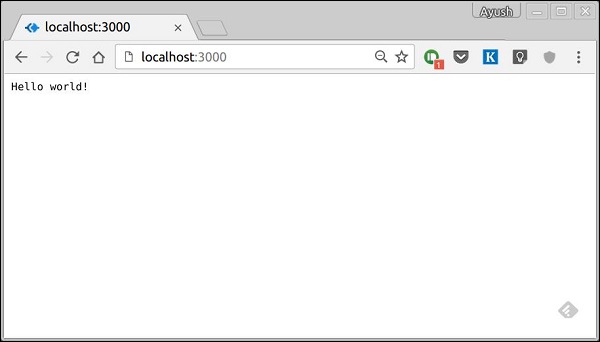
    This will start the server. To test this app, open your browser and go to https://localhost:3000 and you should receive the following message.

    Hello world

    How This App Works?

    The first line imports Koa in our file. We have access to its API through the variable Koa. We use it to create an application and assign it to var app.

    app.use(function) − This function is a middleware, which gets called whenever our server gets a request. We’ll learn more about middleware in the subsequent chapters. The callback function is a generator, which we’ll see in the next chapter. The context of this generator is called context in Koa. This context is used to access and modify the request and response objects. We are setting the body of this response to be Hello world!.

    app.listen(port, function) − This function binds and listens for connections on the specified port. Port is the only required parameter here. The callback function is executed, if the app runs successfully.

  • Environment

    To get started with developing using the Koa framework, you need to have Node and npm (node package manager) installed. If you don’t already have these, head over to Node setup to install node on your local system. Confirm that node and npm are installed by running the following commands in your terminal.

    $ node --version
    $ npm --version
    

    You should receive an output similar to −

    v5.0.0
    3.5.2
    

    Please ensure your node version is above 6.5.0. Now that we have Node and npm set up, let us understand what npm is and how to use it.

    Node Package Manager (npm)

    npm is the package manager for node. The npm Registry is a public collection of packages of open-source code for Node.js, front-end web apps, mobile apps, robots, routers, and countless other needs of the JavaScript community. npm allows us to access all these packages and install them locally. You can browse through the list of packages available on npm at npmJS.

    How to Use npm?

    There are two ways to install a package using npm − globally and locally.

    Globally − This method is generally used to install development tools and CLI based packages. To install a package globally, use the following command.

    $ npm install -g <package-name>
    

    Locally − This method is generally used to install frameworks and libraries. A locally installed package can be used only within the directory it is installed. To install a package locally, use the same command as above without the −g flag.

    $ npm install <package-name>
    

    Whenever we create a project using npm, we need to provide a package.json file, which has all the details about our project. npm makes it easy for us to set up this file. Let us set up our development project.

    Step 1 − Fire up your terminal/cmd, create a new folder named hello-world and cd into it −

    Environment mkdir

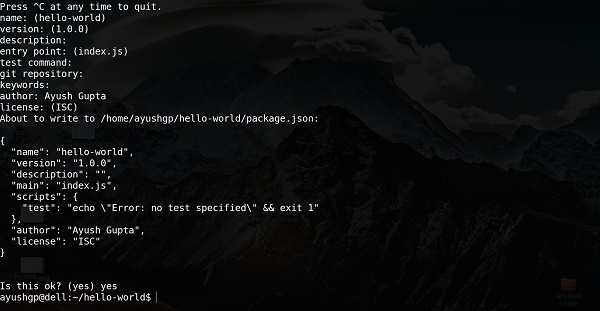
    Step 2 − Now to create the package.json file using npm, use the following.

    npm init
    

    It’ll ask you for the following information −

    Environment NPM

    Just keep pressing enter, and enter your name in the “author name” field.

    Step 3 − Now we have our package.json file set up, we’ll install Koa. To install Koa and add it in our package.json file, use the following command.

    $ npm install --save koa
    

    To confirm Koa installed correctly, run the following command.

    $ ls node_modules #(dir node_modules for windows)
    

    Tip − The –save flag can be replaced by -S flag. This flag ensures that Koa is added as a dependency to our package.json file. This has an advantage, the next time we need to install all the dependencies of our project, we just need to run the command npm install and it’ll find the dependencies in this file and install them for us.

    This is all we need to start development using the Koa framework. To make our development process a lot easier, we will install a tool from npm, nodemon. What this tool does is, it restarts our server as soon as we make a change in any of our files, otherwise we need to restart the server manually after each file modification. To install nodemon, use the following command.

    $ npm install -g nodemon
    

    Now we are all ready to dive into Koa!

  • Overview

    What is Koa?

    Koa provides a minimal interface to build applications. It is a very small framework (600 LoC) which provides the required tools to build apps and is quite flexible. There are numerous modules available on npm for Koa, which can be directly plugged into it. Koa can be thought of as the core of express.js without all the bells and whistles.

    Why Koa?

    Koa has a small footprint (600 LoC) and is a very thin layer of abstraction over the node to create server side apps. It is completely pluggable and has a huge community. This also allows us to easily extend Koa and use it according to our needs. It is built using the bleeding edge technology (ES6) which gives it an edge over older frameworks such as express.

    Pug

    Pug (earlier known as Jade) is a terse language for writing HTML templates.

    • Produces HTML
    • Supports dynamic code
    • Supports reusability (DRY)

    It is one of the most popular templating language used with Koa.

    MongoDB and Mongoose

    MongoDB is an open-source, document database designed for ease of development and scaling. We’ll use this database to store data.

    Mongoose is a client API for node.js which makes it easy to access our database from our Koa application.

  • WebSockets

    For real-time communication, you can use WebSockets with the ws library or socket.io.

    a. Install Socket.IO

    npm install socket.io
    

    b. Set Up Socket.IO

    In app.js:

    const http = require('http');
    const socketIo = require('socket.io');
    const server = http.createServer(app);
    const io = socketIo(server);
    
    io.on('connection', (socket) => {
      console.log('A user connected');
      socket.on('disconnect', () => {
    
    console.log('User disconnected');
    }); }); server.listen(port, () => { console.log(Server is running on http://localhost:${port}); });
  • File Uploads

    Handle file uploads using middleware like multer.

    a. Install Multer

    npm install multer
    

    b. Configure Multer

    In app.js:

    const multer = require('multer');
    const upload = multer({ dest: 'uploads/' });
    
    app.post('/upload', upload.single('file'), (req, res) => {
      res.send('File uploaded successfully');
    });
    

    Here, dest specifies the directory where files will be stored, and upload.single('file') handles single file uploads.

  • Security

    Securing your Express application is crucial to prevent common vulnerabilities. Here are some best practices and tools to help with that.

    a. Helmet

    Helmet helps secure your Express apps by setting various HTTP headers.

    npm install helmet
    

    In your app.js:

    const helmet = require('helmet');
    app.use(helmet());
    

    b. Rate Limiting

    Limit the number of requests from a single IP to prevent abuse.

    npm install rate-limit
    

    In your app.js:

    const rateLimit = require('express-rate-limit');
    
    const limiter = rateLimit({
      windowMs: 15 * 60 * 1000, // 15 minutes
      max: 100 // Limit each IP to 100 requests per windowMs
    });
    
    app.use(limiter);
    

    c. CORS (Cross-Origin Resource Sharing)

    Control how your resources are shared across different origins.

    npm install cors
    

    In your app.js:

    const cors = require('cors');
    app.use(cors());
    

    You can configure CORS to allow or block specific origins:

    app.use(cors({
      origin: 'https://example.com'
    }));
    
  • Testing

    Testing is crucial for ensuring your application works correctly.

    a. Install Testing Libraries

    For unit and integration tests, you might use libraries like Mocha and Chai.

    npm install mocha chai supertest
    

    b. Write Tests

    Create a test directory and a test file, e.g., test/app.test.js:

    const request = require('supertest');
    const app = require('../app'); // Your Express app
    
    describe('GET /', () => {
      it('should return Hello World', async () => {
    
    const response = await request(app).get('/');
    expect(response.text).toBe('Hello World!');
    }); });

    c. Run Tests

    Add a test script in package.json:

    "scripts": {
      "test": "mocha"
    }
    

    Run your tests:

    bashCopy codenpm test
    
  • Environment Variables

    Use environment variables to manage configuration, like database connection strings, API keys, etc.

    a. Install dotenv

    codenpm install dotenv
    

    b. Create a .env File

    PORT=3000
    MONGODB_URI=mongodb://localhost/mydatabase
    

    c. Use Environment Variables

    In app.js:

    require('dotenv').config();
    
    const port = process.env.PORT || 3000;
    const mongooseUri = process.env.MONGODB_URI;
    
    mongoose.connect(mongooseUri, {
      useNewUrlParser: true,
      useUnifiedTopology: true
    });
    
  • Session Management

    Express can manage sessions using middleware like express-session.

    a. Install express-session

    codenpm install express-session
    

    b. Configure Sessions

    const session = require('express-session');
    
    app.use(session({
      secret: 'your-secret-key',
      resave: false,
      saveUninitialized: true,
      cookie: { secure: false } // Set to true if using HTTPS
    }));
    

    c. Use Sessions

    app.get('/login', (req, res) => {
      req.session.user = { id: 1, name: 'John Doe' };
      res.send('User logged in');
    });
    
    app.get('/profile', (req, res) => {
      if (req.session.user) {
    
    res.send(Welcome ${req.session.user.name});
    } else {
    res.send('Please log in');
    } });