Author: saqibkhan

  • Data Flow in Angular Forms

    When you create Angular forms, it is important to know how the framework handles the data flow. There are two type of forms in Angular, reactive and template-driven and both follow the different structure to handle user?s input.

    Data flow in Reactive forms

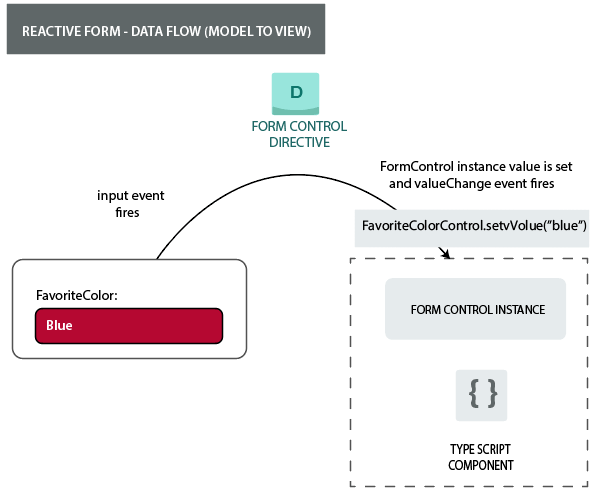
    In Reactive form, each form element in the view is directly linked to a form model (FormControl instance). Any updation from the view to the model and the model to the view are synchronous and are not dependent on the UI. Let?s understand it using a diagram. It will show how data flows when we change input field’s value from the view and then from the model.

    Data flow from View to Model
    Data Flow in Angular Forms

    Steps in data flow from view to model in reactive forms:

    • First, the user types a value into the input element. In this example, the input element is Favorite Color and the typed value is Blue.
    • Then, the form input element emits an “input” event with the latest typed value.
    • Then the control value accessor(who listen for events on the form input element) immediately relays the new value to the FormControl instance.
    • After receiving the value theFormControl instance emits the new value through the valueChanges observable.
    • Any subscribers to the valueChanges observable receive the new value.

    Data flow from Model to View

    Data Flow in Angular Forms

    Steps in data flow from model to viewin reactive forms:

    • First, the user calls the favoriteColorControl.setValue() method. This method updates the FormControl value.
    • Then, the FormControl instance emits the new value through the valueChanges observable.
    • Then, subscribers to the valueChanges observable receive the new value.
    • At last, the control value accessor on the form input element updates the element with the new value.

    Data flow in Template-driven forms

    Every form element of the template-driven forms is linked to a directive to manage the form model internally.Let’s take a graphical example to understand how data flows in template-driven angular forms when an input field’s value is changed from the view and then from the model.

    Data flow from View to Model:

    Data Flow in Angular Forms

    Steps in data flow fromview to model in reactive forms:

    Here the user has to change the input value from red to blue.

    • First, the user types Blue into the input element.
    • Then, the input element emits an “input” event having the value Blue.
    • Then, the control value accessor attached to the input triggers the setValue() method on the FormControl instance.
    • After the setValue() method, the FormControl instance emits the new value through the valueChanges observable.
    • Subscribers to the valueChanges observable receive the new value.
    • After that, the control value accessor also calls the NgModel.viewToModelUpdate() method which emits an ngModelChange event.
    • Here, component template uses two-way data binding for the favoriteColor property, the favoriteColor property in the component is updated to the value emitted by the ngModelChange event (Blue).

    Data flow from Model to View:

    Data Flow in Angular Forms

    Steps in data flow from model to viewin reactive forms:

    The data flow from model to view consists of following steps when the favoriteColor element changes from red to blue.

    • First, the favoriteColor is updated to anew value in the component.
    • Change detection starts.
    • During change detection, the ngOnChanges lifecycle hook is called on the NgModel directive instance because the value of one of its inputs has changed.
    • The ngOnChanges() method queues an async task to set the value for the internal FormControl instance.
    • Change detection is complete now.
    • Then, the task to set the FormControl instance value is executed.
    • The FormControl instance emits the latest value through the valueChanges observable.
    • Any subscribers to the valueChanges observable receive the new value.
    • The control value accessor updates the form input element in the view with the latest favoriteColor value.
  • Forms

    Angular forms are used to handle user’s input. We can use Angular form in our application to enable users to log in, to update profile, to enter information, and to perform many other data-entry tasks.

    In Angular 7, there are 2 approaches to handle user’s input through forms:

    • Reactive forms
    • Template-driven forms

    Both approaches are used to collect user input events from the view, validate the user input, create a form model and data model to update, and provide a way to track changes.

    Reactive Forms vs. Template-driven Forms

    Both Reactive forms and Template-driven forms manage and process data differently. Each offers different advantages.

    Reactive Forms

    • Reactive forms are more robust.
    • Reactive forms are more scalable, reusable, and testable.
    • They are most preferred to use if forms are a key part of your application, or your application is already built using reactive patterns. In both cases, reactive forms are best to use.

    Template-driven Forms

    • Template-driven forms are best if you want to add a simple form to your application. For example: email list signup form.
    • Template-driven forms are easy to use in the application but they are not as scalable as Reactive forms.
    • Template-driven forms are mainly used if your application’s requires a very basic form and logic. It can easily be managed in a template.

    Difference between Reactive Forms and Template-driven Forms

    Comparison IndexReactive FormsTemplate-driven Forms
    Setup (form model)Reactive forms are more explicit. They are created in component class.Template-driven forms are less explicit. They are created by directives.
    Data modelStructuredUnstructured
    PredictabilitySynchronousAsynchronous
    Form validationFunctionsDirectives
    MutabilityImmutableMutable
    ScalabilityLow-level API accessAbstraction on top of APIs

    Similarity between Reactive Forms and Template-driven Forms

    There are some building blocks which are shared by both reactive and template-driven forms:

    • FormControl: It is used to track the value and validation status of an individual form control.
    • FormGroup: It is used to track the same values and status for a collection of form controls.
    • FormArray: It is used to track the same values and status for an array of form controls.
    • ControlValueAccessor: It is used to create a bridge between Angular FormControl instances and native DOM elements.

    Form Model Setup

    Form model setup is used to track value changes between Angular forms and form input elements. Let’s take an example to see how the form model is defined and created.

    Form model setup in Reactive forms

    See the below component with an input field for a single control implemented using reactive forms.

    import { Component } from '@angular/core';  
    
    import { FormControl } from '@angular/forms';  
    
    @Component({  
    
      selector: 'app-reactive-favorite-color',  
    
      template: `  
    
        Favorite Color: <input type="text" [formControl]="favoriteColorControl"> `  
    
    })  
    
    export class FavoriteColorComponent {  
    
      favoriteColorControl = new FormControl('');  
    
    }

    In reactive forms, the form model is the source of truth. The source of truth provides the value and status of the form element at a given point in time.

    Here, in the example above, the form model is the FormControl instance.

    Angular 7 Forms

    In reactive forms, the form model is explicitly defined in component class. After that the reactive form directive (here, it is: FormControlDirective) links the existing FormControl instance to a specific form element in the view using a value accessor (ControlValueAccessor instance).

    Form model setup in Template-driven Forms

    See the same above component with an input field for a single control implemented using template-driven forms.

    import { Component } from '@angular/core';  
    
    @Component({  
    
      selector: 'app-template-favorite-color',  
    
      template: `  
    
        Favorite Color: <input type="text" [(ngModel)]="favoriteColor"> `  
    
    })  
    
    export class FavoriteColorComponent {  
    
      favoriteColor = '';  
    
    }  

      In template-driven forms, the source of truth is template itself.

      Angular 7 Forms

      The form model abstraction promotes simplicity over structure. The template-driven form directive NgModel creates and manages the FormControl instance for a given form element. It’s less explicit, but it removes the direct control over the form model.

    1. Error Fixing

      You can get errors in Angular because of many causes.

      Let’s take an example to see some specific types of errors.

      We have created an app named “testing-app”. In this app, we have a server and a button on the page which has the ability to create other servers.

      Here, “component.html” file contains the following code:

      <div class="container">  
      
        <div class="row">  
      
       <div class="col-xs-12">  
      
         <h2>My Servers</h2>  
      
         <button class="btn btn-primary" (click)="OnAddServer()">Add Server</button>  
      
       <br><br>  


       <ul class="list-group">  
      
         <li  
      
         class="list-group-item "  
      
         *ngFor="let server of servers; let i = index"  
      
         (click)="onRemoveServer(i)">{{ server }}  
      
         </li>  
      
       </ul> </div>  
      
       </div> 

        component.ts file:

        import { Component } from '@angular/core';  


        @Component({  
        
          selector: 'app-root',  
        
          templateUrl: './app.component.html',  
        
          styleUrls: ['./app.component.css']  
        
        })  
        
        export class AppComponent {  
        
          title = 'testing-app';  
        
          servers;  


          OnAddServer() {  
        
            this.servers.push('Another Server Added');  
        
          }  


          onRemoveServer(id: number) {  
        
            const position = id + 1;  
        
            this.servers.splice(position, 1);  
        
          }  
        
        } 

          See the output:

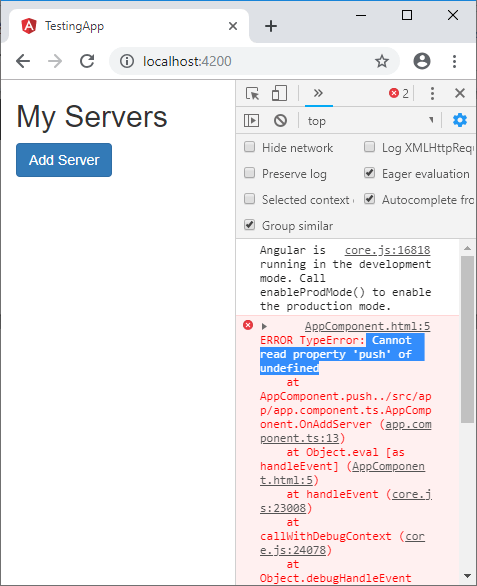
          Now, if you click on the “Add Servers” button, it will not add any server. Open the browser console to see the error type.

          Angular Error Fixing

          You can see that it is showing “push” property undefined. Here, you get some useful information about errors.

          Let’s check component.ts file:

          import { Component } from '@angular/core';  


          @Component({  
          
            selector: 'app-root',  
          
            templateUrl: './app.component.html',  
          
            styleUrls: ['./app.component.css']  
          
          })  
          
          export class AppComponent {  
          
            title = 'testing-app';  
          
            servers;  


            OnAddServer() {  
          
              this.servers.push('Another Server Added');  
          
            }  


            onRemoveServer(id: number) {  
          
              const position = id + 1;  
          
              this.servers.splice(position, 1);  
          
            }  
          
          } 

            Here, we have declared servers but it is not initialized. So, we set it to be in array format to keep newly created servers. So, change it to:

            servers= [];  

            Change the component.ts:

            import { Component } from '@angular/core';  


            @Component({  
            
              selector: 'app-root',  
            
              templateUrl: './app.component.html',  
            
              styleUrls: ['./app.component.css']  
            
            })  
            
            export class AppComponent {  
            
              title = 'testing-app';  
            
              servers = [];  


              OnAddServer() {  
            
                this.servers.push('Another Server Added');  
            
              }  


              onRemoveServer(id: number) {  
            
                const position = id + 1;  
            
                this.servers.splice(position, 1);  
            
              }  
            
            }  

              Output:

              Angular Error Fixing

              Now, you can see that this error is removed.

              Angular Error Fixing

              Debugging code in the browser

              Angular Augury Tool

              Search Angular Augury on Google chrome.

              Angular Error Fixing

              Click on Add to chrome button to add this tool on Chrome.

              Angular Error Fixing

              After adding it on chrome, open your browser’s developer tool and open Augury.

              Angular Error Fixing

              Augury is an awesome tool to analyse your Angular application. Open Augury and reload your browser’s page. You will see pages like this:

              This is injector graph:

              Angular Error Fixing

              This is Router Tree:

              Angular Error Fixing

              This is ngModule:

              Angular Error Fixing
            1. Pipes

              In Angular 1, filters are used which are later called Pipes onwards Angular2. In Angular 7, it is known as pipe and used to transform data. It is denoted by symbol |

              Syntax:

              {{title | uppercase}}   

              Pipe takes integers, strings, arrays, and date as input separated with |. It transforms the data in the format as required and displays the same in the browser.

              Let’s see an example using pipes. Here, we display the title text in upper and lower case by using pipes.

              Example:

              Define a variable named “title” in component.ts file.

              import { Component } from '@angular/core';  


              @Component({  
              
                selector: 'app-root',  
              
                templateUrl: './app.component.html',  
              
                styleUrls: ['./app.component.css']  
              
              })  
              
              export class AppComponent {  
              
                title = 'my-first-app';  
              
              }  

                Use the pipe symbol in component.html file:

                <h1>  
                
                   {{ title | uppercase }} <br/></h1>  
                
                <h1>  
                
                  {{ title | lowercase }} <br/></h1>  

                  Output:

                  Run ng serve and see the result. You will see the following result.

                  Angular 7 Pipes

                  Here, you can see that pipes have changed the tittle in upper and lowercase.

                  Angular 7 Built-in Pipes

                  Angular 7 provides some built-in pipes:

                  • Lowercasepipe
                  • Uppercasepipe
                  • Datepipe
                  • Currencypipe
                  • Jsonpipe
                  • Percentpipe
                  • Decimalpipe
                  • Slicepipe

                  You have seen the lowercasepipe and uppercasepipe examples. Now, let’s take some examples to see how the other pipes work.

                  Example:

                  Define the required variables in component.ts file.

                  component.ts file:

                  import { Component } from '@angular/core';  


                  @Component({  
                  
                    selector: 'app-root',  
                  
                    templateUrl: './app.component.html',  
                  
                    styleUrls: ['./app.component.css']  
                  
                  })  
                  
                  export class AppComponent {  
                  
                    title = 'my-first-app';  
                  
                    todaydate = new Date();  
                  
                    jsonval = {name: 'Alex', age: '25', address:{a1: 'Paris', a2: 'France'}};  
                  
                    months = ['Jan', 'Feb', 'Mar', 'April', 'May', 'Jun',  
                  
                      'July', 'Aug', 'Sept', 'Oct', 'Nov', 'Dec'];  
                  
                  } 

                    Use the different built-in pipe symbols in component.html file:

                    component.html file:

                    <div style = "width:100%;">  
                    
                      <div style = "width:40%;float:left;border:solid 1px black;">  
                    
                        <h1>Uppercase Pipe</h1>  
                    
                        <b>{{title | uppercase}}</b><br/>  
                    
                        <h1>Lowercase Pipe</h1>  
                    
                        <b>{{title | lowercase}}</b>  
                    
                        <h1>Currency Pipe</h1>  
                    
                        <b>{{6589.23 | currency:"USD"}}</b><br/>  
                    
                        <b>{{6589.23 | currency:"USD":true}}</b> //Boolean true is used to get the sign of the currency.  
                    
                        <h1>Date pipe</h1>  
                    
                        <b>{{todaydate | date:'d/M/y'}}</b><br/>  
                    
                        <b>{{todaydate | date:'shortTime'}}</b>  
                    
                        <h1>Decimal Pipe</h1>  
                    
                        <b>{{ 454.78787814 | number: '3.4-4' }}</b> // 3 is for main integer, 4 -4 are for integers to be displayed.  
                    
                      </div>  
                    
                      <div style = "width:40%;float:left;border:solid 1px black;">  
                    
                        <h1>Json Pipe</h1>  
                    
                        <b>{{ jsonval | json }}</b>  
                    
                        <h1>Percent Pipe</h1>  
                    
                        <b>{{00.54565 | percent}}</b>  
                    
                        <h1>Slice Pipe</h1>  
                    
                        <b>{{months | slice:2:6}}</b>  
                    
                        // here 2 and 6 refers to the start and the end index  
                    
                      </div>  
                    
                    </div>  

                      Output:

                      You can see the use of all built-in pipes here:

                      Angular 7 Pipes

                      How to create a custom pipe?

                      To create a custom pipe, create a new ts file and use the code according to the work you have to do. You have to import Pipe, PipeTransform from Angular/Core. Let’s create a sqrt custom pipe.

                      component.ts file:

                      import {Pipe, PipeTransform} from '@angular/core';  
                      
                      @Pipe ({  
                      
                        name : 'sqrt'  
                      
                      })  
                      
                      export class SqrtPipe implements PipeTransform {  
                      
                        transform(val : number) : number {  
                      
                          return Math.sqrt(val);  
                      
                        }  
                      
                      }

                      Now, it’s turn to make changes in the app.module.ts. Create a class named as SqrtPipe. This class will implement the PipeTransform. The transform method defined in the class will take argument as the number and will return the number after taking the square root.

                      As, we have created a new file so, we need to add the same in app.module.ts.

                      Module.ts file:

                      import { BrowserModule } from '@angular/platform-browser';  
                      
                      import { NgModule } from '@angular/core';  
                      
                      import { AppComponent } from './app.component';  
                      
                      import { NewCmpComponent } from './new-cmp/new-cmp.component';  
                      
                      import { ChangeTextDirective } from './change-text.directive';  
                      
                      import { SqrtPipe } from './app.sqrt';  
                      
                      @NgModule({  
                      
                         declarations: [  
                      
                            SqrtPipe,  
                      
                            AppComponent,  
                      
                            NewCmpComponent,  
                      
                            ChangeTextDirective  
                      
                         ],  
                      
                         imports: [  
                      
                            BrowserModule  
                      
                         ],  
                      
                         providers: [],  
                      
                         bootstrap: [AppComponent]  
                      
                      })  
                      
                      export class AppModule { }

                      Now, use sqrt pipe in component.html file.

                      component.html file:

                      <h1>Example of Custom Pipe</h1>  
                      
                      <h2>Square root of 625 is: {{625 | sqrt}}</h2><br/>  
                      
                      <h2>Square root of 169 is: {{169 | sqrt}}</h2>  

                        Output:

                        Example of Custom Pipe
                        Square root of 625 is: {{625 | sqrt}}
                        Square root of 169 is: {{169 | sqrt}}
                      1. Angular 7 Property Binding

                        In Angular 7, property binding is used to pass data from the component class (component.ts) and setting the value of the given element in the user-end (component.html).

                        Property binding is an example of one-way databinding where the data is transferred from the component to the class.

                        The main advantage of property binding is that it facilitates you to control elements property.

                        For example

                        We are going to add a button to “component.html” page.

                        <p>  
                        
                          Server2 is also working fine.  
                        
                        </p>  
                        
                        <button class="btn btn-primary">Add Server</button> 

                          component.ts file:

                          import { Component, OnInit } from '@angular/core';  


                          @Component({  
                          
                            selector: 'app-server2',  
                          
                            templateUrl: './server2.component.html',  
                          
                            styleUrls: ['./server2.component.css']  
                          
                          })  
                          
                          export class Server2Component implements OnInit {  


                            constructor() { }  


                            ngOnInit() {  
                          
                            }  


                          }  

                            Output:

                            Angular 7 Property Binding

                            Let’s see how property binding works?

                            First, we are going to disable the button by using disabled attribute.

                            <p>  
                            
                              Server2 is also working fine.  
                            
                            </p>  
                            
                            <button class="btn btn-primary" disabled>Add Server</button> 

                              Now, the button is disabled.

                              Let’s add a new property “allowNewServer” in “component.ts” file which will disable the button automatically but after a specific (settable) time.

                              component.ts file:

                              import { Component, OnInit } from '@angular/core';  


                              @Component({  
                              
                                selector: 'app-server2',  
                              
                                templateUrl: './server2.component.html',  
                              
                                styleUrls: ['./server2.component.css']  
                              
                              })  
                              
                              export class Server2Component implements OnInit {  
                              
                               allowNewServer = false;  


                                constructor() {  
                              
                                  setTimeout(() =>{  
                              
                                    this.allowNewServer = true;  
                              
                                  }, 5000);  
                              
                                }  


                                ngOnInit() {  
                              
                                }  


                              } 

                                component.html file:

                                <p>  
                                
                                  Server2 is also working fine.  
                                
                                </p>  
                                
                                <button class="btn btn-primary"  
                                
                                        [disabled]="allowNewServer">Add Server</button> 

                                  Here, we set a time of 5000 millisecond or 5 second. After 5 seconds, the button will be disabled automatically.

                                  This is an example of property binding where a property is bound dynamically.

                                  Output:

                                  Angular 7 Property Binding
                                  <p>  
                                  
                                    Server2 is also working fine.  
                                  
                                  </p>  
                                  
                                  <button class="btn btn-primary"  
                                  
                                          [disabled]="!allowNewServer" >Add Server</button>

                                  By using the above code, you can allow the disabled button after 5 seconds automatically.

                                  Property Binding vs. String Interpolation

                                  We can use property binding as well as string interpolation for databinding cases. For example, let’s add string interpolation in the above example.

                                  <p>  
                                  
                                    Server2 is also working fine.  
                                  
                                  </p>  
                                  
                                  <button class="btn btn-primary"  
                                  
                                          [disabled]="!allowNewServer" >Add Server</button>  
                                  
                                  <h3>{{allowNewServer}}</h3>  

                                    Here, <h3>{{allowNewServer}}</h3> specifies string interpolation.

                                    Output:

                                    Angular 7 Property Binding

                                    We can do the same task by using property binding also.

                                    Example:

                                    <p>  
                                    
                                      Server2 is also working fine.  
                                    
                                    </p>  
                                    
                                    <button class="btn btn-primary"  
                                    
                                            [disabled]="!allowNewServer" >Add Server</button>  
                                    
                                    <h3 [innerText]= "allowNewServer"></h3>  

                                      Output:

                                      It will also give you the same result:

                                      Angular 7 Property Binding

                                      But, string interpolation has some limitation. Later, we shall learn where to use string interpolation and where property binding.

                                    1. Angular 7 Event Binding

                                      Angular facilitates us to bind the events along with the methods. This process is known as event binding. Event binding is used with parenthesis ().

                                      Let’s see it by an example:

                                      @Component({  
                                      
                                        selector: 'app-server2',  
                                      
                                        templateUrl: './server2.component.html',  
                                      
                                        styleUrls: ['./server2.component.css']  
                                      
                                      })  
                                      
                                      export class Server2Component implements OnInit {  
                                      
                                       allowNewServer = false;  
                                      
                                       serverCreationStatus= 'No Server is created.';  
                                      
                                        constructor() {  
                                      
                                          setTimeout(() =>{  
                                      
                                            this.allowNewServer = true;  
                                      
                                          }, 5000);  
                                      
                                        }  


                                        ngOnInit() {  
                                      
                                        }  


                                      }

                                      component.html file:

                                      <p>  
                                      
                                        Server2 is also working fine.  
                                      
                                      </p>  
                                      
                                      <button class="btn btn-primary"  
                                      
                                              [disabled]="!allowNewServer" >Add Server</button>  
                                      
                                      <!--<h3 [innerText]= "allowNewServer"></h3>-->  


                                      {{serverCreationStatus}} 
                                        Angular 7 Event Binding

                                        It will give an output that “No Server is created”.

                                        Now, we are going to bind an event with button.

                                        Add another method onCreateServer() in component.ts file which will call the event.

                                        component.html file:

                                        <p>  
                                        
                                          Server2 is also working fine.  
                                        
                                        </p>  
                                        
                                        <button class="btn btn-primary"  
                                        
                                                [disabled]="!allowNewServer"  
                                        
                                        (click)="onCreateServer()">Add Server</button>  
                                        
                                        <!--<h3 [innerText]= "allowNewServer"></h3>-->  


                                        {{serverCreationStatus}}

                                        Output:

                                        Now, after clicking on the button, you will see that it is showing server is created. This is an example of event binding.

                                        Angular 7 Event Binding

                                        How to use data with Event Binding?

                                        Let’s understand it by an example. Here, we will create a method named “onUpdateServerName” and add an event with it.

                                        component.html file:

                                        <label>Server Name</label>  
                                        
                                        <input type="text"  
                                        
                                               class="form-control"  
                                        
                                               (input)="OnUpdateServerName($event)">  
                                        
                                        <p>{{serverName}}</p> 

                                          component.ts file:

                                          import { Component, OnInit } from '@angular/core';  


                                          @Component({  
                                          
                                            selector: 'app-server2',  
                                          
                                            templateUrl: './server2.component.html',  
                                          
                                            styleUrls: ['./server2.component.css']  
                                          
                                          })  
                                          
                                          export class Server2Component implements OnInit {  
                                          
                                           allowNewServer = false;  
                                          
                                            serverName = '';  
                                          
                                            constructor() {  
                                          
                                              setTimeout(() =>{  
                                          
                                                this.allowNewServer = true;  
                                          
                                              }, 5000);  
                                          
                                            }  


                                            ngOnInit() {  
                                          
                                            }  
                                          
                                            OnUpdateServerName(event: Event) {  
                                          
                                              this.serverName = (<HTMLInputElement>event.target).value;  
                                          
                                            }  
                                          
                                          } 

                                            Output:

                                            Angular 7 Event Binding

                                            You can see that when you type anything in the block, it dynamically updates it below the input. This is how we can use $event to fetch the event’s data.

                                          1. Angular 7 String Interpolation

                                            In Angular, String interpolation is used to display dynamic data on HTML template (at user end). It facilitates you to make changes on component.ts file and fetch data from there to HTML template (component.html file).

                                            For example:

                                            component.ts file:

                                            import {Component} from '@angular/core';  
                                            
                                            @Component(  
                                            
                                              {selector: 'app-server',  
                                            
                                             templateUrl: 'server.component.html'})  
                                            
                                            export class ServerComponent {  
                                            
                                              serverID: number = 10;  
                                            
                                                serverStatus: string = 'Online';  
                                            
                                            } 

                                              Here, we have specified serverID and serverStatus with some values. Let’s use this in “component.html” file.

                                              component.html file:

                                              <p>Server with ID {{serverID}} is {{serverStatus}}. </p>  

                                              Output:

                                              String Interpolation

                                              String Interpolation vs Property Binding

                                              String Interpolation and Property binding both are used for same purpose i.e. one-way databinding. But the problem is how to know which one is best suited for your application.

                                              Here, we compare both in the terms of Similarities, Difference, Security and the output you receive.

                                              Similarities b/w String Interpolation and Property Binding

                                              String Interpolation and Property Binding doth are about one-way data binding. They both flow a value in one direction from our components to HTML elements.

                                              String Interpolation

                                              import { Component } from '@angular/core';  
                                              
                                              @Component({  
                                              
                                                  selector: 'my-app',  
                                              
                                                  template: `  
                                              
                                                              <h1>{{ fullName }}</h1>  
                                              
                                                            `  
                                              
                                              })  
                                              
                                              export class AppComponent {  
                                              
                                                  fullName: string = 'Robert Junior';  
                                              
                                              }

                                              You can see in the above example, Angular takes value of the fullName property from the component and inserts it between the opening and closing <h1> element using curly braces used to specify interpolation.

                                              Property Binding

                                              import { Component } from '@angular/core';  
                                              
                                              @Component({  
                                              
                                                  selector: 'my-app',  
                                              
                                                  template: `  
                                              
                                                              <h1 [innerHtml]='fullName'></h1>  
                                              
                                                            `  
                                              
                                              })  
                                              
                                              export class AppComponent {  
                                              
                                                  fullName: string = 'Robert Junior';  
                                              
                                              } 

                                                In Property binding, see how Angular pulls the value from fullName property from the component and inserts it using the html property innerHtml of <h1> element.

                                                Both examples for string interpolation and property binding will provide the same result.

                                                Difference between String interpolation and Property Binding

                                                String Interpolation is a special syntax which is converted to property binding by Angular. It’s a convenient alternative to property binding.

                                                When you need to concatenate strings, you must use interpolation instead of property binding.

                                                Example:

                                                @Component({  
                                                
                                                    selector: 'my-app',  
                                                
                                                    template: `<div>  
                                                
                                                                    <h1>{{citedExample}}</h1>  
                                                
                                                                </div>`  
                                                
                                                })  
                                                
                                                export class AppComponent {  
                                                
                                                    citedExample: string = 'Interpolation foe string only';  


                                                }  

                                                  Property Binding is used when you have to set an element property to a non-string data value.

                                                  Example:

                                                  In the following example, we disable a button by binding to the Boolean property isDisabled.

                                                  import { Component } from '@angular/core';  
                                                  
                                                  @Component({  
                                                  
                                                      selector: 'my-app',  
                                                  
                                                      template: `<div>  
                                                  
                                                      <button [disabled]='isDisabled'>Disable me</button>  
                                                  
                                                                       </div>`  
                                                  
                                                  })  
                                                  
                                                  export class AppComponent {  
                                                  
                                                  isDisabled: boolean = true;  
                                                  
                                                  }  

                                                    If you use interpolation instead of property binding, the button will always be disabled regardless isDisabled class property value is true or false.

                                                    import { Component } from '@angular/core';  
                                                    
                                                    @Component({  
                                                    
                                                        selector: 'my-app',  
                                                    
                                                        template: `<div>  
                                                    
                                                        <button disabled='{{isDisabled}}'>Disable Me</button>  
                                                    
                                                                         </div>`  
                                                    
                                                    })  
                                                    
                                                    export class AppComponent {  
                                                    
                                                    isDisabled: boolean = true/false;  
                                                    
                                                    }
                                                  1. Angular Databinding

                                                    Databinding is a powerful feature of Angular. Angular Databinding is used for communication. It is used to communicate between your TypeScript code (your business logic) and the other component which is shown to the users i.e. HTML layout.

                                                    Databinding is necessary because when we write the code in TypeScript, it is compiled to JavaScript and the result is shown on HTML layout. Thus, to show the correct and spontaneous result to the users, a proper communication is necessary. That’s why databinding is used in Angular.

                                                    There is two type of databinding:

                                                    One-way databinding

                                                    One way databinding is a simple one way communication where HTML template is changed when we make changes in TypeScript code.

                                                    Or

                                                    In one-way databinding, the value of the Model is used in the View (HTML page) but you can’t update Model from the View. Angular Interpolation / String Interpolation, Property Binding, and Event Binding are the example of one-way databinding.

                                                    Two-way databinding

                                                    In two-way databinding, automatic synchronization of data happens between the Model and the View. Here, change is reflected in both components. Whenever you make changes in the Model, it will be reflected in the View and when you make changes in View, it will be reflected in Model.

                                                    This happens immediately and automatically, ensures that the HTML template and the TypeScript code are updated at all times.

                                                    Angular Databinding
                                                  2. Style elements dynamically with ngStyle

                                                    The ngStyle attribute is used to change or style the multiple properties of Angular. You can change the value, color, and size etc. of the elements.

                                                    Let’s see this by an example:

                                                    component.ts file:

                                                    import {Component} from '@angular/core';  
                                                    
                                                    @Component(  
                                                    
                                                      {selector: 'app-server',  
                                                    
                                                        templateUrl: 'server.component.html'})  
                                                    
                                                    export class ServerComponent {  
                                                    
                                                      serverID: number = 10;  
                                                    
                                                      serverStatus: string = 'Offline';  


                                                      constructor () {  
                                                    
                                                      this.serverStatus = Math.random() > 0.5 ? 'Online' : 'Offline';  
                                                    
                                                    }  
                                                    
                                                     getServerStatus() {  
                                                    
                                                      return this.serverStatus;  
                                                    
                                                      }  
                                                    
                                                    }

                                                    component.html file:

                                                    <p>Server with ID {{serverID}} is {{serverStatus}}. </p>  

                                                    Here, we have chosen a method to show the method randomly “Online” and “Offline”. There is 50% chance.

                                                    Output:

                                                    Style elements dynamically with ngStyle

                                                    Let’s use ngStyle to change the background color ‘red’ when the server is offline and “green” when the server is online.

                                                    component.html file:

                                                    <p [ngStyle]="{backgroundColor: getColor()}">  Server  with ID {{serverID}} is {{serverStatus}}. </p>  

                                                    Here, we have created a method getColor() to change the color dynamically.

                                                    Output:

                                                    Style elements dynamically with ngStyle

                                                    If both servers are online, it will be as:

                                                    Style elements dynamically with ngStyle

                                                    This is the example of ngStyle attribute with property binding to configure it.

                                                    How to apply CSS classes dynamically with ngClass

                                                    In the previous article, we have seen that how to use ngStyle to make changes in an element dynamically. Here, we shall use ngClass directive to apply a CSS class to the element. It facilitates you to add or remove a CSS dynamically.

                                                    Example:

                                                    Let’s create a class in component.ts file which will change the color of the text yellow if the server is online.

                                                    component.ts file:

                                                    import {Component} from '@angular/core';  
                                                    
                                                    @Component(  
                                                    
                                                      {selector: 'app-server',  
                                                    
                                                        templateUrl: 'server.component.html',  
                                                    
                                                        styles: [`  
                                                    
                                                        .Online{  
                                                    
                                                          color: yellow;  
                                                    
                                                        }`]  


                                                      })  
                                                    
                                                    export class ServerComponent {  
                                                    
                                                      serverID: number = 10;  
                                                    
                                                      serverStatus: string = 'Offline';  


                                                      constructor () {  
                                                    
                                                        this.serverStatus = Math.random() > 0.5 ? 'Online' : 'Offline';  
                                                    
                                                      }  
                                                    
                                                      getServerStatus() {  
                                                    
                                                        return this.serverStatus;  
                                                    
                                                      }  
                                                    
                                                      getColor() {  
                                                    
                                                        return this.serverStatus === 'Online' ? 'green' : 'red';  
                                                    
                                                      }  
                                                    
                                                    }

                                                    component.html file:

                                                    <p [ngStyle]="{backgroundColor: getColor()}"  
                                                    
                                                    [ngClass]="{Online: serverStatus === 'Online'}">  Server  with ID {{serverID}} is {{serverStatus}}. </p> 

                                                      Output:

                                                      Style elements dynamically with ngStyle

                                                      You can see that the ngClass directive has changed the color of the text which is online. This is an example of ngClass directive with property binding applying CSS class dynamically.

                                                    1. Use of *ngIf directive to change the output conditionally

                                                      Example:

                                                      component.ts file:

                                                      import { Component, OnInit } from '@angular/core';  


                                                      @Component({  
                                                      
                                                        selector: 'app-server2',  
                                                      
                                                        templateUrl: './server2.component.html',  
                                                      
                                                        styleUrls: ['./server2.component.css']  
                                                      
                                                      })  
                                                      
                                                      export class Server2Component implements OnInit {  
                                                      
                                                       allowNewServer = false;  
                                                      
                                                       serverCreationStatus = 'No server is created.';  
                                                      
                                                        serverName = 'TestServer';  
                                                      
                                                        serverCreated = false;  


                                                        /*constructor() {  
                                                      
                                                          setTimeout(() =>{  
                                                      
                                                            this.allowNewServer = true;  
                                                      
                                                          }, 5000);  
                                                      
                                                        }*/  


                                                        ngOnInit() {  
                                                      
                                                        }  
                                                      
                                                        onCreateServer() {  
                                                      
                                                          this.serverCreated = true;  
                                                      
                                                          this.serverCreationStatus = 'Server is created. Name of the server is' + this.serverName;  
                                                      
                                                        }  
                                                      
                                                        OnUpdateServerName(event: Event) {  
                                                      
                                                          this.serverName = (<HTMLInputElement>event.target).value;  
                                                      
                                                        }  
                                                      
                                                      }

                                                      component.html file:

                                                      <p>  
                                                      
                                                        Server2 is also working fine.  
                                                      
                                                      </p>  


                                                      <label>Server Name</label>  
                                                      
                                                      <!--<input type="text"  
                                                      
                                                             class="form-control"  
                                                      
                                                             (input)="OnUpdateServerName($event)">-->  
                                                      
                                                      <input type="text"  
                                                      
                                                             class="form-control"  
                                                      
                                                      [(ngModel)]="serverName">  
                                                      
                                                      <!--<p>{{serverName}}</p>-->  
                                                      
                                                      <button  
                                                      
                                                        class="btn btn-primary"  
                                                      
                                                        [disabled]="allowNewServer"  
                                                      
                                                        (click)="onCreateServer()">Add Server</button>  
                                                      
                                                      <p *ngIf="serverCreated"> Server is created. Server name is {{serverName}}</p> 

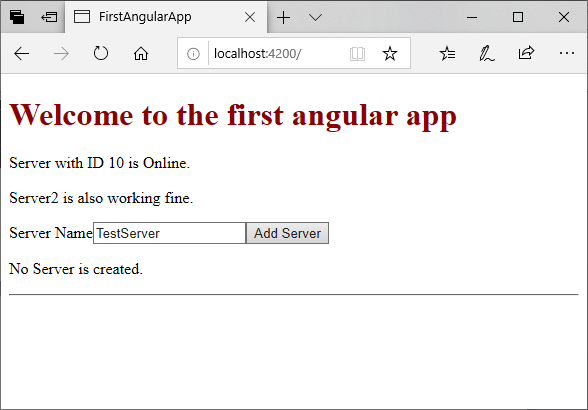
                                                        Output:

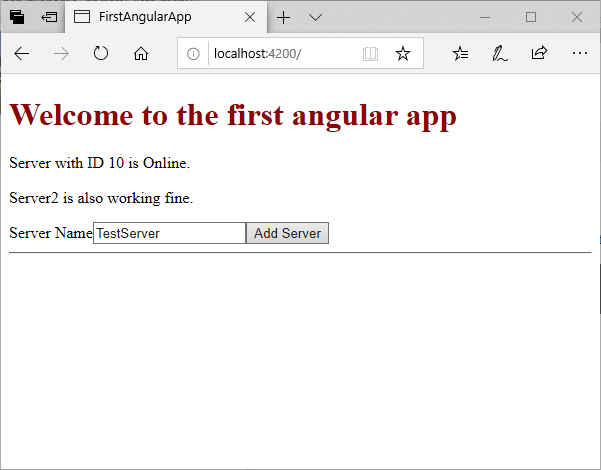
                                                        The output will look like this.

                                                        Use of *ngIf directive to change the output conditionally

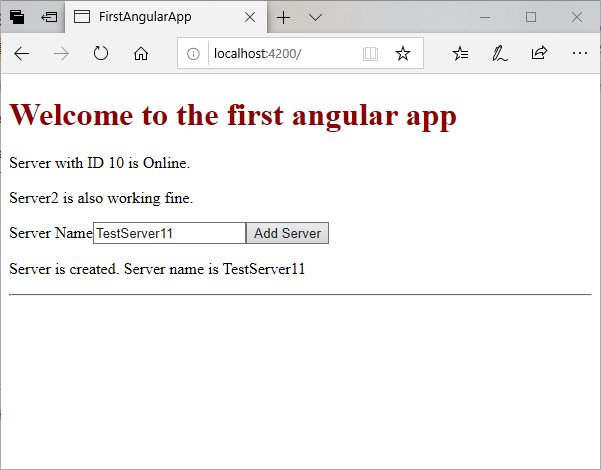
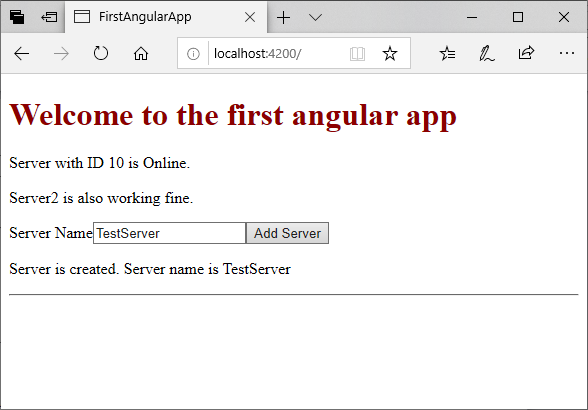
                                                        When we change the input value and click on “Add Server” button, you will see the following result:

                                                        Use of *ngIf directive to change the output conditionally

                                                        You can see in the above example that by using *ngIf directive, we can change the condition to display the output accordingly.

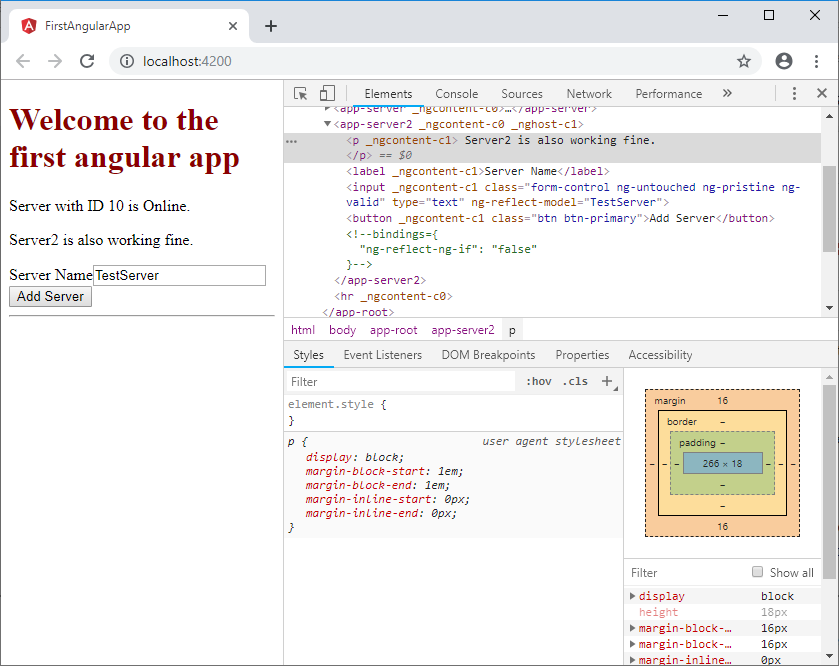
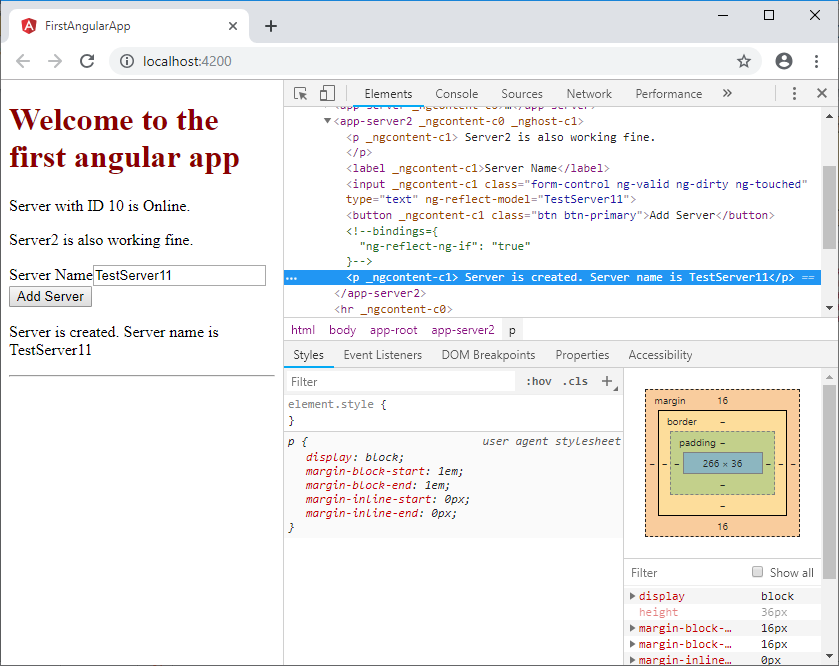
                                                        You can check the view source of your output before and after the adding the server. You will see the difference clearly.

                                                        Before adding server:

                                                        Use of *ngIf directive to change the output conditionally

                                                        After adding the server:

                                                        Use of *ngIf directive to change the output conditionally

                                                        So, you can see that how a structural directive can change the DOM.

                                                        *ngIf directive with an Else condition

                                                        You can also use an Else condition with *ngIf directive. It is used to display the output if *ngIf is not true. Let’s make some changes in component.html file.

                                                        component.html file:

                                                        <p *ngIf="serverCreated; else noServer"> Server is created. Server name is {{serverName}}</p>  
                                                        
                                                        <ng-template #noServer>  
                                                        
                                                          <p>No Server is created.</p>  
                                                        
                                                        </ng-template> 

                                                          Output:

                                                          Use of *ngIf directive to change the output conditionally

                                                          After clicking on “Add Server” button:

                                                          Use of *ngIf directive to change the output conditionally

                                                          You can also check its reverse case by using the negation (!) sign.

                                                          <p *ngIf="!serverCreated; else noServer"> Server is created. Server name is {{serverName}}</p>  
                                                          
                                                          <ng-template #noServer>  
                                                          
                                                            <p>No Server is created.</p>  
                                                          
                                                          </ng-template>