Author: saqibkhan

  • Hooks

    Hooks are the new feature introduced in the React 16.8 version. It allows you to use state and other React features without writing a class. Hooks are the functions which “hook into” React state and lifecycle features from function components. It does not work inside classes.

    Hooks are backward-compatible, which means it does not contain any breaking changes. Also, it does not replace your knowledge of React concepts.

    When to use a Hooks

    If you write a function component, and then you want to add some state to it, previously you do this by converting it to a class. But, now you can do it by using a Hook inside the existing function component.

    Rules of Hooks

    Hooks are similar to JavaScript functions, but you need to follow these two rules when using them. Hooks rule ensures that all the stateful logic in a component is visible in its source code. These rules are:

    1. Only call Hooks at the top level

    Do not call Hooks inside loops, conditions, or nested functions. Hooks should always be used at the top level of the React functions. This rule ensures that Hooks are called in the same order each time a components renders.

    2. Only call Hooks from React functions

    You cannot call Hooks from regular JavaScript functions. Instead, you can call Hooks from React function components. Hooks can also be called from custom Hooks.

    Pre-requisites for React Hooks

    1. Node version 6 or above
    2. NPM version 5.2 or above
    3. Create-react-app tool for running the React App

    React Hooks Installation

    To use React Hooks, we need to run the following commands:

    $ npm install [email protected] --save  
    
    $ npm install [email protected] --save  

      The above command will install the latest React and React-DOM alpha versions which support React Hooks. Make sure the package.json file lists the React and React-DOM dependencies as given below.

      "react": "^16.8.0-alpha.1",  
      
      "react-dom": "^16.8.0-alpha.1",

      Hooks State

      Hook state is the new way of declaring a state in React app. Hook uses useState() functional component for setting and retrieving state. Let us understand Hook state with the following example.

      App.js

      import React, { useState } from 'react';  


      function CountApp() {  
      
        // Declare a new state variable, which we'll call "count"  
      
        const [count, setCount] = useState(0);  


        return (  
      
          <div>  
      
            <p>You clicked {count} times</p>  
      
            <button onClick={() => setCount(count + 1)}>  
      
              Click me  
      
            </button>  
      
          </div>  
      
        );  
      
      }  
      
      export default CountApp; 

        output:

        React Hooks

        In the above example, useState is the Hook which needs to call inside a function component to add some local state to it. The useState returns a pair where the first element is the current state value/initial value, and the second one is a function which allows us to update it. After that, we will call this function from an event handler or somewhere else. The useState is similar to this.setState in class. The equivalent code without Hooks looks like as below.

        App.js

        import React, { useState } from 'react';  


        class CountApp extends React.Component {  
        
          constructor(props) {  
        
            super(props);  
        
            this.state = {  
        
              count: 0  
        
            };  
        
          }  
        
          render() {  
        
            return (  
        
              <div>  
        
                <p><b>You clicked {this.state.count} times</b></p>  
        
                <button onClick={() => this.setState({ count: this.state.count + 1 })}>  
        
                  Click me  
        
                </button>  
        
              </div>  
        
            );  
        
          }  
        
        }  
        
        export default CountApp;  

          Hooks Effect

          The Effect Hook allows us to perform side effects (an action) in the function components. It does not use components lifecycle methods which are available in class components. In other words, Effects Hooks are equivalent to componentDidMount(), componentDidUpdate(), and componentWillUnmount() lifecycle methods.

          Side effects have common features which the most web applications need to perform, such as:

          • Updating the DOM,
          • Fetching and consuming data from a server API,
          • Setting up a subscription, etc.

          Let us understand Hook Effect with the following example.

          import React, { useState, useEffect } from 'react';  


          function CounterExample() {  
          
            const [count, setCount] = useState(0);  


            // Similar to componentDidMount and componentDidUpdate:  
          
            useEffect(() => {  
          
              // Update the document title using the browser API  
          
              document.title = You clicked ${count} times;  
          
            });  


            return (  
          
              <div>  
          
                <p>You clicked {count} times</p>  
          
                <button onClick={() => setCount(count + 1)}>  
          
                  Click me  
          
                </button>  
          
              </div>  
          
            );  
          
          }  
          
          export default CounterExample;  

            The above code is based on the previous example with a new feature which we set the document title to a custom message, including the number of clicks.

            Output:

            React Hooks

            In React component, there are two types of side effects:

            1. Effects Without Cleanup
            2. Effects With Cleanup

            Effects without Cleanup

            It is used in useEffect which does not block the browser from updating the screen. It makes the app more responsive. The most common example of effects which don’t require a cleanup are manual DOM mutations, Network requests, Logging, etc.

            Effects with Cleanup

            Some effects require cleanup after DOM updation. For example, if we want to set up a subscription to some external data source, it is important to clean up memory so that we don’t introduce a memory leak. React performs the cleanup of memory when the component unmounts. However, as we know that, effects run for every render method and not just once. Therefore, React also cleans up effects from the previous render before running the effects next time.

            Custom Hooks

            A custom Hook is a JavaScript function. The name of custom Hook starts with “use” which can call other Hooks. A custom Hook is just like a regular function, and the word “use” in the beginning tells that this function follows the rules of Hooks. Building custom Hooks allows you to extract component logic into reusable functions.

            Let us understand how custom Hooks works in the following example.

            import React, { useState, useEffect } from 'react';  


            const useDocumentTitle = title => {  
            
              useEffect(() => {  
            
                document.title = title;  
            
              }, [title])  
            
            }  


            function CustomCounter() {  
            
              const [count, setCount] = useState(0);  
            
              const incrementCount = () => setCount(count + 1);  
            
              useDocumentTitle(You clicked ${count} times);  
            
              // useEffect(() => {  
            
              //   document.title = You clicked ${count} times  
            
              // });  


              return (  
            
                <div>  
            
                  <p>You clicked {count} times</p>  
            
                  <button onClick={incrementCount}>Click me</button>  
            
                </div>  
            
              )  
            
            }  
            
            export default CustomCounter; 

              In the above snippet, useDocumentTitle is a custom Hook which takes an argument as a string of text which is a title. Inside this Hook, we call useEffect Hook and set the title as long as the title has changed. The second argument will perform that check and update the title only when its local state is different than what we are passing in.

              Note: A custom Hook is a convention which naturally follows from the design of Hooks, instead of a React feature.

              Built-in Hooks

              Here, we describe the APIs for the built-in Hooks in React. The built-in Hooks can be divided into two parts, which are given below.

              Basic Hooks

              • useState
              • useEffect
              • useContext

              Additional Hooks

              • useReducer
              • useCallback
              • useMemo
              • useRef
              • useImperativeHandle
              • useLayoutEffect
              • useDebugValue
            1. Context

              Context allows passing data through the component tree without passing props down manually at every level.

              In React application, we passed data in a top-down approach via props. Sometimes it is inconvenient for certain types of props that are required by many components in the React application. Context provides a way to pass values between components without explicitly passing a prop through every level of the component tree.

              How to use Context

              There are two main steps to use the React context into the React application:

              1. Setup a context provider and define the data which you want to store.
              2. Use a context consumer whenever you need the data from the store

              When to use Context

              Context is used to share data which can be considered “global” for React components tree and use that data where needed, such as the current authenticated user, theme, etc. For example, in the below code snippet, we manually thread through a “theme” prop to style the Button component.

              class App extends React.Component {  
              
                render() {  
              
                  return <Toolbar theme="dark" />;  
              
                }  
              
              }  


              function Toolbar(props) {  
              
                return (  
              
                  <div>  
              
                    <ThemedButton theme={props.theme} />  
              
                  </div>  
              
                );  
              
              }  


              class ThemedButton extends React.Component {  
              
                render() {  
              
                  return <Button theme={this.props.theme} />;  
              
                }  
              
              } 

                In the above code, the Toolbar function component takes an extra “theme” prop and pass it to the ThemedButton. It can become inconvenient if every single button in the app needs to know the theme because it would be required to pass through all components. But using context, we can avoid passing props for every component through intermediate elements.

                We can understand it from the below example. Here, context passes a value into the component tree without explicitly threading it through every single component.

                // Create a context for the current theme which is "light" as the default.  
                
                const ThemeContext = React.createContext('light');  


                class App extends React.Component {  
                
                  render() {  
                
                    /* Use a ContextProvider to pass the current theme, which allows every component to read it, no matter how deep it is. Here, we are passing the "dark" theme as the current value.*/  


                    return (  
                
                      <ThemeContext.Provider value="dark">  
                
                        <Toolbar />  
                
                      </ThemeContext.Provider>  
                
                    );  
                
                  }  
                
                }  


                // Now, it is not required to pass the theme down explicitly for every component.  
                
                function Toolbar(props) {  
                
                  return (  
                
                    <div>  
                
                      <ThemedButton />  
                
                    </div>  
                
                  );  
                
                }  


                class ThemedButton extends React.Component {  
                
                  static contextType = ThemeContext;  
                
                  render() {  
                
                    return <Button theme={this.context} />;  
                
                  }  
                
                }

                React Context API

                The React Context API is a component structure, which allows us to share data across all levels of the application. The main aim of Context API is to solve the problem of prop drilling (also called “Threading”). The Context API in React are given below.

                1. React.createContext
                2. Context.provider
                3. Context.Consumer
                4. Class.contextType

                React.createContext

                It creates a context object. When React renders a component which subscribes to this context object, then it will read the current context value from the matching provider in the component tree.

                Syntax

                const MyContext = React.createContext(defaultValue);  

                When a component does not have a matching Provider in the component tree, it returns the defaultValue argument. It is very helpful for testing components isolation (separately) without wrapping them.

                Context.Provider

                Every Context object has a Provider React component which allows consuming components to subscribe to context changes. It acts as a delivery service. When a consumer component asks for something, it finds it in the context and provides it to where it is needed.

                Syntax

                <MyContext.Provider value={/* some value */}>  

                It accepts the value prop and passes to consuming components which are descendants of this Provider. We can connect one Provider with many consumers. Context Providers can be nested to override values deeper within the component tree. All consumers that are descendants of a Provider always re-render whenever the Provider’s value prop is changed. The changes are determined by comparing the old and new values using the same algorithm as Object.is algorithm.

                Context.Consumer

                It is the React component which subscribes to the context changes. It allows us to subscribe to the context within the function component. It requires the function as a component. A consumer is used to request data through the provider and manipulate the central data store when the provider allows it.

                Syntax

                <MyContext.Consumer>  
                
                       {value => /* render something which is based on the context value */}  
                
                </MyContext.Consumer>  

                  The function component receives the current context value and then returns a React node. The value argument which passed to the function will be equal to the value prop of the closest Provider for this context in the component tree. If there is no Provider for this context, the value argument will be equal to the defaultValue which was passed to createContext().

                  Class.contextType

                  The contextType property on a class used to assign a Context object which is created by React.createContext(). It allows you to consume the closest current value of that Context type using this.context. We can reference this in any of the component life-cycle methods, including the render function.

                  Note: We can only subscribe to a single context using this API. If we want to use the experimental public class field’s syntax, we can use a static class field to initialize the contextType.

                  React Context API Example

                  Step1 Create a new React app using the following command.

                  $ npx create-react-app mycontextapi  

                  Step2 Install bootstrap CSS framework using the following command.

                  $ npm install react-bootstrap bootstrap --save    

                  Step3 Add the following code snippet in the src/APP.js file.

                  import React, { Component } from 'react';  
                  
                  import 'bootstrap/dist/css/bootstrap.min.css';  


                  const BtnColorContext = React.createContext('btn btn-darkyellow');  


                  class App extends Component {  
                  
                    render() {  
                  
                      return (  
                  
                        <BtnColorContext.Provider value="btn btn-info">  
                  
                          <Button />  
                  
                        </BtnColorContext.Provider>  
                  
                      );  
                  
                    }  
                  
                  }  


                  function Button(props) {  
                  
                    return (  
                  
                    <div className="container">  
                  
                      <ThemedButton />      
                  
                    </div>  
                  
                    );  
                  
                  }  


                  class ThemedButton extends Component {  


                    static contextType = BtnColorContext;  
                  
                    render() {  
                  
                      return <button className={this.context} >  
                  
                        welcome to javatpoint  
                  
                      </button>;  
                  
                    }  
                  
                  }  
                  
                  export default App;

                  In the above code snippet, we have created the context using React.createContext(), which returns the Context object. After that, we have created the wrapper component which returns the Provider component, and then add all the elements as children from which we want to access the context.

                  output:

                  When we run the React app, we will get the following screen.

                  React Context
                1. Code Splitting

                  The React app bundled their files using tools like Webpack or Browserfy. Bundling is a process which takes multiple files and merges them into a single file, which is called a bundle. The bundle is responsible for loading an entire app at once on the webpage. We can understand it from the below example.

                  App.js

                  import { add } from './math.js';  


                  console.log(add(16, 26)); // 42  

                    math.js

                    export function add(a, b) {  
                    
                      return a + b;  
                    
                    } 

                      Bundle file as like below:

                      function add(a, b) {  
                      
                        return a + b;  
                      
                      }  


                      console.log(add(16, 26)); // 42  

                        As our app grows, our bundle will grow too, especially when we are using large third-party libraries. If the bundle size gets large, it takes a long time to load on a webpage. For avoiding the large bundling, it?s good to start ?splitting? your bundle.

                        React 16.6.0, released in October 2018, and introduced a way of performing code splitting. Code-Splitting is a feature supported by Webpack and Browserify, which can create multiple bundles that can be dynamically loaded at runtime.

                        Code splitting uses React.lazy and Suspense tool/library, which helps you to load a dependency lazily and only load it when needed by the user.

                        The code splitting improves:

                        • The performance of the app
                        • The impact on memory
                        • The downloaded Kilobytes (or Megabytes) size

                        React.lazy

                        The best way for code splitting into the app is through the dynamic import() syntax. The React.lazy function allows us to render a dynamic import as a regular component.

                        Before

                        import ExampleComponent from './ExampleComponent';  


                        function MyComponent() {  
                        
                          return (  
                        
                            <div>  
                        
                              <ExampleComponent />  
                        
                            </div>  
                        
                          );  
                        
                        } 

                          After

                          const ExampleComponent = React.lazy(() => import('./ExampleComponent'));  


                          function MyComponent() {  
                          
                            return (  
                          
                              <div>  
                          
                                <ExampleComponent />  
                          
                              </div>  
                          
                            );  
                          
                          }

                          The above code snippet automatically loads the bundle which contains the ExampleComponent when the ExampleComponent gets rendered.

                          Suspense

                          If the module which contains the ExampleComponent is not yet loaded by the function component(MyComponent), then we need to show some fallback content while we are waiting for it to load. We can do this using the suspense component. In other words, the suspense component is responsible for handling the output when the lazy component is fetched and rendered.

                          const ExampleComponent = React.lazy(() => import('./ ExampleComponent'));  


                          function MyComponent() {  
                          
                            return (  
                          
                              <div>  
                          
                                <Suspense fallback={<div>Loading...</div>}>  
                          
                                  <ExampleComponent />  
                          
                                </Suspense>  
                          
                              </div>  
                          
                            );  
                          
                          }

                          The fallback prop accepts the React elements which you want to render while waiting for the component to load. We can combine multiple lazy components with a single Suspense component. It can be seen in the below example.

                          const ExampleComponent = React.lazy(() => import('./ ExampleComponent'));  
                          
                          const ExamComponent = React.lazy(() => import('./ ExamComponent'));  


                          function MyComponent() {  
                          
                            return (  
                          
                              <div>  
                          
                                <Suspense fallback={<div>Loading...</div>}>  
                          
                                  <section>  
                          
                                    <ExampleComponent />  
                          
                                    <ExamComponent />  
                          
                                  </section>  
                          
                                </Suspense>  
                          
                              </div>  
                          
                            );  
                          
                          }

                          Note: React.lazy and Suspense components are not yet available for server-side rendering. For code-splitting in a server-rendered app, it is recommended to use Loadable Components.

                          Error boundaries

                          If any module fails to load, for example, due to network failure, we will get an error. We can handle these errors with Error Boundaries. Once we have created the Error Boundary, we can use it anywhere above our lazy components to display an error state.

                          import MyErrorBoundary from './MyErrorBoundary';  
                          
                          const ExampleComponent = React.lazy(() => import('./ ExampleComponent'));  
                          
                          const ExamComponent = React.lazy(() => import('./ ExamComponent'));  


                          const MyComponent = () => (  
                          
                            <div>  
                          
                              <MyErrorBoundary>  
                          
                                <Suspense fallback={<div>Loading...</div>}>  
                          
                                  <section>  
                          
                                    <ExampleComponent />  
                          
                                    <ExamComponent />  
                          
                                  </section>  
                          
                                </Suspense>  
                          
                              </MyErrorBoundary>  
                          
                            </div>  
                          
                          );  

                            Route-based code splitting

                            It is very tricky to decide where we introduce code splitting in the app. For this, we have to make sure that we choose the place which will split the bundles evenly without disrupting the user experience.

                            The route is the best place to start the code splitting. Route based code splitting is essential during the page transitions on the web, which takes some amount of time to load. Here is an example of how to setup route-based code splitting into the app using React Router with React.lazy.

                            import { Switch, BrowserRouter as Router, Route} from 'react-router-dom';  
                            
                            import React, { Suspense, lazy } from 'react';  


                            const Home = lazy(() => import('./routes/Home'));  
                            
                            const About = lazy(() => import('./routes/About'));  
                            
                            const Contact = lazy(() => import('./routes/Contact'));  


                            const App = () => (  
                            
                              <Router>  
                            
                                <Suspense fallback={<div>Loading...</div>}>  
                            
                                  <Switch>  
                            
                                    <Route exact path="/" component={Home}/>  
                            
                                    <Route path="/about" component={About}/>  
                            
                                    <Route path="/contact" component={Contact}/>  
                            
                                  </Switch>  
                            
                                </Suspense>  
                            
                              </Router>  
                            
                            ); 

                              Named Export

                              Currently, React.lazy supports default exports only. If any module you want to import using named exports, you need to create an intermediate module that re-exports it as the default. We can understand it from the below example.

                              ExampleComponents.js

                              export const MyFirstComponent = /* ... */;  
                              
                              export const MySecondComponent = /* ... */;  

                                MyFirstComponent.js

                                export { MyFirstComponent as default } from "./ExampleComponents.js";  

                                MyApp.js

                                import React, { lazy } from 'react';  
                                
                                const MyFirstComponent = lazy(() => import("./MyFirstComponent.js"));
                              1. Higher-Order Components

                                It is also known as HOC. In React, HOC is an advanced technique for reusing component logic. It is a function that takes a component and returns a new component. According to the official website, it is not the feature(part) in React API, but a pattern that emerges from React compositional nature. They are similar to JavaScript functions used for adding additional functionalities to the existing component.

                                A higher order component function accepts another function as an argument. The map function is the best example to understand this. The main goal of this is to decompose the component logic into simpler and smaller functions that can be reused as you need.

                                Syntax

                                const NewComponent = higherOrderComponent(WrappedComponent);  

                                We know that component transforms props into UI, and a higher-order component converts a component another component and allows to add additional data or functionality into this. Hocs are common in third-party libraries. The examples of HOCs are Redux’s connect and Relay’s createFragmentContainer.

                                Now, we can understand the working of HOCs from the below example.

                                //Function Creation  
                                
                                function add (a, b) {  
                                
                                  return a + b  
                                
                                }  
                                
                                function higherOrder(a, addReference) {  
                                
                                  return addReference(a, 20)  
                                
                                }  
                                
                                //Function call  
                                
                                higherOrder(30, add) // 50 

                                  In the above example, we have created two functions add() and higherOrder(). Now, we provide the add() function as an argument to the higherOrder() function. For invoking, rename it addReference in the higherOrder() function, and then invoke it.

                                  Here, the function you are passing is called a callback function, and the function where you are passing the callback function is called a higher-order(HOCs) function.

                                  Example

                                  Create a new file with the name HOC.js. In this file, we have made one function HOC. It accepts one argument as a component. Here, that component is App.

                                  HOC.js

                                  import React, {Component} from 'react';  


                                  export default function Hoc(HocComponent){  
                                  
                                      return class extends Component{  
                                  
                                          render(){  
                                  
                                              return (  
                                  
                                                  <div>  
                                  
                                                      <HocComponent></HocComponent>  
                                  
                                                  </div>  


                                              );  
                                  
                                          }  
                                  
                                      }   
                                  
                                  }

                                  Now, include HOC.js file into the App.js file. In this file, we need to call the HOC function.

                                  App = Hoc(App);  

                                  The App component wrapped inside another React component so that we can modify it. Thus, it becomes the primary application of the Higher-Order Components.

                                  App.js

                                  import React, { Component } from 'react';  
                                  
                                  import Hoc from './HOC';  


                                  class App extends Component {  
                                  
                                    render() {  
                                  
                                      return (  
                                  
                                        <div>  
                                  
                                          <h2>HOC Example</h2>  
                                  
                                          JavaTpoint provides best CS tutorials.  
                                  
                                        </div>  
                                  
                                      )  
                                  
                                    }  
                                  
                                  }  
                                  
                                  App = Hoc(App);  
                                  
                                  export default App;

                                  Output

                                  When we execute the above file, it will give the output as below screen.

                                  React Higher-Order Components

                                  Higher-Order Component Conventions

                                  • Do not use HOCs inside the render method of a component.
                                  • The static methods must be copied over to have access to them. You can do this using hoist-non-react-statics package to automatically copy all non-React static methods.
                                  • HOCs does not work for refs as ‘Refs’ does not pass through as a parameter or argument. If you add a ref to an element in the HOC component, the ref refers to an instance of the outermost container component, not the wrapped component.
                                1. Table

                                  A table is an arrangement which organizes information into rows and columns. It is used to store and display data in a structured format.

                                  The react-table is a lightweight, fast, fully customizable (JSX, templates, state, styles, callbacks), and extendable Datagrid built for React. It is fully controllable via optional props and callbacks.

                                  Features

                                  1. It is lightweight at 11kb (and only need 2kb more for styles).
                                  2. It is fully customizable (JSX, templates, state, styles, callbacks).
                                  3. It is fully controllable via optional props and callbacks.
                                  4. It has client-side & Server-side pagination.
                                  5. It has filters.
                                  6. Pivoting & Aggregation
                                  7. Minimal design & easily themeable

                                  Installation

                                  Let us create a React app using the following command.

                                  $ npx create-react-app myreactapp  

                                  Next, we need to install react-table. We can install react-table via npm command, which is given below.

                                  $ npm install react-table  

                                  Once, we have installed react-table, we need to import the react-table into the react component. To do this, open the src/App.js file and add the following snippet.

                                  import ReactTable from "react-table";  

                                  Let us assume we have data which needs to be rendered using react-table.

                                  const data = [{  
                                  
                                          name: 'Ayaan',  
                                  
                                          age: 26  
                                  
                                          },{  
                                  
                                          name: 'Ahana',  
                                  
                                          age: 22  
                                  
                                          },{  
                                  
                                          name: 'Peter',  
                                  
                                          age: 40   
                                  
                                          },{  
                                  
                                          name: 'Virat',  
                                  
                                          age: 30  
                                  
                                          },{  
                                  
                                          name: 'Rohit',  
                                  
                                          age: 32  
                                  
                                          },{  
                                  
                                          name: 'Dhoni',  
                                  
                                          age: 37  
                                  
                                          }] 

                                    Along with data, we also need to specify the column info with column attributes.

                                    const columns = [{  
                                    
                                           Header: 'Name',  
                                    
                                           accessor: 'name'  
                                    
                                          },{  
                                    
                                          Header: 'Age',  
                                    
                                          accessor: 'age'  
                                    
                                          }] 

                                      Inside the render method, we need to bind this data with react-table and then returns the react-table.

                                      return (  
                                      
                                           <div>  
                                      
                                              <ReactTable  
                                      
                                                  data={data}  
                                      
                                                  columns={columns}  
                                      
                                                  defaultPageSize = {2}  
                                      
                                                  pageSizeOptions = {[2,4, 6]}  
                                      
                                               />  
                                      
                                           </div>        
                                      
                                      ) 

                                        Now, our src/App.js file looks like as below.

                                        import React, { Component } from 'react';  
                                        
                                        import ReactTable from "react-table";  
                                        
                                        import "react-table/react-table.css";  


                                        class App extends Component {  
                                        
                                          render() {  
                                        
                                             const data = [{  
                                        
                                                name: 'Ayaan',  
                                        
                                                age: 26  
                                        
                                                },{  
                                        
                                                 name: 'Ahana',  
                                        
                                                 age: 22  
                                        
                                                 },{  
                                        
                                                 name: 'Peter',  
                                        
                                                 age: 40      
                                        
                                                 },{  
                                        
                                                 name: 'Virat',  
                                        
                                                 age: 30  
                                        
                                                 },{  
                                        
                                                 name: 'Rohit',  
                                        
                                                 age: 32  
                                        
                                                 },{  
                                        
                                                 name: 'Dhoni',  
                                        
                                                 age: 37  
                                        
                                                 }]  
                                        
                                             const columns = [{  
                                        
                                               Header: 'Name',  
                                        
                                               accessor: 'name'  
                                        
                                               },{  
                                        
                                               Header: 'Age',  
                                        
                                               accessor: 'age'  
                                        
                                               }]  
                                        
                                            return (  
                                        
                                                  <div>  
                                        
                                                      <ReactTable  
                                        
                                                          data={data}  
                                        
                                                          columns={columns}  
                                        
                                                          defaultPageSize = {2}  
                                        
                                                          pageSizeOptions = {[2,4, 6]}  
                                        
                                                      />  
                                        
                                                  </div>        
                                        
                                            )  
                                        
                                          }  
                                        
                                        }  
                                        
                                        export default App; 

                                          Output

                                          When we execute the React app, we will get the output as below.

                                          React Table

                                          Now, change the rows dropdown menu, we will get the output as below.

                                          React Table
                                        1. Map

                                          A map is a data collection type where data is stored in the form of pairs. It contains a unique key. The value stored in the map must be mapped to the key. We cannot store a duplicate pair in the map(). It is because of the uniqueness of each stored key. It is mainly used for fast searching and looking up data.

                                          In React, the ?map? method used to traverse and display a list of similar objects of a component. A map is not the feature of React. Instead, it is the standard JavaScript function that could be called on any array. The map() method creates a new array by calling a provided function on every element in the calling array.

                                          Example

                                          In the given example, the map() function takes an array of numbers and double their values. We assign the new array returned by map() to the variable doubleValue and log it.

                                          var numbers = [1, 2, 3, 4, 5];   
                                          
                                          const doubleValue = numbers.map((number)=>{   
                                          
                                              return (number * 2);   
                                          
                                          });   
                                          
                                          console.log(doubleValue);   

                                            In React, the map() method used for:

                                            1. Traversing the list element.

                                            Example

                                            import React from 'react';   
                                            
                                            import ReactDOM from 'react-dom';   


                                            function NameList(props) {  
                                            
                                              const myLists = props.myLists;  
                                            
                                              const listItems = myLists.map((myList) =>  
                                            
                                                <li>{myList}</li>  
                                            
                                              );  
                                            
                                              return (  
                                            
                                                <div>  
                                            
                                                      <h2>React Map Example</h2>  
                                            
                                                          <ul>{listItems}</ul>  
                                            
                                                </div>  
                                            
                                              );  
                                            
                                            }  
                                            
                                            const myLists = ['A', 'B', 'C', 'D', 'D'];   
                                            
                                            ReactDOM.render(  
                                            
                                              <NameList myLists={myLists} />,  
                                            
                                              document.getElementById('app')  
                                            
                                            );  
                                            
                                            export default App;


                                              Output

                                              React Map

                                              2. Traversing the list element with keys.

                                              Example

                                              import React from 'react';   
                                              
                                              import ReactDOM from 'react-dom';   


                                              function ListItem(props) {  
                                              
                                                return <li>{props.value}</li>;  
                                              
                                              }  


                                              function NumberList(props) {  
                                              
                                                const numbers = props.numbers;  
                                              
                                                const listItems = numbers.map((number) =>  
                                              
                                                  <ListItem key={number.toString()}  
                                              
                                                            value={number} />  
                                              
                                                );  
                                              
                                                return (  
                                              
                                                  <div>  
                                              
                                                    <h2>React Map Example</h2>  
                                              
                                                        <ul> {listItems} </ul>  
                                              
                                                  </div>  
                                              
                                                );  
                                              
                                              }  


                                              const numbers = [1, 2, 3, 4, 5];  
                                              
                                              ReactDOM.render(  
                                              
                                                <NumberList numbers={numbers} />,  
                                              
                                                document.getElementById('app')  
                                              
                                              );  
                                              
                                              export default App;  

                                                Output

                                                React Map
                                              1. Bootstrap

                                                Single-page applications gaining popularity over the last few years, so many front-end frameworks have introduced such as Angular, React, Vue.js, Ember, etc. As a result, jQuery is not a necessary requirement for building web apps. Today, React has the most used JavaScript framework for building web applications, and Bootstrap become the most popular CSS framework. So, it is necessary to learn various ways in which Bootstrap can be used in React apps, which is the main aim of this section.

                                                Adding Bootstrap for React

                                                We can add Bootstrap to the React app in several ways. The three most common ways are given below:

                                                1. Using the Bootstrap CDN
                                                2. Bootstrap as Dependency
                                                3. React Bootstrap Package
                                                React Bootstrap

                                                Using the Bootstrap CDN

                                                It is the easiest way of adding Bootstrap to the React app. There is no need to install or download Bootstrap. We can simply put an <link> into the <head> section of the index.html file of the React app as shown in the following snippet.

                                                <link rel="stylesheet" href="https://stackpath.bootstrapcdn.com/bootstrap/4.3.1/css/bootstrap.min.css" integrity="sha384-ggOyR0iXCbMQv3Xipma34MD+dH/1fQ784/j6cY/iJTQUOhcWr7x9JvoRxT2MZw1T" crossorigin="anonymous">  

                                                If there is a need to use Bootstrap components which depend on JavaScript/jQuery in the React application, we need to include jQueryPopper.js, and Bootstrap.js in the document. Add the following imports in the <script> tags near the end of the closing </body> tag of the index.html file.

                                                <script src="https://code.jquery.com/jquery-3.3.1.slim.min.js" integrity="sha384-q8i/X+965DzO0rT7abK41JStQIAqVgRVzpbzo5smXKp4YfRvH+8abtTE1Pi6jizo" crossorigin="anonymous"></script>  


                                                <script src="https://cdnjs.cloudflare.com/ajax/libs/popper.js/1.14.7/umd/popper.min.js" integrity="sha384-UO2eT0CpHqdSJQ6hJty5KVphtPhzWj9WO1clHTMGa3JDZwrnQq4sF86dIHNDz0W1" crossorigin="anonymous"></script>  


                                                <script src="https://stackpath.bootstrapcdn.com/bootstrap/4.3.1/js/bootstrap.min.js" integrity="sha384-JjSmVgyd0p3pXB1rRibZUAYoIIy6OrQ6VrjIEaFf/nJGzIxFDsf4x0xIM+B07jRM" crossorigin="anonymous"></script> 

                                                  In the above snippet, we have used jQuery’s slim version, although we can also use the full version as well. Now, Bootstrap is successfully added in the React application, and we can use all the CSS utilities and UI components available from Bootstrap in the React application.

                                                  Bootstrap as Dependency

                                                  If we are using a build tool or a module bundler such as Webpack, then importing Bootstrap as dependency is the preferred option for adding Bootstrap to the React application. We can install Bootstrap as a dependency for the React app. To install the Bootstrap, run the following commands in the terminal window.

                                                  $ npm install bootstrap --save  

                                                  Once Bootstrap is installed, we can import it in the React application entry file. If the React project created using the create-react-app tool, open the src/index.js file, and add the following code:

                                                  import 'bootstrap/dist/css/bootstrap.min.css';  

                                                  Now, we can use the CSS classes and utilities in the React application. Also, if we want to use the JavaScript components, we need to install the jquery and popper.js packages from npm. To install the following packages, run the following command in the terminal window.

                                                  $ npm install jquery popper.js  

                                                  Next, go to the src/index.js file and add the following imports.

                                                  import $ from 'jquery';  
                                                  
                                                  import Popper from 'popper.js';  
                                                  
                                                  import 'bootstrap/dist/js/bootstrap.bundle.min';

                                                  Now, we can use Bootstrap JavaScript Components in the React application.

                                                  React Bootstrap Package

                                                  The React Bootstrap package is the most popular way to add bootstrap in the React application. There are many Bootstrap packages built by the community, which aim to rebuild Bootstrap components as React components. The two most popular Bootstrap packages are:

                                                  1. react-bootstrap: It is a complete re-implementation of the Bootstrap components as React components. It does not need any dependencies like bootstrap.js or jQuery. If the React setup and React-Bootstrap installed, we have everything which we need.
                                                  2. reactstrap: It is a library which contains React Bootstrap 4 components that favor composition and control. It does not depend on jQuery or Bootstrap JavaScript. However, react-popper is needed for advanced positioning of content such as Tooltips, Popovers, and auto-flipping Dropdowns.

                                                  React Bootstrap Installation

                                                  Let us create a new React app using the create-react-app command as follows.

                                                  $ npx create-react-app react-bootstrap-app  

                                                  After creating the React app, the best way to install Bootstrap is via the npm package. To install Bootstrap, navigate to the React app folder, and run the following command.

                                                  $ npm install react-bootstrap bootstrap --save  

                                                  Importing Bootstrap

                                                  Now, open the src/index.js file and add the following code to import the Bootstrap file.

                                                  import 'bootstrap/dist/css/bootstrap.min.css';  

                                                  We can also import individual components like import { SplitButton, Dropdown } from ‘react-bootstrap’; instead of the entire library. It provides the specific components which we need to use, and can significantly reduce the amount of code.

                                                  In the React app, create a new file named ThemeSwitcher.js in the src directory and put the following code.

                                                  import React, { Component } from 'react';  
                                                  
                                                  import { SplitButton, Dropdown } from 'react-bootstrap';  


                                                  class ThemeSwitcher extends Component {  


                                                    state = { theme: null }  


                                                    chooseTheme = (theme, evt) => {  
                                                  
                                                      evt.preventDefault();  
                                                  
                                                      if (theme.toLowerCase() === 'reset') { theme = null }  
                                                  
                                                      this.setState({ theme });  
                                                  
                                                    }  


                                                    render() {  
                                                  
                                                      const { theme } = this.state;  
                                                  
                                                      const themeClass = theme ? theme.toLowerCase() : 'default';  


                                                      const parentContainerStyles = {  
                                                  
                                                        position: 'absolute',  
                                                  
                                                        height: '100%',  
                                                  
                                                        width: '100%',  
                                                  
                                                        display: 'table'  
                                                  
                                                      };  


                                                      const subContainerStyles = {  
                                                  
                                                        position: 'relative',  
                                                  
                                                        height: '100%',  
                                                  
                                                        width: '100%',  
                                                  
                                                        display: 'table-cell',  
                                                  
                                                      };  


                                                      return (  
                                                  
                                                        <div style={parentContainerStyles}>  
                                                  
                                                          <div style={subContainerStyles}>  


                                                            <span className={h1 center-block text-center text-${theme ? themeClass : 'muted'}} style={{ marginBottom: 25 }}>{theme || 'Default'}</span>  


                                                            <div className="center-block text-center">  
                                                  
                                                              <SplitButton bsSize="large" bsStyle={themeClass} title={${theme || 'Default Block'} Theme}>  
                                                  
                                                                <Dropdown.Item eventKey="Primary Block" onSelect={this.chooseTheme}>Primary Theme</Dropdown.Item>  
                                                  
                                                                <Dropdown.Item eventKey="Danger Block" onSelect={this.chooseTheme}>Danger Theme</Dropdown.Item>  
                                                  
                                                                <Dropdown.Item eventKey="Success Block" onSelect={this.chooseTheme}>Success Theme</Dropdown.Item>  
                                                  
                                                                <Dropdown.Item divider />  
                                                  
                                                                <Dropdown.Item eventKey="Reset Block" onSelect={this.chooseTheme}>Default Theme</Dropdown.Item>  
                                                  
                                                              </SplitButton>  
                                                  
                                                            </div>    
                                                  
                                                          </div>  
                                                  
                                                        </div>  
                                                  
                                                      );   
                                                  
                                                    }   
                                                  
                                                  }  
                                                  
                                                  export default ThemeSwitcher; 

                                                    Now, update the src/index.js file with the following snippet.

                                                    Index.js

                                                    import 'bootstrap/dist/css/bootstrap.min.css';  
                                                    
                                                    import React from 'react';  
                                                    
                                                    import ReactDOM from 'react-dom';  
                                                    
                                                    import App from './App.js';  
                                                    
                                                    import './index.css';  
                                                    
                                                    import ThemeSwitcher from './ThemeSwitcher';  


                                                    ReactDOM.render(<ThemeSwitcher />, document.getElementById('root')); 

                                                      Output

                                                      When we execute the React app, we should get the output as below.

                                                      React Bootstrap

                                                      Click on the dropdown menu. We will get the following screen.

                                                      React Bootstrap

                                                      Now, if we choose the Success Theme, we will get the below screen.

                                                      React Bootstrap

                                                      Using reactstrap

                                                      Let us create a new React app using the create-react-app command as follows.

                                                      $ npx create-react-app reactstrap-app  

                                                      Next, install the reactstrap via the npm package. To install reactstrap, navigate to the React app folder, and run the following command.

                                                      $ npm install bootstrap reactstrap --save  

                                                      Importing Bootstrap

                                                      Now, open the src/index.js file and add the following code to import the Bootstrap file.

                                                      import 'bootstrap/dist/css/bootstrap.min.css';  

                                                      We can also import individual components like import { Button, Dropdown } from ‘reactstrap’; instead of the entire library. It provides the specific components which we need to use, and can significantly reduce the amount of code.

                                                      In the React app, create a new file named ThemeSwitcher.js in the src directory and put the following code.

                                                      import React, { Component } from 'react';  
                                                      
                                                      import { Button, ButtonDropdown, DropdownToggle, DropdownMenu, DropdownItem } from 'reactstrap';  


                                                      class ThemeSwitcher extends Component {  


                                                        state = { theme: null, dropdownOpen: false }  


                                                        toggleDropdown = () => {  
                                                      
                                                          this.setState({ dropdownOpen: !this.state.dropdownOpen });  
                                                      
                                                        }  


                                                        resetTheme = evt => {  
                                                      
                                                          evt.preventDefault();  
                                                      
                                                          this.setState({ theme: null });  
                                                      
                                                        }  


                                                        chooseTheme = (theme, evt) => {  
                                                      
                                                          evt.preventDefault();  
                                                      
                                                          this.setState({ theme });  
                                                      
                                                        }  
                                                      
                                                        render() {  
                                                      
                                                          const { theme, dropdownOpen } = this.state;  
                                                      
                                                          const themeClass = theme ? theme.toLowerCase() : 'secondary';  


                                                          return (  
                                                      
                                                            <div className="d-flex flex-wrap justify-content-center align-items-center">  


                                                              <span className={h1 mb-4 w-100 text-center text-${themeClass}}>{theme || 'Default'}</span>  


                                                              <ButtonDropdown isOpen={dropdownOpen} toggle={this.toggleDropdown}>  
                                                      
                                                                <Button id="caret" color={themeClass}>{theme || 'Custom'} Theme</Button>  
                                                      
                                                                <DropdownToggle caret size="lg" color={themeClass} />  
                                                      
                                                                <DropdownMenu>  
                                                      
                                                                  <DropdownItem onClick={e => this.chooseTheme('Primary', e)}>Primary Theme</DropdownItem>  
                                                      
                                                                  <DropdownItem onClick={e => this.chooseTheme('Danger', e)}>Danger Theme</DropdownItem>  
                                                      
                                                                  <DropdownItem onClick={e => this.chooseTheme('Success', e)}>Success Theme</DropdownItem>  
                                                      
                                                                  <DropdownItem divider />  
                                                      
                                                                  <DropdownItem onClick={this.resetTheme}>Default Theme</DropdownItem>  
                                                      
                                                                </DropdownMenu>  
                                                      
                                                              </ButtonDropdown>  


                                                            </div>  
                                                      
                                                          );    
                                                      
                                                        }  
                                                      
                                                      }  
                                                      
                                                      export default ThemeSwitcher;  

                                                        Now, update the src/index.js file with the following snippet.

                                                        Index.js

                                                        import 'bootstrap/dist/css/bootstrap.min.css';  
                                                        
                                                        import React from 'react';  
                                                        
                                                        import ReactDOM from 'react-dom';  
                                                        
                                                        import App from './App.js';  
                                                        
                                                        import './index.css';  
                                                        
                                                        import ThemeSwitcher from './ThemeSwitcher';  


                                                        ReactDOM.render(<ThemeSwitcher />, document.getElementById('root'));  

                                                          Output

                                                          When we execute the React app, we should get the output as below.

                                                          React Bootstrap

                                                          Click on the dropdown menu. We will get the following screen.

                                                          React Bootstrap

                                                          Now, if we choose the Danger Theme, we will get the below screen.

                                                          React Bootstrap
                                                        1. Animation

                                                          The animation is a technique in which images are manipulated to appear as moving images. It is one of the most used technique to make an interactive web application. In React, we can add animation using an explicit group of components known as the React Transition Group.

                                                          React Transition Group is an add-on component for managing component states and useful for defining entering and exiting transitions. It is not able to animate styles by itself. Instead, it exposes transition states, manages classes and group elements, and manipulates the DOM in useful ways. It makes the implementation of visual transitions much easier.

                                                          React Transition group has mainly two APIs to create transitions. These are:

                                                          1. ReactTransitionGroup: It uses as a low-level API for animation.
                                                          2. ReactCSSTransitionGroup: It uses as a high-level API for implementing basic CSS transitions and animations.

                                                          Installation

                                                          We need to install react-transition-group for creating animation in React Web application. You can use the below command.

                                                          $ npm install react-transition-group --save  

                                                          React Transition Group Components

                                                          React Transition Group API provides three main components. These are:

                                                          1. Transition
                                                          2. CSSTransition
                                                          3. Transition Group

                                                          Transition

                                                          It has a simple component API to describe a transition from one component state to another over time. It is mainly used to animate the mounting and unmounting of a component. It can also be used for in-place transition states as well.

                                                          We can access the Transition component into four states:

                                                          • entering
                                                          • entered
                                                          • exiting
                                                          • exited

                                                          CSSTransition

                                                          The CSSTransition component uses CSS stylesheet classes to write the transition and create animations. It is inspired by the ng-animate library. It can also inherit all the props of the transition component. We can divide the “CSSTransition” into three states. These are:

                                                          • Appear
                                                          • Enter
                                                          • Exit

                                                          CSSTransition component must be applied in a pair of class names to the child components. The first class is in the form of name-stage and the second class is in the name-stage-active. For example, you provide the name fade, and when it applies to the ‘enter’ stage, the two classes will be fade-enter and fade-enter-active. It may also take a prop as Timeout which defines the maximum time to animate.

                                                          TransitionGroup

                                                          This component is used to manage a set of transition components (Transition and CSSTransition) in a list. It is a state machine that controls the mounting and unmounting of components over time. The Transition component does not define any animation directly. Here, how ‘list’ item animates is based on the individual transition component. It means, the “TransitionGroup” component can have different animation within a component.

                                                          Let us see the example below, which clearly help to understand the React Animation.

                                                          Example

                                                          App.js

                                                          In the App.js file, import react-transition-group component, and create the CSSTransition component that uses as a wrapper of the component you want to animate. We are going to use transitionEnterTimeout and transitionLeaveTimeout for CSS Transition. The Enter and Leave animations used when we want to insert or delete elements from the list.

                                                          import React, { Component } from 'react';  
                                                          
                                                          import { CSSTransitionGroup } from 'react-transition-group';  


                                                          class App extends React.Component {  
                                                          
                                                              constructor(props) {  
                                                          
                                                              super(props);  
                                                          
                                                              this.state = {items: ['Blockchain', 'ReactJS', 'TypeScript', 'JavaTpoint']};  
                                                          
                                                              this.handleAdd = this.handleAdd.bind(this);  
                                                          
                                                            }  


                                                            handleAdd() {  
                                                          
                                                              const newItems = this.state.items.concat([  
                                                          
                                                                prompt('Enter Item Name')  
                                                          
                                                              ]);  
                                                          
                                                              this.setState({items: newItems});  
                                                          
                                                            }  


                                                            handleRemove(i) {  
                                                          
                                                              let newItems = this.state.items.slice();  
                                                          
                                                              newItems.splice(i, 1);  
                                                          
                                                              this.setState({items: newItems});  
                                                          
                                                            }  


                                                            render() {  
                                                          
                                                              const items = this.state.items.map((item, i) => (  
                                                          
                                                                <div key={item} onClick={() => this.handleRemove(i)}>  
                                                          
                                                                  {item}  
                                                          
                                                                </div>  
                                                          
                                                              ));  


                                                              return (  
                                                          
                                                                <div>  
                                                          
                                                              <h1>Animation Example</h1>  
                                                          
                                                                      <button onClick={this.handleAdd}>Insert Item</button>  
                                                          
                                                                      <CSSTransitionGroup  
                                                          
                                                                         transitionName="example"  
                                                          
                                                                     transitionEnterTimeout={800}  
                                                          
                                                                         transitionLeaveTimeout={600}>  
                                                          
                                                                         {items}  
                                                          
                                                                      </CSSTransitionGroup>  
                                                          
                                                                </div>  
                                                          
                                                              );  
                                                          
                                                            }  
                                                          
                                                          }  
                                                          
                                                          export default App;  

                                                            Main.js

                                                            import React from 'react';  
                                                            
                                                            import ReactDOM from 'react-dom';  
                                                            
                                                            import App from './App.js';  


                                                            ReactDOM.render(<App />, document.getElementById('app'));

                                                            style.css

                                                            Add style.css file in your application, and add the following CSS styles. Now, to use this CSS file, you need to add the link of this file in your HTML file.

                                                            .example-enter {  
                                                            
                                                              opacity: 0.01;  
                                                            
                                                            }  


                                                            .example-enter.example-enter-active {  
                                                            
                                                              opacity: 1;  
                                                            
                                                              transition: opacity 500ms ease-in;  
                                                            
                                                            }  


                                                            .example-leave {  
                                                            
                                                              opacity: 1;  
                                                            
                                                            }  


                                                            .example-leave.example-leave-active {  
                                                            
                                                              opacity: 0.01;  
                                                            
                                                              transition: opacity 300ms ease-in;  
                                                            
                                                            }

                                                              In the above example, the animation durations are specified in both the CSS and render method. It tells React component when to remove the animation classes from the list and if it is leaving when to remove the element from the DOM.

                                                              Output

                                                              When we execute the above program, it gives the below output.

                                                              React Animation

                                                              Click on ‘Insert Item‘ button, the following screen appears.

                                                              React Animation

                                                              Once we insert the item and press Ok, the new item can be added in the list with fade in style. Here, we can also delete any item from the list by clicking on the particular link.

                                                              React Animation
                                                            1. Explain the use of CSS modules in React.

                                                              • The CSS module file is created with the .module.css extension
                                                              • The CSS inside a module file is available only for the component that imported it, so there are no naming conflicts while styling the components.
                                                              button

                                                              These are all the basic to advanced ReactJS interview questions that are frequently asked in interviews. We hope these ReactJS interview questions will be helpful in clearing your interview round. All the best for your upcoming job interview! Suppose you want to learn more about ReactJS components, I suggest you click here!

                                                              Choose The Right Software Development Program

                                                              This table compares various courses offered by Simplilearn, based on several key features and details. The table provides an overview of the courses’ duration, skills you will learn, additional benefits, among other important factors, to help learners make an informed decision about which course best suits their needs.

                                                              Program NameFull Stack Java DeveloperAutomation Testing Masters Program
                                                              GeoINAll
                                                              UniversitySimplilearnSimplilearn
                                                              Course Duration6 Months11 Months
                                                              Coding Experience RequiredBasic KnowledgeBasic Knowledge
                                                              Skills You Will Learn15+ Skills Including Core Java, SQL, AWS, ReactJS, etc.Java, AWS, API Testing, TDD, etc.
                                                              Additional BenefitsInterview Preparation
                                                              Exclusive Job Portal
                                                              200+ Hiring Partners
                                                              Structured Guidance
                                                              Learn From Experts
                                                              Hands-on Training
                                                              Cost$$$$
                                                              Explore ProgramExplore Program

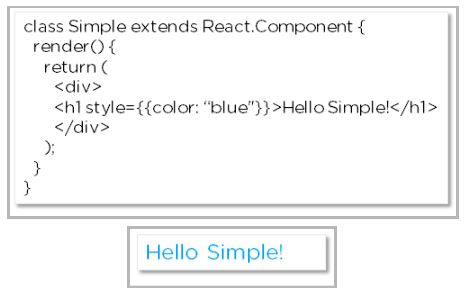
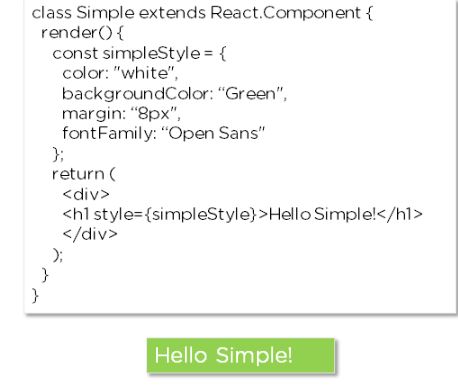
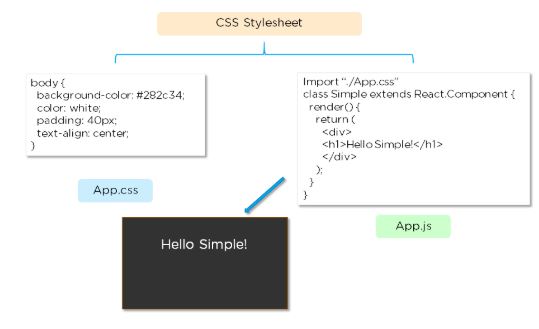
                                                            2.  How do you style React components?

                                                              There are several ways in which we can style React components:

                                                              • Inline Styling
                                                              class-simple
                                                              • JavaScript Object
                                                              hello-simple
                                                              • CSS Stylesheet
                                                              stylesheet