While middleware can enhance functionality, managing multiple middleware components can become complex, leading to potential performance bottlenecks or conflicts.
Author: saqibkhan
-
Slow for Simple Applications
For small projects or simple applications, Django can be overkill, leading to unnecessary complexity and longer development times compared to lightweight frameworks.
-
Heavy Resource Usage
Django applications can consume more memory and resources than lighter frameworks, which might be a concern for smaller projects or applications with limited hosting resources.
-
Limited Built-in Support for NoSQL
While Django can be integrated with NoSQL databases through third-party packages, its primary focus is on relational databases, which may limit flexibility for certain applications.
-
Add Static Files
What are Static Files in Django?
The django template language allows data to be inserted in a web page dynamically. However, a web application also needs certain resources such as images, JavaScript code and style sheets to render the complete web page. These types of files are called static files. In a Django application, these files are stored in a static folder inside the application folder.
The Staticfiles App
The staticfiles app (django.contrib.staticfiles), which manages the static files, is installed automatically in a Django project.
INSTALLED_APPS =[...,'django.contrib.staticfiles','firstapp',]Django looks for all the static assets in the “app/static” folder (a folder named as static in the app’s package folder).
First, we need to create a folder named “static” inside the myapp package folder to store these files. Let us store the “django.png” file in this folder.
Make sure that in the “settings.py” module, the STATIC_URL parameter is set to point to this folder.
STATIC_URL ='static/'Add a View
Let us add the following view −
from django.shortcuts import render
from django.http import HttpResponse

# Create your views here.defindex(request):return render(request,"index.html",{})
Register the View
You should also register this view in the app’s URLCONF −
from django.urls import path
from.import views

urlpatterns =[
   path("", views.index, name="index"),]
In the template, to make the static folder available, use the load template tag as in the following statement −
{% load static %}index.html
Now, we can use the static path to refer to the image in the <img src> tag. Let us modify the “index.html” file as −
<html><body>
   {% load static %}
   <img src="{% static 'django.png' %}" alt="My image"></body></html>
Start the server and visit the URL “http://localhost:8000/myapp/“. The “django.png” file will be displayed in the browser.
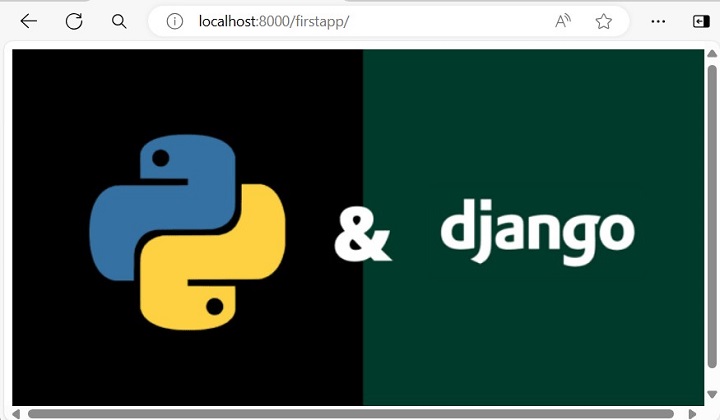
The staticfiles app also helps in serving the CSS and JS files. To include it as a CSS file, provide its relative path to the {% static %} tag in the href attribute.
<link rel="stylesheet" type="text/css" href="{% static 'style.css' %}">To load the JavaScript code, use the following syntax −
<head> {% load static %} <script src = "{% static 'script.js' %}"></script></head> -
Initial Setup Time
Setting up a Django project, especially with custom configurations or multiple apps, can take more time compared to lightweight frameworks.
-
Update Model
Django’s ORM API provides useful functionality for performing CRUD operations on the data stored in the tables of relational databases.
The create(), update() and delete() methods perform their respective operations on an already existing table. However, you often need to make changes to the model structure itself, by adding, deleting or altering the attributes of the model. Django’s admin interface can be helpful in handling these activities.
The Migration System in Django
Django has a powerful migration system that deals with the process of updating a model.
Django propagates the changes you make to your models (adding a field, deleting a model, etc.) into your database schema with the help Migrations mechanism. The migrations-related commands are executed with the manage.py script.
The following commands are available −
- migrate − Responsible for applying and unapplying migrations.
- makemigrations − Responsible for creating new migrations based on the changes made to the models.
- sqlmigrate − Displays the SQL statements for a migration.
- showmigrations − Lists a project’s migrations and their status.
When you first set up a Django project, it automatically installs certain apps. They are listed in the INSTALLED_APPS section in the settings.py module.
Most of these apps are used in the admin interface to create and manage the users, groups, authorization, etc., and the data related to these apps is stored in the respective tables.
We need to run the following migrate command for the first time to create the table structure required for INSTALLED_APPS −
python manage.py migrateRunning the above command will create a package called migrations inside the app package folder. All the subsequent migration scripts are stored in it.
Subsequently, when you create a new app (with startapp command), you also need to add it in the INSTALLED_APPS list. Next, you declare the models required for the new app. Here, you need to create the database tables required for the new app.
The makemigrations Command
Let us add a new model in the models.py module as follows −
from django.db import models # Create your models here.classDreamreal(models.Model): website = models.CharField(max_length=50) mail = models.CharField(max_length=50) name = models.CharField(max_length=50) phonenumber = models.IntegerField()def__str__(self):return"Website: {} Email: {} Name: {} Ph.: {}".format(self.website, self.mail, self.name, self.phonenumber)classMeta:db_table ="dreamreal"</code></pre>To propagate the new model in the database, run the makemigrations command −
python manage.py makemigrationsA migrations script 0001_initial.py will be created in the migrations folder. It contains a Migrations class. The migrate command as used initially, uses this script to create a new table in the database that has been configured in the DATABASES section of settings.py −
Python manage.py migrateEventually, you decide to add a new model class named Employee, as given below −
classEmployee(models.Model): eid = models.CharField(max_length=20) ename = models.CharField(max_length=100) eemail = models.EmailField() econtact = models.CharField(max_length=15)classMeta:db_table ="employee"</code></pre>When you run the makemigrations command again, it creates the second migration script −
D:\workspace\myproject> python manage.py makemigrations myapp Migrations for'myapp': myapp\migrations\0002_employee.py - Create model EmployeeThe new migration file 0002_employee.py is applied with migrate command −
D:\workspace\myproject> python manage.py migrate Operations to perform: Apply all migrations: admin, auth, contenttypes, myapp, sessions Running migrations: Applying myapp.0002_employee... OKIf you check in the database structure, the employee table can be found in it.
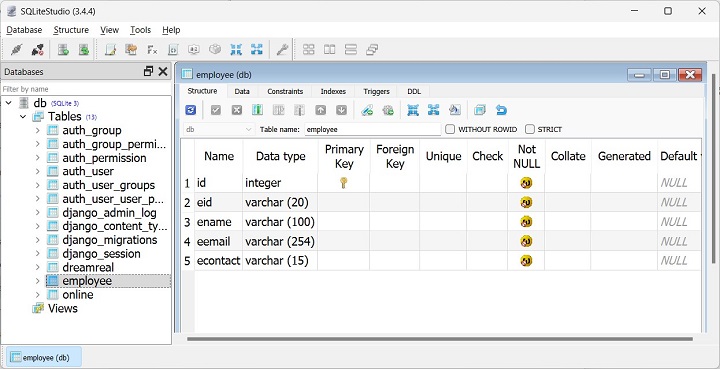
If you feel it necessary to change the structure of any of the models, you need to run the migrations again.
We drop the email field and add the salary field.
classEmployee(models.Model): eid = models.CharField(max_length=20) ename = models.CharField(max_length=100) econtact = models.CharField(max_length=15) salary = models.IntegerField()classMeta:db_table ="employee"</code></pre>Run the makemigrations command again.
D:\workspace\myproject> python manage.py makemigrations myapp Migrations for'myapp': myapp\migrations\0003_remove_employee_eemail_employee_salary.py- Remove field eemail from employee - Add field salary to employeeThe showmigrations Command
The showmigrations command shows the list of migrations scripts generated so far, with the migrations already applied showing "X" mark.
python manage.py showmigrations myapp [X] 0001_initial [X] 0002_employee [] 0003_remove_employee_eemail_employee_salaryRun the migrate command again to effect the changes to employee table −
D:\workspace\myproject> python manage.py migrate Operations to perform: Apply all migrations: admin, auth, contenttypes, myapp, sessions Running migrations: Applying myapp.0003_remove_employee_eemail_employee_salary... OKHow to Roll Back the Changes?
If you want to roll back the recent changes to the employee table and restore the state of 0002_mployee.py script,
D:\workspace\myproject> python manage.py migrate myapp 0002_employee Operations to perform: Target specific migration: 0002_employee,from myapp Running migrations: Rendering model states... DONE Unapplying myapp.0003_remove_employee_eemail_employee_salary... OKGo back and change the structure to confirm that the employee table structure is restored.
-
Less Suitable for Real-time Applications
Django’s traditional request-response cycle can be less ideal for real-time applications (like chat apps or live notifications) compared to frameworks specifically designed for that purpose.
-
Dependency on Python
Django is built on Python, which means performance can be a concern for applications with extremely high throughput requirements compared to frameworks in languages like Go or Java.
-
Database Schema Migration Complexity
While Django provides a migration system, managing complex database migrations can become cumbersome, especially for large applications with frequent changes.