Author: saqibkhan

  • Page Redirection

    Page redirection is needed for many reasons in web application. You might want to redirect a user to another page when a specific action occurs, or basically in case of error. For example, when a user logs in to your website, he is often redirected either to the main home page or to his personal dashboard. In Django, redirection is accomplished using the ‘redirect’ method.

    The ‘redirect’ method takes as argument: The URL you want to be redirected to as string A view’s name.

    The myapp/views looks like the following so far −

    def hello(request):
       today = datetime.datetime.now().date()
       daysOfWeek = ['Mon', 'Tue', 'Wed', 'Thu', 'Fri', 'Sat', 'Sun']
       return render(request, "hello.html", {"today" : today, "days_of_week" : daysOfWeek})
    	
    def viewArticle(request, articleId):
       """ A view that display an article based on his ID"""
       text = "Displaying article Number : %s" %articleId
       return HttpResponse(text)
    	
    def viewArticles(request, year, month):
       text = "Displaying articles of : %s/%s"%(year, month)
       return HttpResponse(text)

    Let’s change the hello view to redirect to djangoproject.com and our viewArticle to redirect to our internal ‘/myapp/articles’. To do so the myapp/view.py will change to −

    from django.shortcuts import render, redirect
    from django.http import HttpResponse
    import datetime
    
    # Create your views here.
    def hello(request):
       today = datetime.datetime.now().date()
       daysOfWeek = ['Mon', 'Tue', 'Wed', 'Thu', 'Fri', 'Sat', 'Sun']
       return redirect("https://www.djangoproject.com")
    	
    def viewArticle(request, articleId):
       """ A view that display an article based on his ID"""
       text = "Displaying article Number : %s" %articleId
       return redirect(viewArticles, year = "2045", month = "02")
    	
    def viewArticles(request, year, month):
       text = "Displaying articles of : %s/%s"%(year, month)
       return HttpResponse(text)

    In the above example, first we imported redirect from django.shortcuts and for redirection to the Django official website we just pass the full URL to the ‘redirect’ method as string, and for the second example (the viewArticle view) the ‘redirect’ method takes the view name and his parameters as arguments.

    Accessing /myapp/hello, will give you the following screen −

    Django page Redirection Example1

    And accessing /myapp/article/42, will give you the following screen −
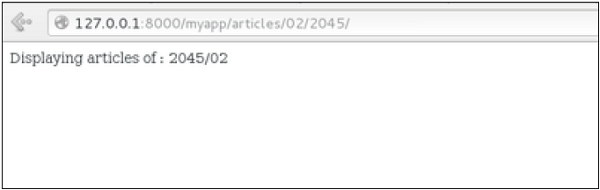
    Django page Redirection Example2

    It is also possible to specify whether the ‘redirect’ is temporary or permanent by adding permanent = True parameter. The user will see no difference, but these are details that search engines take into account when ranking of your website.

    Also remember that ‘name’ parameter we defined in our url.py while mapping the URLs −

    url(r'^articles/(?P\d{2})/(?P\d{4})/', 'viewArticles', name = 'articles'),
    

    That name (here article) can be used as argument for the ‘redirect’ method, then our viewArticle redirection can be changed from −

    def viewArticle(request, articleId):
       """ A view that display an article based on his ID"""
       text = "Displaying article Number : %s" %articleId
       return redirect(viewArticles, year = "2045", month = "02")

    To −

    def viewArticle(request, articleId):
       """ A view that display an article based on his ID"""
       text = "Displaying article Number : %s" %articleId
       return redirect(articles, year = "2045", month = "02")

    Note − There is also a function to generate URLs; it is used in the same way as redirect; the ‘reverse’ method (django.core.urlresolvers.reverse). This function does not return a HttpResponseRedirect object, but simply a string containing the URL to the view compiled with any passed argument.
  • Major Versions (2015-2020)

    • Django 2.0 (2017): Introduced significant features, including support for Python 3 only, improved URL routing, and a new simpler syntax for views.
    • Django 3.0 (2019): Added support for asynchronous views, marking a significant step towards modern web capabilities.
  • Regular Updates and Features (2010s)

    • Django 1.5: Released in 2013, it introduced the concept of custom user models, allowing for more flexibility in user authentication.
    • Django REST Framework: Launched in 2013, it provided powerful tools for building web APIs, further extending Django’s usability.
  • Growth and Adoption (2008-2015)

    • Community Expansion: As Django gained popularity, a vibrant community emerged, contributing plugins and third-party packages.
    • Django Girls: Initiatives like Django Girls began to promote diversity in tech and introduced many newcomers to web development with Django.
  • Django 1.0 (2008)

    • First Stable Release: Django 1.0 was released in July 2008, marking the framework’s transition to a mature product suitable for production use. It included many features like the ORM, admin interface, and built-in security protections.
  • Open Source Release (2005)

    • Public Release: In July 2005, Django was released as open-source software under the BSD license, allowing other developers to use, modify, and contribute to the framework.
  • Initial Development (2003-2005)

    • Origins: Django was developed to meet the needs of the newspaper’s web applications. The goal was to create a framework that would simplify and accelerate web development.
    • Naming: The name “Django” is a tribute to the jazz guitarist Django Reinhardt, reflecting the team’s love for music and creative coding.
  • Page Not Found (404)

    What is 404 Page Not Found Error?

    The HTTP protocol defines various status codes to indicate different types of HTTP responses. “404” is the HTTP status code that corresponds to the situation when the server cannot find the requested webpage. It is called as “404 error”, also known as the “404 Not Found error” or “HTTP 404 Not Found”.

    Django’s Default Template for 404 Error

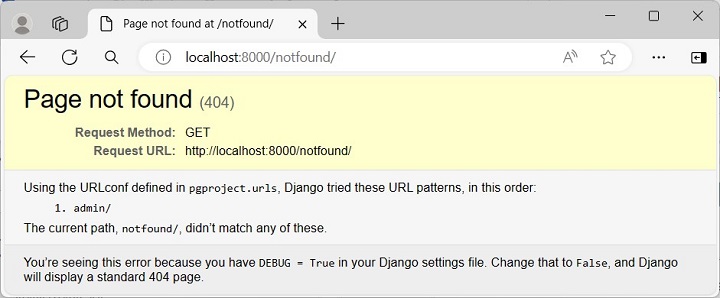
    In Django, a given URL route is mapped to a certain view. The 404 error may appear when a URL doesn’t have a corresponding view.

    Let us enter a URL route that has not been defined in the URLCONF of the Django project −

    Django Page Not Found 1

    The Django project, created with the startproject template, has the DEBUG parameter set to TRUE. The above page appears when a view isn’t found and DEBUG is set to TRUE. This is Django’s default template for 404 error code.

    Render a Custom Error Page

    To render a custom error page, set the DEBUG parameter to FALSE in the “setings.py” module. Also, you need to specify the list of ALLOWED_HOSTS such as localhost or a certain domain such as https://example.com. Set this parameter to “*” for any hostname.

    DEBUG =False
    ALLOWED_HOSTS =["*"]

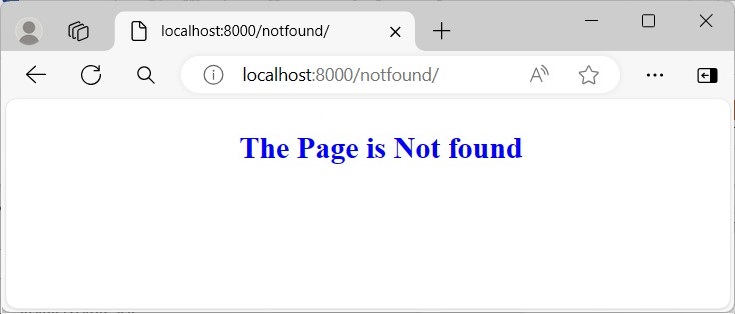
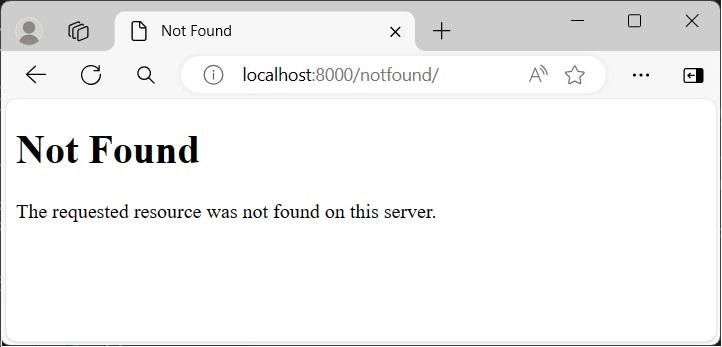
    After these changes, the same URL doesn’t show any DEBUG message as in the earlier figure.

    Django Page Not Found 2

    You can further design a customised template, name it as “404.html”, and place it in the “BASE_DIR/template” folder.

    404.html

    <html><body><h2 style="text-align: center; color: blue; 
    
      font-weight:900;"&gt;The Page is Not found&lt;/h2&gt;&lt;/body&gt;&lt;/html&gt;</code></pre>

    Now, this page is displayed whenever the view is not found.

    Django Page Not Found 3

    Another approach to customize the 404 error response is to define a handler404() view in "views.py" file under the project folder.

    Note − The view.py module is situated by default in the app folder. You need to create the same in the project folder explicitly.

    views.py

    from django.shortcuts import render
    
    defhandler404(request, exception):return render(request,'404handler.html')

    Then, direct Django to render this template whenever a view isn’t found by assigning the handler404 variable with handler404() function, in the URLCONF of the project.

    urls.py

    from django.contrib import admin
    from django.urls import path
    from.import views
    
    handler404 = views.handler404
    
    urlpatterns =[
       path('admin/', admin.site.urls),]

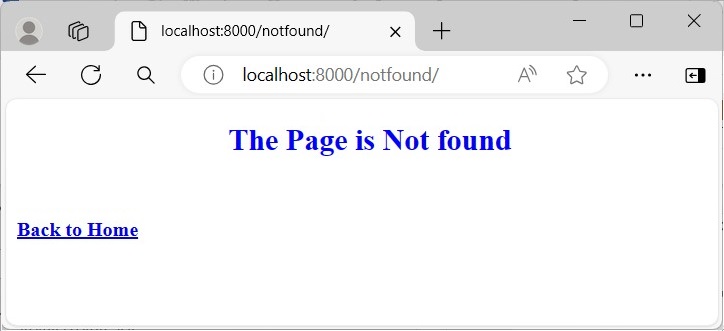
    404handler.html

    Save the following HTML script as 404handler.html in the templates folder −

    <html><body><h2 style="text-align: center; color: blue; 
    
      font-weight:900;"&gt;The Page is Not found&lt;/h2&gt;&lt;br&gt;&lt;br&gt;&lt;a href="../home"&gt;&lt;b&gt;Back to Home&lt;/b&gt;&lt;/a&gt;&lt;/body&gt;&lt;/html&gt;</code></pre>

    Visit any undefined URL route to render this customized 404 error page.

    Django Page Not Found 4
  • Customization Challenges

    Customizing Django’s built-in components (like the admin interface or authentication system) can sometimes be more complicated than expected, requiring additional effort and understanding of the framework.

  • Add CSS Files

    CSS (Cascading Style Sheets) is an important component of the World Wide Web alongside HTML and JavaScript. It is a style sheet language used for specifying the presentation and styling of a document written in HTML.

    CSS Files are Static Assets

    In Django, CSS files are termed as static assets. They are placed in the static folder which is created inside the app’s “package” folder.

    The static assets are made available with the following template tag −

    {% load static %}

    Normally, the CSS file is included in the HTML code with the following statement, usually placed in the <head> section.

    <link rel="stylesheet" type="text/css" href="styles.css" />

    However, to include CSS as a static resource, its path is mentioned with {% static %} tag as follows −

    <link rel="stylesheet" type="text/css" href="{% static 'style.css' %}">

    Applying CSS to the Name of Cities

    Here we will show how you can apply CSS to the name of cities displayed as an unordered list in the web page.

    Let us define the following index() view that passes a list of cities as a context to a “cities.html” template

    from django.shortcuts import render
    
    defindex(request):
       cities =['Mumbai','New Delhi','Kolkata','Bengaluru','Chennai','Hyderabad']return render(request,"cities.html",{"cities":cities})

    cities.html

    In the “cities.html” template, we first load the CSS file in the HEAD section. Each name is rendered in the <li> . . </li> tag with the help of a for loop template tag.

    <html><head>
       {% load static %}
       <link rel="stylesheet" type="text/css" href="{% static 'style.css' %}"></head><body><h2>List of Cities</h2><ul>
    
      {% for city in cities %}
         &lt;li&gt;{{ city }} &lt;/li&gt;
      {% endfor %}
    </ul></body></html>

    style.css

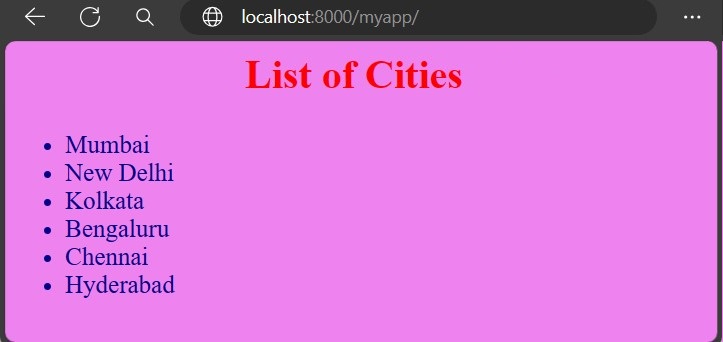
    We shall apply background color to the webpage and set its font size and color.

    Save the following code as “style.css” and put it in the static folder.

    h2{text-align: center;font-size:xx-large;color:red;}ul li{color: darkblue;font-size:20;}body{background-color: violet;}

    Register the index() View

    The index() view is registered in the urlpatterns of the Django app as follows −

    from django.urls import path
    from.import views
    
    urlpatterns =[
       path("", views.index, name="index"),]

    The http://localhost:8000/myapp/ URL displays the list of cities according to the above styles −

    Django Add CSS Files