Author: saqibkhan

  • Database Concepts

    Flutter provides many advanced packages to work with databases. The most important packages are −

    • sqflite − Used to access and manipulate SQLite database, and
    • firebase_database − Used to access and manipulate cloud hosted NoSQL database from Google.

    In this chapter, let us discuss each of them in detail.

    SQLite

    SQLite database is the de-facto and standard SQL based embedded database engine. It is small and time-tested database engine. sqflite package provides a lot of functionality to work efficiently with SQLite database. It provides standard methods to manipulate SQLite database engine. The core functionality provided by sqflite package is as follows −

    • Create / Open (openDatabase method) a SQLite database.
    • Execute SQL statement (execute method) against SQLite database.
    • Advanced query methods (query method) to reduce to code required to query and get information from SQLite database.

    Let us create a product application to store and fetch product information from a standard SQLite database engine using sqflite package and understand the concept behind the SQLite database and sqflite package.

    • Create a new Flutter application in Android studio, product_sqlite_app.
    • Replace the default startup code (main.dart) with our product_rest_app code.
    • Copy the assets folder from product_nav_app to product_rest_app and add assets inside the *pubspec.yaml` file.
    flutter: 
       assets: 
    
      - assets/appimages/floppy.png 
      - assets/appimages/iphone.png 
      - assets/appimages/laptop.png 
      - assets/appimages/pendrive.png 
      - assets/appimages/pixel.png 
      - assets/appimages/tablet.png</code></pre>
    • Configure sqflite package in the pubspec.yaml file as shown below −
    dependencies: sqflite: any
    

    Use the latest version number of sqflite in place of any

    • Configure path_provider package in the pubspec.yaml file as shown below −
    dependencies: path_provider: any
    
    • Here, path_provider package is used to get temporary folder path of the system and path of the application. Use the latest version number of sqflite in place of any.
    • Android studio will alert that the pubspec.yaml is updated.
    Updated
    • Click Get dependencies option. Android studio will get the package from Internet and properly configure it for the application.
    • In database, we need primary key, id as additional field along with Product properties like name, price, etc., So, add id property in the Product class. Also, add a new method, toMap to convert product object into Map object. fromMap and toMap are used to serialize and de- serialize the Product object and it is used in database manipulation methods.
    class Product { 
       final int id; 
       final String name; 
       final String description; 
       final int price; 
       final String image; 
       static final columns = ["id", "name", "description", "price", "image"]; 
       Product(this.id, this.name, this.description, this.price, this.image); 
       factory Product.fromMap(Map<String, dynamic> data) {
    
      return Product( 
         data&#91;'id'], 
         data&#91;'name'], 
         data&#91;'description'], 
         data&#91;'price'], 
         data&#91;'image'], 
      ); 
    } Map<String, dynamic> toMap() => {
      "id": id, 
      "name": name, 
      "description": description, 
      "price": price, 
      "image": image 
    }; }
    • Create a new file, Database.dart in the lib folder to write SQLite related functionality.
    • Import necessary import statement in Database.dart.
    import 'dart:async'; 
    import 'dart:io'; 
    import 'package:path/path.dart'; 
    import 'package:path_provider/path_provider.dart'; 
    import 'package:sqflite/sqflite.dart'; 
    import 'Product.dart';
    • Note the following points here −
      • async is used to write asynchronous methods.
      • io is used to access files and directories.
      • path is used to access dart core utility function related to file paths.
      • path_provider is used to get temporary and application path.
      • sqflite is used to manipulate SQLite database.
    • Create a new class SQLiteDbProvider
    • Declare a singleton based, static SQLiteDbProvider object as specified below −
    class SQLiteDbProvider { 
       SQLiteDbProvider._(); 
       static final SQLiteDbProvider db = SQLiteDbProvider._(); 
       static Database _database; 
    }
    
    • SQLiteDBProvoider object and its method can be accessed through the static db variable.
    SQLiteDBProvoider.db.<emthod>
    
    • Create a method to get database (Future option) of type Future<Database>. Create product table and load initial data during the creation of the database itself.
    Future<Database> get database async { 
       if (_database != null) 
       return _database; 
       _database = await initDB(); 
       return _database; 
    }
    initDB() async { 
       Directory documentsDirectory = await getApplicationDocumentsDirectory(); 
       String path = join(documentsDirectory.path, "ProductDB.db"); 
       return await openDatabase(
    
      path, 
      version: 1,
      onOpen: (db) {}, 
      onCreate: (Database db, int version) async {
         await db.execute(
            "CREATE TABLE Product ("
            "id INTEGER PRIMARY KEY,"
            "name TEXT,"
            "description TEXT,"
            "price INTEGER," 
            "image TEXT" ")"
         ); 
         await db.execute(
            "INSERT INTO Product ('id', 'name', 'description', 'price', 'image') 
            values (?, ?, ?, ?, ?)", 
            &#91;1, "iPhone", "iPhone is the stylist phone ever", 1000, "iphone.png"]
         ); 
         await db.execute(
            "INSERT INTO Product ('id', 'name', 'description', 'price', 'image') 
            values (?, ?, ?, ?, ?)", 
            &#91;2, "Pixel", "Pixel is the most feature phone ever", 800, "pixel.png"]
         ); 
         await db.execute(
            "INSERT INTO Product ('id', 'name', 'description', 'price', 'image') 
            values (?, ?, ?, ?, ?)", 
            &#91;3, "Laptop", "Laptop is most productive development tool", 2000, "laptop.png"]\
         ); 
         await db.execute( 
            "INSERT INTO Product ('id', 'name', 'description', 'price', 'image') 
            values (?, ?, ?, ?, ?)", 
            &#91;4, "Tablet", "Laptop is most productive development tool", 1500, "tablet.png"]
         );
         await db.execute( 
            "INSERT INTO Product 
            ('id', 'name', 'description', 'price', 'image') 
            values (?, ?, ?, ?, ?)", 
            &#91;5, "Pendrive", "Pendrive is useful storage medium", 100, "pendrive.png"]
         );
         await db.execute( 
            "INSERT INTO Product 
            ('id', 'name', 'description', 'price', 'image') 
            values (?, ?, ?, ?, ?)", 
            &#91;6, "Floppy Drive", "Floppy drive is useful rescue storage medium", 20, "floppy.png"]
         ); 
      }
    ); }
    • Here, we have used the following methods −
      • getApplicationDocumentsDirectory − Returns application directory path
      • join − Used to create system specific path. We have used it to create database path.
      • openDatabase − Used to open a SQLite database
      • onOpen − Used to write code while opening a database
      • onCreate − Used to write code while a database is created for the first time
      • db.execute − Used to execute SQL queries. It accepts a query. If the query has placeholder (?), then it accepts values as list in the second argument.
    • Write a method to get all products in the database −
    Future<List<Product>> getAllProducts() async { 
       final db = await database; 
       List<Map> 
       results = await db.query("Product", columns: Product.columns, orderBy: "id ASC"); 
       
       List<Product> products = new List(); 
       results.forEach((result) { 
    
      Product product = Product.fromMap(result); 
      products.add(product); 
    }); return products; }
    • Here, we have done the following −
      • Used query method to fetch all the product information. query provides shortcut to query a table information without writing the entire query. query method will generate the proper query itself by using our input like columns, orderBy, etc.,
      • Used Product’s fromMap method to get product details by looping the results object, which holds all the rows in the table.
    • Write a method to get product specific to id
    Future<Product> getProductById(int id) async {
       final db = await database; 
       var result = await db.query("Product", where: "id = ", whereArgs: [id]); 
       return result.isNotEmpty ? Product.fromMap(result.first) : Null; 
    }
    • Here, we have used where and whereArgs to apply filters.
    • Create three methods - insert, update and delete method to insert, update and delete product from the database.
    insert(Product product) async { 
       final db = await database; 
       var maxIdResult = await db.rawQuery(
    
      "SELECT MAX(id)+1 as last_inserted_id FROM Product");
    var id = maxIdResult.first["last_inserted_id"]; var result = await db.rawInsert(
      "INSERT Into Product (id, name, description, price, image)" 
      " VALUES (?, ?, ?, ?, ?)", 
      &#91;id, product.name, product.description, product.price, product.image] 
    ); return result; } update(Product product) async { final db = await database; var result = await db.update("Product", product.toMap(), where: "id = ?", whereArgs: [product.id]); return result; } delete(int id) async { final db = await database; db.delete("Product", where: "id = ?", whereArgs: [id]); }
    • The final code of the Database.dart is as follows −
    import 'dart:async'; 
    import 'dart:io'; 
    import 'package:path/path.dart'; 
    import 'package:path_provider/path_provider.dart'; 
    import 'package:sqflite/sqflite.dart'; 
    import 'Product.dart'; 
    
    class SQLiteDbProvider {
       SQLiteDbProvider._(); 
       static final SQLiteDbProvider db = SQLiteDbProvider._(); 
       static Database _database; 
       
       Future<Database> get database async {
    
      if (_database != null) 
      return _database; 
      _database = await initDB(); 
      return _database; 
    } initDB() async {
      Directory documentsDirectory = await 
      getApplicationDocumentsDirectory(); 
      String path = join(documentsDirectory.path, "ProductDB.db"); 
      return await openDatabase(
         path, version: 1, 
         onOpen: (db) {}, 
         onCreate: (Database db, int version) async {
            await db.execute(
               "CREATE TABLE Product (" 
               "id INTEGER PRIMARY KEY," 
               "name TEXT," 
               "description TEXT," 
               "price INTEGER," 
               "image TEXT"")"
            ); 
            await db.execute(
               "INSERT INTO Product ('id', 'name', 'description', 'price', 'image') 
               values (?, ?, ?, ?, ?)", 
               &#91;1, "iPhone", "iPhone is the stylist phone ever", 1000, "iphone.png"]
            ); 
            await db.execute( 
               "INSERT INTO Product ('id', 'name', 'description', 'price', 'image') 
               values (?, ?, ?, ?, ?)", 
               &#91;2, "Pixel", "Pixel is the most feature phone ever", 800, "pixel.png"]
            );
            await db.execute(
               "INSERT INTO Product ('id', 'name', 'description', 'price', 'image') 
               values (?, ?, ?, ?, ?)", 
               &#91;3, "Laptop", "Laptop is most productive development tool", 2000, "laptop.png"]
            ); 
            await db.execute( 
               "INSERT INTO Product ('id', 'name', 'description', 'price', 'image') 
               values (?, ?, ?, ?, ?)", 
               &#91;4, "Tablet", "Laptop is most productive development tool", 1500, "tablet.png"]
            ); 
            await db.execute( 
               "INSERT INTO Product ('id', 'name', 'description', 'price', 'image') 
               values (?, ?, ?, ?, ?)", 
               &#91;5, "Pendrive", "Pendrive is useful storage medium", 100, "pendrive.png"]
            );
            await db.execute( 
               "INSERT INTO Product ('id', 'name', 'description', 'price', 'image') 
               values (?, ?, ?, ?, ?)", 
               &#91;6, "Floppy Drive", "Floppy drive is useful rescue storage medium", 20, "floppy.png"]
            ); 
         }
      ); 
    } Future<List<Product>> getAllProducts() async {
      final db = await database; 
      List&lt;Map&gt; results = await db.query(
         "Product", columns: Product.columns, orderBy: "id ASC"
      ); 
      List&lt;Product&gt; products = new List();   
      results.forEach((result) {
         Product product = Product.fromMap(result); 
         products.add(product); 
      }); 
      return products; 
    } Future<Product> getProductById(int id) async {
      final db = await database; 
      var result = await db.query("Product", where: "id = ", whereArgs: &#91;id]); 
      return result.isNotEmpty ? Product.fromMap(result.first) : Null; 
    } insert(Product product) async {
      final db = await database; 
      var maxIdResult = await db.rawQuery("SELECT MAX(id)+1 as last_inserted_id FROM Product"); 
      var id = maxIdResult.first&#91;"last_inserted_id"]; 
      var result = await db.rawInsert(
         "INSERT Into Product (id, name, description, price, image)" 
         " VALUES (?, ?, ?, ?, ?)", 
         &#91;id, product.name, product.description, product.price, product.image] 
      ); 
      return result; 
    } update(Product product) async {
      final db = await database; 
      var result = await db.update(
         "Product", product.toMap(), where: "id = ?", whereArgs: &#91;product.id]
      ); 
      return result; 
    } delete(int id) async {
      final db = await database; 
      db.delete("Product", where: "id = ?", whereArgs: &#91;id]);
    } }
    • Change the main method to get the product information.
    void main() {
       runApp(MyApp(products: SQLiteDbProvider.db.getAllProducts())); 
    }
    • Here, we have used the getAllProducts method to fetch all products from the database.
    • Run the application and see the results. It will be similar to previous example, Accessing Product service API, except the product information is stored and fetched from the local SQLite database.

    Cloud Firestore

    Firebase is a BaaS app development platform. It provides many feature to speed up the mobile application development like authentication service, cloud storage, etc., One of the main feature of Firebase is Cloud Firestore, a cloud based real time NoSQL database.

    Flutter provides a special package, cloud_firestore to program with Cloud Firestore. Let us create an online product store in the Cloud Firestore and create a application to access the product store.

    • Create a new Flutter application in Android studio, product_firebase_app.
    • Replace the default startup code (main.dart) with our product_rest_app code.
    • Copy Product.dart file from product_rest_app into the lib folder.
    class Product { 
       final String name; 
       final String description; 
       final int price; 
       final String image; 
       
       Product(this.name, this.description, this.price, this.image); 
       factory Product.fromMap(Map<String, dynamic> json) {
    
      return Product( 
         json&#91;'name'], 
         json&#91;'description'], 
         json&#91;'price'], 
         json&#91;'image'], 
      ); 
    } }
    • Copy the assets folder from product_rest_app to product_firebase_app and add assets inside the pubspec.yaml file.
    flutter:
       assets: 
       - assets/appimages/floppy.png 
       - assets/appimages/iphone.png 
       - assets/appimages/laptop.png 
       - assets/appimages/pendrive.png 
       - assets/appimages/pixel.png 
       - assets/appimages/tablet.png
    • Configure cloud_firestore package in the pubspec.yaml file as shown below −
    dependencies: cloud_firestore: ^0.9.13+1
    
    • Here, use the latest version of the cloud_firestore package.
    • Android studio will alert that the pubspec.yaml is updated as shown here −
    Cloud Firestore Package
    • Click Get dependencies option. Android studio will get the package from Internet and properly configure it for the application.
    • Create a project in the Firebase using the following steps −
      • Create a Firebase account by selecting Free plan at https://firebase.google.com/pricing/.
      • Once Firebase account is created, it will redirect to the project overview page. It list all the Firebase based project and provides an option to create a new project.
      • Click Add project and it will open a project creation page.
      • Enter products app db as project name and click Create project option.
      • Go to *Firebase console.
      • Click Project overview. It opens the project overview page.
      • Click android icon. It will open project setting specific to Android development.
      • Enter Android Package name, com.tutorialspoint.flutterapp.product_firebase_app.
      • Click Register App. It generates a project configuration file, google_service.json.
      • Download google_service.json and then move it into the project’s android/app directory. This file is the connection between our application and Firebase.
      • Open android/app/build.gradle and include the following code −
    apply plugin: 'com.google.gms.google-services'
    
    • Open android/build.gradle and include the following configuration −
    buildscript {
       repositories { 
    
      // ... 
    } dependencies {
      // ... 
      classpath 'com.google.gms:google-services:3.2.1' // new 
    } }
    • Open android/app/build.gradle and include the following code as well.
    android {
       defaultConfig { 
    
      ... 
      multiDexEnabled true 
    } ... } dependencies { ... compile 'com.android.support: multidex:1.0.3' }
    • Follow the remaining steps in the Firebase Console or just skip it.
    • Create a product store in the newly created project using the following steps −
      • Go to Firebase console.
      • Open the newly created project.
      • Click the Database option in the left menu.
      • Click Create database option.
      • Click Start in test mode and then Enable.
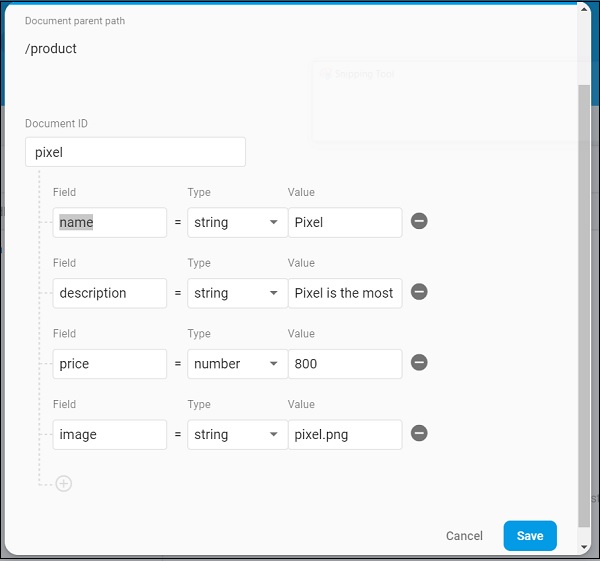
      • Click Add collection. Enter product as collection name and then click Next.
      • Enter the sample product information as shown in the image here −
    Sample Product Information
    • Add addition product information using Add document options.
    • Open main.dart file and import Cloud Firestore plugin file and remove http package.
    import 'package:cloud_firestore/cloud_firestore.dart';
    
    • Remove parseProducts and update fetchProducts to fetch products from Cloud Firestore instead of Product service API.
    Stream<QuerySnapshot> fetchProducts() { 
       return Firestore.instance.collection('product').snapshots(); }
    
    • Here, Firestore.instance.collection method is used to access product collection available in the cloud store. Firestore.instance.collection provides many option to filter the collection to get the necessary documents. But, we have not applied any filter to get all product information.
    • Cloud Firestore provides the collection through Dart Stream concept and so modify the products type in MyApp and MyHomePage widget from Future<list<Product>> to Stream<QuerySnapshot>.
    • Change the build method of MyHomePage widget to use StreamBuilder instead of FutureBuilder.
    @override 
    Widget build(BuildContext context) {
       return Scaffold(
    
      appBar: AppBar(title: Text("Product Navigation")), 
      body: Center(
         child: StreamBuilder&lt;QuerySnapshot&gt;(
            stream: products, builder: (context, snapshot) {
               if (snapshot.hasError) print(snapshot.error); 
               if(snapshot.hasData) {
                  List&lt;DocumentSnapshot&gt; 
                  documents = snapshot.data.documents; 
                  
                  List&lt;Product&gt; 
                  items = List&lt;Product&gt;(); 
                  
                  for(var i = 0; i &lt; documents.length; i++) { 
                     DocumentSnapshot document = documents&#91;i]; 
                     items.add(Product.fromMap(document.data)); 
                  } 
                  return ProductBoxList(items: items);
               } else { 
                  return Center(child: CircularProgressIndicator()); 
               }
            }, 
         ), 
      )
    ); }
    • Here, we have fetched the product information as List<DocumentSnapshot> type. Since, our widget, ProductBoxList is not compatible with documents, we have converted the documents into List<Product> type and further used it.
    • Finally, run the application and see the result. Since, we have used the same product information as that of SQLite application and changed the storage medium only, the resulting application looks identical to SQLite application application.
  • Introduction to Package

    Dart’s way of organizing and sharing a set of functionality is through Package. Dart Package is simply sharable libraries or modules. In general, the Dart Package is same as that of Dart Application except Dart Package does not have application entry point, main.

    The general structure of Package (consider a demo package, my_demo_package) is as below −

    • lib/src/* − Private Dart code files.
    • lib/my_demo_package.dart − Main Dart code file. It can be imported into an application as −
    import 'package:my_demo_package/my_demo_package.dart'
    
    • Other private code file may be exported into the main code file (my_demo_package.dart), if necessary as shown below −
    export src/my_private_code.dart
    
    • lib/* − Any number of Dart code files arranged in any custom folder structure. The code can be accessed as,
    import 'package:my_demo_package/custom_folder/custom_file.dart'
    
    • pubspec.yaml − Project specification, same as that of application,

    All Dart code files in the Package are simply Dart classes and it does not have any special requirement for a Dart code to include it in a Package.

    Types of Packages

    Since Dart Packages are basically a small collection of similar functionality, it can be categorized based on its functionality.

    Dart Package

    Generic Dart code, which can be used in both web and mobile environment. For example, english_words is one such package which contains around 5000 words and has basic utility functions like nouns (list nouns in the English), syllables (specify number of syllables in a word.

    Flutter Package

    Generic Dart code, which depends on Flutter framework and can be used only in mobile environment. For example, fluro is a custom router for flutter. It depends on the Flutter framework.

    Flutter Plugin

    Generic Dart code, which depends on Flutter framework as well as the underlying platform code (Android SDK or iOS SDK). For example, camera is a plugin to interact with device camera. It depends on the Flutter framework as well as the underlying framework to get access to camera.

    Using a Dart Package

    Dart Packages are hosted and published into the live server, https://pub.dartlang.org. Also, Flutter provides simple tool, pub to manage Dart Packages in the application. The steps needed to use as Package is as follows −

    • Include the package name and the version needed into the pubspec.yaml as shown below −
    dependencies: english_words: ^3.1.5
    
    • The latest version number can be found by checking the online server.
    • Install the package into the application by using the following command −
    flutter packages get
    
    • While developing in the Android studio, Android Studio detects any change in the pubspec.yaml and displays an Android studio package alert to the developer as shown below −
    Package Alert
    • Dart Packages can be installed or updated in Android Studio using the menu options.
    • Import the necessary file using the command shown below and start working −
    import 'package:english_words/english_words.dart';
    
    • Use any method available in the package,
    nouns.take(50).forEach(print);
    
    • Here, we have used nouns function to get and print the top 50 words.

    Explore our latest online courses and learn new skills at your own pace. Enroll and become a certified expert to boost your career.

    Develop a Flutter Plugin Package

    Developing a Flutter Plugin is similar to developing a Dart application or Dart Package. The only exception is that the plugin is going to use System API (Android or iOS) to get the required platform specific functionality.

    As we have already learned how to access platform code in the previous chapters, let us develop a simple plugin, my_browser to understand the plugin development process. The functionality of the my_browser plugin is to allow the application to open the given website in the platform specific browser.

    • Start Android Studio.
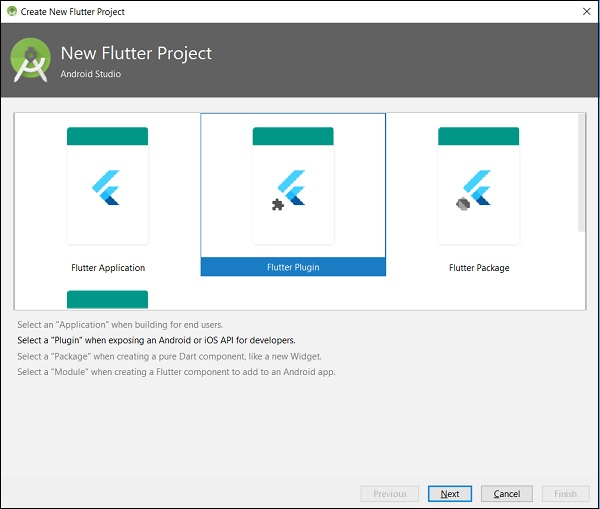
    • Click File → New Flutter Project and select Flutter Plugin option.
    • You can see a Flutter plugin selection window as shown here −
    Flutter Plugin
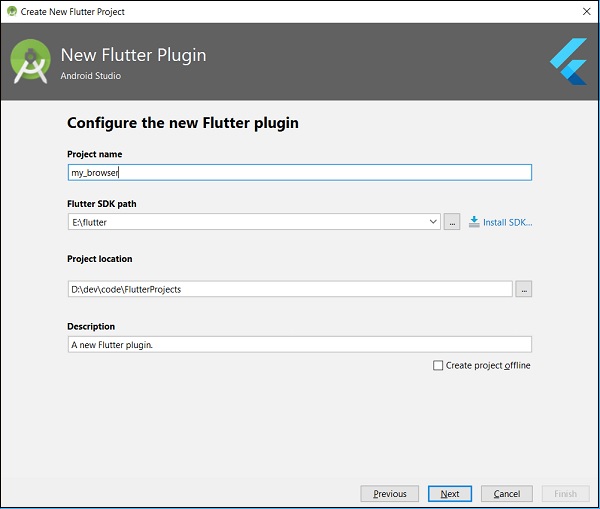
    • Enter my_browser as project name and click Next.
    • Enter the plugin name and other details in the window as shown here −
    Configure New Flutter Plugin
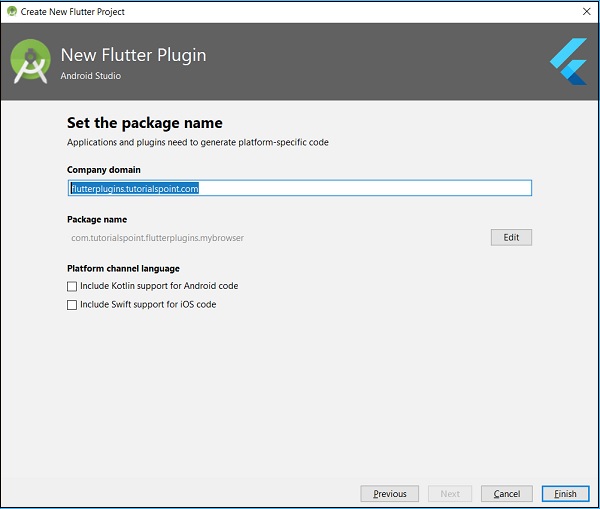
    • Enter company domain, flutterplugins.tutorialspoint.com in the window shown below and then click on Finish. It will generate a startup code to develop our new plugin.
    Package Name
    • Open my_browser.dart file and write a method, openBrowser to invoke platform specific openBrowser method.
    Future<void> openBrowser(String urlString) async { 
       try {
    
      final int result = await _channel.invokeMethod(
         'openBrowser', &lt;String, String&gt;{ 'url': urlString }
      );
    } on PlatformException catch (e) {
      // Unable to open the browser print(e); 
    } }
    • Open MyBrowserPlugin.java file and import the following classes −
    import android.app.Activity; 
    import android.content.Intent; 
    import android.net.Uri; 
    import android.os.Bundle;
    
    • Here, we have to import library required for opening a browser from Android.
    • Add new private variable mRegistrar of type Registrar in MyBrowserPlugin class.
    private final Registrar mRegistrar;
    
    • Here, Registrar is used to get context information of the invoking code.
    • Add a constructor to set Registrar in MyBrowserPlugin class.
    private MyBrowserPlugin(Registrar registrar) { 
       this.mRegistrar = registrar; 
    }
    
    • Change registerWith to include our new constructor in MyBrowserPlugin class.
    public static void registerWith(Registrar registrar) { 
       final MethodChannel channel = new MethodChannel(registrar.messenger(), "my_browser"); 
       MyBrowserPlugin instance = new MyBrowserPlugin(registrar); 
       channel.setMethodCallHandler(instance); 
    }
    • Change the onMethodCall to include openBrowser method in MyBrowserPlugin class.
    @Override 
    public void onMethodCall(MethodCall call, Result result) { 
       String url = call.argument("url");
       if (call.method.equals("getPlatformVersion")) { 
    
      result.success("Android " + android.os.Build.VERSION.RELEASE); 
    } else if (call.method.equals("openBrowser")) {
      openBrowser(call, result, url); 
    } else {
      result.notImplemented(); 
    } }
    • Write the platform specific openBrowser method to access browser in MyBrowserPlugin class.
    private void openBrowser(MethodCall call, Result result, String url) { 
       Activity activity = mRegistrar.activity(); 
       if (activity == null) {
    
      result.error("ACTIVITY_NOT_AVAILABLE", 
      "Browser cannot be opened without foreground activity", null); 
      return; 
    } Intent intent = new Intent(Intent.ACTION_VIEW); intent.setData(Uri.parse(url)); activity.startActivity(intent); result.success((Object) true); }
    • The complete source code of the my_browser plugin is as follows −

    my_browser.dart

    import 'dart:async'; 
    import 'package:flutter/services.dart'; 
    
    class MyBrowser {
       static const MethodChannel _channel = const MethodChannel('my_browser'); 
       static Future<String> get platformVersion async { 
    
      final String version = await _channel.invokeMethod('getPlatformVersion'); return version; 
    } Future<void> openBrowser(String urlString) async {
      try {
         final int result = await _channel.invokeMethod(
            'openBrowser', &lt;String, String&gt;{'url': urlString}); 
      } 
      on PlatformException catch (e) { 
         // Unable to open the browser print(e); 
      }
    } }

    MyBrowserPlugin.java

    package com.tutorialspoint.flutterplugins.my_browser; 
    
    import io.flutter.plugin.common.MethodCall; 
    import io.flutter.plugin.common.MethodChannel; 
    import io.flutter.plugin.common.MethodChannel.MethodCallHandler; 
    import io.flutter.plugin.common.MethodChannel.Result; 
    import io.flutter.plugin.common.PluginRegistry.Registrar; 
    import android.app.Activity; 
    import android.content.Intent; 
    import android.net.Uri; 
    import android.os.Bundle; 
    
    /** MyBrowserPlugin */ 
    public class MyBrowserPlugin implements MethodCallHandler {
       private final Registrar mRegistrar; 
       private MyBrowserPlugin(Registrar registrar) { 
    
      this.mRegistrar = registrar; 
    } /** Plugin registration. */ public static void registerWith(Registrar registrar) {
      final MethodChannel channel = new MethodChannel(
         registrar.messenger(), "my_browser"); 
      MyBrowserPlugin instance = new MyBrowserPlugin(registrar); 
      channel.setMethodCallHandler(instance); 
    } @Override public void onMethodCall(MethodCall call, Result result) {
      String url = call.argument("url"); 
      if (call.method.equals("getPlatformVersion")) { 
         result.success("Android " + android.os.Build.VERSION.RELEASE); 
      } 
      else if (call.method.equals("openBrowser")) { 
         openBrowser(call, result, url); 
      } else { 
         result.notImplemented(); 
      } 
    } private void openBrowser(MethodCall call, Result result, String url) {
      Activity activity = mRegistrar.activity(); 
      if (activity == null) {
         result.error("ACTIVITY_NOT_AVAILABLE",
            "Browser cannot be opened without foreground activity", null); 
         return; 
      }
      Intent intent = new Intent(Intent.ACTION_VIEW); 
      intent.setData(Uri.parse(url)); 
      activity.startActivity(intent); 
      result.success((Object) true); 
    } }
    • Create a new project, my_browser_plugin_test to test our newly created plugin.
    • Open pubspec.yaml and set my_browser as a plugin dependency.
    dependencies: 
       flutter: 
    
      sdk: flutter 
    my_browser:
      path: ../my_browser</code></pre>
    • Android studio will alert that the pubspec.yaml is updated as shown in the Android studio package alert given below −
    Android Studio Package Alert
    • Click Get dependencies option. Android studio will get the package from Internet and properly configure it for the application.
    • Open main.dart and include my_browser plugin as below −
    import 'package:my_browser/my_browser.dart';
    
    • Call the openBrowser function from my_browser plugin as shown below −
    onPressed: () => MyBrowser().openBrowser("https://flutter.dev"),
    
    • The complete code of the main.dart is as follows −
    import 'package:flutter/material.dart'; 
    import 'package:my_browser/my_browser.dart'; 
    
    void main() => runApp(MyApp()); 
    
    class MyApp extends StatelessWidget { 
       @override 
       Widget build(BuildContext context) {
    
      return MaterialApp( 
         title: 'Flutter Demo', 
         theme: ThemeData( 
            primarySwatch: Colors.blue, 
         ), 
         home: MyHomePage(
            title: 'Flutter Demo Home Page'
         ), 
      );,
    } } class MyHomePage extends StatelessWidget { MyHomePage({Key key, this.title}) : super(key: key); final String title; @override Widget build(BuildContext context) {
      return Scaffold(
         appBar: AppBar( 
            title: Text(this.title), 
         ), 
         body: Center(
            child: RaisedButton(
               child: Text('Open Browser'), 
               onPressed: () =&gt; MyBrowser().openBrowser("https://flutter.dev"), 
            ),
         ), 
      ); 
    } }
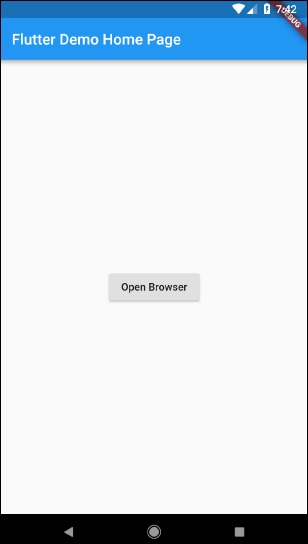
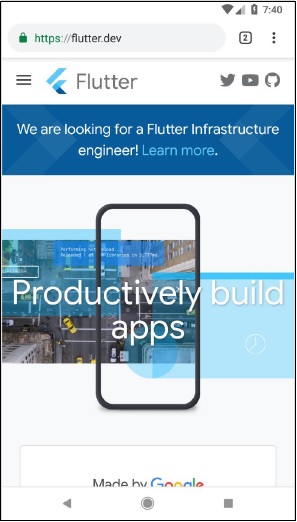
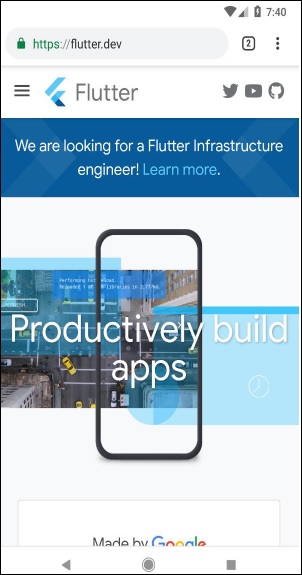
    • Run the application and click the Open Browser button and see that the browser is launched. You can see a Browser app - Home page as shown in the screenshot shown below −
    Open Browser

    You can see a Browser app – Browser screen as shown in the screenshot shown below −

    Flutter Infrastructure
  • Writing IOS Specific Code

    Accessing iOS specific code is similar to that on Android platform except that it uses iOS specific languages – Objective-C or Swift and iOS SDK. Otherwise, the concept is same as that of the Android platform.

    Let us write the same application as in the previous chapter for iOS platform as well.

    • Let us create a new application in Android Studio (macOS), flutter_browser_ios_app
    • Follow steps 2 – 6 as in previous chapter.
    • Start XCode and click File → Open
    • Choose the xcode project under ios directory of our flutter project.
    • Open AppDelegate.m under Runner → Runner path. It contains the following code −
    #include "AppDelegate.h" 
    #include "GeneratedPluginRegistrant.h" 
    @implementation AppDelegate 
    
    - (BOOL)application:(UIApplication *)application
       didFinishLaunchingWithOptions:(NSDictionary *)launchOptions {
    
      // &#91;GeneratedPluginRegistrant registerWithRegistry:self];
      // Override point for customization after application launch.
      return &#91;super application:application didFinishLaunchingWithOptions:launchOptions];
    } @end
    • We have added a method, openBrowser to open browser with specified url. It accepts single argument, url.
    - (void)openBrowser:(NSString *)urlString { 
       NSURL *url = [NSURL URLWithString:urlString]; 
       UIApplication *application = [UIApplication sharedApplication]; 
       [application openURL:url]; 
    }
    • In didFinishLaunchingWithOptions method, find the controller and set it in controller variable.
    FlutterViewController* controller = (FlutterViewController*)self.window.rootViewController;
    
    • In didFinishLaunchingWithOptions method, set the browser channel as flutterapp.tutorialspoint.com/browse −
    FlutterMethodChannel* browserChannel = [
       FlutterMethodChannel methodChannelWithName:
       @"flutterapp.tutorialspoint.com/browser" binaryMessenger:controller];
    • Create a variable, weakSelf and set current class −
    __weak typeof(self) weakSelf = self;
    
    • Now, implement setMethodCallHandler. Call openBrowser by matching call.method. Get url by invoking call.arguments and pass it while calling openBrowser.
    [browserChannel setMethodCallHandler:^(FlutterMethodCall* call, FlutterResult result) {
       if ([@"openBrowser" isEqualToString:call.method]) { 
    
      NSString *url = call.arguments&#91;@"url"];   
      &#91;weakSelf openBrowser:url]; 
    } else { result(FlutterMethodNotImplemented); } }];
    • The complete code is as follows −
    #include "AppDelegate.h" 
    #include "GeneratedPluginRegistrant.h" 
    @implementation AppDelegate 
    
    - (BOOL)application:(UIApplication *)application 
       didFinishLaunchingWithOptions:(NSDictionary *)launchOptions {
       
       // custom code starts 
       FlutterViewController* controller = (FlutterViewController*)self.window.rootViewController; 
       FlutterMethodChannel* browserChannel = [
    
      FlutterMethodChannel methodChannelWithName:
      @"flutterapp.tutorialspoint.com /browser" binaryMessenger:controller]; 
    __weak typeof(self) weakSelf = self; [browserChannel setMethodCallHandler:^(
      FlutterMethodCall* call, FlutterResult result) { 
      
      if (&#91;@"openBrowser" isEqualToString:call.method]) { 
         NSString *url = call.arguments&#91;@"url"];
         &#91;weakSelf openBrowser:url]; 
      } else { result(FlutterMethodNotImplemented); } 
    }]; // custom code ends [GeneratedPluginRegistrant registerWithRegistry:self]; // Override point for customization after application launch. return [super application:application didFinishLaunchingWithOptions:launchOptions]; } - (void)openBrowser:(NSString *)urlString { NSURL *url = [NSURL URLWithString:urlString]; UIApplication *application = [UIApplication sharedApplication]; [application openURL:url]; } @end
    • Open project setting.
    • Go to Capabilities and enable Background Modes.
    • Add *Background fetch and Remote Notification**.
    • Now, run the application. It works similar to Android version but the Safari browser will be opened instead of chrome.
  • Writing Android Specific Code

    Flutter provides a general framework to access platform specific feature. This enables the developer to extend the functionality of the Flutter framework using platform specific code. Platform specific functionality like camera, battery level, browser, etc., can be accessed easily through the framework.

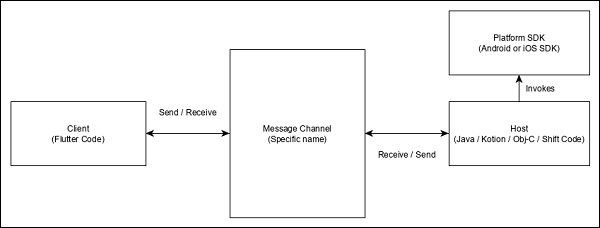
    The general idea of accessing the platform specific code is through simple messaging protocol. Flutter code, Client and the platform code and Host binds to a common Message Channel. Client sends message to the Host through the Message Channel. Host listens on the Message Channel, receives the message and does the necessary functionality and finally, returns the result to the Client through Message Channel.

    The platform specific code architecture is shown in the block diagram given below −

    Specific Code Architecture

    The messaging protocol uses a standard message codec (StandardMessageCodec class) that supports binary serialization of JSON-like values such as numbers, strings, boolean, etc., The serialization and de-serialization works transparently between the client and the host.

    Let us write a simple application to open a browser using Android SDK and understand how

    • Create a new Flutter application in Android studio, flutter_browser_app
    • Replace main.dart code with below code −
    import 'package:flutter/material.dart'; 
    void main() => runApp(MyApp()); 
    class MyApp extends StatelessWidget { 
       @override 
       Widget build(BuildContext context) {
    
      return MaterialApp(
         title: 'Flutter Demo', 
         theme: ThemeData( 
            primarySwatch: Colors.blue, 
         ), 
         home: MyHomePage(title: 'Flutter Demo Home Page'),
      );
    } } class MyHomePage extends StatelessWidget { MyHomePage({Key key, this.title}) : super(key: key); final String title; @override Widget build(BuildContext context) {
      return Scaffold(
         appBar: AppBar(
            title: Text(this.title), 
         ), 
         body: Center(
            child: RaisedButton( 
               child: Text('Open Browser'), 
               onPressed: null, 
            ), 
         ), 
      ); 
    } }
    • Here, we have created a new button to open the browser and set its onPressed method as null.
    • Now, import the following packages −
    import 'dart:async'; 
    import 'package:flutter/services.dart';
    
    • Here, services.dart include the functionality to invoke platform specific code.
    • Create a new message channel in the MyHomePage widget.
    static const platform = const 
    MethodChannel('flutterapp.tutorialspoint.com/browser');
    • Write a method, _openBrowser to invoke platform specific method, openBrowser method through message channel.
    Future<void> _openBrowser() async { 
       try {
    
      final int result = await platform.invokeMethod(
         'openBrowser', &lt;String, String&gt;{ 
            'url': "https://flutter.dev" 
         }
      ); 
    } on PlatformException catch (e) {
      // Unable to open the browser 
      print(e); 
    } }

    Here, we have used platform.invokeMethod to invoke openBrowser (explained in coming steps). openBrowser has an argument, url to open a specific url.

    • Change the value of onPressed property of the RaisedButton from null to _openBrowser.
    onPressed: _openBrowser,
    
    • Open MainActivity.java (inside the android folder) and import the required library −
    import android.app.Activity; 
    import android.content.Intent; 
    import android.net.Uri; 
    import android.os.Bundle; 
    
    import io.flutter.app.FlutterActivity; 
    import io.flutter.plugin.common.MethodCall; 
    import io.flutter.plugin.common.MethodChannel; 
    import io.flutter.plugin.common.MethodChannel.MethodCallHandler; 
    import io.flutter.plugin.common.MethodChannel.Result; 
    import io.flutter.plugins.GeneratedPluginRegistrant;
    • Write a method, openBrowser to open a browser
    private void openBrowser(MethodCall call, Result result, String url) { 
       Activity activity = this; 
       if (activity == null) { 
    
      result.error("ACTIVITY_NOT_AVAILABLE", 
      "Browser cannot be opened without foreground 
      activity", null); 
      return; 
    } Intent intent = new Intent(Intent.ACTION_VIEW); intent.setData(Uri.parse(url)); activity.startActivity(intent); result.success((Object) true); }
    • Now, set channel name in the MainActivity class −
    private static final String CHANNEL = "flutterapp.tutorialspoint.com/browser";
    
    • Write android specific code to set message handling in the onCreate method −
    new MethodChannel(getFlutterView(), CHANNEL).setMethodCallHandler( 
       new MethodCallHandler() { 
       @Override 
       public void onMethodCall(MethodCall call, Result result) { 
    
      String url = call.argument("url"); 
      if (call.method.equals("openBrowser")) {
         openBrowser(call, result, url); 
      } else { 
         result.notImplemented(); 
      } 
    } });

    Here, we have created a message channel using MethodChannel class and used MethodCallHandler class to handle the message. onMethodCall is the actual method responsible for calling the correct platform specific code by the checking the message. onMethodCall method extracts the url from message and then invokes the openBrowser only when the method call is openBrowser. Otherwise, it returns notImplemented method.

    The complete source code of the application is as follows −

    main.dart

    MainActivity.java

    package com.tutorialspoint.flutterapp.flutter_browser_app; 
    
    import android.app.Activity; 
    import android.content.Intent; 
    import android.net.Uri; 
    import android.os.Bundle; 
    import io.flutter.app.FlutterActivity; 
    import io.flutter.plugin.common.MethodCall; 
    import io.flutter.plugin.common.MethodChannel.Result; 
    import io.flutter.plugins.GeneratedPluginRegistrant; 
    
    public class MainActivity extends FlutterActivity { 
       private static final String CHANNEL = "flutterapp.tutorialspoint.com/browser"; 
       @Override 
       protected void onCreate(Bundle savedInstanceState) { 
    
      super.onCreate(savedInstanceState); 
      GeneratedPluginRegistrant.registerWith(this); 
      new MethodChannel(getFlutterView(), CHANNEL).setMethodCallHandler(
         new MethodCallHandler() {
            @Override 
            public void onMethodCall(MethodCall call, Result result) {
               String url = call.argument("url"); 
               if (call.method.equals("openBrowser")) { 
                  openBrowser(call, result, url); 
               } else { 
                  result.notImplemented(); 
               }
            }
         }
      ); 
    } private void openBrowser(MethodCall call, Result result, String url) {
      Activity activity = this; if (activity == null) {
         result.error(
            "ACTIVITY_NOT_AVAILABLE", "Browser cannot be opened without foreground activity", null
         ); 
         return; 
      } 
      Intent intent = new Intent(Intent.ACTION_VIEW); 
      intent.setData(Uri.parse(url)); 
      activity.startActivity(intent); 
      result.success((Object) true); 
    } }

    main.dart

    import 'package:flutter/material.dart'; 
    import 'dart:async'; 
    import 'package:flutter/services.dart'; 
    
    void main() => runApp(MyApp()); 
    class MyApp extends StatelessWidget {
       @override 
       Widget build(BuildContext context) {
    
      return MaterialApp(
         title: 'Flutter Demo', 
         theme: ThemeData( 
            primarySwatch: Colors.blue, 
         ), 
         home: MyHomePage(
            title: 'Flutter Demo Home Page'
         ), 
      ); 
    } } class MyHomePage extends StatelessWidget { MyHomePage({Key key, this.title}) : super(key: key); final String title; static const platform = const MethodChannel('flutterapp.tutorialspoint.com/browser'); Future<void> _openBrowser() async {
      try {
         final int result = await platform.invokeMethod('openBrowser', &lt;String, String&gt;{ 
            'url': "https://flutter.dev" 
         });
      }
      on PlatformException catch (e) { 
         // Unable to open the browser print(e); 
      } 
    } @override Widget build(BuildContext context) {
      return Scaffold( 
         appBar: AppBar( 
            title: Text(this.title), 
         ), 
         body: Center(
            child: RaisedButton( 
               child: Text('Open Browser'), 
               onPressed: _openBrowser, 
            ), 
         ),
      );
    } }

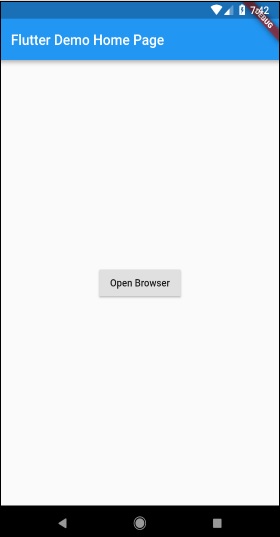
    Run the application and click the Open Browser button and you can see that the browser is launched. The Browser app – Home page is as shown in the screenshot here −

    Flutter Demo Home Page
    Productively Build Apps
  • Animation

    Animation is a complex procedure in any mobile application. In spite of its complexity, Animation enhances the user experience to a new level and provides a rich user interaction. Due to its richness, animation becomes an integral part of modern mobile application. Flutter framework recognizes the importance of Animation and provides a simple and intuitive framework to develop all types of animations.

    Introduction

    Animation is a process of showing a series of images / picture in a particular order within a specific duration to give an illusion of movement. The most important aspects of the animation are as follows −

    • Animation have two distinct values: Start value and End value. The animation starts from Start value and goes through a series of intermediate values and finally ends at End values. For example, to animate a widget to fade away, the initial value will be the full opacity and the final value will be the zero opacity.
    • The intermediate values may be linear or non-linear (curve) in nature and it can be configured. Understand that the animation works as it is configured. Each configuration provides a different feel to the animation. For example, fading a widget will be linear in nature whereas bouncing of a ball will be non-linear in nature.
    • The duration of the animation process affects the speed (slowness or fastness) of the animation.
    • The ability to control the animation process like starting the animation, stopping the animation, repeating the animation to set number of times, reversing the process of animation, etc.,
    • In Flutter, animation system does not do any real animation. Instead, it provides only the values required at every frame to render the images.

    Animation Based Classes

    Flutter animation system is based on Animation objects. The core animation classes and its usage are as follows −

    Animation

    Generates interpolated values between two numbers over a certain duration. The most common Animation classes are −

    • Animation<double> − interpolate values between two decimal number
    • Animation<Color> − interpolate colors between two color
    • Animation<Size> − interpolate sizes between two size
    • AnimationController − Special Animation object to control the animation itself. It generates new values whenever the application is ready for a new frame. It supports linear based animation and the value starts from 0.0 to 1.0
    controller = AnimationController(duration: const Duration(seconds: 2), vsync: this);
    

    Here, controller controls the animation and duration option controls the duration of the animation process. vsync is a special option used to optimize the resource used in the animation.

    CurvedAnimation

    Similar to AnimationController but supports non-linear animation. CurvedAnimation can be used along with Animation object as below −

    controller = AnimationController(duration: const Duration(seconds: 2), vsync: this); 
    animation = CurvedAnimation(parent: controller, curve: Curves.easeIn)

    Tween<T>

    Derived from Animatable<T> and used to generate numbers between any two numbers other than 0 and 1. It can be used along with Animation object by using animate method and passing actual Animation object.

    AnimationController controller = AnimationController( 
       duration: const Duration(milliseconds: 1000), 
    vsync: this); Animation<int> customTween = IntTween(
       begin: 0, end: 255).animate(controller);
    • Tween can also used along with CurvedAnimation as below −
    AnimationController controller = AnimationController(
       duration: const Duration(milliseconds: 500), vsync: this); 
    final Animation curve = CurvedAnimation(parent: controller, curve: Curves.easeOut); 
    Animation<int> customTween = IntTween(begin: 0, end: 255).animate(curve);

    Here, controller is the actual animation controller. curve provides the type of non-linearity and the customTween provides custom range from 0 to 255.

    Explore our latest online courses and learn new skills at your own pace. Enroll and become a certified expert to boost your career.

    Work flow of the Flutter Animation

    The work flow of the animation is as follows −

    • Define and start the animation controller in the initState of the StatefulWidget.
    AnimationController(duration: const Duration(seconds: 2), vsync: this); 
    animation = Tween<double>(begin: 0, end: 300).animate(controller); 
    controller.forward();
    • Add animation based listener, addListener to change the state of the widget.
    animation = Tween<double>(begin: 0, end: 300).animate(controller) ..addListener(() {
       setState(() { 
    
      // The state that has changed here is the animation object’s value. 
    }); });
    • Build-in widgets, AnimatedWidget and AnimatedBuilder can be used to skip this process. Both widget accepts Animation object and get current values required for the animation.
    • Get the animation values during the build process of the widget and then apply it for width, height or any relevant property instead of the original value.
    child: Container( 
       height: animation.value, 
       width: animation.value, 
       child: <Widget>, 
    )

    Working Application

    Let us write a simple animation based application to understand the concept of animation in Flutter framework.

    • Create a new Flutter application in Android studio, product_animation_app.
    • Copy the assets folder from product_nav_app to product_animation_app and add assets inside the pubspec.yaml file.
    flutter: 
       assets: 
       - assets/appimages/floppy.png 
       - assets/appimages/iphone.png 
       - assets/appimages/laptop.png 
       - assets/appimages/pendrive.png 
       - assets/appimages/pixel.png 
       - assets/appimages/tablet.png
    • Remove the default startup code (main.dart).
    • Add import and basic main function.
    import 'package:flutter/material.dart'; 
    void main() => runApp(MyApp());
    • Create the MyApp widget derived from StatefulWidgtet.
    class MyApp extends StatefulWidget { 
       _MyAppState createState() => _MyAppState(); 
    }
    • Create _MyAppState widget and implement initState and dispose in addition to default build method.
    class _MyAppState extends State<MyApp> with SingleTickerProviderStateMixin { 
       Animation<double> animation; 
       AnimationController controller; 
       @override void initState() {
    
      super.initState(); 
      controller = AnimationController(
         duration: const Duration(seconds: 10), vsync: this
      ); 
      animation = Tween&lt;double&gt;(begin: 0.0, end: 1.0).animate(controller); 
      controller.forward(); 
    } // This widget is the root of your application. @override Widget build(BuildContext context) {
      controller.forward(); 
      return MaterialApp(
         title: 'Flutter Demo',
         theme: ThemeData(primarySwatch: Colors.blue,), 
         home: MyHomePage(title: 'Product layout demo home page', animation: animation,)
      ); 
    } @override void dispose() {
      controller.dispose();
      super.dispose();
    } }

    Here,

    • In initState method, we have created an animation controller object (controller), an animation object (animation) and started the animation using controller.forward.
    • In dispose method, we have disposed the animation controller object (controller).
    • In build method, send animation to MyHomePage widget through constructor. Now, MyHomePage widget can use the animation object to animate its content.
    • Now, add ProductBox widget
    class ProductBox extends StatelessWidget {
       ProductBox({Key key, this.name, this.description, this.price, this.image})
    
      : super(key: key);
    final String name; final String description; final int price; final String image; Widget build(BuildContext context) {
      return Container(
         padding: EdgeInsets.all(2), 
         height: 140, 
         child: Card( 
            child: Row( 
               mainAxisAlignment: MainAxisAlignment.spaceEvenly, 
               children: &lt;Widget&gt;&#91; 
                  Image.asset("assets/appimages/" + image), 
                  Expanded( 
                     child: Container( 
                        padding: EdgeInsets.all(5), 
                        child: Column( 
                           mainAxisAlignment: MainAxisAlignment.spaceEvenly, 
                           children: &lt;Widget&gt;&#91; 
                              Text(this.name, style: 
                                 TextStyle(fontWeight: FontWeight.bold)), 
                              Text(this.description), 
                                 Text("Price: " + this.price.toString()), 
                           ], 
                        )
                     )
                  )
               ]
            )
         )
      ); 
    } }
    • Create a new widget, MyAnimatedWidget to do simple fade animation using opacity.
    class MyAnimatedWidget extends StatelessWidget { 
       MyAnimatedWidget({this.child, this.animation}); 
    
      
    final Widget child; final Animation<double> animation; Widget build(BuildContext context) => Center( child: AnimatedBuilder(
      animation: animation, 
      builder: (context, child) =&gt; Container( 
         child: Opacity(opacity: animation.value, child: child), 
      ), 
      child: child), 
    ); }
    • Here, we have used AniatedBuilder to do our animation. AnimatedBuilder is a widget which build its content while doing the animation at the same time. It accepts a animation object to get current animation value. We have used animation value, animation.value to set the opacity of the child widget. In effect, the widget will animate the child widget using opacity concept.
    • Finally, create the MyHomePage widget and use the animation object to animate any of its content.
    class MyHomePage extends StatelessWidget {
       MyHomePage({Key key, this.title, this.animation}) : super(key: key); 
       
       final String title; 
       final Animation<double> 
       animation; 
       
       @override 
       Widget build(BuildContext context) {
    
      return Scaffold(
         appBar: AppBar(title: Text("Product Listing")),body: ListView(
            shrinkWrap: true,
            padding: const EdgeInsets.fromLTRB(2.0, 10.0, 2.0, 10.0), 
            children: &lt;Widget&gt;&#91;
               FadeTransition(
                  child: ProductBox(
                     name: "iPhone", 
                     description: "iPhone is the stylist phone ever", 
                     price: 1000, 
                     image: "iphone.png"
                  ), opacity: animation
               ), 
               MyAnimatedWidget(child: ProductBox(
                  name: "Pixel", 
                  description: "Pixel is the most featureful phone ever", 
                  price: 800, 
                  image: "pixel.png"
               ), animation: animation), 
               ProductBox(
                  name: "Laptop", 
                  description: "Laptop is most productive development tool", 
                  price: 2000, 
                  image: "laptop.png"
               ), 
               ProductBox(
                  name: "Tablet", 
                  description: "Tablet is the most useful device ever for meeting", 
                  price: 1500, 
                  image: "tablet.png"
               ), 
               ProductBox(
                  name: "Pendrive", 
                  description: "Pendrive is useful storage medium", 
                  price: 100, 
                  image: "pendrive.png"
               ),
               ProductBox(
                  name: "Floppy Drive", 
                  description: "Floppy drive is useful rescue storage medium", 
                  price: 20, 
                  image: "floppy.png"
               ),
            ],
         )
      );
    } }

    Here, we have used FadeAnimation and MyAnimationWidget to animate the first two items in the list. FadeAnimation is a build-in animation class, which we used to animate its child using opacity concept.

    • The complete code is as follows −
    import 'package:flutter/material.dart'; 
    void main() => runApp(MyApp()); 
    
    class MyApp extends StatefulWidget { 
       _MyAppState createState() => _MyAppState(); 
    } 
    class _MyAppState extends State<MyApp> with SingleTickerProviderStateMixin {
       Animation<double> animation; 
       AnimationController controller; 
       
       @override 
       void initState() {
    
      super.initState(); 
      controller = AnimationController(
         duration: const Duration(seconds: 10), vsync: this); 
      animation = Tween&lt;double&gt;(begin: 0.0, end: 1.0).animate(controller); 
      controller.forward(); 
    } // This widget is the root of your application. @override Widget build(BuildContext context) {
      controller.forward(); 
      return MaterialApp( 
         title: 'Flutter Demo', theme: ThemeData(primarySwatch: Colors.blue,), 
         home: MyHomePage(title: 'Product layout demo home page', animation: animation,) 
      ); 
    } @override void dispose() {
      controller.dispose();
      super.dispose(); 
    } } class MyHomePage extends StatelessWidget { MyHomePage({Key key, this.title, this.animation}): super(key: key); final String title; final Animation<double> animation; @override Widget build(BuildContext context) {
      return Scaffold(
         appBar: AppBar(title: Text("Product Listing")), 
         body: ListView(
            shrinkWrap: true, 
            padding: const EdgeInsets.fromLTRB(2.0, 10.0, 2.0, 10.0), 
            children: &lt;Widget&gt;&#91;
               FadeTransition(
                  child: ProductBox(
                     name: "iPhone", 
                     description: "iPhone is the stylist phone ever", 
                     price: 1000, 
                     image: "iphone.png"
                  ), 
                  opacity: animation
               ), 
               MyAnimatedWidget(
                  child: ProductBox( 
                     name: "Pixel", 
                     description: "Pixel is the most featureful phone ever", 
                     price: 800, 
                     image: "pixel.png"
                  ), 
                  animation: animation
               ), 
               ProductBox( 
                  name: "Laptop", 
                  description: "Laptop is most productive development tool", 
                  price: 2000, 
                  image: "laptop.png"
               ), 
               ProductBox(
                  name: "Tablet",
                  description: "Tablet is the most useful device ever for meeting",
                  price: 1500, 
                  image: "tablet.png"
               ), 
               ProductBox(
                  name: "Pendrive", 
                  description: "Pendrive is useful storage medium", 
                  price: 100, 
                  image: "pendrive.png"
               ), 
               ProductBox(
                  name: "Floppy Drive", 
                  description: "Floppy drive is useful rescue storage medium", 
                  price: 20, 
                  image: "floppy.png"
               ), 
            ], 
         )
      ); 
    } } class ProductBox extends StatelessWidget { ProductBox({Key key, this.name, this.description, this.price, this.image}) :
      super(key: key);
    final String name; final String description; final int price; final String image; Widget build(BuildContext context) {
      return Container(
         padding: EdgeInsets.all(2), 
         height: 140, 
         child: Card(
            child: Row(
               mainAxisAlignment: MainAxisAlignment.spaceEvenly, 
               children: &lt;Widget&gt;&#91; 
                  Image.asset("assets/appimages/" + image), 
                  Expanded(
                     child: Container( 
                        padding: EdgeInsets.all(5), 
                        child: Column( 
                           mainAxisAlignment: MainAxisAlignment.spaceEvenly, 
                           children: &lt;Widget&gt;&#91; 
                              Text(
                                 this.name, style: TextStyle(
                                    fontWeight: FontWeight.bold
                                 )
                              ), 
                              Text(this.description), Text(
                                 "Price: " + this.price.toString()
                              ), 
                           ], 
                        )
                     )
                  ) 
               ]
            )
         )
      ); 
    } } class MyAnimatedWidget extends StatelessWidget { MyAnimatedWidget({this.child, this.animation}); final Widget child; final Animation<double> animation; Widget build(BuildContext context) => Center(
      child: AnimatedBuilder(
         animation: animation, 
         builder: (context, child) =&gt; Container( 
            child: Opacity(opacity: animation.value, child: child), 
         ), 
         child: child
      ), 
    ); }
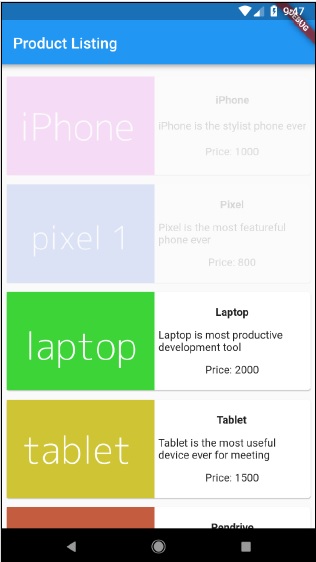
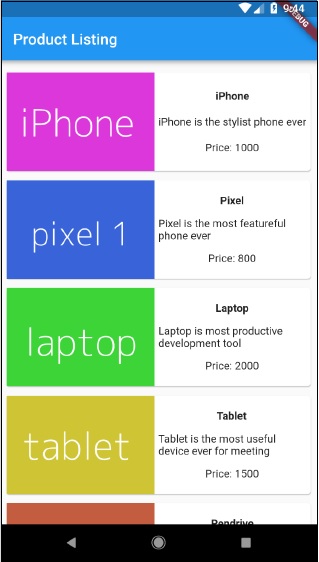
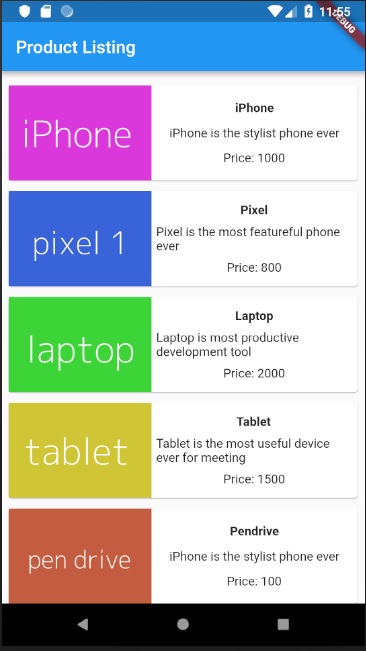
    • Compile and run the application to see the results. The initial and final version of the application is as follows −
    Initial Version
    Final Version
  • State Management

    Managing state in an application is one of the most important and necessary process in the life cycle of an application.

    Let us consider a simple shopping cart application.

    • User will login using their credentials into the application.
    • Once user is logged in, the application should persist the logged in user detail in all the screen.
    • Again, when the user selects a product and saved into a cart, the cart information should persist between the pages until the user checked out the cart.
    • User and their cart information at any instance is called the state of the application at that instance.

    A state management can be divided into two categories based on the duration the particular state lasts in an application.

    • Ephemeral − Last for a few seconds like the current state of an animation or a single page like current rating of a product. Flutter supports its through StatefulWidget.
    • app state − Last for entire application like logged in user details, cart information, etc., Flutter supports its through scoped_model.

    Navigation and Routing

    In any application, navigating from one page / screen to another defines the work flow of the application. The way that the navigation of an application is handled is called Routing. Flutter provides a basic routing class – MaterialPageRoute and two methods – Navigator.push and Navigator.pop, to define the work flow of an application.

    MaterialPageRoute

    MaterialPageRoute is a widget used to render its UI by replacing the entire screen with a platform specific animation.

    MaterialPageRoute(builder: (context) => Widget())
    

    Here, builder will accepts a function to build its content by suppling the current context of the application.

    Navigation.push

    Navigation.push is used to navigate to new screen using MaterialPageRoute widget.

    Navigator.push( context, MaterialPageRoute(builder: (context) => Widget()), );
    

    Navigation.pop

    Navigation.pop is used to navigate to previous screen.

    Navigator.push(context);
    

    Let us create a new application to better understand the navigation concept.

    Create a new Flutter application in Android studio, product_nav_app

    • Copy the assets folder from product_nav_app to product_state_app and add assets inside the pubspec.yaml file.
    flutter:
       assets: 
       - assets/appimages/floppy.png 
       - assets/appimages/iphone.png 
       - assets/appimages/laptop.png 
       - assets/appimages/pendrive.png 
       - assets/appimages/pixel.png 
       - assets/appimages/tablet.png
    
    • Replace the default startup code (main.dart) with our startup code.
    import 'package:flutter/material.dart'; 
    void main() => runApp(MyApp()); 
    
    class MyApp extends StatelessWidget { 
       // This widget is the root of your application. 
       @override 
       Widget build(BuildContext context) { 
    
      return MaterialApp( 
         title: 'Flutter Demo', 
         theme: ThemeData( 
            primarySwatch: Colors.blue, 
         ), 
         home: MyHomePage(
            title: 'Product state demo home page'
         ),
      );
    } } class MyHomePage extends StatelessWidget { MyHomePage({Key key, this.title}) : super(key: key); final String title; @override Widget build(BuildContext context) {
      return Scaffold(
         appBar: AppBar(
            title: Text(this.title), 
         ), 
         body: Center(
            child: Text('Hello World',)
         ), 
      ); 
    } }
    • Let us create a Product class to organize the product information.
    class Product { 
       final String name; 
       final String description; 
       final int price; 
       final String image; 
       Product(this.name, this.description, this.price, this.image); 
    }
    • Let us write a method getProducts in the Product class to generate our dummy product records.
    static List<Product> getProducts() {
       List<Product> items = <Product>[]; 
       
       items.add(
    
      Product( 
         "Pixel", 
         "Pixel is the most feature-full phone ever", 800, 
         "pixel.png"
      )
    ); items.add(
      Product(
         "Laptop", 
         "Laptop is most productive development tool", 
         2000, "
         laptop.png"
      )
    ); items.add(
      Product( 
         "Tablet", 
         "Tablet is the most useful device ever for meeting", 
         1500, 
         "tablet.png"
      )
    ); items.add(
      Product( 
         "Pendrive", 
         "Pendrive is useful storage medium",
         100, 
         "pendrive.png"
      )
    ); items.add(
      Product( 
         "Floppy Drive", 
         "Floppy drive is useful rescue storage medium", 
         20, 
         "floppy.png"
      )
    ); return items; } import product.dart in main.dart import 'Product.dart';
    • Let us include our new widget, RatingBox.
    class RatingBox extends StatefulWidget {
       @override 
       _RatingBoxState createState() =>_RatingBoxState(); 
    } 
    class _RatingBoxState extends State<RatingBox> {
       int _rating = 0; 
       void _setRatingAsOne() {
    
      setState(() {
         _rating = 1; 
      }); 
    } void _setRatingAsTwo() {
      setState(() {
         _rating = 2; 
      }); 
    } void _setRatingAsThree() {
      setState(() {
         _rating = 3;
      });
    } Widget build(BuildContext context) {
      double _size = 20; 
      print(_rating); 
      return Row(
         mainAxisAlignment: MainAxisAlignment.end, 
         crossAxisAlignment: CrossAxisAlignment.end, 
         mainAxisSize: MainAxisSize.max, 
         children: &lt;Widget&gt;&#91;
            Container(
               padding: EdgeInsets.all(0), 
               child: IconButton(
                  icon: (
                     _rating &gt;= 1? 
                     Icon( 
                        Icons.star, 
                        size: _size, 
                     ) 
                     : Icon(
                        Icons.star_border, 
                        size: _size, 
                     )
                  ), 
                  color: Colors.red&#91;500], 
                  onPressed: _setRatingAsOne, 
                  iconSize: _size, 
               ), 
            ), 
            Container(
               padding: EdgeInsets.all(0), 
               child: IconButton(
                  icon: (
                     _rating &gt;= 2? 
                     Icon(
                        Icons.star, 
                        size: _size, 
                     ) 
                     : Icon(
                        Icons.star_border, 
                        size: _size, 
                     )
                  ), 
                  color: Colors.red&#91;500], 
                  onPressed: _setRatingAsTwo, 
                  iconSize: _size, 
               ), 
            ), 
            Container(
               padding: EdgeInsets.all(0), 
               child: IconButton(
                  icon: (
                     _rating &gt;= 3 ? 
                     Icon(
                        Icons.star, 
                        size: _size, 
                     ) 
                     : Icon( 
                        Icons.star_border, 
                        size: _size, 
                     )
                  ), 
                  color: Colors.red&#91;500], 
                  onPressed: _setRatingAsThree, 
                  iconSize: _size, 
               ), 
            ), 
         ], 
      ); 
    } }
    • Let us modify our ProductBox widget to work with our new Product class.
    class ProductBox extends StatelessWidget {    
       ProductBox({Key key, this.item}) : super(key: key); 
       final Product item; 
       
       Widget build(BuildContext context) {
    
      return Container(
         padding: EdgeInsets.all(2), 
         height: 140, 
         child: Card( 
            child: Row(
               mainAxisAlignment: MainAxisAlignment.spaceEvenly, 
               children: &lt;Widget&gt;&#91; 
                  Image.asset("assets/appimages/" + this.item.image), 
                  Expanded(
                     child: Container(
                        padding: EdgeInsets.all(5), 
                        child: Column(
                           mainAxisAlignment: MainAxisAlignment.spaceEvenly, 
                           children: &lt;Widget&gt;&#91;
                              Text(this.item.name, 
                              style: TextStyle(fontWeight: FontWeight.bold)), 
                              Text(this.item.description), 
                              Text("Price: " + this.item.price.toString()), 
                              RatingBox(), 
                           ], 
                        )
                     )
                  )
               ]
            ), 
         )
      ); 
    } }

    Let us rewrite our MyHomePage widget to work with Product model and to list all products using ListView.

    class MyHomePage extends StatelessWidget { 
       MyHomePage({Key key, this.title}) : super(key: key); 
       final String title; 
       final items = Product.getProducts(); 
       
       @override 
       Widget build(BuildContext context) { 
    
      return Scaffold( appBar: AppBar(title: Text("Product Navigation")), 
      body: ListView.builder( 
         itemCount: items.length, 
         itemBuilder: (context, index) {
            return GestureDetector( 
               child: ProductBox(item: items&#91;index]), 
               onTap: () { 
                  Navigator.push( 
                     context, MaterialPageRoute( 
                        builder: (context) =&gt; ProductPage(item: items&#91;index]), 
                     ), 
                  ); 
               }, 
            ); 
         }, 
      )); 
    } }

    Here, we have used MaterialPageRoute to navigate to product details page.

    • Now, let us add ProductPage to show the product details.
    class ProductPage extends StatelessWidget { 
       ProductPage({Key key, this.item}) : super(key: key); 
       final Product item; 
       
       @override 
       Widget build(BuildContext context) {
    
      return Scaffold(
         appBar: AppBar( 
            title: Text(this.item.name), 
         ), 
         body: Center(
            child: Container(
               padding: EdgeInsets.all(0), 
               child: Column(
                  mainAxisAlignment: MainAxisAlignment.start, 
                  crossAxisAlignment: CrossAxisAlignment.start, 
                  children: &lt;Widget&gt;&#91;
                     Image.asset("assets/appimages/" + this.item.image), 
                     Expanded(
                        child: Container(
                           padding: EdgeInsets.all(5), 
                           child: Column(
                              mainAxisAlignment: MainAxisAlignment.spaceEvenly, 
                              children: &lt;Widget&gt;&#91;
                                 Text(
                                    this.item.name, style: TextStyle(
                                       fontWeight: FontWeight.bold
                                    )
                                 ), 
                                 Text(this.item.description), 
                                 Text("Price: " + this.item.price.toString()), 
                                 RatingBox(),
                              ], 
                           )
                        )
                     )
                  ]
               ), 
            ), 
         ), 
      ); 
    } }

    The complete code of the application is as follows −

    import 'package:flutter/material.dart'; 
    void main() => runApp(MyApp()); 
    
    class Product {
       final String name; 
       final String description; 
       final int price; 
       final String image; 
       Product(this.name, this.description, this.price, this.image); 
       
       static List<Product> getProducts() {
    
      List&lt;Product&gt; items = &lt;Product&gt;&#91;]; 
      items.add(
         Product(
            "Pixel", 
            "Pixel is the most featureful phone ever", 
            800, 
            "pixel.png"
         )
      );
      items.add(
         Product(
            "Laptop", 
            "Laptop is most productive development tool", 
            2000, 
            "laptop.png"
         )
      ); 
      items.add(
         Product(
            "Tablet", 
            "Tablet is the most useful device ever for meeting", 
            1500, 
            "tablet.png"
         )
      ); 
      items.add(
         Product( 
            "Pendrive", 
            "iPhone is the stylist phone ever", 
            100, 
            "pendrive.png"
         )
      ); 
      items.add(
         Product(
            "Floppy Drive", 
            "iPhone is the stylist phone ever", 
            20, 
            "floppy.png"
         )
      ); 
      items.add(
         Product(
            "iPhone", 
            "iPhone is the stylist phone ever", 
            1000, 
            "iphone.png"
         )
      ); 
      return items; 
    } } class MyApp extends StatelessWidget { // This widget is the root of your application. @override Widget build(BuildContext context) {
      return MaterialApp(
         title: 'Flutter Demo', 
         theme: ThemeData( 
            primarySwatch: Colors.blue, 
         ), 
         home: MyHomePage(title: 'Product Navigation demo home page'), 
      ); 
    } } class MyHomePage extends StatelessWidget { MyHomePage({Key key, this.title}) : super(key: key); final String title; final items = Product.getProducts(); @override Widget build(BuildContext context) {
      return Scaffold(
         appBar: AppBar(title: Text("Product Navigation")), 
         body: ListView.builder( 
            itemCount: items.length, 
            itemBuilder: (context, index) { 
               return GestureDetector( 
                  child: ProductBox(item: items&#91;index]), 
                  onTap: () { 
                     Navigator.push( 
                        context, 
                        MaterialPageRoute( 
                           builder: (context) =&gt; ProductPage(item: items&#91;index]), 
                        ), 
                     ); 
                  }, 
               ); 
            }, 
         )
      ); 
    } } class ProductPage extends StatelessWidget { ProductPage({Key key, this.item}) : super(key: key); final Product item; @override Widget build(BuildContext context) {
      return Scaffold(
         appBar: AppBar(
            title: Text(this.item.name), 
         ), 
         body: Center(
            child: Container( 
               padding: EdgeInsets.all(0), 
               child: Column( 
                  mainAxisAlignment: MainAxisAlignment.start, 
                  crossAxisAlignment: CrossAxisAlignment.start, 
                  children: &lt;Widget&gt;&#91; 
                     Image.asset("assets/appimages/" + this.item.image), 
                     Expanded( 
                        child: Container( 
                           padding: EdgeInsets.all(5), 
                           child: Column( 
                              mainAxisAlignment: MainAxisAlignment.spaceEvenly, 
                              children: &lt;Widget&gt;&#91; 
                                 Text(this.item.name, style: TextStyle(fontWeight: FontWeight.bold)), 
                                 Text(this.item.description), 
                                 Text("Price: " + this.item.price.toString()), 
                                 RatingBox(), 
                              ], 
                           )
                        )
                     ) 
                  ]
               ), 
            ), 
         ), 
      ); 
    } } class RatingBox extends StatefulWidget { @override _RatingBoxState createState() => _RatingBoxState(); } class _RatingBoxState extends State<RatingBox> { int _rating = 0; void _setRatingAsOne() {
      setState(() {
         _rating = 1; 
      }); 
    } void _setRatingAsTwo() {
      setState(() {
         _rating = 2; 
      }); 
    } void _setRatingAsThree() {
      setState(() {
         _rating = 3; 
      }); 
    } Widget build(BuildContext context) {
      double _size = 20; 
      print(_rating); 
      return Row(
         mainAxisAlignment: MainAxisAlignment.end, 
         crossAxisAlignment: CrossAxisAlignment.end, 
         mainAxisSize: MainAxisSize.max, 
         children: &lt;Widget&gt;&#91;
            Container(
               padding: EdgeInsets.all(0), 
               child: IconButton(
                  icon: (
                     _rating &gt;= 1 ? Icon( 
                        Icons.star, 
                        size: _size, 
                     ) 
                     : Icon( 
                        Icons.star_border, 
                        size: _size, 
                     )
                  ), 
                  color: Colors.red&#91;500], 
                  onPressed: _setRatingAsOne, 
                  iconSize: _size, 
               ), 
            ), 
            Container(
               padding: EdgeInsets.all(0), 
               child: IconButton( 
                  icon: (
                     _rating &gt;= 2 ? 
                     Icon( 
                        Icons.star, 
                        size: _size, 
                     ) 
                     : Icon( 
                        Icons.star_border, 
                        size: _size, 
                     )
                  ), 
                  color: Colors.red&#91;500], 
                  onPressed: _setRatingAsTwo, 
                  iconSize: _size, 
               ), 
            ), 
            Container(
               padding: EdgeInsets.all(0), 
               child: IconButton(
                  icon: (
                     _rating &gt;= 3 ? 
                     Icon( 
                        Icons.star, 
                        size: _size, 
                     )
                     : Icon( 
                        Icons.star_border, 
                        size: _size, 
                     )
                  ), 
                  color: Colors.red&#91;500], 
                  onPressed: _setRatingAsThree, 
                  iconSize: _size, 
               ), 
            ), 
         ], 
      ); 
    } } class ProductBox extends StatelessWidget { ProductBox({Key key, this.item}) : super(key: key); final Product item; Widget build(BuildContext context) {
      return Container(
         padding: EdgeInsets.all(2), 
         height: 140, 
         child: Card(
            child: Row(
               mainAxisAlignment: MainAxisAlignment.spaceEvenly, 
               children: &lt;Widget&gt;&#91; 
                  Image.asset("assets/appimages/" + this.item.image), 
                  Expanded( 
                     child: Container( 
                        padding: EdgeInsets.all(5), 
                        child: Column( 
                           mainAxisAlignment: MainAxisAlignment.spaceEvenly, 
                           children: &lt;Widget&gt;&#91; 
                              Text(this.item.name, style: TextStyle(fontWeight: FontWeight.bold)), Text(this.item.description), 
                              Text("Price: " + this.item.price.toString()), 
                              RatingBox(), 
                           ], 
                        )
                     )
                  ) 
               ]
            ), 
         )
      ); 
    } }

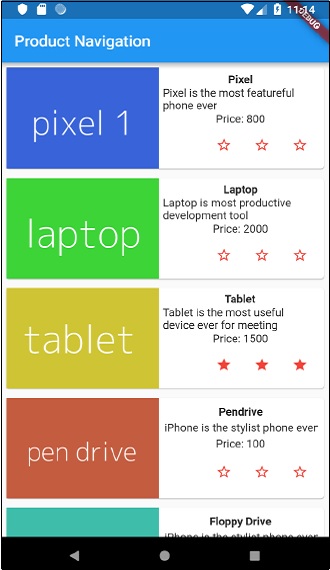
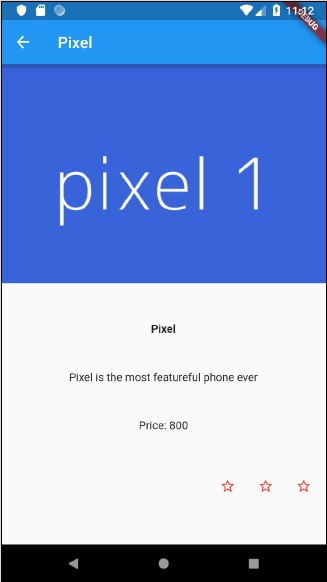
    Run the application and click any one of the product item. It will show the relevant details page. We can move to home page by clicking back button. The product list page and product details page of the application are shown as follows −

    Product Navigation
    Pixel1
  • Introduction to Gestures

    Gestures are primarily a way for a user to interact with a mobile (or any touch based device) application. Gestures are generally defined as any physical action / movement of a user in the intention of activating a specific control of the mobile device. Gestures are as simple as tapping the screen of the mobile device to more complex actions used in gaming applications.

    Some of the widely used gestures are mentioned here −

    • Tap − Touching the surface of the device with fingertip for a short period and then releasing the fingertip.
    • Double Tap − Tapping twice in a short time.
    • Drag − Touching the surface of the device with fingertip and then moving the fingertip in a steady manner and then finally releasing the fingertip.
    • Flick − Similar to dragging, but doing it in a speeder way.
    • Pinch − Pinching the surface of the device using two fingers.
    • Spread/Zoom − Opposite of pinching.
    • Panning − Touching the surface of the device with fingertip and moving it in any direction without releasing the fingertip.

    Flutter provides an excellent support for all type of gestures through its exclusive widget, GestureDetector. GestureDetector is a non-visual widget primarily used for detecting the user’s gesture. To identify a gesture targeted on a widget, the widget can be placed inside GestureDetector widget. GestureDetector will capture the gesture and dispatch multiple events based on the gesture.

    Some of the gestures and the corresponding events are given below −

    • Tap
      • onTapDown
      • onTapUp
      • onTap
      • onTapCancel
    • Double tap
      • onDoubleTap
    • Long press
      • onLongPress
    • Vertical drag
      • onVerticalDragStart
      • onVerticalDragUpdate
      • onVerticalDragEnd
    • Horizontal drag
      • onHorizontalDragStart
      • onHorizontalDragUpdate
      • onHorizontalDragEnd
    • Pan
      • onPanStart
      • onPanUpdate
      • onPanEnd

    Now, let us modify the hello world application to include gesture detection feature and try to understand the concept.

    • Change the body content of the MyHomePage widget as shown below −
    body: Center( 
       child: GestureDetector( 
    
      onTap: () { 
         _showDialog(context); 
      }, 
      child: Text( 'Hello World', ) 
    ) ),
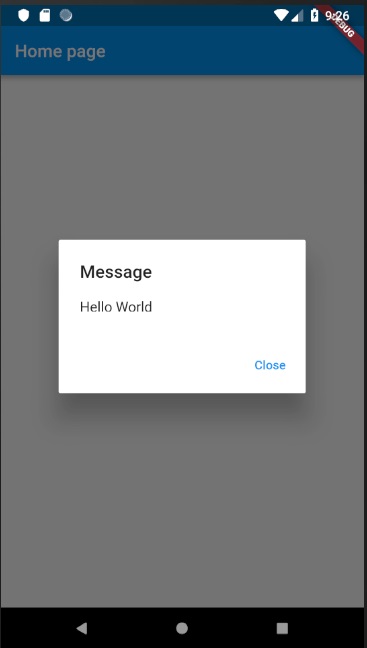
    • Observe that here we have placed the GestureDetector widget above the Text widget in the widget hierarchy, captured the onTap event and then finally shown a dialog window.
    • Implement the *_showDialog* function to present a dialog when user tabs the hello world message. It uses the generic showDialog and AlertDialog widget to create a new dialog widget. The code is shown below −
    // user defined function void _showDialog(BuildContext context) { 
       // flutter defined function 
       showDialog( 
    
      context: context, builder: (BuildContext context) { 
         // return object of type Dialog
         return AlertDialog( 
            title: new Text("Message"), 
            content: new Text("Hello World"),   
            actions: &lt;Widget&gt;&#91; 
               new FlatButton( 
                  child: new Text("Close"),  
                  onPressed: () {   
                     Navigator.of(context).pop();  
                  }, 
               ), 
            ], 
         ); 
      }, 
    ); }
    • The application will reload in the device using Hot Reload feature. Now, simply click the message, Hello World and it will show the dialog as below −
    Hot Reload Features
    • Now, close the dialog by clicking the close option in the dialog.
    • The complete code (main.dart) is as follows −
    import 'package:flutter/material.dart'; 
    void main() => runApp(MyApp()); 
    
    class MyApp extends StatelessWidget { 
       // This widget is the root of your application.    
       @override 
       Widget build(BuildContext context) {
    
      return MaterialApp(
         title: 'Hello World Demo Application', 
         theme: ThemeData( primarySwatch: Colors.blue,), 
         home: MyHomePage(title: 'Home page'), 
      ); 
    } } class MyHomePage extends StatelessWidget { MyHomePage({Key key, this.title}) : super(key: key); final String title; // user defined function void _showDialog(BuildContext context) {
      // flutter defined function showDialog( 
         context: context, builder: (BuildContext context) { 
            // return object of type Dialog return AlertDialog(
               title: new Text("Message"), 
               content: new Text("Hello World"),   
               actions: &lt;Widget&gt;&#91;
                  new FlatButton(
                     child: new Text("Close"), 
                     onPressed: () {   
                        Navigator.of(context).pop();  
                     }, 
                  ), 
               ],
            );
         },
      );
    } @override Widget build(BuildContext context) {
      return Scaffold(
         appBar: AppBar(title: Text(this.title),),
         body: Center(
            child: GestureDetector( 
               onTap: () {
                  _showDialog(context);
               },
            child: Text( 'Hello World', )
            )
         ),
      );
    } }

    Finally, Flutter also provides a low-level gesture detection mechanism through Listener widget. It will detect all user interactions and then dispatches the following events −

    • PointerDownEvent
    • PointerMoveEvent
    • PointerUpEvent
    • PointerCancelEvent

    Flutter also provides a small set of widgets to do specific as well as advanced gestures. The widgets are listed below −

    • Dismissible − Supports flick gesture to dismiss the widget.
    • Draggable − Supports drag gesture to move the widget.
    • LongPressDraggable − Supports drag gesture to move a widget, when its parent widget is also draggable.
    • DragTarget − Accepts any Draggable widget
    • IgnorePointer − Hides the widget and its children from the gesture detection process.
    • AbsorbPointer − Stops the gesture detection process itself and so any overlapping widget also can not able to participate in the gesture detection process and hence, no event is raised.
    • Scrollable − Support scrolling of the content available inside the widget.
  • Introduction to Layouts

    Since the core concept of Flutter is Everything is widgetFlutter incorporates a user interface layout functionality into the widgets itself. Flutter provides quite a lot of specially designed widgets like Container, Center, Align, etc., only for the purpose of laying out the user interface. Widgets build by composing other widgets normally use layout widgets. Let use learn the Flutter layout concept in this chapter.

    Type of Layout Widgets

    Layout widgets can be grouped into two distinct category based on its child −

    • Widget supporting a single child
    • Widget supporting multiple child

    Let us learn both type of widgets and its functionality in the upcoming sections.

    Single Child Widgets

    In this category, widgets will have only one widget as its child and every widget will have a special layout functionality.

    For example, Center widget just centers it child widget with respect to its parent widget and Container widget provides complete flexibility to place it child at any given place inside it using different option like padding, decoration, etc.,

    Single child widgets are great options to create high quality widget having single functionality such as button, label, etc.,

    The code to create a simple button using Container widget is as follows −

    class MyButton extends StatelessWidget {
       MyButton({Key key}) : super(key: key); 
    
       @override 
       Widget build(BuildContext context) {
    
      return Container(
         decoration: const BoxDecoration(
            border: Border(
               top: BorderSide(width: 1.0, color: Color(0xFFFFFFFFFF)),
               left: BorderSide(width: 1.0, color: Color(0xFFFFFFFFFF)),
               right: BorderSide(width: 1.0, color: Color(0xFFFF000000)),
               bottom: BorderSide(width: 1.0, color: Color(0xFFFF000000)),
            ),
         ),
         child: Container(
            padding: const
            EdgeInsets.symmetric(horizontal: 20.0, vertical: 2.0),
            decoration: const BoxDecoration(
               border: Border(
                  top: BorderSide(width: 1.0, color: Color(0xFFFFDFDFDF)),
                  left: BorderSide(width: 1.0, color: Color(0xFFFFDFDFDF)),
                  right: BorderSide(width: 1.0, color: Color(0xFFFF7F7F7F)),
                  bottom: BorderSide(width: 1.0, color: Color(0xFFFF7F7F7F)),
               ),
               color: Colors.grey,
            ),
            child: const Text(
               'OK',textAlign: TextAlign.center, style: TextStyle(color: Colors.black)
            ), 
         ), 
      ); 
    } }

    Here, we have used two widgets – a Container widget and a Text widget. The result of the widget is as a custom button as shown below −

    OK

    Let us check some of the most important single child layout widgets provided by Flutter −

    • Padding − Used to arrange its child widget by the given padding. Here, padding can be provided by EdgeInsets class.
    • Align − Align its child widget within itself using the value of alignment property. The value for alignment property can be provided by FractionalOffset class. The FractionalOffset class specifies the offsets in terms of a distance from the top left.

    Some of the possible values of offsets are as follows −

    • FractionalOffset(1.0, 0.0) represents the top right.
    • FractionalOffset(0.0, 1.0) represents the bottom left.

    A sample code about offsets is shown below −

    Center(
       child: Container(
    
      height: 100.0, 
      width: 100.0, 
      color: Colors.yellow, child: Align(
         alignment: FractionalOffset(0.2, 0.6),
         child: Container( height: 40.0, width:
            40.0, color: Colors.red,
         ), 
      ), 
    ), )
    • FittedBox − It scales the child widget and then positions it according to the specified fit.
    • AspectRatio − It attempts to size the child widget to the specified aspect ratio
    • ConstrainedBox
    • Baseline
    • FractinallySizedBox
    • IntrinsicHeight
    • IntrinsicWidth
    • LiimitedBox
    • OffStage
    • OverflowBox
    • SizedBox
    • SizedOverflowBox
    • Transform
    • CustomSingleChildLayout

    Our hello world application is using material based layout widgets to design the home page. Let us modify our hello world application to build the home page using basic layout widgets as specified below −

    • Container − Generic, single child, box based container widget with alignment, padding, border and margin along with rich styling features.
    • Center − Simple, Single child container widget, which centers its child widget.

    The modified code of the MyHomePage and MyApp widget is as below −

    class MyApp extends StatelessWidget {
       @override
       Widget build(BuildContext context) {
    
      return MyHomePage(title: "Hello World demo app");
    } } class MyHomePage extends StatelessWidget { MyHomePage({Key key, this.title}) : super(key: key); final String title; @override Widget build(BuildContext context) {
      return Container(
         decoration: BoxDecoration(color: Colors.white,),
         padding: EdgeInsets.all(25), child: Center(
            child:Text(
               'Hello World', style: TextStyle(
                  color: Colors.black, letterSpacing: 0.5, fontSize: 20,
               ),
               textDirection: TextDirection.ltr,
            ),
         )
      );
    } }

    Here,

    • Container widget is the top level or root widget. Container is configured using decoration and padding property to layout its content.
    • BoxDecoration has many properties like color, border, etc., to decorate the Container widget and here, color is used to set the color of the container.
    • padding of the Container widget is set by using dgeInsets class, which provides the option to specify the padding value.
    • Center is the child widget of the Container widget. Again, Text is the child of the Center widget. Text is used to show message and Center is used to center the text message with respect to the parent widget, Container.

    The final result of the code given above is a layout sample as shown below −

    Final Result

    Explore our latest online courses and learn new skills at your own pace. Enroll and become a certified expert to boost your career.

    Multiple Child Widgets

    In this category, a given widget will have more than one child widgets and the layout of each widget is unique.

    For example, Row widget allows the laying out of its children in horizontal direction, whereas Column widget allows laying out of its children in vertical direction. By composing Row and Column, widget with any level of complexity can be built.

    Let us learn some of the frequently used widgets in this section.

    • Row − Allows to arrange its children in a horizontal manner.
    • Column − Allows to arrange its children in a vertical manner.
    • ListView − Allows to arrange its children as list.
    • GridView − Allows to arrange its children as gallery.
    • Expanded − Used to make the children of Row and Column widget to occupy the maximum possible area.
    • Table − Table based widget.
    • Flow − Flow based widget.
    • Stack − Stack based widget.

    Advanced Layout Application

    In this section, let us learn how to create a complex user interface of product listing with custom design using both single and multiple child layout widgets.

    For this purpose, follow the sequence given below −

    • Create a new Flutter application in Android studio, product_layout_app.
    • Replace the main.dart code with folowing code −
    import 'package:flutter/material.dart'; 
    void main() => runApp(MyApp()); 
    
    class MyApp extends StatelessWidget {
       // This widget is the root of your application.
       @override 
       Widget build(BuildContext context) {
    
      return MaterialApp( 
         title: 'Flutter Demo', theme: ThemeData( 
         primarySwatch: Colors.blue,), 
         home: MyHomePage(title: 'Product layout demo home page'),
      ); 
    } } class MyHomePage extends StatelessWidget { MyHomePage({Key key, this.title}) : super(key: key); final String title;
      
    @override Widget build(BuildContext context) {
      return Scaffold(
         appBar: AppBar(title: Text(this.title),), 
         body: Center(child: Text( 'Hello World', )), 
      ); 
    } }
    • Here,
    • We have created MyHomePage widget by extending StatelessWidget instead of default StatefulWidget and then removed the relevant code.
    • Now, create a new widget, ProductBox according to the specified design as shown below −
    ProductBox
    • The code for the ProductBox is as follows.
    class ProductBox extends StatelessWidget {
       ProductBox({Key key, this.name, this.description, this.price, this.image}) 
    
      : super(key: key); 
    final String name; final String description; final int price; final String image; Widget build(BuildContext context) {
      return Container(
         padding: EdgeInsets.all(2), height: 120,  child: Card( 
            child: Row(
               mainAxisAlignment: MainAxisAlignment.spaceEvenly, children: &lt;Widget&gt;&#91;
                  Image.asset("assets/appimages/" +image), Expanded(
                     child: Container(
                        padding: EdgeInsets.all(5), child: Column(
                           mainAxisAlignment: MainAxisAlignment.spaceEvenly, 
                              children: &lt;Widget&gt;&#91; 
                              
                              Text(this.name, style: TextStyle(fontWeight: 
                                 FontWeight.bold)), Text(this.description), 
                              Text("Price: " + this.price.toString()), 
                           ], 
                        )
                     )
                  )
               ]
            )
         )
      );
    } }
    • Please observe the following in the code −
    • ProductBox has used four arguments as specified below −
      • name – Product name
      • description – Product description
      • price – Price of the product
      • image – Image of the product
    • ProductBox uses seven build-in widgets as specified below −
      • Container
      • Expanded
      • Row
      • Column
      • Card
      • Text
      • Image
    • ProductBox is designed using the above mentioned widget. The arrangement or hierarchy of the widget is specified in the diagram shown below −
    Hierarchy of the widget
    • Now, place some dummy image (see below) for product information in the assets folder of the application and configure the assets folder in the pubspec.yaml file as shown below −
    assets: 
       - assets/appimages/floppy.png 
       - assets/appimages/iphone.png 
       - assets/appimages/laptop.png 
       - assets/appimages/pendrive.png 
       - assets/appimages/pixel.png 
       - assets/appimages/tablet.png
    
    iphone

    iPhone.png

    Pixel

    Pixel.png

    Laptop

    Laptop.png

    Tablet

    Tablet.png

    Pendrive

    Pendrive.png

    Floppy Disk

    Floppy.png

    Finally, Use the ProductBox widget in the MyHomePage widget as specified below −

    class MyHomePage extends StatelessWidget { 
       MyHomePage({Key key, this.title}) : super(key: key); 
       final String title; 
    
       @override 
       Widget build(BuildContext context) {
    
      return Scaffold(
         appBar: AppBar(title:Text("Product Listing")), 
         body: ListView(
            shrinkWrap: true, padding: const EdgeInsets.fromLTRB(2.0, 10.0, 2.0, 10.0), 
            children: &lt;Widget&gt; &#91;
               ProductBox(
                  name: "iPhone", 
                  description: "iPhone is the stylist phone ever", 
                  price: 1000, 
                  image: "iphone.png"
               ), 
               ProductBox(
                  name: "Pixel", 
                  description: "Pixel is the most featureful phone ever", 
                  price: 800, 
                  image: "pixel.png"
               ), 
               ProductBox( 
                  name: "Laptop", 
                  description: "Laptop is most productive development tool", 
                  price: 2000, 
                  image: "laptop.png"
               ), 
               ProductBox( 
                  name: "Tablet", 
                  description: "Tablet is the most useful device ever for meeting", 
                  price: 1500, 
                  image: "tablet.png"
               ), 
               ProductBox(
                  name: "Pendrive", 
                  description: "Pendrive is useful storage medium", 
                  price: 100, 
                  image: "pendrive.png"
               ), 
               ProductBox(
                  name: "Floppy Drive", 
                  description: "Floppy drive is useful rescue storage medium", 
                  price: 20, 
                  image: "floppy.png"
               ), 
            ],
         )
      );
    } }
    • Here,we have used ProductBox as children of ListView widget.
    • The complete code (main.dart) of the product layout application (product_layout_app) is as follows −
    import 'package:flutter/material.dart'; 
    void main() => runApp(MyApp()); 
    
    class MyApp extends StatelessWidget { 
       // This widget is the root of your application. 
       @override 
       Widget build(BuildContext context) {
    
      return MaterialApp(
         title: 'Flutter Demo', theme: ThemeData(
            primarySwatch: Colors.blue,
         ), 
         home: MyHomePage(title: 'Product layout demo home page'), 
      );
    } } class MyHomePage extends StatelessWidget { MyHomePage({Key key, this.title}) : super(key: key); final String title; @override Widget build(BuildContext context) {
      return Scaffold( 
         appBar: AppBar(title: Text("Product Listing")), 
         body: ListView(
            shrinkWrap: true, 
            padding: const EdgeInsets.fromLTRB(2.0, 10.0, 2.0, 10.0), 
            children: &lt;Widget&gt;&#91; 
               ProductBox(
                  name: "iPhone", 
                  description: "iPhone is the stylist phone ever", 
                  price: 1000, 
                  image: "iphone.png"
               ), 
               ProductBox( 
                  name: "Pixel",    
                  description: "Pixel is the most featureful phone ever", 
                  price: 800, 
                  image: "pixel.png"
               ), 
               ProductBox( 
                  name: "Laptop", 
                  description: "Laptop is most productive development tool", 
                  price: 2000, 
                  image: "laptop.png"
               ), 
               ProductBox( 
                  name: "Tablet", 
                  description: "Tablet is the most useful device ever for meeting", 
                  price: 1500, 
                  image: "tablet.png"
               ), 
               ProductBox( 
                  name: "Pendrive", 
                  description: "Pendrive is useful storage medium", 
                  price: 100, 
                  image: "pendrive.png"
               ), 
               ProductBox(
                  name: "Floppy Drive", 
                  description: "Floppy drive is useful rescue storage medium", 
                  price: 20, 
                  image: "floppy.png"
               ), 
            ],
         )
      );
    } } class ProductBox extends StatelessWidget { ProductBox({Key key, this.name, this.description, this.price, this.image}) :
      super(key: key); 
    final String name; final String description; final int price; final String image; Widget build(BuildContext context) {
      return Container(
         padding: EdgeInsets.all(2), 
         height: 120, 
         child: Card(
            child: Row(
               mainAxisAlignment: MainAxisAlignment.spaceEvenly, 
               children: &lt;Widget&gt;&#91; 
                  Image.asset("assets/appimages/" + image), 
                  Expanded( 
                     child: Container( 
                        padding: EdgeInsets.all(5), 
                        child: Column(    
                           mainAxisAlignment: MainAxisAlignment.spaceEvenly, 
                           children: &lt;Widget&gt;&#91; 
                              Text(
                                 this.name, style: TextStyle(
                                    fontWeight: FontWeight.bold
                                 )
                              ),
                              Text(this.description), Text(
                                 "Price: " + this.price.toString()
                              ), 
                           ], 
                        )
                     )
                  )
               ]
            )
         )
      );
    } }

    The final output of the application is as follows −

    Product Listing
  • Introduction to Widgets

    As we learned in the earlier chapter, widgets are everything in Flutter framework. We have already learned how to create new widgets in previous chapters.

    In this chapter, let us understand the actual concept behind creating the widgets and the different type of widgets available in Flutter framework.

    Let us check the Hello World application’s MyHomePage widget. The code for this purpose is as given below −

    class MyHomePage extends StatelessWidget { 
       MyHomePage({Key key, this.title}) : super(key: key); 
       
       final String title; 
       @override 
       Widget build(BuildContext context) {
    
      return Scaffold( 
         appBar: AppBar(title: Text(this.title), ), 
         body: Center(child: Text( 'Hello World',)),
      );
    } }

    Here, we have created a new widget by extending StatelessWidget.

    Note that the StatelessWidget only requires a single method build to be implemented in its derived class. The build method gets the context environment necessary to build the widgets through BuildContext parameter and returns the widget it builds.

    In the code, we have used title as one of the constructor argument and also used Key as another argument. The title is used to display the title and Key is used to identify the widget in the build environment.

    Here, the build method calls the build method of Scaffold, which in turn calls the build method of AppBar and Center to build its user interface.

    Finally, Center build method calls Text build method.

    For a better understanding, the visual representation of the same is given below −

    Visual Representation

    Widget Build Visualization

    In Flutter, widgets can be grouped into multiple categories based on their features, as listed below −

    • Platform specific widgets
    • Layout widgets
    • State maintenance widgets
    • Platform independent / basic widgets

    Let us discuss each of them in detail now.

    Platform specific widgets

    Flutter has widgets specific to a particular platform – Android or iOS.

    Android specific widgets are designed in accordance with Material design guideline by Android OS. Android specific widgets are called as Material widgets.

    iOS specific widgets are designed in accordance with Human Interface Guidelines by Apple and they are called as Cupertino widgets.

    Some of the most used material widgets are as follows −

    • Scaffold
    • AppBar
    • BottomNavigationBar
    • TabBar
    • TabBarView
    • ListTile
    • RaisedButton
    • FloatingActionButton
    • FlatButton
    • IconButton
    • DropdownButton
    • PopupMenuButton
    • ButtonBar
    • TextField
    • Checkbox
    • Radio
    • Switch
    • Slider
    • Date & Time Pickers
    • SimpleDialog
    • AlertDialog

    Some of the most used Cupertino widgets are as follows −

    • CupertinoButton
    • CupertinoPicker
    • CupertinoDatePicker
    • CupertinoTimerPicker
    • CupertinoNavigationBar
    • CupertinoTabBar
    • CupertinoTabScaffold
    • CupertinoTabView
    • CupertinoTextField
    • CupertinoDialog
    • CupertinoDialogAction
    • CupertinoFullscreenDialogTransition
    • CupertinoPageScaffold
    • CupertinoPageTransition
    • CupertinoActionSheet
    • CupertinoActivityIndicator
    • CupertinoAlertDialog
    • CupertinoPopupSurface
    • CupertinoSlider

    Layout widgets

    In Flutter, a widget can be created by composing one or more widgets. To compose multiple widgets into a single widget, Flutter provides large number of widgets with layout feature. For example, the child widget can be centered using Center widget.

    Some of the popular layout widgets are as follows −

    • Container − A rectangular box decorated using BoxDecoration widgets with background, border and shadow.
    • Center − Center its child widget.
    • Row − Arrange its children in the horizontal direction.
    • Column − Arrange its children in the vertical direction.
    • Stack − Arrange one above the another.

    We will check the layout widgets in detail in the upcoming Introduction to layout widgets chapter.

    State maintenance widgets

    In Flutter, all widgets are either derived from StatelessWidget or StatefulWidget.

    Widget derived from StatelessWidget does not have any state information but it may contain widget derived from StatefulWidget. The dynamic nature of the application is through interactive behavior of the widgets and the state changes during interaction. For example, tapping a counter button will increase / decrease the internal state of the counter by one and reactive nature of the Flutter widget will auto re-render the widget using new state information.

    We will learn the concept of StatefulWidget widgets in detail in the upcoming State management chapter.

    Platform independent / basic widgets

    Flutter provides large number of basic widgets to create simple as well as complex user interface in a platform independent manner. Let us see some of the basic widgets in this chapter.

    Text

    Text widget is used to display a piece of string. The style of the string can be set by using style property and TextStyle class. The sample code for this purpose is as follows −

    Text('Hello World!', style: TextStyle(fontWeight: FontWeight.bold))
    

    Text widget has a special constructor, Text.rich, which accepts the child of type TextSpan to specify the string with different style. TextSpan widget is recursive in nature and it accepts TextSpan as its children. The sample code for this purpose is as follows −

    Text.rich( 
       TextSpan( 
    
      children: &lt;TextSpan&gt;&#91; 
         TextSpan(text: "Hello ", style:  
         TextStyle(fontStyle: FontStyle.italic)),  
         TextSpan(text: "World", style: 
         TextStyle(fontWeight: FontWeight.bold)),  
      ], 
    ), )

    The most important properties of the Text widget are as follows −

    • maxLines, int − Maximum number of lines to show
    • overflow, TextOverFlow − Specify how visual overflow is handled using TextOverFlow class
    • style, TextStyle − Specify the style of the string using TextStyle class
    • textAlign, TextAlign − Alignment of the text like right, left, justify, etc., using TextAlign class
    • textDirection, TextDirection − Direction of text to flow, either left-to-right or right-to-left

    Image

    Image widget is used to display an image in the application. Image widget provides different constructors to load images from multiple sources and they are as follows −

    • Image − Generic image loader using ImageProvider
    • Image.asset − Load image from flutter project’s assets
    • Image.file − Load image from system folder
    • Image.memory − Load image from memory
    • Image.Network − Load image from network

    The easiest option to load and display an image in Flutter is by including the image as assets of the application and load it into the widget on demand.

    • Create a folder, assets in the project folder and place the necessary images.
    • Specify the assets in the pubspec.yaml as shown below −
    flutter: 
       assets: 
    
      - assets/smiley.png
    • Now, load and display the image in the application.
    Image.asset('assets/smiley.png')
    
    • The complete source code of MyHomePage widget of the hello world application and the result is as shown below −.
    class MyHomePage extends StatelessWidget {
       MyHomePage({Key key, this.title}) : super(key: key); 
       final String title; 
    
       @override 
       Widget build(BuildContext context) {
    
      return Scaffold( 
         appBar: AppBar( title: Text(this.title), ), 
         body: Center( child: Image.asset("assets/smiley.png")),
      ); 
    } }

    The loaded image is as shown below −

    Hello World Application Output

    The most important properties of the Image widget are as follows −

    • image, ImageProvider − Actual image to load
    • width, double − Width of the image
    • height, double − Height of the image
    • alignment, AlignmentGeometry − How to align the image within its bounds

    Icon

    Icon widget is used to display a glyph from a font described in IconData class. The code to load a simple email icon is as follows −

    Icon(Icons.email)
    

    The complete source code to apply it in hello world application is as follows −

    class MyHomePage extends StatelessWidget { 
       MyHomePage({Key key, this.title}) : super(key: key); 
       final String title; 
    
       @override 
       Widget build(BuildContext context) {
    
      return Scaffold(
         appBar: AppBar(title: Text(this.title),),
         body: Center( child: Icon(Icons.email)),
      );
    } }

    The loaded icon is as shown below −

    Homepage
  • Introduction to Dart Programming

    Dart is an open-source general-purpose programming language. It is originally developed by Google. Dart is an object-oriented language with C-style syntax. It supports programming concepts like interfaces, classes, unlike other programming languages Dart doesn’t support arrays. Dart collections can be used to replicate data structures such as arrays, generics, and optional typing.

    The following code shows a simple Dart program −

    void main() {
       print("Dart language is easy to learn");
    }

    Variables and Data types

    Variable is named storage location and Data types simply refers to the type and size of data associated with variables and functions.

    Dart uses var keyword to declare the variable. The syntax of var is defined below,

    var name = 'Dart';
    

    The final and const keyword are used to declare constants. They are defined as below −

    void main() {
       final a = 12;
       const pi = 3.14;
       print(a);
       print(pi);
    }

    Dart language supports the following data types −

    • Numbers − It is used to represent numeric literals – Integer and Double.
    • Strings − It represents a sequence of characters. String values are specified in either single or double quotes.
    • Booleans − Dart uses the bool keyword to represent Boolean values – true and false.
    • Lists and Maps − It is used to represent a collection of objects. A simple List can be defined as below −.
    void main() {
       var list = [1,2,3,4,5];
       print(list);
    }

    The list shown above produces [1,2,3,4,5] list.

    Map can be defined as shown here −

    void main() {
       var mapping = {'id': 1,'name':'Dart'};
       print(mapping);
    }
    • Dynamic − If the variable type is not defined, then its default type is dynamic. The following example illustrates the dynamic type variable −
    void main() {
       dynamic name = "Dart";
       print(name);
    }

    Decision Making and Loops

    A decision making block evaluates a condition before the instructions are executed. Dart supports If, If..else and switch statements.

    Loops are used to repeat a block of code until a specific condition is met. Dart supports for, for..in , while and do..while loops.

    Let us understand a simple example about the usage of control statements and loops −

    void main() {
       for( var i = 1 ; i <= 10; i++ ) {
    
      if(i%2==0) {
         print(i);
      }
    } }

    The above code prints the even numbers from 1 to 10.

    Explore our latest online courses and learn new skills at your own pace. Enroll and become a certified expert to boost your career.

    Functions

    A function is a group of statements that together performs a specific task. Let us look into a simple function in Dart as shown here −

    void main() {
       add(3,4);
    }
    void add(int a,int b) {
       int c;
       c = a+b;
       print(c);
    }

    The above function adds two values and produces 7 as the output.

    Object Oriented Programming

    Dart is an object-oriented language. It supports object-oriented programming features like classes, interfaces, etc.

    A class is a blueprint for creating objects. A class definition includes the following −

    • Fields
    • Getters and setters
    • Constructors
    • Functions

    Now, let us create a simple class using the above definitions −

    class Employee {
       String name;
       
       //getter method
       String get emp_name {
    
      return name;
    } //setter method void set emp_name(String name) {

      this.name = name;
    } //function definition void result() {
      print(name);
    } } void main() { //object creation Employee emp = new Employee(); emp.name = "employee1"; emp.result(); //function call }