Author: saqibkhan

  • Lists

    Lists are the R objects which contain elements of different types like − numbers, strings, vectors and another list inside it. A list can also contain a matrix or a function as its elements. List is created using list() function.

    Creating a List

    Following is an example to create a list containing strings, numbers, vectors and a logical values.

    # Create a list containing strings, numbers, vectors and a logical
    # values.
    list_data <- list("Red", "Green", c(21,32,11), TRUE, 51.23, 119.1)
    print(list_data)

    When we execute the above code, it produces the following result −

    [[1]]
    [1] "Red"
    
    [[2]]
    [1] "Green"
    
    [[3]]
    [1] 21 32 11
    
    [[4]]
    [1] TRUE
    
    [[5]]
    [1] 51.23
    
    [[6]]
    [1] 119.1
    

    Naming List Elements

    The list elements can be given names and they can be accessed using these names.

    # Create a list containing a vector, a matrix and a list.
    list_data <- list(c("Jan","Feb","Mar"), matrix(c(3,9,5,1,-2,8), nrow = 2),
       list("green",12.3))
    
    # Give names to the elements in the list.
    names(list_data) <- c("1st Quarter", "A_Matrix", "A Inner list")
    
    # Show the list.
    print(list_data)

    When we execute the above code, it produces the following result −

    $1st_Quarter
    [1] "Jan" "Feb" "Mar"
    
    $A_Matrix
    
     &#91;,1] &#91;,2] &#91;,3]
    [1,] 3 5 -2 [2,] 9 1 8 $A_Inner_list $A_Inner_list[[1]] [1] "green" $A_Inner_list[[2]] [1] 12.3

    Explore our latest online courses and learn new skills at your own pace. Enroll and become a certified expert to boost your career.

    Accessing List Elements

    Elements of the list can be accessed by the index of the element in the list. In case of named lists it can also be accessed using the names.

    We continue to use the list in the above example −

    # Create a list containing a vector, a matrix and a list.
    list_data <- list(c("Jan","Feb","Mar"), matrix(c(3,9,5,1,-2,8), nrow = 2),
       list("green",12.3))
    
    # Give names to the elements in the list.
    names(list_data) <- c("1st Quarter", "A_Matrix", "A Inner list")
    
    # Access the first element of the list.
    print(list_data[1])
    
    # Access the thrid element. As it is also a list, all its elements will be printed.
    print(list_data[3])
    
    # Access the list element using the name of the element.
    print(list_data$A_Matrix)

    When we execute the above code, it produces the following result −

    $1st_Quarter
    [1] "Jan" "Feb" "Mar"
    
    $A_Inner_list
    $A_Inner_list[[1]]
    [1] "green"
    
    $A_Inner_list[[2]]
    [1] 12.3
    
    
     &#91;,1] &#91;,2] &#91;,3]
    [1,] 3 5 -2 [2,] 9 1 8

    Manipulating List Elements

    We can add, delete and update list elements as shown below. We can add and delete elements only at the end of a list. But we can update any element.

    # Create a list containing a vector, a matrix and a list.
    list_data <- list(c("Jan","Feb","Mar"), matrix(c(3,9,5,1,-2,8), nrow = 2),
       list("green",12.3))
    
    # Give names to the elements in the list.
    names(list_data) <- c("1st Quarter", "A_Matrix", "A Inner list")
    
    # Add element at the end of the list.
    list_data[4] <- "New element"
    print(list_data[4])
    
    # Remove the last element.
    list_data[4] <- NULL
    
    # Print the 4th Element.
    print(list_data[4])
    
    # Update the 3rd Element.
    list_data[3] <- "updated element"
    print(list_data[3])

    When we execute the above code, it produces the following result −

    [[1]]
    [1] "New element"
    
    $<NA>
    NULL
    
    $A Inner list
    [1] "updated element"
    

    Merging Lists

    You can merge many lists into one list by placing all the lists inside one list() function.

    # Create two lists.
    list1 <- list(1,2,3)
    list2 <- list("Sun","Mon","Tue")
    
    # Merge the two lists.
    merged.list <- c(list1,list2)
    
    # Print the merged list.
    print(merged.list)

    When we execute the above code, it produces the following result −

    [[1]]
    [1] 1
    
    [[2]]
    [1] 2
    
    [[3]]
    [1] 3
    
    [[4]]
    [1] "Sun"
    
    [[5]]
    [1] "Mon"
    
    [[6]]
    [1] "Tue"
    

    Converting List to Vector

    A list can be converted to a vector so that the elements of the vector can be used for further manipulation. All the arithmetic operations on vectors can be applied after the list is converted into vectors. To do this conversion, we use the unlist() function. It takes the list as input and produces a vector.

    # Create lists.
    list1 <- list(1:5)
    print(list1)
    
    list2 <-list(10:14)
    print(list2)
    
    # Convert the lists to vectors.
    v1 <- unlist(list1)
    v2 <- unlist(list2)
    
    print(v1)
    print(v2)
    
    # Now add the vectors
    result <- v1+v2
    print(result)

    When we execute the above code, it produces the following result −

    [[1]]
    [1] 1 2 3 4 5
    
    [[1]]
    [1] 10 11 12 13 14
    
    [1] 1 2 3 4 5
    [1] 10 11 12 13 14
    [1] 11 13 15 17 19
    
  • Strings

    Any value written within a pair of single quote or double quotes in R is treated as a string. Internally R stores every string within double quotes, even when you create them with single quote.

    Rules Applied in String Construction

    • The quotes at the beginning and end of a string should be both double quotes or both single quote. They can not be mixed.
    • Double quotes can be inserted into a string starting and ending with single quote.
    • Single quote can be inserted into a string starting and ending with double quotes.
    • Double quotes can not be inserted into a string starting and ending with double quotes.
    • Single quote can not be inserted into a string starting and ending with single quote.

    Examples of Valid Strings

    Following examples clarify the rules about creating a string in R.

    a <- 'Start and end with single quote'
    print(a)
    
    b <- "Start and end with double quotes"
    print(b)
    
    c <- "single quote ' in between double quotes"
    print(c)
    
    d <- 'Double quotes " in between single quote'
    print(d)

    When the above code is run we get the following output −

    [1] "Start and end with single quote"
    [1] "Start and end with double quotes"
    [1] "single quote ' in between double quote"
    [1] "Double quote \" in between single quote"
    

    Examples of Invalid Strings

    e <- 'Mixed quotes" 
    print(e)
    
    f <- 'Single quote ' inside single quote'
    print(f)
    
    g <- "Double quotes " inside double quotes"
    print(g)

    When we run the script it fails giving below results.

    Error: unexpected symbol in:
    "print(e)
    f <- 'Single"
    Execution halted
    

    String Manipulation

    Concatenating Strings – paste() function

    Many strings in R are combined using the paste() function. It can take any number of arguments to be combined together.

    Syntax

    The basic syntax for paste function is −

    paste(..., sep = " ", collapse = NULL)
    

    Following is the description of the parameters used −

    •  represents any number of arguments to be combined.
    • sep represents any separator between the arguments. It is optional.
    • collapse is used to eliminate the space in between two strings. But not the space within two words of one string.

    Example

    a <- "Hello"
    b <- 'How'
    c <- "are you? "
    
    print(paste(a,b,c))
    
    print(paste(a,b,c, sep = "-"))
    
    print(paste(a,b,c, sep = "", collapse = ""))

    When we execute the above code, it produces the following result −

    [1] "Hello How are you? "
    [1] "Hello-How-are you? "
    [1] "HelloHoware you? "
    

    Formatting numbers & strings – format() function

    Numbers and strings can be formatted to a specific style using format() function.

    Syntax

    The basic syntax for format function is −

    format(x, digits, nsmall, scientific, width, justify = c("left", "right", "centre", "none")) 
    

    Following is the description of the parameters used −

    • x is the vector input.
    • digits is the total number of digits displayed.
    • nsmall is the minimum number of digits to the right of the decimal point.
    • scientific is set to TRUE to display scientific notation.
    • width indicates the minimum width to be displayed by padding blanks in the beginning.
    • justify is the display of the string to left, right or center.

    Example

    # Total number of digits displayed. Last digit rounded off.
    result <- format(23.123456789, digits = 9)
    print(result)
    
    # Display numbers in scientific notation.
    result <- format(c(6, 13.14521), scientific = TRUE)
    print(result)
    
    # The minimum number of digits to the right of the decimal point.
    result <- format(23.47, nsmall = 5)
    print(result)
    
    # Format treats everything as a string.
    result <- format(6)
    print(result)
    
    # Numbers are padded with blank in the beginning for width.
    result <- format(13.7, width = 6)
    print(result)
    
    # Left justify strings.
    result <- format("Hello", width = 8, justify = "l")
    print(result)
    
    # Justfy string with center.
    result <- format("Hello", width = 8, justify = "c")
    print(result)

    When we execute the above code, it produces the following result −

    [1] "23.1234568"
    [1] "6.000000e+00" "1.314521e+01"
    [1] "23.47000"
    [1] "6"
    [1] "  13.7"
    [1] "Hello   "
    [1] " Hello  "
    

    Counting number of characters in a string – nchar() function

    This function counts the number of characters including spaces in a string.

    Syntax

    The basic syntax for nchar() function is −

    nchar(x)
    

    Following is the description of the parameters used −

    • x is the vector input.

    Example

    result <- nchar("Count the number of characters")
    print(result)

    When we execute the above code, it produces the following result −

    [1] 30
    

    Changing the case – toupper() & tolower() functions

    These functions change the case of characters of a string.

    Syntax

    The basic syntax for toupper() & tolower() function is −

    toupper(x)
    tolower(x)
    

    Following is the description of the parameters used −

    • x is the vector input.

    Example

    # Changing to Upper case.
    result <- toupper("Changing To Upper")
    print(result)
    
    # Changing to lower case.
    result <- tolower("Changing To Lower")
    print(result)

    When we execute the above code, it produces the following result −

    [1] "CHANGING TO UPPER"
    [1] "changing to lower"
    

    Extracting parts of a string – substring() function

    This function extracts parts of a String.

    Syntax

    The basic syntax for substring() function is −

    substring(x,first,last)
    

    Following is the description of the parameters used −

    • x is the character vector input.
    • first is the position of the first character to be extracted.
    • last is the position of the last character to be extracted.

    Example

    # Extract characters from 5th to 7th position.
    result <- substring("Extract", 5, 7)
    print(result)

    When we execute the above code, it produces the following result −

    [1] "act"
    
  • Functions

    A function is a set of statements organized together to perform a specific task. R has a large number of in-built functions and the user can create their own functions.

    In R, a function is an object so the R interpreter is able to pass control to the function, along with arguments that may be necessary for the function to accomplish the actions.

    The function in turn performs its task and returns control to the interpreter as well as any result which may be stored in other objects.

    Function Definition

    An R function is created by using the keyword function. The basic syntax of an R function definition is as follows −

    function_name <- function(arg_1, arg_2, ...) {
       Function body 
    }
    

    Function Components

    The different parts of a function are −

    • Function Name − This is the actual name of the function. It is stored in R environment as an object with this name.
    • Arguments − An argument is a placeholder. When a function is invoked, you pass a value to the argument. Arguments are optional; that is, a function may contain no arguments. Also arguments can have default values.
    • Function Body − The function body contains a collection of statements that defines what the function does.
    • Return Value − The return value of a function is the last expression in the function body to be evaluated.

    R has many in-built functions which can be directly called in the program without defining them first. We can also create and use our own functions referred as user defined functions.

    Explore our latest online courses and learn new skills at your own pace. Enroll and become a certified expert to boost your career.

    Built-in Function

    Simple examples of in-built functions are seq()mean()max()sum(x) and paste(…) etc. They are directly called by user written programs. You can refer most widely used R functions.

    # Create a sequence of numbers from 32 to 44.
    print(seq(32,44))
    
    # Find mean of numbers from 25 to 82.
    print(mean(25:82))
    
    # Find sum of numbers frm 41 to 68.
    print(sum(41:68))

    When we execute the above code, it produces the following result −

    [1] 32 33 34 35 36 37 38 39 40 41 42 43 44
    [1] 53.5
    [1] 1526
    

    User-defined Function

    We can create user-defined functions in R. They are specific to what a user wants and once created they can be used like the built-in functions. Below is an example of how a function is created and used.

    # Create a function to print squares of numbers in sequence.
    new.function <- function(a) {
       for(i in 1:a) {
    
      b &lt;- i^2
      print(b)
    } }

    Calling a Function

    # Create a function to print squares of numbers in sequence.
    new.function <- function(a) {
       for(i in 1:a) {
    
      b &lt;- i^2
      print(b)
    } } # Call the function new.function supplying 6 as an argument. new.function(6)

    When we execute the above code, it produces the following result −

    [1] 1
    [1] 4
    [1] 9
    [1] 16
    [1] 25
    [1] 36
    

    Calling a Function without an Argument

    # Create a function without an argument.
    new.function <- function() {
       for(i in 1:5) {
    
      print(i^2)
    } } # Call the function without supplying an argument. new.function()

    When we execute the above code, it produces the following result −

    [1] 1
    [1] 4
    [1] 9
    [1] 16
    [1] 25
    

    Calling a Function with Argument Values (by position and by name)

    The arguments to a function call can be supplied in the same sequence as defined in the function or they can be supplied in a different sequence but assigned to the names of the arguments.

    # Create a function with arguments.
    new.function <- function(a,b,c) {
       result <- a * b + c
       print(result)
    }
    
    # Call the function by position of arguments.
    new.function(5,3,11)
    
    # Call the function by names of the arguments.
    new.function(a = 11, b = 5, c = 3)

    When we execute the above code, it produces the following result −

    [1] 26
    [1] 58
    

    Calling a Function with Default Argument

    We can define the value of the arguments in the function definition and call the function without supplying any argument to get the default result. But we can also call such functions by supplying new values of the argument and get non default result.

    # Create a function with arguments.
    new.function <- function(a = 3, b = 6) {
       result <- a * b
       print(result)
    }
    
    # Call the function without giving any argument.
    new.function()
    
    # Call the function with giving new values of the argument.
    new.function(9,5)

    When we execute the above code, it produces the following result −

    [1] 18
    [1] 45
    

    Lazy Evaluation of Function

    Arguments to functions are evaluated lazily, which means so they are evaluated only when needed by the function body.

    # Create a function with arguments.
    new.function <- function(a, b) {
       print(a^2)
       print(a)
       print(b)
    }
    
    # Evaluate the function without supplying one of the arguments.
    new.function(6)

    When we execute the above code, it produces the following result −

    [1] 36
    [1] 6
    Error in print(b) : argument "b" is missing, with no default
    
  • Decision making

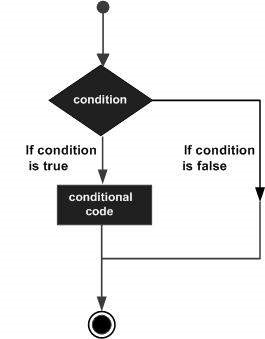
    Decision making structures require the programmer to specify one or more conditions to be evaluated or tested by the program, along with a statement or statements to be executed if the condition is determined to be true, and optionally, other statements to be executed if the condition is determined to be false.

    Following is the general form of a typical decision making structure found in most of the programming languages −

    Decision Making

    R provides the following types of decision making statements. Click the following links to check their detail.

    Sr.No.Statement & Description
    1if statementAn if statement consists of a Boolean expression followed by one or more statements.
    2if…else statementAn if statement can be followed by an optional else statement, which executes when the Boolean expression is false.
    3switch statementA switch statement allows a variable to be tested for equality against a list of values.

  • Operators

    An operator is a symbol that tells the compiler to perform specific mathematical or logical manipulations. R language is rich in built-in operators and provides following types of operators.

    Types of Operators

    We have the following types of operators in R programming −

    • Arithmetic Operators
    • Relational Operators
    • Logical Operators
    • Assignment Operators
    • Miscellaneous Operators

    Arithmetic Operators

    Following table shows the arithmetic operators supported by R language. The operators act on each element of the vector.

    OperatorDescriptionExample
    +Adds two vectorsv <- c( 2,5.5,6) t <- c(8, 3, 4) print(v+t)it produces the following result −[1] 10.0 8.5 10.0
    Subtracts second vector from the firstv <- c( 2,5.5,6) t <- c(8, 3, 4) print(v-t)it produces the following result −[1] -6.0 2.5 2.0
    *Multiplies both vectorsv <- c( 2,5.5,6) t <- c(8, 3, 4) print(v*t)it produces the following result −[1] 16.0 16.5 24.0
    /Divide the first vector with the secondv <- c( 2,5.5,6) t <- c(8, 3, 4) print(v/t)When we execute the above code, it produces the following result −[1] 0.250000 1.833333 1.500000
    %%Give the remainder of the first vector with the secondv <- c( 2,5.5,6) t <- c(8, 3, 4) print(v%%t)it produces the following result −[1] 2.0 2.5 2.0
    %/%The result of division of first vector with second (quotient)v <- c( 2,5.5,6) t <- c(8, 3, 4) print(v%/%t)it produces the following result −[1] 0 1 1
    ^The first vector raised to the exponent of second vectorv <- c( 2,5.5,6) t <- c(8, 3, 4) print(v^t)it produces the following result −[1] 256.000 166.375 1296.000

    Explore our latest online courses and learn new skills at your own pace. Enroll and become a certified expert to boost your career.

    Relational Operators

    Following table shows the relational operators supported by R language. Each element of the first vector is compared with the corresponding element of the second vector. The result of comparison is a Boolean value.

    OperatorDescriptionExample
    >Checks if each element of the first vector is greater than the corresponding element of the second vector.v <- c(2,5.5,6,9) t <- c(8,2.5,14,9) print(v>t)it produces the following result −[1] FALSE TRUE FALSE FALSE
    <Checks if each element of the first vector is less than the corresponding element of the second vector.v <- c(2,5.5,6,9) t <- c(8,2.5,14,9) print(v < t)it produces the following result −[1] TRUE FALSE TRUE FALSE
    ==Checks if each element of the first vector is equal to the corresponding element of the second vector.v <- c(2,5.5,6,9) t <- c(8,2.5,14,9) print(v == t)it produces the following result −[1] FALSE FALSE FALSE TRUE
    <=Checks if each element of the first vector is less than or equal to the corresponding element of the second vector.v <- c(2,5.5,6,9) t <- c(8,2.5,14,9) print(v<=t)it produces the following result −[1] TRUE FALSE TRUE TRUE
    >=Checks if each element of the first vector is greater than or equal to the corresponding element of the second vector.Live Demov <- c(2,5.5,6,9) t <- c(8,2.5,14,9) print(v>=t)it produces the following result −[1] FALSE TRUE FALSE TRUE
    !=Checks if each element of the first vector is unequal to the corresponding element of the second vector.v <- c(2,5.5,6,9) t <- c(8,2.5,14,9) print(v!=t)it produces the following result −[1] TRUE TRUE TRUE FALSE

    Logical Operators

    Following table shows the logical operators supported by R language. It is applicable only to vectors of type logical, numeric or complex. All numbers greater than 1 are considered as logical value TRUE.

    Each element of the first vector is compared with the corresponding element of the second vector. The result of comparison is a Boolean value.

    OperatorDescriptionExample
    &It is called Element-wise Logical AND operator. It combines each element of the first vector with the corresponding element of the second vector and gives a output TRUE if both the elements are TRUE.v <- c(3,1,TRUE,2+3i) t <- c(4,1,FALSE,2+3i) print(v&t)it produces the following result −[1] TRUE TRUE FALSE TRUE
    |It is called Element-wise Logical OR operator. It combines each element of the first vector with the corresponding element of the second vector and gives a output TRUE if one the elements is TRUE.v <- c(3,0,TRUE,2+2i) t <- c(4,0,FALSE,2+3i) print(v|t)it produces the following result −[1] TRUE FALSE TRUE TRUE
    !It is called Logical NOT operator. Takes each element of the vector and gives the opposite logical value.v <- c(3,0,TRUE,2+2i) print(!v)it produces the following result −[1] FALSE TRUE FALSE FALSE

    The logical operator && and || considers only the first element of the vectors and give a vector of single element as output.

    OperatorDescriptionExample
    &&Called Logical AND operator. Takes first element of both the vectors and gives the TRUE only if both are TRUE.v <- c(3,0,TRUE,2+2i) t <- c(1,3,TRUE,2+3i) print(v&&t)it produces the following result −[1] TRUE
    ||Called Logical OR operator. Takes first element of both the vectors and gives the TRUE if one of them is TRUE.v <- c(0,0,TRUE,2+2i) t <- c(0,3,TRUE,2+3i) print(v||t)it produces the following result −[1] FALSE

    Assignment Operators

    These operators are used to assign values to vectors.

    OperatorDescriptionExample
    <−or=or<<−Called Left Assignmentv1 <- c(3,1,TRUE,2+3i) v2 <<- c(3,1,TRUE,2+3i) v3 = c(3,1,TRUE,2+3i) print(v1) print(v2) print(v3)it produces the following result −[1] 3+0i 1+0i 1+0i 2+3i [1] 3+0i 1+0i 1+0i 2+3i [1] 3+0i 1+0i 1+0i 2+3i
    ->or->>Called Right Assignmentc(3,1,TRUE,2+3i) -> v1 c(3,1,TRUE,2+3i) ->> v2 print(v1) print(v2)it produces the following result −[1] 3+0i 1+0i 1+0i 2+3i [1] 3+0i 1+0i 1+0i 2+3i

    Miscellaneous Operators

    These operators are used to for specific purpose and not general mathematical or logical computation.

    OperatorDescriptionExample
    :Colon operator. It creates the series of numbers in sequence for a vector.v <- 2:8 print(v) it produces the following result −[1] 2 3 4 5 6 7 8
    %in%This operator is used to identify if an element belongs to a vector.v1 <- 8 v2 <- 12 t <- 1:10 print(v1 %in% t) print(v2 %in% t) it produces the following result −[1] TRUE [1] FALSE
    %*%This operator is used to multiply a matrix with its transpose.M = matrix( c(2,6,5,1,10,4), nrow = 2,ncol = 3,byrow = TRUE) t = M %*% t(M) print(t)it produces the following result − [,1] [,2] [1,] 65 82 [2,] 82 117
  • Variables

    A variable provides us with named storage that our programs can manipulate. A variable in R can store an atomic vector, group of atomic vectors or a combination of many Robjects. A valid variable name consists of letters, numbers and the dot or underline characters. The variable name starts with a letter or the dot not followed by a number.

    Variable NameValidityReason
    var_name2.validHas letters, numbers, dot and underscore
    var_name%InvalidHas the character ‘%’. Only dot(.) and underscore allowed.
    2var_nameinvalidStarts with a number
    .var_name,var.namevalidCan start with a dot(.) but the dot(.)should not be followed by a number.
    .2var_nameinvalidThe starting dot is followed by a number making it invalid.
    _var_nameinvalidStarts with _ which is not valid

    Variable Assignment

    The variables can be assigned values using leftward, rightward and equal to operator. The values of the variables can be printed using print() or cat() function. The cat() function combines multiple items into a continuous print output.

    # Assignment using equal operator.
    var.1 = c(0,1,2,3)           
    
    # Assignment using leftward operator.
    var.2 <- c("learn","R")   
    
    # Assignment using rightward operator.   
    c(TRUE,1) -> var.3           
    
    print(var.1)
    cat ("var.1 is ", var.1 ,"\n")
    cat ("var.2 is ", var.2 ,"\n")
    cat ("var.3 is ", var.3 ,"\n")

    When we execute the above code, it produces the following result −

    [1] 0 1 2 3
    var.1 is  0 1 2 3 
    var.2 is  learn R 
    var.3 is  1 1 
    

    Note − The vector c(TRUE,1) has a mix of logical and numeric class. So logical class is coerced to numeric class making TRUE as 1.

    Data Type of a Variable

    In R, a variable itself is not declared of any data type, rather it gets the data type of the R – object assigned to it. So R is called a dynamically typed language, which means that we can change a variable’s data type of the same variable again and again when using it in a program.

    var_x <- "Hello"
    cat("The class of var_x is ",class(var_x),"\n")
    
    var_x <- 34.5
    cat("  Now the class of var_x is ",class(var_x),"\n")
    
    var_x <- 27L
    cat("   Next the class of var_x becomes ",class(var_x),"\n")

    When we execute the above code, it produces the following result −

    The class of var_x is  character 
       Now the class of var_x is  numeric 
    
      Next the class of var_x becomes  integer

    Explore our latest online courses and learn new skills at your own pace. Enroll and become a certified expert to boost your career.

    Finding Variables

    To know all the variables currently available in the workspace we use the ls() function. Also the ls() function can use patterns to match the variable names.

    print(ls())

    When we execute the above code, it produces the following result −

    [1] "my var"     "my_new_var" "my_var"     "var.1"      
    [5] "var.2"      "var.3"      "var.name"   "var_name2."
    [9] "var_x"      "varname" 
    

    Note − It is a sample output depending on what variables are declared in your environment.

    The ls() function can use patterns to match the variable names.

    # List the variables starting with the pattern "var".
    print(ls(pattern = "var"))   

    When we execute the above code, it produces the following result −

    [1] "my var"     "my_new_var" "my_var"     "var.1"      
    [5] "var.2"      "var.3"      "var.name"   "var_name2."
    [9] "var_x"      "varname"    
    

    The variables starting with dot(.) are hidden, they can be listed using “all.names = TRUE” argument to ls() function.

    print(ls(all.name = TRUE))

    When we execute the above code, it produces the following result −

    [1] ".cars"        ".Random.seed" ".var_name"    ".varname"     ".varname2"   
    [6] "my var"       "my_new_var"   "my_var"       "var.1"        "var.2"        
    [11]"var.3"        "var.name"     "var_name2."   "var_x"  
    

    Deleting Variables

    Variables can be deleted by using the rm() function. Below we delete the variable var.3. On printing the value of the variable error is thrown.

    rm(var.3)
    print(var.3)

    When we execute the above code, it produces the following result −

    [1] "var.3"
    Error in print(var.3) : object 'var.3' not found
    

    All the variables can be deleted by using the rm() and ls() function together.

    rm(list = ls())
    print(ls())

    When we execute the above code, it produces the following result −

    character(0)
    
  • Data Types

    Generally, while doing programming in any programming language, you need to use various variables to store various information. Variables are nothing but reserved memory locations to store values. This means that, when you create a variable you reserve some space in memory.

    You may like to store information of various data types like character, wide character, integer, floating point, double floating point, Boolean etc. Based on the data type of a variable, the operating system allocates memory and decides what can be stored in the reserved memory.

    In contrast to other programming languages like C and java in R, the variables are not declared as some data type. The variables are assigned with R-Objects and the data type of the R-object becomes the data type of the variable. There are many types of R-objects. The frequently used ones are −

    • Vectors
    • Lists
    • Matrices
    • Arrays
    • Factors
    • Data Frames

    The simplest of these objects is the vector object and there are six data types of these atomic vectors, also termed as six classes of vectors. The other R-Objects are built upon the atomic vectors.

    Data TypeExampleVerify
    LogicalTRUE, FALSEv <- TRUE print(class(v))it produces the following result −[1] “logical”
    Numeric12.3, 5, 999v <- 23.5 print(class(v))it produces the following result −[1] “numeric”
    Integer2L, 34L, 0Lv <- 2L print(class(v))it produces the following result −[1] “integer”
    Complex3 + 2iv <- 2+5i print(class(v))it produces the following result −[1] “complex”
    Character‘a’ , ‘”good”, “TRUE”, ‘23.4’v <- “TRUE” print(class(v))it produces the following result −[1] “character”
    Raw“Hello” is stored as 48 65 6c 6c 6fv <- charToRaw(“Hello”) print(class(v))it produces the following result −[1] “raw”

    In R programming, the very basic data types are the R-objects called vectors which hold elements of different classes as shown above. Please note in R the number of classes is not confined to only the above six types. For example, we can use many atomic vectors and create an array whose class will become array.

    Vectors

    When you want to create vector with more than one element, you should use c() function which means to combine the elements into a vector.

    Live Demo

    # Create a vector.
    apple <- c('red','green',"yellow")
    print(apple)
    
    # Get the class of the vector.
    print(class(apple))

    When we execute the above code, it produces the following result −

    [1] "red"    "green"  "yellow"
    [1] "character"
    

    Lists

    A list is an R-object which can contain many different types of elements inside it like vectors, functions and even another list inside it.

    # Create a list.
    list1 <- list(c(2,5,3),21.3,sin)
    
    # Print the list.
    print(list1)

    When we execute the above code, it produces the following result −

    [[1]]
    [1] 2 5 3
    
    [[2]]
    [1] 21.3
    
    [[3]]
    function (x)  .Primitive("sin")
    

    Explore our latest online courses and learn new skills at your own pace. Enroll and become a certified expert to boost your career.

    Matrices

    A matrix is a two-dimensional rectangular data set. It can be created using a vector input to the matrix function.

    # Create a matrix.
    M = matrix( c('a','a','b','c','b','a'), nrow = 2, ncol = 3, byrow = TRUE)
    print(M)

    When we execute the above code, it produces the following result −

         [,1] [,2] [,3]
    [1,] "a"  "a"  "b" 
    [2,] "c"  "b"  "a"
    

    Arrays

    While matrices are confined to two dimensions, arrays can be of any number of dimensions. The array function takes a dim attribute which creates the required number of dimension. In the below example we create an array with two elements which are 3×3 matrices each.

    # Create an array.
    a <- array(c('green','yellow'),dim = c(3,3,2))
    print(a)

    When we execute the above code, it produces the following result −

    , , 1
    
    
     &#91;,1]     &#91;,2]     &#91;,3]    
    [1,] "green" "yellow" "green" [2,] "yellow" "green" "yellow" [3,] "green" "yellow" "green" , , 2
     &#91;,1]     &#91;,2]     &#91;,3]    
    [1,] "yellow" "green" "yellow" [2,] "green" "yellow" "green" [3,] "yellow" "green" "yellow"

    Factors

    Factors are the r-objects which are created using a vector. It stores the vector along with the distinct values of the elements in the vector as labels. The labels are always character irrespective of whether it is numeric or character or Boolean etc. in the input vector. They are useful in statistical modeling.

    Factors are created using the factor() function. The nlevels functions gives the count of levels.

    # Create a vector.
    apple_colors <- c('green','green','yellow','red','red','red','green')
    
    # Create a factor object.
    factor_apple <- factor(apple_colors)
    
    # Print the factor.
    print(factor_apple)
    print(nlevels(factor_apple))

    When we execute the above code, it produces the following result −

    [1] green  green  yellow red    red    red    green 
    Levels: green red yellow
    [1] 3
    

    Data Frames

    Data frames are tabular data objects. Unlike a matrix in data frame each column can contain different modes of data. The first column can be numeric while the second column can be character and third column can be logical. It is a list of vectors of equal length.

    Data Frames are created using the data.frame() function.

    # Create the data frame.
    BMI <- 	data.frame(
       gender = c("Male", "Male","Female"), 
       height = c(152, 171.5, 165), 
       weight = c(81,93, 78),
       Age = c(42,38,26)
    )
    print(BMI)

    When we execute the above code, it produces the following result −

      gender height weight Age
    1   Male  152.0     81  42
    2   Male  171.5     93  38
    3 Female  165.0     78  26  
    
  • Basic Syntax

    As a convention, we will start learning R programming by writing a “Hello, World!” program. Depending on the needs, you can program either at R command prompt or you can use an R script file to write your program. Let’s check both one by one.

    R Command Prompt

    Once you have R environment setup, then it’s easy to start your R command prompt by just typing the following command at your command prompt −

    $ R
    

    This will launch R interpreter and you will get a prompt > where you can start typing your program as follows −

    > myString <- "Hello, World!"
    > print ( myString)
    [1] "Hello, World!"

    Here first statement defines a string variable myString, where we assign a string “Hello, World!” and then next statement print() is being used to print the value stored in variable myString.

    R Script File

    Usually, you will do your programming by writing your programs in script files and then you execute those scripts at your command prompt with the help of R interpreter called Rscript. So let’s start with writing following code in a text file called test.R as under −

    # My first program in R Programming
    myString <- "Hello, World!"
    
    print ( myString)

    Save the above code in a file test.R and execute it at Linux command prompt as given below. Even if you are using Windows or other system, syntax will remain same.

    $ Rscript test.R 
    

    When we run the above program, it produces the following result.

    [1] "Hello, World!"
    

    Explore our latest online courses and learn new skills at your own pace. Enroll and become a certified expert to boost your career.

    Comments

    Comments are like helping text in your R program and they are ignored by the interpreter while executing your actual program. Single comment is written using # in the beginning of the statement as follows −

    # My first program in R Programming
    

    R does not support multi-line comments but you can perform a trick which is something as follows −

    if(FALSE) {
       "This is a demo for multi-line comments and it should be put inside either a 
    
      single OR double quote"
    } myString <- "Hello, World!" print ( myString)
    [1] "Hello, World!"
    

    Though above comments will be executed by R interpreter, they will not interfere with your actual program. You should put such comments inside, either single or double quote.

  • Environment Setup

    Local Environment Setup

    If you are still willing to set up your environment for R, you can follow the steps given below.

    Windows Installation

    You can download the Windows installer version of R from R-3.2.2 for Windows (32/64 bit) and save it in a local directory.

    As it is a Windows installer (.exe) with a name “R-version-win.exe”. You can just double click and run the installer accepting the default settings. If your Windows is 32-bit version, it installs the 32-bit version. But if your windows is 64-bit, then it installs both the 32-bit and 64-bit versions.

    After installation you can locate the icon to run the Program in a directory structure “R\R3.2.2\bin\i386\Rgui.exe” under the Windows Program Files. Clicking this icon brings up the R-GUI which is the R console to do R Programming.

    Linux Installation

    R is available as a binary for many versions of Linux at the location R Binaries.

    The instruction to install Linux varies from flavor to flavor. These steps are mentioned under each type of Linux version in the mentioned link. However, if you are in a hurry, then you can use yum command to install R as follows −

    $ yum install R
    

    Above command will install core functionality of R programming along with standard packages, still you need additional package, then you can launch R prompt as follows −

    $ R
    R version 3.2.0 (2015-04-16) -- "Full of  Ingredients"          
    Copyright (C) 2015 The R Foundation for Statistical Computing
    Platform: x86_64-redhat-linux-gnu (64-bit)
    
    R is free software and comes with ABSOLUTELY NO WARRANTY.
    You are welcome to redistribute it under certain conditions.
    Type 'license()' or 'licence()' for distribution details.
    
    R is a collaborative project with many  contributors.                    
    Type 'contributors()' for more information and
    'citation()' on how to cite R or R packages in publications.
    
    Type 'demo()' for some demos, 'help()' for on-line help, or
    'help.start()' for an HTML browser interface to help.
    Type 'q()' to quit R.
    >  
    

    Now you can use install command at R prompt to install the required package. For example, the following command will install plotrix package which is required for 3D charts.

    > install.packages("plotrix")
  • Overview

    R is a programming language and software environment for statistical analysis, graphics representation and reporting. R was created by Ross Ihaka and Robert Gentleman at the University of Auckland, New Zealand, and is currently developed by the R Development Core Team.

    The core of R is an interpreted computer language which allows branching and looping as well as modular programming using functions. R allows integration with the procedures written in the C, C++, .Net, Python or FORTRAN languages for efficiency.

    R is freely available under the GNU General Public License, and pre-compiled binary versions are provided for various operating systems like Linux, Windows and Mac.

    R is free software distributed under a GNU-style copy left, and an official part of the GNU project called GNU S.

    Evolution of R

    R was initially written by Ross Ihaka and Robert Gentleman at the Department of Statistics of the University of Auckland in Auckland, New Zealand. R made its first appearance in 1993.

    • A large group of individuals has contributed to R by sending code and bug reports.
    • Since mid-1997 there has been a core group (the “R Core Team”) who can modify the R source code archive.

    Features of R

    As stated earlier, R is a programming language and software environment for statistical analysis, graphics representation and reporting. The following are the important features of R −

    • R is a well-developed, simple and effective programming language which includes conditionals, loops, user defined recursive functions and input and output facilities.
    • R has an effective data handling and storage facility,
    • R provides a suite of operators for calculations on arrays, lists, vectors and matrices.
    • R provides a large, coherent and integrated collection of tools for data analysis.
    • R provides graphical facilities for data analysis and display either directly at the computer or printing at the papers.

    As a conclusion, R is world’s most widely used statistics programming language. It’s the # 1 choice of data scientists and supported by a vibrant and talented community of contributors. R is taught in universities and deployed in mission critical business applications. This tutorial will teach you R programming along with suitable examples in simple and easy steps.