Author: saqibkhan

  • Object Accessors

    The object accessor properties in JavaScript are methods that get or set the value of an object. They are defined using the get and set keywords. Accessor properties are a powerful way to control how your objects are accessed and modified.

    The JavaScript object can have two kinds of properties.

    • Data properties
    • Accessor properties

    The below property is called the data properties.

    const obj ={
    
    key:"value",// Data property}</code></pre>

    Object Accessor Properties

    In JavaScript, you can use the getters to get the object properties and setters to set the object properties.

    There are two keywords to define accessor properties.

    • get − The get keyword is used to define a method to get the object property value.
    • set − The set keyword is used to define a method to update the object property value.

    JavaScript Getters

    The getters are used to access the object properties. To define a method as getter, we use get keyword followed by method name. Follow the syntax below to define the getter.

    getmethodName(){// Method body}
    obj.methodName;

    In the above syntax, we have defined the getters using the 'get' keyword followed by the method name.

    You can use the method name as an object property to get its returned value.

    You don't need to write the pair of parenthesis followed by the method name to execute the getters. You can access it like the object property.

    Example

    In the example below, in the wall object, we have defined the getColor() getters. The getColor() returns the value of the color property.

    After that, we use the getColor() method to access the color property value of the object.

    Open Compiler

    <html><body><p id ="output">The color of the wall is :</p><script>const wall ={
    
      color:"brown",getgetColor(){returnthis.color;}}
    document.getElementById("output").innerHTML += wall.getColor;&lt;/script&gt;&lt;/body&gt;&lt;/html&gt;</code></pre>

    Output

    The color of the wall is : brown
    

    JavaScript Setters

    The setters are used to update the JavaScript object properties. To define a method as setter, we use set keyword followed by method name You can follow the syntax below to define setters in the JavaScript object.

    setmethodName(param){// Setter methodreturnthis.color = color;}
    
    wall.methodName ="Red";
    • In the above syntax, the 'set' keyword is used to define the setter method.
    • The method_name can be any valid identifier.
    • The setter method always takes a single parameter. If you don't pass a parameter or multiple parameters, it will give you an error.
    • You can assign value to the setter method as you assign value to the property.

    Example

    In the example below, we have defined the setter method to set the value of the color property of the wall object. We set the 'red' value to the color property of the object using the 'setColor' setter method.

    Open Compiler

    <html><body><p id ="output"></p><script>const wall ={
    
      color:"brown",setsetColor(color){returnthis.color = color;}}
    document.getElementById("output").innerHTML +="The color of the wall before update is : "+ wall.color +"&lt;br&gt;";//updating the color of wall
    wall.setColor ="Red";
    document.getElementById("output").innerHTML +="The color of the wall after update is : "+ wall.color;&lt;/script&gt;&lt;/body&gt;&lt;/html&gt;</code></pre>

    Output

    The color of the wall before update is : brown
    The color of the wall after update is : Red
    

    JavaScript Object Methods vs. Getters/Setters

    In JavaScript, whatever you can do using the getters and setters, you can also do by defining the specific object method. The difference is that getters and setters provide simpler syntax.

    Let's understand it with the help of some examples.

    Example

    In the example below, we have defined the getColor() getters method and colorMethod() object method in the wall object. Both method returns the color value.

    You can observe that defining and accessing getters is more straightforward than defining and accessing the object method.

    Open Compiler

    <html><body><p id ="output"></p><script>const wall ={
    
      color:"brown",getgetColor(){returnthis.color;},colorMethod:function(){returnthis.color;}}
    
    document.getElementById("output").innerHTML +="Getting the color using the getters : "+ wall.getColor +"&lt;br&gt;";
    
    document.getElementById("output").innerHTML +="Getting the color using the object method : "+ wall.colorMethod();&lt;/script&gt;&lt;/body&gt;&lt;/html&gt;</code></pre>

    Output

    Getting the color using the getters : brown
    Getting the color using the object method : brown
    

    Data Quality and Security

    The getter and setter methods can provide better data quality. Also, they are used for encapsulation to secure the object data.

    Let's understand how getter and setter improve data quality and provide security via the example below.

    Example

    In the example below, the getColor() is a getter method, returning the value of the color property after converting it to the uppercase. Also, it hides the color property from users, as you can access its value using the getColor() method.

    Open Compiler

    <html><body><p id ="output"></p><script>const wall ={
    
      color:"Brown",getgetColor(){returnthis.color.toUpperCase();}}
    document.getElementById("output").innerHTML +="Getting the color using the getters : "+ wall.getColor;&lt;/script&gt;&lt;/body&gt;&lt;/html&gt;</code></pre>

    Output

    Getting the color using the getters : BROWN
    

    Defining getters/setters using the Object.defineProperty()

    You can also use the Object.defineProperty() method to add getters or setters into the object.

    Object.defineProperty(object,"methodName",{keyword:function(){// Method body},})

    Using the above syntax, you can define the getter or setter same as methodName.

    Parameters

    • object − It is an object where you need to add getters or setters.
    • methodName − It is the name of the method for getters or setters.
    • keyword − It can be 'get' or 'set' according to you want to define the getter or setter method.

    Example

    In the example below, we have added the getSize and setSize getter and setter to the object using the object.defineProperty() method.

    After that, we use the getSize and setSize to get and set the size, respectively.

    Open Compiler

    <html><body><p id ="demo"></p><script>const output = document.getElementById("demo");const door ={
    
      size:20,}
    Object.defineProperty(door,"getSize",{get:function(){returnthis.size;}});
    Object.defineProperty(door,"setSize",{set:function(value){this.size = value;},})
    output.innerHTML +="Door size is : "+ door.getSize +"&lt;br&gt;";
    door.setSize =30;
    output.innerHTML +="Door size after update is : "+ door.getSize;&lt;/script&gt;&lt;/body&gt;&lt;/html&gt;</code></pre>

    Output

    Door size is : 20
    Door size after update is : 30
    

    Reasons to use getters and setters

    Here are the benefits of using the getters and setters in JavaScript.

    • It has a simple syntax than object methods.
    • To improve the data quality by validating the data.
    • For the encapsulation or securing the data.
    • It also allows abstraction or data hiding.
  • Display Objects

    Displaying Objects in JavaScript

    There are different ways to display objects in JavaScript. Using the console.log() method, we can display the object in the web console. Sometimes developers require to display the object properties and their value in the HTML or for debugging the code.

    For displaying an object, we can access the different properties and display them. We can also convert the object to a JSON string and display it as a string.

    When you print the object like other variables in the output, it prints the ‘[object Object]’ as shown in the example below.

    In the example below, we have created a fruit object and printed it in the output. You can observe that it prints the [object Object].

    Open Compiler

    <html><body><p id ="output">The object is:</p><script>const fruit ={
    
      name:"Banana",
      price:100,}
    document.getElementById("output").innerHTML += fruit;&lt;/script&gt;&lt;/body&gt;&lt;/html&gt;</code></pre>

    Output

    The object is: [object Object]
    

    To overcome the above problem, you need to use specific approaches to display the object.

    Some approaches to display the JavaScript objects are as follows −

    • Accessing the object properties
    • Using the JSON.stringify() method
    • Using the Object.entries() method
    • Using the for...in loop

    Accessing the Object Properties

    In the object properties chapter, you learned different ways to access the values of the object properties. You can use the dot notation or square bracket notation to display the property values.

    This way, you may get all property values and display them in the output.

    Syntax

    Users can follow the syntax below to display the object by accessing properties.

    obj.property;OR
    obj["property"];

    In the above syntax, we access the property using the obj object's dot and square bracket notation.

    Example

    In the example below, we have accessed the 'name' property of the object using the dot notation and the 'price' property using the square bracket notation.

    Open Compiler

    <html><body><p id="output"></p><script>const fruit ={
    
      name:"Banana",
      price:100,}const fruitName = fruit.name;const fruitPrice = fruit&#91;"price"];
    document.getElementById("output").innerHTML ="The price of the "+ fruitName +" is: "+ fruitPrice;&lt;/script&gt;&lt;/body&gt;&lt;/html&gt;</code></pre>

    Output

    The price of the Banana is: 100
    

    Using the JSON.stringify() Method

    When object contains the dynamic properties or you don't know object properties, you can't print properties and values using the first approach. So, you need to use the JSON.stringify() method. It converts the object into a string.

    Syntax

    Follow the syntax below to use the JSON.stringify() method to display the object.

    JSON.stringify(obj);

    You need to pass the object as a parameter of the JSON.stringify() method.

    Example

    In the example below, we have converted the fruit string into the JSON string and displayed in the output.

    Open Compiler

    <html><body><p id ="output">The fruit object is </p><script>const fruit ={
    
      name:"Banana",
      price:100,}
    document.getElementById("output").innerHTML +=JSON.stringify(fruit);&lt;/script&gt;&lt;/body&gt;&lt;/html&gt;</code></pre>

    Output

    The fruit object is {"name":"Banana","price":100}
    

    Using the Object.enteries() Method

    The Object.entries() is a static method of the Object class, allowing you to extract the properties and values in the 2D array. After that, you can use the loop to traverse the array and display each property and value pair individually.

    Syntax

    Follow the syntax below to use the Object.entries() method.

    Object.entries(obj);

    The Object.entries() method takes the object as a parameter and returns the 2D array, where each 1D array contains the key-value pair.

    Example

    In the example below, the numbers object contains the 4 properties. We used the Object.entries() method to get all entries of the object.

    After that, we used the for loop to traverse the object entries and display them.

    Open Compiler

    <html><body><p> Displaying the object entries</p><p id ="output"></p><script>const numbers ={
    
      num1:10,
      num2:20,
      num3:30,
      num4:40,}for(const&#91;key, value]of Object.entries(numbers)){
      document.getElementById("output").innerHTML += key +": "+ value +" &lt;br&gt;";}&lt;/script&gt;&lt;/body&gt;&lt;/html&gt;</code></pre>

    Output

    Displaying the object entries
    
    num1: 10
    num2: 20
    num3: 30
    num4: 40
    

    Using the for...in Loop

    The for...in loop is used to traverse the iterable, and the object is one of them.

    Syntax

    Users can follow the syntax below to use the for...in loop to traverse the object and display it in the output.

    for(key in obj){// Use the key to access the value}

    In the above syntax, obj is an object to display. In the loop body, you can access the value related to the key and print the key-value pair.

    Example

    In the example below, we used the for...in loop to traverse each key of the object and print them in the output.

    Open Compiler

    <html><body><p> Displaying Object Entries using for...in loop:</p><p id ="output"></p><script>const languages ={
    
      language1:"JavaScript",
      language2:"Python",
      language3:"Java",
      language4:"HTML",}for(const key in languages){
      document.getElementById("output").innerHTML += 
      key +": "+ languages &#91;key]+" &lt;br&gt;";}&lt;/script&gt;&lt;/body&gt;&lt;/html&gt;</code></pre>

    Output

    Displaying Object Entries using for...in loop:
    
    language1: JavaScript
    language2: Python
    language3: Java
    language4: HTML
    

    The best way to display the object is using the JSON.stringify() method. It converts the object into a flat string. Other approaches can't be used to display the nested objects, but JSON.stringify() method can be used.

  • Static Methods

    What are Static Methods?

    static method in JavaScript is defined using the static keyword followed by the method name. You can execute the static method by taking the class name as a reference rather than an instance of the class.

    The main benefit of the static method is that it can be used to create a utility function that doesn’t require the instance of the class for the execution. For example, a Math object contains various static methods, which we can invoke through Math class directly.

    Also, you can use static methods to add all related methods under a single namespace. Furthermore, static methods give better performance than the regular class methods due to memory optimization.

    In the following syntax, we define a static method called getSize() in the class called Table −

    classTable{staticgetSize(){// Static methodreturn"10 x 10";}}
    Table.getSize();// Static method invocation

    In the above syntax, getSize() is a static method. We used the class name to execute the getSize() method.

    Examples

    Let’s understand the JavaScript static methods with the help of some examples of difference use-cases −

    Example: Static Method

    In the example below, printSize() is a static method, and getSize() is a regular method in the table class. You can see that printSize() method is invoked using the table class name, and getSize() method is executed using the class instance.

    So, the class can contain static and non-static both methods.

    Open Compiler

    <html><body><p id ="demo"></p><script>const output = document.getElementById("demo");classTable{staticprintSize(){return"The size of the table is: 20 x 20 <br>";}getColor(){return"Black";}}
    
    		output.innerHTML = Table.printSize();// Static method executionconst tableObj =newTable();
    		output.innerHTML +="The color of the table is: "+ tableObj.getColor();</script></body></html>

    Output

    The size of the table is: 20 x 20
    The color of the table is: Black
    

    The single class can also contain multiple static methods.

    Example: Multiple Static Methods

    In the below code, the table class contains the printSize() and getSize() static methods. Both methods are executed by taking the class name as a reference.

    Open Compiler

    <html><body><p id ="output"></p><script>classTable{staticprintSize(){return"The size of the table is 20 x 20 <br>";}staticgetColor(){return"The color of the table is Pink";}}
    
    		document.getElementById("output").innerHTML = 
    		Table.printSize()+"br"+
    		Table.getColor();</script></body></html>

    Output

    The size of the table is 20 x 20
    brThe color of the table is Pink
    

    A single class can contain multiple static methods with the same name. When you execute the static method with the same name, it executes the last method.

    Example: Static Methods with the Same Name

    In the example below, the table class contains the duplicate printSize() method. In the output, you can observe that the code executes the second printSize() method.

    Open Compiler

    <html><body><p id ="output"></p><script>classTable{staticprintSize(){return"The size of the table is: 20 x 20 <br>";}staticprintSize(){return"The size of the table is: 30 x 30 <br>";}}
    		document.getElementById("output").innerHTML = Table.printSize();// Static method execution</script></body></html>

    Output

    The size of the table is: 30 x 30
    

    You can also execute the static method of the class in the constructor. You can use this keyword followed by the constructor keyword followed by the static method name to execute the static method in the constructor.

    Example: Static Method Execution in the Constructor

    In the example below, the Num class contains the getSqrt() static method. We have executed the getSqrt() method in the constructor.

    Whenever you create a new object of the Num class, it will store the square root of the number in the ‘sqrt’ property of the class.

    Open Compiler

    <html><body><p id ="output">The square root of the 10 is:</p><script>classNum{constructor(a){// Static method executionthis.sqrt =this.constructor.getSqrt(a);}staticgetSqrt(a){return a * a;}}const num1 =newNum(10);
    		document.getElementById("output").innerHTML += num1.sqrt;</script></body></html>

    Output

    The square root of the 10 is: 100
    

    You can also execute the static method in the non-static method. You need to use the class name as a reference to execute the static method in the non-static method.

    Example: Static Method Execution in Non-Static Method

    In the example below, getSqrt() is a static method, and printSqrt() is a regular class method. In the printSqrt() method, we execute the getSqrt() method.

    We used the instance of the Num class to execute the printSqrt() method.

    Open Compiler

    <html><body><p id ="demo"></p><script>const output = document.getElementById("demo");classNum{staticgetSqr(a){return a * a;}printSqr(a){
    
    			output.innerHTML +="The square of "+ a +" is: "+ Num.getSqr(a)+"&lt;br&gt;";}}const num1 =newNum();
    num1.printSqr(6);</script></body></html>

    Output

    The square of 6 is: 36
    
  • Object Methods

    JavaScript Object Methods

    JavaScript object methods are object properties that contains function definitions. An object is a collection of properties, and a property is an association between a name (or key) and a value. A property’s value can be a function; in that case the property is known as a method.

    You can either directly add a method to the object or add it as a property value. The method can also take the parameters and return the value. Object methods are a powerful way to add functionality to objects. They allow you to encapsulate code and make it reusable.

    Syntax

    Follow the syntax below to add a method to the object.

    const obj ={sum:function(){// Method body}}
    obj.sum();

    In the above syntax, ‘sum’ is a method defined inside the ‘obj’ object. You can access the method as you access the object property and add the pair of parenthesis to invoke the method.

    Example

    We added the getInfo() method in the ‘company’ object in the example below. The getInfo() method returns the string containing the object properties.

    Here, we used the ‘this’ keyword to access the object properties inside the object. The ‘this’ keyword represents the object itself.

    After that, we used the object as a reference to invoke the method.

    Open Compiler

    <html><body><p>Company Information</p><p id ="output"></p><script>const company ={
    
    	   companyName:"wisdom pro",
    companyWebsite:"www.wisdompro.com",getInfo:function(){return"Comapny Name: "+this.companyName +"<br>Website: "+this.companyWebsite;},} document.getElementById("output").innerHTML = company.getInfo();</script></body></html>

    Output

    Company Information
    
    Comapny Name: wisdom pro
    Website: www.wisdompro.com
    

    Object Method Shorthand

    The ES6 provides the shortest way to define a method into the object.

    Syntax

    Follow the syntax below to add a method to the object.

    const Obj ={sum(){// Method body}}
    Obj.sum();

    Like the previous one, you can access and invoke the method in the above syntax.

    Example

    In the example below, we defined the getInfo() method as the previous example.

    Open Compiler

    <html><body><p id ="output"></p><script>const employee ={
    			name:"John Doe",
    			age:32,getInfo(){return"The employee name is "+this.name +" and his age is "+this.age +" Years.";},}
    
    document.getElementById("output").innerHTML = employee.getInfo();</script></body></html>

    Output

    The employee name is John Doe and his age is 32 Years.
    

    Example

    The example below defines the getSum() method inside the ‘nums’ object. The getSum() method takes the two parameters and returns their sum.

    We passed the number arguments to the method while invoking it.

    Open Compiler

    <html><body><p id ="output">The sum of2 and 3 is  </p><script>const nums ={getSum(a, b){return a + b;}}
    		document.getElementById("output").innerHTML += nums.getSum(2,3);</script></body></html>

    Output

    The sum of 2 and 3 is 5
    

    Updating or Adding a Method to the Object

    In JavaScript, updating or adding a new method to the object is same as updating or adding new proeprties to the object. You can either use the dot or square bracket notation to update or add method to the object.

    Example

    The example below defines the getSum() method inside the ‘nums’ object.

    After that, we add the getMul() method inside the nums object. We invoke the getMul() method by passing two arguments to get the multiplication of them.

    Open Compiler

    <html><body><p id ="output">The multiplication of2 and 3 is </p><script>const nums ={getSum(a, b){return a + b;}}
    		nums.getMul=function(a, b){return a * b;}
    
    document.getElementById("output").innerHTML += nums.getMul(2,3);</script></body></html>

    Output

    The multiplication of 2 and 3 is 6
    

    Using Built-in Methods

    JavaScript objects like string, number, boolean, etc., also contain built-in methods. You can execute them by taking the object as a reference.

    Example

    In the example below, we have defined the ‘num’ variable containing the numeric value. After that, we used the toString() method to convert the number to a string.

    Open Compiler

    <html><body><p id ="demo"></p><script>const output = document.getElementById("demo");const num =newNumber(20);let str = num.toString();
    		output.innerHTML +="After converting the number to string: "+ str +"<br>";
    		output.innerHTML +="Data type of after conversion: "+typeof str;</script></body></html>

    Output

    After converting the number to string: 20
    Data type of after conversion: string
    
  • Object Properties

    JavaScript Object Properties

    An object property in JavaScript is a key: value pair, where key is a string and value can be anything. The key in key: value pair is also called property name. So the properties are association between key (or name) and value.

    An object is in other terms a collection of properties (key: value pairs). However, key: value pairs are not stored in the specific order in the object. To write an object syntax, the curly braces are used. Each key: value pair is written within curly braces separated by a comma.

    You can manipulate the object properties in JavaScript. For example, you can add, delete, or update the object’s properties.

    Syntax

    You can follow the syntax below to define properties in the object.

    const fruit ={
    
    name:"Apple",
    price:100,}</code></pre>

    In the above syntax, fruit is an object. The fruit object contains the name and price properties. The value of the name property is 'Apple, and the price is 100.

    In an object, the key can either be a string or a symbol only. If you use another data type as a key, the object implicitly converts it into the string.

    The property value can be anything like an object, set, array, string, set, function, etc.

    Accessing Object Properties

    There are 3 ways to access object properties in JavaScript.

    • Using the dot notation
    • Using the square bracket notation
    • Using the expression

    The Dot Notation

    You can access the object property using the dot notation/ syntax.

    obj.prop;

    In the above syntax, 'obj' is an object, and 'prop' is its property whose value you need to access.

    Example

    The 'fruit' object in the example below contains the name and price property. We access the object properties using the dot notation, and you can see property values in the output.

    Open Compiler

    <!DOCTYPE html><html><body><p id ="output"></p><script>const fruit ={
    			name:"Banana",
    			price:20,}
    		document.getElementById("output").innerHTML ="The price of the "+ fruit.name +" is "+ fruit.price;</script></body></html>

    Output

    The price of the Banana is 20
    

    The Square Bracket Notation

    You can use the square bracket pair containing the property as a string followed by the object name to access a particular property.

    obj["prop"]

    In the above syntax, we access the 'prop' property from the object.

    You can't access the property using the dot notation when you use invalid identifiers as an object key. So, you need to use the square bracket notation. The identifier is invalid if it starts from a number, contains a space, or a hyphen.

    Example

    In the example below, we access the fruit object's name and price property values.

    Open Compiler

    <!DOCTYPE html><html><body><p id ="output"></p><script>const fruit ={
    			name:"Banana",
    			price:20,}
    		document.getElementById("output").innerHTML ="The price of the "+ fruit["name"]+" is "+ fruit["price"];</script></body></html>

    Output

    The price of the Banana is 20
    

    Using the expression inside the bracket

    Sometimes, you require to access the object properties dynamically using the variable or expression. So, you can write the expression inside the square bracket notation. The expression can be a variable, a mathematical expression, etc.

    obj[expression]

    The above syntax evaluates the expression first and accesses the property same as a resultant value from the object. You don't need to write the expression in quotes.

    Example

    In the example below, the num object contains the number as a key in the string format and its word representation as a value.

    We use the variable x to access the property value from the object. Also, we used the "x + 10" mathematical expression to access the object property dynamically.

    Open Compiler

    <!DOCTYPE html><html><body><p id ="output"></p><script>const num ={10:"ten",20:"Twenty",}const x =10;
    		document.getElementById("output").innerHTML =  num[x +10];</script></body></html>

    Output

    Twenty
    

    Accessing the Nested Object Properties

    Accessing the nested object properties is very similar to accessing the object properties. You can either use the dot or square bracket notation.

    Syntax

    Obj.prop.nestedProp
    // OR
    Obj["prop"]["nestedProp"];

    In the above syntax, the prop is a property of the obj object, and nestedProp is a property of the 'prop' object.

    Example

    In the below code, the 'cars' object contains the nested objects named OD and BMW. We access the nested object properties using the dot and square bracket notation.

    Open Compiler

    <!DOCTYPE html><html><body><p id ="output1"></p><p id ="output2"></p><script>const cars ={
    			totalBrands:50,
    			audi:{
    
    			model:"Q7",
    			price:10000000,},
    bmw:{
    			model:"S20D",
    			price:8000000,}}
    document.getElementById("output1").innerHTML ="The model of Audi is "+ cars.audi.model +" and its price is "+ cars.audi.price; document.getElementById("output2").innerHTML ="The model of BMW is "+ cars["bmw"]["model"]+" and its price is "+ cars["bmw"]["price"];</script></body></html>

    Output

    The model of Audi is Q7 and its price is 10000000
    
    The model of BMW is S20D and its price is 8000000
    

    Adding or Updating the Object Properties

    You can update or add new properties to the object using the dot or square bracket notation. You can access the object property and assign a new value to it. If the property already exists, it updates the property value. Otherwise, it adds the property to the object.

    Syntax

    Obj.prop = new_value;OR
    Obj["prop"]= new_value;

    In the above syntax, we update the value of the 'prop' property of the obj object.

    Example

    In the example below, we update the name and price property of the fruit object. Also, we add the expiry property to the fruit object.

    Open Compiler

    <!DOCTYPE html><html><body><p id ="output"></p><script>const fruit ={
    			name:"Watermealon",
    			price:150,}
    		fruit.name ="Apple";// Updating using the dot notation
    		fruit["price"]=200;// Updating using the bracket notation
    		fruit.expiry ="5 days";// Adding new property to the object.
    
    		document.getElementById("output").innerHTML +="The price of "+ fruit.name +" is "+ fruit.price +" and it expires in "+ fruit.expiry;</script></body></html>

    Output

    The price of Apple is 200 and it expires in 5 days
    

    Deleting the Object Properties

    You can use the 'delete' operator to delete the specific object properties.

    Syntax

    delete obj.prop;

    In the above syntax, obj.prop is an operator for the delete operator.

    Example

    In the example below, we delete the name property from the fruit object using the delete operator. The output shows that the fruit object contains only the price property after deleting the name property.

    Open Compiler

    <!DOCTYPE html><html><body><p> The object after deleting the "name" property:</p><p id ="output"></p><script>const fruit ={
    			name:"Watermealon",
    			price:150,}delete fruit.name;
    		document.getElementById("output").innerHTML =JSON.stringify(fruit);</script></body></html>

    Output

    The object after deleting the "name" property:
    
    {"price":150}
    

    Enumerating the Object Properties

    There are various approaches to enumerating the object properties. The Object.keys() method returns the object's keys in the array. However, we will use the forin loop to traverse through each property of the object.

    Syntax

    You can follow the syntax below to iterate through the object properties.

    for(let key in table){// Use the key to access its value}

    In the above syntax, 'key' is an object property, which can be used to access its value.

    Example

    In the example below, we have created the table object containing 3 properties. After that, we used the forin loop to traverse through each property of the object and access its value.

    Open Compiler

    <!DOCTYPE html><html><body><p> Iterating the obejct properties</p><p id ="output"></p><script>const table ={
    			color:"brown",
    			shape:"round",
    			price:10000,}for(let key in table){
    			document.getElementById("output").innerHTML += key +": "+ table[key]+"<br>";}</script></body></html>

    Output

    Iterating the obejct properties
    
    color: brown
    shape: round
    price: 10000
    

    Property Attributes

    The object property contains four attributes.

    • value − A value of the object.
    • enumerable − Contains boolean value representing whether the object is iterable.
    • configurable − Contains the boolean value representing whether the object is configurable.
    • writable − It also contains the boolean value, representing whether the object is writable.

    By default, you can't edit other attributes except the value attribute of the object property. You need to use the defineProperty() or defineProperties() methods to update other attributes.

  • Classes

    JavaScript Classes

    The JavaScript classes are a blueprint or template for object creation. They encapsulate the data and functions to manipulate that data. We can create the object using classes. Creating an object from a class is referred to as instantiating the class. In JavaScript, the classes are built on prototypes. The classes are introduced to JavaScript in ECMAScript 6 (ES6) in 2009.

    For example, you can think about writing code to represent the car entity. A code can contain the class having car properties. For different cars, you can create an instance of the class and initialize the car properties according to the car model.

    Before ES6, the constructor function was used to define a blueprint of the object. You can define the constructor function as shown below.

    functionCar(brand){// Constructor functionthis.brand = brand;// property initialization}const carObj =newCar("Audi");// Creating an object

    Defining JavaScript Classes

    The syntax of the class is very similar to the constructor function, but it uses the ‘class’ keyword to define the class. As we can define a function using function declaration or function expression, the classes are also can be defined using class declaration or class expression.

    Syntax

    The syntax of class definition in JavaScript is as follows −

    // class declarationclassClassName{// Class body}//Class expressionconst ClassName =class{// class body}

    A ‘ClassName’ is a class name in the above syntax.

    A JavaScript class is a function, but you can’t use it as a regular function.

    Type of JavaScript Classes

    A JavaScript class is a type of function. In the example below, we used the ‘typeof’ operator to get the type of the class. It returns the ‘function, which you can observe in the output.

    Open Compiler

    <!DOCTYPE html><html><body><p id ="output"> The type of the car classis:</p><script>classCar{// Class body}
    		document.getElementById("output").innerHTML +=typeof Car;</script></body></html>

    Output

    The type of the car class is: function
    

    The constructor() method

    When you use the function as an object blueprint, you can initialize the object properties inside the function body. Similarly, you need to use the constructor() method with the class to initialize the object properties.

    Whenever you create an instance of the class, it automatically invokes the constructor() method of the class.

    In below example, we use the constructor() method to create a Car class −

    classCar{constructor(brand){// Defining the constructorthis.brand = brand;}}

    The constructor() method has no specific name but can be created using the ‘constructor’ keyword. You can initialize the class properties using the ‘this’ keyword inside the constructor function.

    Creating JavaScript Objects

    To create an object of a JavaScript class, we use new operator followed by the class name and a pair of parentheses. We can pass thee arguments to it also.

    Let’s create an object called myCar as follows −

    const myCar =newCar("Audi");

    The this keyword inside the constructor function refers to an object that is executing the current function.

    Example: Creating class objects without arguments

    In the example below, we have defined the ‘Car‘ class. The class contains the constructor and initializes the properties with default values.

    After that, we have created the instance of the class, and you can observe it in the output.

    Open Compiler

    <!DOCTYPE html><html><body><p id ="output"></p><script>// creating Car classclassCar{constructor(){this.brand ="BMW";this.model ="X5";this.year =2019;}}// instantiate myCar objectconst myCar =newCar();// display the properties
    		document.getElementById("output").innerHTML ="Car brand is : "+ myCar.brand +"<br>"+"Car model is : "+ myCar.model +"<br>"+"Car year is : "+ myCar.year +"<br>";</script></body></html>

    Output

    Car brand is : BMW
    Car model is : X5
    Car year is : 2019
    

    If you want to initialize the class properties dynamically, you can use the parameters with the constructor() method.

    Example: Creating class objects with arguments

    In the example below, we have defined the ‘Car’ class. The constructor() method of the class takes 4 parameters and initializes the class properties with parametric values.

    While creating the ‘Car’ class instance, we passed 4 arguments. In this way, you can initialize the class properties dynamically.

    Open Compiler

    <!DOCTYPE html><html><body><p id ="output"></p><script>classCar{constructor(brand, model, price, year){this.brand = brand;this.model = model;this.price = price;this.year = year;}}const carObj =newCar("BMW","X5",9800000,2019);
    		document.getElementById("output").innerHTML +="Car brand : "+ carObj.brand +"<br>"+"Car model : "+ carObj.model +"<br>"+"Car price : "+ carObj.price +"<br>"+"Car year : "+ carObj.year +"<br>"</script></body></html>

    Output

    Car brand : BMW
    Car model : X5
    Car price : 9800000
    Car year : 2019
    

    JavaScript Class Methods

    You can also define the methods inside the class, which can be accessed using the class instance.

    Syntax

    Follow the syntax below to define methods inside the class.

    classcar{methodName(params){// Method body}}
    obj.methodName();

    In the above syntax, ‘methodName‘ is a dynamic name of the method. To define a class method, you don’t need to write any keyword like ‘function‘ before the method name.

    To invoke the class method, you need to use the instance of the class. Here, ‘obj’ is an instance of the class. You can also pass the parameters to the method.

    Example

    The example below demonstrates how to pass parameters to the class methods.

    Here, we have defined the updateprice() method to update the price of the car. So, while invoking the updateprice() method, we pass the new price as an argument and use it inside the method body to update the price.

    You can see the original and updated price of the car in the output.

    Open Compiler

    <!DOCTYPE html><html><body><p id ="output"></p><script>classCar{constructor(brand, model, price, year){this.brand = brand;this.model = model;this.price = price;this.year = year;}updateprice(newPrice){this.price = newPrice;}}const myCar =newCar("BMW","X5",9800000,2019);
    		document.getElementById("output").innerHTML +="The car price is : "+ myCar.price +"<br>";
    
    myCar.updateprice(8800000);// updating price
    document.getElementById("output").innerHTML +="After updating the car price is : "+ myCar.price +"<br>";</script></body></html>

    Output

    The car price is : 9800000
    After updating the car price is : 8800000
    

    JavaScript Class Hoisting

    In JavaScript, the declaration of the class is not hoisted at the top of the code. So, you always need to define the class before you use it.

    const carObj =newCar();// This will generate an error.classCar{}

    You can try to run the above code. It will generate a reference error as the car class is used before its initialization.

    Strict Mode with Classes

    The strict mode is used to avoid unusual errors. The class code is always in the strict mode by default.

    Let’s understand it via the example below.

    classnumbers{constructor(){
    		num =90;// Defining variable without var keyword}}const numObj =newnumbers();

    In the above code, we define the ‘num’ global variable in the constructor() method. In the strict mode of JavaScript, it is not allowed to define the variables without using the var, let, or const keywords. So, the above code will throw an error.

  • Objects Overview

    JavaScript Objects

    The JavaScript object is a non-primitive data type that is used to store data as key-value pairs. The key-value pairs are often referred as properties. A key in a key-value pair, also called a “property name”, is a string and value can be anything. If a property’s value is a function, the property is known as a method.

    Objects are created using curly braces and each property is separated by a comma. Each property is written as property name followed by colon (:) followed by property value. The key: value pairs are not stored in the specific order in the object. So an object is an unordered collection of properties written as key: value pairs.

    JavaScript is an Object Oriented Programming (OOP) language. A programming language can be called object-oriented if it provides four basic capabilities to developers.

    • Encapsulation − the capability to store related information, whether data or methods, together in an object.
    • Abstraction − the capability to hide object’s implementation details from users.
    • Inheritance − the capability of a class to rely upon another class (or number of classes) for some of its properties and methods.
    • Polymorphism − the capability to write one function or method that works in a variety of different ways.

    Let’s understand in details about the JavaScript objects.

    Object Properties

    Object properties can be any of the primitive data types, objects or functions. Object properties are usually variables that are used internally in the object’s methods, but can also be globally visible variables that are used throughout the page.

    The syntax for adding a property to an object is −

    objectName.objectProperty = propertyValue;

    For example − The following code gets the document title using the “title” property of the document object.

    var str = document.title;

    Object Methods

    Methods are the functions that let the object do something or let something be done to it. There is a small difference between a function and a method at a function is a standalone unit of statements and a method is attached to an object and can be referenced by the this keyword.

    Methods are useful for everything from displaying the contents of the object to the screen to performing complex mathematical operations on a group of local properties and parameters.

    For example − Following is a simple example to show how to use the write() method of document object to write any content on the document.

    document.write("This is test");

    Creating New Objects

    All user-defined objects and built-in objects are descendants of an object called Object.

    We can use object literals to create a new user-defined object. Alternatively, we can create a constructor function and then invoke this function using new keyword to instantiate an object.

    There are different ways to create an object in JavaScript. Here, we will learn all ways given below.

    • Using the Object Literal
    • Using the Object Constructor
    • Using the Object.create() Method
    • Using JavaScript ES6 Classes

    The JavaScript Object Literal

    In JavaScript, {} is represented by the object literal. You can add pair of key-value pairs between curly braces to define an object.

    You can follow the syntax below to use the object literal to define objects.

    const obj ={
       key: val,}

    You can add key-value pairs between curly braces. Each key-value pair is comma separated, and you need to add a colon (:) between the key and value.

    Example

    In the example below, we have defined a wall object containing the 4 properties. Each property contains the different values of different data types.

    In the output, you can observe the object properties and its value.

    Open Compiler

    <html><body><p id ="output"></p><script>const myBook ={
    
         title:"Perl",
         author:"Mohtashim",
         pages:355,}
      document.getElementById("output").innerHTML ="Book name is : "+ myBook.title +"&lt;br&gt;"+"Book author is : "+ myBook.author +"&lt;br&gt;"+"Total pages : "+ myBook.pages;&lt;/script&gt;&lt;/body&gt;&lt;/html&gt;</code></pre>

    Output

    Book name is : Perl
    Book author is : Mohtashim
    Total pages : 355
    

    The JavaScript new Operator

    The new operator is used to create an instance of an object. To create an object, the new operator is followed by the constructor method.

    In the following example, the constructor methods are Object(), Array(), and Date(). These constructors are built-in JavaScript functions.

    var employee =newObject();var books =newArray("C++","Perl","Java");var day =newDate("August 15, 1947");

    The JavaScript Object() Constructor

    A constructor is a function that creates and initializes an object. JavaScript provides a special constructor function called Object() to build the object. The return value of the Object() constructor is assigned to a variable.

    The variable contains a reference to the new object. The properties assigned to the object are not variables and are not defined with the var keyword.

    Example

    Try the following example; it demonstrates how to create an Object.

    Open Compiler

    <html><body><p id ="output"></p><script>var book =newObject();// Create the object
    
      book.subject ="Perl";// Assign properties to the object
      book.author  ="Mohtashim";
      document.getElementById("output").innerHTML ="Book name is : "+ book.subject +"&lt;br&gt;"+"Book author is : "+ book.author;&lt;/script&gt;&lt;/body&gt;&lt;/html&gt;</code></pre>

    Output

    Book name is : Perl
    Book author is : Mohtashim
    

    The JavaScript Constructor Function

    In JavaScript, you can define a custom function and use it as a constructor function to define a new object. Here, the custom function works as a template.

    The benefit of the custom user-defined constructor function over the Object() constructor is that you can add arguments to the custom function according to your requirements.

    Below is simple syntax to use the custom user-defined constructor function to create an object.

    // Object templatefunctionConstructorFunc(para){this.para = para;}const obj =newConstructorFunc(arg);

    The ConstructorFunc() function works as an object template. It uses the 'this' keyword to access the context of the function and define the key in the function context. Also, the key is initialized with the 'para' value.

    Next, you can use the function as a constructor with a 'new' keyword to define the object and pass the required arguments to the constructor.

    Example

    This example demonstrates how to create an object with a user-defined constructor Function. Here this keyword is used to refer to the object that has been passed to a function.

    Open Compiler

    <html><body><div id ="output"></div><script>functionBook(title, author){this.title = title;this.author  = author;}const myBook =newBook("Perl","Mohtashim");
    
      document.getElementById("output").innerHTML ="Book title is : "+ myBook.title +"&lt;br&gt;"+"Book author is : "+ myBook.author +"&lt;br&gt;";&lt;/script&gt;&lt;/body&gt;&lt;/html&gt;</code></pre>

    Output

    Book title is : Perl
    Book author is : Mohtashim
    

    The JavaScript Object.create() Method

    The Object.create() method creates a new object from the already defined object. Also, you can add some new properties to the object prototype while cloning one object from another object using the Object.create() method.

    Follow the syntax below to use the Object.create() method to define a new object.

    const obj = Object.create({},{
    
    key:{ value: val },})</code></pre>
    • {} − It is an empty object. The Object.create() method creates a copy of it.
    • { key: { value: val }, } − It is an object containing the properties to add to the prototype of the cloned object.

    Example

    In the example below, we added multiple properties to the prototype of the empty object. However, if you print the object, you won't be able to see any properties as they are added to the prototype.

    You can access the object properties with a dot notation.

    Open Compiler

    <html><body><p id ="output"></p><script>const myBook = Object.create({},{
    
         title:{ value:"Perl"},
         author:{ value:"Mohtashim"},})
        
      document.getElementById("output").innerHTML ="Book title is : "+ myBook.title +"&lt;br&gt;"+"Book author is : "+ myBook.author +"&lt;br&gt;";&lt;/script&gt;&lt;/body&gt;&lt;/html&gt;</code></pre>

    Output

    Book title is : Perl
    Book author is : Mohtashim
    

    The JavaScript ES6 Classes

    The JavaScript classes are introduced in ES6. The JavaScript classes are template to create objects. A class is defined using the "class" keyword. It is similar to the function while defining a class. The class keyword is followed by the class name and then class body.

    classMyClass{//class body}

    You can use the new operator to create an object using a class −

    const myObj =newMyClass();

    Here ClassName is the name of class and myObject is the name of object creating using this class.

    We have discussed the JavaScript classes in details in the next chapter.

    Defining Methods for an Object

    The previous examples demonstrate how the constructor creates the object and assigns properties. But we need to complete the definition of an object by assigning methods to it.

    Example

    Try the following example; it shows how to add a function along with an object.

    Open Compiler

    <html><head><title>User-defined objects</title><script>// Define a function which will work as a methodfunctionaddPrice(amount){this.price = amount;}functionBook(title, author){this.title = title;this.author  = author;this.addPrice = addPrice;// Assign that method as property.}</script></head><body><div id ="output"></div><script>var myBook =newBook("Perl","Mohtashim");
    
      myBook.addPrice(100);
      document.getElementById("output").innerHTML ="Book title is : "+ myBook.title +"&lt;br&gt;"+"Book author is : "+ myBook.author +"&lt;br&gt;"+"Book price is : "+ myBook.price +"&lt;br&gt;";&lt;/script&gt;&lt;/body&gt;&lt;/html&gt;</code></pre>

    Output

    Book title is : Perl 
    Book author is : Mohtashim 
    Book price is : 100
    

    The 'with' Keyword

    The with keyword is used as a kind of shorthand for referencing an object's properties or methods.

    The object specified as an argument to with becomes the default object for the duration of the block that follows. The properties and methods for the object can be used without naming the object.

    Syntax

    The syntax for with object is as follows −

    with (object) {
       properties used without the object name and dot
    }
    

    Example

    Try the following example.

    Open Compiler

    <html><head><script>// Define a function which will work as a methodfunctionaddPrice(amount){with(this){
    
        price = amount;}}functionBook(title, author){this.title = title;this.author = author;this.price =0;this.addPrice = addPrice;// Assign that method as property.}&lt;/script&gt;&lt;/head&gt;&lt;body&gt;&lt;div id ="output"&gt;&lt;/div&gt;&lt;script&gt;var myBook =newBook("Perl","Mohtashim");
    myBook.addPrice(100);
         
    document.getElementById("output").innerHTML ="Book title is : "+ myBook.title +"&lt;br&gt;"+"Book author is : "+ myBook.author +"&lt;br&gt;"+"Book price is : "+ myBook.price +"&lt;br&gt;";&lt;/script&gt;&lt;/body&gt;&lt;/html&gt;</code></pre>

    Output

    Book title is : Perl 
    Book author is : Mohtashim 
    Book price is : 100
    

    JavaScript Native Objects

    JavaScript has several built-in or native objects. These objects are accessible anywhere in your program and will work the same way in any browser running in any operating system.

    Here is the list of all important JavaScript Native Objects −

    • JavaScript Number Object
    • JavaScript Boolean Object
    • JavaScript String Object
    • JavaScript Array Object
    • JavaScript Date Object
    • JavaScript Math Object
    • JavaScript RegExp Object
    • JavaScript Symbol Object
    • JavaScript Set Object
    • JavaScript WeakSet Object
    • JavaScript Map Object
    • JavaScript WeakMap Object
    • JavaScript Iterables Object
    • JavaScript Reflect Object
    • JavaScript TypedArray Object

    JavaScript Object Methods

    Here, we have listed the methods of JavaScript object.

    Static methods

    These methods are invoked using the Object class itself.

    Sr.No.MethodDescription
    1assign()To copy properties and their values from one object to another object.
    2create()To create a new object using an existing object as prototype.
    3defineProperty()To make a clone of the object and add new properties to its prototype.
    4defineProperties()To define a property into a particular object and get the updated object.
    5entries()It returns an array containing the [key, value] pairs.
    6freeze()To prevent adding or updating object properties by freezing the object.
    7fromEntries()To create a new object from the array of the [key, value] pairs.
    8getOwnPropertyDescriptor()To get the property descriptor for the properties of the object.
    9getOwnPropertyNames()To get object properties.
    10getOwnPropertySymbols()To get all symbols in the array form which are present in the object.
    11getPrototypeOf()To get the prototype of the object.
    12hasOwn()To check whether the particular property exists in the object.
    13Object.is()To check whether the two objects contain a similar value.
    14isExtensible()To check if an object is extensible.
    15isFrozen()To check if the object is frozen.
    16isSealed()To check if the object is sealed.
    17keys()To get all keys of the object in the array format.
    18preventExtensions()To prevent the prototype updation of the object.
    19seal()To seal the object.
    20setPrototypeOf()To set a prototype of the object.
    21toLocaleString()To get the object in the string format.
    22values()To get all values of the object in the array format.

    Instance methods

    These methods are invoked using the instance of the object.

    Sr.No.MethodDescription
    1defineGetter()To define getters to get the particular property value.
    2hasOwnProperty()To check if the object has a particular property as its own property.
    3isPrototypeOf()To check whether the particular object exists as a prototype of the other object.
    4propertyIsEnumerable()To check whether the property of the object is enumerable.

    Object Properties

    Sr.No.PropertyDescription
    1constructorTo get the reference to the constructor function of the object.
  • For…of Loop

    JavaScript for…of Loop

    The for…of loop in JavaScript is used to traverse elements of the iterable object. In each iteration, it gives an element of the iterable object. Iterable objects include arrays, strings, maps, sets, and generators.

    The JavaScript for…of loop is a much more efficient way to iterate over iterables than using a for…in loop. The for…of loop iterates over the property value while the for…in loop is used to iterate through the keys (property name) of an object.

    Syntax

    The syntax of ‘for…of’ loop in JavaScript in as follows −

    for(ele of iterable){// loop body}

    Parameters

    • ele − It is a current element of the iterable.
    • of − It is a JavaScript operator.
    • iterable − It is iterable like an object, array, string, etc.

    Examples

    Example: For…of Loop with Arrays

    In the example below, the array contains various strings. After that, we used the for…of loop to traverse each array element. In the output, we can see that it prints each array element.

    Open Compiler

    <html><head><title> JavaScript -for...of loop </title></head><body><p id="output"></p><script>const output = document.getElementById("output");const arr =["JavaScript","Python","C","C++","HTML","CSS"];for(let ele of arr){
    
            output.innerHTML += ele +"&lt;br&gt;";}&lt;/script&gt;&lt;/body&gt;&lt;/html&gt;</code></pre>

    Output

    JavaScript
    Python
    C
    C++
    HTML
    CSS
    

    Example: For...of Loop with Strings

    In JavaScript, the string is also iterable as we can traverse through each character of the string. In the below code, for...of loop is used to traverse through each character of the string.

    Open Compiler

    <html><head><title> JavaScript -for...of loop </title></head><body><p id="output"></p><script>const output = document.getElementById("output");let str ="JavaScript";for(let char of str){
    
            output.innerHTML += char +", ";}&lt;/script&gt;&lt;/body&gt;&lt;/html&gt;</code></pre>

    Output

    J, a, v, a, S, c, r, i, p, t,
    

    Example: For...of Loop with Set

    In JavaScript, the set contains a unique element. Here, we have passed the array containing numbers as a parameter of the Set() constructor to create a set. After that, we used the for...of loop to traverse the set.

    Open Compiler

    <html><head><title> JavaScript -for...of loop </title></head><body><p id="output"></p><script>const output = document.getElementById("output");const nums =newSet([10,20,30,30,30,40,50,60]);for(let num of nums){
    
         output.innerHTML += num +", ";}&lt;/script&gt;&lt;/body&gt;&lt;/html&gt;</code></pre>

    Output

    10, 20, 30, 40, 50, 60,
    

    Example: For...of Loop with Map

    The map contains the key-value pair in JavaScript and is similar to the object. Here, we created a map and inserted 3 key-value pairs in the map. When we use the for...of loop to traverse the map elements in each iteration, we can get the key and value shown in the code below.

    Open Compiler

    <html><body><p id="output"></p><script>const output = document.getElementById("output");const map =newMap();
    
      map.set("one",1);
      map.set("second",2);
      map.set("third",3)for(let&#91;k, v]of map){
         output.innerHTML += k +" -&gt; "+ v +"&lt;br/&gt;";}&lt;/script&gt;&lt;/body&gt;&lt;/html&gt;</code></pre>

    Output

    one -> 1
    second -> 2
    third -> 3
    

    However, you can also use the for...in loop to traverse the iterable like an array, string, map, set, etc.

  • Tuples

    At times, there might be a need to store a collection of values of varied types. Arrays will not serve this purpose. TypeScript gives us a data type called tuple that helps to achieve such a purpose.

    It represents a heterogeneous collection of values. In other words, tuples enable storing multiple fields of different types. Tuples can also be passed as parameters to functions.

    Syntax

    We can create a tuple using JavaScripts array syntax:

    const tupleName =[value1, value2, value3,...valueN]

    But we need to declare its type as a tuple.

    const tupleName:[type1, type2, type3,...typeN]=[value1, value2, value3,...valueN]

    For Example

    const myTuple:[number,string]=[10,"Hello"];

    You can define a tuple first and then initialize,

    let myTuple:[number,string];// declaring the tuple
    myTuple =[10,"Hello"];// initializing the tuple

    Make sure, the const tuple declared must be initialized.

    You can also declare an empty tuple in Typescript and choose to initialize it later.

    var myTuple =[]; 
    myTuple[0]=10;
    myTuple[1]="Hello";

    Accessing Values in Tuples

    Tuple values are individually called items. Tuples are index based. This means that items in a tuple can be accessed using their corresponding numeric index. Tuple items index starts from zero and extends up to n-1(where n is the tuples size).

    Syntax

    Following is the syntax to access the values in a tuple using its index −

    tupleName[index]

    Example: Simple Tuple

    Open Compiler

    var myTuple:[number,string]=[10,"Hello"];//create a tuple console.log(myTuple[0])console.log(myTuple[1])

    In the above example, a tuple, myTuple, is declared. The tuple contains values of numeric and string types respectively.

    On compiling, it will generate the following code in JavaScript.

    var myTuple =[10,"Hello"];//create a tuple 
    console.log(myTuple[0]);
    console.log(myTuple[1]);

    Its output is as follows −

    10 
    Hello
    

    Example: Empty Tuple

    We can declare an empty tuple as follows and then initialize it.

    Open Compiler

    var tup =[] 
    tup[0]=12 
    tup[1]=23console.log(tup[0])console.log(tup[1])

    On compiling, it will generate the same code in JavaScript.

    Its output is as follows −

    12 
    23 
    

    Tuple Operations

    Tuples in TypeScript supports various operations like pushing a new item, removing an item from the tuple, etc.

    Example

    Open Compiler

    var myTuple:[number,string,string,string]; 
    myTuple =[10,"Hello","World","typeScript"];console.log("Items before push "+ myTuple.length)
    
    myTuple.push(12)// append value to the tuple console.log("Items after push "+ myTuple.length)console.log("Items before pop "+ myTuple.length)// removes and returns the last itemconsole.log(myTuple.pop()+" popped from the tuple")console.log("Items after pop "+ myTuple.length)
    • The push() appends an item to the tuple
    • The pop() removes and returns the last value in the tuple

    On compiling, it will generate the following code in JavaScript.

    var myTuple;
    myTuple =[10,"Hello","World","typeScript"];
    console.log("Items before push "+ myTuple.length);
    myTuple.push(12);// append value to the tuple 
    console.log("Items after push "+ myTuple.length);
    console.log("Items before pop "+ myTuple.length);// removes and returns the last item
    console.log(myTuple.pop()+" popped from the tuple"); 
    console.log("Items after pop "+ myTuple.length);

    The output of the above code is as follows −

    Items before push 4 
    Items after push 5 
    Items before pop 5 
    12 popped from the tuple 
    Items after pop 4
    

    Updating Tuples

    Tuples are mutable which means you can update or change the values of tuple elements.

    Example

    Open Compiler

    var myTuple:[number,string,string,string];// define tuple
    myTuple =[10,"Hello","World","typeScript"];// initialize tupleconsole.log("Tuple value at index 0 "+ myTuple[0])//update a tuple element 
    myTuple[0]=121console.log("Tuple value at index 0 changed to   "+ myTuple[0])

    On compiling, it will generate the following code in JavaScript.

    var myTuple;// define tuple
    myTuple =[10,"Hello","World","typeScript"];// initialize tuple
    console.log("Tuple value at index 0 "+ myTuple[0]);//update a tuple element 
    myTuple[0]=121;
    console.log("Tuple value at index 0 changed to   "+ myTuple[0]);

    The output of the above code is as follows −

    Tuple value at index 0 10 
    Tuple value at index 0 changed to 121
    

    Destructuring a Tuple

    Destructuring refers to breaking up the structure of an entity. TypeScript supports destructuring when used in the context of a tuple.

    Example

    Open Compiler

    var a:[number,string]=[10,"hello"];var[b, c]= a;console.log( b );console.log( c );

    On compiling, it will generate following JavaScript code.

    var a =[10,"hello"];var b = a[0], c = a[1];
    console.log(b);
    console.log(c);

    Its output is as follows −

    10
    hello 
    

    Function Parameters and Tuple Types

    We can define a function to accept explicitly a tuple type. So while calling the function we pass the tuple as argument.

    Example

    Open Compiler

    functionprocessData(data:[string,number]):void{const[name, age]= data;console.log(Name: ${name}, Age: ${age});}let data:[string,number]=["John",32]processData(data);

    We defined here a function processData() that accepts a parameter of tuple type. Inside the function we use tuple destructuring to get the constituent elements. We call the function passing a tuple as argument.

    On compiling, it will generate the following JavaScript code.

    functionprocessData(data){const[name, age]= data;
    
    console.log(Name: ${name}, Age: ${age});}let data =&#91;"John",32];processData(data);</code></pre>

    The output of the above code is as follows −

    Name: John, Age: 32
    
  • Arrays

    The use of variables to store values poses the following limitations −

    • Variables are scalar in nature. In other words, a variable declaration can only contain a single at a time. This means that to store n values in a program n variable declarations will be needed. Hence, the use of variables is not feasible when one needs to store a larger collection of values.
    • Variables in a program are allocated memory in random order, thereby making it difficult to retrieve/read the values in the order of their declaration.

    TypeScript introduces the concept of arrays to tackle the same. An array is a homogenous collection of values. To simplify, an array is a collection of values of the same data type. It is a user defined type.

    Features of an Array

    Here is a list of the features of an array −

    • An array declaration allocates sequential memory blocks.
    • Arrays are static. This means that an array once initialized cannot be resized.
    • Each memory block represents an array element.
    • Array elements are identified by a unique integer called as the subscript / index of the element.
    • Like variables, arrays too, should be declared before they are used. Use the var keyword to declare an array.
    • Array initialization refers to populating the array elements.
    • Array element values can be updated or modified but cannot be deleted.

    Declaring and Initializing Arrays

    To declare an initialize an array in Typescript use the following syntax −

    Syntax

    var array_name[:datatype];        //declaration 
    array_name = [val1,val2,valn..]   //initialization
    

    An array declaration without the data type is deemed to be of the type any. The type of such an array is inferred from the data type of the arrays first element during initialization.

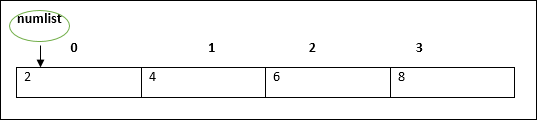
    For example, a declaration like − var numlist:number[] = [2,4,6,8] will create an array as given below −

    Declaring and Initializing Arrays

    The array pointer refers to the first element by default.

    Arrays may be declared and initialized in a single statement. The syntax for the same is −

    var array_name[:data type] = [val1,val2valn]
    

    Note − The pair of [] is called the dimension of the array.

    Accessing Array Elements

    The array name followed by the subscript is used refer to an array element. Its syntax is as follows −

    array_name[subscript] = value
    

    Example: Simple Array

    Open Compiler

    var alphas:string[]; 
    alphas =["1","2","3","4"]console.log(alphas[0]);console.log(alphas[1]);

    On compiling, it will generate following JavaScript code −

    var alphas;
    alphas =["1","2","3","4"];console.log(alphas[0]);console.log(alphas[1]);

    The output of the above code is as follows −

    1 
    2 
    

    Example: Single statement declaration and initialization

    Open Compiler

    var nums:number[]=[1,2,3,3]console.log(nums[0]);console.log(nums[1]);console.log(nums[2]);console.log(nums[3]);

    On compiling, it will generate following JavaScript code −

    var nums =[1,2,3,3];console.log(nums[0]);console.log(nums[1]);console.log(nums[2]);console.log(nums[3]);

    Its output is as follows −

    1 
    2 
    3 
    3 
    

    Array Object

    An array can also be created using the Array object. The Array constructor can be passed.

    • A numeric value that represents the size of the array or
    • A list of comma separated values.

    The following example shows how to create an array using this method.

    Example

    Open Compiler

    var arr_names:number[]=newArray(4)for(var i =0;i<arr_names.length;i++){ 
       arr_names[i]= i *2console.log(arr_names[i])}

    On compiling, it will generate following JavaScript code.

    var arr_names =newArray(4);for(var i =0; i < arr_names.length; i++){
       arr_names[i]= i *2;console.log(arr_names[i]);}

    Its output is as follows −

    0 
    2 
    4 
    6 
    

    Example: Array Constructor accepts comma separated values

    Open Compiler

    var names:string[]=newArray("Mary","Tom","Jack","Jill")for(var i =0;i<names.length;i++){console.log(names[i])}

    On compiling, it will generate following JavaScript code −

    var names =newArray("Mary","Tom","Jack","Jill");for(var i =0; i < names.length; i++){console.log(names[i]);}

    Its output is as follows −

    Mary 
    Tom 
    Jack 
    Jill
    

    Array Methods

    A list of the methods of the Array object along with their description is given below.

    S.No.Method & Description
    1.concat()Returns a new array comprised of this array joined with other array(s) and/or value(s).
    2.every()Returns true if every element in this array satisfies the provided testing function.
    3.filter()Creates a new array with all of the elements of this array for which the provided filtering function returns true.
    4.forEach()Calls a function for each element in the array.
    5.indexOf()Returns the first (least) index of an element within the array equal to the specified value, or -1 if none is found.
    6.join()Joins all elements of an array into a string.
    7.lastIndexOf()Returns the last (greatest) index of an element within the array equal to the specified value, or -1 if none is found.
    8.map()Creates a new array with the results of calling a provided function on every element in this array.
    9.pop()Removes the last element from an array and returns that element.
    10.push()Adds one or more elements to the end of an array and returns the new length of the array.
    11.reduce()Apply a function simultaneously against two values of the array (from left-to-right) as to reduce it to a single value.
    12.reduceRight()Apply a function simultaneously against two values of the array (from right-to-left) as to reduce it to a single value.
    13.reverse()Reverses the order of the elements of an array — the first becomes the last, and the last becomes the first.
    14.shift()Removes the first element from an array and returns that element.
    15.slice()Extracts a section of an array and returns a new array.
    16.some()Returns true if at least one element in this array satisfies the provided testing function.
    17.sort()Sorts the elements of an array.
    18.splice()Adds and/or removes elements from an array.
    19.toString()Returns a string representing the array and its elements.
    20.unshift()Adds one or more elements to the front of an array and returns the new length of the array.

    Array Destructuring

    Refers to breaking up the structure of an entity. TypeScript supports destructuring when used in the context of an array.

    Example

    Open Compiler

    var arr:number[]=[12,13]var[x,y]= arr 
    console.log(x)console.log(y)

    On compiling, it will generate following JavaScript code.

    var arr =[12,13];var x = arr[0], y = arr[1];console.log(x);console.log(y);

    Its output is as follows −

    12 
    13
    

    Array Traversal using forin loop

    One can use the forin loop to traverse through an array.

    Open Compiler

    var j:any;var nums:number[]=[1001,1002,1003,1004]for(j in nums){console.log(nums[j])}

    The loop performs an index based array traversal.

    On compiling, it will generate following JavaScript code.

    var j;var nums =[1001,1002,1003,1004];for(j in nums){console.log(nums[j]);}

    The output of the above code is given below −

    1001 
    1002 
    1003 
    1004
    

    Arrays in TypeScript

    TypeScript supports the following concepts in arrays −

    S.No.Concept & Description
    1.Multi-dimensional arraysTypeScript supports multidimensional arrays. The simplest form of the multidimensional array is the twodimensional array.
    2.Passing arrays to functionsYou can pass to the function a pointer to an array by specifying the array’s name without an index.
    3.Return array from functionsAllows a function to return an array