Author: saqibkhan

  • Select Into Statement

    The SQL Select Into Statement

    The SQL SELECT INTO Statement creates a new table and inserts data from an existing table into the newly created table. The new table is automatically created based on the structure of the columns in the SELECT statement and can be created in the same database or in a different database.

    However, it’s important to note that the SELECT INTO statement does not preserve any indexes, constraints, or other properties of the original table, and the new table will not have any primary keys or foreign keys defined by default. Therefore, you may need to add these properties to the new table manually if necessary.

    MySQL doesn’t support the SELECT … INTO TABLE Sybase SQL extension i.e. in MySQL you cannot use the SELECT … INTO statement to insert data from one table to another. Instead of this, we can use INSERT INTO … SELECT statement or, CREATE TABLE … SELECT.

    Syntax

    Following is the basic syntax of the SQL SELECT INTO statement in SQL Server −

    SELECT*INTO new_table_name FROM existing_table_name
    

    Example

    Let us create the CUSTOMERS table which contains the personal details of customers including their name, age, address and salary etc. as shown below −

    CREATETABLE CUSTOMERS (
       ID INTNOTNULL,
       NAME VARCHAR(20)NOTNULL,
       AGE INTNOTNULL,
       ADDRESS CHAR(25),
       SALARY DECIMAL(18,2),PRIMARYKEY(ID));

    Now, insert values into this table using the INSERT statement as follows −

    INSERTINTO CUSTOMERS VALUES(1,'Ramesh',32,'Ahmedabad',2000.00),(2,'Khilan',25,'Delhi',1500.00),(3,'Kaushik',23,'Kota',2000.00),(4,'Chaitali',25,'Mumbai',6500.00),(5,'Hardik',27,'Bhopal',8500.00),(6,'Komal',22,'Hyderabad',4500.00),(7,'Muffy',24,'Indore',10000.00);

    The CUSTOMERS table will be creates as follows −

    IDNAMEAGEADDRESSSALARY
    1Ramesh32Ahmedabad2000.00
    2Khilan25Delhi1500.00
    3Kaushik23Kota2000.00
    4Chaitali25Mumbai6500.00
    5Hardik27Bhopal8500.00
    6Komal22Hyderabad4500.00
    7Muffy24Indore10000.00

    The following SELECT INTO statement creates a new table called CUSTOMER_BACKUP and copies the data from the CUSTOMERS table into it −

    SELECT*INTO CUSTOMER_BACKUP FROM CUSTOMERS;

    Output

    We get the following result. We can observe that 7 rows have been modified.

    (7 rows affected)
    

    Verification

    We can verify whether the changes are reflected in a table by retrieving its contents using the SELECT statement. Following is the query to display the records in the CUSTOMER_BACKUP table −

    SELECT*from CUSTOMER_BACKUP;

    The table displayed is as follows −

    IDNAMEAGEADDRESSSALARY
    1Ramesh32Ahmedabad2000.00
    2Khilan25Delhi1500.00
    3Kaushik23Kota2000.00
    4Chaitali25Mumbai6500.00
    5Hardik27Bhopal8500.00
    6Komal22Hyderabad4500.00
    7Muffy24Indore10000.00

    Copying Data From Specific Columns

    We can also copy data from specific columns from an existing table into the new table using the SQL SELECT INTO statement. To do so, we just need to include the required column names after the select keyword.

    Syntax

    Following is the syntax −

    SELECT column1, column2,..., columnN
    INTO new_table_name
    FROM existing_table_name;

    Example

    In the following query, we are creating a new table called CUSTOMER_DETAILS with only the NAME, AGE, and ADDRESS columns from the CUSTOMERS table, and populate it with the corresponding data.

    SELECT name, age, address 
    INTO CUSTOMER_DETAILS 
    FROM CUSTOMERS;

    Output

    We get the following result. We can observe that 7 rows have been modified.

    (7 rows affected)
    

    Verification

    We can verify whether the changes are reflected in a table by retrieving its contents using the SELECT statement. Following is the query to display the records in the CUSTOMER_DETAILS table −

    SELECT*from CUSTOMER_DETAILS;

    The table displayed is as follows −

    NAMEAGEADDRESS
    Ramesh32Ahmedabad
    Khilan25Delhi
    Kaushik23Kota
    Chaitali25Mumbai
    Hardik27Bhopal
    Komal22Hyderabad
    Muffy24Indore

    Note: The new table will not include any other columns from the original table. Also the original table remains unchanged.

    Copying Data From Multiple Tables

    Using the SQL SELECT INTO statement we can also copy data from multiple tables to a new table. This is accomplished using the JOIN clause which combines the data from multiple tables (based on a common column).

    Syntax

    Following is the syntax to copy data from multiple tables using the SELECT INTO statement −

    SELECT column1, column2,..., columnN
    INTO new_table_name
    FROM table1
    JOIN table2 ON table1.column= table2.column

    Example

    First of all, let us create another table named ORDERS −

    CREATETABLE ORDERS (
    OID INTNOTNULL,DATEVARCHAR(20)NOTNULL,
    CUSTOMER_ID INTNOTNULL,
    AMOUNT DECIMAL(18,2));

    Using the INSERT statement, insert values into this table as follows −

    INSERTINTO ORDERS VALUES(102,'2009-10-08 00:00:00',3,3000.00),(100,'2009-10-08 00:00:00',3,1500.00),(101,'2009-11-20 00:00:00',2,1560.00),(103,'2008-05-20 00:00:00',4,2060.00);

    The table is created as −

    OIDDATECUSTOMER_IDAMOUNT
    1022009-10-08 00:00:0033000.00
    1002009-10-08 00:00:0031500.00
    1012009-11-20 00:00:0021560.00
    1032008-05-20 00:00:0042060.00

    Now, we are creating a new table called CUSTOMER_ORDERS that includes the customer name from the CUSTOMERS table and the customer id from the ORDERS table, where the id of customers from the CUSTOMERS table matches with the id of customers from the ORDERS table −

    SELECT CUSTOMERS.Name, ORDERS.customer_id
    INTO CUSTOMER_ORDERS
    FROM CUSTOMERS
    LEFTJOIN ORDERS ON CUSTOMERS.ID = ORDERS.customer_id;

    Output

    We get the following result. We can observe that 8 rows have been modified.

    (8 rows affected)
    

    Verification

    We can verify whether the changes are reflected in a table by retrieving its contents using the SELECT statement. Following is the query to display the records in the CUSTOMER_ORDERS table −

    SELECT*FROM CUSTOMER_ORDERS;

    The table displayed is as follows −

    NAMEcustomer_id
    RameshNULL
    Khilan2
    Kaushik3
    Kaushik3
    Chailtali4
    HardikNULL
    KomalNULL
    MuffyNULL

    Copying Specific Records

    We can also use the SQL SELECT INTO statement with a WHERE clause to create a new table and copy specific rows from an existing table into it.

    Syntax

    Following is the syntax for using SELECT INTO statement with a WHERE clause −

    SELECT*INTO new_table_name
    FROM existing_table_name
    WHERE condition;

    Example

    Using the following query we are creating a new table called NameStartsWith_K that includes all columns from the CUSTOMERS table, but it only stores the records of the customers whose name starts with “k”.

    SELECT*INTO NameStartsWith_K
    FROM CUSTOMERS
    WHERE NAME LIKE'k%';

    Output

    We get the following result. We can observe that 3 rows have been modified.

    (3 rows affected)
    

    Verification

    We can verify whether the changes are reflected in a table by retrieving its contents using the SELECT statement.

    SELECT*from NameStartsWith_K;

    The table displayed is as follows −

    IDNAMEAGEADDRESSSALARY
    2Khilan25Delhi1500.00
    3Kaushik23Kota2000.00
    6Komal22Hyderabad4500.00
  • Select Query

    The SQL SELECT Statement

    The SQL SELECT Statement is used to fetch the data from a database table which returns this data in the form of a table. These tables are called result-sets.

    CLAUSES and OPERATORS available in SQL can be used with the SELECT statement in order to retrieve the filtered records of a database table.

    Syntax

    The basic syntax of the SELECT Query is as follows −

    SELECT column1, column2, columnN FROM table_name;

    Here, column1, column2… are the fields of a table whose values you want to fetch. If you want to fetch all the columns available in a table, then you can use the following syntax −

    SELECT*FROM table_name;

    Example

    Assume we have created a table named CUSTOMERS using the CREATE TABLE statement as shown below −

    CREATETABLE CUSTOMERS (
       ID INTNOTNULL,
       NAME VARCHAR(20)NOTNULL,
       AGE INTNOTNULL,
       ADDRESS CHAR(25),
       SALARY DECIMAL(18,2),PRIMARYKEY(ID));

    Now, insert values into this table using the INSERT statement as follows −

    INSERTINTO CUSTOMERS VALUES(1,'Ramesh',32,'Ahmedabad',2000.00),(2,'Khilan',25,'Delhi',1500.00),(3,'Kaushik',23,'Kota',2000.00),(4,'Chaitali',25,'Mumbai',6500.00),(5,'Hardik',27,'Bhopal',8500.00),(6,'Komal',22,'Hyderabad',4500.00),(7,'Muffy',24,'Indore',10000.00);

    The table will be created as −

    IDNAMEAGEADDRESSSALARY
    1Ramesh32Ahmedabad2000.00
    2Khilan25Delhi1500.00
    3Kaushik23Kota2000.00
    4Chaitali25Mumbai6500.00
    5Hardik27Bhopal8500.00
    6Komal22Hyderabad4500.00
    7Muffy24Indore10000.00

    Retrieving Selected Fields/Columns

    The following statement fetches the ID, Name and Salary fields of the records available in CUSTOMERS table.

    SELECT ID, NAME, SALARY FROM CUSTOMERS;

    Output

    The above query would produce the following table −

    IDNAMESalary
    1Ramesh2000.00
    2Khilan1500.00
    3Kaushik2000.00
    4Chaitali6500.00
    5Hardik8500.00
    6Komal4500.00
    7Muffy10000.00

    Retrieving All Fields/Columns

    If you want to fetch all the fields of the CUSTOMERS table, then you should use the query of SELECT statement with an Asterisk (*) instead of the column names, as shown below −

    SELECT*FROM CUSTOMERS;

    Output

    The resultant table will be −

    IDNAMEAGEADDRESSSALARY
    1Ramesh32Ahmedabad2000.00
    2Khilan25Delhi1500.00
    3Kaushik23Kota2000.00
    4Chaitali25Mumbai6500.00
    5Hardik27Bhopal8500.00
    6Komal22Hyderabad4500.00
    7Muffy24Indore10000.00

    Computing Using SELECT

    The SQL SELECT statement can also be used to retrieve the results of various mathematical computations in the form of a table. In such cases, you do not need to specify any database table in the statement.

    Following is the syntax to do so −

    SELECT mathematical_expression;

    Example

    Following is an example which multiply two given numbers using SQL statement.

    SELECT56*65;

    The query above produces the following output −

    56*65
    3640

    Aliasing a Column in SELECT Statement

    Whenever a column name in a table is too difficult to read and understand, SQL provides a method to alias this column name into another understandable and relative name. This is done using the AS keyword. You can use the AS keyword in a SELECT statement to display the column names of a table as an alias name.

    Following is the syntax to do so −

    SELECT column_name 
    AS alias_name 
    FROM table_name;

    You can also use an alias to display SELECT expressions with the same syntax; you should use a mathematical statement instead of column_name.

    Example

    In the example below, we are trying to retrieve customer details NAME and AGE in a single column of the resultant table using the concat() expression and aliasing the column as DETAILS along with the customer addresses from the CUSTOMERS table. This will be done using SELECT statement in the following query −

    SELECT CONCAT(NAME,' ',AGE)AS DETAILS, ADDRESS 
    FROM CUSTOMERS ORDERBY NAME;

    The query above produces the following output −

    DETAILSADDRESS
    Chaitali 25Mumbai
    Hardik 27Bhopal
    Kaushik 23Kota
    Khilan 25Delhi
    Komal 22Hyderabad
    Muffy 24Indore
    Ramesh 32Ahmedabad
  • Insert Query

    The SQL INSERT INTO Statement

    The SQL INSERT INTO Statement is used to add new rows of data into a table in the database. Almost all the RDBMS provide this SQL query to add the records in database tables.

    Each value in the records we are inserting in a table using this statement should be of the same datatype as the respective column and satisfy the constraints of the column (if any). The values passed using an insert statement should match the number of columns in the table or, the number of columns mentioned in the current query. If any of these conditions are not satisfied, this statement generates an error.

    Syntax

    There are two basic syntaxes of the SQL INSERT INTO statement which are shown below −

    INSERTINTO TABLE_NAME (column1, column2...columnN)VALUES(value1, value2...valueN);

    Here, column1, column2, column3,…columnN are the names of the columns in the table into which you want to insert the data.

    There is another syntax of INSERT INTO statement where you can specify only column values without column names. But, make sure the order of the values is in the same order as the columns in the table.

    Following is second syntax of the SQL INSERT Query −

    INSERTINTO TABLE_NAME 
    VALUES(value1,value2...valueN);

    Example

    To see an example, let us create a table with name CUSTOMERS in the MySQL database using the CREATE TABLE statement as shown below −

    CREATETABLE CUSTOMERS(
       ID   INTNOTNULL,
       NAME VARCHAR(20)NOTNULL,
       AGE  INTNOTNULL,
       ADDRESS  CHAR(25),
       SALARY   DECIMAL(18,2),PRIMARYKEY(ID));

    The following SQL INSERT INTO statements will create three records in the empty CUSTOMERS table.

    INSERTINTO CUSTOMERS (ID,NAME,AGE,ADDRESS,SALARY)VALUES(1,'Ramesh',32,'Ahmedabad',2000.00);INSERTINTO CUSTOMERS (ID,NAME,AGE,ADDRESS,SALARY)VALUES(2,'Khilan',25,'Delhi',1500.00);INSERTINTO CUSTOMERS (ID,NAME,AGE,ADDRESS,SALARY)VALUES(3,'Kaushik',23,'Kota',2000.00);

    We can also insert multiple rows at once using the following query as shown below −

    INSERTINTO CUSTOMERS (ID,NAME,AGE,ADDRESS,SALARY)VALUES(4,'Chaitali',25,'Mumbai',6500.00),(5,'Hardik',27,'Bhopal',8500.00),(6,'Komal',22,'Hyderabad',4500.00);

    Following query adds another record in the CUSTOMERS table using the second syntax as shown below −

    INSERTINTO CUSTOMERS 
    VALUES(7,'Muffy',24,'Indore',10000.00);

    Verification

    To check if the records are inserted into the CUSTOMERS table, use the SELECT query −

    SELECT*FROM CUSTOMERS;

    The table will be displayed with all the records included in it.

    IDNAMEAGEADDRESSSALARY
    1Ramesh32Ahmedabad2000.00
    2Khilan25Delhi1500.00
    3Kaushik23Kota2000.00
    4Chaitali25Mumbai6500.00
    5Hardik27Bhopal8500.00
    6Komal22Hyderabad4500.00
    7Muffy24Indore10000.00

    Inserting Data into a Table Using Another

    Sometimes, you just need to copy the data from an existing table to another table in the same database. SQL provides convenient ways to do so −

    • Using INSERT… SELECT
    • Using INSERT… TABLE

    The INSERT… SELECT Statement

    You can populate the data into a table through the select statement using an already existing another table; provided the other table has a set of fields, which are required to populate the first table.

    Here is the syntax −

    INSERTINTO first_table_name [(column_name(s))]SELECT column1, column2,...columnN
    FROM second_table_name
    [WHERE condition];

    Example

    The following statement would create another table named BUYERS with the same structure as CUSTOMERS table −

    CREATETABLE BUYERS(
       ID   INTNOTNULL,
       NAME VARCHAR(20)NOTNULL,
       AGE  INTNOTNULL,
       ADDRESS  CHAR(25),
       SALARY   DECIMAL(18,2),PRIMARYKEY(ID));

    Now using the INSERT… INTO statement, let us insert all the records from the CUSTOMERS table into the BUYERS table.

    INSERTINTO BUYERS (ID, NAME, AGE, ADDRESS, SALARY)SELECT*FROM CUSTOMERS;

    Output

    The output will be displayed as −

    Query OK, 7 rows affected (0.07 sec)
    Records: 7  Duplicates: 0  Warnings: 0
    

    Verification

    To verify if the records are inserted properly or not, use the following SELECT query −

    SELECT*FROM BUYERS;

    The table will be displayed containing the same records as CUSTOMERS −

    IDNAMEAGEADDRESSSALARY
    1Ramesh32Ahmedabad2000.00
    2Khilan25Delhi1500.00
    3Kaushik23Kota2000.00
    4Chaitali25Mumbai6500.00
    5Hardik27Bhopal8500.00
    6Komal22Hyderabad4500.00
    7Muffy24Indore10000.00

    The INSERT… TABLE Statement

    If you have two tables structure exactly same, then instead of selecting specific columns you can insert the contents of one table into another using the INSERT…TABLE statement.

    Following is the syntax to do so −

    INSERTINTO first_table_name TABLE second_table_name;

    Example

    In this example, let us use the same CUSTOMERS table we have created in the previous example and copy its contents into another table named SHOPPERS. For that, let’s create the table SHOPPERS with the same structure as CUSTOMERS table −

    CREATETABLE SHOPPERS(
       ID   INTNOTNULL,
       NAME VARCHAR(20)NOTNULL,
       AGE  INTNOTNULL,
       ADDRESS  CHAR(25),
       SALARY   DECIMAL(18,2),PRIMARYKEY(ID));

    Now use the following statement to insert all the records from the CUSTOMERS table into SHOPPERS table −

    INSERTINTO SHOPPERS TABLE CUSTOMERS;

    Output

    This query will generate the following output −

    Query OK, 7 rows affected (0.13 sec)
    Records: 7  Duplicates: 0  Warnings: 0
    

    Verification

    If you verify the contents of the SHOPPERS table using the SELECT statement shown below −

    SELECT*FROM SHOPPERS;

    The table will be displayed with the newly inserted values as −

    IDNAMEAGEADDRESSSALARY
    1Ramesh32Ahmedabad2000.00
    2Khilan25Delhi1500.00
    3Kaushik23Kota2000.00
    4Chaitali25Mumbai6500.00
    5Hardik27Bhopal8500.00
    6Komal22Hyderabad4500.00
    7Muffy24Indore10000.00

    Insert Data Only in Specified Columns

    You can select only particular columns from a table to insert into another table. The following SQL statement will insert a new record into BUYERS table with “ID”, “NAME” and “AGE” from CUSTOMERS table.

    We can skip only fields which are not defined as NOT NULL, but if we have defined a column as NOT NULL, then we need to provide a value to this column otherwise it will raise an error and record will not be inserted.

    Before we proceed further let’s clean all the records from BUYERS table as follows:

    DELETEFROM BUYERS;

    Now we have empty BUYERS table, let’s use the following SQL statement:

    INSERTINTO BUYERS (ID, NAME, AGE)SELECT ID, NAME, AGE FROM CUSTOMERS;

    Output

    This query will generate the following output −

    Query OK, 7 rows affected (0.13 sec)
    Records: 7  Duplicates: 0  Warnings: 0
    

    Verification

    If you verify the contents of the BUYERS table using the SELECT statement shown below −

    SELECT*FROM BUYERS;

    The table will be displayed with the newly inserted values as −

    IDNAMEAGEADDRESSSALARY
    1Ramesh32
    2Khilan25
    3Kaushik23
    4Chaitali25
    5Hardik27
    6Komal22
    7Muffy24
  • Constraints

    SQL Constraints

    SQL Constraints are the rules applied to a data columns or the complete table to limit the type of data that can go into a table. When you try to perform any INSERT, UPDATE, or DELETE operation on the table, RDBMS will check whether that data violates any existing constraints and if there is any violation between the defined constraint and the data action, it aborts the operation and returns an error.

    We can define a column level or a table level constraints. The column level constraints are applied only to one column, whereas the table level constraints are applied to the whole table.

    SQL Create Constraints

    We can create constraints on a table at the time of a table creation using the CREATE TABLE statement, or after the table is created, we can use the ALTER TABLE statement to create or delete table constraints.

    CREATETABLE table_name (
       column1 datatype constraint,
       column2 datatype constraint,....
       columnN datatype constraint);

    Different RDBMS allows to define different constraints. This tutorial will discuss about 7 most important constraints available in MySQL.

    NOT NULL Constraint

    When applied to a column, NOT NULL constraint ensure that a column cannot have a NULL value. Following is the example to create a NOT NULL constraint:

    CREATETABLE CUSTOMERS (
       ID INTNOTNULL,
       NAME VARCHAR(20)NOTNULL,
       AGE INTNOTNULL,
       ADDRESS CHAR(25),
       SALARY DECIMAL(18,2));

    Check further detail on NOT NULL Constraint

    UNIQUE Key Constraint

    When applied to a column, UNIQUE Key constraint ensure that a column accepts only UNIQUE values. Following is the example to create a UNIQUE Key constraint on column ID. Once this constraint is created, column ID can’t be null and it will accept only UNIQUE values.

    CREATETABLE CUSTOMERS (
       ID INTNOTNULLUNIQUE,
       NAME VARCHAR(20)NOTNULL,
       AGE INTNOTNULL,
       ADDRESS CHAR(25),
       SALARY DECIMAL(18,2));

    Check further detail on Unique Key Constraint

    DEFAULT Value Constraint

    When applied to a column, DEFAULT Value constraint provides a default value for a column when none is specified. Following is the example to create a DEFAULT constraint on column NAME. Once this constraint is created, column NAME will set to “Not Available” value if NAME is not set to a value.

    CREATETABLE CUSTOMERS (
       ID INTNOTNULLUNIQUE,
       NAME VARCHAR(20)DEFAULT'Not Available',
       AGE INTNOTNULL,
       ADDRESS CHAR(25),
       SALARY DECIMAL(18,2));

    Check further detail on DEFAULT Value Constraint

    PRIMARY Key Constraint

    When applied to a column, PRIMARY Key constraint ensure that a column accepts only UNIQUE value and there can be a single PRIMARY Key on a table but multiple columns can constituet a PRIMARY Key. Following is the example to create a PRIMARY Key constraint on column ID. Once this constraint is created, column ID can’t be null and it will accept only unique values.

    CREATETABLE CUSTOMERS(
       ID          INTNOTNULL,
       NAME        VARCHAR(20)NOTNULL,
       AGE         INTNOTNULL,
       ADDRESS     CHAR(25),
       SALARY      DECIMAL(18,2),PRIMARYKEY(ID));

    Check further detail on PRIMARY Key Constraint

    FOREIGN Key Constraint

    FOREIGN Key constraint maps with a column in another table and uniquely identifies a row/record in that table. Following is an example to create a foreign key constraint on column ID available in CUSTOMERS table as shown in the statement below −

    CREATETABLE ORDERS (
       ID INTNOTNULL,DATEDATETIME,
       CUSTOMER_ID INTFOREIGNKEYREFERENCES CUSTOMERS(ID),
       AMOUNT DECIMAL,PRIMARYKEY(ID));

    Check further detail on FOREIGN Key Constraint

    CHECK Value Constraint

    When applied to a column, CHECK Value constraint works like a validation and it is used to check the validity of the data entered into the particular column of the table. table and uniquely identifies a row/record in that table. Following is an example to create a CHECK validation on AGE column which will not accept if its value is below to 18.

    CREATETABLE CUSTOMERS(
       ID          INTNOTNULL,
       NAME        VARCHAR(20)NOTNULL,
       AGE         INTNOTNULLCHECK(AGE>=18),
       ADDRESS     CHAR(25),
       SALARY      DECIMAL(18,2),PRIMARYKEY(ID));

    Check further detail on CHECK Value Constraint

    INDEX Constraint

    The INDEX constraints are created to speed up the data retrieval from the database. An Index can be created by using a single or group of columns in a table. A table can have a single PRIMARY Key but can have multiple INDEXES. An Index can be Unique or Non Unique based on requirements. Following is an example to create an Index on Age Column of the CUSTOMERS table.

    CREATEINDEX idx_age ON CUSTOMERS ( AGE );

    Check further detail on INDEX Constraint

    Dropping SQL Constraints

    Any constraint that you have defined can be dropped using the ALTER TABLE command with the DROP CONSTRAINT option. For example, to drop the primary key constraint from the CUSTOMERS table, you can use the following command.

    ALTERTABLE CUSTOMERS DROPCONSTRAINTPRIMARYKEY;

    Some RDBMS allow you to disable constraints instead of permanently dropping them from the database, which you may want to temporarily disable the constraints and then enable them later.

    Data Integrity Constraints

    Data integrity constraints are used to ensure the overall accuracy, completeness, and consistency of data. Now a days data integrity also refers to the data safety in regard to regulatory compliance, such as GDPR compliance etc.

    Data integrity is handled in a relational database through the concept of referential integrity. There are many types of integrity constraints that play a role in Referential Integrity (RI). These constraints include Primary Key, Foreign Key, Unique Constraints and other constraints which are mentioned above.

  • Delete Table

    The SQL DELETE is a command of Data Manipulation Language (DML), so it does not delete or modify the table structure but it delete only the data contained within the table. Therefore, any constraints, indexes, or triggers defined in the table will still exist after you delete data from it.

    SQL DELETE TABLE Statement

    The SQL DELETE TABLE statement is used to delete the existing records from a table in a database. If you wish to delete only the specific number of rows from the table, you can use the WHERE clause with the DELETE statement. If you omit the WHERE clause, all rows in the table will be deleted. The SQL DELETE statement operates on a single table at a time.

    Syntax

    Following is the basic syntax for using the SQL DELETE command in SQL −

    DELETEFROM table_name;

    SQL DELETE TABLE with WHERE Clause

    We can use the SQL DELETE statement to delete specific rows from a table based on a single condition using the WHERE clause.

    Syntax

    Following is the syntax for deleting specific rows based on single condition −

    DELETEFROM table_name
    WHERE condition;

    Example

    Assume we have creating a table named CUSTOMERS, which contains the personal details of customers including their name, age, address and salary etc.

    CREATETABLE CUSTOMERS (
       ID INTNOTNULL,
       NAME VARCHAR(20)NOTNULL,
       AGE INTNOTNULL,
       ADDRESS CHAR(25),
       SALARY DECIMAL(18,2),PRIMARYKEY(ID));

    Now insert values into this table using the INSERT statement as follows −

    INSERTINTO CUSTOMERS VALUES(1,'Ramesh',32,'Ahmedabad',2000.00),(2,'Khilan',25,'Delhi',1500.00),(3,'Kaushik',23,'Kota',2000.00),(4,'Chaitali',25,'Mumbai',6500.00),(5,'Hardik',27,'Bhopal',8500.00),(6,'Komal',22,'Hyderabad',4500.00),(7,'Muffy',24,'Indore',10000.00);

    If you retrieve the contents of the above created table using the SELECT * FROM CUSTOMERS statement you will get the following output −

    IDNAMEAGEADDRESSSALARY
    1Ramesh32Ahmedabad2000.00
    2Khilan25Delhi1500.00
    3Kaushik23Kota2000.00
    4Chaitali25Mumbai6500.00
    5Hardik27Bhopal8500.00
    6Komal22Hyderabad4500.00
    7Muffy24Indore10000.00

    Now, let’s try to delete all the customers with the name ‘Hardik’ as shown in the query below −

    DELETEFROM CUSTOMERS WHERE NAME='Hardik';

    Output

    We get the following result. We can observe that 1 row has been deleted.

    Query OK, 1 row affected (0.05 sec)
    

    Verification

    Now if you retrieve the contents of the CUSTOMERS table using the SELECT * FROM CUSTOMERS command you will get the following output −

    IDNAMEAGEADDRESSSALARY
    1Ramesh32Ahmedabad2000.00
    2Khilan25Delhi1500.00
    3Kaushik23Kota2000.00
    4Chaitali25Mumbai6500.00
    6Komal22Hyderabad4500.00
    7Muffy24Indore10000.00

    Deleting rows based on multiple conditions

    We can also use the SQL DELETE TABLE statement to delete specific rows from a table based on multiple conditions using the WHERE clause. This is useful when we want to remove a subset of rows from a table that meet a certain criterion.

    When using multiple conditions, we can use the comparison operators such as AND, OR, and NOT to refine our conditions. This way, only rows that satisfy the conditions will be deleted.

    Syntax

    Following is the basic syntax for deleting specific rows based on multiple conditions which can be connected using either AND or OR operators −

    DELETEFROM table_name
    WHERE condition1 AND condition2 OR... conditionN;

    Here, table_name is the name of the table from which we want to delete rows, and condition1 through conditionN are the conditions that must be met for the rows to be deleted. The AND or OR operators can be used to join the conditions together.

    Example

    In the following query we are trying to delete all the customers whose name is either ‘Komal’ or their address is ‘Mumbai’ −

    Open Compiler

    DELETEFROM CUSTOMERS 
    WHERE NAME='Komal'OR ADDRESS='Mumbai';

    Output

    We get the following result. We can observe that 2 rows has been deleted.

    Query OK, 2 rows affected (0.03 sec)
    

    Verification

    Now if you retrieve the contents of the CUSTOMERS table using the SELECT * FROM CUSTOMERS command you will get the following output −

    IDNAMEAGEADDRESSSALARY
    1Ramesh32Ahmedabad2000.00
    2Khilan25Delhi1500.00
    3Kaushik23Kota2000.00
    6Komal22Hyderabad4500.00
    7Muffy24Indore10000.00

    Deleting all the records in a table

    We can use the SQL DELETE TABLE statement without a WHERE clause to delete all records in a table in SQL. This statement will remove all the rows from the specified table, effectively resetting the table to its original state (containing only the structure and its constraints).

    However, it’s important to note that this operation cannot be undone, and all the data in the table will be permanently deleted.

    Example

    In here, we are trying to delete all the records from the CUSTOMERS table −

    DELETEFROM CUSTOMERS;

    Output

    Following is the result produced by executing the above query −

    Query OK, 4 rows affected (0.13 sec)
    

    Verification

    Now, if you retrieve the contents of the CUSTOMERS table using the SELECT * FROM CUSTOMERS statement you will get the following result −

    Empty set (0.00 sec)
    

  • Drop Table

    SQL provides command to DROP an existing table completely in a database. Once SQL DROP command is issued then there is no way back to recover the table including its data, so be careful before issuing this command in production system.

    The SQL DROP Table Statement

    The SQL DROP TABLE statement is a Data Definition Language (DDL) command that is used to remove a table’s definition, and its data, indexes, triggers, constraints and permission specifications (if any).

    Note −

    • You should be very careful while using this command because once a table is deleted then all the information available in that table will also be lost forever.
    • If the table is partitioned, the statement removes the table definition, all its partitions, all data stored in those partitions, and all partition definitions.
    • To drop a table in a database, one must require ALTER permission on the said table and CONTROL permissions on the table schema.
    • Even though it is a data definition language command, it is different from TRUNCATE TABLE statement as the DROP statement completely frees the table from the memory.
    • DROP TABLE causes an implicit commit, except when used with the TEMPORARY keyword.

    Syntax

    The basic syntax of this DROP TABLE statement is as follows −

    DROPTABLE table_name;

    Example

    Assume we have created a table named CUSTOMERS using the CREATE TABLE statement as shown below −

    CREATETABLE CUSTOMERS(
       ID          INTNOTNULL,
       NAME        VARCHAR(20)NOTNULL,
       AGE         INTNOTNULL,
       ADDRESS     CHAR(25),
       SALARY      DECIMAL(18,2),PRIMARYKEY(ID));

    Let us first verify the CUSTOMERS table using the DESC command then we will delete it from the database −

    DESCTable

    If the table is created successfully the DESC command displays the structure of the table as shown below −

    FieldTypeNullKeyDefaultExtra
    IDint(11)NOPRINULL
    NAMEvarchar(20)NONULL
    AGEint(11)NONULL
    ADDRESSchar(25)YESNULL
    SALARYdecimal(18,2)YESNULL

    This means that the CUSTOMERS table is available in the database, so let us now drop it as shown below.

    DROPTABLE CUSTOMERS;

    Output

    The output is displayed as follows −

    Query OK, 0 rows affected (0.001 sec)
    

    Verification

    Now, to verify if the table is actually dropped, you can use the DESC CUSTOMERS command as shown −

    DESC CUSTOMERS;

    Following error is displayed −

    ERROR 1146 (42S02): Table 'tutorials.CUSTOMERS' doesn't exist
    

    When a MySQL table is dropped using SQL DROP command, privileges granted specifically for the table are not automatically dropped. They must be dropped manually.

    The IF EXISTS Clause

    Instead of always checking if the table exists or not in a database before dropping it, you can use the IF EXISTS clause in the DROP TABLE statement.

    This clause, when specified in the DROP TABLE query, will automatically check whether the table exists in the current database and then drops it, if yes. If the table does not exist in the database, the query will be ignored.

    Syntax

    Following is the basic syntax of DROP TABLE IF EXISTS −

    DROPTABLE[IFEXISTS] table_name;

    Example

    If you try to drop a table that doesn’t exist in the database, without using the IF EXISTS clause, as shown below −

    DROPTABLE CUSTOMERS;

    An error will be generated −

    ERROR 1051 (42S02): Unknown table 'tutorials.CUSTOMERS'
    

    If you use the IF EXISTS clause along with the DROP TABLE statement as shown below, the specified table will be dropped and if a table with the given name, doesn’t exist the query will be ignored.

    But if you try to drop a table that does not exist in a database, using the IF EXISTS clause, as shown below −

    DROPTABLEIFEXISTS CUSTOMERS;

    The query will be ignored with the following output displayed −

    Query OK, 0 rows affected, 1 warning (0.001 sec)
    

    DROP – TEMPORARY TABLE

    You can include TEMPORARY keyword with DROP TABLE statement which will drop only TEMPORARY tables. Including the TEMPORARY keyword is a good way to prevent accidentally dropping non-TEMPORARY tables.

    Syntax

    DROPTEMPORARYTABLE TEMP_TABLE;

    Example

    Following is an example to delete a temporary table CUSTOMERS.

    DROPTEMPORARYTABLE CUSTOMERS;

    Print Page

  • Attribute Binding

    What is Attribute Binding?

    Attribute binding helps to set the value for the attribute of the HTML element. Angular exposes attributes of the HTML element with a matching property with the attribute name converted into camelCase.

    For example, the colspan attribute’s corresponding angular property is colSpan. Even though, angular tries to provide all HTML elements attributes as property, it still misses some of the attributes of SVG elements, aria (web accessibility) elements, etc.,

    We can use attribute binding where the attributes of a HTML element is not available as property. Also, we can use attribute binding for attributes of all HTML element.

    How to use Attribute Binding?

    To use attribute binding in your Angular application, use the square brackets around the attribute name. It basically represents the attribute of a HTML element in the template.

    Syntax

    The syntax to use attribute binding is as follows −

    <HTMLTag [attr.<attribute_name>]="<template variable>"/>

    We can combine attr. string with the actual attribute name of the HTML element to create the angular attribute representation. The value of the attribute is a template variable. While generating the view from the template, angular will set the value of the attribute by processing the template variable.

    Implementing Attribute Binding

    Let us create a simple registration form to understand attribute binding. Our registration form will have three input field as shown below and a button to submit the registration form.

    • Username
    • Password
    • Confirm password

    Step 1: Create a new application, my-app using angular CLI as shown below −

    ng newmy-app
    

    Step 2: Create a new registration form component, RegisterForm using angular CLI as shown below −

    ng generate component RegisterForm
    

    Step 3: Open the registration form component’s template and add user registration form with username, password and confirm password.

    <div><form method="post"><div class="container"><label for="username"><b>Username</b></label><input type="text" name="username" required><label for="password"><b>Password</b></label><input type="password" name="password" required><label for="confirm_password"><b>Confirm Password</b></label><input type="password" name="confirm_password" required><button type="submit">Register</button></div></form></div>

    Step 4: Open the registration form component’s style and style the registration form using CSS as shown below −

    .container{padding: 15px;}input[type=text], input[type=password]{width: 100%;padding: 10px 20px;margin: 10px 0;display: inline-block;border: 1px solid #ccc;box-sizing: border-box;}button{background-color: blue;color: white;padding: 15px 20px;margin: 10px 0;border: none;cursor: pointer;width: 100%;}

    Step 5: Include our registration form component in the app template file, app.component.html:

    <app-register-form />

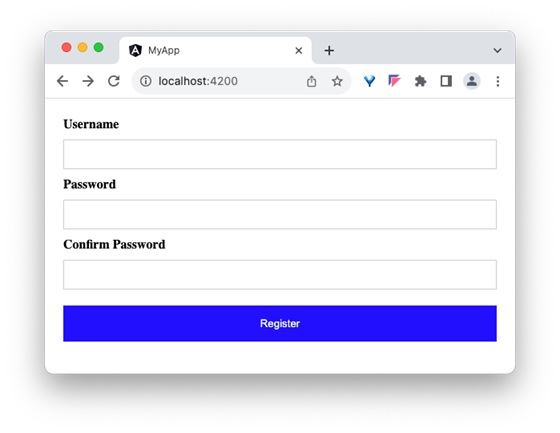
    Step 6: Run the application and test the registration form.

    registration form

    Step 7: Next, we will try to set the placeholder text for all input field using attributes binding. Add three member variable in the component to represent the placeholder text for username, password and confirm password input field.

    placeholder1: string ="Enter username"
    placeholder2: string ="Enter password"
    placeholder3: string ="Repeat password"

    Step 8: Assign the above declared component’s member variable to the placeholder attributes of username, password and confirm password input accordingly in the template using [attr.placeholder] attribute as shown below −

    <div><form method="post"><div class="container"><label for="username"><b>Username</b></label><input type="text" [attr.placeholder]="placeholder1" name="username" required><label for="password"><b>Password</b></label><input type="password" [attr.placeholder]="placeholder2" name="password" required><label for="confirm_password"><b>Confirm Password</b></label><input type="password" [attr.placeholder]="placeholder3"
    
         name="confirm_password" required&gt;&lt;button type="submit"&gt;Register&lt;/button&gt;&lt;/div&gt;&lt;/form&gt;&lt;/div&gt;</code></pre>

    Here,

    • attr.placeholder represents the placeholder attribute of input elements.

    Step 9: Let us add ARIA attribute, aria-label to the input field. aria-label is used for accessibility purposes.

    <div><form method="post"><div class="container"><label for="username"><b>Username</b></label><input type="text" [attr.aria-label]="placeholder1"
    
            &#91;attr.placeholder]="placeholder1" name="username" required&gt;&lt;label for="password"&gt;&lt;b&gt;Password&lt;/b&gt;&lt;/label&gt;&lt;input type="password" &#91;attr.aria-label]="placeholder2"
            &#91;attr.placeholder]="placeholder2" name="password" required&gt;&lt;label for="confirm_password"&gt;&lt;b&gt;Confirm Password&lt;/b&gt;&lt;/label&gt;&lt;input type="password" &#91;attr.aria-label]="placeholder3"
            &#91;attr.placeholder]="placeholder3" name="confirm_password" required&gt;&lt;button type="submit"&gt;Register&lt;/button&gt;&lt;/div&gt;&lt;/form&gt;&lt;/div&gt;</code></pre>

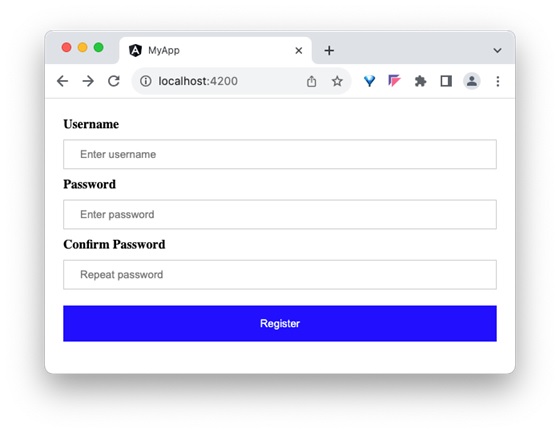
    Step 10: Next, run the application and check the output.

    application output

    Step 11: Since, we can set any attribute of the HTML element using attribute binding, let us apply the class, container using attribute binding.

    Step 12: Create a new member variable, myContainerClass in the component as shown below −

    myContainerClass: string ="container"

    Step 13: Apply the member variable in the template as shown below −

    <div [attr.class]="myContainerClass"><!-- form --></div>

    Step 14: The complete listing of the component is as follows:

    import{ Component }from'@angular/core';
    
    @Component({
       selector:'app-login-form',
       templateUrl:'./register-form.component.html',
       styleUrls:['./register-form.component.css']})exportclassRegisterFormComponent{
       myContainerClass: string ="container"
       placeholder1: string ="Enter username"
       placeholder2: string ="Enter password"
       placeholder3: string ="Repeat password"}

    Step 15: The complete listing of the component's template is as follows:

    <div><form method="post"><div class="container"><label for="username"><b>Username</b></label><input type="text" [attr.aria-label]="placeholder1"
    
            &#91;attr.placeholder]="placeholder1" name="username" required&gt;&lt;label for="password"&gt;&lt;b&gt;Password&lt;/b&gt;&lt;/label&gt;&lt;input type="password" &#91;attr.aria-label]="placeholder2"
            &#91;attr.placeholder]="placeholder2" name="password" required&gt;&lt;label for="confirm_password"&gt;&lt;b&gt;Confirm Password&lt;/b&gt;&lt;/label&gt;&lt;input type="password" &#91;attr.aria-label]="placeholder3"
            &#91;attr.placeholder]="placeholder3" name="confirm_password" required&gt;&lt;button type="submit"&gt;Register&lt;/button&gt;&lt;/div&gt;&lt;/form&gt;&lt;/div&gt;</code></pre>

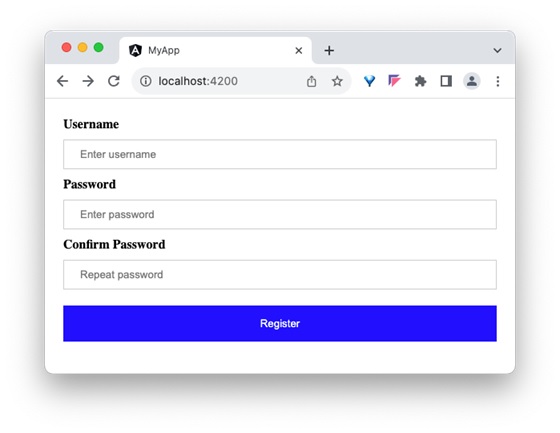
    Step 16: Next, run the application and check the output.

    register

    Differences between Property Binding and Attribute Binding

    The table below shows how property binding is different from attribute binding −

    Property BindingAttribute Binding
    Property Binding binds to the properties of DOM elements or directives.Attribute binding binds to the attributes of an element
    It is used to bind properties that can change dynamically, like DOM properties.It is used when you need to bind to attributes that do not have corresponding properties on the element.
    It directly updates the DOM property.It updates the attribute value, but does not directly affect the DOM property.
  • Alter TABLE

    SQL − ALTER TABLE Statement

    The SQL ALTER TABLE command is a part of Data Definition Language (DDL) and modifies the structure of a table. The ALTER TABLE command can add or delete columns, create or destroy indexes, change the type of existing columns, or rename columns or the table itself.

    The ALTER TABLE command can also change characteristics of a table such as the storage engine used for the table. We will make use of the following table in our examples

    IDNAMEAGEADDRESSSALARY
    1Ramesh32Ahmedabad2000.00
    2Khilan25Delhi1500.00
    3Kaushik23Kota2000.00
    4Chaitali25Mumbai6500.00
    5Hardik27Bhopal8500.00
    6Komal22Hyderabad4500.00
    7Muffy24Indore10000.00

    Syntax

    Following is the basic syntax of an ALTER TABLE command −

    ALTERTABLE table_name [alter_option ...];

    Where, the alter_option depends on the type of operation to be performed on a table. This article will discuss such important operations one by one.

    ALTER TABLE − ADD Column

    If you need to add a new column to a table, you should use the ADD COLUMN option along with ALTER TABLE statement as shown below −

    ALTERTABLE table_name ADD column_name datatype;

    Example

    Following is the example to ADD a New Column to an existing table −

    ALTERTABLE CUSTOMERS ADD SEX char(1);

    Output

    Executing the query above will produce the following output −

    Query OK, 0 rows affected (0.09 sec)
    Records: 0  Duplicates: 0  Warnings: 0
    

    Verification

    To verify whether the CUSTOMERS table is altered by adding a new column SEX, use the SELECT statement to retrieve the records of the table −

    SELECT*FROM CUSTOMERS;

    Now, the CUSTOMERS table will be displayed as follows −

    IDNAMEAGEADDRESSSALARYSEX
    1Ramesh32Ahmedabad2000.00NULL
    2Khilan25Delhi1500.00NULL
    3Kaushik23Kota2000.00NULL
    4Chaitali25Mumbai6500.00NULL
    5Hardik27Bhopal8500.00NULL
    6Komal22Hyderabad4500.00NULL
    7Muffy24Indore10000.00NULL

    ALTER TABLE − DROP COLUMN

    If you need to drop an existing column from a table, you should use the DROP COLUMN option along with ALTER TABLE statement as shown below.

    ALTERTABLE table_name DROPCOLUMN column_name;

    Example

    Following is the example to DROP sex column from the existing table.

    ALTERTABLE CUSTOMERS DROPCOLUMN SEX;

    Output

    Executing the query above will produce the following output −

    Query OK, 0 rows affected (0.07 sec)
    Records: 0  Duplicates: 0  Warnings: 0
    

    Verification

    To verify whether the CUSTOMERS table is altered by dropping an existing column SEX, use the SELECT statement to retrieve the records of the table −

    SELECT*FROM CUSTOMERS;

    Now, the CUSTOMERS table is changed and following would be the output from the SELECT statement.

    IDNAMEAGEADDRESSSALARY
    1Ramesh32Ahmedabad2000.00
    2Khilan25Delhi1500.00
    3Kaushik23Kota2000.00
    4Chaitali25Mumbai6500.00
    5Hardik27Bhopal8500.00
    6Komal22Hyderabad4500.00
    7Muffy24Indore10000.00

    ALTER TABLE − ADD INDEX

    You can add index to an existing column of a table using the ADD INDEX statement along with the ALTER statement −

    ALTERTABLE table_name 
    ADDINDEX index_name [index_type]

    Example

    Following query adds an index on the column NAME of CUSTOMERS table −

    ALTERTABLE CUSTOMERS ADDINDEX name_index (NAME);

    Output

    The output will be displayed as −

    Query OK, 0 rows affected (0.003 sec)
    Records: 0  Duplicates: 0  Warnings: 0
    

    ALTER TABLE − DROP INDEX

    You can drop an existing index from a table using the DROP INDEX statement along with the ALTER statement −

    ALTERTABLE table_name DROPINDEX index_name;

    Example

    Following query adds an index on the column NAME of CUSTOMERS table −

    ALTERTABLE CUSTOMERS DROPINDEX name_index;

    Output

    The output will be displayed as −

    Query OK, 0 rows affected (0.003 sec)
    Records: 0  Duplicates: 0  Warnings: 0
    

    ALTER TABLE − ADD PRIMARY KEY

    Following is the syntax to add a primary key in an existing table of a database −

    ALTERTABLE table_name 
    ADDCONSTRAINT constraint_name
    PRIMARYKEY(column1, column2...);

    Example

    Before we add a primary key to an existing table, first let’s create a new table called EMPLOYEES as follows:

    CREATETABLE EMPLOYEES(
       ID          INTNOTNULL,
       NAME        VARCHAR(20)NOTNULL,
       AGE         INTNOTNULL,
       ADDRESS     CHAR(25),
       SALARY      DECIMAL(18,2));

    Following query adds primary key constraint on the column ID of EMPLOYEES table −

    ALTERTABLE EMPLOYEES 
    ADDCONSTRAINT MyPrimaryKey 
    PRIMARYKEY(ID);

    This will produce the following output −

    Query OK, 0 rows affected, 1 warning (0.003 sec)
    Records: 0  Duplicates: 0  Warnings: 1
    

    Verification

    To verify the above query if you describe the table using the DESC EMPLOYEES command −

    DESC EMPLOYEES;

    This will display the structure of the table created: column names, their respective data types, constraints (if any) etc.

    FieldTypeNullKeyDefaultExtra
    IDint(11)NOPRINULL
    NAMEvarchar(20)NONULL
    AGEint(11)NONULL
    ADDRESSchar(25)YESNULL
    SALARYdecimal(18,2)YESNULL

    ALTER TABLE − DROP PRIMARY KEY

    Following is the syntax to delete a primary key from an existing table of a database −

    ALTERTABLE table_name DROPPRIMARYKEY;

    Example

    Following query deletes primary key constraint from the column ID of EMPLOYEES table −

    ALTERTABLE EMPLOYEES DROPPRIMARYKEY;

    This will produce the following output −

    Query OK, 0 rows affected, 1 warning (0.003 sec)
    Records: 0  Duplicates: 0  Warnings: 1
    

    ALTER TABLE − ADD CONSTRAINT

    Following is the syntax to add a unique constraint to a column of an existing table −

    ALTERTABLE table_name 
    ADDCONSTRAINT constraint_name 
    UNIQUE(column1, column2...);

    Example

    Following query adds UNIQUE constraint to the table CUSTOMERS −

    ALTERTABLE EMPLOYEES ADDCONSTRAINT CONST UNIQUE(NAME);

    This will produce the following output −

    Query OK, 0 rows affected (0.003 sec)
    Records: 0  Duplicates: 0  Warnings: 0
    

    ALTER TABLE − DROP CONSTRAINT

    Following is the syntax to drop a unique constraint from an existing table −

    ALTERTABLE table_name DROPCONSTRAINT constraint_name;

    Example

    Following query adds UNIQUE constraint to the table CUSTOMERS −

    ALTERTABLE EMPLOYEES DROPCONSTRAINT CONST;

    This will produce the following output −

    Query OK, 0 rows affected (0.003 sec)
    Records: 0  Duplicates: 0  Warnings: 0
    

    ALTER TABLE − RENAME COLUMN

    Following is the syntax to rename a column name of an existing table −

    ALTERTABLE table_name 
    RENAMECOLUMN old_column_name to new_column_name;

    Example

    Following query renames NAME column in table CUSTOMERS −

    ALTERTABLE CUSTOMERS RENAMECOLUMN name to full_name;

    This will produce the following output −

    Query OK, 0 rows affected (0.002 sec)
    Records: 0  Duplicates: 0  Warnings: 0
    

    ALTER TABLE − MODIFY DATATYPE

    Following is the syntax to change the data type of any column in MySQL, MS Server and Oracle.

    SQL Server/MS Access Syntax

    ALTERTABLE table_name ALTERCOLUMN column_name datatype;

    MySQL Syntax

    ALTERTABLE table_name MODIFYCOLUMN column_name datatype;

    Oracle Syntax

    ALTERTABLE table_name MODIFYCOLUMN column_name datatype;

    Example

    Following query modifies datatype of SALARY column in MySQL CUSTOMERS table −

    ALTERTABLE CUSTOMERS MODIFYCOLUMN ID DECIMAL(18,4);

    This will produce the following output −

    Query OK, 0 rows affected (0.003 sec)
    Records: 0  Duplicates: 0  Warnings: 0
    
  • Property Binding

    Property binding is a type of Data Binding in which we bind a property of a DOM. Its purpose is to show or hide a DOM element, or simply manipulate the DOM. It helps to set the value for the property of the HTML element or angular component.

    Data binding is a mechanism that allows flow of data between component class to template and template to component class.

    How to use Property Binding?

    To use property binding, we enclose the property of an HTML element or a component withing square brackets […] as shown below −

    <element-or-component [<property name>]="<template variable>"><!-- content --></element-orcomponent>

    The value of the property is basically a template variable. While generating the view from the template, angular will set the value of the property by processing the template variable.

    Example

    Let’s see how to set value for the property, src in img HTML element.

    Step 1: Declare a variable, image in the component and set a value.

    image: string ='images/my-image.jpg'

    Step 2: Set the image variable to the src property (enclose it using square bracket) of the img HTML element in the template as shown below −

    <img [src]="image"/>

    Attributes of HTML element

    Angular exposes attributes of the common HTML element with a matching property.

    <input type="text"[value]="val"/>

    Here, value is the property of the HtmlInputElement exposed by angular.

    For attributes with multiple words, the corresponding property name will be converted into camelCase format. for example, the colspan attribute’s corresponding angular property is colSpan.

    The Boolean Property

    Boolean property of a HTML element/component does have value. Few examples of boolean property available in the HTML element are disabledrequired and readonly. For boolean property, we can set a boolean variable for the property. The boolean value determines the presence / absence of property in the HTML element/component.

    Example

    Let us see how to set required property in input HTML element.

    Step 1: Declare a variable, isRequired in the component and set either TRUE or FALSE.

    isRequired: boolean =true

    Step 2: Set the isRequired variable to the required property (enclose it using square bracket) of the input HTML element in the template as shown below −

    <input type="text" name="Username"[required]="isRequired"/>

    Step 3: The output of the template will include required attribute because the value of the isRequired variable is true

    <input type="text" name="Username" required />

    Implementing Property Binding

    Let us create a simple registration form to understand property binding. Our registration form will have three input field as shown below and a button to submit the registraion form.

    • Username
    • Password
    • Confirm password

    Step 1: Create a new application, my-app using angular CLI as shown below −

    ng newmy-app
    

    Step 2: Create a new registration form component, RegisterForm using angular CLI as shown below −

    ng generate component RegisterForm
    

    Step 3: Open the registration form components template and a user with username, password and confirm password.

    <div><form method="post"><div class="container"><label for="username"><b>Username</b></label><input type="text" name="username" required><label for="password"><b>Password</b></label><input type="password" name="password" required><label for="confirm_password"><b>Confirm Password</b></label><input type="password" name="confirm_password" required><button type="submit">Register</button></div></form></div>

    Step 4: Open the registration form components style and style the form using CSS as shown below −

    .container{padding: 15px;}input[type=text], input[type=password]{width: 100%;padding: 10px 20px;margin: 10px 0;display: inline-block;border: 1px solid #ccc;box-sizing: border-box;}button{background-color: blue;color: white;padding: 15px 20px;margin: 10px 0;border: none;cursor: pointer;width: 100%;}

    Step 5: Include our registration form component in the app template file, app.component.html.

    <app-register-form />

    Step 6: Run the application and test the registration form.

    input registration form

    Step 7: Next, we will try to set the placeholder text for all input field using attributes binding. Add three member variable in the component to represent the placeholder text for username, password and confirm password input field.

    placeholder1: string ="Enter username"
    placeholder2: string ="Enter password"
    placeholder3: string ="Repeat password"

    Step 8: Assign the above declared components member variable to the placeholder attributes of username, password and confirm password input accordingly in the template using [placeholder] property as shown below −

    <input type="text" [placeholder]="placeholder1" name="username" required><input type="password" [placeholder]="placeholder2" name="password" required><input type="password" [placeholder]="placeholder3" name="confirm_password" required>

    Here,

    • attr.placeholder represents the placeholder attribute.

    Step 9: The complete listing of the component is as follows:

    import{ Component }from'@angular/core';
    
    @Component({
       selector:'app-login-form',
       templateUrl:'./register-form.component.html',
       styleUrls:['./register-form.component.css']})exportclassRegisterFormComponent{
       placeholder1: string ="Enter username"
       placeholder2: string ="Enter password"
       placeholder3: string ="Repeat password"}

    Step 10: The complete listing of the components template is as follows:

    <div><form method="post"><div class="container"><label for="username"><b>Username</b></label><input type="text" [placeholder]="placeholder1" name="username" required><label for="password"><b>Password</b></label><input type="password" [placeholder]="placeholder2" name="password" required><label for="confirm_password"><b>Confirm Password</b></label><input type="password" [placeholder]="placeholder3"
    
         name="confirm_password" required&gt;&lt;button type="submit"&gt;Register&lt;/button&gt;&lt;/div&gt;&lt;/form&gt;&lt;/div&gt;</code></pre>

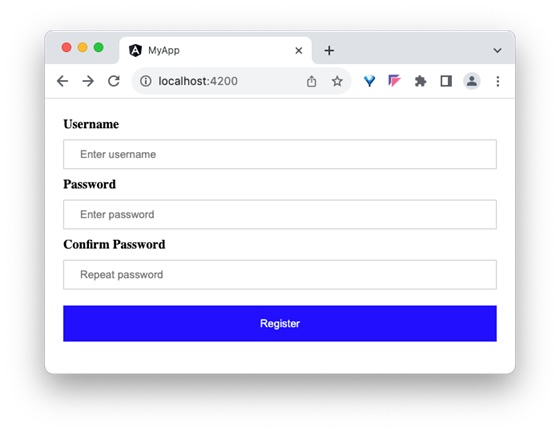
    Step 11: Next, run the application and check the output.

    user details
  • Temporary Tables

    What are Temporary Tables?

    Temporary tables are pretty much what their name describes: they are the tables which are created in a database to store temporary data. We can perform SQL operations similar to the operations on permanent tables like CREATE, UPDATE, DELETE, INSERT, JOIN, etc. But these tables will be automatically deleted once the current client session is terminated. In addition to that, they can also be explicitly deleted if the users decide to drop them manually.

    Various RDBMS, like MySQL, support temporary tables starting from version 3.23 onwards. If you are using an older version of MySQL than 3.23, you can’t use temporary tables, but you can use heap tables.

    As stated earlier, temporary tables will only last as long as the client session is alive. If you run the code in a PHP script, the temporary table will be destroyed automatically when the script finishes executing. If you are connected to the MySQL database server through a MySQL client program, then the temporary table will exist until you close the client connection or manually destroy the table.

    Creating Temporary Tables in MySQL

    To create temporary tables in MySQL, we follow the same query as creating regular database tables. However, instead of using the CREATE TABLE statement, you use CREATE TEMPORARY TABLE statement.

    Syntax

    Following is the syntax to create a temporary table −

    CREATETEMPORARYTABLE table_name(
       column1 datatype,
       column2 datatype,
       column3 datatype,.....
       columnN datatype,PRIMARYKEY( one or more columns));

    Example

    Following is the SQL Query to create a temporary table in MySQL database −

    CREATETEMPORARYTABLE CUSTOMERS(
       ID   INTNOTNULL,
       NAME VARCHAR(20)NOTNULL,
       AGE  INTNOTNULL,
       ADDRESS  CHAR(25),
       SALARY   DECIMAL(18,2),PRIMARYKEY(ID));

    Just like normal tables you can insert data into a temporary table using the INSERT statement. Following query inserts 3 records into the above created temporary table −

    INSERTINTO CUSTOMERS VALUES(1,'Ramesh',32,'Ahmedabad',2000.00),(2,'Khilan',25,'Delhi',1500.00),(3,'Kaushik',23,'Kota',2000.00);

    The temporary table CUSTOMERS will be created and will have following records −

    IDNAMEAGEADDRESSSALARY
    1Ramesh32Ahmedabad2000.00
    2Khilan25Delhi1500.00
    3Kaushik23Kota2000.00

    When you issue a SHOW TABLES command, then your temporary table will not be displayed in the list of tables. To verify whether the temporary table is created you need to retrieve its data using the SELECT statement. Since all the temporary tables will be removed when the current session is closed, if you log out of the MySQL session and then issue a SELECT command, you will not find temporary table in the database.

    Dropping Temporary Tables in MySQL

    Though all the temporary tables are deleted by MySQL when your database connection gets terminated, still, if you want to delete them manually, then you can do so by issuing a DROP TEMPORARY TABLE command.

    Syntax

    Following is the basic syntax to delete a temporary table:

    DROPTEMPORARYTABLE table_name;

    Example

    Following query drops the temporary table CUSTOMERS created in the previous example −

    DROPTEMPORARYTABLE CUSTOMERS;

    Verification

    Since we have removed the temporary table CUSTOMERS, if you try to retrieve the contents of it using the SELECT statement, it will generate an error saying the table does not exist.

    SELECT*FROM CUSTOMERS;

    This will produce following result −

    ERROR 1146: Table 'TUTORIALS.CUSTOMERS' doesn't exist
    

    Temporary Tables in SQL Server

    The temporary table created in MySQL is visible only within the current session. But, in Microsoft SQL Server you can create two types of temporary tables.

    • Local Temporary Tables: A Local Temporary Table is accessible only in the session that has created it. It is automatically deleted when the connection that has created it gets closed. If the Temporary Table is created inside the stored procedure, it get dropped automatically upon the completion of stored procedure execution.
    • Global Temporary Tables: Global Temporary Tables are visible to all connections and Dropped when the last connection referencing the table is closed.

    Syntax of the Local Temporary Tables

    To create Local Temporary Table in SQL Server a single # is used as the prefix of a table name, as shown below −

    CREATETABLE#table_name(
       column1 datatype,
       column2 datatype,
       column3 datatype,.....
       columnN datatype,PRIMARYKEY( one or more columns));

    Example of the Local Temporary Tables

    Following query creates a Local temporary table named CUSTOMERS in the SQL server −

    CREATETABLE#CUSTOMERS(
       ID   INTNOTNULL,
       NAME VARCHAR(20)NOTNULL,
       AGE  INTNOTNULL,
       ADDRESS  CHAR(25),
       SALARY   DECIMAL(18,2),PRIMARYKEY(ID));

    Syntax of the Global Temporary Tables

    To create a Global Temporary Table, we need to add the prefix ## before the table name, as shown below −

    CREATETABLE##table_name(
       column1 datatype,
       column2 datatype,
       column3 datatype,.....
       columnN datatype,PRIMARYKEY( one or more columns));

    Example of the Global Temporary Tables

    Following query creates a Global temporary table named Buyers in the SQL server −

    CREATETABLE##Buyers(
       ID   INTNOTNULL,
       NAME VARCHAR(20)NOTNULL,
       AGE  INTNOTNULL,
       ADDRESS  CHAR(25),
       SALARY   DECIMAL(18,2),PRIMARYKEY(ID));

    Dropping Temporary Tables in SQL Server

    If you want to drop a temporary table in SQL Server manually, you need to execute the DROP TABLE statement by placing # before the local temporary table name and ## before the global temporary table name.

    Example

    Following query removes the Local temporary table Customers created in the previous example.

    DROPTABLE#Customers;

    Whereas, following query removes the global temporary table Buyers.

    DROPTABLE##Buyers;