Author: saqibkhan

  • Exists Operator

    The SQL EXISTS Operator

    The SQL EXISTS operator is used to verify whether a particular record exists in a MySQL table. While using this operator we need to specify the record (for which you have to check the existence) using a subquery.

    The EXISTS operator is used in the WHERE clause of a SELECT statement to filter records based on the existence of related records in another table.

    • It is a logical operator.
    • It returns a Boolean value TRUE or FALSE.
    • It returns TRUE if the subquery returns at least one record.
    • If the EXISTS operator returns TRUE, the outer query will get executed; otherwise not.
    • It can be used in SELECT, UPDATE, DELETE or INSERT statements.

    The EXISTS operator is more efficient than other operators, such as IN, because it only needs to determine whether any rows are returned by the subquery, rather than actually returning the data.

    The use of the EXISTS operator is an efficient way to filter data in many real-life scenarios, including filtering records based on the existence of related data, aggregating data based on the existence of related records, and optimizing queries.

    Syntax

    The basic syntax of the SQL EXISTS operator is as follows −

    WHEREEXISTS(subquery);

    Where, the subquery used is the SELECT statement. The EXISTS operator will evaluate to TRUE if the subquery returns at least one record in its result set; otherwise FALSE.

    EXISTS Operator with SELECT Statement

    The SELECT statement in SQL is used to retrieve data from one or more tables in a database. We can use the EXISTS operator with a SELECT statement to check for the existence of rows that meet a certain condition.

    Example

    To understand it better let us consider the CUSTOMERS table which contains the personal details of customers including their name, age, address and salary etc. as shown below −

    CREATETABLE CUSTOMERS (
       ID INTNOTNULL,
       NAME VARCHAR(20)NOTNULL,
       AGE INTNOTNULL,
       ADDRESS CHAR(25),
       SALARY DECIMAL(18,2),PRIMARYKEY(ID));

    Now, insert values into this table using the INSERT statement as follows −

    INSERTINTO CUSTOMERS VALUES(1,'Ramesh',32,'Ahmedabad',2000.00),(2,'Khilan',25,'Delhi',1500.00),(3,'Kaushik',23,'Kota',2000.00),(4,'Chaitali',25,'Mumbai',6500.00),(5,'Hardik',27,'Bhopal',8500.00),(6,'Komal',22,'Hyderabad',4500.00),(7,'Muffy',24,'Indore',10000.00);

    The table will be created as follows −

    IDNAMEAGEADDRESSSALARY
    1Ramesh32Ahmedabad2000.00
    2Khilan25Delhi1500.00
    3Kaushik23Kota2000.00
    4Chaitali25Mumbai6500.00
    5Hardik27Bhopal8500.00
    6Komal22Hyderabad4500.00
    7Muffy24Indore10000.00

    Let us create another table CARS, containing the details such as id of the customer, name and price of the car, using the following query −

    createtable CARS(
       ID INTNOTNULL, 
       NAME VARCHAR(20)NOTNULL, 
       PRICE INTNOTNULL,PRIMARYKEY(ID));

    Using the INSERT statement, let us insert values into this table −

    insertINTO CARS VALUES(2,'Maruti Swift',450000),(4,'VOLVO',2250000),(7,'Toyota',2400000);

    The ‘CARS’ table obtained is as follows −

    IDNAMEPRICE
    2Maruti Swift450000
    4VOLVO2250000
    7Toyota2400000

    Now, we are retrieving the lists of the customers with the price of the car greater than 2,000,000 −

    SELECT*FROM CUSTOMERS WHEREEXISTS(SELECT PRICE FROM CARS 
       WHERE CARS.ID = CUSTOMERS.ID AND PRICE >2000000);

    Output

    The result produced is as follows −

    IDNAMEAGEADDRESSSALARY
    4Chaitali25Mumbai6500.00
    7Muffy24Indore10000.00

    EXISTS Operator with UPDATE Statement

    We can also use the SQL EXISTS operator with an UPDATE statement. It helps us to update rows in a table based on the existence of matching rows in another table.

    Example

    Suppose if we want to change the name of certain customers from the CUSTOMERS and CARS tables previously created, then this can be done using UPDATE statement. Here, we are modifying the name ‘Kushal’ of all the customers whose id is equal to the id of the CARS table, using the EXISTS operator, as follows −

    UPDATE CUSTOMERS SET NAME ='Kushal'WHEREEXISTS(SELECT NAME FROM CARS WHERE CUSTOMERS.ID = CARS.ID
    );

    Output

    We get the following result. We can observe that 3 rows have been modified −

    Query OK, 3 rows affected (0.01 sec)
    Rows matched: 3  Changed: 3  Warnings: 0
    

    Verification

    We can verify whether the changes are reflected in a table by retrieving its contents using the SELECT statement. Following is the query to display the records in the CUSTOMERS table −

    SELECT*FROM CUSTOMERS;

    The table is displayed as follows −

    IDNAMEAGEADDRESSSALARY
    1Ramesh32Ahmedabad2000.00
    2Kushal25Delhi1500.00
    3Kaushik23Kota2000.00
    4Kushal25Mumbai6500.00
    5Hardik27Bhopal8500.00
    6Komal22Hyderabad4500.00
    7Kushal24Indore10000.00

    As we can see in the above table, the NAME of ‘Khilan’, ‘Chaitali’ and ‘Muffy’ has been updated to ‘Kushal’.

    EXISTS Operator with DELETE Statement

    The EXISTS operator can also be used with a DELETE statement to delete rows based on the existence of rows returned by a subquery.

    Example

    In here, we are deleting the row in the CUSTOMERS table whose id is equal to the id of the CARS table having price equal to ‘2250000’ −

    DELETEFROM CUSTOMERS WHEREEXISTS(SELECT*FROM CARS 
       WHERE CARS.ID = CUSTOMERS.ID AND CARS.PRICE =2250000);

    Output

    We get the following result. We can observe that 1 row has been deleted −

    Query OK, 1 row affected (0.01 sec)
    

    Verification

    We can rectify the changes done in the CUSTOMERS table using the following query −

    SELECT*FROM CUSTOMERS;

    The table is displayed as follows −

    IDNAMEAGEADDRESSSALARY
    1Ramesh32Ahmedabad2000.00
    2Khilan25Delhi1500.00
    3Kaushik23Kota2000.00
    5Hardik27Bhopal8500.00
    6Komal22Hyderabad4500.00
    7Muffy24Indore10000.00

    As we can see in the above table, the row with the NAME ‘Chaitali’ has been deleted since the id of Chaitali in CUSTOMERS table was ‘4’, which is equal to the id of the CARS table having price equal to ‘2250000’.

    NOT Operator with EXISTS Operator

    In SQL, the NOT EXISTS operator is used to select records from one table that do not exist in another table.

    Syntax

    Following is the basic syntax of NOT EXISTS operator in SQL −

    WHERENOTEXISTS(subquery);

    Where, the subquery used is the SELECT statement.

    Example

    The below query gives the names of the customers who have not bought any car −

    SELECT*FROM CUSTOMERS WHERENOTEXISTS(SELECT*FROM CARS WHERE CUSTOMERS.ID = CARS.ID
    );

    Output

    Following output is obtained by executing the above query −

    IDNAMEAGEADDRESSSALARY
    1Ramesh32Ahmedabad2000.00
    3Kaushik23Kota2000.00
    5Hardik27Bhopal8500.00
    6Komal22Hyderabad4500.00

    Usage of SQL EXISTS Operator

    The EXISTS operator in SQL is widely used in real-life scenarios to filter records based on the existence of related data in another table. Some common use cases include −

    • Checking for the existence of records in a many-to-many relationship − The EXISTS operator can be used to check whether a record exists in a join table for a many-to-many relationship, for example, finding all customers who have purchased a particular product.
    • Filtering records based on the existence of related records − The EXISTS operator can be used to filter records based on the existence of related records in another table. For example, finding all orders that have associated order details.
    • Aggregating data based on the existence of related records − The EXISTS operator can be used to aggregate data based on the existence of related records. For example, finding the number of customers who have placed an order.
    • Optimizing queries − The EXISTS operator can be used to optimize queries by only returning the necessary data. For example, finding the first order for each customer without using a self-join.

    These are just a few examples of how the EXISTS operator can be used in real-life scenarios. The specific use case will depend on the data and the requirements of the query.
  • Any, All Operators

    The SQL ANY and ALL operators are used to perform a comparison between a single value and a range of values returned by the subquery.

    The ANY and ALL operators must be preceded by a standard comparison operator i.e. >, >=, <, <=, =, <>, != and followed by a subquery. The main difference between ANY and ALL is that ANY returns true if any of the subquery values meet the condition whereas ALL returns true if all of the subquery values meet the condition.

    The SQL ANY Operator

    The ANY operator is used to verify if any single record of a query satisfies the required condition.

    This operator returns a TRUE, if the given condition is satisfied for any of the values in the range. If none of the values in the specified range satisfy the given condition, this operator returns false. You can also use another query (subquery) along with this operator.

    Syntax

    The basic syntax of the SQL – ANY operator is as follows −

    Column_name operator ANY(subquery);

    Where,

    • column_name is the name of a column in the main query.
    • operator is a comparison operator such as =, <, >, <=, >=, or <>.
    • subquery is a SELECT statement that returns a single column of values.

    ANY with ‘>’ Operator

    Typically, the ANY operator is used to compare a value with a set of values returned by a subquery, in such cases we can use it with the > (greater than) operator to verify if a particular column value is greater than column value of any of the records returned by the sub query.

    Example

    To understand it better let us consider the CUSTOMERS table which contains the personal details of customers including their name, age, address and salary etc. as shown below −

    CREATETABLE CUSTOMERS (
       ID INTNOTNULL,
       NAME VARCHAR(20)NOTNULL,
       AGE INTNOTNULL,
       ADDRESS CHAR(25),
       SALARY DECIMAL(18,2),PRIMARYKEY(ID));

    Now, insert values into this table using the INSERT statement as follows −

    INSERTINTO CUSTOMERS VALUES(1,'Ramesh',32,'Ahmedabad',2000.00),(2,'Khilan',25,'Delhi',1500.00),(3,'Kaushik',23,'Kota',2000.00),(4,'Chaitali',25,'Mumbai',6500.00),(5,'Hardik',27,'Bhopal',8500.00),(6,'Komal',22,'Hyderabad',4500.00),(7,'Muffy',24,'Indore',10000.00);

    The table will be created as follows −

    IDNAMEAGEADDRESSSALARY
    1Ramesh32Ahmedabad2000.00
    2Khilan25Delhi1500.00
    3Kaushik23Kota2000.00
    4Chaitali25Mumbai6500.00
    5Hardik27Bhopal8500.00
    6Komal22Hyderabad4500.00
    7Muffy24Indore10000.00

    Now, let us list out the details of all the CUSTOMERS whose SALARY is greater than the SALARY of any customer whose AGE is 32 i.e. Chaitali, Hardik, Komal and Muffy in this case −

    SELECT*FROM CUSTOMERS 
    WHERE SALARY >ANY(SELECT SALARY FROM CUSTOMERS WHERE AGE =32);

    Output

    The result obtained is as follows −

    IDNAMEAGEADDRESSSALARY
    4Chaitali25Mumbai6500.00
    5Hardik27Bhopal8500.00
    6Komal22Hyderabad4500.00
    7Muffy24Indore10000.00

    ANY with ‘<‘ Operator

    Similar to the ‘>’ operator, we can use the ‘<‘ (less than) operator along with ANY to verify if a particular column value is less than column value of any of the records returned by the sub query.

    Example

    In here, we are finding the distinct/different age of customers having any salary less than the average salary of all the customers from the CUSTOMERS table previously created −

    SELECTDISTINCT AGE FROM CUSTOMERS 
    WHERE SALARY <ANY(SELECTAVG(SALARY)FROM CUSTOMERS);

    Output

    We get the following output while executing the above query −

    AGE
    32
    25
    23
    22

    ANY with ‘=’ Operator

    When we use the = (equal to) operator along with ANY, it verifies if a particular column value is equal to the column value of any of the records returned by the sub query.

    Example

    In the query given below, we are retrieving the details of all the customers whose age is equal to the age of any customer whose name starts with ‘K’ −

    SELECT*FROM CUSTOMERS 
    WHERE AGE =ANY(SELECT AGE FROM CUSTOMERS WHERE NAME LIKE'K%');

    Output

    The result produced is as follows −

    IDNAMEAGEADDRESSSALARY
    2Khilan25Delhi1500.00
    3Kaushik23Kota2000.00
    4Chaitali25Mumbai6500.00
    6Komal22Hyderabad4500.00

    The SQL ALL Operator

    The SQL ALL operator returns all the records of the SELECT statement.

    • It returns TRUE if the given condition is satisfied for ALL the values in the range.
    • It always returns a Boolean value.
    • It is used with SELECT, WHERE and HAVING statements in SQL queries.
    • The data type of the values returned from a subquery must be the same as the outer query expression data type.

    Syntax

    The basic syntax of the SQL ALL operator is as follows −

    Column_name operator ALL(subquery);

    Where,

    • column_name − is the name of a column in the main query.
    • operator − is a comparison operator such as =, <, >, <=, >=, or <>.
    • subquery − is a SELECT statement that returns a single column of values.

    ALL with WHERE Statement

    When we use the ALL operator with a WHERE clause, it filters the results of the subquery based on the specified condition.

    The WHERE clause in SQL is used to filter rows from a query based on specific conditions. It operates on individual rows in the table, and it allows you to specify conditions that must be met by each row in the data returned by the query.

    Example

    If we consider the CUSTOMERS table created above,the following query returns the details of all the customers whose salary is not equal to the salary of any customer whose age is 25 −

    SELECT*FROM CUSTOMERS 
    WHERE SALARY <>ALL(SELECT SALARY FROM CUSTOMERS WHERE AGE =25);

    Output

    The output of the above query is as follows −

    IDNAMEAGEADDRESSSALARY
    1Ramesh32Ahmedabad2000.00
    3Kaushik23Kota2000.00
    5Hardik27Bhopal8500.00
    6Komal22Hyderabad4500.00
    7Muffy24Indore10000.00

    ALL with HAVING Clause

    In SQL, the ALL operator can also be used with the HAVING clause to filter the results of a GROUP BY query based on a condition that applies to all the aggregated values in the group.

    Example

    The following SQL query is used to obtain the details of all the customers whose salary is less than the average salary −

    SELECT NAME, AGE, ADDRESS, SALARY FROM CUSTOMERS 
    GROUPBY AGE, SALARY 
    HAVING SALARY <ALL(SELECTAVG(SALARY)FROM CUSTOMERS);

    Output

    Output of the above query is as follows −

    IDNAMEAGEADDRESSSALARY
    1Ramesh32Ahmedabad2000.00
    2Khilan25Delhi1500.00
    3Kaushik23Kota2000.00
    6Komal22Hyderabad4500.00

  • In Operator

    The SQL IN Operator

    The SQL IN Operator is used to specify multiple values or sub query in the WHERE clause. It returns all rows in which the specified column matches one of the values in the list. The list of values or sub query must be specified in the parenthesis e.g. IN (select query) or IN (Value1, Value2, Value3, …).

    In some scenarios we may use multiple OR statements to include multiple conditions in SELECT, DELETE, UPDATE, or INSERT statements. Alternatively, we can use the IN operator instead of multiples OR statements.

    The IN operator can be used with any data type in SQL. It is used to filter data from a database table based on specified values.

    The IN operator is useful when you want to select all rows that match one of a specific set of values. While the OR operator is useful when you want to select all rows that match any one of multiple conditions.

    Syntax

    The basic syntax of the SQL IN operator to specify multiple values is as follows −

    WHERE column_name IN(value1, value2, value3,...);

    Where,

    • value1, value2, value3, … are the values in the list to be tested against the expression. The IN operator returns TRUE if any of these values is found in the list, and FALSE if it is not.

    IN Operator with SELECT Statement

    We can use the SQL IN operator to specify multiple values in a WHERE clause, and we can also use it in a SELECT statement to retrieve data that matches any of the specified values.

    Here, we are using the IN operator to specify multiple values in SELECT statement.

    Example

    In this example, we are using the IN operator to specify multiple values in SELECT statement consider the CUSTOMERS table which contains the personal details of customers including their name, age, address and salary etc. as shown below −

    CREATETABLE CUSTOMERS (
       ID INTNOTNULL,
       NAME VARCHAR(20)NOTNULL,
       AGE INTNOTNULL,
       ADDRESS CHAR(25),
       SALARY DECIMAL(18,2),PRIMARYKEY(ID));

    Now, insert values into this table using the INSERT statement as follows −

    INSERTINTO CUSTOMERS VALUES(1,'Ramesh',32,'Ahmedabad',2000.00),(2,'Khilan',25,'Delhi',1500.00),(3,'Kaushik',23,'Kota',2000.00),(4,'Chaitali',25,'Mumbai',6500.00),(5,'Hardik',27,'Bhopal',8500.00),(6,'Komal',22,'Hyderabad',4500.00),(7,'Muffy',24,'Indore',10000.00);

    The table will be created as follows −

    IDNAMEAGEADDRESSSALARY
    1Ramesh32Ahmedabad2000.00
    2Khilan25Delhi1500.00
    3Kaushik23Kota2000.00
    4Chaitali25Mumbai6500.00
    5Hardik27Bhopal8500.00
    6Komal22Hyderabad4500.00
    7Muffy24Indore10000.00

    Suppose based on the above table we want to display records with NAME equal to ‘Khilan’, ‘Hardik’ and ‘Muffy'(string values). This can be achieved using IN operator as follows −

    SELECT*FROM CUSTOMERS 
    WHERE NAME IN('Khilan','Hardik','Muffy');

    Output

    The result obtained is as follows −

    IDNAMEAGEADDRESSSALARY
    2Khilan25Delhi1500.00
    5Hardik27Bhopal8500.00
    7Muffy24Indore10000.00

    Example

    The above query can also be done using OR operator. Following is an example −

    SELECT*FROM CUSTOMERS 
    WHERE NAME ='Khilan'OR NAME ='Hardik'OR NAME ='Muffy';

    Output

    IDNAMEAGEADDRESSSALARY
    2Khilan25Delhi1500.00
    5Hardik27Bhopal8500.00
    7Muffy24Indore10000.00

    IN Operator with UPDATE Statement

    We can also use the SQL IN operator in an UPDATE statement to update rows that match any of the specified values in a WHERE clause. The UPDATE statement is used to modify existing data in a database table.

    Example

    Here, we are using the IN operator to specify multiple values in the UPDATE statement and updating the CUSTOMERS table previously created. Here, we are changing the records of the customers with age ’25’ or ’27’ and updating the age value to ’30’ −

    UPDATE CUSTOMERS SET AGE =30WHERE AGE IN(25,27);

    Output

    We get the following result. We can observe that the age of 3 customers has been modified −

    Query OK, 3 rows affected (0.01 sec)
    Rows matched: 3  Changed: 3  Warnings: 0
    

    Verification

    We can verify whether the changes are reflected in a table by retrieving its contents using the SELECT statement. Following is the query to display the records in the CUSTOMERS table −

    SELECT*FROM CUSTOMERS;

    The table is displayed as follows −

    IDNAMEAGEADDRESSSALARY
    1Ramesh32Ahmedabad2000.00
    2Khilan30Delhi1500.00
    3Kaushik23Kota2000.00
    4Chaitali30Mumbai6500.00
    5Hardik30Bhopal8500.00
    6Komal22Hyderabad4500.00
    7Muffy24Indore10000.00

    As we can see in the above table, the AGE of ‘Khilan’, ‘Chaitali’ and ‘Hardik’ has been updated to ’30’.

    IN Operator with NOT

    To negate a condition, we use the NOT operator. The SQL IN operator can be used in combination with the NOT operator to exclude specific values in a WHERE clause. In other words, the absence of a list from an expression will be checked.

    Syntax

    Following is the basic syntax of NOT IN operator −

    WHERE column_name NOTIN(value1, value2,...);

    Example

    Now, we are displaying all the records from the CUSTOMERS table, where the AGE is NOT equal to ’25’, ’23’ and ’22’ −

    SELECT*FROM CUSTOMERS WHERE AGE NOTIN(25,23,22);

    Output

    We obtain the result as given below −

    IDNAMEAGEADDRESSSALARY
    1Ramesh32Ahmedabad2000.00
    5Hardik27Bhopal8500.00
    7Muffy24Indore10000.00

    IN Operator with Column Name

    We can also use the SQL IN operator with a column name to compare the values of one column to another. It is used to select the rows in which a specific value exists for the given column.

    Example

    In the below query, we are selecting the rows with the value ‘2000’ in the SALARY column −

    SELECT*FROM CUSTOMERS WHERE2000IN(SALARY);

    Output

    This would produce the following result −

    IDNAMEAGEADDRESSSALARY
    1Ramesh32Ahmedabad2000.00
    3Kaushik23Kota2000.00

    Subquery with IN Operator

    We can use the subquery with the IN operator that is used to return records from the single column. This means that more than one column in the SELECT column list cannot be included in the subquery.

    Syntax

    The basic syntax of the IN operator to specify a subquery is as follows −

    WHERE column_name IN(subquery);

    Where,

    • Subquery − This is the SELECT statement that has a result set to be tested against the expression. The IN condition evaluates to true if any of these values match the expression.

    Example

    In the query given below, we are displaying all the records from the CUSTOMERS table where the NAME of the customer is obtained with SALARY greater than 2000 −

    SELECT*FROM CUSTOMERS 
    WHERE NAME IN(SELECT NAME FROM CUSTOMERS WHERE SALARY >2000);

    Output

    This will produce the following result −

    IDNAMEAGEADDRESSSALARY
    4Chaitali25Mumbai6500.00
    5Hardik27Bhopal8500.00
    6Komal22Hyderabad4500.00
    7Muffy24Indore10000.00

  • Like Operator

    The SQL LIKE Operator

    The SQL LIKE operator is used to retrieve the data in a column of a table, based on a specified pattern.

    It is used along with the WHERE clause of the UPDATE, DELETE and SELECT statements, to filter the rows based on the given pattern. These patterns are specified using Wildcards.

    Suppose we need to submit the list of all the students whose name starts with ‘K’. We can obtain this with the help of the LIKE operator as follows −

    WHERE student_name LIKE'K%';

    Here, the % is a wild card which represents zero, one or multiple characters. And the expression K% specifies that it will display the list of all the students whose name starts with ‘k’.

    The LIKE operator can be used with strings, numbers, or date values. However, using the string values is recommended.

    Syntax

    The basic syntax of the SQL LIKE operator is as follows −

    SELECT column1, column2,...FROM table_name
    WHERE columnn LIKE specified_pattern;

    What are wild cards?

    SQL wildcards are special characters used in SQL queries to match patterns in the data. Following are the wildcards used in conjunction with the LIKE operator in MySQL database −

    S.NoWildCard & Definition
    1%The percent sign represents zero, one or multiple characters.
    2_The underscore represents a single number or character.

    In the LIKE operator, the above wildcard characters can be used individually as well as in combinations with each other.

    The table given below has a few examples showing the WHERE clause having different LIKE operators with ‘%’ and ‘_’ −

    S.NoStatement & Description
    1WHERE SALARY LIKE ‘200%’Finds any values that start with 200.
    2WHERE SALARY LIKE ‘%200%’Finds any values that have 200 in any position.
    3WHERE SALARY LIKE ‘_00%’Finds any values that have 00 in the second and third positions.
    4WHERE SALARY LIKE ‘2_%_%’Finds any values that start with 2 and are at least 3 characters in length.
    5WHERE SALARY LIKE ‘%2’Finds any values that end with 2.
    6WHERE SALARY LIKE ‘_2%3’Finds any values that have a 2 in the second position and end with a 3.
    7WHERE SALARY LIKE ‘2___3’Finds any values in a five-digit number that start with 2 and end with 3.

    The ‘%’ Wildcard character

    The % sign represents zero or multiple characters. The ‘%’ wildcard matches any length of a string which even includes the zero length.

    Example

    To understand it better let us consider the CUSTOMERS table which contains the personal details of customers including their name, age, address and salary etc. as shown below −

    CREATETABLE CUSTOMERS (
       ID INTNOTNULL,
       NAME VARCHAR(20)NOTNULL,
       AGE INTNOTNULL,
       ADDRESS CHAR(25),
       SALARY DECIMAL(18,2),PRIMARYKEY(ID));

    Now, insert values into this table using the INSERT statement as follows −

    INSERTINTO CUSTOMERS VALUES(1,'Ramesh',32,'Ahmedabad',2000.00),(2,'Khilan',25,'Delhi',1500.00),(3,'Kaushik',23,'Kota',2000.00),(4,'Chaitali',25,'Mumbai',6500.00),(5,'Hardik',27,'Bhopal',8500.00),(6,'Komal',22,'Hyderabad',4500.00),(7,'Muffy',24,'Indore',10000.00);

    The table will be created as follows −

    IDNAMEAGEADDRESSSALARY
    1Ramesh32Ahmedabad2000.00
    2Khilan25Delhi1500.00
    3Kaushik23Kota2000.00
    4Chaitali25Mumbai6500.00
    5Hardik27Bhopal8500.00
    6Komal22Hyderabad4500.00
    7Muffy24Indore10000.00

    Now, let us display all the records from the CUSTOMERS table, where the SALARY starts with 200 −

    SELECT*FROM CUSTOMERS WHERE SALARY LIKE'200%';

    Output

    This would produce the following result −

    IDNAMEAGEADDRESSSALARY
    1Ramesh32Ahmedabad2000.00
    3Kaushik23Kota2000.00

    Example

    Below is the query that displays all the records from the CUSTOMERS table previously created with the NAME that has ‘al’ in any position. Here, we are using multiple ‘%’ wildcards in the LIKE condition −

    SELECT*FROM CUSTOMERS WHERE NAME LIKE'%al%';

    Output

    The following result is produced −

    IDNAMEAGEADDRESSSALARY
    4Chaitali25Mumbai6500.00
    6Komal22Hyderabad4500.00

    The ‘_’ wildcard character

    The underscore wild card represents a single number or character. A single ‘_’ looks for exactly one character similar to the ‘%’ wildcard.

    Example

    Following is the query which would display all the records from the CUSTOMERS table previously created, where the Name starts with K and is at least 4 characters in length −

    SELECT*FROM CUSTOMERS WHERE NAME LIKE'K___%';

    Output

    The result obtained is given below −

    IDNAMEAGEADDRESSSALARY
    2Khilan25Delhi1500.00
    3Kaushik23Kota2000.00
    6Komal22Hyderabad4500.00

    Example

    Following is the query to display all the records from the CUSTOMERS table, where the NAME has ‘m’ in the third position −

    SELECT*FROM CUSTOMERS WHERE NAME LIKE'__m%';

    Output

    We get the following result on executing the above query −

    IDNAMEAGEADDRESSSALARY
    1Ramesh32Ahmedabad2000.00
    6Komal22Hyderabad4500.00

    LIKE operator with OR

    We can also use the LIKE operator with multiple string patterns for selecting rows by using the AND or OR operators.

    Syntax

    Following is the basic syntax of using LIKE operator with OR operator −

    SELECT column1, column2,...FROM table_name
    WHERE column1 LIKE pattern1 OR column2 LIKE pattern2 OR...;

    Example

    Here, the SQL query retrieves the records of the customers whose name starts with C and ends with i, or customers whose name ends with k −

    SELECT*FROM CUSTOMERS WHERE NAME LIKE'C%i'OR NAME LIKE'%k';

    Output

    This will produce the following result −

    IDNAMEAGEADDRESSSALARY
    3Kaushik23Kota2000.00
    4Chaitali25Mumbai6500.00
    5Hardik27Bhopal8500.00

    NOT operator with the LIKE condition

    We use the NOT operator with LIKE to extract the rows which does not contain a particular string provided in the search pattern.

    Syntax

    Following is the basic syntax of NOT LIKE operator in SQL −

    SELECT column1, column2,...FROM table_name
    WHERE column1 NOTLIKE pattern;

    Example

    In the query given below, we are fetching all the customers whose name does not start with K −

    SELECT*FROM CUSTOMERS WHERE NAME NOTLIKE'K%';

    Output

    This will produce the following result −

    IDNAMEAGEADDRESSSALARY
    1Ramesh32Ahmedabad2000.00
    4Chaitali25Mumbai6500.00
    5Hardik27Bhopal8500.00
    7Muffy24Indore10000.00

    Escape characters with LIKE operator

    The escape character in SQL is used to exclude certain wildcard characters from the expression of the LIKE operator. By doing so, we can use these characters in their general sense.

    Using the escape character, we can also avoid using the characters that are reserved in SQL syntax to denote specific commands, such as the single quote % and _.

    For example, if you need to search for % as a literal in the LIKE condition, then it is done using Escape character.

    An escape character is only defined as a single character. It is suggested to choose the character which is not present in our data.

    Syntax

    The syntax for using the LIKE operator with escape characters is as follows −

    SELECT column1, column2,...FROM table_name
    WHERE column1 LIKE'pattern ESCAPE escape_character';

    Where,

    • pattern is the pattern you want to match.
    • ESCAPE is the keyword that indicates the escape character
    • escape_character is the character that you want to use as the escape character.

    Example

    Let us create a new table EMPLOYEE using the query below −

    CREATETABLE EMPLOYEE (
       SALARY DECIMAL(18,2)NOTNULL,
       BONUS_PERCENT VARCHAR(20));

    Now, we can insert values into this empty tables using the INSERT statement as follows −

    INSERTINTO EMPLOYEE VALUES(67000.00,'45.00'),(54000.00,'20.34%'),(75000.00,'51.00'),(84000.00,'56.82%');

    The Employee table consists of the salary of employees in an organization and the bonus percentage in their salary as shown below −

    SALARYBONUS_PERCENT
    67000.0045.00
    54000.0020.34%
    75000.0051.00
    84000.0056.82%

    Now, we are displaying all the records from the EMPLOYEE table, where the BONUS_PERCENT contains the % literal −

    SELECT*FROM EMPLOYEE 
    WHERE BONUS_PERCENT LIKE'%!%%'ESCAPE'!';

    Output

    This will produce the following result −

    SALARYBONUS_PERCENT
    54000.0020.34%
    84000.0056.82%

    Example

    In here, we are retrieving the BONUS_PERCENT that starts with 2 and contains the % literal −

    SELECT*FROM EMPLOYEE 
    WHERE BONUS_PERCENT LIKE'2%!%%'ESCAPE'!';

    Output

    Following result is obtained −

    SALARYBONUS_PERCENT
    54000.0020.34%

    Uses of LIKE Operator in SQL

    The few uses of LIKE operators are given below −

    • It helps us to extract data that matches with the required pattern.
    • It helps us in performing complex regex-based queries on our data.
    • It simplifies the complex queries.
  • Boolean

    Boolean is a universal data type which stores true or false values. It is used when we define a variable in a column of the table.

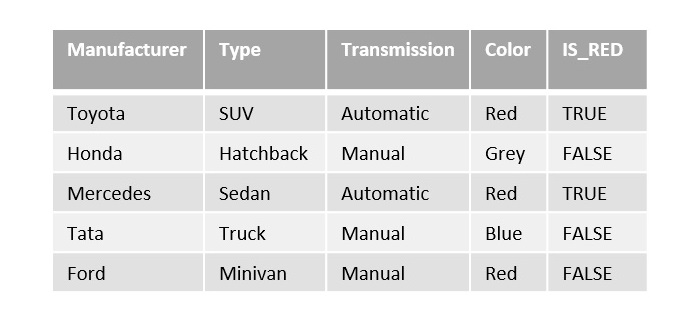
    For instance, a customer wants a list of all the red cars. So, we can find this using the BOOLEAN operator as given in the below table −

    Boolean Operator

    Here, IS_RED is the BOOLEAN column that returns either TRUE or FALSE values based on the color of the cars.

    The databases like PostgreSQL and PL/SQL provides the Boolean data type which is abbreviated as BOOL. Whereas the databases like MySQL and oracle SQL does not have a Boolean data type. To represent Boolean values, they provide TINYINT and BIT data type respectively.

    Boolean in MySQL

    MySQL provides various options for handling Boolean data. You can use BOOL, BOOLEAN, or TINYINT to represent Boolean values.

    When you use BOOL or BOOLEAN, MySQL internally converts them into TINYINT. Similar to many programming languages like PHP, C, and C++, MySQL represents the TRUE literal as 1 and the FALSE literal as 0.

    Example

    Here, we are creating a table ‘CARS’ with column BOOLEAN. The query to create a table is as follows −

    CREATETABLE CARS (
       ID INTNOTNULL,
       Name VARCHAR(150),
       IsRed BOOLEAN);

    In the above example, a table is created with a BOOLEAN column IsRed. You can insert TRUE as 1 or FALSE as 0 in this column to represent the corresponding Boolean values.

    Boolean in MS SQL Server

    In MS SQL Server, there is no direct BOOLEAN data type. Instead, you can use the BIT data type to represent Boolean values, where 0 represents FALSE and 1 represents TRUE. The BIT data type can also accept NULL values.

    Example

    Following is an example to create a table with a BOOLEAN column in SQL Server −

    CREATETABLE CUSTOMERS (
       ID INTNOTNULL,
       Name VARCHAR(150),
       IsAvailable BIT);

    In the example above, a table named CUSTOMERS is created with a BOOLEAN column IsAvailable represented as a BIT data type. You can insert 0 for FALSE, 1 for TRUE, or NULL for an unknown value in this column.Now that you understand how Boolean data types are implemented in SQL Server and MySQL, let us explore how to handle Boolean data in SQL, including filtering and querying based on Boolean columns.

    Filtering Boolean Data

    You can filter data based on Boolean columns in SQL. For example, in MySQL, to find all the red cars, you can use the BOOLEAN column ‘IsRed’ to filter for TRUE values as shown below −

    SELECT*FROM CARS WHERE IsRed =TRUE;

    In SQL Server, to find cars that are red, you can filter for TRUE values (IsRed = 1) as follows −

    SELECT*FROM CARS WHERE IsRed =1;

    Negating Boolean Conditions

    You can also negate Boolean conditions to find records that are NOT TRUE. For example, to find cars that are not red, use the following query in MySQL −

    SELECT*FROM CARS WHERE IsRed =0;

    Following is the query in SQL Server −

    SELECT*FROM CARS WHERE IsRed =FALSE;

    Working with NULL Values

    You can handle NULL values of Boolean data in SQL as well. As mentioned earlier, the BIT data type in SQL Server and the BOOL/BOOLEAN data types in MySQL can accept NULL values, which can represent unknown or unspecified conditions.

    To filter records with NULL values in a Boolean column, you can use the IS NULL or IS NOT NULL condition in both MySQL and SQL Server −

    -- Finding cars with unspecified availabilitySELECT*FROM CARS WHERE IsAvailable ISNULL;-- Finding cars with specified availabilitySELECT*FROM CARS WHERE IsAvailable ISNOTNULL;

    In the queries above, we filter cars based on whether their IsAvailable column is NULL or not NULL.

    Updating Boolean Values

    You can also update Boolean values in your SQL tables. To change the value of a Boolean column in MySQL, you can use the UPDATE statement as shown below −

    -- Changing IsRed to TRUE for car with ID 123UPDATE CARS SET IsRed =TRUEWHERE ID =123;

    In the above example, we updated the IsRed column for a specific car with the ID of 123, setting it to TRUE.

    To update Boolean values in SQL Server, use the following query −

    -- Changing IsRed to TRUE for car with ID 123UPDATE CARS SET IsRed =1WHERE ID =123;

  • AND and OR Operators

    Operators are reserved words primarily used in SQL to perform various operations on data, like addition (+), subtraction (-), or comparison (==).

    Conjunctive operators, specifically used in boolean logic, combines two conditions in an SQL statement. The most common conjunctive operators are: AND (&&), which returns true if both conditions are true, and OR (||), which returns true if at least one condition is true.

    The SQL AND Operator

    The SQL AND returns true or 1, if both its operands evaluates to true. We can use it to combine two conditions in the WHERE clause of an SQL statement.

    Syntax

    The basic syntax of the SQL AND operator with a WHERE clause is as follows −

    WHERE[condition1]AND[condition2];

    Where, condition1, condition2 are the conditions we want to apply to the query.

    You can combine N number of conditions using the AND operator. For an action to be taken by the SQL statement, whether it be a transaction or a query, all the specified conditions (separated by the AND operator) must be TRUE.

    Example

    Assume we have created a table with name CUSTOMERS in MySQL database using the CREATE TABLE statement as shown below −

    CREATETABLE CUSTOMERS (
       ID INTNOTNULL,
       NAME VARCHAR(20)NOTNULL,
       AGE INTNOTNULL,
       ADDRESS CHAR(25),
       SALARY DECIMAL(18,2),PRIMARYKEY(ID));

    Following query inserts values into this table using the INSERT statement −

    INSERTINTO CUSTOMERS VALUES(1,'Ramesh',32,'Ahmedabad',2000.00),(2,'Khilan',25,'Delhi',1500.00),(3,'Kaushik',23,'Kota',2000.00),(4,'Chaitali',25,'Mumbai',6500.00),(5,'Hardik',27,'Bhopal',8500.00),(6,'Komal',22,'Hyderabad',4500.00),(7,'Muffy',24,'Indore',10000.00);

    The table obtained is as shown below −

    IDNAMEAGEADDRESSSALARY
    1Ramesh32Ahmedabad2000.00
    2Khilan25Delhi1500.00
    3Kaushik23Kota2000.00
    4Chaitali25Mumbai6500.00
    5Hardik27Bhopal8500.00
    6Komal22Hyderabad4500.00
    7Muffy24Indore10000.00

    Following is an example which would fetch the ID, NAME and SALARY fields from the CUSTOMERS table, where the salary is greater than 2000 and the age is less than 25 years −

    SELECT ID, NAME, SALARY FROM CUSTOMERS 
    WHERE SALARY >2000AND AGE <25;

    Output

    This would produce the following result −

    IDNAMESALARY
    6Komal4500.00
    7Muffy10000.00

    Multiple AND Operators

    You can also use multiple ‘AND’ operators in an SQL query to combine multiple conditions (or, expressions) together. Conditions combined with the ‘AND’ operators are evaluated from left to right. If any of the condition evaluate to false, the entire compound condition will be false and the record will not be included in the result set.

    Syntax

    Following is the syntax −

    WHERE[condition1]AND[condition2]...AND[conditionN];

    Example

    In the following query, we are selecting all records from the CUSTOMERS table where the name of the customer starts with ‘K’, the age of the customer is greater than or equal to 22, and their salary is less than 3742 −

    SELECT*FROM CUSTOMERS 
    WHERE NAME LIKE'k%'AND AGE >=22AND SALARY <3742;

    Output

    Following is the result produced −

    IDNAMEAGEADDRESSSALARY
    2Khilan25Delhi1500.00
    3Kaushik23Kota2000.00

    AND with Other Logical Operators

    The “AND” operator can be used in combination with other logical operators to filter records from a database table.

    When using multiple logical operators in SQL, the order of operations is important. Parentheses can be used to control the order of operations and ensure that the conditions are evaluated in the correct order.

    Additionally, using too many logical operators or complex expressions can negatively impact query performance, so it’s important to carefully consider the design of the WHERE clause when working with large datasets.

    Example

    In here, we are combining the AND operator with the NOT operator to create a NAND operation. The ‘NAND’ operation returns true if at least one of the input conditions is false, and false if both input conditions are true.

    In the following query, we are selecting all records from the CUSTOMERS table where the condition (salary is greater than 4500 and the age is less than 26) is false. The “NOT” operator negates the entire condition, and the “AND” operator combines two conditions −

    SELECT*FROM CUSTOMERS 
    WHERENOT(SALARY >4500AND AGE <26);

    Output

    Following is the output of the above query −

    IDNAMEAGEADDRESSSALARY
    1Ramesh32Ahmedabad2000.00
    2Khilan25Delhi1500.00
    3Kaushik23Kota2000.00
    5Hardik27Bhopal8500.00
    6Komal22Hyderabad4500.00

    AND with UPDATE Statement

    We can use the AND operator in the WHERE clause of the UPDATE statement to modify the rows in a table that meet certain criteria.

    Syntax

    Following is the syntax of using the AND operator with the UPDATE statement −

    UPDATE table_name
    SET column1 = value1, column2 = value2,...WHERE condition1 AND condition2 AND...;

    Where, table_name is the name of the table we want to update, column1, column2, etc. are the columns we want to modify, and value1, value2, etc. are the new values we want to set for those columns.

    Example

    In the following query, we are updating the salary of all the customers whose age is greater than 27 and updating it to ‘55000’ using UPDATE statement −

    UPDATE CUSTOMERS SET SALARY =55000WHERE AGE >27;

    Output

    We get the following result. We can observe that the salary of 1 customer has been modified −

    Query OK, 1 row affected (0.02 sec)
    Rows matched: 1  Changed: 1  Warnings: 0
    

    Verification

    To verify if the changes are reflected in the tables, we can use SELECT statement to print the tables. Following is the query to display the records in the CUSTOMERS table −

    SELECT*FROM CUSTOMERS;

    The table is displayed as follows −

    IDNAMEAGEADDRESSSALARY
    1Ramesh32Ahmedabad55000.00
    2Khilan25Delhi1500.00
    3Kaushik23Kota2000.00
    4Chaitali25Mumbai6500.00
    5Hardik27Bhopal8500.00
    6Komal22Hyderabad4500.00
    7Muffy24Indore10000.00

    As we can see in the above table, the salary of ‘Ramesh’ has been updated to ‘55000’ because his age is 32 i.e. greater than 27.

    The SQL OR Operator

    The OR operator returns true if at least one its operands evaluates to true, and false otherwise. We can combine two conditions in an SQL statement’s WHERE clause using the OR operator.

    Syntax

    The basic syntax of the OR operator with a WHERE clause is as follows −

    WHERE[condition1]OR[condition2];

    Where, condition1, condition2 are the conditions we want to apply to the query. Each condition is separated by the OR operator.

    You can combine N number of conditions using the OR operator. For an action to be taken by the SQL statement, whether it be a transaction or query, at least of the conditions separated by the OR operator must be TRUE.

    Example

    The following query fetches the ID, NAME and SALARY fields from the CUSTOMERS table, where the salary is greater than 2000 OR the age is less than 25 years −

    SELECT ID, NAME, SALARY FROM CUSTOMERS 
    WHERE SALARY >2000OR AGE <25;

    Output

    This would produce the following result −

    IDNAMESALARY
    3Kaushik2000.00
    4Chaitali6500.00
    5Hardik8500.00
    6Komal4500.00
    7Muffy10000.00

    Multiple OR Operators

    In SQL, it is common to use multiple OR operators to combine multiple conditions or expressions together. While using multiple OR operators, any rows that meet at least one of the conditions will be included in the result-set.

    Example

    In the following query, we are selecting all records from the CUSTOMERS table where either the name of the customer ends with ‘l’, or the salary of the customer is greater than 10560, or their age is less than 25 −

    SELECT*FROM CUSTOMERS 
    WHERE NAME LIKE'%l'OR SALARY >10560OR AGE <25;

    Output

    Following is the result obtained −

    IDNAMEAGEADDRESSSALARY
    3Kaushik23Kota2000.00
    6Komal22Hyderabad4500.00
    7Muffy24Indore10000.00

    OR with AND Operator

    We can also use AND and OR operators together in SQL to combine multiple conditions in a WHERE clause to filter rows that meets the specified criteria.

    Syntax

    Following is the syntax for using the AND and OR operators together −

    WHERE(condition1 OR condition2)AND condition3;

    Where, condition1, condition2, and condition3 represent the conditions that we want to combine with the AND and OR operators. The parentheses group the first two conditions and combine them with the OR operator. The result of that operation is combined with the third condition using the AND operator.

    Example

    In the following query, we are retrieving all rows from the “CUSTOMERS” table where the age of the customer is equal to 25 or the salary is less than 4500 and the name is either Komal or Kaushik. The parentheses control the order of evaluation so that the OR operator is applied first, followed by the AND operator −

    SELECT*FROM CUSTOMERS 
    WHERE(AGE =25OR SALARY <4500)AND(NAME ='Komal'OR NAME ='Kaushik');

    Output

    This would produce the following result −

    IDNAMEAGEADDRESSSALARY
    3Kaushik23Kota2000.00

    OR with DELETE Statement

    We can also use the OR operator with the DELETE statement to delete rows that meet any one of the (multiple) conditions.

    Syntax

    Following is the syntax of using OR operator with DELETE statement −

    DELETEFROM table_name
    WHERE column1 ='value1'OR column2 ='value2';

    Example

    In the following query, we are deleting the records from the CUSTOMERS table where either the age of the customer equals 25 or their salary is less than 2000 −

    DELETEFROM CUSTOMERS WHERE AGE =25OR SALARY <2000;

    Output

    We get the following result −

    Query OK, 2 rows affected (0.01 sec)
    

    Verification

    To verify if the changes are reflected in the tables, we can use SELECT statement to print the tables. Following is the query to display the records in the CUSTOMERS table −

    SELECT*FROM CUSTOMERS;

    The table is displayed as follows −

    IDNAMEAGEADDRESSSALARY
    1Ramesh32Ahmedabad2000.00
    3Kaushik23Kota2000.00
    5Hardik27Bhopal8500.00
    6Komal22Hyderabad4500.00
    7Muffy24Indore10000.00

  •  Having Clause

    The SQL HAVING Clause

    The SQL HAVING clause is similar to the WHERE clause; both are used to filter rows in a table based on specified criteria. However, the HAVING clause is used to filter grouped rows instead of single rows. These rows are grouped together by the GROUP BY clause, so, the HAVING clause must always be followed by the GROUP BY clause.

    Moreover, the HAVING clause can be used with aggregate functions such as COUNT(), SUM(), AVG(), etc., whereas the WHERE clause cannot be used with them.

    Syntax

    Following is the basic syntax of the SQL HAVING clause −

    SELECT column1, column2, aggregate_function(column)FROM table_name
    GROUPBY column1, column2
    HAVING condition;

    The following code block shows the position of the HAVING Clause in a query −

    SELECTFROMWHEREGROUPBYHAVINGORDERBY

    HAVING with GROUP BY Clause

    We can use the HAVING clause with the GROUP BY clause to filter groups of rows that meet certain conditions. It is used to apply a filter to the result set after the aggregation has been performed.

    Example

    Assume we have created a table named CUSTOMERS, which contains the personal details of customers including their name, age, address and salary, using the following query −

    CREATETABLE CUSTOMERS (
       ID INTNOTNULL,
       NAME VARCHAR(20)NOTNULL,
       AGE INTNOTNULL,
       ADDRESS CHAR(25),
       SALARY DECIMAL(18,2),PRIMARYKEY(ID));

    Now insert values into this table using the INSERT statement as follows −

    INSERTINTO CUSTOMERS VALUES(1,'Ramesh',32,'Ahmedabad',2000.00),(2,'Khilan',25,'Delhi',1500.00),(3,'Kaushik',23,'Kota',2000.00),(4,'Chaitali',25,'Mumbai',6500.00),(5,'Hardik',27,'Bhopal',8500.00),(6,'Komal',22,'Hyderabad',4500.00),(7,'Muffy',24,'Indore',10000.00);

    The table created is as shown below −

    IDNAMEAGEADDRESSSALARY
    1Ramesh32Ahmedabad2000.00
    2Khilan25Delhi1500.00
    3Kaushik23Kota2000.00
    4Chaitali25Mumbai6500.00
    5Hardik27Bhopal8500.00
    6Komal22Hyderabad4500.00
    7Muffy24Indore10000.00

    Now, we are grouping the records of the CUSTOMERS table based on the columns ADDRESS and AGE and filtering the groups where the AGE value is less than 25.

    SELECT ADDRESS, AGE,MIN(SALARY)AS MIN_SUM 
    FROM CUSTOMERS 
    GROUPBY ADDRESS, AGE HAVING AGE >25;

    Output

    The result produced is as follows −

    ADDRESSAGEMIN_SUM
    Ahmedabad322000.00
    Bhopal278500.00

    HAVING with ORDER BY Clause

    The ORDER BY clause is used to arrange/sort the records of the result of a SELECT query based on a specific column (either in ascending order or in descending order). If we use the ORDER BY clause with the HAVING clause we can sort the filtered groups in the desired order.

    Example

    Following query groups the records of the CUSTOMERS table based on the columns AGE and ADDRESS, filters the groups where the SALARY value is less than 5000 and, arranges the remaining groups in descending order based the total salaries of each group.

    SELECT ADDRESS, AGE,SUM(SALARY)AS TOTAL_SALARY 
    FROM CUSTOMERS 
    GROUPBY ADDRESS, AGE HAVING TOTAL_SALARY >=5000ORDERBY TOTAL_SALARY DESC;

    Output

    The result produced is as follows −

    ADDRESSAGETOTAL_SALARY
    Indore2410000.00
    Bhopal278500.00
    Mumbai256500.00

    HAVING Clause with COUNT() Function

    The HAVING clause can be used with the COUNT() function to filter groups based on the number of rows they contain.

    Example

    Following query groups the records of the CUSTOMERS table based on the AGE column and, retrieves the details of the group that has more than two entities −

    SELECT AGE,COUNT(AGE)FROM CUSTOMERS GROUPBY AGE HAVINGCOUNT(age)>2;

    Output

    This would produce the following result −

    Query OK, 0 rows affected (0.02 sec)
    

    HAVING Clause with AVG() Function

    The HAVING clause can also be used with the AVG() function to filter groups based on the average value of a specified column.

    Example

    Now, we are retrieving the city of the customers whose average salary is greater than 5240 −

    SELECT ADDRESS,AVG(SALARY)as AVG_SALARY 
    FROM CUSTOMERS 
    GROUPBY ADDRESS HAVINGAVG(SALARY)>5240;

    Output

    Following is the output of the above query −

    ADDRESSAVG_SALARY
    Mumbai6500.000000
    Bhopal8500.000000
    Indore10000.000000

    HAVING Clause with MAX() Function

    We can also use the HAVING clause with MAX() function to filter groups based on the maximum value of a specified column.

    Example

    Now, we are retrieving the city of the customers whose maximum salary is greater than 5240 −

    SELECT ADDRESS,MAX(SALARY)as MAX_SALARY 
    FROM CUSTOMERS 
    GROUPBY ADDRESS HAVINGMAX(SALARY)>5240;

    Output

    The result obtained is as follows −

    ADDRESSMAX_SALARY
    Mumbai6500.00
    Bhopal8500.00
    Indore10000.00

  • Group By Clause

    The SQL GROUP BY Clause

    The SQL GROUP BY clause is used in conjunction with the SELECT statement to arrange identical data into groups. This clause follows the WHERE clause in a SELECT statement and precedes the ORDER BY and HAVING clauses (if they exist).

    The main purpose of grouping the records of a table based on particular columns is to perform calculations on these groups. Therefore, The GROUP BY clause is typically used with aggregate functions such as SUM(), COUNT(), AVG(), MAX(), or MIN() etc.

    For example, if you have a table named SALES_DATA containing the sales data with the columns YEAR, PRODUCT, and SALES. To calculate the total sales in an year, the GROUP BY clause can be used to group the records in this table based on the year and calculate the sum of sales in each group using the SUM() function.

    Syntax

    Following is the basic syntax of the SQL GROUP BY clause −

    SELECT column_name(s)FROM table_name
    GROUPBY column_name(s);

    Where, column_name(s) refers to the name of one or more columns in the table that we want to group the data by and the table_name refers to the name of the table that we want to retrieve data from.

    GROUP BY Clause with Aggregate Functions

    Typically, we group the record of a table to perform calculations on them. Therefore, the SQL GROUP BY clause is often used with the aggregate functions such as SUM(), AVG(), MIN(), MAX(), COUNT(), etc.

    Example

    Assume we have created a table named CUSTOMERS, which contains the personal details of customers including their name, age, address and salary, using the following query −

    CREATETABLE CUSTOMERS (
       ID INTNOTNULL,
       NAME VARCHAR(20)NOTNULL,
       AGE INTNOTNULL,
       ADDRESS CHAR(25),
       SALARY DECIMAL(18,2),PRIMARYKEY(ID));

    Now insert values into this table using the INSERT statement as follows −

    INSERTINTO CUSTOMERS VALUES(1,'Ramesh',32,'Ahmedabad',2000.00),(2,'Khilan',25,'Delhi',1500.00),(3,'Kaushik',23,'Kota',2000.00),(4,'Chaitali',25,'Mumbai',6500.00),(5,'Hardik',27,'Bhopal',8500.00),(6,'Komal',22,'Hyderabad',4500.00),(7,'Muffy',24,'Indore',10000.00);

    The table created is as shown below −

    IDNAMEAGEADDRESSSALARY
    1Ramesh32Ahmedabad2000.00
    2Khilan25Delhi1500.00
    3Kaushik23Kota2000.00
    4Chaitali25Mumbai6500.00
    5Hardik27Bhopal8500.00
    6Komal22Hyderabad4500.00
    7Muffy24Indore10000.00

    The following SQL query groups the CUSTOMERS table based on AGE and counts the number of records in each group −

    SELECT AGE,COUNT(Name)FROM CUSTOMERS GROUPBY AGE;

    Output

    Following is the result produced −

    AGECOUNT(Name)
    321
    252
    231
    271
    221
    241

    Example

    In the following query, we are finding the highest salary for each age −

    SELECT AGE,MAX(salary)AS MAX_SALARY 
    FROM CUSTOMERS GROUPBY AGE;

    Output

    Following is the output of the above query −

    AGEMAX_SALARY
    322000.00
    256500.00
    232000.00
    278500.00
    224500.00
    2410000.00

    Similarly we can group the records of the CUSTOMERS table based on the AGE column and calculate the maximum salary, average and sum of the SALARY values in each group using the MIN(), AVG() and SUM() functions respectively.

    GROUP BY Clause on Single Columns

    When we use the GROUP BY clause with a single column, all the rows in the table that have the same value in that particular column will be merged into a single record.

    Example

    In the following example we are grouping the above created CUSTOMERS table by the ADDRESS column and calculating the average salary of the customer from each city −

    SELECT ADDRESS,AVG(SALARY)as AVG_SALARY 
    FROM CUSTOMERS GROUPBY ADDRESS;

    Output

    This would produce the following result −

    ADDRESSAVG_SALARY
    Ahmedabad2000.000000
    Delhi1500.000000
    Kota2000.000000
    Mumbai6500.000000
    Bhopal8500.000000
    Hyderabad4500.000000
    Indore10000.000000

    GROUP BY Clause with Multiple Columns

    When we use the GROUP BY clause with multiple columns, all the rows in the table that have the same values in all of the specified columns will be merged into a single group.

    Example

    In the following query we are grouping the records of the CUSTOMERS table based on the columns ADDRESS and AGE and −

    SELECT ADDRESS, AGE,SUM(SALARY)AS TOTAL_SALARY 
    FROM CUSTOMERS GROUPBY ADDRESS, AGE;

    Output

    This would produce the following result −

    ADDRESSAGETOTAL_SALARY
    Ahmedabad322000.00
    Delhi251500.00
    Kota232000.00
    Mumbai256500.00
    Bhopal278500.00
    Hyderabad224500.00
    Indore2410000.00

    GROUP BY with ORDER BY Clause

    We can use the ORDER BY clause with GROUP BY in SQL to sort the grouped data by one or more columns.

    Syntax

    Following is the syntax for using ORDER BY clause with GROUP BY clause in SQL −

    SELECT column1, column2,..., aggregate_function(columnX)AS alias
    FROMtableGROUPBY column1, column2,...ORDERBY column1 [ASC|DESC], column2 [ASC|DESC],...;

    Example

    In here, we are finding the highest salary for each age, sorted by high to low −

    SELECT AGE,MIN(SALARY)AS MIN_SALARY 
    FROM CUSTOMERS 
    GROUPBY AGE ORDERBY MIN_SALARY DESC;

    Output

    Following is the result produced −

    AGEMIN_SALARY
    2410000.00
    278500.00
    224500.00
    322000.00
    232000.00
    251500.00

    GROUP BY with HAVING Clause

    We can also use the GROUP BY clause with the HAVING clause filter the grouped data in a table based on specific criteria.

    Syntax

    Following is the syntax for using ORDER BY clause with HAVING clause in SQL −

    SELECT column1, column2, aggregate_function(column)FROM table_name
    GROUPBY column1, column2
    HAVING condition;

    Example

    In the following query, we are grouping the customers by their age and calculating the minimum salary for each group. Using the HAVING clause we are filtering the groups where the age is greater than 24 −

    SELECT ADDRESS, AGE,MIN(SALARY)AS MIN_SUM 
    FROM CUSTOMERS 
    GROUPBY ADDRESS, AGE HAVING AGE>24;

    Output

    The result produced is as follows −

    ADDRESSAGEMIN_SUM
    Ahmedabad322000.00
    Delhi251500.00
    Mumbai256500.00
    Bhopal278500.00

  • Order by Clause

    The SQL ORDER BY Clause

    The SQL ORDER BY clause is used to sort the data in either ascending or descending order, based on one or more columns. This clause can sort data by a single column or by multiple columns. Sorting by multiple columns can be helpful when you need to sort data hierarchically, such as sorting by state, city, and then by the person’s name.

    ORDER BY is used with the SQL SELECT statement and is usually specified after the WHERE, HAVING, and GROUP BY clauses.

    Following are the important points about ORDER BY Clause −

    • Some databases sort the query results in an ascending order by default.
    • To sort the data in ascending order, we use the keyword ASC.
    • To sort the data in descending order, we use the keyword DESC.

    In addition to sorting records in ascending order or descending order, the ORDER BY clause can also sort the data in a database table in a preferred order.

    This preferred order may not sort the records of a table in any standard order (like alphabetical or lexicographical), but they could be sorted based on external condition(s).

    For instance, in the CUSTOMERS table containing the details of the customers of an organization, the records can be sorted based on the population of the cities they are from. This need not be alphabetically sorted, instead, we need to define the order manually using the CASE statement.

    Syntax

    The basic syntax of the ORDER BY clause is as follows −

    SELECTcolumn-list
    FROM table_name
    [ORDERBY column1, column2,.. columnN][ASC|DESC];

    Where, column-list is list of the columns we want to retrieve; and ASC or DESC specifies the sort order.

    Note: We can use more than one column in the ORDER BY clause, but we need to make sure that the column we are using to sort is specified in the column-list.

    ORDER BY Clause with ASC

    We can sort the result-set of a query in ascending order (based on one or more columns) using the SQL ORDER BY clause by specifying ASC as the sort order. ASC is the default sort order for this clause, i.e. while using the ORDER BY clause if you do not explicitly specify the sort order, the data will be sorted in ascending order.

    Example

    Assume we have created a table with name CUSTOMERS in the MySQL database using CREATE TABLE statement as shown below −

    CREATETABLE CUSTOMERS (
       ID INTNOTNULL,
       NAME VARCHAR(20)NOTNULL,
       AGE INTNOTNULL,
       ADDRESS CHAR(25),
       SALARY DECIMAL(18,2),PRIMARYKEY(ID));

    Following query inserts values into this table using the INSERT statement −

    insertINTO CUSTOMERS VALUES(1,'Ramesh',32,'Ahmedabad',2000.00),(2,'Khilan',25,'Delhi',1500.00),(3,'Kaushik',23,'Kota',2000.00),(4,'Chaitali',25,'Mumbai',6500.00),(5,'Hardik',27,'Bhopal',8500.00),(6,'Komal',22,'Hyderabad',4500.00),(7,'Muffy',24,'Indore',10000.00);

    The table obtained is as shown below −

    IDNAMEAGEADDRESSSALARY
    1Ramesh32Ahmedabad2000.00
    2Khilan25Delhi1500.00
    3Kaushik23Kota2000.00
    4Chaitali25Mumbai6500.00
    5Hardik27Bhopal8500.00
    6Komal22Hyderabad4500.00
    7Muffy24Indore10000.00

    In the following query, we are sorting the records of the CUSTOMERS table in ascending order based on the column NAME −

    SELECT*FROM CUSTOMERS ORDERBY NAME ASC;

    Output

    This would produce the following result −

    IDNAMEAGEADDRESSSALARY
    4Chaitali25Mumbai6500.00
    5Hardik27Bhopal8500.00
    3Kaushik23Kota2000.00
    2Khilan25Delhi1500.00
    6Komal22Hyderabad4500.00
    7Muffy24Indore10000.00
    1Ramesh32Ahmedabad2000.00

    ORDER BY Clause with DESC

    To sort the result-set of a query in descending order (based on one or more columns), we need to use the ORDER BY clause by specifying DESC as the sort order.

    Example

    The following query sorts the records of the CUSTOMER table based on the descending order of the name of the customers −

    SELECT*FROM CUSTOMERS ORDERBY NAME DESC;

    Output

    This would produce the result as follows −

    IDNAMEAGEADDRESSSALARY
    1Ramesh32Ahmedabad2000.00
    7Muffy24Indore10000.00
    6Komal22Hyderabad4500.00
    2Khilan25Delhi1500.00
    3Kaushik23Kota2000.00
    5Hardik27Bhopal8500.00
    4Chaitali25Mumbai6500.00

    ORDER BY Clause on Multiple Columns

    We can use the ORDER BY clause to sort the result-set of a query by multiple (more than one) columns. When sorting by multiple columns, the sorting is done in the order that is specified in the ORDER BY clause. In other words, the table will be sorted based on the first column (specified in the query), then the second column, and so on.

    Example

    In the following query, we are retrieving all records from the CUSTOMERS table and sorting them first by their address in ascending order, and then by their salary in descending order −

    SELECT*FROM CUSTOMERS ORDERBY AGE ASC, SALARY DESC;

    Output

    Following is the result produced −

    IDNAMEAGEADDRESSSALARY
    6Komal22Hyderabad4500.00
    3Kaushik23Kota2000.00
    7Muffy24Indore10000.00
    4Chaitali25Mumbai6500.00
    2Khilan25Delhi1500.00
    5Hardik27Bhopal8500.00
    1Ramesh32Ahmedabad2000.00

    ORDER BY with WHERE Clause

    We can also use the WHERE clause with the ORDER BY clause to sort the rows that meet certain conditions. This can be useful when we want to sort a subset of the data in a table based on the specific criteria.

    Example

    Now, we are retrieving all records from the CUSTOMERS table where the age of the customer is 25, and sorting them as per the descending order of their names −

    SELECT*FROM CUSTOMERS 
    WHERE AGE =25ORDERBY NAME DESC;

    Output

    Following is the output of the above query −

    IDNAMEAGEADDRESSSALARY
    2Khilan25Delhi1500.00
    4Chaitali25Mumbai6500.00

    ORDER BY with LIMIT Clause

    We can use the LIMIT clause with ORDER BY clause to limit the specified number of rows by sorting them either in ascending or in descending order.

    Syntax

    Following is the syntax of using the LIMIT clause with the ORDER BY clause in MySQL database −

    SELECT column1, column2,...FROM table_name
    ORDERBY column_name1 [ASC|DESC], column_name2 [ASC|DESC],...LIMIT N;

    Example

    In here, we are retrieving the top 4 records from the CUSTOMERS table based on their salary, and sorting them in ascending order based on their name −

    SELECT SALARY FROM CUSTOMERS ORDERBY NAME LIMIT4;

    Output

    Following is the output of the above query −

    SALARY
    6500.00
    8500.00
    2000.00
    1500.00

    Sorting Results in a Preferred Order

    One can also sort the records of a table in their own preferred order using the CASE statement within the ORDER BY clause. All the values are specified in the clause along with the position they are supposed to be sorted in; if the values are not given any number, they are automatically sorted in ascending order.

    Example

    To fetch the rows with their own preferred order, the SELECT query used would be as follows −

    SELECT*FROM CUSTOMERS ORDERBY(CASE ADDRESS
       WHEN'MUMBAI'THEN1WHEN'DELHI'THEN2WHEN'HYDERABAD'THEN3WHEN'AHMEDABAD'THEN4WHEN'INDORE'THEN5WHEN'BHOPAL'THEN6WHEN'KOTA'THEN7ELSE100END);

    Output

    The above query sorts the CUSTOMERS table based on the custom order defined using the CASE statement. Here, we are sorting the records based on the population of the cities specified in the ADDRESS column.

    IDNAMEAGEADDRESSSALARY
    4Chaitali25Mumbai6500.00
    2Khilan25Delhi1500.00
    6Komal22Hyderabad4500.00
    1Ramesh32Ahmedabad2000.00
    7Muffy24Indore10000.00
    5Hardik27Bhopal8500.00
    3Kaushik23Kota2000.00

  • Distinct Keyword

    The SQL DISTINCT Keyword

    The SQL DISTINCT keyword is used in conjunction with the SELECT statement to fetch unique records from a table.

    We use DISTINCT keyword with the SELECT statetment when there is a need to avoid duplicate values present in any specific columns/tables. When we use DISTINCT keyword, SELECT statement returns only the unique records available in the table.

    The SQL DISTINCT Keyword can be associated with SELECT statement to fetch unique records from single or multiple columns/tables.

    Syntax

    The basic syntax of SQL DISTINCT keyword is as follows −

    SELECTDISTINCT column1, column2,.....columnN 
    FROM table_name;

    Where, column1, column2, etc. are the columns we want to retrieve the unique or distinct values from; and table_name represents the name of the table containing the data.

    DISTINCT Keyword on Single Columns

    We can use the DISTINCT keyword on a single column to retrieve all unique values in that column, i.e. with duplicates removed. This is often used to get a summary of the distinct values in a particular column or to eliminate redundant data.

    Example

    Assume we have created a table with name CUSTOMERS in MySQL database using CREATE TABLE statement as shown below −

    CREATETABLE CUSTOMERS (
       ID INTNOTNULL,
       NAME VARCHAR(20)NOTNULL,
       AGE INTNOTNULL,
       ADDRESS CHAR(25),
       SALARY DECIMAL(18,2),PRIMARYKEY(ID));

    Following query inserts values into this table using the INSERT statement −

    INSERTINTO CUSTOMERS VALUES(1,'Ramesh',32,'Ahmedabad',2000.00),(2,'Khilan',25,'Delhi',1500.00),(3,'Kaushik',23,'Kota',2000.00),(4,'Chaitali',25,'Mumbai',6500.00),(5,'Hardik',27,'Bhopal',8500.00),(6,'Komal',22,'Hyderabad',4500.00),(7,'Muffy',24,'Indore',10000.00);

    The table obtained is as shown below −

    IDNAMEAGEADDRESSSALARY
    1Ramesh32Ahmedabad2000.00
    2Khilan25Delhi1500.00
    3Kaushik23Kota2000.00
    4Chaitali25Mumbai6500.00
    5Hardik27Bhopal8500.00
    6Komal22Hyderabad4500.00
    7Muffy24Indore10000.00

    First, let us retrieve the SALARY values from the CUSTOMERS table using the SELECT query −

    SELECT SALARY FROM CUSTOMERS ORDERBY SALARY;

    This would produce the following result. Here, you can observe that the salary value 2000 is appearing twice −

    SALARY
    1500.00
    2000.00
    2000.00
    4500.00
    6500.00
    8500.00
    10000.00

    Now, let us use the DISTINCT keyword with the above SELECT query and then see the result −

    Open Compiler

    SELECTDISTINCT SALARY FROM CUSTOMERS ORDERBY SALARY;

    Output

    This would produce the following result where we do not have any duplicate entry −

    SALARY
    1500.00
    2000.00
    4500.00
    6500.00
    8500.00
    10000.00

    DISTINCT Keyword on Multiple Columns

    We can also use the DISTINCT keyword on multiple columns to retrieve all unique combinations of values across those columns. This is often used to get a summary of distinct values in multiple columns, or to eliminate redundant data.

    Example

    In the following query, we are retrieving a list of all unique combinations of customer’s age and salary using the DISTINCT keyword −

    SELECTDISTINCT AGE, SALARY FROM CUSTOMERS ORDERBY AGE;

    Output

    Though the AGE column have the value “25” in two records, each combination of “25” with it’s specific ‘salary’ is unique, so both rows are included in the result set −

    AGESALARY
    224500.00
    232000.00
    2410000.00
    251500.00
    256500.00
    278500.00
    322000.00

    DISTINCT Keyword with COUNT() Function

    The COUNT() function is used to get the number of records retuned by the SELECT query. We need to pass an expression to this function so that the SELECT query returns the number of records that satisfy the specified expression.

    If we pass the DISTINCT keyword to the COUNT() function as an expression, it returns the number of unique values in a column of a table.

    Syntax

    Following is the syntax for using the DISTINCT keyword with COUNT() function −

    SELECTCOUNT(DISTINCT column_name)FROM table_name WHERE condition;

    Where, column_name is the name of the column for which we want to count the unique values; and table_name is the name of the table that contains the data.

    Example

    In the following query, we are retrieving the count of distinct age of the customers −

    SELECTCOUNT(DISTINCT AGE)as UniqueAge  FROM CUSTOMERS;

    Output

    Following is the result produced −

    UniqueAge
    6

    DISTINCT Keyword with NULL Values

    In SQL, when there are NULL values in the column, DISTINCT treats them as unique values and includes them in the result set.

    Example

    First of all let us update two records of the CUSTOMERS table and modify their salary values to NULL

    UPDATE CUSTOMERS SET SALARY =NULLWHERE ID IN(6,4);

    The resultant CUSTOMERS table would be −

    IDNAMEAGEADDRESSSALARY
    1Ramesh32Ahmedabad2000.00
    2Khilan25Delhi1500.00
    3Kaushik23Kota2000.00
    4Chaitali25MumbaiNULL
    5Hardik27Bhopal8500.00
    6Komal22HyderabadNULL
    7Muffy24Indore10000.00

    Now, we are retrieving the distinct salary of the customers using the following query −

    SELECTDISTINCT SALARY FROM CUSTOMERS ORDERBY SALARY;

    Output

    Following is the output of the above query −

    SALARY
    NULL
    1500.00
    2000.00
    8500.00
    10000.00