Author: saqibkhan

  • Services

    What are Services in Angular?

    In Angular, Services are singleton (having a single instance) classes that provide specific functionality or handle common logic in an Angular application, which can be used throughout the entire application.

    In a single Angular application, one or more services can be used. Similarly, an Angular component may depend on one or more services.

    Angular services may depend on other services to work properly. Dependency resolution is one of the complex and time-consuming activities in developing any application. To reduce this complexity, Angular provides Dependency Injection (a design pattern) as one of its core concepts.

    component service

    Key Elements of a Service Class

    As we define the component in angular, services also include the following:

    • A TypeScript decorator that declares the class as an Angular service via @Injectable (i.e., is a decorator) and allows you to define what part of the application can access the service via the providedIn property (which is by default ‘root’) to allow the service to access throughout the entire application.
    • A TypeScript class (or say service) that defines the desired code that will be accessible when the service is injected into another components, directive, etc.

    Here is a basic example of the printName service:

    import{Injectable}from'@angular/core';@Injectable({providedIn:'root'})exportclassprintName{display(name:string){return name;}}

    Creating Angular Service

    An Angular service is a plain TypeScript class with one or more methods (functionality) along with the @Injectable decorator. This decorator allows the normal TypeScript class to be used as a service in an Angular application.

    To create a service in an Angular application, run the following command in your IDE’s terminal −

    ng generate service service-name
    or
    ng generate service Services/service-name
    

    Here, the first command will create a service class directly in your Angular application without a separate folder, which can be a bit confusing. However, the second command will create a ‘Services’ folder and place the service class inside it.

    After executing the second command, the following will be displayed in your IDE’s terminal −

    CREATE src/app/Services/print-name.service.spec.ts(389 bytes)CREATE src/app/Services/print-name.service.ts(147 bytes)

    The printName service is as follows −

    import{ Injectable }from'@angular/core';@Injectable({
      providedIn:'root'})exportclassPrintNameService{//define it after the service is created..display(name:string){return name;}constructor(){}}

    Here, @Injectable decorator converts a plain Typescript class into Angular service.

    How to use a Service?

    When you want to use a service in a component, you need to −

    • Import the service in the component where you want to use it.
    • Declare a class field where the service needs to be injected.
    • Assign the class field to the instance of the service created by Angular’s dependency injection.

    Here is what it might look like in the User component −

    import{ Component, inject }from'@angular/core';import{ PrintNameService }from'../Services/print-name.service';import{ CommonModule }from'@angular/common';@Component({
      selector:'app-user',
      standalone:true,
      imports:[PrintNameService, CommonModule],
      templateUrl:'./user.component.html',
      styleUrl:'./user.component.css'})exportclassUserComponent{private print_name =inject(PrintNameService);
      my_name =this.print_name.display("John");}

    In this example, the printName service is being used by calling the Angular function inject and passing in the service to it.

    How Service Works?

    Here are the key concepts about how services work in Angular −Service Registration

    • When you define a service with @Injectable({ providedIn: ‘root’ }), Angular registers it with the root injector.
    • This means the service is available for injection throughout the entire application.

    Service Injection

    • When a component (or another service) requires the service, then the Angular DI (dependency injection) mechanism creates an instance of the service and injects it into the requesting component/service.

    Singleton Pattern

    • Services provided at the root level (providedIn: ‘root’) are singletons by default. This means there is only one instance of the service throughout the entire application, which ensures a consistent state and shared data.

    Register Angular service

    To use Dependency Injection, every service needs to be registered into the system. Angular provides multiple option to register a service. They are as follows −

    • ModuleInjector @ root level
    • ModuleInjector @ platform level
    • ElementInjector using providers meta data
    • ElementInjector using viewProviders meta data
    • NullInjector

    ModuleInjector @ root

    ModuleInjector enforces the service to used only inside a specific module. ProvidedInmeta data available in @Injectable has to be used to specify the module in which the service can be used.

    The value should refer to the one of the registered Angular Module (decorated with @NgModule). root is a special option which refers the root module of the application. The sample code is as follows −

    import{ Injectable }from'@angular/core';@Injectable({ 
       providedIn:'root',})exportclassDebugService{constructor(){}}

    ModuleInjector @ platform

    Platform Injector is one level higher than ModuleInject and it is only in advanced and rare situation. Every Angular application starts by executing PreformBrowserDynamic().bootstrap method (see main.js), which is responsible for bootstrapping root module of Angular application.

    PreformBrowserDynamic() method creates an injector configured by PlatformModule. We can configure platform level services using platformBrowser() method provided by PlatformModule.

    NullInjector

    NullInjector is one level higher than platform level ModuleInjector and is in the top level of the hierarchy. We could not able to register any service in the NullInjector. It resolves when the required service is not found anywhere in the hierarchy and simply throws an error.

    ElementInjector using providers

    ElementInjector enforces the service to be used only inside some particular components. providers and ViewProviders meta data available in @Component decorator is used to specify the list of services to be visible for the particular component. The sample code to use providers is as follows −

    ExpenseEntryListComponent

    // import statement import{ DebugService }from'../debug.service';// component decorator @Component({ 
       selector:'app-expense-entry-list', 
       templateUrl:'./expense-entry-list.component.html', 
       styleUrls:['./expense-entry-list.component.css'], 
       providers:[DebugService]})

    Here, DebugService will be available only inside the ExpenseEntryListComponent and its view. To make DebugService in other component, simply use providers decorator in necessary component.

    ElementInjector using viewProviders

    viewProviders is similar to provider except it does not allow the service to be used inside the component’s content created using ng-content directive.

    ExpenseEntryListComponent

    // import statement import{ DebugService }from'../debug.service';// component decorator @Component({ 
       selector:'app-expense-entry-list', 
       templateUrl:'./expense-entry-list.component.html', 
       styleUrls:['./expense-entry-list.component.css'], 
       viewProviders:[DebugService]})

    Parent component can use a child component either through its view or content. Example of a parent component with child and content view is mentioned below −

    Parent component view / template

    <div> 
       child template in view 
       <child></child></div><ng-content></ng-content>

    child component view / template

    <div> 
       child template in view 
    </div>

    Parent component usage in a template (another component)

    <parent><!-- child template in content --><child></child></parent>

    Here,

    • child component is used in two place. One inside the parent’s view. Another inside parent content.
    • Services will be available in child component, which is placed inside parent’s view.
    • Services will not be available in child component, which is placed inside parent’s content.

    Resolve Angular service

    Let us see how a component can resolve a service using the below flow diagram.

    Resolve Angular

    Here,

    • First, component tries to find the service registered using viewProviders meta data.
    • If not found, component tries to find the service registered using providers meta data.
    • If not found, Component tries to find the service registered using ModuleInjector
    • If not found, component tries to find the service registered using PlatformInjector
    • If not found, component tries to find the service registered using NullInjector, which always throws error.

    The hierarchy of the Injector along with work flow of the resolving the service is as follows −

    Angular service
  • Router Reference

    This angular chapter will “highlight” (cover) the core or important routing concepts starting from the basic as follows:

    • Router Imports
    • Configuration
    • Router Outlet
    • Router Links
    • Active Router Links
    • Router State
    • Activated Route
    • Router Events
    • Router Terminology
    • MCQ’s

    Router Imports

    In Angular, the Router is an optional feature or a service that represents a particular component (section) view for the given URL. For example, the URL localhost:4200/dashboard will represent the DashboardComponent.

    However it is not a part of the Angular core, but it has its own library package;@angualr/router. In case to use it as another angular package you need to import it as follows:

    import{ provideRouter }from'@angular/router';

    Also, add it in the “providers array” as well located in the app.config.ts file:

    providers:[provideRouter(routes)]

    Configuration

    An Angular application with routing has a single instance of the Router service. When the browser URL changes, the router searches for a matching Route to determine the component to display.

    A router has no routes until we configure it, which means we must define the paths. The following example defines five different routes, and configures them via the provideRouter method, and adds the routes to the routes array in the app.routes.ts file:

    import{ Routes, UrlSegment }from'@angular/router';import{ ViewComponent }from'./view/view.component';import{ DashboardComponent }from'./dashboard/dashboard.component';import{ ProfileComponent }from'./profile/profile.component';import{ PagenotfoundComponent }from'./pagenotfound/pagenotfound.component';exportconst routes: Routes =[{path:'dashboard', component: DashboardComponent},{path:'view/:id', component: ViewComponent},{
    
        path:'profile', component: ProfileComponent, 
        data:{title:'User Profile'}},{path:'', redirectTo:'/dashboard', pathMatch:'full'},{path:"**", component: PagenotfoundComponent}];</pre>

    The above routes array contains multiple routes for the application to navigate through various components when the user interacts. Let's explain them one by one:

    • In the above routes array, each Route maps a URL path to a component. There are no leading slashes in the path.
    • The :id in the second route is a token for the route parameter. This is used whenever you want to view specific details (such as user or customer details). For example, in the URL localhost:4200/user/view/10, the value of the id parameter is 10.
    • The data property in the third route is a place to store arbitrary data associated with this specific route. It is used to store items such as "titles", "static" "data", etc.
    • The empty path (path: ' ') in the fourth route represents the default path for the application. It is the "place to go" when the path in the URL is empty at the start. It redirects to the /dashboard and later navigates to the Dashboard component.
    • In the last route, path: "**" (known as a wildcard route), it redirects to PageNotFound when an incorrect URL is entered in the browser, such as localhost:4200/wrongurl. It should always be defined at the end of the routes.

    Router Outlet

    In Angular, the RouterOutlet is a directive that belongs to the router library, but it is used as a component. It is commonly placed in the root component (app.component.html) to make a "spot or a location" where the router should display the loaded component.

    If the router-outlet is not used, the routing will not work until you use the selector (e.g., selector: 'app-dashboard') of a component in the root component.

    This means that without the router-outlet, you need to directly place the "component's selector" in the root component to ensure it is displayed.

    <router-outlet></router-outlet>

    When the browser URL for an application requests /dashboard, this path will match the router path "/dashboard" and display the DashboardComponent as a "sibling" element of the RouterOutlet.

    To navigate users from one component to another, Angular uses the routerLinkdirective, which is used to set the path for a specific route. This directive binds a URL path to a clickable element, like a button or a link, allowing navigation within your Angular application.

    <h3>Angular RouterLink</h3><nav><a routerLink="/home">Home</a><a routerLink="/about">About</a></nav><router-outlet></router-outlet>

    The routerLink directive in the anchor (<a>) element gives control over that element.

    The RouterLinkActive is a directive that toggles (adds or removes) CSS classes for the active RouterLink based on the current RouterState or when the link is active.

    You may see the property binding on each anchor tag to the RouterLinkActive as follows:

    <a routerLink ="" routerLinkActive="...">Link</a>

    The expression to the right of the equal sign (=) contains a space-delimited string of CSS classes. The Router adds these classes when the link is "active" and removes them when the link is "inactive".

    You set the RouterLinkActive directive to a string of classes such as routerLinkActive = "active myLink" (where myLink is a CSS class) or bind it to a component property that returns such a string, as shown below:

    routerLinkActive="componentStringProperty"
    

    Router State

    The RouterState is a class that represents the current state of the router. It's part of the Angular Router module and provides information about the current route, including the activated routes.

    After each successful navigation lifecycle, the router builds the tree ofActivatedRouteobjects that make the current state of the router. You can access the currentRouterStatefrom anywhere in the application using the"Routerservice" and its"properties".

    In addition, each ActivatedRoute in the RouterState provides methods to traverse up and down the route tree to get information from "parent", "child", and "sibling" routes.

    Activated Route

    The route path and parameters are available through an injected router service called ActivatedRoute. Using this service, you can read the URL parameter data. For example, given the URL http://localhost:4200/user/view/userId?=se32sd, you can retrieve the user ID as follows:

    import{ CommonModule }from'@angular/common';import{ Component, OnInit }from'@angular/core';import{ ActivatedRoute }from'@angular/router';@Component({
      selector:'app-view',
      standalone:true,
      imports:[CommonModule],
      templateUrl:'./view.component.html',
      styleUrl:'./view.component.css'})exportclassViewComponentimplementsOnInit{constructor(private route: ActivatedRoute){}
      userId:any;ngOnInit():void{this.route.params.subscribe(response =>{this.userId = response['id'];console.log(this.userId);});}}

    Following is a list of important properties of the ActivatedRoute −

    PropertyDescriptions
    urlAn Observable of the route paths is an array of strings, each representing a part of the route path.
    dataAnObservablethat contains thedataobject provided for the route.
    paramsAnObservablethat contains the required and optional parameters specific to the route.
    paramMapAnObservablethat contains amapof the required and optional parameters specific to the route.
    queryParamMapAnObservablethat contains amapof the query parameters available to all routes.
    queryParamsAnObservablethat contains the query parameters available to all routes.

    Router Events

    While navigating, theRouteremits navigation events through theRouter.eventsproperty. Below is a list of important router events and their descriptions:

    Router EventDescriptions
    NavigationStartThis event is triggered when navigation starts.
    RoutesRecognizedTriggered when the Router parses the URL and the routes are recognized.
    GuardsCheckStartIt is triggered when the Router begins the guards phase of routing.
    GuardsCheckEndIt triggered, when the Router finishes the Guards phase of routing successfully.
    ResolveStartIt is triggered when the Router begins the resolve phase of routing.
    ResolveEndTriggered when the Router finishes the resolve phase of routing successfully.
    NavigationEndThis event is triggered when navigation ends successfully.
    NavigationCancelIt is triggered when navigation is canceled.
    NavigationErrorTriggered when navigation fails due to an unexpected error.

    Router Terminology

    Following is a list of a few router terms and their meanings:

    Router part (term)Descriptions
    RouterThe router manages the navigation from one component to the other and displays the application component for active URL.
    provideRouterfunction provides the necessary service providers for navigating through the application view.
    RouterModulemodule provides necessary services and directives for managing application navigation and routing.
    RoutesIt defines an array of route configuration objects that define the navigation paths and their corresponding components.
    RouteIt defines how the router should navigate to a component based on a URL pattern.
    RouterOutletdirective (<router-outlet>) that spots places where the router displays a view (or loaded components).
    RouterLinkdirective used for binding a clickable HTML element (links, buttons, etc.) to a route.
    RouterLinkActivedirective used for toggling (adding or removing) classes from an HTML element when an associatedrouterLinkcontained on or inside the element becomes active or inactive.
    ActivatedRouteservice provided to each route component that contains route-specific information such as route parameters (e.g., path = "view/:id"), static data, resolve data, etc.
    RouterStateAn object that represents the current state of the router, containing information about the active routes and their hierarchy.
  • Custom Route Matches

    What is Custom Route Matches?

    In Angular, the custom route matches allow you to define a “specific condition” under which certain routes are matched. This is useful while controlling the application navigation when the URLs are more complicated.

    Creating Custom Route Matches

    The router in Angular supports a powerful matching strategy that you can use to help users navigate various sections in your application. This matching strategy supports static routes, variable routes with parameters (i.e., /:parameter), wildcard routes (i.e., **), and so on. Also, you can build your own custom pattern matching for situations in which the URLs are more complicated.

    In this chapter, we will build a custom route matcher using AngularUrlMatcher. In Angular, UrlMatcher is a “function” used to define custom URL-matching logic for routes.

    Let’s create a sample Angular application to perform the creation of the custom router matcher.

    Creating a Sample Application

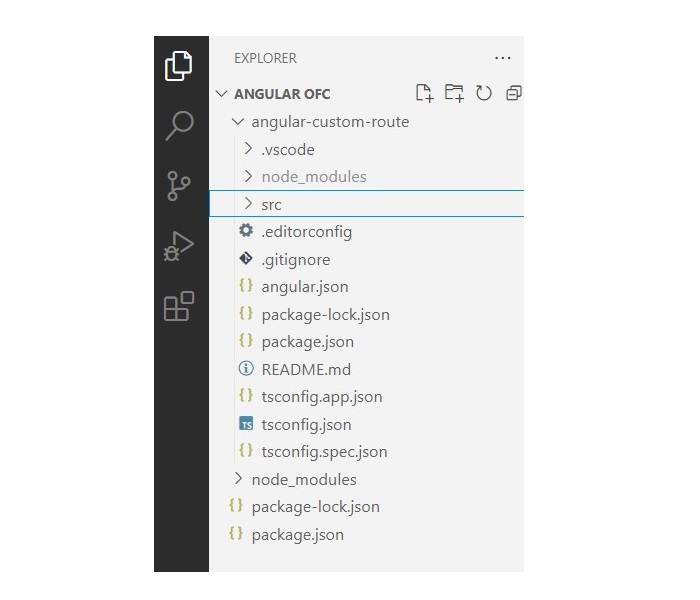
    We will use the Angular CLI to create a new sample application named angular-custom-route. In addition to the application creation, we will create a dashboard component.

    Note: Make sure the Angular CLI is installed;if not,see this.

    Step 1: Create a new Angular project, angular-custom-route as follows:

    ng new angular-custom-route
    

    Once you enter or write the above command in your IDE’s terminal or node.js command prompt, it will ask a few questions as follows:

    • ? Which stylesheet format would you like to use?, select CSS
    • Do you want to enable Server-Side Rendering (SSR) and Static Site Generation (SSG/Prerendering)?, select N

    After a few seconds, your new Angular project will be ready; you can see it in your code editor with the name angular-custom-route.

    Angular Project

    Step 2: From your IDE terminal navigate to your application directory as follows:

    cd angular-custom-route
    

    Step 3: Create a component with the name dashboard as follows:

    ng generate component dashboard
    

    Step 4: In your code editor open the dashboard.component.html file and replace the below HTML code:

    <h3>Welcome to Dashboard</h3><p>Hello {{ dashboard }}!</p>

    Step 5: In your code editor locate the app.component.html file, and replace the below code with:

    <h3>Routing with Custom Matching</h3>
    Navigate to <a routerLink="/@Dashboard">my dashboard</a><router-outlet></router-outlet>

    Configure Routes for your Application

    Next, you need to add routing capabilities to theapp.config.tsfile. As a part of this process, we will create a custom URL matcher that looks for a Twitter handle in the URL. This handle is identified by a preceding@symbol.

    Step 1: In your IDE (code editor) open the app.config.ts file.

    Step 2: Add the following import statements:

    import{ provideRouter, withComponentInputBinding }from'@angular/router';import{routes}from'./app.routes';

    Step 3: In the given array, add the provideRouter(routes, withComponentInputBinding()) statement as follows:

    import{ ApplicationConfig }from'@angular/core';import{ provideRouter, withComponentInputBinding }from'@angular/router';import{ routes }from'./app.routes';exportconst appConfig: ApplicationConfig ={
      providers:[provideRouter(routes,withComponentInputBinding())]};

    Step 4: Now, open the app.routes.ts file and define the “custom route matcher” as follows:

    import{ Routes, UrlSegment }from'@angular/router';import{ DashboardComponent }from'./dashboard/dashboard.component';exportconst routes: Routes =[{matcher:(url)=>{if(url.length ===1&& url[0].path.match(/^@[\w]+$/gm)){return{
    
    			consumed: url, 
    			posParams:{
    			dashboard:newUrlSegment(url[0].path.slice(1),{})}};}else{returnnull;}},
        component: DashboardComponent
    }];</pre>

    As we know the custom matcher is a function which is performed the following tasks as follws:

    • Thematcherverifies that the array contains only "one" element.
    • The matcher uses a regular expression to ensure that the format of the "dashboard" is a match.
    • If there is a match found, the function returns the "entire URL", defining a dashboard route parameter as a substring of the path.
    • If there is no match found, the function returns null, and the router continues to "look for other routes" that match the URL.

    Reading the Route Parameters

    As we created a link in our app.component.html file to redirect to the dashboard component, now we will bind the route parameter with the Dashboard component.

    Step 1: Open the dashboard.component.ts file in your code editor and create an Input matching the dashboard parameter.

    Note: As we imported withComponentInputBinding in our provideRouter. It will allow the Router to bind information directly to the route components.

    import{ Component, Input }from'@angular/core';@Component({
      selector:'app-dashboard',
      standalone:true,
      imports:[],
      templateUrl:'./dashboard.component.html',
      styleUrl:'./dashboard.component.css'})exportclassDashboardComponent{@Input() dashboard!:string;}

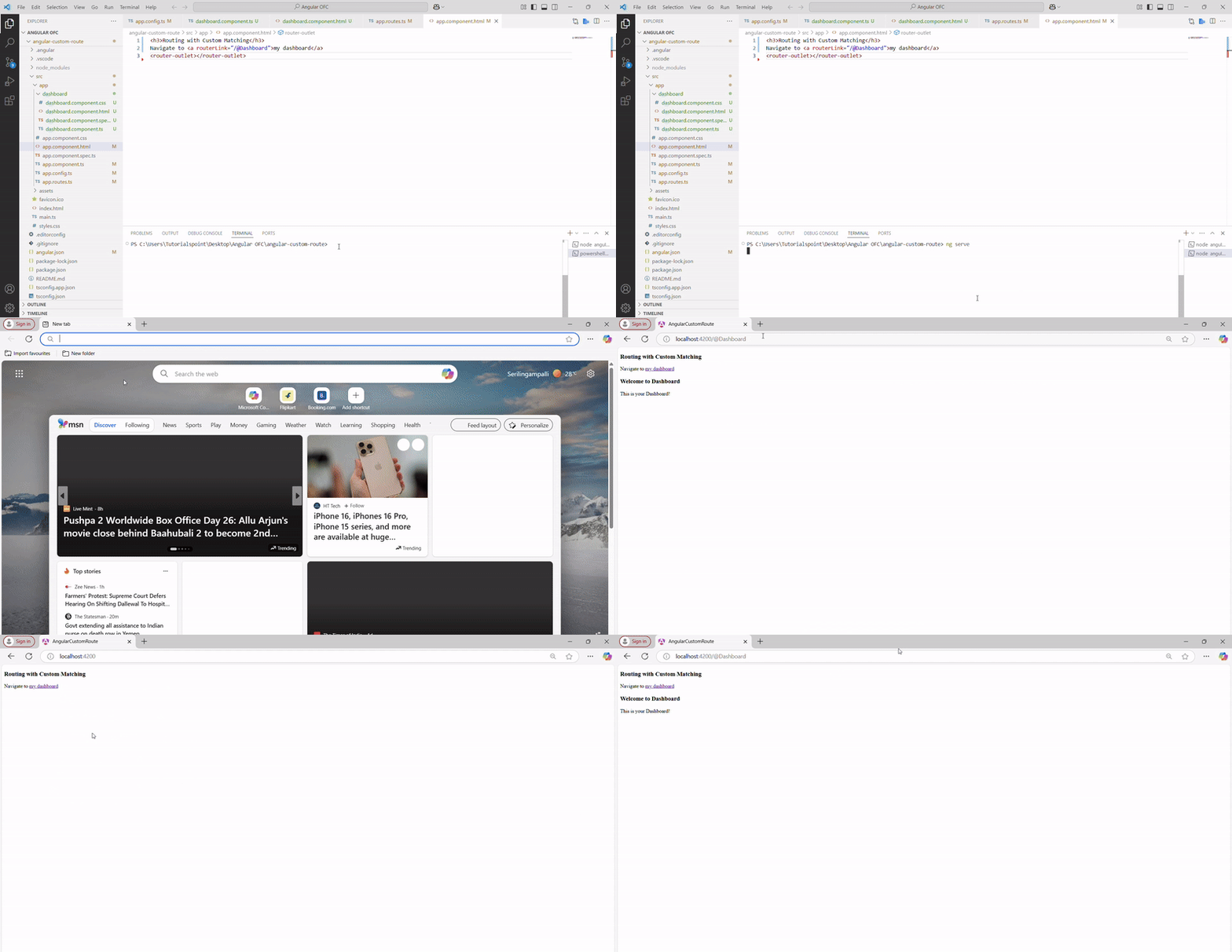
    Step 2: Now run your application to check your custom URL matcher as follows:

    ng serve
    

    The output is as follows:

    Custom Route
  • Routing in Single-Page Applications

    What is Single-Page Application?

    single-page Application (SPA) is a web application or website that interacts with the user by dynamically rewriting the current page rather than loading entire new pages from the server. The routing features in Angular allow developers to develop and design a single-page application.

    Create a Sample Application

    Let’s create a sample Angular application with two different components to demonstrate how to achieve a single-page application (SPA) by setting up routing.

    We will use the Angular CLI to create a new sample angular application. Use the following steps to create a new application:

    Step 1: Open the node.js command or IDE’s terminal (such as VS code) and go to your favorite workspace as follows:

    cd /go/to/your/favorite/workspace
    

    Step 2: Install the Angular CLI using the following command (see more):

    install @angular/cli
    
    or for latest version
    install @angular/cli@latest
    

    Step 3: Create a new angular application as follows(see more):

    ng new mySPA
    

    Enable the stylesheet by choosing the following option:

    ? Which stylesheet format would you like to use?(Use arrow keys)->CSSSCSS[ https://sass-lang.com/documentation/syntax#scss                ]
      Sass   [ https://sass-lang.com/documentation/syntax#the-indented-syntax ]
      Less   [ http://lesscss.org                                             ]

    When prompted with Do you want to enable Server-Side Rendering, select No.

    Now go to your newly created application using the cd mySPA command.

    Step 4: Create a component with the name Home as follows:

    ng generate component Home
    

    In your IDE (code editor), locate the file,home.component.html, and replace the placeholder content with the following HTML code:

    <h3>Welcome to Home</h3><p>All content will be visible here...</p>

    Step 5: Create a component with the name Contact as follows:

    ng generate component Contact
    

    In your IDE (code editor), locate the file,contact.component.html, and replace the placeholder content with the following HTML code:

    <h3>Welcome to Contact</h3><p>You can contact us here..</p>

    Step 6: Now, in your code editor open the app.component.html file and replace its code with as follows:

    <h1>Angular Router Sample Application</h1>
    ...
    <app-home></app-crisis-list><app-contact></app-heroes-list>

    Step 7: Verify that your newly created application runs as expected by running thefollowing command:

    ng serve
    

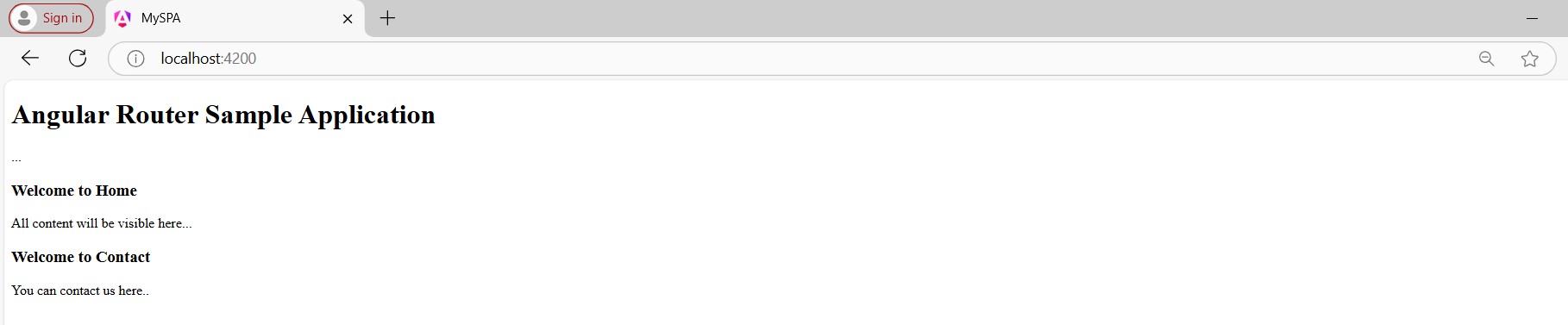
    Step 8: Open the browser and navigate to localhost:4200.

    You should see a single web page, consisting of a title and the HTML of your two components.

    Spa

    Define Routes

    In this section, we will define two routes as follows:

    • The router /home will open the HomeComponent.
    • The router /contact will open the ContactComponent.

    In Angular, a route defines the path for different sections (components). Each route has two properties. The first property,path, is a string that specifies the URL path for the route. The second property,component, is a string that specifies what component your application should display for that path.

    Step 1: In your IDE, open the app.routes.ts file (create it manually, if does not exist) as follows:

    import{ Routes }from'@angular/router';exportconst routes: Routes =[];

    Step 2: Add routes for the two-component you have created:

    import{ Routes }from'@angular/router';import{ HomeComponent }from'./home/home.component';import{ ContactComponent }from'./contact/contact.component';exportconst routes: Routes =[{path:'home', component: HomeComponent},{path:'contact', component: ContactComponent}];

    This routes list is an array of objects (i.e., JavaScript objects), with each object defining the properties (path and component) of a route.

    Import provideRouter

    To add this functionality to your sample application, you need to update theapp.config.tsfile to use the router providers function,and import provideRouter as follows:

    import{ ApplicationConfig }from'@angular/core';import{ provideRouter }from'@angular/router';import{ routes }from'./app.routes';exportconst appConfig: ApplicationConfig ={
      providers:[provideRouter(routes)]};

    Note: For@NgModule-based applications (i.e., older version), put theprovideRouterin theprovider’slist of theAppModule (i.e., app.module.ts) or wherever the module is passed tobootstrapModulein the application.

    Update the Component with router-outlet

    To ensure that your defined routes work and dynamically load components based on the URL, you need to update your app.component.html file with the router-outlet directive. This directive acts as a placeholder for the routed components to be displayed.

    Step 1: In your code editor, open the app.component.html file and delete the following

    <h1>Angular Router Sample Application</h1>
    ...
    <app-home></app-crisis-list><app-contact></app-heroes-list>

    Step 2: Add the router-outlet directive to your app.component.html file:

    <router-outlet></router-outlet>

    Step 3: Import the RouterOutlet in your app.component.ts file as follows:

    import{ Component }from'@angular/core';import{ CommonModule }from'@angular/common';import{ RouterOutlet }from'@angular/router';import{ HomeComponent }from'./home/home.component';import{ ContactComponent }from'./contact/contact.component';@Component({
      selector:'app-root',
      standalone:true,
      imports:[CommonModule, RouterOutlet, HomeComponent, ContactComponent],
      templateUrl:'./app.component.html',
      styleUrl:'./app.component.css'})exportclassAppComponent{
      title ='mySPA';}

    Look at your updated application in your browser. To view the Home component, add /home to the end of the http://localhost:4200 URL:

    http://localhost:4200/home
    

    You can notice that thehomecomponent is displayed. Angular is using the route you defined to dynamically load the component. You can load theContactcomponent in the same way:

    http://localhost:4200/contact
    

    Controlling Navigation with Template

    The application we have developed supports two routes. However, the only way for the user to navigate between different components is by manually changing the URL.

    In this tutorial section, we will learn how to navigate through the different components without changing the URL manually.

    We will create two links that users can click to navigate between the Home and Contact components. We will add some CSS to these links that will give more clarity about the currently loaded page.

    Step 1: Open the app.component.html file and add the below code:

    <nav><a routerLink="/home" class="my-link">Home</a><a routerLink="/contact" class="my-link">Contact</a></nav><div class="load"><router-outlet></router-outlet></div>

    Step 2: Open the app.component.css file and add the code below:

    nav{padding: 20px 0px;border-bottom: 1px solid black;}nav .my-link{margin: 10px 10px;position: relative;top: 5px;text-decoration: none;background-color:rgb(39, 110, 55);color: white;padding: 10px 30px;border-radius: 10px;border: 1px solid black;box-shadow: 0px 5px 15px rgba(0, 0, 0, 0.35);}.load{margin: 30px 0px;}

    If you view your application in the browser, you should see these two links. When you click on a link, the corresponding component will load dynamically:

    Control Navigation

    Adding a Redirect

    In this section of the tutorial, we will add a route that redirects you to the /home component directly when you navigate to http://localhost:4200.

    Step 1: In your code editor open the app.route.ts file.

    Step 2: Update the existing code with the following:

    import{ Routes }from'@angular/router';import{ HomeComponent }from'./home/home.component';import{ ContactComponent }from'./contact/contact.component';exportconst routes: Routes =[{path:'', redirectTo:'home', pathMatch:'full'},{path:'home', component: HomeComponent},{path:'contact', component: ContactComponent}];

    As you can see, we have added new routes with an empty path (”). In addition, it replaces the component property with two new properties as follows:

    • redirectTo: This property instructs Angular to redirect from an empty (”) path to the ‘home’ path.
    • pathMatch: This property instructs Angular on how much of the URL to match. If you keep it as a “full”,it will match the entire path.

    Note: Now, when you open your application (navigate on browser localhost:4200), it displays the Home component by default as follows:

    Redirecto

    Adding 404 page

    A user can try to access a route that you have not defined. To acknowledge this behavior, the best practice is to display a 404 page. In this section, we’ll create a 404 page (component) and update our route configuration to show that page for any unspecified routes.

    Step 1: From your code editor terminal, create a new component with the name pageNotFound as follows:

    ng generate ccomponent pageNotFound
    

    Step 2: In your code editor, open the page-not-found.component.html file and replace its contents with the following HTML code:

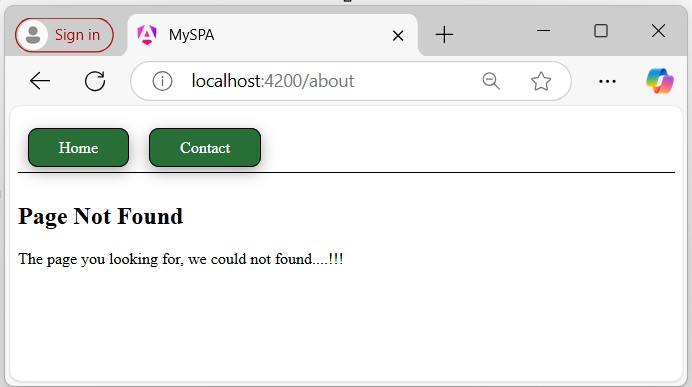
    <h2>Page Not Found</h2><p>The page you looking for, we could not found....!!!</p>

    Step 3: Open the app.routes.ts file and add the following route to the routes list at the end (if not other routes will not work properly):

    {path:'**', component: PageNotFoundComponent}

    The new route uses a path as “**”. This path is how Angular identifies a wildcard route. Any route that does not match an existing route in your configuration will use this route in the application.

    Make sure that the wildcard route (**) is placed at the end of the array. The order of your routes is important, as Angular applies routes in order and uses the first match it finds; otherwise, the routes will not work properly.

    Now, try to navigate the non-existing route, for example, localhost:4200/about, it will redirect you to the page-not-found component, as the “/about” route does not match with any defined routes in your app.routes.ts file.

    Page not Found
  • Navigation

    What is Navigation?

    Navigation in web applications refers to the process of moving (navigating) through different pages or views within an application. It allows users to interact with various components, access different sections, and use application features.

    Let’s consider a simple login page in an application. On this login page, users can see links for Sign Up and Forgot Password. These links allow users to navigate to the Sign-Up and Forgot Password sections or components.

    Navigation in Angular

    In Angular, navigation is a feature that allows users to move between different sections or components within an application. This can be done by defining routing for an individual click requests without using the routerLink directive from the RouterModule.

    In this chapter, we will discuss how to manually set the navigation without using the routerLink directive. In Angular, the router service provides the navigate() method to programmatically navigate to different routes within the application.

    Sample Example

    To manually set navigation and navigate through different components in Angular, follow these steps:

    Step 1: Open the node.js command or terminal in your IDE (such as VS code) and go to your favorite workspace as follows:

    cd /go/to/your/favorite/workspace
    

    Step 2: Install CLI and create a new application using the command below:

    npm install @angular/cli
    
    ng new myApp
    

    Step 3: Now, navigate to your newly created application as follows:

    cd myApp
    

    Step 4: Open theapp.component.htmlfile and remove everything leaving only the following:

    <router-outlet></router-outlet>
    

    Step 5: Run the application using the below command to ensure that the application is created successfully:

    ng serve
    

    Step 6: Create two components using the command below:

    ng generate component product
    
    ng generate component inventory
    

    Step 7: Open the app.component.html file and place the below code:

    <h1>Welcome to Angular Application</h1><button (click)="open('product')">Go to Product</button><button (click)="open('inventory')">Go to Inventory</button><router-outlet></router-outlet>

    Step 8: Open the app.component.ts file and place the below code:

    import{ Component }from'@angular/core';import{ CommonModule }from'@angular/common';import{ RouterModule, RouterOutlet, Router }from'@angular/router';@Component({
      selector:'app-root',
      standalone:true,
      imports:[CommonModule, RouterOutlet, RouterModule],
      templateUrl:'./app.component.html',
      styleUrl:'./app.component.css'})exportclassAppComponent{
      title ='myApp';constructor(private router: Router){}open(data:any){if(data ==="product"){//here used navigate() to set navigation manuallythis.router.navigate(["/product"]);}elseif(data ==="inventory"){this.router.navigate(["/inventory"]);}}}

    Step 9: Now open the app.routes.ts file and place the code below:

    import{ Routes }from'@angular/router';import{ ProductComponent }from'./product/product.component';import{ InventoryComponent }from'./inventory/inventory.component';exportconst routes: Routes =[{path:'product', component: ProductComponent},{path:'inventory', component: InventoryComponent}];

    Step 10: Finally, run the application using the following command:

    ng serve
    

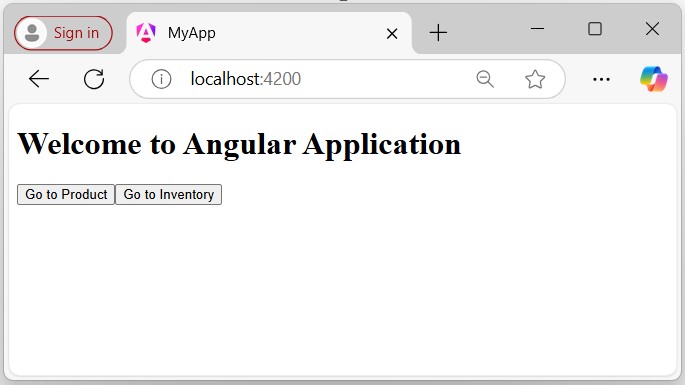
    Step 11: Navigate to http://localhost:4200/ in your browser to see the first view of the application as follows:

    Navigation App

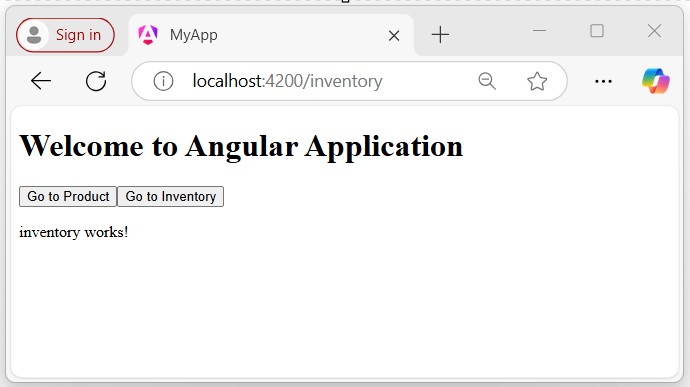
    Click the Go to Inventory button to navigate the Inventory Page as follows:

    Inventory

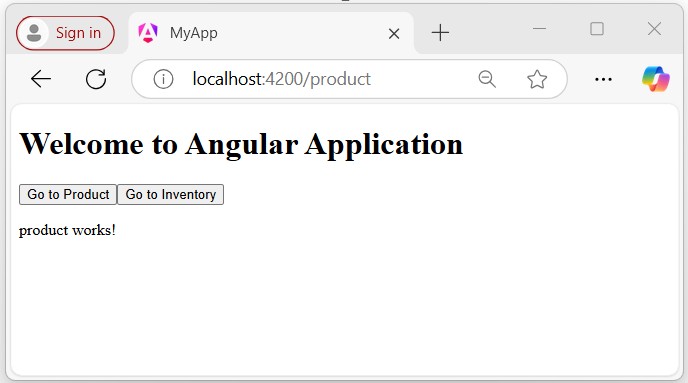
    Click the Go to Product button, you will get the following output which takes you to the Products page.

    Back to Product
  • Nested Routes

    Nested Routes in Angular

    In Angular, nested routes are used to define hierarchical routes for components. This technique allows you to load a specific child component only when its parent component is loaded.

    For example, if you want to load all the items within the ItemsComponent, you can use a route like /items/item-lists/, where the “item-list” is nested within the “items routes”.

    When the <router-outlet> directive is used in a component other than the root component, it allows you to display child routes within that component, and those routes will be considered child routes of the parent component. This concept is known as nested routing, and it can be achieved by implementing nested routes.

    Syntax of Angular Nested Routes

    Below is the syntax to create Nested Routes in Angular −

    const routes: Routes =[{
    
    path:'parent',
    component: ParentComponent,
    children:[{
        path:'child1',
        component: Child1Component
      },{
        path:'child2',
        component: Child2Component
      }]}];</pre>

    Here,

    • path: It specifies the URL segment for the route.
    • component: It defines the component to be rendered for the route.
    • children: An array of child routes nested under the parent route.

    Note: The nested URL will be: "/parent/child1" and "/parent/child2".

    Example of Angular Nested Routes

    Below is a example of using the Nested Routes in a Angular project −

    Step 1: Define Nested Routes for your application

    import{ Routes }from'@angular/router';import{ HomeComponent }from'./home/home.component';import{ AboutComponent }from'./about/about.component';import{ ViewItemComponent }from'./view-item/view-item.component';import{ PagenotfoundComponent }from'./pagenotfound/pagenotfound.component';import{ EditItemComponent }from'./edit-item/edit-item.component';exportconst routes: Routes =[{path:'home', component: HomeComponent},{path:'about', component: AboutComponent},{path:'item', children:[{path:'view/:id', component: ViewItemComponent},{path:'edit/:id', component: EditItemComponent},]},{path:'**', component: PagenotfoundComponent}];

    Step 2: Add your routes to your application

    <h1>Angular Routing</h1><a routerLink="/home">Home</a><br><a routerLink="/about">About</a>
    Item1: <a routerLink="/item/view/1">View Item1</a><a routerLink="item/edit/1">Edit Item1</a><br>
    Item2: <a routerLink="item/view/2">View Item2</a><a routerLink="item/edit/2">Edit Item2</a><br><router-outlet></router-outlet>

    Step 2: Add the 'router-outlet' directive to your ItemComponent

    <p>item works!>/p>
    <router-outlet></router-outlet>

    Step 3: Access 'id' parameter in ViewItemComponent and EditItemComponent

    import{ Component, OnInit }from'@angular/core';import{ ActivatedRoute }from'@angular/router';@Component({
      selector:'app-view-item',
      imports:[],
      templateUrl:'./view-item.component.html',
      styleUrl:'./view-item.component.css'})exportclassViewItemComponentimplementsOnInit{
      id:any;constructor(private route: ActivatedRoute){}ngOnInit():void{this.route.paramMap.subscribe(res=>{this.id = res.get('id');});}}

    EditItemComponent:

    import{ Component }from'@angular/core';import{ ActivatedRoute }from'@angular/router';@Component({
      selector:'app-edit-item',
      imports:[],
      templateUrl:'./edit-item.component.html',
      styleUrl:'./edit-item.component.css'})exportclassEditItemComponent{
      id:any;constructor(private route: ActivatedRoute){}ngOnInit():void{this.route.paramMap.subscribe(res=>{this.id = res.get('id');});}}

    Now run the application and see the output:

    Nested Routes

    By observing the URL in the above GIF, you can clearly see that the View and Edit components are only loaded when the Item route is activated. In the context of Angular, the child components (View and Edit) are rendered only within the parent Item route.

  • Data Layout

    COBOL layout is the description of use of each field and the values present in it. Following are the data description entries used in COBOL −

    • Redefines Clause
    • Renames Clause
    • Usage Clause
    • Copybooks

    Redefines Clause

    Redefines clause is used to define a storage with different data description. If one or more data items are not used simultaneously, then the same storage can be utilized for another data item. So the same storage can be referred with different data items.

    Syntax

    Following is the syntax for Redefines clause −

    01 WS-OLD PIC X(10).
    01 WS-NEW1 REDEFINES WS-OLD PIC 9(8).
    01 WS-NEW2 REDEFINES WS-OLD PIC A(10).
    

    Following are the details of the used parameters −

    • WS-OLD is Redefined Item
    • WS-NEW1 and WS-NEW2 are Redefining Item

    Level numbers of redefined item and redefining item must be the same and it cannot be 66 or 88 level number. Do not use VALUE clause with a redefining item. In File Section, do not use a redefines clause with 01 level number. Redefines definition must be the next data description you want to redefine. A redefining item will always have the same value as a redefined item.

    Example

    IDENTIFICATIONDIVISION.PROGRAM-ID. HELLO.DATADIVISION.WORKING-STORAGESECTION.01 WS-DESCRIPTION.05 WS-DATE1 VALUE'20140831'.10 WS-YEAR PICX(4).10 WS-MONTH PICX(2).10 WS-DATE PICX(2).05 WS-DATE2 REDEFINES WS-DATE1 PIC9(8).PROCEDUREDIVISION.DISPLAY"WS-DATE1 : "WS-DATE1.DISPLAY"WS-DATE2 : "WS-DATE2.STOPRUN.

    JCL to execute the above COBOL program −

    //SAMPLE JOB(TESTJCL,XXXXXX),CLASS= A,MSGCLASS = C
    //STEP1 EXEC PGM = HELLO
    

    When you compile and execute the above program it produces the following result −

    WS-DATE1 : 20140831
    WS-DATE2 : 20140831
    

    Renames Clause

    Renames clause is used to give different names to existing data items. It is used to re-group the data names and give a new name to them. The new data names can rename across groups or elementary items. Level number 66 is reserved for renames.

    Syntax

    Following is the syntax for Renames clause −

    01 WS-OLD.
    10 WS-A PIC 9(12).
    10 WS-B PIC X(20).
    10 WS-C PIC A(25).
    10 WS-D PIC X(12).
    66 WS-NEW RENAMES WS-A THRU WS-C.
    

    Renaming is possible at same level only. In the above example, WS-A, WS-B, and WS-C are at the same level. Renames definition must be the next data description you want to rename. Do not use Renames with the level numbers 01 or, 77. The data names used for renames must come in sequence. Data items with occur clause cannot be renamed.

    Example

    IDENTIFICATIONDIVISION.PROGRAM-ID. HELLO.DATADIVISION.WORKING-STORAGESECTION.01 WS-DESCRIPTION.05 WS-NUM.10 WS-NUM1 PIC9(2)VALUE20.10 WS-NUM2 PIC9(2)VALUE56.05 WS-CHAR.10 WS-CHAR1 PICX(2)VALUE'AA'.10 WS-CHAR2 PICX(2)VALUE'BB'.66 WS-RENAME RENAMES WS-NUM2 THRU WS-CHAR2.PROCEDUREDIVISION.DISPLAY"WS-RENAME : " WS-RENAME.STOPRUN.

    JCL to execute the above COBOL program −

    //SAMPLE JOB(TESTJCL,XXXXXX),CLASS= A,MSGCLASS = C
    //STEP1 EXEC PGM = HELLO
    

    When you compile and execute the above program, it produces the following result −

    WS-RENAME : 56AABB
    

    Usage Clause

    Usage clause specifies the operating system in which the format data is stored. It cannot be used with level numbers 66 or 88. If usage clause is specified on a group, then all the elementary items will have the same usage clause. The different options available with Usage clause are as follows −

    Display

    Data item is stored in ASCII format and each character will take 1 byte. It is default usage.

    The following example calculates the number of bytes required −

    01 WS-NUM PICS9(5)V9(3)USAGEISDISPLAY.
    It requires 8 bytes assignand decimal doesn't require any byte.01 WS-NUM PIC9(5)USAGEISDISPLAY.
    It requires 5 bytes assign.

    COMPUTATIONAL / COMP

    Data item is stored in binary format. Here, data items must be integer.

    The following example calculates the number of bytes required −

    01 WS-NUM PICS9(n)USAGEISCOMP.If'n'=1to4, it takes 2 bytes.If'n'=5to9, it takes 4 bytes.If'n'=10to18, it takes 8 bytes.

    COMP-1

    Data item is similar to Real or Float and is represented as a single precision floating point number. Internally, data is stored in hexadecimal format. COMP-1 does not accept PIC clause. Here 1 word is equal to 4 bytes.

    COMP-2

    Data item is similar to Long or Double and is represented as double precision floating point number. Internally, data is stored in hexadecimal format. COMP-2 does not specify PIC clause. Here 2 word is equal to 8 bytes.

    COMP-3

    Data item is stored in packed decimal format. Each digit occupies half a byte (1 nibble) and the sign is stored at the rightmost nibble.

    The following example calculates the number of bytes required −

    01 WS-NUM PIC9(n)USAGEISCOMP.Numberof bytes = n/2(If n is even)Numberof bytes = n/2+1(If n is odd, consider only integer part)01 WS-NUM PIC9(4)USAGEISCOMP-3VALUE21.
    It requires 2 bytes of storage as each digit occupies half a byte.01 WS-NUM PIC9(5)USAGEISCOMP-3VALUE21.
    It requires 3 bytes of storage as each digit occupies half a byte.

    Copybooks

    A COBOL copybook is a selection of code that defines data structures. If a particular data structure is used in many programs, then instead of writing the same data structure again, we can use copybooks. We use the COPY statement to include a copybook in a program. COPY statement is used in the WorkingStorage Section.

    The following example includes a copybook inside a COBOL program −

    DATADIVISION.WORKING-STORAGESECTION.COPY ABC.

    Here ABC is the copybook name. The following data items in ABC copybook can be used inside a program.

    01 WS-DESCRIPTION.
    05 WS-NUM.
    10 WS-NUM1 PIC 9(2) VALUE 20.
    10 WS-NUM2 PIC 9(2) VALUE 56.
    05 WS-CHAR.
    10 WS-CHAR1 PIC X(2) VALUE ‘AA’.
    10 WS-CHAR2 PIC X(2) VALUE ‘BB’.

  • Database Tuning

    SQL Database Tuning

    Database Tuning in SQL is a set of activities performed to optimize a database and prevents it from becoming a bottleneck.

    There are various techniques with which you can configure the optimal performance of a particular database. Database tuning overlaps with query tuning; so, good indexing and avoiding improper queries help in increasing the database efficiency. In addition, increasing storage, updating to latest database versions and investing in a more powerful CPU (if needed) are also some of the general techniques.

    Database Tuning Techniques

    We can implement the following techniques to optimize the performance of a database −

    Database Normalization

    Normalization is the process of removing of duplicate data from a database. We can normalize a database by breaking down larger tables into smaller related tables. This increases the performance of database as it requires less time to retrieve data from small tables instead of one large table.

    Proper Indexes

    In SQL, indexes are the pointers (memory address) to the location of specific data in database. We use indexes in our database to reduce query time, as the database engine can jump to the location of a specific record using its index instead of scanning the entire database.

    Avoid Improper Queries

    Choosing the correct query to retrieve data efficiently also improves the performance of a database. For example, choosing to retrieve an entire table when we only need the data in a single column will unnecessarily increase query time. So, query the database wisely.

    Let us discuss some of the common improper queries made and how to rectify them to optimize the database performance.

    1. Use SELECT fields instead of SELECT (*)

    In large databases, we should always retrieve only the required columns from the database instead of retrieving all the columns, even when they are not needed. We can easily do this by specifying the column names in the SELECT statement instead of using the SELECT (*) statement.

    Example

    Assume we have created a table with name CUSTOMERS in MySQL database using CREATE TABLE statement as shown below −

    CREATETABLE CUSTOMERS (
       ID INTNOTNULL,
       NAME VARCHAR(20)NOTNULL,
       AGE INTNOTNULL,
       ADDRESS CHAR(25),
       SALARY DECIMAL(18,2),PRIMARYKEY(ID));

    Following query inserts values into this table using the INSERT statement −

    INSERTINTO CUSTOMERS VALUES(1,'Ramesh',32,'Ahmedabad',2000.00),(2,'Khilan',25,'Delhi',1500.00),(3,'Kaushik',23,'Kota',2000.00),(4,'Chaitali',25,'Mumbai',6500.00),(5,'Hardik',27,'Bhopal',8500.00),(6,'Komal',22,'Hyderabad',4500.00),(7,'Muffy',24,'Indore',10000.00);

    Let us say we only want the data in ID, NAME and SALARY columns of the CUSTOMERS table. So, we should only specify those three columns in our SELECT statement as shown below −

    SELECT ID, NAME, SALARY FROM CUSTOMERS;

    Output

    The output obtained is as shown below −

    IDNAMESALARY
    1Ramesh2000.00
    2Khilan1500.00
    3Kaushik2000.00
    4Chaitali6500.00
    5Hardik8500.00
    6Komal4500.00
    7Muffy10000.00

    2. Use Wildcards

    Wildcards (%) are characters that we use to search for data based on patterns. These wildcards paired with indexes only improves performance because the database can quickly find the data that matches the pattern.

    Example

    If we want to retrieve the names of all the customers starting with K from the CUSTOMERS table, then, the following query will provide the quickest result −

    SELECT ID, NAME FROM CUSTOMERS WHERE NAME LIKE'K%';

    Output

    Following is the output of the above query −

    IDNAME
    2Khilan
    3Kaushik
    6Komal

    3. Use Explicit Join

    SQL JOINs are used to combine two tables based on a common column. There are two ways of creating a JOIN implicit join and explicit join. Explicit Join notation use the JOIN keyword with the ON clause to join two tables while the implicit join notation does not use the JOIN keyword and works with the WHERE clause.

    Performance wise, they are both on the same level. However, in more complicated cases, the implicit join notation might produce completely different results than intended. Therefore, Explicit Joining is preferred.

    4. Avoid using SELECT DISTINCT

    The DISTINCT operator in SQL is used to retrieve unique records from the database. And on a properly designed database table with unique indexes, we rarely use it.

    But, if we still have to use it on a table, using the GROUP BY clause instead of the DISTINCT keyword shows a better query performance (at least in some databases).

    5. Avoid using Multiple OR

    The OR operator is used to combine multiple conditions when filtering a database. Whenever we use OR in a filter condition each statement is processed separately. This degrades database performance as the entire table must be scanned multiple times to retrieve the data that matches the filter condition.

    Instead, we can use a more optimized solution; by breaking the different OR conditions into separate queries, which can be processed parallelly by the database. Then, the results from these queries can be combined using UNION.

    Example

    For example, let us say we have a requirement of getting the details of all the customers whose age is greater than 25 or whose salary is greater than 2,000. The optimized query would be as show below −

    SELECT ID, NAME FROM CUSTOMERS WHERE AGE >25UNIONSELECT ID, NAME FROM CUSTOMERS WHERE SALARY >2000;

    Output

    After executing the above code, we get the following output −

    IDNAME
    1Ramesh
    5Hardik
    4Chaitali
    6Komal
    7Muffy

    6. Use WHERE instead of HAVING

    The WHERE and HAVING clause are both used to filter data in SQL. However, WHERE clause is more efficient than HAVING. With WHERE clause, only the records that match the condition are retrieved. But with HAVING clause, it first retrieves all the records and then filters them based on a condition. Therefore, the WHERE clause is preferable.

    Database Defragmentation

    When the data is stored in a database, they are placed in contiguous physical locations. In this case, both logical locations and physical locations are in the same order.

    However, when the database tables are altered by deleting or updating the records, indexes are also altered to suit the changes made. This will cause the indexes to be scattered across the storage. Physical locations also lose the contiguous allocation. Thus, reducing the database performance.

    Defragmentation is the solution this problem. It will reorganize/rebuild the logical ordering of the indexes to match the physical ordering. But, this process first analyses the indexes and chooses whether they only need to be reorganized or rebuilt completely.

    Built-In Tuning Tools

    Some databases provide built-in tuning tools to monitor the database performance. For instance, the Oracle database provides the following tuning tools −

    • EXPLAIN − In SQL, the EXPLAIN command give us the order in which a query is executed along with the estimated cost of each step. We can use this to find the query the least cost to optimize the database.
    • tkprof − tkprof is a command that gives us various statistics, such as CPU and I/O usage of a query. By using these statistics, we can tune our queries to reduce CPU and I/O utilization to increase the efficiency of our database.
  • IN vs EXISTS

    In SQL, we use the IN operator to simplify queries and reduce the need for multiple OR conditions. It allows us to match a value against a list of values. On the other hand, the EXISTS operator checks whether one or more rows exist in a subquery and returns either true or false based on this condition. If the subquery finds at least one row, the EXISTS operator returns true; otherwise, it returns false.

    The SQL IN Operator

    The IN operator in SQL is used to check if a particular value matches any within a given set. This set of values can be specified individually or obtained from a subquery. We can use the IN operator with the WHERE clause to simplify queries and reduce the use of multiple OR conditions.

    Suppose we have a table named CUSTOMERS and we want to retrieve customer details based on their IDs. In this scenario, we can use the IN operator with the WHERE clause to fetch the details of these specific IDs.

    Syntax

    Following is the syntax of the SQL IN operator −

    SELECT column_name
    FROM table_name
    WHERE column_name
    IN(value1, value2, valueN);

    In the above syntax, the column_name matches every value (value1, value2, … valueN). If the matches occur, The IN operators returns true; otherwise, false.

    Example

    First of all, let us create a table named CUSTOMERS using the following query −

    CREATETABLE CUSTOMERS (
       ID INTNOTNULL,
       NAME VARCHAR(20)NOTNULL,
       AGE INTNOTNULL,
       ADDRESS CHAR(25),
       SALARY DECIMAL(18,2),PRIMARYKEY(ID));

    Now, add records into the above created table using the INSERT INTO statement as shown below −

    INSERTINTO CUSTOMERS VALUES(1,'Ramesh',32,'Ahmedabad',2000.00),(2,'Khilan',25,'Delhi',1500.00),(3,'Kaushik',23,'Kota',2000.00),(4,'Chaitali',25,'Mumbai',6500.00),(5,'Hardik',27,'Bhopal',8500.00),(6,'Komal',22,'Hyderabad',4500.00),(7,'Muffy',24,'Indore',10000.00);

    The table will be created as follows −

    IDNAMEAGEADDRESSSALARY
    1Ramesh32Ahmedabad2000.00
    2Khilan25Delhi1500.00
    3kaushik23Kota2000.00
    4Chaitali25Mumbai6500.00
    5Hardik27Bhopal8500.00
    6Komal22Hyderabad4500.00
    7Muffy24Indore10000.00

    The following query retrieves the NAME and SALARY columns from the CUSTOMERS table for rows where the ID is 1, 2, or 3.

    SELECT NAME, SALARY FROM CUSTOMERS WHERE ID IN(1,2,3);

    Output

    On executing the query above, the output is displayed as −

    NameSalary
    Ramesh2000.00
    Khilan1500.00
    Kaushik2000.00

    The SQL EXISTS Operator

    The EXISTS operator is used to look for the existence of a row in a given table that satisfies a set of criteria. It is a Boolean operator that compares the result of the subquery to an existing record and returns true or false.

    The returned value is true, if the subquery fetches single or multiple records; and false, if no record is matched. EXISTS operator follows the querys efficiency features, i.e. when the first true event is detected, it will automatically stop processing further.

    We can use the EXISTS operator with the SELECTUPDATEINSERT and DELETE queries.

    Syntax

    Following is the basic syntax of SQL EXISTS operator −

    SELECT column_name FROM table_name
    WHEREEXISTS(SELECT column_name FROM table_name
       WHERE condition 
    );

    Example

    First of all, consider the CUSTOMERS table, and create another table named EMPLOYEES using the following query −

    CREATETABLE EMPLOYEES (
       EID INTNOTNULL,
       NAME VARCHAR(20)NOTNULL,
       AGE INTNOTNULL,
       CITY CHAR(25),
       CONTACT INT,PRIMARYKEY(EID));

    Now, let us insert some records into the EMPLOYEES table using the INSERT INTO statement as shown below −

    INSERTINTO EMPLOYEES VALUES(1,'Varun',32,'Ahmedabad',12345),(2,'Mahesh',22,'Kashmir',34235),(3,'Suresh',43,'Kerala',12355);

    The table will be created as follows −

    EIDNAMEAGECITYCONTACT
    1Varun32Ahmedabad12345
    2Mahesh22Kashmir34235
    3Suresh43Kerala12355

    In the following query, we are using the EXISTS operator to fetch the names and ages of CUSTOMERS whose AGE is same as the AGE in the EMPLOYEES table.

    SELECT NAME, AGE 
    FROM CUSTOMERS 
    WHEREEXISTS(SELECT*FROM EMPLOYEES 
       WHERE CUSTOMERS.AGE = EMPLOYEES.AGE
    );

    Output

    Following is the output of the above query −

    NAMEAGE
    Ramesh32
    Komal22

    IN vs EXISTS

    Following table summarizes all the differences between IN and EXISTS −

    S.No.INEXISTS
    1It is applied to the SQL query to remove the multiple OR conditions.It is used to find whether the data in the subquery truly exist.
    2It executes all values contained within the IN block.If the value is matched, displays the details of the given value. It will terminate the further process if the condition is met.
    3It can be used for the comparison of a null value because it returns true, false, and a null value.It cannot be used for the comparison of a null value because it returns only true and false values.
    4It can be used with subqueries as well as with values.It can be used only with subqueries.
    5It executes faster when the subquery is smaller.It executes faster when the subquery is larger. Because it is more efficient than IN and returns only a Boolean value.

  • Group By vs Order By

    In SQL, we have two commonly used clauses that help us to manipulate data; Group By clause and Order By clause.

    A Group By clause is used to arrange the identical data/records into groups and the Order By clause is used to sort the data in ascending or descending order.

    The SQL Group By Clause

    Using the GROUP BY clause we can organize the data in a table into groups (based on a column) and perform required calculations on them.

    This clause is often used with the aggregate functions such as MIN(), MAX(), SUM(), AVG(), and COUNT() etc.

    It is often used with the SELECT statement, and it is placed after the WHERE clause or before the HAVING clause. If we use the Order By clause, the Group By clause should precede the Order By clause.

    Syntax

    Following is the syntax of the SQL Group By clause −

    SELECT column_name, aggregate_function()FROM table_name
    WHERE condition GROUPBY column_name;

    The aggregate_function() and the WHERE clause are optional in the above syntax.

    Example

    Assume we have created a table named CUSTOMERS that contains records of customers such as NAME, AGE, ADDRESS, and SALARY etc.., using the following CREATE statement −

    CREATETABLE CUSTOMERS (
       ID INTNOTNULL,
       NAME VARCHAR(20)NOTNULL,
       AGE INTNOTNULL,
       ADDRESS CHAR(25),
       SALARY DECIMAL(18,2),PRIMARYKEY(ID));

    Now, we are inserting values into this table using the INSERT statement as follows −

    Open Compiler

    INSERTINTO CUSTOMERS VALUES(1,'Ramesh',32,'Ahmedabad',2000.00),(2,'Khilan',25,'Delhi',1500.00),(3,'Kaushik',23,'Kota',2000.00),(4,'Chaitali',25,'Mumbai',6500.00),(5,'Hardik',27,'Bhopal',8500.00),(6,'Komal',22,'Hyderabad',4500.00),(7,'Muffy',24,'Indore',10000.00);

    The CUSTOMERS table will be created as −

    IDNAMEAGEADDRESSSALARY
    1Ramesh32Ahmedabad2000.00
    2Khilan25Delhi1500.00
    3Kaushik23Kota2000.00
    4Chaitali25Mumbai6500.00
    5Hardik27Bhopal8500.00
    6Komal22Hyderabad4500.00
    7Muffy24Indore10000.00

    In the SQL query below, we are using the Group by clause to group the rows based on their salaries from the CUSTOMERS table and counting the number of records in each group −

    SELECT SALARY,COUNT(SALARY)from CUSTOMERS GROUPBY SALARY;

    Output

    When we execute the above query, the following result will be displayed −

    SALARYMAX(SALARY)
    2000.002
    1500.001
    6500.001
    8500.001
    4500.001
    10000.001

    The SQL Order By Clause

    The ORDER BY clause is used to sort the query results. This clause is used at the end of a SELECT statement, following the WHERE, HAVING and GROUP BY clauses. We can sort the table column in ascending or descending order with the by specifying the sort order as ASC and DESC respectively. If we do not specify any order, it defaults to ascending order.

    Syntax

    Following is the syntax to sort the column value in ascending/descending order using the SQL ORDER BY clause −

    SELECT column_name FROM table_name ORDERBYASC/DSC;

    Example

    In the following query, we are retrieving the ID and NAME from the CUSTOMERS table and using the ORDER BY clause, we are sorting the names in ascending order.

    Open Compiler

    SELECT ID, NAME FROM CUSTOMERS ORDERBY NAME;

    Output

    When we run the above query, we can see that the resultant table is sorted by name in ascending order.

    IDNAME
    4Chaitali
    5Hardik
    3Kaushik
    2Khilan
    6Komal
    7Muffy
    1Ramesh

    Example

    In the following example, we are retrieving the NAME, calculating the AVG SALARY, and using the GROUP BY clause to group the table by NAME.

    Open Compiler

    SELECT NAME,AVG(SALARY)FROM CUSTOMERS GROUPBY NAME;

    Output

    When we run the above query, we get the name and average salary. The average salary is the same as the actual salary because there are no two or more than two records with the same name. As a result, the average salary is the same as the actual salary, and the table is grouped by name. as shown in the table below.

    NAMEAVG(SALARY)
    Ramesh2000.000000
    Khilan1500.000000
    Kaushik2000.000000
    Chaitali6500.000000
    Hardik8500.000000
    Komal4500.000000
    Muffy10000.000000

    Example

    In the following example, we are retrieving, NAME, AGE, and SALARY and using the ORDER BY clause to sort the AGE in the ascending order.

    Open Compiler

    SELECT NAME, AGE, SALARY FROM customers ORDERBY AGE;

    Output

    The table generated by the above query is as shown below −

    NAMEAGESALARY
    Komal224500.00
    Kaushik232000.00
    Muffy2410000.00
    Khilan251500.00
    Chaitali256500.00
    Hardik278500.00
    Ramesh322000.00

    Group by vs Order by

    Following table summarizes the differences between the Group By clause and Order by clause −

    S.No.Group ByOrder By
    1It is applied to group rows with same values.It sorts the columns in either ascending or descending order.
    2It could be allowed in the create view statement.It is not allowed to create view statement.
    3The attribute cannot be assigned to the aggregate function in the Group By statement.The attribute can be assigned to the aggregate function in the Order By statement.
    4It is always used before the Order by clause in the select statement.It is always used after the Group by clause in the select statement.
    5Here grouping is done based on the similarity among the rows attribute value.Here, the result-set is sorted based on the columns attribute value either ascending or descending order.
    6It controls the presentation of the rowIt controls the presentation of the column.
    7We can use the aggregate function in the Group by.Here its not mandatory to use the aggregate function in the Order by.