Author: saqibkhan

  • SVG

    HTML SVG Graphics

    HTML SVG (Scalable Vector Graphics) is used to define vector graphics in XML that can be embedded into HTML pages. SVG is different from normal images because it retains its quality even when zoomed in.

    XML is an abbreviation that stands for Extensible Markup Language, and it is a data description language. It does not have any predefined tags; hence, the users are required to define their own tags depending on the need.

    What is SVG?

    • SVG stands for Scalable Vector Graphics.
    • SVG helps us to draw any type of images using XML coding.
    • Zooming an XML vector does not lose its quality.
    • It is mostly useful for vector-type diagrams like pie charts and two-dimensional graphs in an X, Y coordinate system.
    • SVG became a W3C Recommendation on 14 January 2003.

    Bitmap vs. Scalable Vector Graphics

    The PNG, GIF, and JPG files are bitmap graphics and SVG files are vector graphics. The main difference between these two is that bitmap graphics are made up of a grid of tiny pixels but, vector graphics are defined by coding hence vector graphics does not lose quality after zooming.

    How to Use SVG in HTML?

    You can use (embed) SVG graphics in two ways:

    • Using <img> tag
    • Using <svg> tag

    1. Embedding SVG in HTML Using <img> Tag

    You can embed an SVG file in the HTML document using the <img> tag by specifying the file name along with the path in the src attribute. You can also define a direct URL to the SVG image.

    Example

    An SVG file can be embedded as follows:

    <img src = "svg_file_name.svg" alt="Alternate Text" />

    2. Embedding SVG in HTML Using <svg> Tag

    HTML allows embedding SVG directly by using the <svg>...</svg> tag, which has the following syntax:

    Syntax

    <svg><!-- code to create graphics --></svg>

    Predefined SVG Elements for Drawing Shapes

    There are some predefined SVG elements that are used to draw various shapes like circles, rectangles, lines, and so on. They are as follows:

    TagsDescription
    <rect>Used to define a rectangle in vector graphics for a given width and height as attributes.
    <circle>Used to define a circle for given coordinates of the top-left corner and radius as an attribute.
    <ellipse>Used to define an ellipse for given coordinates of the top-left corner, the length of the major axis, and the length of the minor axis as attributes.
    <line>Used to draw a line for the given two coordinates as an attribute.
    <polyline>Used to define a polyline for given coordinates of a series of connected points.
    <polygon>Used to define a polygon for given coordinates that joins in a straight line.

    The <svg> tag is the top-level (root) element of the abovementioned tags. They are defined inside the SVG element.

    Common Attributes of SVG Elements

    The following table contains a list of attributes of SVG elements:

    AttributeDescription
    XThe top-left x-axis coordinate.
    YThe top-left y-axis coordinate.
    widthThe width of the rectangle figure.
    heightThe height of the rectangle figure.
    rxThe x-axis’ roundness of the ellipse.
    ryThe y-axis’ roundness of the ellipse.
    styleIndicate an inline style.

    Draw a Circle in SVG Using <circle> Tag

    The following SVG example demonstrates how to draw a circle using the <circle> tag inside an SVG element. Here, cx represents the x-coordinate of the top-left corner of the circle, and cy represents the y-coordinate of the top-right corner of the circle.

    Example

    Open Compiler

    <!DOCTYPE html><html><head><title>SVG-Circle</title></head><body><h2>HTML SVG Circle</h2><svg height="500" ><circle cx="50" 
    
              cy="50" 
              r="50" 
              fill="red" /&gt;&lt;/svg&gt;&lt;/body&gt;&lt;/html&gt;</pre>

    Draw a Rectangle in SVG Using <rect> Tag

    The following SVG example demonstrates how to draw a rectangle using the <rect> tag. The height and width attributes are used to define the dimensions of the rectangle.

    Example

    Open Compiler

    <!DOCTYPE html><html><head><title>SVG Rectangle</title></head><body><h2>HTML SVG Rectangle</h2><svg height = "200"><rect width = "300" 
    
            height = "100" 
            fill = "red" /&gt;&lt;/svg&gt;&lt;/body&gt;&lt;/html&gt;</pre>

    Draw a Line in SVG Using <line> Tag

    The following SVG example demonstrates how to draw a line using the <line> tag with the provided coordinates of two points (x1, y1 and x2, y2). The style attribute can also be used to set additional styling, such as stroke color, fill color, stroke width, and more.

    Example

    Open Compiler

    <!DOCTYPE html><html><head><title>SVG Line</title></head><body><h2>HTML SVG Line</h2><svg  height="200"><line x1="0" y1="0" 
    
            x2="200" y2="100" 
            style="stroke:red;stroke-width:2"/&gt;&lt;/svg&gt;&lt;/body&gt;&lt;/html&gt;</pre>

    Draw an Ellipse in SVG Using <ellipse> Tag

    The following SVG example demonstrates how to draw an ellipse using the <ellipse> tag. Here, cx and cy represent the coordinates of the center of the ellipse, while rx and ry define the radii along the x-axis and y-axis, respectively.

    Example

    Open Compiler

    <!DOCTYPE html><html><head><title>SVG Ellipse</title></head><body><h2>HTML SVG Ellipse</h2><svg height="200"><ellipse cx="100" cy="50" 
    
               rx="100" ry="50" 
               fill="red" /&gt;&lt;/svg&gt;&lt;/body&gt;&lt;/html&gt;</pre>

    Draw a Polygon in SVG Using <polygon> Tag

    The following SVG example demonstrates how to draw an ellipse using the <ellipse> tag. Here, cx and cy represent the coordinates of the center of the ellipse, while rx and ry define the radii along the x-axis and y-axis, respectively.

    Example

    Open Compiler

    <!DOCTYPE html><html><head><title>SVG</title></head><body><h2>HTML SVG Polygon</h2><svg height="200"><polygon points="20,10, 300,20, 170,50, 130,70" 
    
               fill="red" /&gt;&lt;/svg&gt;&lt;/body&gt;&lt;/html&gt;</pre>

    Draw a Polyline in SVG Using <polyline> Tag

    The following SVG example demonstrates how to draw a polyline using the <polyline> tag. The coordinates of the connected points are provided in the points attribute of the <polyline> tag.

    Example

    Open Compiler

    <!DOCTYPE html><html><head><title>SVG Polyline</title></head><body><h2>HTML SVG Polyline</h2><svg height="200"><polyline points="0,0 0,30 30,30 30,60 60,60" 
    
                fill="red" /&gt;&lt;/svg&gt;&lt;/body&gt;&lt;/html&gt;</pre>

    Apply Fill Color Gradient to Shapes in SVG

    The following SVG example demonstrates how to draw an ellipse using the <ellipse> tag and use the <radialGradient> tag to define an SVG radial gradient.

    Similarly, you can use the <linearGradient> tag to create an SVG linear gradient.

    Example

    Open Compiler

    <!DOCTYPE html><html><head><title>SVG</title></head><body><h2>HTML SVG Gradient Ellipse</h2><svg height="200"><defs><radialGradient id="gradient" 
    
                         cx="50%" cy="50%" 
                         r="50%" 
                         fx="50%" fy="50%"&gt;&lt;stop offset="0%" 
                  style="stop-color:rgb(200,200,200);"/&gt;&lt;stop offset="100%" 
                  style="stop-color:rgb(0,0,255);"/&gt;&lt;/radialGradient&gt;&lt;/defs&gt;&lt;ellipse cx="100" cy="50" 
               rx="100" ry="50" 
               style="fill:url(#gradient)" /&gt;&lt;/svg&gt;&lt;/body&gt;&lt;/html&gt;</pre>

    Draw a Star in SVG Using <polygon> Tag

    The following SVG example demonstrates how to draw a polygon using the <polygon> tag. The coordinates of the polygon's vertices are provided in the points attribute of the <polygon> tag. Each point is defined by an (x, y) pair, and the points are connected to form the shape.

    Example

    Open Compiler

    <!DOCTYPE html><html><head><title>SVG star</title></head><body><h2>HTML SVG Star</h2><svg height="200"><polygon points="100,5 40,180 190,60 10,60 160,180" 
    
               fill="red"/&gt;&lt;/svg&gt;&lt;/body&gt;&lt;/html&gt;</pre>
  • Style Guide

    What is Style Guide in HTML?

    In HTML, the style guide is a set of rules and conventions that define how to write and format code. It helps to ensure that the written code is readable, understandable and easy to modify. A style guide also helps to avoid common errors and bugs that can affect the functionality and appearance of a web page. In this tutorial, we are going to cover the most important style guidelines for creating better HTML code.

    Start with HTML5 Doctype

    Always start all HTML and XHTML documents with <!DOCTYPE html> declaration. Note that this declaration is case-insensitive. It is required to enforce the full standard mode (also known as no-quirks mode) to provide more consistent rendering of web pages. It is the latest web standard described by W3C and used by the layout engines of modern web browsers.

    Example

    Open Compiler

    <!DOCTYPE html><html><head><!-- Content inside head tag --></head><body><!-- Content inside body tag -->
       Hello, Welcome to Tutorialspoint
    </body></html>

    Specify document language

    Always specify the document language with the help of lang attribute. This attribute is defined within the opening <html> tag, which is the root of HTML document. Specifying the document language will help in accessibility, speech analysis, translation and other functionalities.

    Example

    Open Compiler

    <!DOCTYPE html><html lang="en"><head><!-- Content inside head tag --></head><body><!-- Content inside body tag -->
       Hello, Welcome to Tutorialspoint
    </body></html>

    Define Charset

    The W3C always recommend developers to declare the charset or character encoding explicitly. It can be done by using the charset attribute of <meta> tag. Pass UTF-8 as a value to charset attribute as it is the most commonly used character encoding and provides over a million characters.

    Example

    Open Compiler

    <!DOCTYPE html><html lang="en"><head><meta charset = "UTF-8"></head><body><!-- Content inside body tag -->
       Hello, Welcome to Tutorialspoint
    </body></html>

    Use Lowercase for elements and attributes

    Dont capitalize the element names, attribute names and values of attributes. In other programming languages like Java, C and C++, developers often use the camel case or snake case for declaring the variable names. However, for writing HTML code, W3C recommends the use of lowercase letters. Doing so will enhance the clarity and readability of our HTML code.

    Example

    Open Compiler

    <body><h1><!-- Heading comes here --></h1><p style = "font-size: 25px; "><!-- contains paragraph -->
    
      Hello, Welcome to Tutorialspoint
    </p></body>

    Quote the attribute values

    According to W3C recommendations, it is better to enclose attribute values in double quotes. This is important for values containing spaces, as HTML may not parse them correctly without the quotes. The use of double quotes is more common than single quotes. However, we can use single quotes as well.

    <p style = "font-size: 25px; "><!-- contains paragraph --></p>

    Use closing tags

    In HTML, all elements must be closed properly, even if some elements have optional closing tags. Please note that there are certain elements that are self-closing including <img>, <hr>, <br> and many more.

    Example

    Open Compiler

    <!DOCTYPE html><html><head><!-- Content inside head tag --></head><body><h1><!-- Heading comes here --></h1><p><!-- contains paragraph --></p><br><p><!-- contains paragraph -->
    
      Hello, Welcome to Tutorialspoint
    </p></body></html>

    Use proper Indentation

    The use of proper indentation shows the structure and hierarchy of our HTML code. Use spaces instead of tabs for indentation, and use a consistent number of spaces (usually two or three) per level. Also, we can use the blank lines to separate large code blocks.

    Example

    Open Compiler

    <!DOCTYPE html><html><head><!-- Content inside head tag --></head><body><h1><!-- Heading comes here --></h1><p><!-- contains paragraph --></p><p><!-- contains paragraph -->
    
      Hello, Welcome to Tutorialspoint
    </p></body></html>

    Set the viewport

    Setting the viewport helps web pages render well on different devices. It is achieved by controlling the width and scale of the page. It is used for ensuring the responsiveness of a particular web page.

    <meta name = "viewport" content = "width=device-width, initial-scale = 1.0">

    Add Comments

    We use comments to explain the purpose or functionalities of the particular HTML code. Comments should start with <!– and end with –>. Avoid using comments for styling or scripting purposes.

    Example

    Open Compiler

    <!DOCTYPE html><html lang="en"><head><!-- Content inside head tag --></head><body><h1><!-- Heading comes here --></h1><p><!-- contains paragraph -->
    
      Hello, Welcome to Tutorialspoint
    </p></body></html>

  • Emojis

    Emojis are allowed to include in our webpages to represent emotions in plain text. Emojis are widely used in social media, messaging apps, and web pages to add some humour and feelings to the text. For example, 😈, 😁, 😉

    What are Emojis?

    Emojis are small graphical symbols or icons that represent emotions, objects, animals, flags, nature, food items and many more related entities. Although emojis looks like graphical symbols, they are actually characters of the UTF-8 character set.

    UTF-8 Emojis

    EmojiHexadecimal CodeDecimal Code
    😈&#x1F608;&#128520;
    😂&#x1F602;&#128514;
    👍&#x1F44D;&#128077;
    😁&#x1F601;&#128513;
    😃&#x1F603;&#128515;
    😇&#x1F607;&#128519;
    😉&#x1F609;&#128521;
    😍&#x1F60D;&#128525;
    😭&#x1F62D;&#128557;
    😘&#x1F618;&#128536;
    😢&#x1F622;&#128546;
    🙂&#x1F642;&#128578;
    😪&#x1F62A;&#128554;
    😷&#x1F637;&#128567;

    How to add Emojis to HTML document?

    To add emojis into an HTML document, our first step should be defining the character encoding for the web page. For this purpose, we use the charset attribute of <meta> tag. Note that <meta> tag is used within the <head> tag. The most appropriate value for the charset attribute is UTF-8 as it covers over a million characters including the emojis.

    The character encoding is specified by the following <meta> tag:

    <meta charset = "UTF-8">

    There are two ways of adding emojis to the HTML document:

    • Using Decimal Code
    • Using Hexadecimal Code

    Using Decimal Code to add Emojis

    We can add emojis into the HTML document using their corresponding decimal codes. These codes start with &#, ends with “;” and in-between they contain numerics.

    Example

    In the following example, we are going to display a few emojis on the web page using their respective decimal codes.

    Open Compiler

    <!DOCTYPE html><html><head><title>Emojis in HTML</title><meta charset="UTF-8"></head><body><h2>
    
      Adding emojis in HTML document using 
      decimal code
    </h2><div><p>
         Devil Emoji: 
         &lt;span&gt;&amp;#128520;&lt;/span&gt;&lt;/p&gt;&lt;p&gt;
         Face having Tears of Joy Emoji: 
         &lt;span&gt;&amp;#128514;&lt;/span&gt;&lt;/p&gt;&lt;p&gt;
         Thumbs Up Emoji: 
         &lt;span&gt;&amp;#128077;&lt;/span&gt;&lt;/p&gt;&lt;/div&gt;&lt;/body&gt;&lt;/html&gt;</pre>

    Using Hexadecimal Code to add Emojis

    We can also specify emojis using their respective hexadecimal codes. The hexadecimal codes for emojis start with &#x and end with ";" to inform the browser the character represented by the code needs to be displayed.

    Example

    The following example illustrates the use of hexadecimal codes in displaying emojis.

    Open Compiler

    <!DOCTYPE html><html><head><title>Emojis in HTML</title><meta charset="UTF-8"></head><body><h2>
    
      Adding emojis in HTML document 
      using Hexadecimal code
    </h2><div><p>
         Devil Emoji: 
         &lt;span&gt;&amp;#X1F608;&lt;/span&gt;&lt;/p&gt;&lt;p&gt;
         Face having Tears of Joy Emoji: 
         &lt;span&gt;&amp;#x1F602;&lt;/span&gt;&lt;/p&gt;&lt;p&gt;
         Thumbs Up Emoji: 
         &lt;span&gt;&amp;#x1F44D;&lt;/span&gt;&lt;/p&gt;&lt;/div&gt;&lt;/body&gt;&lt;/html&gt;</pre>

    Drawbacks of using HTML Emojis

    The drawback of using emojis in HTML documents is that these characters are not directly available for our use. There are no specific keys available on the computer keyboards. We are required to memorize or look up their respective codes.

  • Symbols

    What are HTML Symbols?

    HTML symbols are some characters that hold a special meaning and are difficult to type directly on the keyboard. They are often termed as “symbols.” For example, other than the dollar symbol, we can’t find any currency symbols like rupees and euros on normal keyboards. However, HTML provides other ways to insert these symbols into webpages. In this tutorial, we are going to learn how to use special characters or symbols in an HTML document.

    Inserting Symbols in HTML Document

    To insert symbols into an HTML document, we use entities. If no entity name exists, then we are allowed to use the entity number, which is a decimal or a hexadecimal reference. An HTML entity is a piece of text that begins with an ampersand (&) and ends with a semicolon (;). They are used to represent characters and symbols that are either reserved in HTML or not directly available on keyboards for use on the web page.

    There are two types of HTML entities: named entities and numeric entities. The named entities use a descriptive name to refer to a character or symbol, such as &copy; for the copyright symbol. Numeric entities use a number to refer to a character or symbol, such as &#169; for the same symbol.

    Example

    The following example shows how to insert the most commonly used symbols into an HTML document.

    Open Compiler

    <!DOCTYPE html><html><head><title> Symbols in HTML </title></head><body><h1>Common HTML Symbols</h1><p>Registered trademark Symbol : &reg;</p><p>Trademark Symbol : &trade;</p><p>Copyright Symbol : &copy;</p><p>Left Arrow Symbol : &larr;</p></body></html>

    When a user executes the above code, it will produce four different symbols, namely copyright, trademark, registered trademark, and left arrow.

    HTML Currency Symbols

    The following table shows currency symbols and their corresponding entities −

    SymbolsDescriptionEntity NameEntity Number
    Indian Rupee SymbolNA&#8377;
    Euro Symbol&euro;&#8364;
    Bitcoin SymbolNA&#8383;
    ¥Japanese Yen Symbol&yen;&#165;
    Ruble SymbolNA&#8381;

    Example: Inserting Currency Symbols in HTML

    In the following example, we are going to display a few currency symbols using their corresponding entities −

    Open Compiler

    <!DOCTYPE html><html><head><title> Symbols in HTML </title></head><body><h1>Common Currency Symbols</h1><p>Indian Rupee Symbol : &#8377;</p><p>Euro Symbol : &euro;</p><p>Bitcoin Symbol : &#8383;</p><p>Japanese Yen Symbol : &yen;</p></body></html>

    HTML Mathematical Symbols

    The following table shows mathematical symbols and their corresponding entities −

    SymbolsDescriptionEntity NameEntity Number
    For all symbol&forall;&#8704;
    Empty sets symbol&empty;&#8709;
    Nabla symbol&nabla;&#8711;
    Summation symbol&sum;&#8721;
    Element of&isin;&#8712;

    Example: Inserting Mathematical Symbols in HTML

    In this example, we will demonstrate how to insert mathematical symbols into an HTML document.

    Open Compiler

    <!DOCTYPE html><html><head><title> Symbols in HTML </title></head><body><h1>Common Mathematical Symbols</h1><p>For all symbol : &#8704;</p><p>Nabla symbol : &nabla;</p><p>Empty sets symbol : &empty;</p><p>Summation symbol : &sum;</p></body></html>

    HTML Arrow Symbols

    The following table shows arrows symbols and their corresponding entities −

    SymbolEntity NameEntity NumberDescription & Example
    &larr;&#8592;Left Arrow: ←
    &uarr;&#8593;Up Arrow: ↑
    &rarr;&#8594;Right Arrow: →
    &darr;&#8595;Down Arrow: ↓
    &harr;&#8596;Left-Right Arrow: ↔

    Example: Inserting Arrow Symbols in HTML

    In this example, we will demonstrate how to insert arrow symbols into an HTML document.

    Open Compiler

    <!DOCTYPE html><html lang="en"><head><meta charset="UTF-8"><title>HTML Arrow Symbols</title></head><body><h2>HTML Arrow Symbols</h2><p>Left Arrow: ← (&larr; or ←)</p><p>Up Arrow: ↑ (&uarr; or ↑)</p><p>Right Arrow: → (&rarr; or →)</p><p>Down Arrow: ↓ (&darr; or ↓)</p><p>Left-Right Arrow: ↔ (&harr; or ↔)</p></body></html>

    HTML Miscellaneous Symbols

    The following table shows miscellaneous symbols and their corresponding entities −

    SymbolEntity NameEntity NumberDescription & Example
    ©&copy;&#169;Copyright: ©
    ®&reg;&#174;Registered Trademark: ®
    &trade;&#8482;Trademark: ™
    §&sect;&#167;Section: §
    &para;&#182;Paragraph: ¶

    Example: Inserting Miscellaneous Symbols in HTML

    In this example, we will miscellaneous how to insert arrow symbols into an HTML document:

    Open Compiler

    <!DOCTYPE html><html lang="en"><head><meta charset="UTF-8"><title>HTML Miscellaneous Symbols</title></head><body><h2>HTML Miscellaneous Symbols</h2><p>Copyright Symbol: © (&copy; or ©)</p><p>Registered Trademark: ® (&reg; or ®)</p><p>Trademark Symbol: ™ (&trade; or ™)</p><p>Section Symbol: § (&sect; or §)</p><p>Paragraph Symbol: ¶ (&para; or ¶)</p></body></html>

    Print Page

  • HTML Responsive Web Design

    Responsive web design means creating HTML webpages that work well on different devices and browsers. The pages automatically adjust to fit various screen sizes and viewports.

    What is a Responsive Web Design?

    Responsive web design is an approach that allows the creation of the webpages compatible with different screen sizes, resolutions, and devices, such as desktops, laptops, tablets, and smartphones. It helps in improving the user experience, accessibility, and performance of a website.

    When a responsive website, such as ahmad.sweetdishy.com, is accessed on any device of different dimensions, the content is displayed optimally without any overflow or overlap with other elements. The content remains consistent across devices, but its arrangement adapts to ensure readability.

    Best Practices for Making Webpages Responsive

    There are several ways by which we can make our webpage responsive. A general practice is to make use of inbuilt CSS or bootstrap frameworks that provide pre-designed components and grid systems. Here are some general steps to ensure the responsiveness of a webpage.

    • Use Responsive Grid Layouts
      Always design your layout with a flexible grid structure, so when the size of the screen increases, the grid will extend accordingly.
    • Use Responsive Images and Media
      Ensure that the images on the webpage are properly scaled within their containers. You can use CSS properties like max-width: 100%;” and height: auto.”.
    • Use Media Queries
      You can use CSS media queries to apply different styles for different screen sizes. This allows you to adjust the layout, font sizes, and other design elements based on the device’s width.
    • Use a Meta Tag with Viewport
      The viewport meta tag inside the HTML <head> tag ensures proper scaling and rendering on mobile devices.
    • Use Relative Units
      Use relative units like em, rem, or percentages for font sizes, padding, and margins to ensure that text scales appropriately.

    Using the Viewport for Responsive Design

    The viewport represents the visible area of a user’s device. The content that is outside of the viewport can be seen if scrolled. It helps web pages render well on different devices by controlling the width and scale of the page.

    To control the viewport, add the following <meta> tag in the <head> section −

    <meta name = "viewport" content = "width=device-width, initial-scale = 1.0">

    The above tag tells the browser to match the page width to the screen’s width and set the initial zoom level when the page is first loaded by the user.

    We can adjust viewport settings for width, initial-scalemaximum-scaleminimum-scale, and user-scalable. These adjustments can make our website more accessible and user-friendly.

    Attributes of the Meta Viewport Tag for Responsiveness

    The following attributes of the <meta> viewport tag are used for responsiveness −

    S.No.Attribute & Description
    1widthIt controls the width of the virtual viewport.
    2heightIt controls the height of the virtual viewport.
    3initial-scaleIt specifies the initial zoom level of the viewport when a web page is first loaded.
    4minimum-scaleIt specifies the minimum zoom level to which the user can zoom the page.
    5maximum-scaleIt defines the maximum zoom level to which the user can zoom the page.
    6user-scalableIt specifies whether the user can zoom in or out.
    7interactive-widgetIt defines how the interactive UI widgets affect the viewport.

    Example

    The following example illustrates how to use the <meta> viewport tag to make a web page responsive:

    Open Compiler

    <html><head><meta name="viewport" content="width=device-width, initial-scale=1.0"><style>
    
      .container {
         background-color: #f1f1f1;
         display: flex;
         flex-direction: row;
      }
      .col {
         width: 47%;
         margin: auto 1%;
         background-color: #4CAF50;
         color: white;
         text-align: center;
         line-height: 100px;
         font-size: 10px;
      }
    </style></head><body><h2>Setting up dimensions in percentage for the HTML element </h2><div class="container"><div class="col"> Column 1 </div><div class="col"> Column 2 </div></div></body></html>

    On executing the above HTML code, a two-column responsive layout will be displayed.

    Creating Responsive Text

    In HTML, to make responsive text that adjusts its font size automatically based on the viewport, we need to use the font-size property of CSS along with the “vw” length unit. The vw is an abbreviation that stands for view width or viewport width, which is a relative length unit of CSS.

    The relative length units are always calculated with respect to another element’s size. Note that 1vw is equal to 1% of the width of the viewport.

    Example

    In this example, we are using the “vw” length unit to make the text responsive:

    Open Compiler

    <html><head><meta name="viewport" content="width=device-width, initial-scale=1.0"></head><body><h1 style="font-size:6vw;">Example of Responsive Typography</h1><h2 style="font-size:5vw;">Responsive text by Using the vw length unit.</h2><p style="font-size:3vw;"> The text will adapt the font size according to the device's width. </p></body></html>

    The above HTML code will generate a responsive Text.

    Creating Responsive Images

    In HTML, we can create images that are responsive, meaning they can adjust their size to fit the viewport. To do so, we can either set the image’s width property to 100% or the max-width property to 100%. The width property can scale the image larger than its original size, on the other hand, the max-width property ensures the image does not scale beyond its original size.

    Example

    The following example shows how to create responsive images. For the first image, we are using the width property, and for the second one max-width property:

    Open Compiler

    <html><head><meta name="viewport" content="width=device-width, initial-scale=1.0"></head><body><h2>Setting the width property to 100% </h2><img src="https://www.ahmad.com/images/logo.png" alt="logo" style="width:100%; "><h2> Creating the responsive image by setting the max-width property to 100% </h2><img src="https://www.ahmad.com/images/logo.png" alt="logo" style="max-width:100%; height:auto; "></body></html>

    On running the above code, we will get a responsive image.

    Responsive Design Using Media Queries

    The CSS media query serves as a filter that enables us to style the web page selectively for different devices. A single web page can have multiple media queries, each for a specific screen size. To define these screen sizes, we use the media query breakpoints and style the HTML elements accordingly. Here are the common breakpoints −

    Mobile: 360 x 640 px
    Tablet: 768 x 1024 px
    Laptop: 1366 x 768 px
    HDdesktop: 1920 x 1080 px
    

    Example

    The following HTML code demonstrates the use of media queries in designing a responsive layout.

    Open Compiler

    <html><head><style>
    .main {
    width: 50%;
    height: 50vh;
    display: flex;
    align-items: center;
    text-align: center;
    margin: 10px auto;
    flex-direction: column;
    }
    img {
    width: 100%;
    height: 100%;
    }
    .description {
    width: 100%;
    height: 100%;
    font-size: 30px;
    color: red;
    margin-top: 20px;
    }
    /* using media query */
    @media screen and (max-width: 600px) {
    .main {
    width: 100%;
    height: 100vh;
    margin: 5px auto;
    }

    .description {
    font-size: 20px;
    color: blue;
    margin-top: 10px;
    }
    }
    </style></head><body><div class="main"><img src="https://www.ahmad.com/images/logo.png" alt="logo" width="100" height="200"><div class="description"> The above is a logo of ahmad. The logo is responsive, and it will be displayed in the centre of the screen. </div></div></body></html>

    In addition to the above-mentioned techniques, other methods such as Flexbox and CSS Grid can also be used to design responsive web pages. We have explored these techniques in detail in the previous chapters.

  • HTML Layout Using CSS

    HTML layout using CSS involves creating the structural content of a webpage and styling it with CSS properties. By using the CSS properties, you can create responsive and attractive webpages.

    HTML Layout Using CSS Properties

    The following properties of CSS are used to design an HTML layout −

    • CSS float
    • CSS display: flex
    • CSS display: grid

    Let’s understand each CSS property with the help of examples and detailed examples. In the below explanation and examples, we will create responsive HTML layouts using these CSS properties.

    HTML Layout Using CSS float Property

    The float property of CSS allows you to control the positioning of the web page components. When an element is floated, it is taken out of the normal flow of the document and shifted to the specified position, such as left or right.

    Example

    In the following example, the <nav> and <article> tags have been floated to the left using the float:left property of CSS:

    Open Compiler

    <!DOCTYPE html><html><head><title>The float Property</title><style>
       * {
    
      box-sizing: border-box;
    } header {
      font-size: 25px;
      color: whitesmoke;
      padding: 1px;
      text-align: center;
      background-color: lightslategray;
    } nav {
      float: left;
      width: 20%;
      height: 250px;
      background: lightgray;
      padding: 20px;
    } nav ul {
      padding: 1px;
    } article {
      float: left;
      padding: 20px;
      width: 80%;
      background-color: lightyellow;
      height: 250px;
    } footer {
      background-color: lightslategray;
      padding: 10px;
      text-align: center;
      color: white;
      padding-top: 20px;
      padding-bottom: 10px;
    } footer a {
      margin: 10px;
    } footer p {
      margin-top: 30px;
    } </style></head><body><!--header segment--><header><div><p>Tutorialspoint</p></div></header><section><!--Menu Navigation segment--><nav><ul><li><a href="#">Home</a></li><li><a href="#">Jobs</a></li><li><a href="#">Library</a></li><li><a href="#">Articles</a></li><li><a href="#">Certification</a></li></ul></nav><!--Content segment--><article><h1>Welcome to Tutorials point</h1><p> Tutorialspoint.com is a dedicated website to provide quality online education in the domains of Computer Science, Information Technology, Programming Languages, and other Engineering as well as Management subjects. </p></article></section><!--Footer segment--><footer><div><p>Copyrights TUTORIALS POINT (INDIA) PRIVATE LIMITED. All rights reserved.</p></div></footer></body></html>

    On running the above code, we will get a layout structure consisting of a header, a navigation bar, a content section, and a footer.

    HTML Layout Using CSS display:flex Property

    The CSS flexbox (also known as Flexible Box Layout) is a more efficient way of designing a layout. It allows developers to arrange and distribute spaces among multiple components of a web page. To use the features of Flexbox, we need to set the display property to flex or inline-flex.

    Note: We have a dedicated Flexbox tutorial on our website. Please refer to it for a better understanding.

    Example

    The following example illustrates how to use the display:flex property of CSS to design a layout of a web page:

    Open Compiler

    <!DOCTYPE html><html><head><style>
    
      header {
         text-align: center;
         background-color: lightslategray;
         font-size: 50px;
         color: whitesmoke;
      }
      .contain {
         display: flex;
         background: lightgray;
         height: 250px;
         width: 100%;
      }
      .flex-item1 {
         flex-basis: 25%;
         background-color: lightslategray;
         color: whitesmoke;
         margin: 10px;
         padding: 5px;
         letter-spacing: 1px;
      }
      .flex-item2 {
         flex-basis: 75%;
         background-color: lightslategray;
         margin: 10px;
         padding: 5px;
         letter-spacing: 1px;
      }
      footer {
         background-color: lightslategray;
         text-align: center;
         color: white;
         padding: 10px;
      }
    </style></head><body><header><div>Tutorialspoint</div></header><div class = "contain"><div class = "flex-item1"><ul><li><a href="#">Home</a></li><li><a href="#">Jobs</a></li><li><a href="#">Library</a></li><li><a href="#">Articles</a></li><li><a href="#">Certification</a></li></ul></div><div class = "flex-item2"><h2>Welcome to Tutorials point</h2><p>Tutorialspoint.com is a dedicated website to provide quality online education in the domains of Computer Science, Information Technology, Programming Languages, and other Engineering as well as Management subjects. </p></div></div><footer><div>
         Copyrights  TUTORIALS POINT (INDIA) PRIVATE LIMITED. All rights reserved.
      &lt;/div&gt;&lt;/footer&gt;&lt;/body&gt;&lt;/html&gt;</code></pre>

    On executing the above HTML code, we will get a layout structure.

    HTML Layout Using CSS display:grid Property

    The CSS grid layout is another addition to the HTML layout designing techniques that define a grid of rows and columns. It also provides abilities to control the sizing as well as the positioning of web page contents.

    Example

    In this example, we are going to design the same web page layout by using the display:grid property of CSS.

    Open Compiler

    <!DOCTYPE html><html><head><style>
    
      header {
         text-align: center;
         background-color: lightslategray;
         font-size: 50px;
         color: whitesmoke;
      }
      .contain {
         display: grid;
         background-color: lightgray;
         grid-template-columns: auto auto;
         padding: 5px;
         grid-gap: 5px;
         height: 250px;
      }
      .item1 {
         background-color: lightslategray;
         margin: 5px;
         padding: 5px;
         letter-spacing: 1px;
      }
      .item2 {
         background-color: lightslategray;
         margin: 5px;
         padding: 5px;
         letter-spacing: 1px;
      }
      footer {
         background-color: lightslategray;
         text-align: center;
         color: white;
         padding: 10px;
      }
    </style></head><body><header><div>Tutorialspoint</div></header><div class="contain"><div class="item1"><ul><li><a href="#">Home</a></li><li><a href="#">Jobs</a></li><li><a href="#">Library</a></li><li><a href="#">Articles</a></li><li><a href="#">Certification</a></li></ul></div><div class="item2"><h2>Welcome to Tutorials point</h2><p>Tutorialspoint.com is a dedicated website to provide quality online education in the domains of Computer Science, Information Technology, Programming Languages, and other Engineering as well as Management subjects.
         &lt;/p&gt;&lt;/div&gt;&lt;/div&gt;&lt;footer&gt;&lt;div&gt;Copyrights  TUTORIALS POINT (INDIA) PRIVATE LIMITED. All rights reserved.&lt;/div&gt;&lt;/footer&gt;&lt;/body&gt;&lt;/html&gt;</code></pre>

    On running the above code, it will generate a layout structure.

  • Layout Elements

    What are HTML Layout Elements?

    HTML layout elements are special semantic elements that are used to define the structure and layout of a web page. These layout elements are useful to arrange (divide) the content into logical sections that improve the readability and accessibility of the webpage for readers.

    HTML Design Using Layout Elements

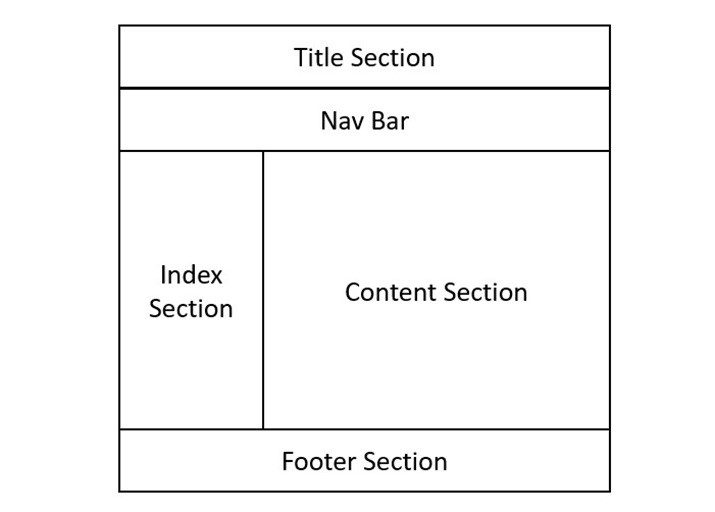
    The below figure illustrates how a typical HTML webpage layout is designed. Most of the web pages have a title section, a nav bar, an index section, a content section, and a footer section, which can be defined using the <header><nav><section><article>, and <footer> elements, respectively.

    Visual Representation of a Layout Structure

    Key HTML Layout Elements

    Each layout element has a specific meaning and function and can be customized with attributes and styles. They describe the content they contain, not just the appearance of a web page. They are as follows:

    HTML <header> Element

    The <header> element is used to add a header section in an HTML web page. It serves as a container for the introductory and navigational part of a page. All the content inside this tag will be on top of the webpage. Providing a header section to your webpage helps search engines to understand your contents easily and rank the page accordingly.

    Example

    The following example demonstrates how you can create a header layout for an HTML webpage:

    Open Compiler

    <!DOCTYPE html><html lang="en"><head><title>Tutorialspoint</title></head><body><header><div><h1>Tutorialspoint</h1><h3>Simply easy learning!</h3></div></header></body></html>

    HTML <nav> Element

    The <nav> element represents a section of a page within the webpage, where it has hyperlinks to other pages or parts within the page (just like the menu bar). It is usually included inside a <header> element or <section> element.

    Example

    The following example demonstrates how you can create a navigation menu (nav section) in an HTML page:

    Open Compiler

    <!DOCTYPE html><html lang="en"><head><title>Tutorialspoint</title></head><body><header><div><h1>Tutorialspoint</h1><h3>Simply easy learning!</h3></div><div><nav><ul><li><a href="#">
    
                  Home
               &lt;/a&gt;&lt;/li&gt;&lt;li&gt;&lt;a href="#"&gt;
                  HTML
               &lt;/a&gt;&lt;/li&gt;&lt;li&gt;&lt;a href="#"&gt;
                  CSS
               &lt;/a&gt;&lt;/li&gt;&lt;li&gt;&lt;a href="#"&gt;
                  Python
               &lt;/a&gt;&lt;/li&gt;&lt;li&gt;&lt;a href="#"&gt;
                  JavaScript
               &lt;/a&gt;&lt;/li&gt;&lt;/ul&gt;&lt;/nav&gt;&lt;/div&gt;&lt;/header&gt;&lt;/body&gt;&lt;/html&gt;</pre>

    HTML <section> Element

    The <section> element defines a major part of the web page where all the important content will be displayed. There can be multiple sections in a single page

    Example

    The following example demonstrates how to use HTML layout elements like <header><nav>, and <section> to structure a web page:

    <!DOCTYPE html><html lang="en"><head><title>Tutorialspoint</title></head><body><header><h1>Tutorialspoint</h1><h3>Simply easy learning!</h3><nav>navigation bar</nav></header><section>Section 1</section><section>Section 2</section><section>Section 2</section></body></html>

    The <footer> element defines the footer section of the webpage. This section contains copyright information, social media links, and other important details. It will always be at the bottom of the webpage.

    Example

    The following example demonstrates how to create a responsive HTML footer with copyright information and social media links, styled using CSS for a consistent layout at the bottom of the webpage:

    Open Compiler

    <!DOCTYPE html><html lang="en"><head><title>Footer Example</title><style>
    
      body {
         display: flex;
         flex-direction: column;
         min-height: 100vh;
         margin: 0;
      }
      .content {
         flex: 1;
      }
      footer {
         background-color: #333;
         color: #fff;
         text-align: center;
         padding: 20px 0;
      }
      footer .social-media a {
         color: #fff;
         margin: 0 10px;
         text-decoration: none;
      }
      footer .social-media a:hover {
         color: #ddd;
      }
    </style></head><body><div class="content"><h2>Footer Element of HTML Layout</h2><p>
         The footer tag defines the footer section of 
         the webpage. This section contains copyright 
         information, social media links, and other 
         important details. It will be always at the 
         bottom of the webpage.
      &lt;/p&gt;&lt;/div&gt;&lt;footer&gt;&lt;p&gt;© 
         2024 Tutorialspoint. All rights reserved.
      &lt;/p&gt;&lt;div class="social-media"&gt;&lt;a href="#"&gt;Facebook&lt;/a&gt;&lt;a href="#"&gt;Twitter&lt;/a&gt;&lt;a href="#"&gt;Instagram&lt;/a&gt;&lt;a href="#"&gt;LinkedIn&lt;/a&gt;&lt;/div&gt;&lt;/footer&gt;&lt;/body&gt;&lt;/html&gt;</pre>

    HTML <article> Element

    The <article> element specifies independent, self-contained content such as a forum post, magazine, blog post, and so on. When an HTML article element is nested, the inner element represents the article related to the outer element. For example, comments on social media posts can be an article element nested in the article representing the social media post. It is mostly used for forum posts, magazine or newspaper articles, blog entries, product cards, etc.

    Example

    The following example demonstrates how to use the HTML <article> tag to structure a blog post with a title, metadata, and content, styled for a clean layout:

    Open Compiler

    <!DOCTYPE html><html lang="en"><head><title>Article Example</title><style>
    
      article {
         background: #fff;
         margin: 20px 0;
         padding: 20px;
      }
    </style></head><body><header><h1>My Blog</h1></header><main><article><h2>Understanding the HTML Article Tag</h2><p>
            Posted on &lt;time datetime="2024-06-20"&gt;
            June 20, 2024&lt;/time&gt; by Farhan
         &lt;/p&gt;&lt;p&gt;
            The article tag is commonly used for content 
            such as blog posts, news articles, and user 
            comments.
         &lt;/p&gt;&lt;p&gt;
            Lorem ipsum dolor sit amet, consectetuer a
            cing elit. Aenean commodo ligula eget dolor. 
            Aenean massa. Cum sociis natoque penatib
            magnis dis parturient montes, nascet
            mus. Donec quam felis, ultric
      &lt;/article&gt;&lt;/main&gt;&lt;/body&gt;&lt;/html&gt;</code></pre>

    HTML <aside> Element

    The <aside> element example specifies a section of content that is directly or indirectly related to the main content (like a sidebar). If you remove aside content from a web page, the main content will not be impacted because aside content is a separate, optional component of the page. This tag is often used for advertisements.

    Example

    The following example demonstrates how to use the HTML <aside> tag to display related content, such as links to tutorials, alongside the main article content in a structured and responsive layout.

    Open Compiler

    <!DOCTYPE html><html lang="en"><head><title>Aside Tag Example</title><style>
    
      body {
         display: flex;
         flex-direction: column;
         background-color: #f4f4f4;
      }
      main {
         display: flex;
         flex: 1;
         padding: 20px;
      }
      article {
         flex: 3;
         background: #fff;
         padding: 20px;
         margin-right: 20px;
      }
      aside {
         flex: 1;
         background: #fff;
         padding: 20px;
         border-radius: 8px;
      }
    </style></head><body><header><h1>My Blog</h1></header><main><article><h3>Articles...</h3></article><aside><h2>Related Articles</h2><ul><li><a href="/html/index.htm">
                  HTML Tutorial
               &lt;/a&gt;&lt;/li&gt;&lt;li&gt;&lt;a href="/css/index.htm"&gt;
                  CSS Tutorial
               &lt;/a&gt;&lt;/li&gt;&lt;li&gt;&lt;a href="/python/index.htm"&gt;
                  Python Tutorial
               &lt;/a&gt;&lt;/li&gt;&lt;/ul&gt;&lt;/aside&gt;&lt;/main&gt;&lt;/body&gt;&lt;/html&gt;</code></pre>

    Creating HTML Layout Using Layout Elements

    The layout elements help to improve the readability and accessibility of the web page, as well as its SEO (search engine optimization) performance. Here, we are going to create a simple layout of a web page with the help of the above-mentioned semantic elements.

    Open Compiler

    <!DOCTYPE html><html><head><title>Layout structure of HTML</title><style>
    
      * {
         box-sizing: border-box;
      }
      header {
         font-size: 25px;
         color: whitesmoke;
         padding: 1px;
         text-align: center;
         background-color: lightslategray;
      }
      nav {
         float: left;
         width: 20%;
         height: 350px;
         background: lightgray;
         padding: 20px;
      }
      nav ul {
         padding: 1px;
      }
      article {
         float: left;
         padding: 20px;
         width: 80%;
         background-color: lightyellow;
         height: 350px;
      }
      footer {
         background-color: lightslategray;
         padding: 10px;
         text-align: center;
         color: white;
         padding-top: 20px;
         padding-bottom: 10px;
      }
      footer a {
         margin: 10px;
      }
      footer p {
         margin-top: 30px;
      }
    </style></head><body><!--header segment--><header><div><p>Tutorialspoint</p><p>Simply easy learning!</p></div></header><section><!--Menu Navigation segment--><nav><ul><li><a href="#">Home</a></li><li><a href="#">Jobs</a></li><li><a href="#">Library</a></li><li><a href="#">Articles</a></li><li><a href="#">Certification</a></li></ul></nav><!--Content segment--><article><h1>Welcome to Tutorials point</h1><p>
            Tutorialspoint.com is a dedicated page 
            to provide quality online education in 
            domains of Computer Science and other
            Technology, Programming Languages, and 
            other Engineering subjects. 
         &lt;/p&gt;&lt;/article&gt;&lt;/section&gt;&lt;!--Footer segment--&gt;&lt;footer&gt;&lt;h2&gt;Tutorialspoint&lt;/h2&gt;&lt;div&gt;&lt;a href="#"&gt; About us &lt;/a&gt;&lt;a href="#"&gt; Refund policy &lt;/a&gt;&lt;a href="#"&gt; Terms of use &lt;/a&gt;&lt;a href="#"&gt; Privacy policy &lt;/a&gt;&lt;a href="#"&gt; FAQ's &lt;/a&gt;&lt;a href="#"&gt; Affiliates &lt;/a&gt;&lt;a href="#"&gt; Contact &lt;/a&gt;&lt;/div&gt;&lt;div&gt;&lt;p&gt;
            Copyrights  TUTORIALS POINT (INDIA) 
            PRIVATE LIMITED. All rights reserved.
         &lt;/p&gt;&lt;/div&gt;&lt;/footer&gt;&lt;/body&gt;&lt;/html&gt;</pre>

  • Layouts

    HTML Layouts specifies the arrangement of components on an HTML web page. A good layout structure of the webpage is important to provide a user-friendly experience on our website. It takes considerable time to design a website’s layout with a great look and feel.

    HTML Layout

    HTML Layout Elements

    The below-listed elements are used to create the HTML layout’s structure:

    ElementsDescription
    headerThe header tag is used to add a header section in an HTML web page. All the content inside this tag will be on top of the webpage.
    navIt represents a section of a page within the webpage, where it has hyperlinks to other pages or parts within the page (just like the menu bar).
    sectionIt defines a major part of the web page where all the important content will be displayed.
    footerThe footer tag defines the footer section of the webpage. This section contains copyright information and other important details. It will always be at the bottom of the webpage.
    articleIt specifies independent self-containing content such as a forum post, magazine, any blog post, and so on.
    asideIt specifies a section of content that is directly or indirectly related to the main content (like a sidebar).
    summaryIt specifies a caption for the <details> element.
    detailsIt specifies a tag for additional information. It requires the <summary> element.

    Visit this chapter to learn about the various elements with examples that are used for creating HTML layouts: HTML Layout Elements

    Example of HTML Layouts

    Here are some examples that illustrate HTML layout designs. CSS and CSS frameworks are used to design the layout. The above-mentioned elements are used to create layout structure.

    Define an HTML Layout

    We can achieve HTML layout by simply using tags like <header>, <footer>, and <nav>. The following code shows how to make an HTML layout:

    Open Compiler

    <!DOCTYPE html><html lang="en"><head><style>
    
      .header {
         background-color: #b3e0f2;
         text-align: center;
         padding: 20px;
         font-size: 2em;
         font-weight: bold;
      }
      .container {
         display: flex;
      }
      .sidebar {
         width: 20%;
         background-color: #f4f4f4;
         padding: 20px;
      }
      .content {
         width: 80%;
         background-color: #f9f9f9;
         padding: 20px;
      }
      .footer {
         background-color: #b3e0f2;
         text-align: center;
         padding: 10px;
         position: fixed;
         width: 100%;
         bottom: 0;
      }
    </style></head><body><div class="header">
         Title
      &lt;/div&gt;&lt;div class="container"&gt;&lt;div class="sidebar"&gt;&lt;a href="#"&gt;Home&lt;/a&gt;&lt;a href="#"&gt;Learn HTML&lt;/a&gt;&lt;a href="#"&gt;About Us&lt;/a&gt;&lt;/div&gt;&lt;div class="content"&gt;&lt;h1&gt;Home&lt;/h1&gt;&lt;p&gt;This is a home page.&lt;/p&gt;&lt;/div&gt;&lt;/div&gt;&lt;div class="footer"&gt;
         Footer
      &lt;/div&gt;&lt;/body&gt;&lt;/html&gt;</code></pre>

    Define an HTML Layout Using Bootstrap

    The CSS Bootstrap library can be used to make layouts in HTML. The following code shows how it's done:

    Open Compiler

    <!DOCTYPE html><html lang="en"><head><!--  Bootstrap CDN Link --><link href=
    "https://stackpath.bootstrapcdn.com/bootstrap/4.5.2/css/bootstrap.min.css" 
    
            rel="stylesheet"&gt;&lt;/head&gt;&lt;body&gt;&lt;!-- Header --&gt;&lt;header class="bg-info text-white text-center py-4"&gt;&lt;h1&gt;Title&lt;/h1&gt;&lt;/header&gt;&lt;!-- Main Container --&gt;&lt;div class="container-fluid"&gt;&lt;div class="row"&gt;&lt;!-- Sidebar --&gt;&lt;nav class="col-md-3 col-lg-2 d-md-block bg-light sidebar"&gt;&lt;div class="sidebar-sticky"&gt;&lt;ul class="nav flex-column"&gt;&lt;li class="nav-item"&gt;&lt;a class="nav-link active" href="#"&gt;
                           Home
                        &lt;/a&gt;&lt;/li&gt;&lt;li class="nav-item"&gt;&lt;a class="nav-link" href="#"&gt;
                           Learn HTML
                        &lt;/a&gt;&lt;/li&gt;&lt;li class="nav-item"&gt;&lt;a class="nav-link" href="#"&gt;
                           About Us
                        &lt;/a&gt;&lt;/li&gt;&lt;/ul&gt;&lt;/div&gt;&lt;/nav&gt;&lt;!-- Content --&gt;&lt;main role="main" class="col-md-9 ml-sm-auto col-lg-10 px-4"&gt;&lt;h2&gt;Home&lt;/h2&gt;&lt;p&gt;This is a home page.&lt;/p&gt;&lt;/main&gt;&lt;/div&gt;&lt;/div&gt;&lt;!-- Footer --&gt;&lt;footer class="bg-info text-white text-center py-3"&gt;
      Footer
    </footer></body></html>

    Different Techniques to Create HTML Layouts

    There are four different techniques (ways) to create and design HTML layouts; you can create simple and multicolumn layouts using these techniques:

    • CSS Float Property: A classic way to control position and formatting on a webpage.
    • CSS Flexbox Property: Used for dynamic layout and to position elements in different screen sizes.
    • CSS Grid Property: Create a complex grid-like layout
    • CSS frameworks: The framework, likeBootstrap, allows to create dynamic HTML layouts.

    To learn how to use CSS for making HTML layouts, visit the chapter Layouts Using CSS

  • JavaScript

    JavaScript allows you to create dynamic and interactive HTML pages. JavaScript is a high-level programming language and core technology behind web developments.

    script is a small piece of program that can add interactivity to our websites. For example, a script could generate a pop-up alert box message or provide a dropdown menu based on certain conditions, such as a user clicking a button. This script could be written using JavaScript or VBScript. Nowadays, only JavaScript and associated frameworks are being used by most web developers; VBScript is not even supported by major browsers.

    Adding JavaScript in HTML

    There are multiple ways of adding scripts (JavaScript) to the HTML document. We can keep JavaScript code in a separate file and then include it wherever it’s needed, or it is also possible to define functionality inside the HTML document itself.

    You can add JavaScript in an HTML document by using the <script> tag. The following are the different ways to add JavaScript into an HTML page:

    • Inline JavaScript
    • Internal JavaScript
    • External JavaScript

    Let’s see both cases one by one with suitable examples.

    Writing Inline JavaScript

    You can directly add JavaScript code to an HTML element on the various attributes, such as onclickonload, or any other.

    Example

    In the below example, we are writing a script to print “Hi there!” on button click:

    Open Compiler

    <!DOCTYPE html><html><head><title>Example of Inline JavaScript</title></head><body><button onclick="alert('Hi there!')">Click Me</button></body></html>

    Writing Internal JavaScript

    You can write the JavaScript code directly into our HTML document. Usually, we keep script code in the header of the document inside the <script> tag; however, there is no restriction. You are allowed to put the script code anywhere in the document but inside the <script> tag.

    Example

    In the following example, we are writing internal JavaScript code in the HTML page; it will display “Hello, World” on button click:

    Open Compiler

    <!DOCTYPE html><html><head><title>JavaScript Internal Script</title><base href="http://www.tutorialspoint.com/" /><script type="text/JavaScript"> function Hello(){
    
      alert("Hello, World");
    } </script></head><body><input type="button" onclick="Hello();" name="ok" value="Click Me" /></body></html>

    Adding External JavaScript

    If developers are going to define a functionality that will be used in various HTML documents, then it’s better to keep that functionality in a separate JavaScript file and then include that file in the HTML documents. A JavaScript file will have an extension of .js.

    An external JavaScript file is imported (added) using the <script> tag by providing the path to the file in the src attribute. You should also define the type attribute with the “text/javascript” value.

    Example

    Consider we define a small function using JavaScript in script.js, which has the following code −

    function Hello() {
       alert("Hello, World");
    }
    

    Now, let’s make use of the above external JavaScript file in our following HTML document −

    Open Compiler

    <!DOCTYPE html><html><head><title>JavaScript External Script</title><script src="/html/script.js" type="text/JavaScript" /></script></head><body><input type="button" onclick="Hello();" name="ok" value="Click Me" /></body>undefined
    </html>

    Event Handlers

    Event handlers aare nothing but simply defined functions that can be called against any mouse or keyboard event. We can define any kind of business logic inside our event handler, which can vary from a single to thousands of lines of code.

    Example

    The Following example explains how to write an event handler. We are going to write one simple function named EventHandler() in the header of the document. We will call this function when any user hovers the mouse over a paragraph:

    Open Compiler

    <!DOCTYPE html><html><head><title>Event Handlers Example</title><base href="http://www.tutorialspoint.com/" /><script type="text/JavaScript"> function EventHandler(){
    
      alert("I'm event handler!!");
    } </script></head><body><p onmouseover="EventHandler();">Bring your mouse here to see an alert</p></body></html>

    After running the above HTML code, bring your mouse over the output screen to see the result.

    Hide Scripts from Older Browsers

    Although most browsers these days support JavaScript, some older browsers don’t. If a browser doesn’t support JavaScript, instead of running your script, it would display the code to the user. To prevent this, we can simply place HTML comments around the script as shown below.

    Example

    In the following example, we are demonstrating how you can hide scripts (JavaScript and VbScript) from older browsers:

    JavaScript Example:

    <script type="text/JavaScript"><!--
       document.write("Hello JavaScript!");//--></script>

    VBScript Example:

    <script type="text/vbscript"><!--
       document.write("Hello VBScript!")
       '--></script>

    The <noscript> Element

    For users whose browsers do not support scripts, or for those who have disabled scripts in their browsers, we can embed scripts into the web page using the <noscript> tag as illustrated in the below example.

    Example

    In the following example, we are demonstrating how you can use the <noscript> tag for JavaScript and VbScript:

    JavaScript Example:

    <script type="text/JavaScript"><!--
       document.write("Hello JavaScript!");
       //--></script><noscript>Your browser does not support JavaScript!</noscript>

    VBScript Example:

    <script type="text/vbscript"><!--
       document.write("Hello VBScript!")
       '--></script><noscript>Your browser does not support VBScript!</noscript>

    Default Scripting Language

    There may be a situation when we are required to include multiple script files and ultimately use multiple <script> tags. We can specify a default scripting language for all the script tags at once. This saves us from specifying the language every time we use a script tag within the page.

    Example

    The following example demonstrates using the default scripting language in an HTML page:

    <meta http-equiv="Content-Script-Type" content="text/JavaScript" />

    Note that you can still override the default by specifying a language within the <script> tag.

    HTML Script Tags

    The following two are the script-related tags used in the HTML document:

    Script TagUse
    <script>It is used to import or write JavaScript inside an HTML document.
    <noscript>If a browser does not support script, it is used to define alternate content for users.
  • Favicon

    HTML favicon stands for “favorite icon”. It is a small-sized image that displays in the browser’s tab just before the page title. Favicon is defined by using the <link> tag with the “rel=icon” attribute.

    What is a HTML Favicon?

    favicon is a small image that represents your website and helps users identify it among multiple tabs, bookmarks, and search results. It can be in various formats, such as ICO, PNG, GIF, JPEG, or SVG, but ICO is the most widely supported format. If you have ever visited a website and noticed a small icon next to the page title in your browser’s tab, you have seen a favicon.

    Visual Representation of a Favicon

    The below image demonstrates how a favicon looks like on the browser’s tab:

    In the above figure, we can see the favicon of the tutorialspoint official website appear on the top of each tab.

    How To Add a Favicon in HTML

    You can add a favicon to a webpage by using the <link> tag with the rel attribute set to "icon". The <link> tag is a head element, so it must be placed within the <head> tag.

    Syntax

    You can add a favicon on the webpage as follows:

    <head><link rel="icon" href="path_to_favicon.ico" type="image/x-icon"></head>

    Steps to Add Favicon on Webpage

    To add a favicon, we need to follow these simple steps mentioned below −

    Step 1 − Create or choose an image for your favicon. Its common size could be 16×16 pixels or 32×32 pixels. There are a few online tools available that help us in creating a favicon, such as “Favicon.io” and “ionos.com”.

    Step 2 − Save and upload the favicon image to the website directory. Make sure the image is in a format that browsers can recognize, such as PNG, GIF, or ICO.

    Step 3 − Now use the <link> element, which tells the browser where to find the favicon image. Remember, the <link> tag comes inside the header part, i.e., <head> tag of the HTML document.

    Example

    The following example illustrates how to create an HTML favicon. We are using the PNG image format:

    Open Compiler

    <!DOCTYPE html><html><head><title>AHMAD</title><link rel = "icon" type = "image/png" href = "images/faviconTP.png"></head><body><h1>Adding Favivon</h1><p>This is an example of including favicon to the web page.</p><p> Favicon will be displayed in the browser tab to the left of the page title.</p></body></html>

    Output

    The above HTML code will produce the following result −

    Different Favicons for Different Pages on a Website?

    Yes, different favicons can be added for different pages on a website. You need to define the favicon images for different pages using the <link> tag (as discussed above) inside the head.

    Example

    Consider the following code snippets for the different pages:

    For Webpage 1:

    <head><title>Page Title 1</title><link rel="icon" href="favicon1.ico" type="image/x-icon"></head>

    For Webpage 2:

    <head><title>Page Title 2</title><link rel="icon" href="favicon2.ico" type="image/x-icon"></head>

    Favicon Dimensions and Sizes

    The following is a list of the various sizes for favicons:

    Favicon DimensionUsed For
    32×32Desktop Browsers
    57×57Mac ios
    76×76Apple ipad
    96×96Google TV
    120×120Iphone Retina Touch Screen
    128×128Chrome Web Store, Windows 8* Screen
    144×144Internet Explorer 10 Metro
    152×152Apple Ipad
    167×167Apple Ipad
    180×180Apple Iphones
    192×192Google Developer Apps
    195×195Opera Speed Dial
    196×196Android Home of Chrome
    228×228Opera Cast Icon

    Browser Support for Different Favicon File Format

    The table below illustrates the various favicon file formats that are supported by different browsers −

    BrowserGIFPNGJPEGSVGICO
    ChromeYesYesYesYesYes
    EdgeYesYesYesYesYes
    SafariYesYesYesYesYes
    FirefoxYesYesYesYesYes
    OperaYesYesYesYesYes