CSS transforms are used to modify the element’s shape and sizes and are responsible for movements of elements in two-dimensional space using functions like translate(), scale(), rotate(), and skew(). These functions allow you to move, scale, rotate, and skew elements along the X and Y axes, creating various visual effects and manipulations.
CSS Styling Text involves modifying the appearance of text content by setting proper color, alignment, letter-spacing, and indention to make it more visually appealing. This chapter demonstrates how to style texts on web pages using CSS properties.
How to Style Text in CSS?
We can style text in the following ways to style texts in CSS.
Change Color: The default color of text on a webpage will be black. You can change this according to your webpage theme, using the color property in CSS.
Set Alignment: You can use the text-align property in CSS to specify the alignment (center, left, right) of text inside a container.
Text Decoration: The text-decoration property in CSS can be used to add effects like underline, overline, or strike-through to texts.
Shadow Effect: If you want to create a shadow around text in your webpage you can use text-shadow property in CSS. This can create a 3D effect or a subtle glow around the text.
Change Font Style: The font-style property allows you to style the text as normal, italic, or oblique.
Properties for Styling Text
The following table lists CSS properties for styling text:
Property
Description
color
Sets the color of the text.
text-align
Sets the alignment of the text.
text-align-last
Sets the alignment of the last line of a block of text.
direction
Sets the direction of the text.
text-indent
Sets the indentation of the first line of the text.
letter-spacing
Specifies the space between the letters of a word.
word-spacing
Specifies the space between the words in a block of text.
white-space
Controls the white space flow inside the text in an element.
text-decoration
A shorthand property for setting the text decoration.
text-decoration-line
It specifies the type of line the text decoration will have.
text-decoration-style
It specifies the type of line drawn as a text decoration such as solid, wavy, dotted, dashed, or double.
text-decoration-color
It sets the color of the text-decoration line.
text-decoration-thickness
It sets the thickness of the text-decoration line.
text-justify
It controls how spaces are distributed between words and characters to align text.
text-transform
Transforms the text in either uppercase, lowercase, or capitalize.
line-height
It controls the amount of space between lines of text within an element.
text-emphasis
Applied emphasis marks to text.
text-shadow
Adds shadow to the text.
line-break
Controls how to set the rule for a line break.
word-break
Controls how to set the rule for a word break.
text-combine-upright
Combines multiple typographic character units into the space of a single typographic character unit.
text-orientation
Sets the orientation of the text characters in a line.
text-underline-offset
Adds special visual effects to the text.
text-overflow
Controls how hidden overflow content is displayed to users.
Setting Text Color in CSS
To set the text color, you can use the color property. The color can be specified with color name, Hexadecimal value, rgb/rgba value, or hsl/hsla value.
Example
In this example, we have set the text color of paragraphs using the color property.
The text in a webpage can be aligned horizontally and vertically inside a container. To set the alignment of the text, we use the following CSS properties.
The text-align property specifies the horizontal alignment of text in a container (left, right, center, justify).
The vertical-align property is used to align the text vertically at the top, bottom, baseline, and middle. This property is used with inline elements, inline-block elements, and table cells.
Example
In this example, we have used text-align and vertical-align properties to set the horizontal and vertical alignment of the text.
Open Compiler
<!DOCTYPE html><html><head><style>
th{
vertical-align: bottom;
border: 2px solid;
width: 200px;
height: 150px;
}
</style></head><body><h2>Text Alignment</h2><p style="text-align: left;">Text Left Alignment.</p><p style="text-align: right;">Text Right Alignment.</p><p style="text-align: center;">Text Center Alignment.</p><table><th>This is vertical alignment</th></table></body></html></pre>
Aligning the Last Line in CSS
To set the alignment for the last line of a block of text, you can use the text-align-last property. It is useful when text-align: justify; is used to align the last line properly.
Example
In this example, we have used the text-align-last property to align the last line differently.
Open Compiler
<!DOCTYPE html><html><head><style>
p {
width: 300px;
text-align: justify;
text-align-last: right;
}
</style></head><body><h2>text-align-last property</h2><p>This is an example of text alignment. The last line of this paragraph will be aligned differently than the rest of the text.</p></body></html></pre>
Aligning Text with text-justify
The text-justify property specifies the justification method of text when text-align: justify; is applied. The text remains unaffected in modern browsers. Try running the code in Firefox.
Example
In this example, we have used the text-justify property to control text justification.
Open Compiler
<!DOCTYPE html><html><head><style>
p {
width: 300px;
text-align: justify;
text-justify: inter-word;
}
</style></head><body><h2>text-justify property</h2><p>This paragraph demonstrates how the text-justify property works. It adjusts the spacing between words.</p></body></html></pre>
Setting Text Direction in CSS
The text direction refers to the orientation of text characters in a document or element. You can use the direction property to set the text direction. This property accepts two values which are as follows:
ltr (Left-to-Right): It is the default value, used for languages that are written from left to right, like English.
rtl (Right-to-Left): It is used for languages that are written from right to left, such as Arabic or Hebrew. When using rtl, the text will be aligned right by default.
Additionally, CSS provides a shorthand property, unicode-bidi, to control the bidi algorithm, which specifies how characters with different writing directions are displayed when they appear in the same paragraph.
Example
In this example, we have used the direction property to set the text direction of paragraphs.
Right to Left
</p><p style = "direction: ltr;">
Left to Right
</p></body></html></pre>
Applying Text Decoration in CSS
You can use the text-decoration property for adding extra decoration to the text, such as adding a line (underline, strikethrough, overline), color, style, and thickness to the line.
It is a shorthand property for text-decoration-line, text-decoration-style, text-decoration-color, and text-decoration-thickness.
Syntax
The syntax for the text-decoration property is as follows:
In this example, we have used the text-decoration property to apply overline, line-through, and underline styles with different colors, thicknesses, and line types.
Open Compiler
<!DOCTYPE html><html><body><h2>Text Decoration</h2><p style="text-decoration: overline solid red 5px;">
Overline text decoration.
</p><p style="text-decoration: line-through solid green 1px;">
Line-through text decoration.
</p><p style="text-decoration: underline dashed 2pt blue;">
Underline text decoration.
</p></body></html></pre>
Using CSS text-transform for Text Styling
To change the appearance of text, the text-transform property is used. It transforms the text in various ways such as converting the text to uppercase, or lowercase, capitalizing the first letter of each word, or even capitalizing all letters.
Example
In this example, we have used the text-transform property to transform the text to uppercase, lowercase, and capitalize.
Open Compiler
<!DOCTYPE html><html><head><style>
p{
font-family: arial, sans-serif;
font-size: 1em;
}
</style></head><body><h2>Text Transform</h2><p style="text-transform: capitalize;">
capitalizes the first character of each word.
</p><p style="text-transform: uppercase;">
Transforms all text to uppercase.
</p><p style="text-transform: lowercase;">
Transforms all text to Lowercase.
</p></body></html></pre>
Adding Text Emphasis in CSS
To apply emphasis marks on a block of text, you can use the text-emphasis property. These marks are typically used to highlight specific content or to indicate pronunciation or stress in certain languages.
It is a shorthand property for text-emphasis-style and text-emphasis-color.
Example
In this example, we have used the text-emphasis property to apply emphasis marks to the text.
Open Compiler
<!DOCTYPE html><html><head><style>
p{
font-family: arial, sans-serif;
font-size: 1em;
}
</style></head><body><h2>Text Emphasis</h2><p style="text-emphasis: dot;">
The text is emphasized using dot.
</p><p style="text-emphasis: circle red;">
The text is emphasized using red circle.
</p><p style="text-emphasis: triangle;">
The text is emphasized using triangle.
</p></body></html></pre>
CSS Text Indentation Property
To add space between the margin and the first line of text, you can use the text-indent property. A proper indentation improves the readability and clarity of text on a page.
Example
In this example, we have used the text-indent property to indent the first line of the text of the paragraphs.
To adjust the space between the letters of a text, you can use the letter-spacing property. The space can be increased or decreased between the letters.
Example
In this example, we have used the letter-spacing property to increase and decrease the space between the letters of the text.
Word spacing normal.
</p><p style="word-spacing: 100px;">
Word spacing increased.
</p><p style="word-spacing: -2px;">
Word spacing decreased.
</p></body></html></pre>
Wrapping Text with white-space Property
The white-space property controls how you can handle the white space inside an element. It allows you to manage the handling of spaces, tabs, and line breaks in the text.
Example
Here is an example of the white-space property using different values to control the white space inside the text.
Open Compiler
<!DOCTYPE html><html><head><style>
p{
border: 2px solid;
padding: 5px;
width: 50%;
}
</style></head><body><h2>White-space property</h2><p style="white-space: normal;">
This is a paragraph with the white-space property set
to normal. The text will wrap when necessary, and
extra spaces and line breaks are ignored.
</p><p style="white-space: nowrap;">
This is a paragraph with the white-space property set
to nowrap. The text will not wrap to the next line, even
if it overflows the container.
</p><p style="white-space: pre;">
This is a paragraph with white-space property set to pre.
The text will respect all spaces and line breaks. Means,
the text will be displayed as it is in HTML code.
</p><p style="white-space: pre-wrap;">
This is a paragraph with the white-space property set to
pre-wrap. The text will respect all spaces and line breaks,
but will wrap when necessary.
</p><p style="white-space: pre-line;">
This is a paragraph with the white-space property set
to pre-line. The text will collapse spaces and wrap when
necessary, but will respect line breaks.
</p></body></html></pre>
CSS Line-Break Property
To control how line breaks are handled in text, we use the CSS line-break property. This property is useful for handling line breaks in languages like Japanese, Chinese, or Korean. You can use values such as auto, loose, normal, strict, and anywhere with this property.
Example
In this example, we have used the line-break property with different values to control how the text breaks across lines based on language rules.
Open Compiler
<!DOCTYPE html><html><head><style>
p{
border: 2px solid;
padding: 5px;
width: 50%;
}
</style></head><body><h2>Line-break property</h2><p style="line-break: auto;">
This paragraph uses the line-break property set to auto.
Line breaking is determined based on the default rules.
</p><p style="line-break: loose;">
This paragraph uses the line-break property set to loose.
Line breaking is done more frequently, typically used in
CJK (Chinese, Japanese, Korean) text.
</p><p style="line-break: normal;">
This paragraph uses the line-break property set to normal.
Line breaking follows the standard rules for the language
being used.
</p><p style="line-break: strict;">
This paragraph uses the line-break property set to strict.
Line breaking is restricted, typically preventing breaks
between characters that are normally kept together.
</p><p style="line-break: anywhere;">
This paragraph uses the line-break property set to anywhere.
Line breaks can happen at any point, even if it means
breaking words in unconventional places.
</p></body></html></pre>
CSS Word-Break Property
The word-break property controls the behavior of word breaking and word wrapping in text. It handles the words when they are too long to fit within their container. You can use values such as normal, break-all, keep-all, and break-word with this property.
Example
In this example, we have used the word-break property with different values to control how the word breaks to fit their container.
This paragraph uses the word-break property set to <strong>normal</strong>.
Words will break only at normal word boundaries (such as
spaces or hyphens).
</p><p style="word-break: break-all;">
This paragraph uses the word-break property set to <strong>break-all</strong>.
Words will break at any character to prevent overflow,
even in the middle of a word.
</p><p style="word-break: keep-all;">
This paragraph uses the word-break property set to <strong>keep-all</strong>.
Words will only break at normal word boundaries, but CJK text
characters will not break unless necessary.
</p><p style="word-break: break-word;">
This paragraph uses the word-break property set to <strong>break-word</strong>.
Words will break at normal boundaries or wherever necessary
to prevent overflow.
</p></body></html></pre>
CSS line-height Property
To specify the height of a line of a text, you can use the CSS line-height property . It controls the spacing between lines.
Example
In this example, we have used the line-height property to increase the space between lines.
Open Compiler
<!DOCTYPE html><html><head><style>
p {
width: 300px;
line-height: 2;
}
</style></head><body><h2>line-height property</h2><p>This paragraph has a line height of 2, making the text more readable and spaced out.</p></body></html></pre>
Creating Text Shadows with CSS
The text-shadow property is used to add a shadow effect to the text. It allows you to create a shadow behind the text by specifying the shadow's horizontal and vertical offsets, blur radius, and color.
You can apply multiple shadows by separating each shadow with a comma. The order of the shadows matters, with the first shadow being closest to the text.
Example
In this example, we have used the text-shadow property to apply different shadow effects to the paragraphs, including single and multiple shadows with different offsets, colors, and blur radii.
Open Compiler
<!DOCTYPE html><html><head><style>
.txt1 {
text-shadow: 2px 2px 5px grey;
}
.txt2 {
text-shadow: -2px -2px 3px red;
}
.txt3 {
text-shadow: 3px 3px 0px blue, -3px -3px 0px yellow;
}
</style></head><body><h2>Text-shadow property</h2><p class="txt1">
This text has a grey shadow with a blur radius of 5px.
</p><p class="txt2">
This text has a red shadow with a blur radius of 3px
and offset to the top-left.
</p><p class="txt3">
This text has two shadows: a blue shadow offset to the
bottom-right and a yellow shadow offset to the top-left.
</p></body></html></pre>
CSS text-orientation Property
To control the text orientation in vertical writing modes, we use the text-orientation property.
Example
In this example, we have used the text-orientation property to rotate the text vertically.
Open Compiler
<!DOCTYPE html><html><head><style>
p {
writing-mode: vertical-rl;
text-orientation: upright;
}
</style></head><body><h2>text-orientation property</h2><p>This text is displayed in a vertical layout using text-orientation.</p></body></html></pre>
The text-shadow property is used to add a shadow effect to text. It allows you to specify the color, offset, blur-radius, and spread-radius of the shadow.
Possible Values
<color>:
Sets the color of the shadow.
It is optional.
It can be specified either before or after the offset values.
Any value for color can be specified, such as, name, HEX or RGB value.
<offset-x><offset-y>:
Any length value, specifying the x and y values.
x value represents the shadow’s horizontal distance from text.
y value represents the shadow’s vertical distance from text.
If x and y values equal 0, the shadow appears behind the text.
<blur-radius>
Any length value, specifying the value of blur-radius.
It is optional.
To make the blur look bigger, you need to provide higher value.
If no value is passed, it is taken as 0.
Applies to
All the HTML elements.
DOM Syntax
object.style.textShadow = "5px 5px 3px red";
The first two (5px,5px) values specify the length of the shadow offset i.e the X-coordinate and the Y-coordinate.
The third value (3px) specifies the blur radius.
The last value (red) describes the color of the shadow.
CSS text-shadow – Simple Shadow Effects
Following is the example which demonstrates how to set the shadow around a text. This may not be supported by all the browsers −
CSS caret-color property specifies the color of the cursor, which is the visible marker, also known as the text input cursor. It is used with input elements such as input forms, text boxes, textarea etc. which use the cursor and are editable.
Syntax
caret-color: auto | color | transparent | initial | inherit;
Property Values
Value
Description
auto
The browser uses the currentColor for the caret. Default.
color
The color of the caret can be specified in different formats (color names, hex, rgb etc.).
transparent
The caret is not visible.
initial
It sets the property to its default value.
inherit
It inherits the property from the parent element.
Examples of CSS Caret Color Property
The following examples explain the caret-color property with different values.
Caret Color Property with Auto Value
To let the browser decide the color of the cursor, which uses the current text color, we use the auto value. The current text color will be applied to the cursor. This is shown in the following example.
caret-color: auto (color of the text will
be applied to caret)
</label><input type="text" value="Default cursor color."
class=" inp text"
/><textarea rows="10"
class=" inp textarea">Default caret color.
</textarea></div></body></html></pre>
Caret Color Property with Color Values
To give a color of our choice to the cursor, we can specify the color in different format (color names, hex values, rgb values, hsl values etc.). The specified color will be applied to the cursor. This is shown in the following example.
caret-color: transparent (cursor color
will not be visible)
</label><input type="text" value="transparent caret."
class="inp"
/><textarea rows="10"
class=" inp">transparent caret.
</textarea></div></body></html></pre>
CSS box-decoration-break property specifies how the background, border, border-image, box-shadow, margin, padding and clip-path of an element should behave when the content is broken across multiple lines or columns. It controls whether these properties should be continuous or fragmented across the line breaks.
It means that the padding, border, and background of the element will be rendered as if the content were not broken, resulting in continuous rendering across line breaks. Default Value
clone
Each box fragment is rendered individually with its defined border, padding, and margin wrapping it. The border-radius and box-shadow are applied to each fragment separately.
initial
It sets the property to its default value.
inherit
It inherits the property from the parent element.
Examples of CSS Box Decoration Break Property
The following examples explain the box-decoration-break property with different values.
Box Decoration Break Property with Slice Value
To let the box decoration properties be rendered continuously such that they break at the edges of the element fragment, we use the slice value. This is shown in the following example.
CSS
<br>
box-decoration-break property
<br>
with slice
<br>
Value.
<br>
See how the
<br>
properties are applied
<br>
to the elements.
</span></body></html>
Box Decoration Break Property with Clone Value
To let each individual element fragment have individual box decoration properties separately, we use the clone value. The value treats each element broken across multiple lines as individual element and applies the properties to each of them. This is shown in the following example.
CSS box-shadow property adds a shadow effect around an element. One or more shadow effects can be added, separated by commas. The box shadow is described by horizontal and vertical offsets relative to the element, blur, spread radius and color.
It defines the horizontal offset. Positive values place the shadow to the right of box, negative values place the shadow to the left of box. Required.
v-offset
It defines the vertical offset. Positive values place the shadow below the box, negative values place the shadow above the box. Required
blur
It defines the blur radius. Higher values have higher blur. Optional.
spread
It defines the spread radius. Positive values increases size of shadow, negative values decreases size of shadow. Optional
color
It defines the color of the shadow. Different formats of color can be used. Default is color of text. Optional
inset
It changes the outer shadow to inner shadow.
initial
It sets the property to its default value.
inherit
It inherits the property from the parent element.
Examples of CSS Box Shadow Property
The following examples explain the box-shadow property with different values.
Box Shadow Property with Box Shadow
To set a shadow to a box, we require to specify atleast two values, one for the horizontal offset and the other for the vertical offset. Depending on the signs of the values, the position of the shadow changes accordingly. This is shown in the following example.
Example
Open Compiler
<!DOCTYPE html><html><head><style>
.container {
display: grid;
justify-content: center;
align-items: center;
gap: 30px;
}
.boxes {
padding: 50px;
text-align: center;
font-weight: bold;
}
.first {
background-color: lightcoral;
box-shadow: 10px 10px;
}
.second {
background-color: lightblue;
box-shadow: 10px -10px;
}
.third {
background-color: lightgreen;
box-shadow: -10px 10px;
}
.fourth {
background-color: lightgrey;
box-shadow: -10px -10px;
}
</style></head><body><h2>
CSS box-shadow property
</h2><p>
Positive horizontal offset places the shadow
to the right of box and negative horizotal offset
places the shadow to the left of box.
</p><p>
Positive vertical offset places the
shadow below the box and negative values places
it above the box.
</p><div class="container"><p class="first boxes">
box-shadow: 10px 10px
</p><p class="second boxes">
box-shadow: 10px -10px
</p><p class="third boxes">
box-shadow: -10px 10px
</p><p class="fourth boxes">
box-shadow: -10px -10px
</p></div></body></html></pre>
Box Shadow Property with Blur
To set a blur to the shadow of a box, we require to specify three values. The first two values are the horizontal and vertical offsets while the third value is for the blur, higher the third value greter will be the blur. This is shown in the following example.
.third {
background-color: lightcoral;
box-shadow: 10px 10px 40px;
}
</style></head><body><h2>
CSS box-shadow property
</h2><p>
The third value decides the blur,
greater the value more is the blur.
</p><div class="container"><p class="first boxes">
box-shadow: 10px 10px 10px
</p><p class="second boxes">
box-shadow: 10px -10px 20px
</p><p class="third boxes">
box-shadow: -10px 10px 40px
</p></div></body></html></pre>
Box Shadow Property with Spread Value
To set the size of the shadow of a box, we require to specify four values. The first two values are the horizontal and vertical offsets while the third value is for the blur, the fourth value decides the size of the shadow, positive values result in larger shadows while negative values result in smaller shadows. This is shown in the following example.
.second {
background-color: lightblue;
box-shadow: 10px 10px 20px 15px;
}
.third {
background-color: lightblue;
box-shadow: 10px 10px 40px -5px;
}
</style></head><body><h2>
CSS box-shadow property
</h2><p>
The fourth value decides the size of the shadow,
positive value results in larger shadow while negative
value results in smaller shadow.
</p><div class="container"><p class="first boxes">
box-shadow: 10px 10px 10px 5px
</p><p class="second boxes">
box-shadow: 10px -10px 20px 14px
</p><p class="third boxes">
box-shadow: -10px 10px 40px -5px
</p></div></body></html></pre>
Box Shadow Property with Color Value
To set a color to the shadow of a box, we require to specify atleast three values. The first two values are the horizontal and vertical offsets while the third value is for the color, the color can be specified along with blur and spread as well. The color can be specified in different format (eg. color names, hexadecimal values, rgb values etc.). This is shown in the following example.
.third {
background-color: lightcoral;
box-shadow: 10px 10px 40px -5px hsl(225, 100%, 50%);
}
</style></head><body><h2>
CSS box-shadow property
</h2><p>
The color can be specified as third parameter,
fourth parameter of even fifth parameter.
The specified color will be applied to the shadow.
</p><div class="container"><p class="first boxes">
box-shadow: 10px -10px grey
</p><p class="second boxes">
box-shadow: 10px 10px 20px rgb(51, 204, 0)
</p><p class="third boxes">
box-shadow: 10px 10px 40px -5px hsl(225, 100%, 50%)
</p></div></body></html></pre>
Box Shadow Property with Inset Value
To let the box shadow appear inside the element and not outside the element, we use the inset value. This is shown in the following example
.first {
background-color: lightgreen;
box-shadow: 10px -10px red inset;
}
.second {
background-color: lightgreen;
box-shadow: 10px 10px 20px rgb(51, 204, 0) inset;
}
</style></head><body><h2>
CSS box-shadow property
</h2><p>
The inset value places the
shadow within the elment.
</p><div class="container"><p class="first boxes">
box-shadow: 10px -10px red inset
</p><p class="second boxes">
box-shadow: 10px 10px 20px rgb(51, 204, 0) inset
</p></div></body></html></pre>
Box Shadow Property with Multiple Shadows
To have multiple shadows for a box, each style must be comma separated. The shadows will appear in the order specified in box-shadow property. This is shown in the following example.
.second {
background-color: lightgreen;
box-shadow: 5px 5px red,
10px 10px blue,
15px 15px green;
}
</style></head><body><h2>
CSS box-shadow property
</h2><p>
Number of shadows can be altered by
specifying the different styles and
separating them by commas.
</p><div class="container"><p class="first boxes">
box-shadow: multiple shadows
</p><p class="second boxes">
box-shadow: multiple shadows
</p></div></body></html></pre>
CSS gradients allows to design custom colors for HTML elements by creating a smooth transition between two or more colors.
What is CSS Gradient?
In CSS, gradient is a special type of user defined images that can be used for background or borders of element.
We can set a gradient to background property of any HTML elements using function gradient(type, color1, color2, color3);
Zooming a image gradient does not loose it’s quality as this are defined by browsers according to developers code.
Table of Contents
Types of CSS Gradients
Linear Gradients
Radial Gradients
Conic Gradients
Gradients for Borders
Positioning Color Stops
Creating Hard Lines
Color Bands Using Gradients
Stacked Gradients
Related Functions
Types of CSS Gradients
CSS defines three types of gradients
Linear Gradient: Goes from left to right, up to down or diagonally.
Radial Gradient: Start from center to edges.
Conic Gradient: Revolve around a center point.
Linear GradientRadial GradientConic Gradient
Choose a gradient for background
Linear Gradients
The linear gradient creates a color band that flows in a single direction, i.e. from left-to-right, top-to-bottom, or at any angle.
Syntax
linear-gradient(direction, color1, color2, ...);/* Gradient from bottom right to top left */linear-gradient(to top left, color1, color2, ...);/* Gradient at an angle 45 degree */linear-gradient(45deg, red, yellow);
The direction parameter specifies the angle or direction ( [to left | to right] || [to top | to bottom]) of the gradient.
Example
In order to create a basic linear gradient, you just need two colors, which are known as color stops. You must have minimum two, but can have more than two as well.
</style></head><body><h1>Linear gradient</h1><h3>Top to Bottom ( Default )</h3><div class="topBottom"></div><h3>Right to left</h3><div class="RightLeft"></div></body></html>
Radial Gradients
A radial gradient is a type of gradient that consists of colors radiating outward from a central point.
In a radial gradient, the colors smoothly transition from one color at the center to another color at the outer edges in a circular or elliptical pattern.
The shape parameter defines the shape of the gradient (circle or ellipse).
The size parameter specifies the size of the shape.
The position parameter sets the center of the gradient
Example
In order to create a basic radial gradient, you just need two colors. The center of the gradient is at 50% 50% mark, by default; where the gradient is elliptical matching with the aspect ratio of its box.
A conic gradient, also known as a conical gradient or angular gradient, is a type of gradient in which colors are arranged in a circular or conical pattern, radiating out from a central point in a 360-degree arc.
Syntax
conic-gradient(from 'angle' at 'position','color-list')
position (optional): Specifies the position of the starting point of the gradient. It can be a percentage or a keyword like center.
angle (optional): Specifies the starting angle of the gradient in degrees.
color-list : Defines the colors and their positions in the gradient.
Example
In this example we will create a conic gradient pie chart with four different colors, then align gradient at different locations of diagram.
Open Compiler
<!DOCTYPE html><html lang="en"><head><style>
div {
height: 80px;
width: 110px;
border-radius: 50%;
}
.gradient1{
background: conic-gradient(
from 45deg at 50% 50%,
red, yellow, green,
blue, red);
}
.gradient2{
background: conic-gradient(
from 45deg at 20% 40%,
red, yellow, green,
blue, red);
}
</style></head><body><h1>Conic Gradient Example</h1><h3>Align at center</h3><div class="gradient1"></div><h3>Align at 20-40</h3><div class="gradient2"></div></body></html></pre>
Gradients for Borders
The CSS gradients can be used to create fancy borders as well. You can use the gradients in wide variety to create effects in the border patterns.
Syntax
border-image:linear-gradient('color-list')
You can also use radial and conical gradients for borders.
Example
Here is an example of use of gradients in creation of borders:
A hard line can be created in between two colors, such that no smooth transition can be seen. This effect can be achieved by carefully positioning color stops in CSS gradients. Check out following example
Example
In this example we will create hard line using gradient function.
One gradient can be stacked over other gradients. Just make sure the gradient at the top should not be completely opaque, so that the gradients below it can be seen.
Example
Lets see an example of stacked gradients.
Open Compiler
<html><head><style>
div {
height: 200px;
width: 100%;
}
.stacked-linear {
background:
linear-gradient(90deg, green, yellow),
linear-gradient(220deg, white 70.71%, black 38%),
linear-gradient(217deg, orange, grey 70.71%);
}
CSS uses color values to specify a color. Typically, these are used to set a color either for the foreground of an element (i.e. its text) or else for the background of the element. They can also be used to affect the color of borders and other decorative effects.
You can specify your color values in various formats. Following table lists all the possible formats −
Format
Syntax
Description
Example
Keyword
<property>: <colorname>
CSS has a set of predefined color names that you can use directly.
red, blue, green, yellow, black, white, etc.
Hexadecimal Code
#RRGGBB
Starts with a hash (#) followed by six hexadecimal digits.
#FF0000 – red
Short Hexadecimal Code
#RGB
Shorter version of hexadecimal format where each of the RGB components is represented by a single digit, and the value is duplicated.
#F00 – red
RGB
rgb(red,green,blue)
Colors can be defined using the rgb() function, which takes three parameters representing the red, green, and blue values.
rgb(0, 0, 255) – blue
RGBA
rgba()
Similar to RGB, with an additional parameter for the alpha (transparency) value. 0 (fully transparent) and 1 (fully opaque)
rgba(0,0,255,0.5) – translucent blue
HSL
hsl()
Colors can be defined using the rgb() function which stands for Hue (0 to 360 degree), Saturation (%), and Lightness (%).
hsl(120, 100%, 50%) – pure green
HSLA
hsla()
Similar to HSL, with an additional parameter for the alpha (transparency) value.
hsl(120, 100%, 50%, 0.5) – translucent green
currentcolor Keyword
currentcolor
It refers to the value of the color property of the element.
color: red; /* Red text color */ border: 10px solid currentcolor; /* Red border color */
System color
as per OS or browser
CSS allows usage of system colors defined by the user’s OS or browser.
ButtonText, Window, WindowText
These formats are explained in more detail in the following sections −
CSS Colors – Keyword
CSS supports the color names to be directly passed to the property background-color and color. 140 standard color names are supported by CSS.
Few of the examples are listed in the table below:
Color
Color Name
Black
Red
Blue
Green
Aquamarine
Here is an example:
Open Compiler
<html><head><style>
   #colorkeyword{
  background-color: aqua;
  padding: 10px;   }
</style></head><body><h3>Color Keyword - example</h3><p>As the keyword passed is aqua, the background will appear as aqua colored..</p><div id="colorkeyword">
  This div element has a colored background based on the color keyword passed, i.e aqua.   </div></body></html>
CSS Colors – Hexadecimal Codes
A hexadecimal is a 6 digit representation of a color. The first two digits(RR) represent a red value, the next two are a green value(GG), and the last are the blue value(BB).
A hexadecimal value can be taken from any graphics software like Adobe Photoshop, Jasc Paintshop Pro, or even using Advanced Paint Brush.
Each hexadecimal code will be preceded by a pound or hash sign ‘#’. Following are the examples of hexadecimal notation.
Note: To specify the hexadecimal codes, you can use upper case or lower case letters.
Color
Color Hexadecimal Code
#000000
#FF0000
#00FF00
#0000FF
#FFFF00
#00FFFF
#FF00FF
#C0C0C0
#FFFFFF
Here is an example:
Open Compiler
<html><head><style>
#hexcode {
background-color: #00ff00;
padding: 10px;
}
</style></head><body><h3>Hexadecimal code - example</h3><p>As the hexadecimal code is #00ff00 the background will appear green.</p><div id="hexcode">
This div element has a green background.
</div></body></html></pre>
CSS Colors - Short Hexadecimal Codes
This is a shorter form of the six-digit notation. In this format, each digit is replicated to arrive at an equivalent six-digit value. For example: #6A7 becomes #66AA77.
A hexadecimal value can be taken from any graphics software like Adobe Photoshop, Jasc Paintshop Pro, or even using Advanced Paint Brush.
Each short hexadecimal code will be preceded by a pound or hash sign '#'. Following are the examples of short hexadecimal notation.
Note: To specify the hexadecimal codes, you can use upper case or lower case letters.
Color
Short Hexadecimal Code
#000
#F00
#0F0
#0FF
#FF0
#0FF
#F0F
#FFF
Here is an example:
Open Compiler
<html><head><style>
#shorthex {
background-color: #00f;
padding: 10px;
}
</style></head><body><h3>Short Hexadecimal code - example</h3><p>As the short hexadecimal code is #00f the background will appear blue.</p><div id="shorthex">
This div element has a blue background.
</div></body></html></pre>
CSS Colors - RGB Values
This color value is specified using the rgb( ) property.
It takes three values, one each for red, green, and blue.
The value can be an integer between 0 and 255 or a percentage.
NOTE: All the browsers does not support rgb() property of color so it is recommended not to use it.
Following is the example to show few colors using RGB values.
Color
Color RGB
rgb(0,0,0)
rgb(255,0,0)
rgb(0,255,0)
rgb(0,0,255)
rgb(255,255,0)
rgb(0,255,255)
rgb(255,0,255)
rgb(192,192,192)
rgb(255,255,255)
Here is an example:
Open Compiler
<html><head><style>
   #rgbvalue {
  background-color: rgb(255,0,255);
  padding: 10px;   }
</style></head><body><h3>RGB - example</h3><p>As the rgb(255,0,255) is set the background will appear accordingly.</p><div id="rgbvalue">
  This div element has a colored background based on the rgb values.   </div></body></html>
CSS Colors - RGBA Values
This color value is specified using the rgba( ) property.
It takes four values, one each for red, green, and blue and the last value as the alpha (transparency) value.
The alpha value can be any value between 0 and 1.
NOTE: All the browsers do not support rgba() property of color so it is not recommended.
Following is the example to show few colors using RGBA values.
}
</style></head><body><h3>RGBA - example</h3><p>As the rgba(255,0,255,0.2) is set the background will appear with transparency value of 0.2.</p><div id="rgbavalue">
This div element has a colored background based on the rgba values.
</div></body></html>
CSS Colors - HSL Values
This color value is specified using the hsl() function.
HSL stands for hue, saturation and lightness.
Hue is represented in degrees (0-360), saturation and lightness are represented as percentages (0% - 100%).
Following is the example to show few colors using HSL property.
}
</style></head><body><h3>HSL - example</h3><p>As the hsl(355,70%,50%) is set the background will appear based on the hsl values passed.</p><div id="hslvalue">
This div element has a colored background based on the hsl values hsl(355,70%,50%).
</div></body></html>
CSS Colors - HSLA Values
This color value is specified using the hsl() function.
HSLA stands for hue, saturation, lightness and alpha.
It takes four values, first for hue, second for saturation, third for lightness and fourth is the alpha (transparency) value.
Hue is represented in degrees (0-360), saturation and lightness are represented as percentages (0% - 100%), and alpha value can be in between 0 and 1.
Following is the example to show few colors using HSLA property.
}
</style></head><body><h3>HSLA - example</h3><p>As the hsla(355,70%,50%,0.4) is set the background will appear based on the hsla values passed, with high transparency.</p><div id="hslavalue">
This div element has a colored background based on the hsl values hsla(355,70%,50%,0.4).
</div></body></html>
CSS Colors - currentcolor keyword
The currentcolor keyword signifies the value of the color property of an element. It can be passed to any other styling property using the keyword currentcolor.
Here is an example:
Open Compiler
<html><head><style>
   #currcolor {
  color: red;
  border: 5px solid currentcolor;   }
</style></head><body><h2>The currentcolor Keyword</h2><p>As the currentcolor keyword is used for border after color property is set as red, the border will also appear red.</p><div id="currcolor">
  This div element has a red text color and a red border.   </div></body></html>
CSS Colors - Building Color Codes
You can build millions of color codes using our Color Code Builder. Check the HTML Color Code Builder.
To use this tool, you would need a Java Enabled Browser.
CSS Colors - Browser Safe Colors
Here is the list of 216 colors which are supposed to be most safe and computer independent colors. These colors vary from hexa code 000000 to FFFFFF. These colors are safe to use because they ensure that all computers would display the colors correctly when running a 256 color palette −
000000
000033
000066
000099
0000CC
0000FF
003300
003333
003366
003399
0033CC
0033FF
006600
006633
006666
006699
0066CC
0066FF
009900
009933
009966
009999
0099CC
0099FF
00CC00
00CC33
00CC66
00CC99
00CCCC
00CCFF
00FF00
00FF33
00FF66
00FF99
00FFCC
00FFFF
330000
330033
330066
330099
3300CC
3300FF
333300
333333
333366
333399
3333CC
3333FF
336600
336633
336666
336699
3366CC
3366FF
339900
339933
339966
339999
3399CC
3399FF
33CC00
33CC33
33CC66
33CC99
33CCCC
33CCFF
33FF00
33FF33
33FF66
33FF99
33FFCC
33FFFF
660000
660033
660066
660099
6600CC
6600FF
663300
663333
663366
663399
6633CC
6633FF
666600
666633
666666
666699
6666CC
6666FF
669900
669933
669966
669999
6699CC
6699FF
66CC00
66CC33
66CC66
66CC99
66CCCC
66CCFF
66FF00
66FF33
66FF66
66FF99
66FFCC
66FFFF
990000
990033
990066
990099
9900CC
9900FF
993300
993333
993366
993399
9933CC
9933FF
996600
996633
996666
996699
9966CC
9966FF
999900
999933
999966
999999
9999CC
9999FF
99CC00
99CC33
99CC66
99CC99
99CCCC
99CCFF
99FF00
99FF33
99FF66
99FF99
99FFCC
99FFFF
CC0000
CC0033
CC0066
CC0099
CC00CC
CC00FF
CC3300
CC3333
CC3366
CC3399
CC33CC
CC33FF
CC6600
CC6633
CC6666
CC6699
CC66CC
CC66FF
CC9900
CC9933
CC9966
CC9999
CC99CC
CC99FF
CCCC00
CCCC33
CCCC66
CCCC99
CCCCCC
CCCCFF
CCFF00
CCFF33
CCFF66
CCFF99
CCFFCC
CCFFFF
FF0000
FF0033
FF0066
FF0099
FF00CC
FF00FF
FF3300
FF3333
FF3366
FF3399
FF33CC
FF33FF
FF6600
FF6633
FF6666
FF6699
FF66CC
FF66FF
FF9900
FF9933
FF9966
FF9999
FF99CC
FF99FF
FFCC00
FFCC33
FFCC66
FFCC99
FFCCCC
FFCCFF
FFFF00
FFFF33
FFFF66
FFFF99
FFFFCC
FFFFFF
CSS Colors - Related Properties
All the properties related to color are listed in the table below:
Property
Description
opacity
Sets the transparency level of an element.
hue
Represents the hue angle of an element.
color
Sets the foreground of an element's text and text decoration.
In CSS, you can use multiple background images for an element. First background should be layered on top, and the last background should be layered behind. Only the last background can have a background color.
Syntax
.multibackgrounds {
background:
background1,
background2,
/* , */ backgroundN;
}
You can use shorthand and individual background properties, excluding background-color.
The following background properties can be provided as a list, one for each background: background, background-attachment, background-clip, background-image, background-origin, background-position, background-repeat, background-size.
CSS Multiple Backgrounds – Using background-image property
The following example demonstrates adding two background images using background-image property, where the first image is stacked on top and the second is behind it −
Open Compiler
<html><head><style>
   .multibackgrounds {
  background-image: url(images/logo.png), url(images/see.jpg);
  background-position: left top, right top;
  background-repeat: no-repeat, repeat;
  padding: 70px;   }
</style></head><body><div class="multibackgrounds"><p>Lorem Ipsum is simply dummy text of the printing and typesetting industry. Lorem Ipsum has been the industry's standard dummy text ever since the 1500s, when an unknown printer took a galley of type and scrambled it to make a type specimen book.</p></div></body></html>
CSS Multiple Backgrounds – Using background-size Property
The following example demonstrates the use of multiple background images of different sizes using background-size property. The first image’s size is 150px, and the second image’s size is 300px −
Open Compiler
<html><head><style>
   .multibackgrounds{
  background-image: url(images/logo.png), url(images/see.jpg);
  background-position: left top, right top;
  background-repeat: no-repeat, repeat;
  padding: 70px;   }
   .multibackgrounds-size {
  background-image: url(images/logo.png), url(images/see.jpg);
  background-position: left top, right top;
  background-repeat: no-repeat, repeat;
  background-size: 150px, 300px;
  padding: 70px;   }
</style></head><body><h3>Without Sizing</h3><div class="multibackgrounds"><p>Lorem Ipsum is simply dummy text of the printing and typesetting industry. Lorem Ipsum has been the industry's standard dummy text ever since the 1500s, when an unknown printer took a galley of type and scrambled it to make a type specimen book.</p></div><br><h3>With Sizing</h3><div class="multibackgrounds-size"><p>Lorem Ipsum is simply dummy text of the printing and typesetting industry. Lorem Ipsum has been the industry's standard dummy text ever since the 1500s, when an unknown printer took a galley of type and scrambled it to make a type specimen book.</p></div></body></html>
CSS Multiple Backgrounds – Using background Property
The following example demonstrates addition of three background images using the shorthand property background −
Open Compiler
<html><head><style>
   .multibackgrounds-size {
  background: url(images/logo.png),  url(images/pink-flower.jpg), url(images/see.jpg);
  background-position: left top, center, right top;
  background-repeat: no-repeat, no-repeat, no-repeat;
  background-size: 150px, 100px, 550px;
  padding: 70px;
  color: yellow;   }
</style></head><body><div class="multibackgrounds-size"><p>Lorem Ipsum is simply dummy text of the printing and typesetting industry. Lorem Ipsum has been the industry's standard dummy text ever since the 1500s, when an unknown printer took a galley of type and scrambled it to make a type specimen book.</p></div></body></html>
CSS Multiple Backgrounds – Full Size Image
The following example demonstrates full sized background image, set using background-size: cover property −
Open Compiler
<html><head><style>
   html {
  background: url(images/red-flower.jpg) no-repeat center fixed;
  background-size: cover;
  color: yellow;    }
</style></head><body><h1>Red Flower Image</h1><p>Lorem ipsum dolor sit amet, consectetuer adipiscing elit, sed diam nonummy nibh euismod tincidunt ut laoreet dolore magna aliquam erat volutpat. Ut wisi enim ad minim veniam, quis nostrud exerci tation ullamcorper suscipit lobortis nisl ut aliquip ex ea commodo consequat.</p></body></html>
CSS Multiple Backgrounds – Hero Image
The following example demonstrates the setting of a hero image, refers to a large image with text using different background properties on <div> −
}
</style></head><body><div class="background-img"><div class="background-text"><h1>See Image</h1><p>Lorem Ipsum is simply dummy text of the printing and typesetting industry. Lorem Ipsum has been the industry's standard dummy text ever since the 1500s.</p><button>Click Me</button></div></div></body></html>
CSS Multiple Backgrounds – Using background-origin Property
The following example demonstrates how the background image is positioned within a box using background-origin property −
}
</style></head><body><div class="box1"><h3>background-origin: padding-box</h3><p>Background image is positioned relative to the padding box.</p></div><div class="box2"><h3>background-origin: border-box</h3><p>Background image is positioned relative to the border box.</p></div><div class="box3"><h3>background-origin: content-box</h3><p>Background image is positioned relative to the content box.</p></div></body></html>
CSS Multiple Backgrounds – Using background-clip Property
The following example demonstrates how the background image should be displayed within box using background-clip property −
}
</style></head><body><p class="box1">Background image is applied to the entire element.</p><p class="box2">Background image is applied to the padding area.</p><p class="box3">Background image is applied only to the content area.</p></body></html>
CSS Multiple Backgrounds – Related Properties
All the properties related to background are listed in the table below:
Properties
Description
background
Shorthand for background related properties.
background-attachment
Specifies the position of the background relative to the viewport, either fixed or scrollable.
background-clip
Controls how far a background image extends beyond the element’s padding or content box.
background-image
Sets one or more background image(s) on an element.
background-origin
Sets the origin of the background.
background-position
Sets the initial position of each image in a background.
background-repeat
Controls the repetition of an image in the background.
CSS border-images properties are used to create custom borders by setting image as border around any element.
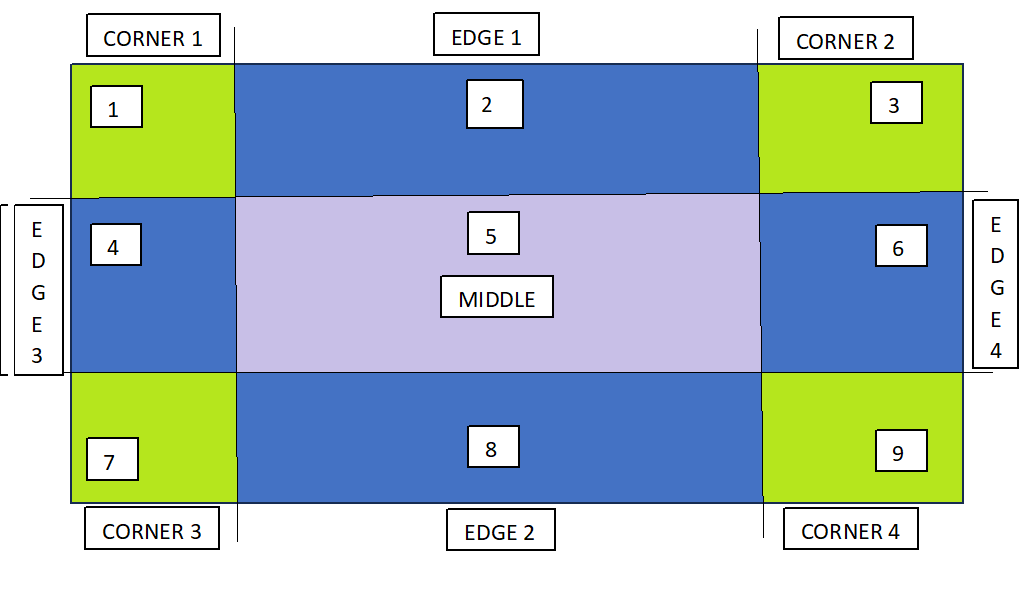
The border-image property takes the image and slices it into nine sections(3×3). It then places the corners at the corner of the border, and the edges are repeated or stretched as you specify. Middle part of image will be ignored.
Border Image
Table of Contents
Example of Image as Border
CSS Border Image Source
CSS Border Image Slice
CSS Border Image Width
CSS Border Image Outset
CSS Border Image Repeat
Border Image Shorthand
CSS Gradient as Border Images
Border Image All Properties
Example of Image as Border
The following code shows a basic example of how to set image as border.
Example
Open Compiler
<!DOCTYPE html><html><head><style>
div{
background-color: #f0f0f0;
border: 20px solid transparent;
border-image: url(/css/images/border.png) 40;
padding: 20px;
}
</style></head><body><div><p>
This is an example of setting a
border image using CSS
</p></div></body></html></pre>
CSS Border Image Source
The CSS border-image-source property specifies the source (url) of an image to be passed as a border to an element.
Example
Open Compiler
<!DOCTYPE html><html><head><style>
div{
background-color: #f0f0f0;
border: 20px solid transparent;
border-image-source: url(/css/images/border.png);
padding: 20px;
}
</style></head><body><div><p>
This is an example of setting border image using
border image source.
</p></div></body></html></pre>
CSS Border Image Slice
The border-image-slice property defines how the image is sliced into regions, which are then used to draw the borders.
The following diagram demonstrates how image is sliced to make border. The image is divided into 9 sections: four corners, four edges, and the center.
The value in the 'border-image-slice' property specifies how far inward from the edges of the image the slicing should occur. It essentially defines the size of the areas that will be used to create the border.
The offset for border-image-slice can be provided in terms of percentage or length units but percentages are highly recommended.
Example
Open Compiler
<!DOCTYPE html><html><head><style>
div{
background-color: #f0f0f0;
border: 20px solid transparent;
border-image-source: url(/css/images/scenery2.jpg);
border-image-slice: 25%;
padding: 15px;
width: 50%
}
</style></head><body><div><p>
See how border is set for this div...
</p></div><p> Here is full image for your reference: </p><img src="/css/images/scenery2.jpg" height="160px"></body></html></pre>
CSS Border Image Width
The border-image-width property is used to specify the width of the image to be set as a border.
The border-image-outset property is used to specify gap between element and border-image. This property pushes the border image outside, beyond the border box.
The border-image-repeat property in used to repeating and stretching nature of image around border. By default the border image gets stretched along the sides.
The value repeat for this property, repeats the image specified along the sides of the border until the whole length and width got filled.
It can also take the value as round, apart from stretch and repeat.
div{
background-color: #f0f0f0;
border: 20px solid transparent;
border-image: url('/css/images/border.png') 30 round;
padding: 20px;
}
</style></head><body><div><p>
This is an example of border shorthand property....
</p></div></body></html></pre>
CSS Gradient as Border Images
CSS gradients can also be used to set the border of an element. There are three types of gradients supported: linear, radial and conic.