A website’s usability depends heavily on its design. CSS provides features like hover effects, animations, gradients, transitions, and flexible layouts that make websites more interactive and visually appealing. A good design keeps users engaged and encourages them to spend more time on the website, which also benefits businesses.
Author: saqibkhan
-
Consistency in Design
Consistency is crucial for a professional-looking website. CSS ensures that design elements such as colors, fonts, headings, and buttons remain uniform across all pages. If you decide to change the color scheme or typography, you only need to update the CSS file once, and the changes will automatically reflect everywhere.
-
Consistency in Design
Consistency is crucial for a professional-looking website. CSS ensures that design elements such as colors, fonts, headings, and buttons remain uniform across all pages. If you decide to change the color scheme or typography, you only need to update the CSS file once, and the changes will automatically reflect everywhere.
-
Faster Page Loading
Web pages load faster when styles are placed in an external CSS file rather than repeated as inline styles within HTML elements. A single stylesheet can control the design of the entire website, which reduces redundancy and file size. Faster loading speeds improve performance, reduce bounce rates, and enhance user satisfaction.
-
Reusability of Code
CSS allows developers to write code once and use it across multiple pages. For example, if you design a navigation bar, button style, or footer in CSS, you can apply it to every page of the website without duplicating the code. This reusability saves time, reduces errors, and ensures a consistent look throughout the website.
-
Separation of Content and Design
One of the biggest benefits of CSS is that it separates the content (HTML) from the presentation (design). This makes the code much easier to organize and manage. Developers can focus on the structure using HTML while controlling the look and feel through CSS. With this separation, the same content can be styled in completely different ways simply by linking different CSS stylesheets.
-
CSS RWD Frameworks
CSS has various frameworks which are specialized in web development. These frameworks such as bootstrap, Tailwind CSS, and various more, have inbuilt classes and packages for commonly used UI components such as navigation bars, menu bars, buttons, image galleries, etc.
In this chapter, we will learn and understand some of the most popular and freely available CSS frameworks for responsive web development.
Responsive Web Designing Frameworks
Here is a list of popular frameworks commonly used for responsive web designing.
- Bootstrap
- Tailwind CSS
- Skeleton
- Semantic UI
Bootstrap Framework
Bootstrap is a widely used open-source front-end framework used for creating responsive, mobile-first websites and web applications. Bootstrap provides a collection of CSS and JavaScript components, such as grids, forms, buttons, and navigation bars. These components can be easily implemented and customized. The common features of the bootstrap framework are mentioned below.
Features For Responsive Design
Here are some of the features of Bootstrap for responsive design.
- Bootstrap provides a 12-column grid layout, making it easily adaptable to various screen sizes.
- Bootstrap comes with utility classes. These utility classes help in applying margin, padding, and alignment adjustments for responsiveness.
- Bootstrap includes responsive navigation, carousels, and models that adapt to screen sizes automatically.
Example
Open Compiler
<!DOCTYPE html><html lang="en"><head><link href= "https://cdn.jsdelivr.net/npm/[email protected]/dist/css/bootstrap.min.css"
"https://cdn.jsdelivr.net/npm/[email protected]/dist/js/bootstrap.bundle.min.js"></script></head><body><div class="container-fluid p-5 bg-secondary text-white text-center"><h1>Bootstrap Framework</h1><p>Resize the screen to see the effect</p></div><div class="container mt-4"><div class="row"><div class="col-sm-4"><h2>Column 1</h2><p>rel="stylesheet"><script src=Tutorialspoint - Simple and Easy Learning <p> Tutorialspoint - Simple and Easy Learning </p></div><div class="col-sm-4"><h3>Column 2</h3><p>Tutorialspoint - Simple and Easy Learning</p><p>Tutorialspoint - Simple and Easy Learning</p></div><div class="col-sm-4"><h3>Column 3</h3><p>Tutorialspoint - Simple and Easy Learning</p><p>Tutorialspoint - Simple and Easy Learning</p></div></div></div></body></html></pre>Tailwind CSS
Tailwind CSS is a utility-first CSS framework with lots of predefined classes. It has various customization options to design responsive web pages. With tailwind CSS, developers can style elements directly in the HTML. Tailwind supports purging unused CSS, which optimizes load times by removing unnecessary styles.
Features For Responsive Design
Here are some of the features of Tailwind CSS for responsive design.
- Tailwind's utility classes provide precise control over design elements. It makes it easy to adjust the layout and manage spacing, and alignment based on screen size.
- Tailwind is designed with a mobile-first approach i.e., developers can apply styles for smaller screens and can build up for larger screens.
- Tailwind provides support for adding custom breakpoints. It offers flexibility in defining responsive behaviors designed to specific project needs.
Example
Open Compiler
<!DOCTYPE html><html lang="en"><head><link href= "https://cdn.jsdelivr.net/npm/[email protected]/dist/tailwind.min.css"
rel="stylesheet"></head><body class="bg-gray-100"><div class="text-center py-10 bg-purple-600 text-white"><h1 class="text-3xl font-bold">Tailwind CSS Framework</h1><p class="text-lg"> Resize the screen to see responsive behavior </p></div><div class="container mx-auto mt-8"><div class="grid grid-cols-1 md:grid-cols-3 gap-4"><div class="bg-white p-6 rounded-lg shadow-md"><h2 class="text-xl font-semibold">Column 1</h2><p> Tutorialspoint - Simple and Easy Learning </p></div><div class="bg-white p-6 rounded-lg shadow-md"><h2 class="text-xl font-semibold">Column 2</h2><p> Tutorialspoint - Simple and Easy Learning </p></div><div class="bg-white p-6 rounded-lg shadow-md"><h2 class="text-xl font-semibold">Column 3</h2><p> Tutorialspoint - Simple and Easy Learning </p></div></div></div></body></html></pre>Skeleton Framework
Skeleton is a lightweight CSS framework that provides a basic structure for responsive web design. It focuses on simplicity and speed, making it ideal for small projects and quick prototypes.
Features For Responsive Design
- Skeleton's grid is based on a 12-column structure that adjusts accurately to fit different screen sizes.
- Skeleton's smaller file size makes it fast-loading and easily customizable.
- Skeleton includes responsive typography, forms, buttons, and other basic elements.
Example
Open Compiler
<!DOCTYPE html><html lang="en"><head><link href= "https://cdnjs.cloudflare.com/ajax/libs/skeleton/2.0.4/skeleton.min.css"
rel="stylesheet"></head><body><div class="container"><h1>Skeleton Framework</h1><p>Resize the screen to see responsive layout adjustments</p><div class="row"><div class="one-third column"><h3>Column 1</h3><p>Tutorialspoint - Simple and Easy Learning</p></div><div class="one-third column"><h3>Column 2</h3><p>Simple and Easy Learning</p></div><div class="one-third column"><h3>Column 3</h3><p>Tutorialspoint - Simple and Easy Learning</p></div></div></div></body></html></pre>Semantic UI
Semantic UI is a CSS framework that uses human-friendly HTML for creating responsive and visually appealing layouts. It includes a lot of libraries for themes and components. The common features of semantic UI are mentioned below.
Features For Responsive Design
Here are some of the features of semantic UI for responsive design.
- Semantic UI includes a flexible grid that adjusts to various screen sizes.
- It offers various responsive UI components such as buttons, forms, and menus.
- It uses user-friendly HTML and Simple classes, making it easy to create responsive layouts.
Example
Open Compiler
<!DOCTYPE html><html lang="en"><head><link href= "https://cdnjs.cloudflare.com/ajax/libs/semantic-ui/2.4.1/semantic.min.css"
rel="stylesheet"></head><body><div class="ui container"><h1 class="ui header">Semantic UI Framework</h1><p>Responsive design with Semantic UI</p><div class="ui three column grid"><div class="column"><h3>Column 1</h3><p>Tutorialspoint - Simple and Easy Learning</p></div><div class="column"><h3>Column 2</h3><p>Simple and Easy Learning</p></div><div class="column"><h3>Column 3</h3><p>Tutorialspoint - Simple and Easy Learning</p></div></div></div></body></html></pre> -
CSS RWD Videos
In responsive web design, its important to make sure videos are fitting properly to the layout. Videos should expand to fill the entire content area while keeping their original aspect ratio.
When a fixed width or height of a video is specified, it may cause layout issue in very large or very small screens, such as breaking page layouts, distorting the shape, or displaying black bars around the video. The black bars around the video are called letterboxing (on top and bottom of the video), pillarboxing (on left and right of the video), and windowboxing (on all sides of the video).
So, it’s important to use relative units for the width and height property such as percentage, instead of absolute values, such as pixels. Absolute values restrict the video getting responsive.
Responsive Videos Using width Property
To make an video scale according to screen size, we need to set width property of the video to 100% and height to auto.
video{width: 100%;height: auto;}Setting style in this way makes the video take up 100% of the width of its parent element, and the height will be adjusted to maintain the video’s aspect ratio. This setup allows the video to scale with the screen size. However, on very large screens, the video may stretch beyond its natural width, making it appear distorted.
Example
In this example, the video displayed will scale according to screen size of output window. Run this code in Tutorialspoint HTML Compiler to adjust output window width and verify.
Open Compiler
<!DOCTYPE html><html><head><style>
video { width: 100%; height: auto; } </style></head><body><p> The video will cover 100% width </p><video width="400" controls><source src="/css/foo.mp4" type="video/mp4"></video></body></html></pre>Responsive Videos Using max-width Property
The above mentioned method has a drawback, on large screens the video will get stretched beyond it's natural dimension. To prevent this, we can use max-width property instead of 'width' property.
video{max-width: 100%;height: auto;}By setting video properties in this way, the video will scale down if it has to, but never scale up to be larger than its original size.
Example
In this example, the video displayed will scale according to screen size of output window but never scale more than it's natural size. Run this code in Tutorialspoint HTML Compiler to adjust output window width and verify.
Open Compiler
<!DOCTYPE html><html><head><style>
video { max-width: 100%; height: auto; } </style></head><body><p> The video will cover 100% width if natural width is less than output screen width </p><video width="400" controls><source src="/css/foo.mp4" type="video/mp4"></video></body></html></pre>Add a Video to the Example Web Page
The following example demonstrates the use of a responsive video in a webpage. Based on the max-width value of the video, the video gets scaled down as per the screen size.
Example
Open Compiler
<!DOCTYPE html><html><head><style>
* { box-sizing: border-box; }.title { border: 2px solid black; padding: 10px; background-color: blanchedalmond; }.grid-one { width: 60%; float: left; padding: 10px; border: 2px solid black; background-color: darkseagreen; }.grid-two { width: 40%; float: left; padding: 15px; border: 2px solid black; background-color: lightgreen; }ul { list-style-type: none; }li { background-color: aqua; padding: 5px; border: 1px solid black; margin: 5px; }video { max-width: 100%; height: auto; } </style></head><body><div class="title"><h1>Responsive Web Design</h1></div><div class="grid-two"><ul><li>Viewport</li><li>Grid view</li><li>Media queries</li><li>Images</li><li>Videos</li><li>Frameworks</li></ul></div><div class="grid-one"><h1>Responsive Videos</h1><p> Alike images, videos can be made responsive too, such that the video should expand to fill the entire content area, while maintaining its original aspect ratio. </p><video width="400" controls><source src="/css/foo.mp4" type="video/mp4"></video><p> Resize the browser window to see how the content gets responsive to the resizing. </p></div></body></html></pre>Print Page
-
CSS RWD Images
In responsive web design, its important to make sure images fit well on all screen sizes and resolutions. By using properties like
max-widthandmin-width, images can automatically resize to fit different screens. In this chapter, well learn how to make images responsive, look at key properties for responsive images, and see how to create a responsive image gallery.When an image is uploaded to a webpage, it will be displayed in it’s default width and height. We can change these dimensions in CSS so that the image fits according to available space in our layout. One of the popular approach to set image dimension, is to keep a fixed width for image (such 50% of screen or 25% of screen) and height will be set automatically according to aspect ratio of the image.
For better adaptability, we should always use relative units for the width property such as percentage, instead of absolute values, such as pixels. Absolute values restrict the image getting responsive.
Responsive Image Using width Property
To make an image scale according to screen size, we need to set width property of the image to 100% and height to auto.
img{width: 100%;height: auto;}Setting style in this way makes the image take up 100% of the width of its parent element, and the height will be adjusted to maintain the image’s aspect ratio. This setup allows the image to scale with the screen size. However, on very large screens, the image may stretch beyond its natural width, making it appear distorted.
Example
In this example, the image displayed will scale according to screen size of output window. Run this code in Tutorialspoint HTML Compiler to adjust output window width and verify.
Open Compiler
<!DOCTYPE html><html><head><style>
img { width: 100%; height: auto; } </style></head><body><p> The image will cover 100% width </p><img src="/css/images/border.png"></body></html></pre>Responsive Image Using max-width Property
The above mentioned method has a drawback, on large screens the image will get stretched beyond it's natural dimension. To prevent this, we can use max-width property instead of 'width' property.
img{max-width: 100%;height: auto;}By setting image properties in this way, the image will scale down if it has to, but never scale up to be larger than its original size.
Example
In this example, the image displayed will scale according to screen size of output window but never scale more than it's natural size. Run this code in Tutorialspoint HTML Compiler to adjust output window width and verify.
Open Compiler
<!DOCTYPE html><html><head><style>
img { max-width: 100%; height: auto; } </style></head><body><p> The image will cover 100% width if natural width is less than output screen width </p><img src="/css/images/border.png"></body></html></pre>CSS Image Gallery
CSS Image Gallery is used to organize and display multiple images in responsive and visually appealing format. CSS properties can be used to control the layout of images, size, shape, spacing, spanning and lot of other visual effects.
CSS grid layout is most commonly used layout system for designing image gallery, with this we can align images in 2 dimensional manner.
Example
Open Compiler
<!DOCTYPE html><html><head><style>
/* Gallery container */ .gallery { display: grid; gap: 10px; padding: 10px; font-family: Arial, sans-serif; }/* style image items */ .gallery img { width: 100%; height: 100px; /* Set a same height for all images */ object-fit: fit; display: block; border-radius: 8px; border: 3px solid #ccc; transition: all 0.3s ease; }/* Spanning the first image across two rows */ .gallery img:first-child { grid-row: span 2; height: 210px; /* Double the height of regular images */ }/* Spanning the sixth image across two columns */ .gallery img:nth-child(6) { grid-column: span 2; }/* Hover effect */ .gallery img:hover { transform: scale(1.02); border-color: #555 ; } </style></head><body><div class="gallery"><img src="/w3css/images/w3css_pdfcover.jpg" alt="Gallery Image 1"><img src="/css/images/html.png" alt="Gallery Image 2"><img src="/css/images/css.png" alt="Gallery Image 3"><img src="/css/images/html.png" alt="Gallery Image 4"><img src="/css/images/css.png" alt="Gallery Image 5"><img src="/html/images/logo.png" alt="Gallery Image 6"></div></body></html></pre>Responsive Image Gallery
We can use CSS media queries to create a responsive image gallery that scales and rearranges its content based on the screen width. Following is simple media query that define number of column is image gallery for large screen and small screen.
/* 4 columns in case of large screen */@media (min-width: 600px){.gallery{grid-template-columns:repeat(4, 1fr);}}/* 1 column in case of small screen */@media (max-width: 599px){.gallery{grid-template-columns: 1fr;}}With media queries we can also define style for specific orientation (landscape or portrait) of user device. The default value for this is portrait.
Example
This is example of designing a responsive image gallery.
Open Compiler
<!DOCTYPE html><html><head><style>
/* Gallery container */ .gallery { display: grid; gap: 10px; padding: 10px; font-family: Arial, sans-serif; }/* 4 columns in case of large screen */ @media (min-width: 600px) { .gallery { grid-template-columns: repeat(4, 1fr); } }/* 1 column in case of small screen */ @media (max-width: 599px) { .gallery { grid-template-columns: 1fr; } }/* Individual image items */ .gallery img { width: 100%; height: 100px; /* Set a same height for all images */ object-fit: fit; /* Ensure images fits the area */ display: block; border-radius: 8px; border: 3px solid #ccc; /* Default border color */ transition: all 0.3s ease; }/* Spanning the first image across two rows */ .gallery img:first-child { grid-row: span 2; height: 210px; /* Double the height of regular images */ }/* Spanning the sixth image across two columns */ .gallery img:nth-child(6) { grid-column: span 2; }/* Hover effect */ .gallery img:hover { transform: scale(1.02); border-color: #555 ; } </style></head><body><div class="gallery"><img src="/w3css/images/w3css_pdfcover.jpg" alt="Gallery Image 1"><img src="/css/images/html.png" alt="Gallery Image 2"><img src="/css/images/css.png" alt="Gallery Image 3"><img src="/css/images/html.png" alt="Gallery Image 4"><img src="/css/images/css.png" alt="Gallery Image 5"><img src="/html/images/logo.png" alt="Gallery Image 6"></div></body></html></pre>Output for large screens:
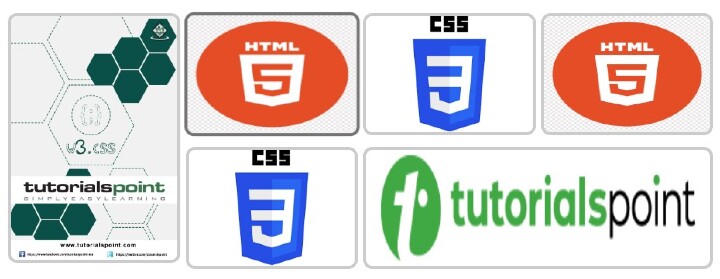
Output for small screens:
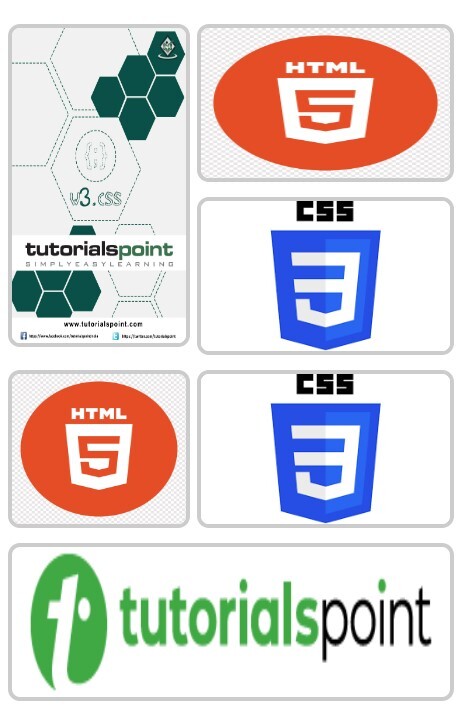
-
CSS RWD Media Query
In Responsive Web Designing, media queries rules are used to conditionally apply styles for specific screen widths, aspect ratios and resolutions. In this chapter, we will learn how to design a responsive web page using media query rule.
What is Media Query?
Media queries in CSS are used to apply different CSS styles based on the screen size, resolution, and other characteristics of the users device. Media queries use the @media rule to include an extra block of CSS properties when certain conditions are met.
Adding a Breakpoint
In responsive design, a breakpoint is a specific screen width where the layout changes to suit better to the screen size. We can add breakpoint by defining a media query with a maximum or minimum width. Following code shows the exact syntax.
/* Example of a breakpoint for screens smaller than 768px */@media (max-width: 768px){.container{flex-direction: column;}}In this example, when the screen width is 768px or smaller, the
.containerlayout changes to a column direction.Media Query Setting Width Limit
We can set the width limit in media queries for applying styles only within specific screen width ranges. We define a minimum and a maximum width, to control the layout and appearance of elements within the desired screen size range.
Example
Here is an example, in which the body’s background color changes to plum when the viewport width is wider than 35em and narrower than 85em.
Open Compiler
<!DOCTYPE html><html><head><style>
body { background-color: white; /* Default background */ }
</style></head><body><h1>Media Query Width Limit Example</h1><p>@media (min-width: 35em) and (max-width: 85em) { body { background-color: plum; } }Resize the browser window to see the background color change. </p><p><b> Note: </b> If you can't resize here, Run in Tutorials point HTML compiler </p></body></html></pre>Media Query Multiple Breakpoints
We can use multiple breakpoints in media queries to design layout styling for different screen sizes, and condition of user devices. Let's understand this with an example.
Example
In this example, we have defined three breakpoints to adjust the font size and layout for small, medium, and large screens.
Open Compiler
<!DOCTYPE html><html><head><style>
body { font-size: 16px; /* Default font size */ }/* Small screens (up to 600px wide) */ @media (max-width: 600px) { body { font-size: 14px; } }/* Medium screens (601px to 900px wide) */ @media (min-width: 601px) and (max-width: 900px) { body { font-size: 16px; } }
</style></head><body><h1>Multiple Breakpoints Example</h1><p>/* Large screens (901px and up) */ @media (min-width: 901px) { body { font-size: 18px; } }Resize the browser window to see the background color change. </p><p><b> Note: </b> If you can't resize here, Run in Tutorials point HTML compiler </p></body></html></pre>CSS Media Queries For Screen Orientation
We can define style for specific orientation (landscape or portrait) of user device. The default value for this is portrait.
@media (orientation: portrait){/* Styles */}Example
The following example demonstrates that when the screen width is greater than 500px and the device is in landscape orientation, the text color changes to blue.
Open Compiler
<!DOCTYPE html><html><head><style>
</p></body></html>body { color: red; } @media (min-width: 500px) and (orientation: landscape) { body { color: blue; } } </style></head><body><h3>Resize the browser window to see the effect.</h3><p> The text color changed to blue when the viewport width is at least 500px and the device is in landscape orientation. </p><p><b> Note: </b> If you can't resize here, Run in Tutorials point HTML compiler