In the previous chapter, we created a sample RMI application. In this chapter, we will explain how to create an RMI application where a client invokes a method which displays a GUI window (JavaFX).
Defining the Remote Interface
Here, we are defining a remote interface named Hello with a method named animation() in it.
import java.rmi.Remote;
import java.rmi.RemoteException;

// Creating Remote interface for our application
public interface Hello extends Remote {
   void animation() throws RemoteException;
}
Developing the Implementation Class
In the Implementation class (Remote Object) of this application, we are trying to create a window which displays GUI content, using JavaFX.
import javafx.animation.RotateTransition;
import javafx.application.Application;
import javafx.event.EventHandler;

import javafx.scene.Group;
import javafx.scene.PerspectiveCamera;
import javafx.scene.Scene;
import javafx.scene.control.TextField;
import javafx.scene.input.KeyEvent;
import javafx.scene.paint.Color;
import javafx.scene.paint.PhongMaterial;

import javafx.scene.shape.Box;
import javafx.scene.text.Font;
import javafx.scene.text.FontWeight;
import javafx.scene.text.Text;
import javafx.scene.transform.Rotate;

import javafx.stage.Stage;
import javafx.util.Duration;

// Implementing the remote interface
public class FxSample extends Application implements Hello {
   @Override
   public void start(Stage stage) {
  // Drawing a Box
  Box box = new Box();
  // Setting the properties of the Box
  box.setWidth(150.0);
  box.setHeight(150.0);
  box.setDepth(100.0);
  // Setting the position of the box
  box.setTranslateX(350);
  box.setTranslateY(150);
  box.setTranslateZ(50);
  // Setting the text
  Text text = new Text(
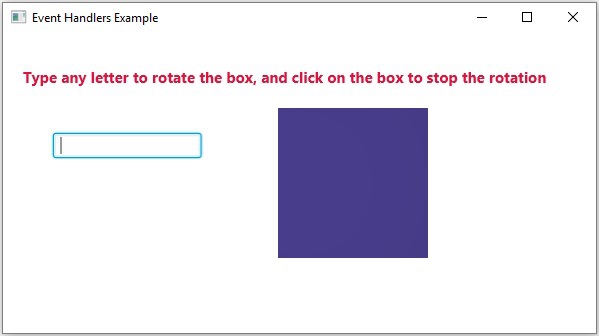
     "Type any letter to rotate the box, and click on the box to stop the rotation");
  // Setting the font of the text
  text.setFont(Font.font(null, FontWeight.BOLD, 15));
  // Setting the color of the text
  text.setFill(Color.CRIMSON);
  // Setting the position of the text
  text.setX(20);
  text.setY(50);
  // Setting the material of the box
  PhongMaterial material = new PhongMaterial();
  material.setDiffuseColor(Color.DARKSLATEBLUE);
  // Setting the diffuse color material to box
  box.setMaterial(material);
  // Setting the rotation animation to the box
  RotateTransition rotateTransition = new RotateTransition();
  // Setting the duration for the transition
  rotateTransition.setDuration(Duration.millis(1000));
  // Setting the node for the transition
  rotateTransition.setNode(box);
  // Setting the axis of the rotation
  rotateTransition.setAxis(Rotate.Y_AXIS);
  // Setting the angle of the rotation
  rotateTransition.setByAngle(360);
  // Setting the cycle count for the transition
  rotateTransition.setCycleCount(50);
  // Setting auto reverse value to false
  rotateTransition.setAutoReverse(false);
  // Creating a text filed
  TextField textField = new TextField();
  // Setting the position of the text field
  textField.setLayoutX(50);
  textField.setLayoutY(100);
  // Handling the key typed event
  EventHandler<KeyEvent> eventHandlerTextField = new EventHandler<KeyEvent>() {
     @Override
     public void handle(KeyEvent event) {
        // Playing the animation
        rotateTransition.play();
     }
  };

  // Adding an event handler to the text feld
  textField.addEventHandler(KeyEvent.KEY_TYPED, eventHandlerTextField);
  // Handling the mouse clicked event(on box)
  EventHandler<javafx.scene.input.MouseEvent> eventHandlerBox =
     new EventHandler<javafx.scene.input.MouseEvent>() {
     @Override
     public void handle(javafx.scene.input.MouseEvent e) {
        rotateTransition.stop();
     }
  };

  // Adding the event handler to the box
  box.addEventHandler(javafx.scene.input.MouseEvent.MOUSE_CLICKED, eventHandlerBox);
  // Creating a Group object
  Group root = new Group(box, textField, text);
  // Creating a scene object
  Scene scene = new Scene(root, 600, 300);
  // Setting camera
  PerspectiveCamera camera = new PerspectiveCamera(false);
  camera.setTranslateX(0);
  camera.setTranslateY(0);
  camera.setTranslateZ(0);
  scene.setCamera(camera);
  // Setting title to the Stage
  stage.setTitle("Event Handlers Example");
  // Adding scene to the stage
  stage.setScene(scene);
  // Displaying the contents of the stage
  stage.show();     }

   // Implementing the interface method
   public void animation() {
  launch();     }
}
Learn Java in-depth with real-world projects through our Java certification course. Enroll and become a certified expert to boost your career.
Server Program
An RMI server program should implement the remote interface or extend the implementation class. Here, we should create a remote object and bind it to the RMIregistry.
Following is the server program of this application. Here, we will extend the above created class, create a remote object, and registered it to the RMI registry with the bind name hello.
import java.rmi.registry.Registry;
import java.rmi.registry.LocateRegistry;
import java.rmi.RemoteException;
import java.rmi.server.UnicastRemoteObject;

public class Server extends FxSample {
   public Server() {}
   public static void main(String args[]) {
  try {
     // Instantiating the implementation class
     FxSample obj = new FxSample();

     // Exporting the object of implementation class
     // (here we are exporting the remote object to the stub)
     Hello stub = (Hello) UnicastRemoteObject.exportObject(obj, 0);

     // Binding the remote object (stub) in the registry
     Registry registry = LocateRegistry.getRegistry();

     registry.bind("Hello", stub);
     System.err.println("Server ready");
  } catch (Exception e) {
     System.err.println("Server exception: " + e.toString());
     e.printStackTrace();
  }    }
}
Client Program
Following is the client program of this application. Here, we are fetching the remote object and invoking its method named animation().
import java.rmi.registry.LocateRegistry;
import java.rmi.registry.Registry;

public class Client {
   private Client() {}
   public static void main(String[] args) {
  try {
     // Getting the registry
     Registry registry = LocateRegistry.getRegistry(null);

     // Looking up the registry for the remote object
     Hello stub = (Hello) registry.lookup("Hello");

     // Calling the remote method using the obtained object
     stub.animation();

     System.out.println("Remote method invoked");
  } catch (Exception e) {
     System.err.println("Client exception: " + e.toString());
     e.printStackTrace();
  }    }
}
Steps to Run the Example
Following are the steps to run our RMI Example.
Step 1 − Open the folder where you have stored all the programs and compile all the Java files as shown below.
Javac *.java
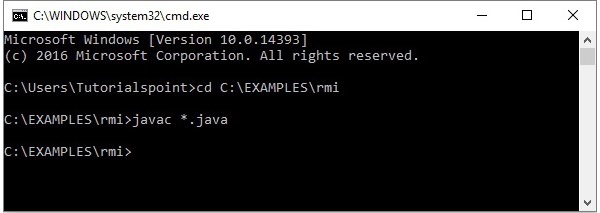
Step 2 − Start the rmi registry using the following command.
start rmiregistry
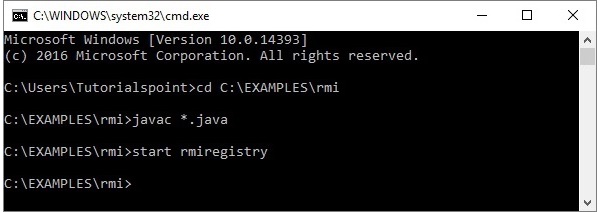
This will start an rmi registry on a separate window as shown below.
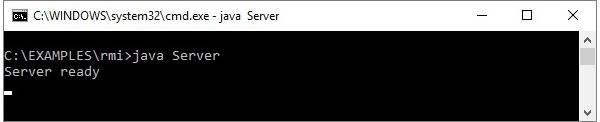
Step 3 − Run the server class file as shown below.
Java Server
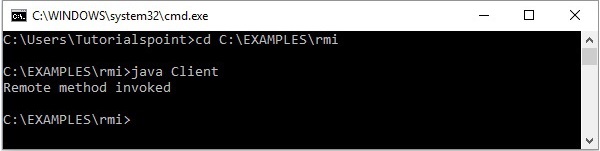
Step 4 − Run the client class file as shown below.
java Client
Verification − As soon you start the client, you would see the following output in the server.
Leave a Reply