Response

What is HTTP Response?

In the HTTP protocol, the response is the process by which the server returns data to the client (application or browser) after receiving a request.

In Angular, a response refers to the data received from the server following an HTTP call made by the client to fetch, send, or manipulate data. These responses are handled by the Angular HttpClient module.

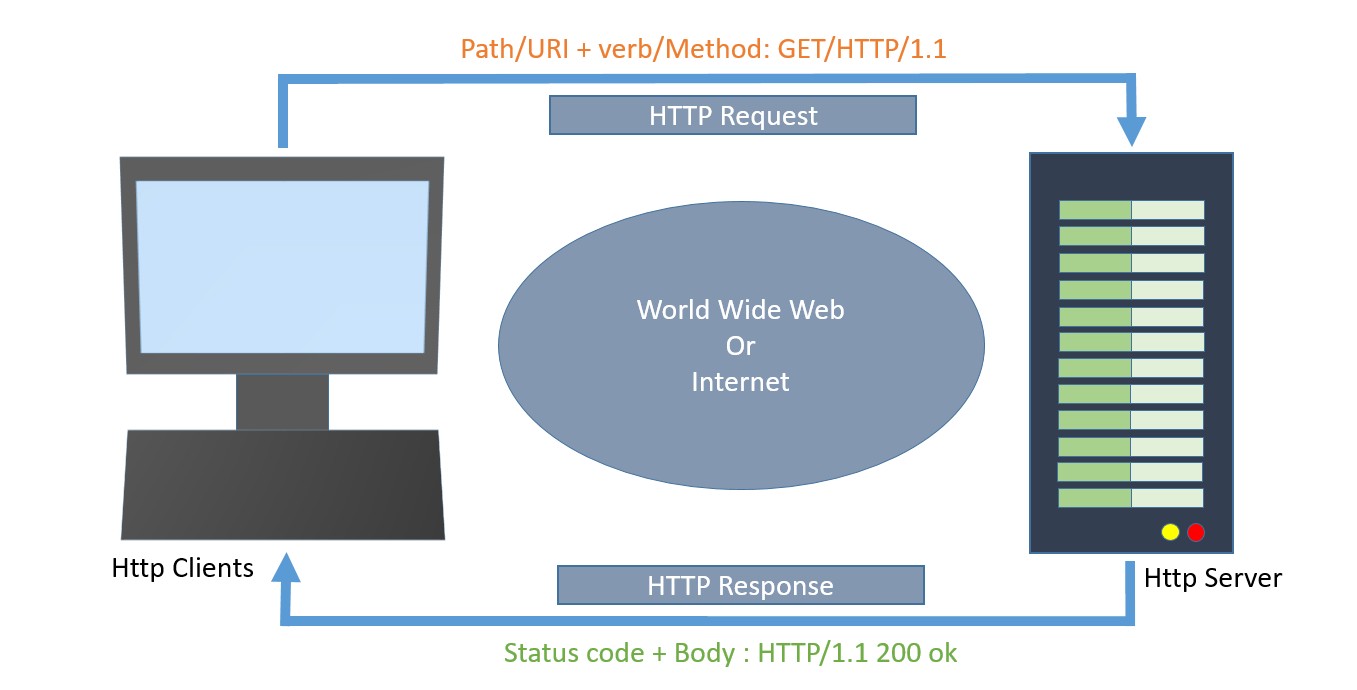
The following diagram will give you a clear understanding of the HTTP Request and Response calls −

HTTP Request Response

Now, let’s discuss the various events of the HttpEvent class that allow you to handle different phases of an HTTP request/response in Angular:

HttpEvent Class

The HttpEvent class is a key part of the Angular HttpClient module, which provides a way to monitor the progress of HTTP requests.

HttpClientwill send the request to the server and capture the response from the server. Then, based on the request configuration, it will enclose the response in an object with the below possible types:

Actually, the HttpEvent is the union of all possible event classes in the response stream, as shown below −

typeHttpEvent<T>= HttpSentEvent | HttpHeaderResponse | HttpResponse<T>| 
   HttpProgressEvent | HttpUserEvent<T>;

Let us learn the response types provided by Angular one by one −

HttpSentEvent

TheHttpSentEventis used to specify that the request is sent to the server, and it will be useful when the request is retried multiple times.

Syntax for the HttpSentEvent −

interfaceHttpSentEvent{
   type: HttpEventType.Sent
}

HttpUserEvent

The HttpUserEvent is used to identify that the response event is user-defined. It will be useful to group all custom events into one category. It will ensure that the event is properly handled and forwarded by all interceptors.

Syntax for the HttpUserEvent −

interfaceHttpUserEvent<T>{
   type: HttpEventType.User
}

HttpProgressEvent

TheHttpProgressEventis used to identify whether the request is download-based or upload-based. Also, it will enclose the currently loaded bytes during download/upload functionality.

Syntax for the HttpProgressEvent −

interfaceHttpProgressEvent{
   type: HttpEventType.DownloadProgress | HttpEventType.UploadProgress
   loaded:number
   total?:number}

Here,

  • loaded is used to refer to the number of bytes uploaded / downloaded
  • total is used to refer to the total data to be downloaded / uploaded

HttpResponseBase

The HttpResponseBase is the base class for both HttpHeaderResponse and HttpResponse. It has basic information about the response.

Syntax for the HttpResponseBase −

abstractclassHttpResponseBase{constructor()// have not shown full details for understanding purpose   
   headers: HttpHeaders
   status:number
   statusText:string
   url:string|null
   ok:boolean
   type: HttpEventType.Response | HttpEventType.ResponseHeader
}

Here,

  • headers − A response header information as HttpHeaders object.
  • status − The number (code) is used to refer to the different status of the request.
  • statusText − Text used to refer to different status of the request (default: ‘ok’).
  • url − Url of the request.
  • ok − Success / failure of the request.
  • type − Type of the event (Response or ResponseHeader).

HttpHeaderResponse

TheHttpHeaderResponseinherits fromHttpResponseBaseand includes an option to clone the response. The purpose of this class is to enclose the response with header and status information, skipping the actual body of the response.

classHttpHeaderResponseextendsHttpResponseBase{
  type: HttpEventType.ResponseHeader;clone(): HttpHeaderResponse;
  headers: HttpHeaders;
  status:number;
  statusText:string;
  url:string|null;
  ok:boolean;}

Here,

  • type − Type of the event (Response or ResponseHeader).
  • clone() − A method, which copy this HttpHeaderResponse, overriding its contents with the given parameter hash.
let response = res.clone(update:{})

headers − A response header information as HttpHeaders object.status − The number (code) is used to refer to the different status of the request.statusText − Text used to refer to different status of the request (default: ‘ok’).url − Url of the request.ok − Success / failure of the request.

HttpResponse

TheHttpResponseinherits fromHttpResponseBaseclass and includes response body and option to clone the response. The purpose of the class is to enclose the response with body, header and status information.

The responsed body can be fetched by using body property as shown below −

classHttpResponse<T>extendsHttpResponseBase{
  body:T|null;
  type: HttpEventType.Response;clone(): HttpResponse<T>;clone(update): HttpResponse<T>;clone(update)<V>: HttpResponse<V>;
  headers: HttpHeaders;
  status:number;
  statusText:string;
  url:string|null;
  ok:boolean;}

Here,

  • body − The response body, or null if one was not returned.
  • type − Type of the event (Response or ResponseHeader).
  • clone() − A method, which copy this HttpHeaderResponse, overriding its contents with the given parameter hash.
@returnsHttpResponse<T>-------------------------------------@paramupdate{ headers?: HttpHeaders |undefined; 
status?:number|undefined; 
statusText?:string|undefined; 
url?:string|undefined;@returnsHttpResponse<T>-------------------------------------@paramupdate{ body?:V|null|undefined; 
headers?: HttpHeaders |undefined; 
status?:number|undefined; 
statusText?:string|undefined; 
url?:string|undefined;}@returnsHttpResponse<V>

headers − A response header information as HttpHeaders object.status − The number (code) is used to refer to the different status of the request.statusText − Text used to refer to different status of the request (default: ‘ok’).url − Url of the request.ok − Success / failure of the request.

Cloning the response can be done similarly toHttpHeaderResponse class as shown below −

let response = res.clone(update:{})

Here,

  • res is the response object returned from the server.
  • update is an object holding data to be updated in the responses header.

Working sample

Let’s create a “sample web application” to upload a file to the server. We will develop an API for file uploads and then call this API from the Angular front-end application. Throughout this process, we will learn and handle different types of responses.

First, let’s create a new express app to upload a file to the server by executing the following steps:

Step 1: Go to your favorite workspace as shown below −

cd /go/to/your/favorite/workspace

Step 2: Create a new folder with the name expense-rest-api and move into the folder −

mkdir upload-rest-api && cd upload-rest-api

Step 3: Create a new application using the init subcommand provided by the npm command as shown below −

npm init

Once you hit the above command, it will ask a few questions and answer all of them with default answers.

Step 4: Install express and cors packages to create node-based web applications −

npm install express cors multer --save

Here,

  • express is a web framework to create a web application.
  • cors is a middleware used to handle CORS concept in HTTP application.
  • multer is an another middleware used to handling file upload.

Step 5: Open index.js and place the below code (if not found create it manually within the root folder) −

var express =require("express")var cors =require('cors')const multer =require('multer');var app =express()
app.use(cors());var bodyParser =require("body-parser");
app.use(express.urlencoded({ extended:true}));
app.use(express.json());varHTTP_PORT=8000
app.listen(HTTP_PORT,()=>{
   console.log("Server running on port %PORT%".replace("%PORT%",HTTP_PORT))});const storage = multer.diskStorage({destination:(req, file, cb)=>{cb(null,"uploads/")},filename:(req, file, cb)=>{cb(null, Date.now()+"-"+ file.originalname)},})const upload =multer({ storage: storage });
app.post('/api/upload', upload.single('photo'),(req, res)=>{
   console.log(req.file)
   res.json({ message:'File uploaded successfully!'});});

Here,

  • Configured a simple express app by enabling cors, multi, and body-parser middleware.
  • Created a new API/api/uploadto accept a file and store it in the uploads folder on the server.
  • Configured the upload folder as uploads.
  • The API will accept a file input with the name photo.

Step 6: Create a directory for storing uploads −

mkdir uploads

Step 7: Now, run the application by executing the below command −

node index.js

Step 8: To test the application, you can use the PostmanCurl, or any other HTTP client toolkit. Here is how you can do it −

  • Create a new request to the API endpoint: http://localhost:8000/api/upload.
  • Set the request method to post.
  • Add a form-data field with the key photo, set its type to file, and attach the file you want to upload.

Working Example

Let us create a working angular example to get all expense item from server by using HttpClient service class and using HttpRequest option.

Step 1: Create a new angular application by running ng new command as shown below −

ng new my-upload-app

Enable angular routing and CSS as shown below −

? Would you like to add Angular routing? Yes
? Which stylesheet format would you like to use?CSS

Step 2: Enable HTTP communication in the application by importing HttpClientModule in the imports array in the module configuration file (app.component.ts) as per the latest version (standalone components) −

import{ Component }from'@angular/core';import{ CommonModule }from'@angular/common';import{ RouterOutlet }from'@angular/router';import{ HttpClientModule }from'@angular/common/http';

@Component({
  selector:'app-root',
  standalone:true,
  imports:[CommonModule, RouterOutlet, HttpClientModule],
  templateUrl:'./app.component.html',
  styleUrl:'./app.component.css'})exportclassAppComponent{
  title ='my-upload-app';}

Here,

  • Imported the HttpClientModule from @angular/common/http module.
  • Added the HttpClientModule into imports array of the @Component configuration.

Step 3: Create new component, Upload to show the expense items from the server −

ng generate component upload

It will create the component as shown below −

CREATE src/app/upload/upload.component.css (0 bytes)
CREATE src/app/upload/upload.component.html (21 bytes)
CREATE src/app/upload/upload.component.spec.ts (559 bytes)
CREATE src/app/upload/upload.component.ts (202 bytes)

Step 4: Include our new component into the app root component view, app.component.html as shown below −

<app-upload></app-upload><router-outlet></router-outlet>

Step 5: Inject theHttpClientinto theUploadcomponent through the constructor and import necessary classes fromthe rxjsand angular modules as shown below −

import{ Component }from'@angular/core';import{ HttpClient, HttpEvent, HttpEventType }from'@angular/common/http';import{ Observable, map }from'rxjs';

@Component({
   selector:'app-upload',
   templateUrl:'./upload.component.html',
   styleUrls:['./upload.component.css']})exportclassUploadComponent{constructor(private http: HttpClient){}}

Step 6: Create a variable for the file to be uploaded and another variable for upload message −

file?: File | null = null;
message : String | null = null;

Step 7: Create a function to get the file uploaded by the user from the form (to be created) and store it inthe filevariable −

onFilechange(event: any) {
   let files = event.target.files
   this.file = files.item(0)
   console.log(this.file)
}

Here,

  • event is the object holding upload event information. The event.target.files holds the uploaded document.

Step 8: Create a function,getEventMessage()to print the uploaded event information −

privategetEventMessage(event: HttpEvent<any>, file?: File){let message : String |null=null;switch(event.type){case HttpEventType.Sent:
     message =Uploading file "${file?.name}" of size ${file?.size}.;console.log(message);return message;case HttpEventType.UploadProgress:// Compute and show the % done:const percentDone = 
     event.total ? Math.round(100* event.loaded / event.total):0;
     message =File "${file?.name}" is ${percentDone}% uploaded.;console.log(message);return message;case HttpEventType.Response:
     message =File "${file?.name}" was completely uploaded!;console.log(message);return message;default:
     message =File "${file?.name}" surprising upload event: ${event.type}.;console.log(message);return message;}}</pre>

Here,

  • The switch statement is used to capture different events and print them accordingly.
  • The HttpEventType holds the type of information.

Step 9: Create a function, upload() to upload the user-selected files to the server −

upload(){const formData: FormData =newFormData();
   formData.append('photo',this.file as Blob,this.file?.name);const myObservable: Observable<HttpEvent<any>>=this.http.post<any>('http://localhost:8000/upload', formData,{ 
	  observe:'events',
     reportProgress:true});
myObservable.pipe(map(data =>{console.log(data);return data;}),).subscribe(
     evt =&gt;{this.message =this.getEventMessage(evt,this.file as File)});}</pre>

Here,

  • formData holds the user uploaded file.
  • post() method send the data in formData to the server.
  • myObservable will print the data returned by server using map function and print the event information using getEventMessage() function.

Step 10: The complete source code of the upload component (upload.component.ts) is as follows −

import{ Component }from'@angular/core';import{ HttpClient, HttpEvent, HttpEventType }from'@angular/common/http';import{ Observable, map }from'rxjs';@Component({
   selector:'app-upload',
   templateUrl:'./upload.component.html',
   styleUrls:['./upload.component.css']})exportclassUploadComponent{

   file?: File |null=null;
   message : String |null=null;constructor(private http: HttpClient){}onFilechange(event:any){let files = event.target.files
  this.file = files.item(0)console.log(this.file)}upload(){const formData: FormData =newFormData();
formData.append('photo',this.file as Blob,this.file?.name);const myObservable: Observable<HttpEvent<any>>=this.http.post<any>('http://localhost:8000/api/upload',
  formData,{ observe:'events', reportProgress:true});console.log('Hi');
myObservable.pipe(map(data =>{console.log(data);return data;}),).subscribe(
     evt =&gt;{this.message =this.getEventMessage(evt,this.file as File)});}privategetEventMessage(event: HttpEvent&lt;any&gt;, file?: File){let message : String |null=null;switch(event.type){case HttpEventType.Sent:
        message =Uploading file "${file?.name}" of size ${file?.size}.;console.log(message);return message;case HttpEventType.UploadProgress:// Compute and show the % done:const percentDone = 
event.total ? Math.round(100* event.loaded / event.total):0;
        message =File "${file?.name}" is ${percentDone}% uploaded.;console.log(message);return message;case HttpEventType.Response:
        message =File "${file?.name}" was completely uploaded!;console.log(message);return message;default:
        message =File "${file?.name}" surprising upload event: ${event.type}.;console.log(message);return message;}}}</pre>

Step 11: Create an upload form in the component template (upload.component.html) and set theupload()method for upload buttonclickevent −

<div><h3>Uploads</h3></div><form enctype="multipart/form-data"><label for="formFile" class="form-label">Upload file example</label><input type="file" 
   name="photo" id="file" (change)="this.onFilechange($event)" 
   /><div *ngIf="file"><section class="file-info">
     File details:
     &lt;ul&gt;&lt;li&gt;Name: {{file.name}}&lt;/li&gt;&lt;li&gt;Type: {{file.type}}&lt;/li&gt;&lt;li&gt;Size: {{file.size}} bytes&lt;/li&gt;&lt;/ul&gt;&lt;/section&gt;&lt;p *ngIf="message"&gt;{{message}}&lt;/p&gt;&lt;button (click)="this.upload()" type="button"&gt;Upload&lt;/button&gt;&lt;/div&gt;&lt;/form&gt;</pre>

Step 12: Finally, run the application using the below command −

ng serve

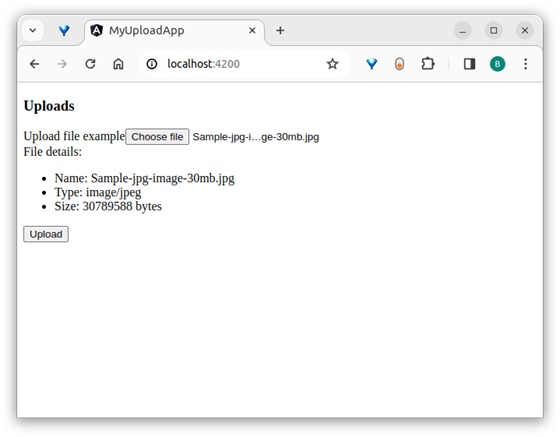
Step 13: Here, the output shows the form. Select a large file of around 30 MB and try to upload it as shown below −

uploads

Here, the output shows the form. Select a large file around 30 MB and try to upload it as shown below −

file upload

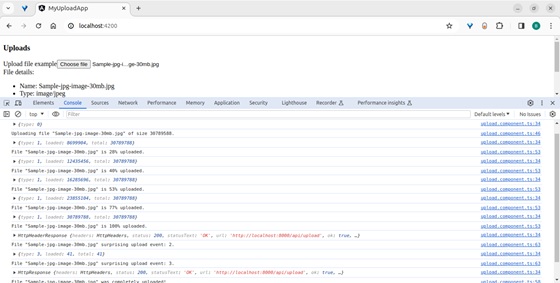
After uploading, inspect the application page and see in the console −

upload file example

If the image fails to upload correctly, the following message will appear −

picture can't displayed

Comments

Leave a Reply

Your email address will not be published. Required fields are marked *