Dart’s way of organizing and sharing a set of functionality is through Package. Dart Package is simply sharable libraries or modules. In general, the Dart Package is same as that of Dart Application except Dart Package does not have application entry point, main.
The general structure of Package (consider a demo package, my_demo_package) is as below −
lib/src/* − Private Dart code files.
lib/my_demo_package.dart − Main Dart code file. It can be imported into an application as −
pubspec.yaml − Project specification, same as that of application,
All Dart code files in the Package are simply Dart classes and it does not have any special requirement for a Dart code to include it in a Package.
Types of Packages
Since Dart Packages are basically a small collection of similar functionality, it can be categorized based on its functionality.
Dart Package
Generic Dart code, which can be used in both web and mobile environment. For example, english_words is one such package which contains around 5000 words and has basic utility functions like nouns (list nouns in the English), syllables (specify number of syllables in a word.
Flutter Package
Generic Dart code, which depends on Flutter framework and can be used only in mobile environment. For example, fluro is a custom router for flutter. It depends on the Flutter framework.
Flutter Plugin
Generic Dart code, which depends on Flutter framework as well as the underlying platform code (Android SDK or iOS SDK). For example, camera is a plugin to interact with device camera. It depends on the Flutter framework as well as the underlying framework to get access to camera.
Using a Dart Package
Dart Packages are hosted and published into the live server, https://pub.dartlang.org. Also, Flutter provides simple tool, pub to manage Dart Packages in the application. The steps needed to use as Package is as follows −
Include the package name and the version needed into the pubspec.yaml as shown below −
dependencies: english_words: ^3.1.5
The latest version number can be found by checking the online server.
Install the package into the application by using the following command −
flutter packages get
While developing in the Android studio, Android Studio detects any change in the pubspec.yaml and displays an Android studio package alert to the developer as shown below −
Dart Packages can be installed or updated in Android Studio using the menu options.
Import the necessary file using the command shown below and start working −
Here, we have used nouns function to get and print the top 50 words.
Explore our latest online courses and learn new skills at your own pace. Enroll and become a certified expert to boost your career.
Develop a Flutter Plugin Package
Developing a Flutter Plugin is similar to developing a Dart application or Dart Package. The only exception is that the plugin is going to use System API (Android or iOS) to get the required platform specific functionality.
As we have already learned how to access platform code in the previous chapters, let us develop a simple plugin, my_browser to understand the plugin development process. The functionality of the my_browser plugin is to allow the application to open the given website in the platform specific browser.
Start Android Studio.
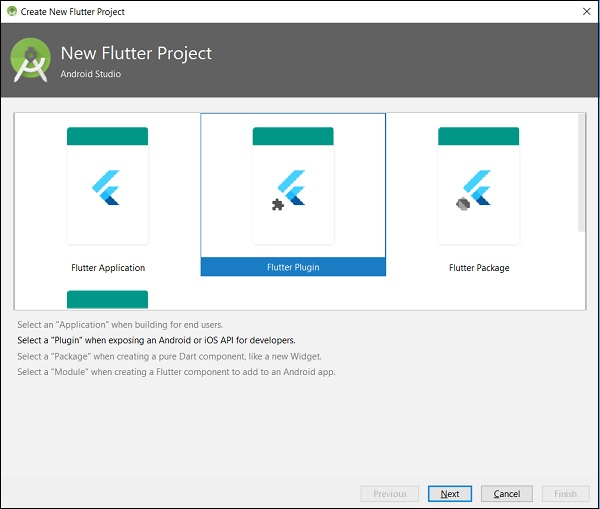
Click File → New Flutter Project and select Flutter Plugin option.
You can see a Flutter plugin selection window as shown here −
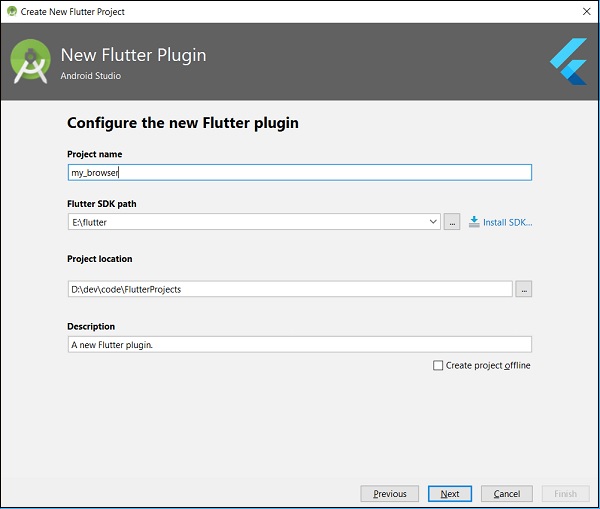
Enter my_browser as project name and click Next.
Enter the plugin name and other details in the window as shown here −
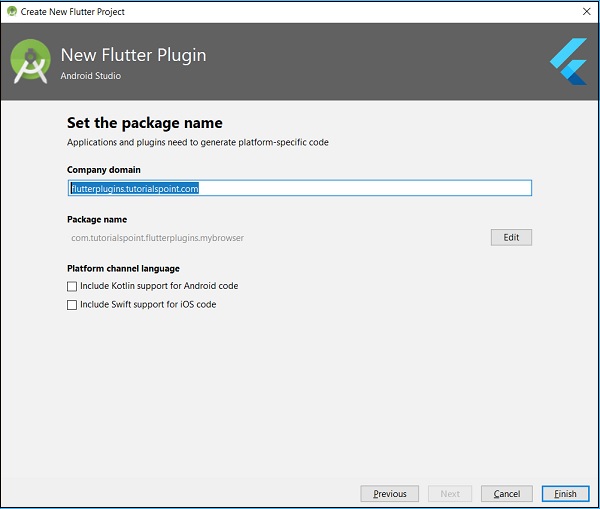
Enter company domain, flutterplugins.tutorialspoint.com in the window shown below and then click on Finish. It will generate a startup code to develop our new plugin.
Open my_browser.dart file and write a method, openBrowser to invoke platform specific openBrowser method.
Change registerWith to include our new constructor in MyBrowserPlugin class.
public static void registerWith(Registrar registrar) {
   final MethodChannel channel = new MethodChannel(registrar.messenger(), "my_browser");
   MyBrowserPlugin instance = new MyBrowserPlugin(registrar);
   channel.setMethodCallHandler(instance);
}
Change the onMethodCall to include openBrowser method in MyBrowserPlugin class.
@Override
public void onMethodCall(MethodCall call, Result result) {
String url = call.argument("url");
if (call.method.equals("getPlatformVersion")) {
try {
final int result = await _channel.invokeMethod(
'openBrowser', <String, String>{'url': urlString});
}
on PlatformException catch (e) {
// Unable to open the browser print(e);
}
final MethodChannel channel = new MethodChannel(
registrar.messenger(), "my_browser");
MyBrowserPlugin instance = new MyBrowserPlugin(registrar);
channel.setMethodCallHandler(instance);
}
@Override
public void onMethodCall(MethodCall call, Result result) {
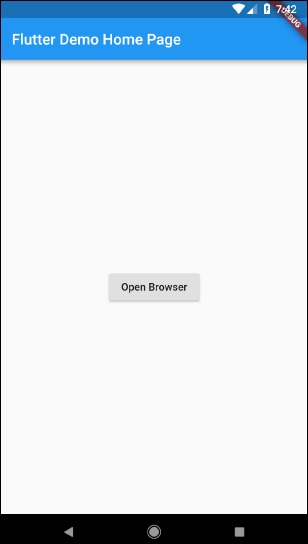
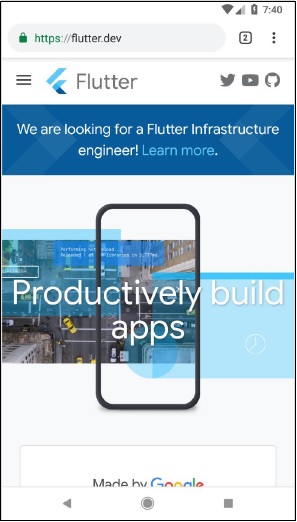
Run the application and click the Open Browser button and see that the browser is launched. You can see a Browser app - Home page as shown in the screenshot shown below −
You can see a Browser app – Browser screen as shown in the screenshot shown below −


Leave a Reply