The RxJS is a library that stands for Reactive Extensions JavaScript. It allows you to work with the synchronized data stream.
It is used for “reactive programming”, which is a way to develop an application that reacts to changes instead of explicitly writing code to handle them.
What is Observer Pattern in Angular?
In Angular, the Observer Pattern is a design pattern that allows an object to called the observable from RxJS library to send notifications to multiple observer objects that are interested in the state changes of the observable. This design pattern is useful in managing asynchronous data streams in Angular applications.
The following diagram of the observer pattern will provide you with a clear understanding of how the “publisher” (service) returns the “observable”. The “observable” emits data, and the “subscriber” subscribes to the data to react to changes or updates.
Note: You can have multiple subscribers listening to the same observable
Here,
The publisher is a service that generates data or events. It is responsible for creating and maintaining the Observable.
The observable is an entity that emits the data or events. It represents the data stream that other components can subscribe to.
The subscription is a process by which other components subscribe to the Observable to receive updates. Each subscriber gets notified whenever the Observable emits new data.
The subscriber is a component that subscribes and reacts to the data emitted by the Observable.
Advantages of Observer Pattern
Following is a list of advantages of the Angular Observer Pattern −
Reactive Programming
Event Handling
Error Handling
Improved Testablity
Implementation
Follow the process below to implement the observer pattern in an Angular application:
Let’s set up an angular application using CLI (command line interace) to implement the observer pattern from scratch within this newly created application.Use the steps given below to create a new Angular application:
Step 1: Open the node.js command or code editor (e.g., VS code) terminal and go to your favorite workspace as:
cd /favourite/workspace/ folder_name
Step 2: Install Angular CLI using the following command (see more):
npm install @angular/cli
Step 3: Create a new angular application, myApp as follows:
ng new myApp
Note: Once you hit the above command, it will ask you a few questions and reply with the default answers.
Step 4: Open the AppComponent (app.component.html) file remove everything and place the code below:
<h2>Welcome to Angular Observer Design Pattern</h2>
Step 5: Navigate to your “application directory” as:
cd myApp
Step 6: Run the application to verify it is created successfully:
ng serve
Step 7: Open your preferred browser (e.g., chrome) and navigate to localhost:4200 URL to see the output:
Create Observable Service
Let’s create an Observable service to implement the Observable from the RxJS library. This service will allow you to share data across different components in the application.
Once the above command is executed successfully, you might be able to see “two new files” within your application:
Here,
The first file, observer.service.spec.ts, is a unit testing file (we typically do not make changes in this file).
The second file, observer.service.ts, is where we write all the “logic” and “functionalities”.
Implement Observable in Service
We will define a method, getRandColors() within the service class, which returns an observable. This method will pick and return a random color from the given array when this method is called in the component each time.
Step 1: Open the observer.service.ts file in your code editor and implement the getRandColors() method:
Note: To work with the Observable pattern, make sure the RxJS library is imported into your service class.
Use the Observable Service in Component
As we have implemented the observable in the service class, we will now use the observable service within our root component to access its methods to retrieve the observer value.
Step 1: Open the app.component.ts file, import, and inject the observable service.
Step 2: As the service is already injected via Dependency Injection, now define a method, changeBackground(), access the service method within it, and assign the returned color value to the variable background:
import{ Component }from'@angular/core';import{ CommonModule }from'@angular/common';import{ RouterOutlet }from'@angular/router';import{ ObserverService }from'./observer.service';@Component({
selector:'app-root',
standalone:true,
imports:[CommonModule, RouterOutlet],
templateUrl:'./app.component.html',
styleUrl:'./app.component.css'})exportclassAppComponent{constructor(private myService: ObserverService){}//variable to store the color
background:any;changeBackground(){this.myService.getRandColors().subscribe(color =>{//assigning valuethis.background = color;});}}
Update the Template
Now, let's update the template (app.component.html) to display the observer value initially when the component loads and update it dynamically when the value changes.
Step 1: Open the app.component.html file in your code editor, bind the background variable with the div element using style binding, and create a button to change the background on click:
In Angular, the singleton pattern is a design pattern having a single instance of a class throughout the entire application and provide the global point of access to it.
This design pattern is useful when you want to share a single resource to the entire application such as without recreating it; such as services.
Singleton Services
In Angular, a singleton service is a class defined with the @Injectable decorator, which marks the class as a service in Angular. It is used to share “common logic”, “data”, and “functionality” across various components and services.
This angular feature “enhances” the application performance by reusing the existing code for “common logic” rather than defining the logic in multiple places, and it also decreases the redundancy of code.
To use the singleton service in another component within the same application, we need to use Dependency Injection (another design pattern) to inject and use the service.
Advantages of Singleton Service
Following is a list of advantages of a Angular Singleton Service −
Enhance Application Performance
Globally Access
Dependency Injection Friendly
Resource Management
Easy to Share Data
Implementation
Following is a list of “objectives” that you need to follow to implement the “singleton pattern”:
Let’s create a “new application” using CLI from scratch to implement the singleton pattern (singleton service). This will help you understand the concept better.
Use the steps given below to create a new Angular application:
Step 1: Open the node.js command or code editor (e.g., VS code) terminal and go to your favorite workspace as:
cd /favourite/workspace/ folder_name
Step 2: Install Angular CLI using the following command:
npm install @angular/cli
Step 3: Create a new angular application, myApp as follows:
ng new myApp
Note: Once you hit the above command, it will ask you a few questions and reply with the default answers.
Step 4: Open the app.component.html file remove everything and place the code below:
<h2>Welcome to Angular Singleton Design Pattern</h2>
Step 5: Navigate to your “application directory” as:
cd myApp
Step 6: Run the application to verify it is created successfully:
ng serve
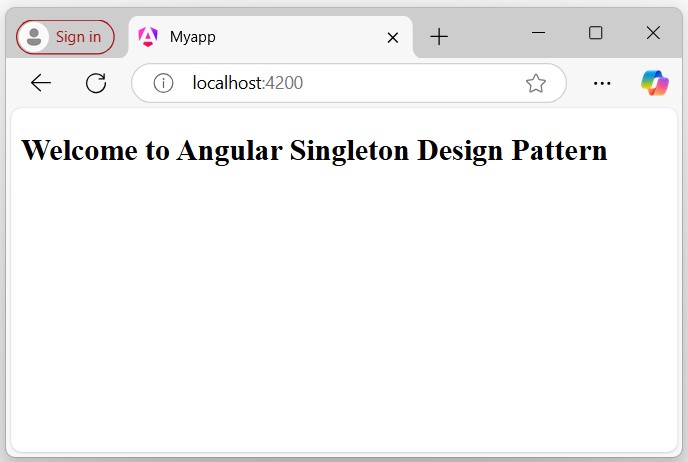
Step 7: Open your preferred browser (e.g., chrome) and navigate to localhost:4200 to see the output:
Create a Singleton Service
In Angular, a service is a class defined with the @Injectable decorator, which identifies it as a service in Angular. Additionally, services are a feature of a mechanism used to share common logic, data, and functionality that can be used across multiple components, directives, and other services.
Services are also used to communicate with servers via RESTful web services.
We will create an Angular service that has a single instance throughout the entire application, which is commonly known as a singleton service (or the singleton pattern).
Step 1: Create a service, myCalc in your angular application as follows:
ng generate service myCalc
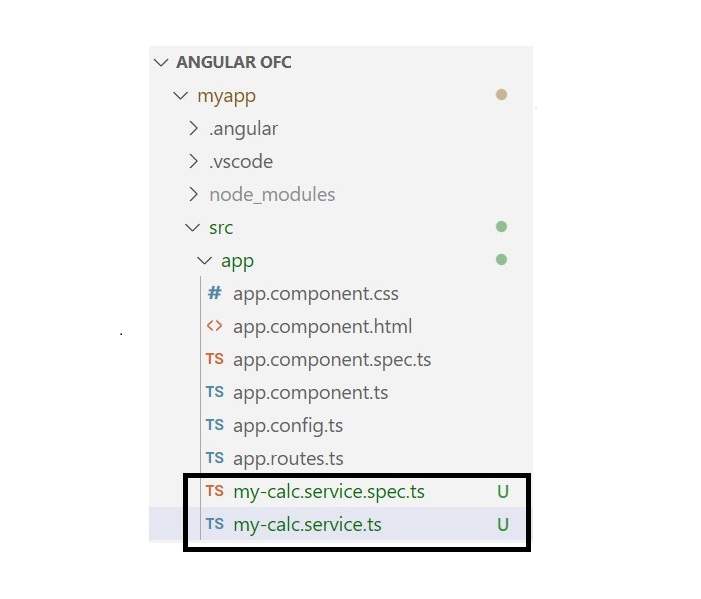
Once the above command is executed successfully, you will able to see “two new files” in your Angular application:
Here,
The first file, my-calc.service.spec.ts, is a unit testing file (we typically do not make changes in this file).
The second file, my-calc.service.ts, is where we write all the “logic” and “functionalities”.
Step 2: Open the my-calc.service.ts file and update with the given code below:
The Dependency Injection (DI) is also a design pattern in Angular used to inject the other “dependencies” into a module or a component rather than creating them individually for each module or component.
Let’s inject the singleton service via Dependency Injection (DI) into our myCalc component to use its functionality, as this component requires its dependencies.
Step 1: Open the calculator.component.ts file in your code editor and place the code below:
In Angular, Lazy Loading is a design pattern developed by the google angular team to “enhance the application performance”. The lazy-loading technique loads only the required components and module at a time rather than loading all together.
For example, suppose you have an Angular application with multiple feature modules, like a dashboard, user profile, settings, and reports. Instead of loading all these modules when the application starts, you can “configure lazy loading” to load these modules only when the user navigates to them.
Implementing Lazy Loading in Angular Project
To implement lazy loading in your project, follow the steps given below:
Note: Once you hit the above command, it will ask you a few questions and reply with the “default answer”.
Step 4: Go to your application directory as follows:
cd myApp
Step 5: Open the app.component.html file, remove everything, and update with the code below:
<h2>Welcome to Angular Lazy-loading Application</h2>
Step 6: Run the application to verify whether it was created correctly:
ng serve
Step 7: Open your friendly browser and navigate to URL localhost:4200 to verify the application has been created successfully.
Create Feature Module with Routing
In Angular, a feature module is a “special module” that organizes reliable blocks of functionality, such as components, directives, services, and pipes, along with their separate routing configurations.
This modularity helps in lazy loading, “improving application performance” by loading feature “modules only when needed”.
Step 1: Create a feature module, auth as follows:
ng generate module auth --routing
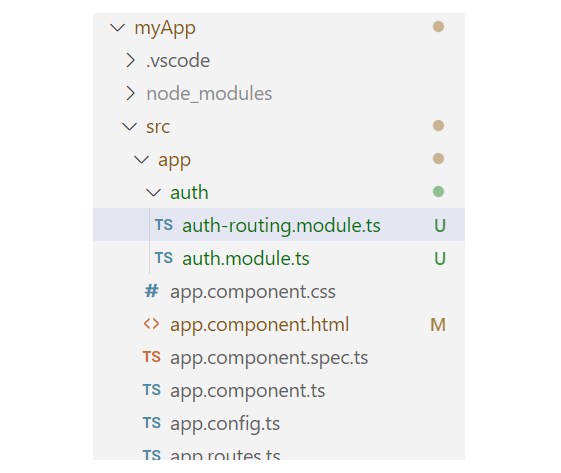
Here, the –routing flag enables “individual routing” for the Auth module. Once the above command is executed successfully, you will see two files within the auth folder:
Step 2: Create a component, login within the Auth module as:
ng generate component login
Create another Feature Module with Routing
Let’s create one more feature module, Dashboard, to observe the changes when we load different modules.
Step 1: Create another feature module, dashboard as follows:
ng generate module dashboard --routing
Step 2: Create a component, home within the dashboard module:
ng generate component login
Handling UI
To make it more understandable, let’s add some UI for different components that belong to individual feature modules.
Step 1: Open the app.component.html file and place the code below:
<h2>Welcome to Angular Lazy-loading Application</h2><a routerLink="/auth">Login</a><a routerLink="/dashboard">Home</a><hr><router-outlet></router-outlet>
Step 2: Open the app.component.css file and place the code below:
Enable lazy loading in Angular, you need to configure routing for both individual components within the feature module and the root routing for the feature modules.
To lazy load Angular modules, use the loadChildren property (instead of component) in your AppRoutingModule (e.g., app.routes.ts file) routes configuration as follows:
Step 1: Open the app.routes.ts file and define the routes for both the feature modules:
Step 4: Run the application using the following command:
ng serve
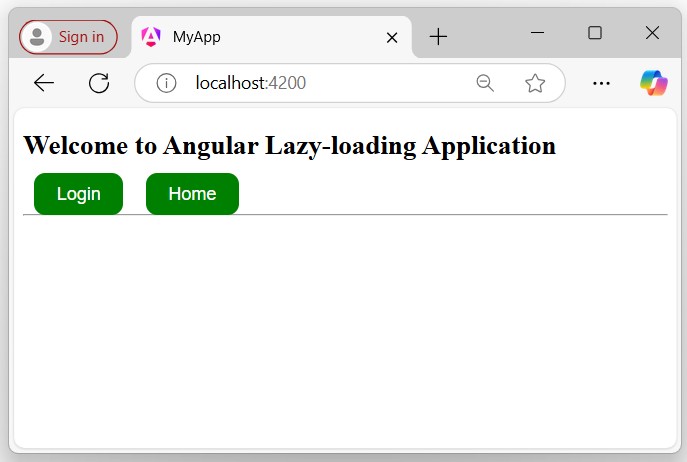
Step 5: Open your friendly browser and navigate to the URL localhost:4200 to get the first look of your application:
Verify Lazy-loading
To verify lazy loading, you need to follow a few steps in your browser where your application is currently running:
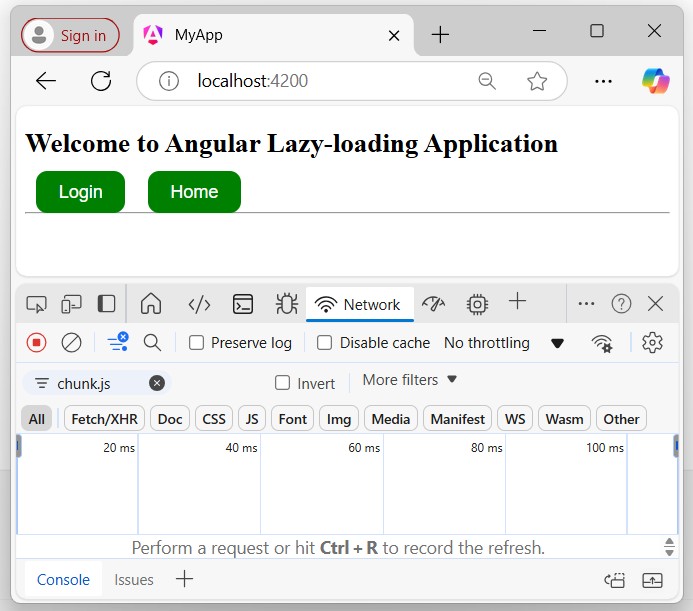
Step 1: Inspect (right-click on your page and click on inspect) the browser page where your application is running and navigate to the Network tab as follows:
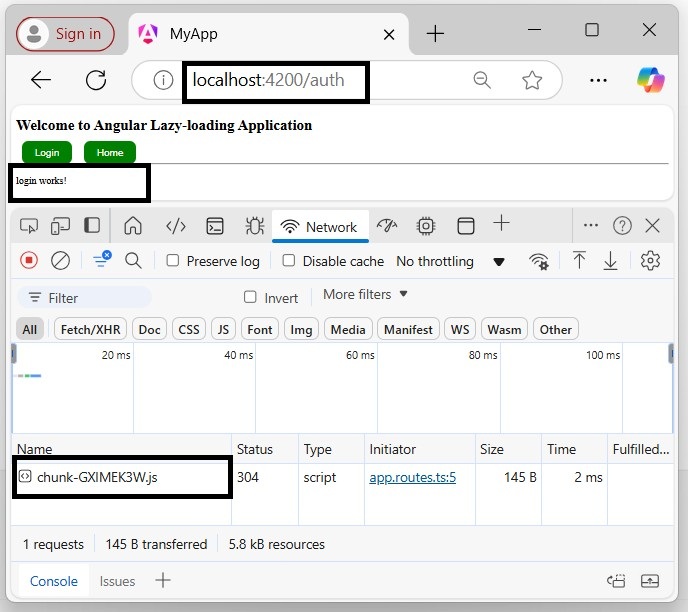
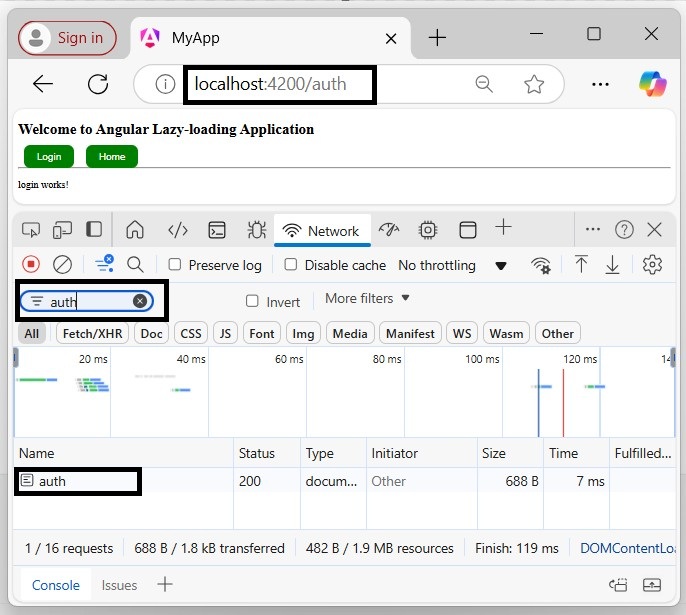
Click on the Login or Home button. If you see a chunk (chunk.js) appear, everything is wired up properly, and the feature module is lazy-loaded. A chunk should appear for “Login” and “Home”, but only once for each.
Step 2: Click the login button and recognize the changes:
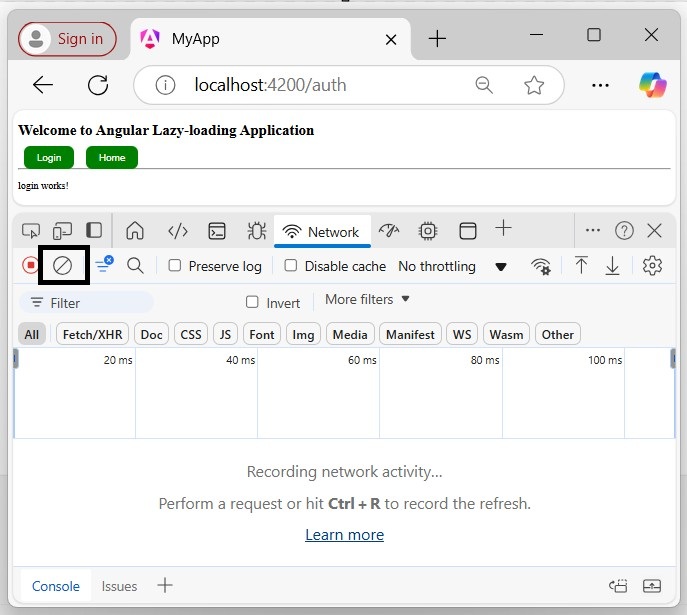
To see it again or to test after making changes, click the circle with a line through it in the upper left of the Network Tab:
Then reload with “Cmd+r” or “Ctrl+r”, depending on your platform.
If you try to filter the module, only the current loaded module will appear in the network section:
forRoot() and forChild()
The forRoot() function is not available in standalone applications. Because, instead of creating an app-routing.module.ts file, the standalone applications generate an app.routes.ts file, which does not require forRoot() function.
The forRoot() function specifies that this is the root routing module. It configures all the routes you pass to it, provides access to the router directives, and registers the Router service. Use forRoot() “only once” in your application within the AppRoutingModule.
The Angular CLI also adds RouterModule.forChild(routes) to your feature routing modules. This way, Angular knows that the route list is only responsible for providing extra routes and is intended for feature modules. You can use forChild() in “multiple” modules.
In software engineering, design patterns are like a reusable blueprint or a template for solving common problems in software design. A few of them might also known as a “software design pattern”.
Design patterns help developers to apply best practices in software development, which enhance the performance, maintainability, and scalability of software applications. By using the specified design patterns, developers can solve common design problems more easily, which can lead to higher-quality software.
Let’s take a simple scenario in an Angular application to understand it better.
Scenario: Singleton Pattern in an Angular Application
Suppose you are developing an Angular application that needs to create a service. You want to ensure that only one instance of the service class is created and used throughout the application. This is where the Singleton pattern comes into action.
Design Patterns in Angular
In Angular, design patterns are known methods (or techniques) for solving common design problems. Applications built using design patterns are more scalable and reliable. Additionally, design patterns also improve the application’s performance by decreasing redundancy and loading components and modules when they are required.
We will discuss some important design patterns in the further chapters in detail, including their usage, syntax to create, advantages, implementation examples, etc.
Types of Design Patterns in Angular
Below is a list of commonly used Design Patterns in Angular application:
Let’s discuss them briefly with a simple code snippet one by one.
Dependency Injection (DI)
In Angular, Dependency Injection (in short, DI) is a “design pattern” in which a class receives its dependencies from an external source instead of creating them itself.
This approach helps applications achieve loose coupling and reduce tight coupling between different parts of the application. By injecting dependencies, applications become more flexible and adaptable to changes.
Example
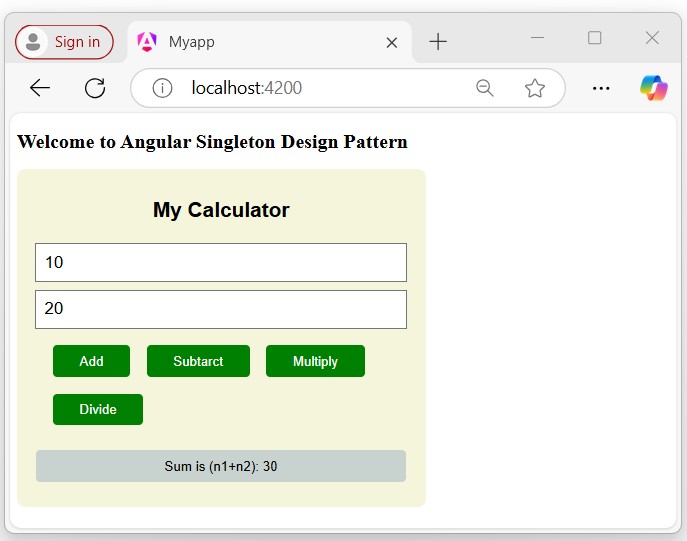
In the following example, you can see that the CalculatorComponent injects the MyCalcService dependencies rather than creating them itself. This service already exists in the application, so we use the Dependency Injection design pattern, which allows us to use this pre-existing dependency.
In Angular, the Lazy-loading is a “design pattern” developed by the google angular team to “enhance the application performs”. The “lazy-loading” technique loads only the required component and module at a time rather than loading all together.
For example, suppose you have an Angular application with multiple feature modules, like a “dashboard”, “user profile”, “settings”, and “reports”. Instead of loading all these modules when the application starts, you can configure lazy loading to load these modules only when the user navigates to them.
Example
In this example, we will define routes for the modules, “Auth” and “Dashboard”. By using the loadChildren property, we will set them as lazy-loaded modules, so they will only load when the relevant route is active in the URL.
For example, if the URL localhost:4200/auth is active, only the “Auth” module will be loaded, and same for localhost:4200/dashboard URL.
In Angular, the Singleton Pattern is a “design pattern” having a single instance of a class throughout the entire application and provide the global point of access to it.
This design pattern is useful when you want to share a common (or single) resource to the entire application without recreating it; such as Angular services.
Example
In the following example, we create a service class (i.e., a class defined by the @Injectable decorator) named MyCalcService, which has root-level access throughout the application.
The “MyCalcService” service class has a single instance within the entire application, which uses the singleton design pattern to share common logic throughout the entire application at the root level.
In Angular, the Observer Pattern is a “design pattern” that allows an object to called the observable from RxJS library to “send notifications” to multiple observer objects that are interested in the state changes of the observable. This design pattern is useful in managing asynchronous data streams in Angular applications.
Example
In the example below, we will define a method, getRandColors() within the service class, which returns an observable.
It uses the Observer design pattern, which involves an “observable” (subject) and one or more “observers” (subscribers) that react to changes or updates when ever the method is called in the component.
In Angular, the NgModule is a class marked (or defined) with the @NgModuledecorator, which specifies it as an Angular module. This decorator provides metadata that tells Angular how to compile and run the module code and configure the DI (dependency injection).
Declaring components, directives, and pipes that belong to the NgModule
Add providers to the injector for components, directives, and pipes that import the NgModule
Important Properties of @NgModule
The @NgModule class has several important properties which are:
Declarations
Imports
Exports
Providers
Bootstrap
Declarations
The declarations are an array, that contains the list of components, directives, and pipes that belong to this module.
@NgModule({// Signup and Login are components.
  declarations:[Signup, Login],})exportclassAuthModule{}
In the example above, the components SignupComponent and LoginComponent belong to AuthModule.
Note: If Angular finds any components, directives, or pipes declared in more than one NgModule, it reports an error.
Any components, directives, or pipes must be explicitly marked as standalone: false, to be declared in an NgModule.
@Component({// mark is false so that it can be declared in @NgModule
  standalone:false,})exportclassCustomMenu{}
Imports
The imports are an array, which lists out the other modules whose exported classes are needed by the components in this module.
The components may depend on other components, directives, and pipes. Add these dependencies in the imports property of @NgModule.
@NgModule({
  imports:[CommomModule, AppRoutingModule],// Signup and Login are components.
  declarations:[Signup, Login],})exportclassAuthModule{}
The imports array accepts other NgModules, as well as standalone components, directives, and pipes.
Exports
The exports are an array, which defines the components, directives, and pipes that can be used in the templates of other modules.
@NgModule({
  imports:[CommomModule, AppRoutingModule],// Signup and Login are components.
  declarations:[Signup, Login],
  exports:[Login, Signup]})exportclassAuthModule{}
The exports property is not limited to declarations. However, a NgModule can also export any other components, directives, pipes, and NgModules that it imports.
NgModule Providers
The providers are also an array, which lists out the services that are available to the injector and can be used throughout the module.
@NgModule({// Signup and Login are components.
  declarations:[Signup, Login],
  providers:[MyService],})exportclassAuthModule{}@NgModule({
  imports [AuthModule],
  declarations:[UserProfile],
  providers:[UserData],})exportclassUserProfileModule{}
Here, in the example above:
The AuthModule provides the MyService.
The Login and SignUp components can inject MyService because they’re declared in AuthModule.
UserProfile can inject MyService because its NgModule imports AuthModule.
UserData can inject MyService because its NgModule imports AuthModule.
The forRoot and forChild Pattern
In Angular, a few NgModule define a static forRoot() method that accepts some configuration and returns an array of providers.
If any providers are included this way will be eagerly loaded, and increases the JavaScript bundle size of your first loaded page.
Similarly, some NgModules may define a staticforChild() methodthat indicates the providers are considered to be added to components within your application hierarchy.
In Angular, a Routing Module is a special module that handles the configuration and management of routes within an application. It defines the routes (paths) for the various components to navigate between views or components.
You can define application routing logic separately from the rest of the application, which will react to the user interaction.
Important Points of Routing Module
Following are a few important points about the Routing Module you must know:
In older angular version, the CLI automatically created a routing module named as app-routing.module.ts while creating a new application, where you can define routes to navigate between various components.
In latest angular version, the CLI does not automatically create a routing module but instead creates a file named app.routes.ts to define the routes but it is not a routing module.
This file contains the route configuration array, which is then imported into a separate routing module, such as AppRoutingModule, to configure the RouterModule.
Important! The following creation steps of the routing module will be followed as per the “latest Angular version“.
Creating Routing Module in Angular
To create a routing module in your existing or new Angular application, follow and implement the steps given below:
Step 1: Open or Create a new Angular project
Open any existing angular project in your preferred code editor (e.g., vs code) or create a new application by running the following command:
ng new myapp
Step 2: Create app.routes.ts
Create a new file named app.routes.ts within the src/app folder (if it is not already created by Angular CLI):
src/app -> app.routes.ts
Step 3: Update the app.routes.ts
Open the app.routes.ts file in your code editor. If it is empty, add the given code below:
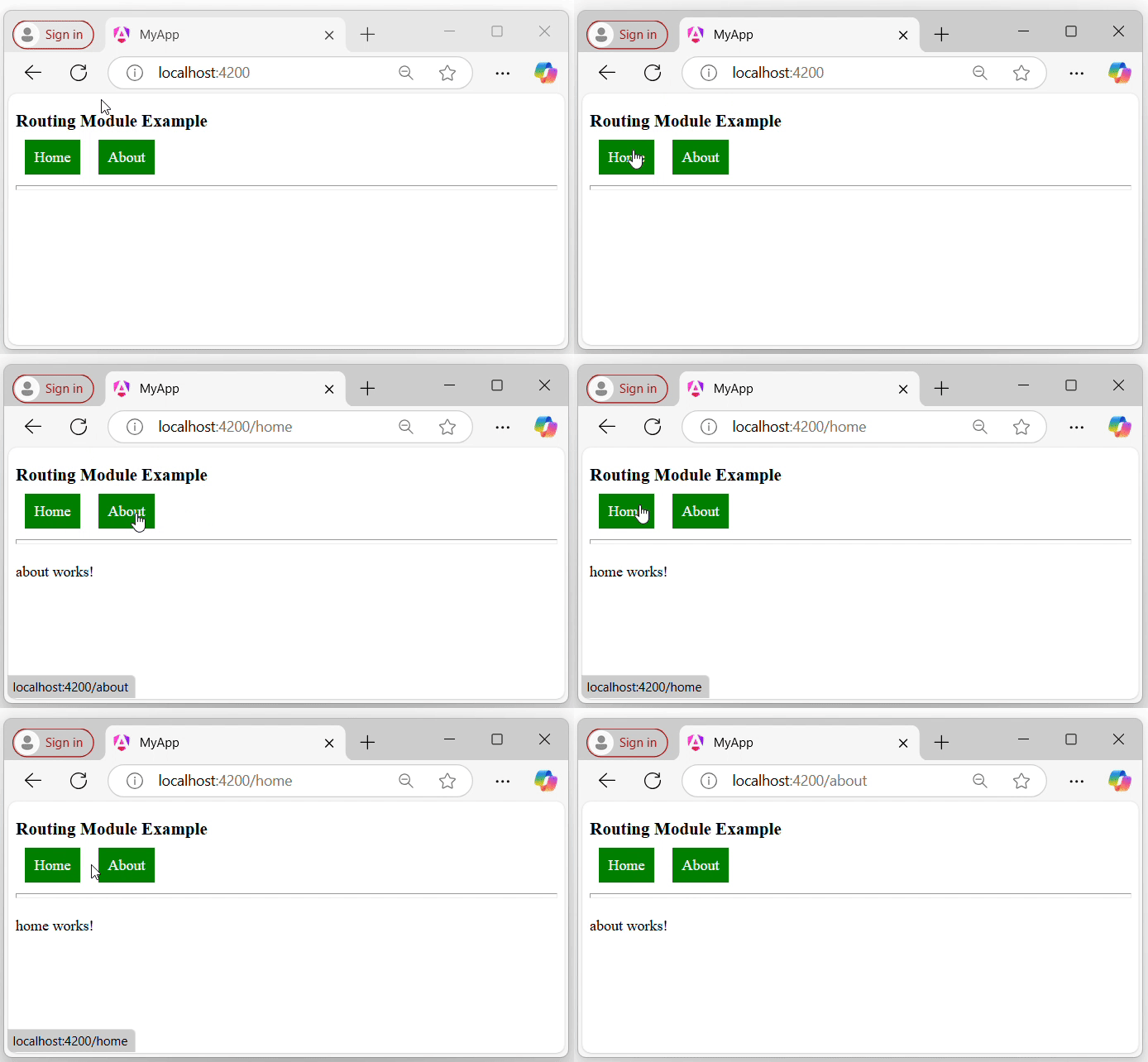
We have created a routing module and defined the routes for the Home and About components to navigate when the URL changes. As the routing module is ready to use, we need to import some necessary modules, directives, and components to use it in our application.
Follow the steps given below to make it ready for use in your application:
Step 1: Configure routing in AppConfiguration
Open the app.config.ts file in your code editor import routes and add the same in the providers array:
Open the app.component.ts file in your code editor import the necessary modules (e.g., RouterModule, RouterOutlet directive, and components), and add the same within the imports array:
In Angular, the Shared Module is a custom module designed or created by the developer based on the requirements of the application. The Shared module allows developers to access its components, directives, pipes, etc., throughout the application.
A Module itself is not a shared module until it is properly exported and imported into other modules where its components are needed.
Creating a Shared Module
Creating a shared module allows you to organize and simplify your code, reducing the redundancy of repeating the same things within the same application.
Use the following command to create a module in your Angular application, and this module will be used as a shared module in the application. We import export this module within the other module where it’s component are needed.
Step 1: Open the project
Open your application in any code editor (such as VS code).
Step 2: Navigate to the Application Directory
Open the code editor terminal and navigate to your application directory as follows:
cd your_application_directory

e.g.
cd myapp
Step 3: Create a new module (i.e., consider it a shared module) named Shared as follows:
ng generate module shared
Once the above command is executed successfully, you should be able to see the shared folder. Within this folder, there will be a file named shared.module.ts with a default code:
We have already created a shared module in our Angular application and imported it into the AppModule (i.e., root module). Now, let’s create two components within the Shared Module to use throughout the entire application.
Step 2: Create a Header Component
Create a new component, Header within the shared module as follows:
ng generate component shared/header
Step 3: Open the header.component.ts file and place the below code:
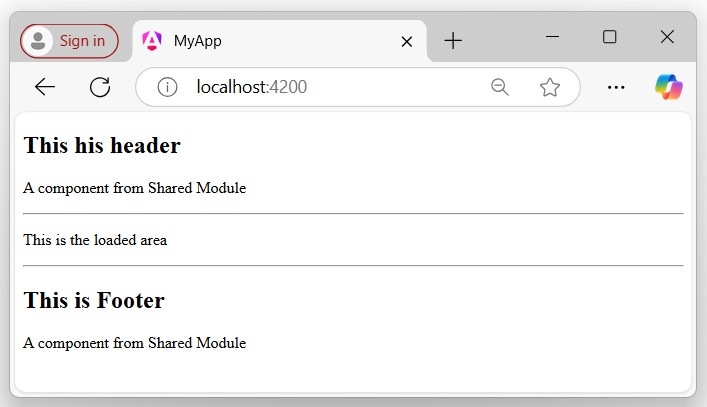
<h2>This his Header</h2><p>A component from Shared Module</p>
Step 4: Create another component, Footer.
Create one more component, Footer within the shared module as follows:
ng generate component shared/footer
Step 5: Open the footer.component.ts file and place the below code:
<h2>This his Footer</h2><p>A component from Shared Module</p>
Step 6: Update the Shared Module
To use the “components” of the Shared Module outside of this module, you need to export the Header and Footer components in the shared.module.ts file as follows:
In Angular, a feature module is a “custom module” created by “developers” once the application is built or initiated. This module helps partition the application into focused areas for better organization. It shares a common features or functionalities across the application.
You can create different feature modules for various functionalities. For example, an authentication module to handle user “login” and “signup”, while an admin module provides a separate dashboard for “user management”. Additionally, a shared module can include common elements like the “header” and “footer”.
Important! To use the feature module in your application, make sure that the feature module is imported into the root module (older version) and AppComponent (latest version).
Feature Module vs Root Module
Here are the few differences between the feature and root modules −
Feature Module
Root Module
It is mostly created by Users to organize the application structure.
Generally automatically created by Angular CLI while creating the application (in older version).
It provides a way to organize code into a structured way of the related functionality.
Serves as the application entry point and sets a basic structure and configuration.
Can be a lazy-loaded module that enhances the application performance.
Eagerly loaded as it is required to bootstrapping the application.
It contains the declarations, imports, and root-level providers which are necessary for running the application.
Important! As per the latest angular version, the application are created as standalone, so the applications are no more depend on the root module (i.e., AppModule).
How to Create a Feature Module in Angular?
To create a feature module in your Angular application, you need to create a “custom module” and generate some components, directives, services, and routing that belong to this module. So this module can share its features throughout the entire application.
Follow and implement the steps given below in any existing application, if not create a new application and implement the same.
Step 1: Open any existing project in your preferred code editor (e.g., vs code) or create a new project using the following command:
ng new myApp
Redirect to the application directory by using the cd myApp command.
Step 2: Create a Module
Create a new module (that will be considered as a feature module), Admin using the following command:
ng generate module admin --routing
Here,
The –routing flag will create its own routing file, where you can define routes for all its related components.
Let’s create the components and services within the admin module, which will include the related functionality for the admin.
Step 3: Create Components
Create two components, About and Contact using the following command:
ng generate component admin/About
ng generate component admin/Contact
Here,
The admin/ path specifies that the component will be created within the Admin module.
Step 3: Create a Service
Create a service class, adminService, using the following command:
ng generate service adminService
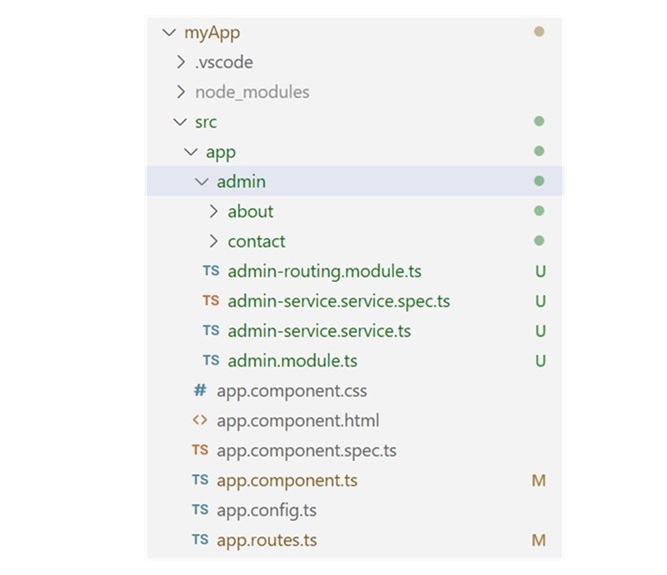
Note: After executing all the above “components” and ‘services” within the admin module, you will be able to see all the admin-related components, services, and routing functionalities organized within the admin module. This will give you a clear understanding of the application structure.
Step 4: Define routes
Open the admin-routing.module.ts file and define the routes to navigate the admin components:
Open the app.component.html file and create links to click to navigate to the respective component template:
<h3>Welcome to Angular Feature Module</h3><hr><p>MyLinks</p><a routerLink="admin/about">About</a><a routerLink="admin/contact">Contact</a><br><br><hr><router-outlet></router-outlet>
Step 4: Run the application using the following command:
ng serve
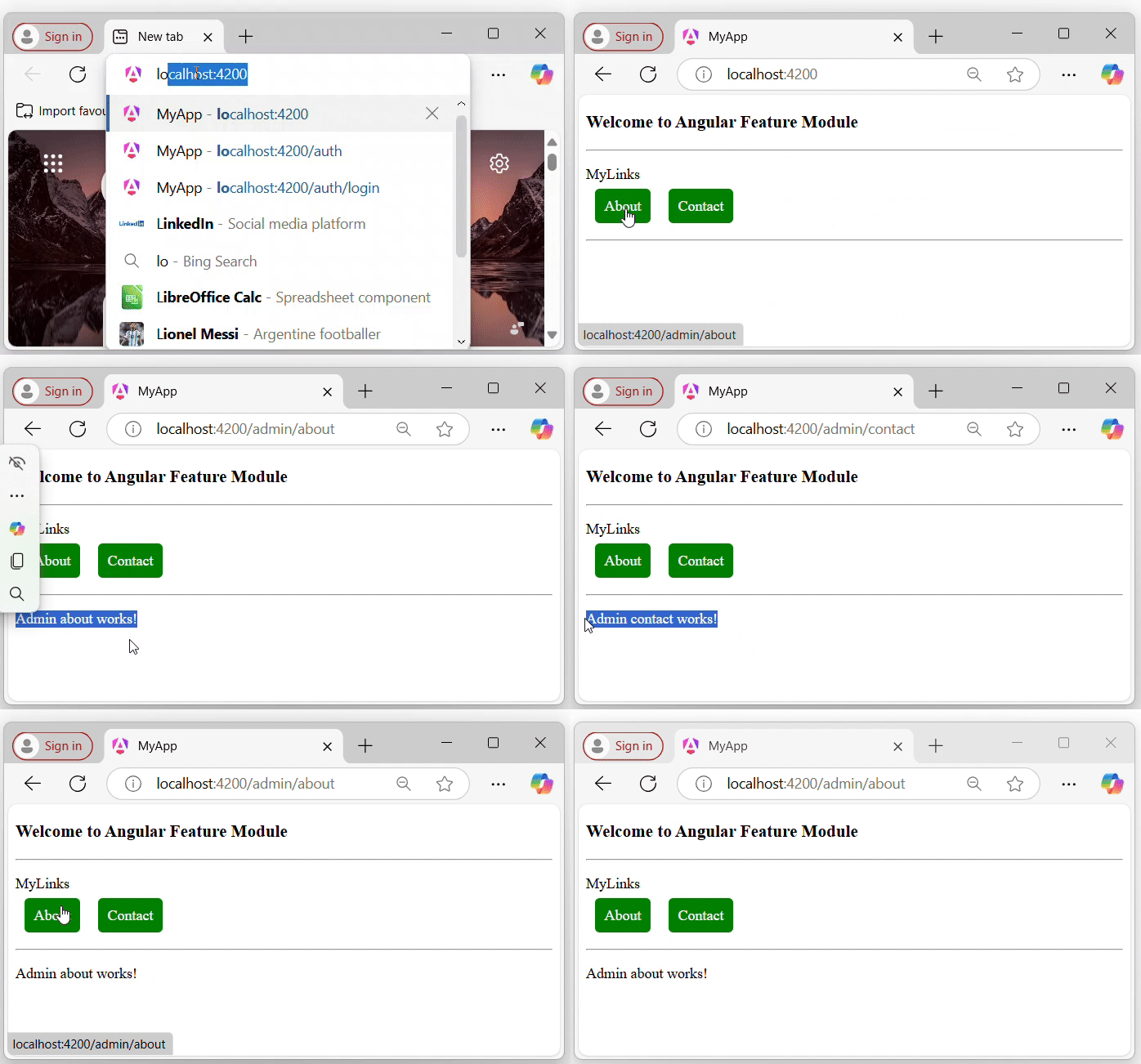
Step 5: Open your preferred browser and navigate to the localhost:4200 URL.
The application will look like:
Advantages of Feature Module
Here are some of the advantages of the feature module:
Reusability: Feature modules can be reused across different applications or in different parts of the same application.
Organized structure: By partitioning the application into different parts based on roles and functionalities, you can create a well-organized application structure.
Improved testing: Testing becomes more straightforward by using feature modules.
Consistent Dependencies: Each module can manage its own dependencies.
In Angular, the root module is named AppModule, which is the entry point of the angular application. It is a class defined with decorator @NgModule, which provides metadata (data about data) to configure the module.
Note: In the latest Angular version, applications are standalone by default and no longer depend on @NgModule. However, if you choose to use “@NgModule” in your application, ensure that neither the “application nor the components” are “standalone”.
What is Standalone Application?
In Angular, a standalone application is an application that does not contain the @NgModule, in which all the “components”, “directives”, and “services” are independent. If the project is standalone, the app.module.ts file will not be available in your Angular application.
If your Angular application is no-standalone, you will be able to see the AppModule within your Angular application, but if not, you may not be able to see it. However, you can create your custom module using the command “ng generate module module_name”. But that will not be considered a root module.
Creating No Standalone Application
In case to work with the root module or AppModule, we need to create a no standalone application. Use the following command to create a “no-standalone” angular application:
ng new myApp --no-standalone
Once you hit the above command in your code editor terminal, it will ask you a few questions and reply with a default answer.
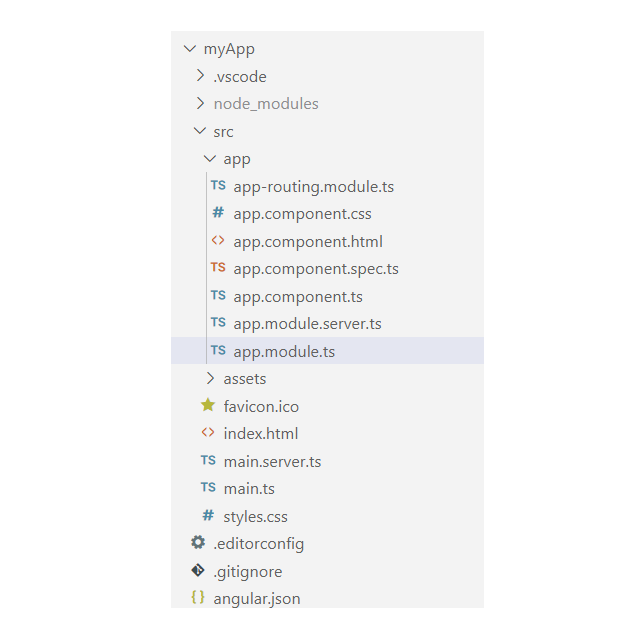
Go to your src->app folder, you will able to see the app.module.ts file as follows:
Open the app.module.ts file in your code editor; you may able to see the code below:
The above code is the default code, automatically added when a new application (no standalone) is created. Let’s discuss a few of the key parts of the root module, which are:
Declarations
Imports
Providers
Bootstrap
Declarations
The declarations are an array that contains a list of components, directives, and pipes that belong to this module. For example, the AppComponent is a part of this module, so it is included in the declarations.
Imports
The imports are an array, which lists out all the other modules whose exported classes are needed by the components in this module. As you can see, the imports contain the AppRoutingModule and BrowserModule.
Providers
Theprovidersare anarray, which lists the services available to the injector and can be used throughout the module.
Bootstrap
The bootstrap is also an array in @NgModule, it specifies the root component that Angular should create and insert into the index.html host web page.As you can see, the AppComponent is listed within the bootstrap array, which specifies that it is the application’s root component.
Angular modules are core concepts in Angular application, which help to organize the application structure by grouping the related components, services, etc.
In this chapter, we will learn about the angular module, its importance in the application, how to create a module, and how to use it in our application in detail.
What are Angular Modules?
In Angular, a module refers to a place or container where you can group the components, directives, pipes, and services, which are related to the application. This helps organize the application, making it easier to understand and manage dependencies efficiently.
For example, if you are developing a website or an application, the header, footer, left, center, and right sections become part of a module. However, they are not modules themselves, they are individual components that belong to that module.
Types of Angular Modules
Following is a list of commonly used Angular modules −
In Angular, a module plays an important role in “structuring an Angular application”, making it easier for others to understand by simply viewing the application’s hierarchy. An application is considered well-structured if each concern (say component or section) is separated into its own module.
For example, login and signup components can belong to an Authentication module.
How to Create an Angular Module?
To create an Angular module, you must have a basic understanding of thefirst Angular applicationcreation and about CLI, etc. Here are the step-by-step guides to creating an Angular module in an application:
Step 1: In your code editor (such as VS Code) open any existing angular application or create new one. (See how to…)
Step 2: Open the “terminal” in your code editor and go to your application directory as follows:
cd application_directory
e.g....
cd myapp
Step 3: Now create a new module using the following command:
ng generate module auth
Here, auth is your “module name”.
Once the above command is executed successfully, you may see:
CREATE src/app/auth/auth.module.ts (202 bytes)
Step 4: Toggle the Auth folder you may able to see the auth.module.ts file with some default code as follows: