In this chapter, we will explain the Switch component in a couple of steps.
Step 1: Create File
We will use the HomeContainer component for logic, but we need to create the presentational component.
Let us now create a new file: SwitchExample.js.

Step 2: Logic
We are passing value from the state and functions for toggling switch items to SwitchExample component. Toggle functions will be used for updating the state.
App.js
import React, { Component } from 'react'
import { View } from 'react-native'
import SwitchExample from './switch_example.js'

export default class HomeContainer extends Component {
   constructor() {
  super();
  this.state = {
     switch1Value: false,
  }   }
   toggleSwitch1 = (value) => {
  this.setState({switch1Value: value})
  console.log('Switch 1 is: ' + value)   }
   render() {
  return (
     <View>
        <SwitchExample
        toggleSwitch1 = {this.toggleSwitch1}
        switch1Value = {this.state.switch1Value}/>
     </View>
  );   }
}
Explore our latest online courses and learn new skills at your own pace. Enroll and become a certified expert to boost your career.
Step 3: Presentation
Switch component takes two props. The onValueChange prop will trigger our toggle functions after a user presses the switch. The value prop is bound to the state of the HomeContainer component.
switch_example.js
import React, { Component } from 'react'
import { View, Switch, StyleSheet }

from 'react-native'

export default SwitchExample = (props) => {
   return (
  <View style = {styles.container}>
     <Switch
     onValueChange = {props.toggleSwitch1}
     value = {props.switch1Value}/>
  </View>   )
}
const styles = StyleSheet.create ({
   container: {
  flex: 1,
  alignItems: 'center',
  marginTop: 100   }
})
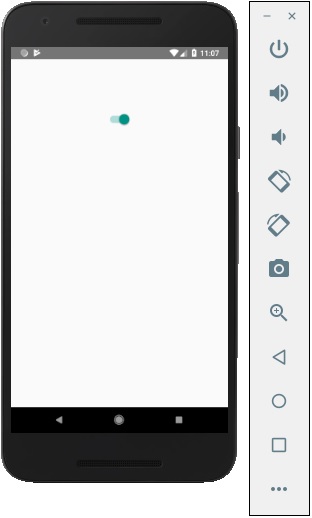
If we press the switch, the state will be updated. You can check values in the console.
Output
Leave a Reply